Click the card below to follow the 「Software Navigation」 public account to master the latest and most comprehensive software resources.
【Software Introduction】
Multisim is a simulation tool developed by National Instruments (NI) that is based on Windows, suitable for the design work of board-level analog/digital circuit boards. It includes graphical input for circuit schematics and hardware description language input methods, with rich simulation analysis capabilities.
【Download Software】
[Software Name]: Multisim 14
[Software Size]: 649.90 MB
[Installation Environment]: Win10/Win8/Win7
[Download Link]:
https://cloud.189.cn/t/uueyMjEnYz2u
[Access Code]: 4hby
Click to view ☞ How to Download Software
Click to view ☞ How to Install Software
Click to view ☞ How to Uninstall Software
Click to view ☞ Solutions for Installation Failures
Click to enter ☞ User Feedback Center
【Installation Steps】
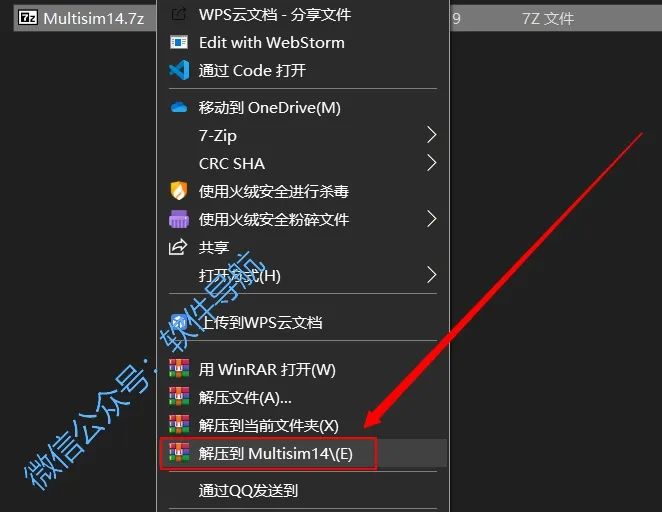
1. Right-click on 【Multisim14.rar】 and select 【Extract to Multisim14】.
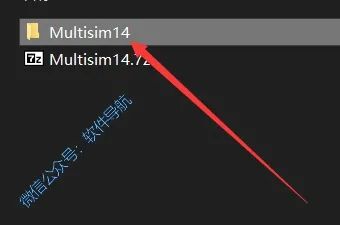
2. Double-click to open 【Multisim14】.
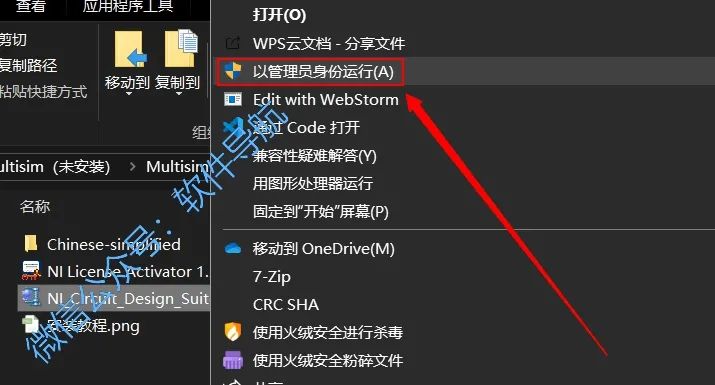
3. Right-click on 【NI_Circuit_Design_Suite_14_0.exe】 and select 【Run as Administrator】.
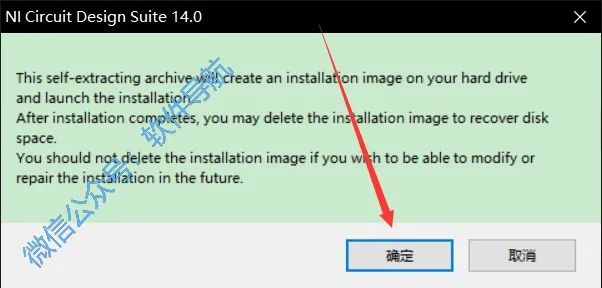
4. Click 【OK】.
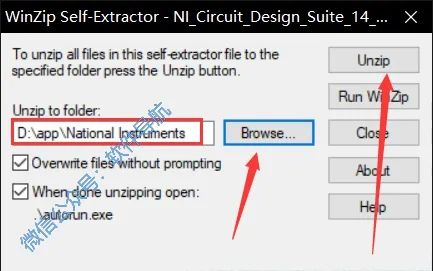
5. Click 【Browse…】 to switch the extraction path. It is recommended to create a folder named 【National Instruments】 on a disk other than C drive and click 【Unzip】.
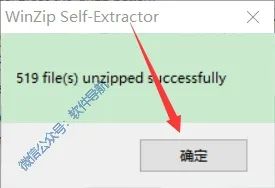
6. Click 【OK】.
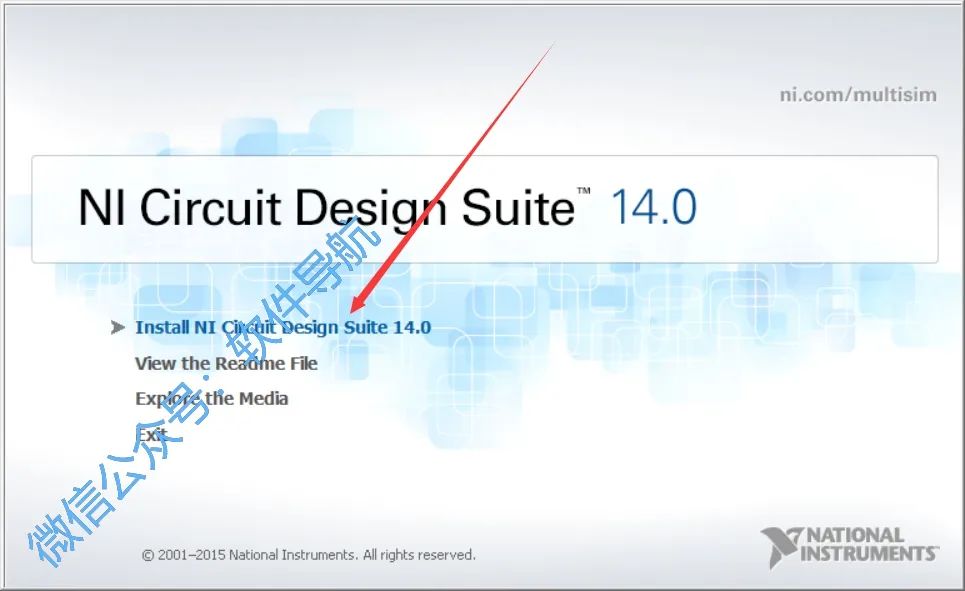
7. Click the first option.
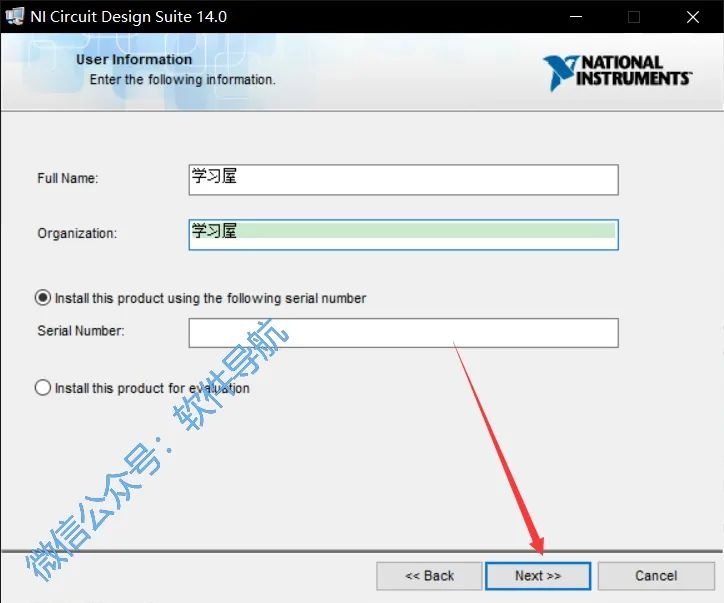
8. Click 【Next】.
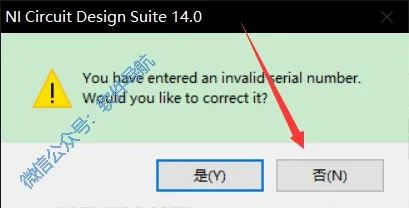
9. Click 【No】.
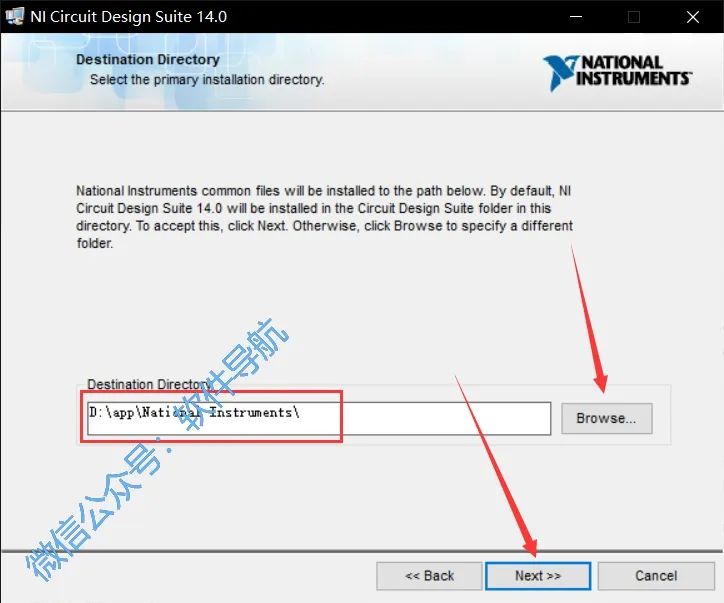
10. Click 【Browse…】 to switch the installation path, you can place it in the previously created folder. Remember your installation path, then click 【Next】.
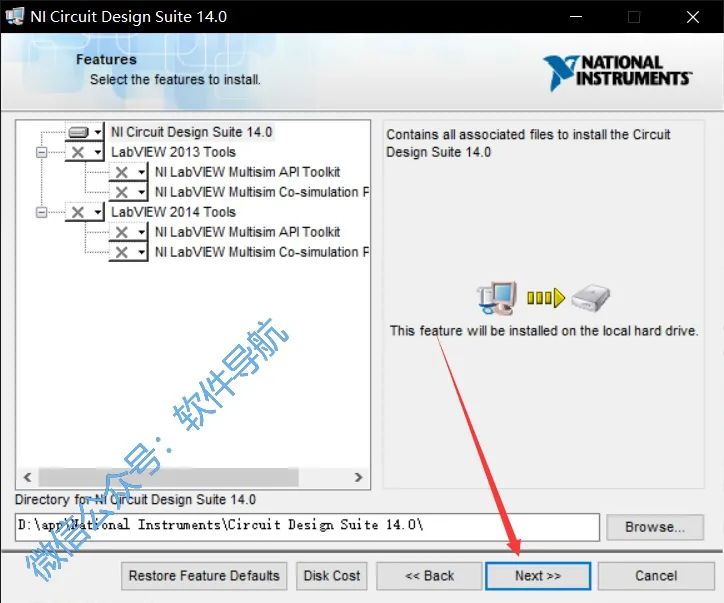
11. Click 【Next】.
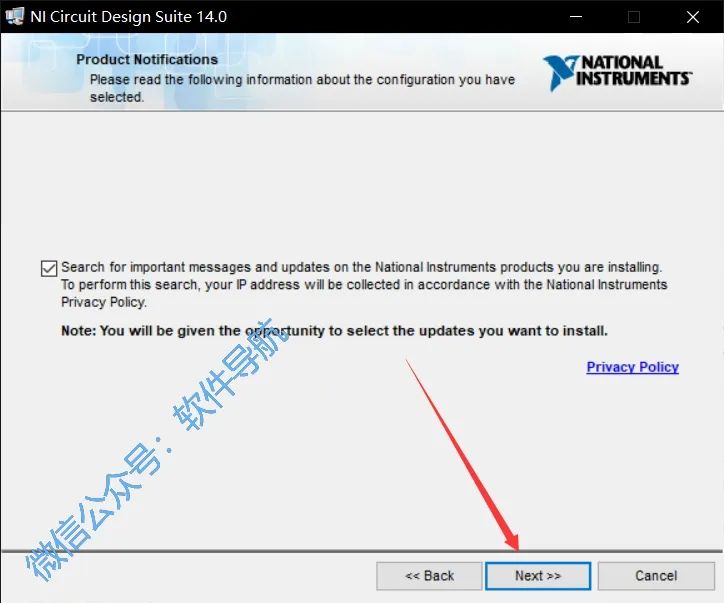
12. Click 【Next】.
13. Click 【Next】.
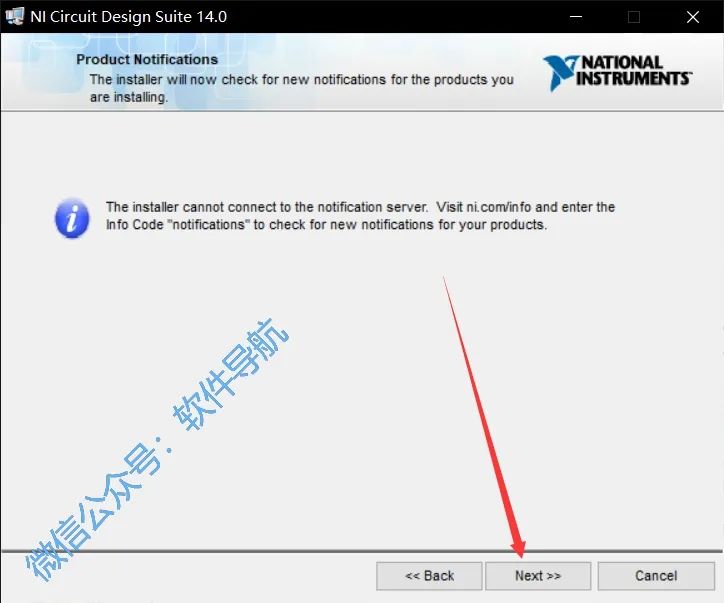
14. Check 【I accept…】 and click 【Next】.
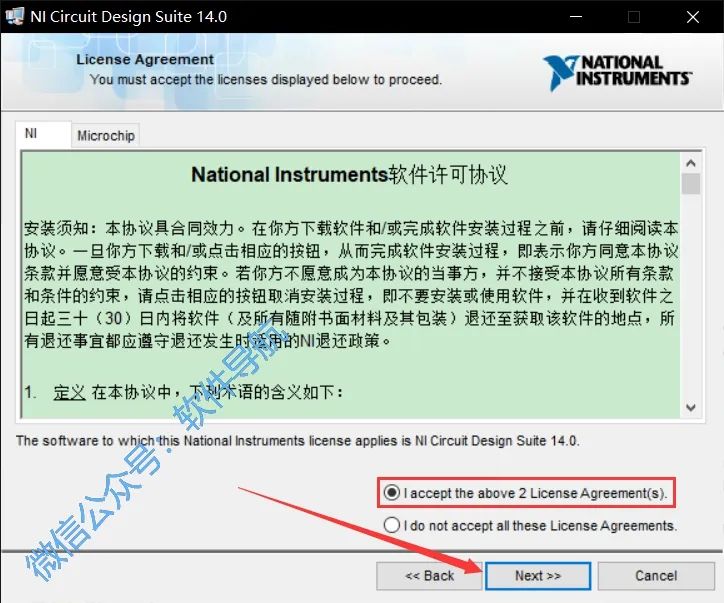
15. Click 【Next】.
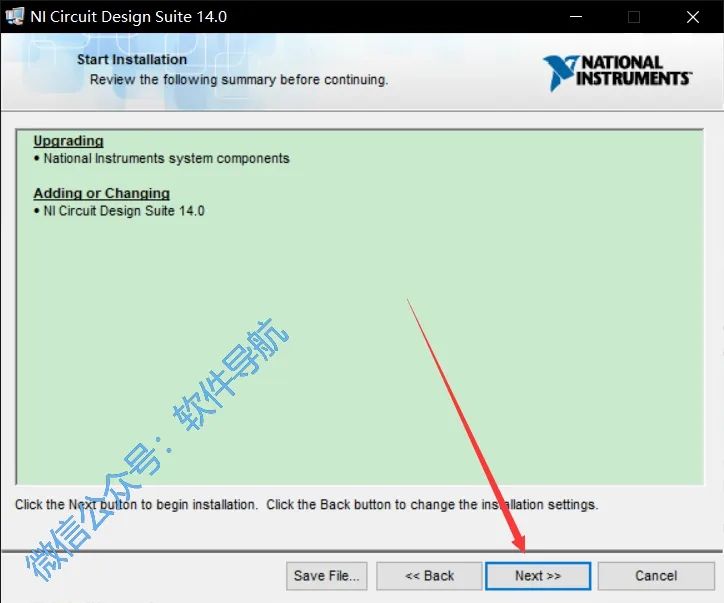
16. Wait a moment.
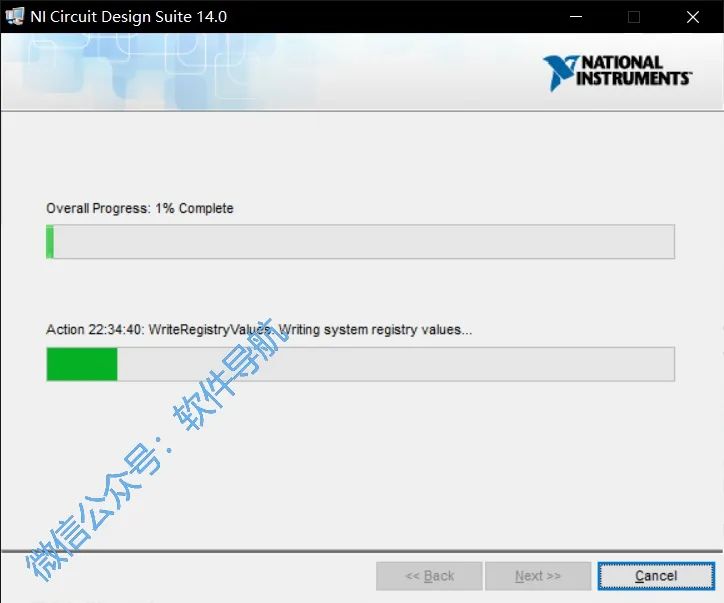
17. Click 【Next】.
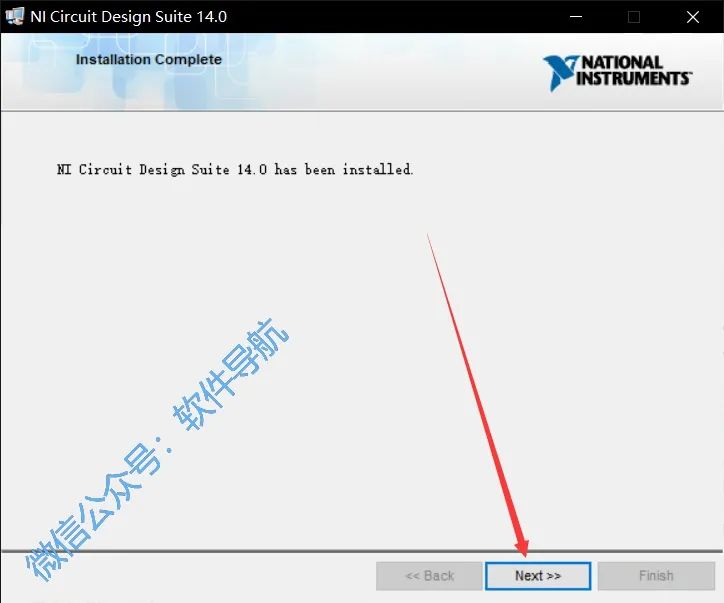
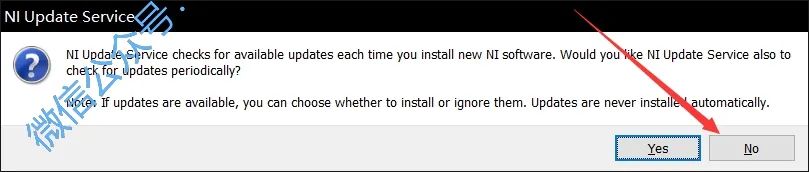
18. Click 【No】.
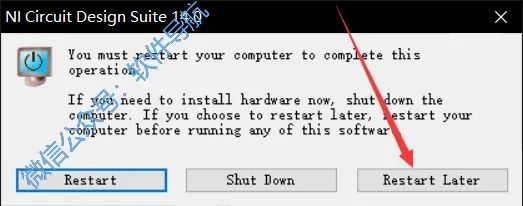
19. Click 【Restart Later】.
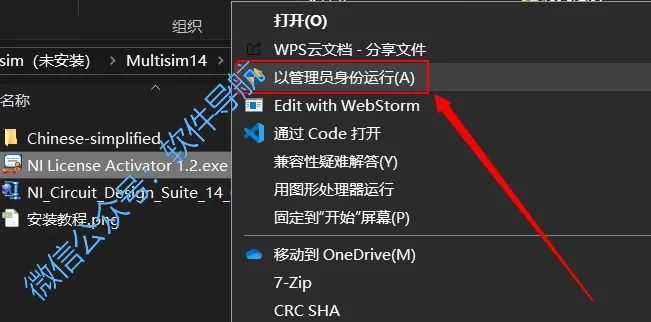
20. Go back to the folder extracted at the beginning, right-click on 【NI License Activator 1.2.exe】 and select 【Run as Administrator】.
21. Right-click all options in turn, then click 【Activate…】 to turn all options green on this interface.
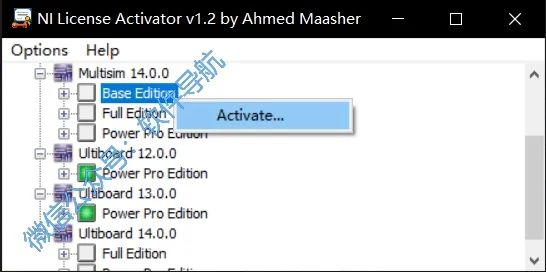
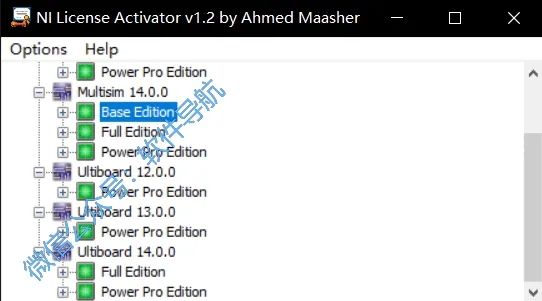
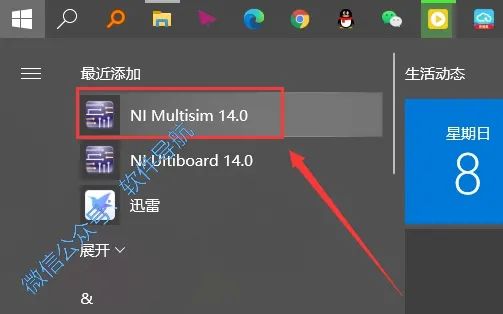
22. In the Start Menu under 【Recently Added】, find 【NI Multisim 14.0】, hold the left mouse button and drag it to the taskbar or desktop.
23. Click the software icon on the taskbar to open the software.
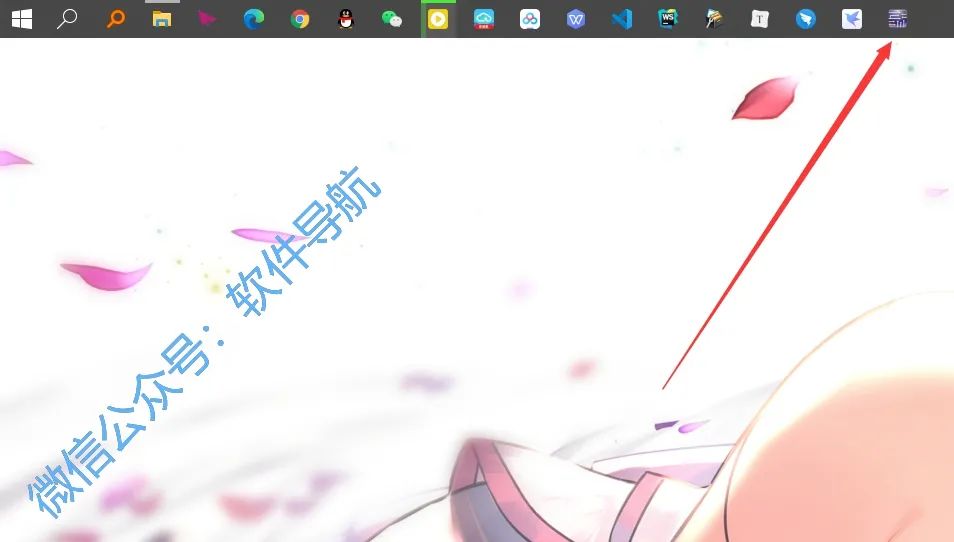
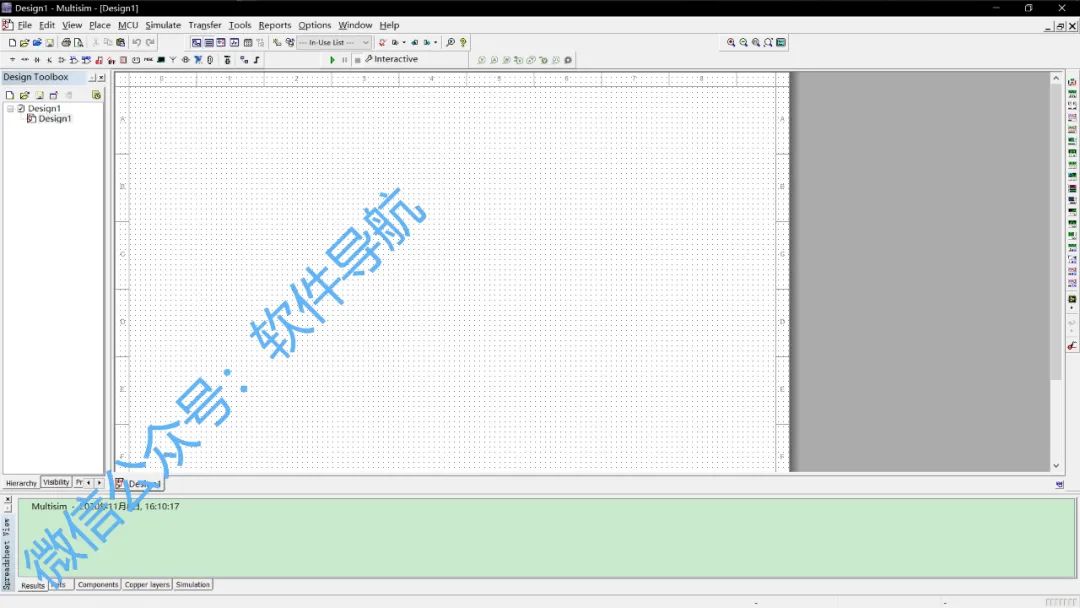
24. Installation complete, the running interface is as follows.

Reply 「Multisim」 in 「Software Navigation」 to get this article
☟ Click 「Read the Original」 to view all software
「Collect」「Like」「View」
↙↙ ↓↓ ↘↘ Support Us