I purchased a QNAP TS564 during the Double Eleven sales. This entry-level NAS has been sitting idle at home for three days. Occasionally, I turn it on, and QNAP’s Qfinder Pro can wake it up over the local area network. However, I often need to wake it up remotely using the virtual machine on my Fly Cow, which is quite inconvenient.
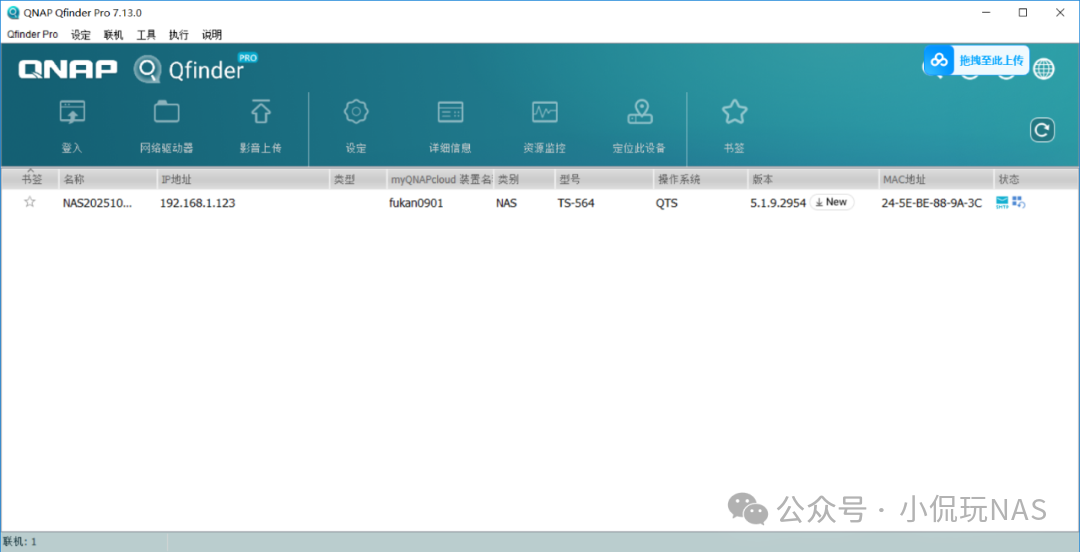
Then I remembered that I have a router installed with OpenWrt – the JD Cloud Arthur. This router is currently running a Cloudflare connector Docker application, serving as an IPv4 traffic channel. It has low standby power consumption and can stay online 24 hours without worrying about electricity costs. I had previously installed a remote wake-up app, but it never supported the devices I had. Today, I will install luci-app-wol to test if it can wake up the QNAP remotely. Without further ado, let’s get started!

Application Introduction
luci-app-wol is a graphical management plugin designed for OpenWrt router systems that enables Wake-on-LAN (WOL) functionality through an intuitive web interface. Its core features are as follows:

LAN Wake-up Devices
Send a specially formatted “Magic Packet” to devices (such as computers and NAS) that are in a powered-off or sleep state within the local area network to achieve remote power-on.
Visual Device Management
Provides a device list in the OpenWrt LuCI management interface, supporting one-click wake-up operations without the need to remember MAC addresses.
Cross-Network Wake-up Support
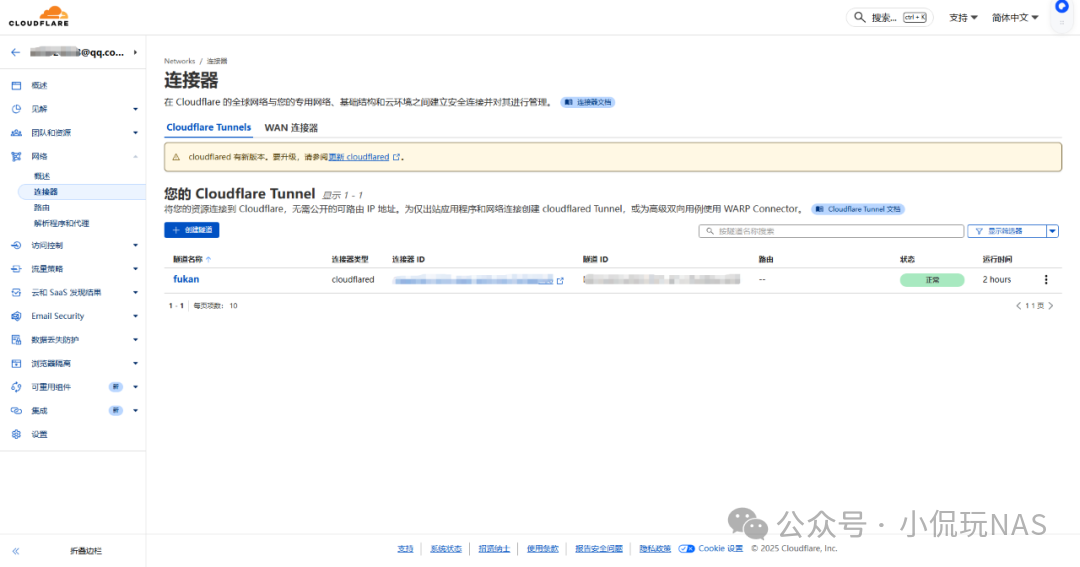
By combining internal network penetration (such as ZeroTier, Frp, cf) or port forwarding, it is possible to wake up home devices from the external network. I am using Cloudflare’s tunnels to proxy the local IP address of OpenWrt on port 80, allowing remote login to OpenWrt to wake up devices within the local area network.
Device Basics
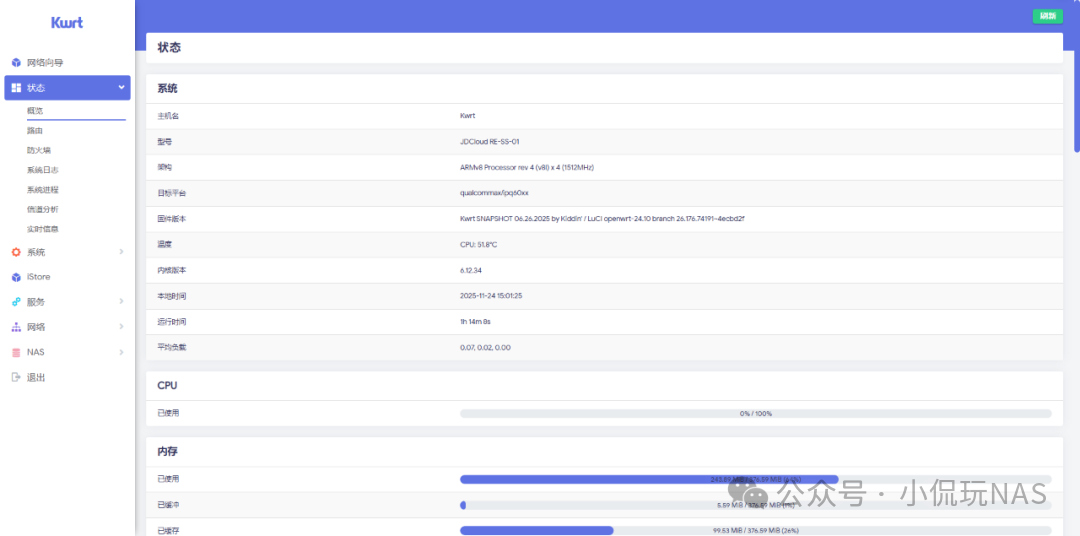
Wake-up Device: JD Arthur Cloud Router with 512MB RAM, running the latest Kwrt firmware from openwrt.ai, local IP address 192.168.1.169.
Wake-up Target: QNAP TS564, with the latest official firmware, local IP address 192.168.1.123.

Application Installation
Open the OpenWrt management page, go to System – Software Packages:

Search for luci-app-wol, and there is an app along with a corresponding Chinese package:

Click to install the app, but it indicates that a dependency, etherwake, is missing, so I will install this dependency first.

Search for etherwake and click to install.

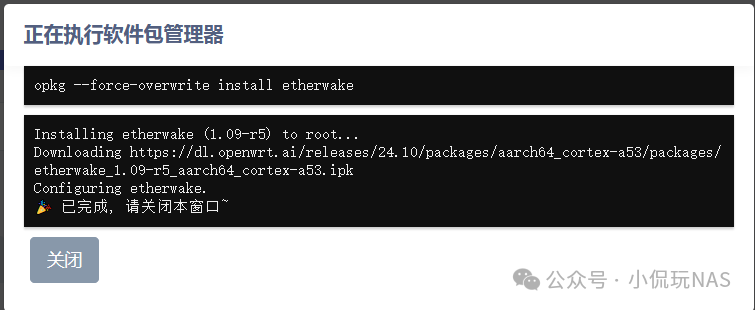
Then search and install luci-app-wol, and the recommended Chinese package is installed together.

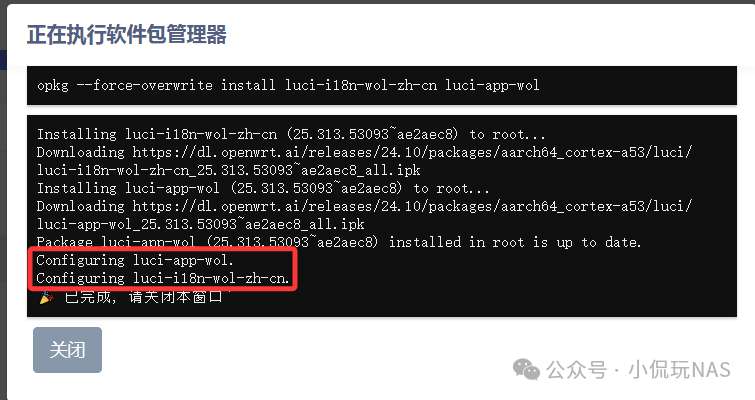
Next, let’s test the remote wake-up of the device.
Remote Wake-up
Taking the QNAP as an example, the device is securely connected to the network cable and powered on. The WOL function must be enabled in the BIOS/UEFI, and the network card must support it, which is usually enabled by default on QNAP devices. Open the Services – Network Wake-up interface, select the network interface and host, choose WAN for the interface, select the QNAP device to be woken up from the host list, and click the wake-up host button at the bottom right to send a wake-up data packet to the QNAP’s network card.

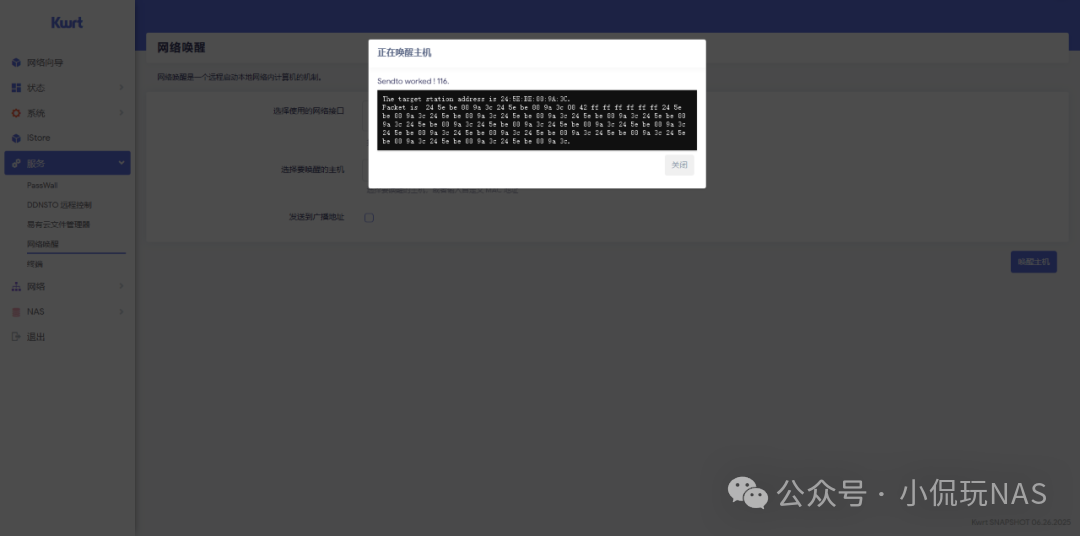
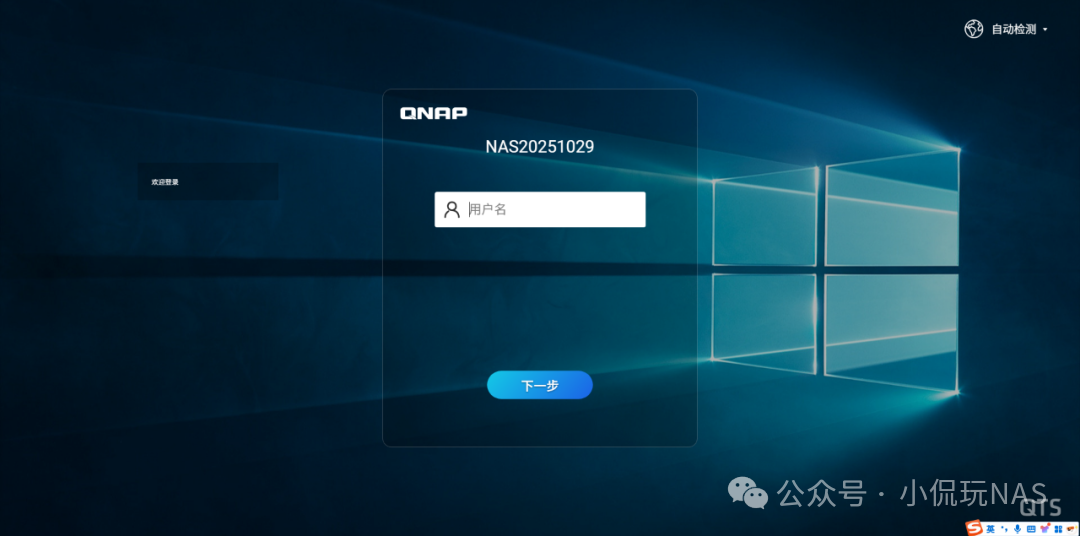
After waiting for about 3 minutes, I was finally able to log in remotely to the QNAP. I must say, the boot time of the QNAP is quite slow!
I am not sure if my Fly Cow motherboard supports remote wake-up; I will try it next time when I have time.