Follow the public account below +【Subscribe】 to receive the latest articles。
Effect Diagram
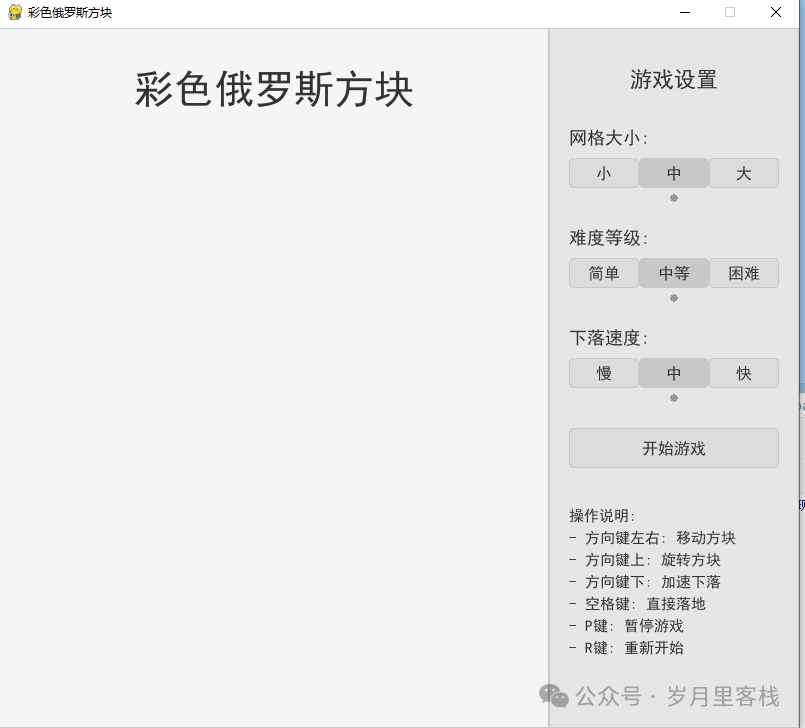
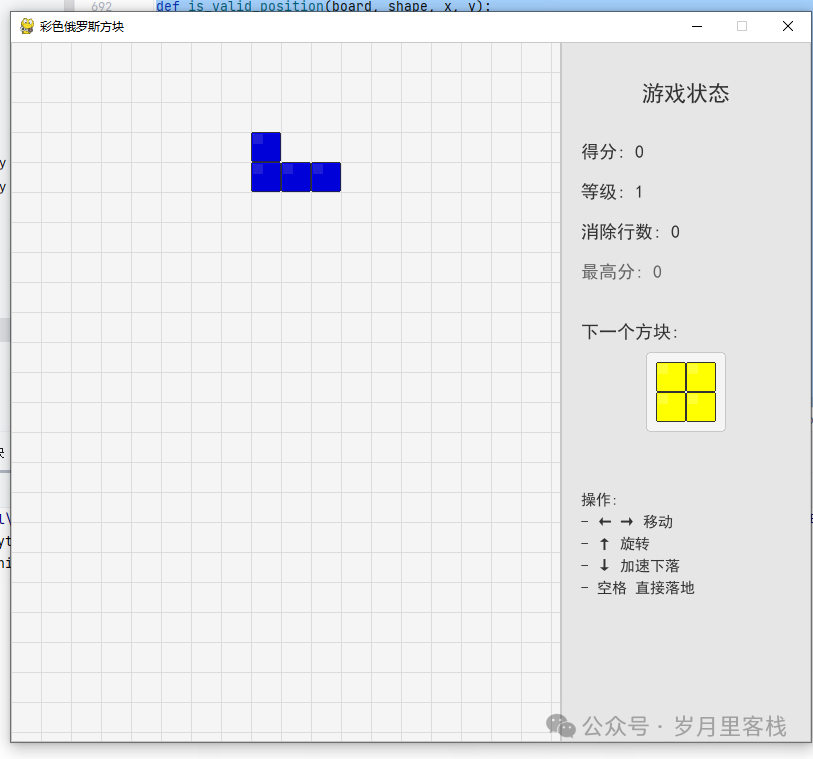
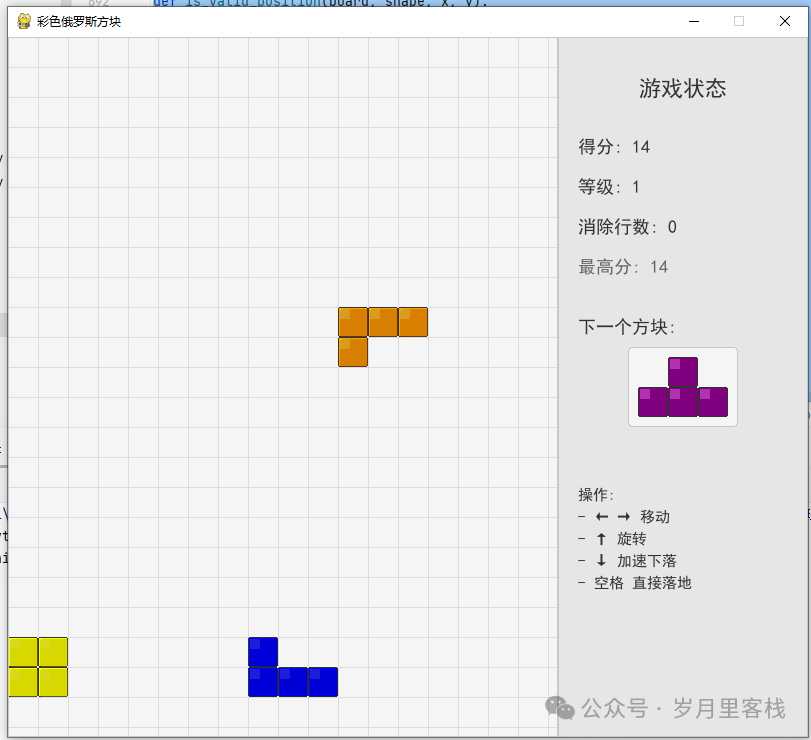
Colorful Tetris: Complete Code Analysis
“Don’t think it’s just painting the old Tetris in rainbow colors! This hardcore analysis of over 3500 words will take you from 0 to 1, breaking down a colorful block universe that can change skins, adjust difficulty, and even pause for a breather. By the end, you’ll discover that 500 lines of code can create wonders, that ‘grids’ hide design patterns, and that ‘rotation’ is all about linear algebra! Buckle up, the experienced driver is about to hit the road!”
0. First, the Effects: 30 Seconds Overview of Features
| Module | Highlights | One-liner Critique |
|---|---|---|
| Launcher | Three-speed grid × Three-speed speed × Three-level difficulty | No getting lost on small screens, even the elderly can play |
| Main Game | True colorful Tetriminos + Shadows + Highlights | Blocks feel 3D, like injecting hyaluronic acid into pixels |
| Pause/End | Semi-transparent overlay + Play again | Office workers need not fear the boss during lunch breaks, one-click invisibility |
| Sidebar | Real-time score, level, Next, operation hints | Mom no longer needs to worry about me randomly pressing keys |
| Rotation System | Clockwise 90° matrix transformation | You can rotate without knowing linear algebra, but it’s cooler if you do |
| Line Clearing Algorithm | Full row scan + Top empty row insertion | The moment a row clears, dopamine levels skyrocket |
1. Project Overview: Directory Tree + Execution Flow
tetris_color/
├─ main.py               # The only source code, play with a single file
├─ requirements.txt      # Just one line: pygame
└─ README.md             # A summary of this article
Execution Flow (Hierarchical Diagram):
┌─ Initialization
│  ├─ pygame initialization
│  ├─ Chinese font sniffing
│  └─ Color/Shape constant pool
├─ Configuration Hall
│  ├─ 3 groups of OptionSelector
│  └─ Start button
├─ Main Loop
│  ├─ Event Layer (Keyboard/Mouse)
│  ├─ Logic Layer (Falling, Rotating, Clearing)
│  ├─ Data Layer (board 2D array)
│  └─ Rendering Layer (draw_block → draw_grid → blit)
├─ End Settlement
│  ├─ game_over_screen()
│  └─ High score persistence (memory version)
└─ Resource Release
   └─ pygame.quit()
2. Constants Area: Colors, Shapes, Window All in One
# 1) Window dimensions
SCREEN_WIDTH  = 800          # Total width
SCREEN_HEIGHT = 700          # Total height
SIDEBAR_WIDTH = 250          # Right-side settings panel

# 2) Seven shapes (Classic Tetromino)
SHAPES = [
    [[1, 1, 1, 1]],          # I
    [[1, 1], [1, 1]],        # O
    [[0, 1, 0], [1, 1, 1]],  # T
    ...                      # Others omitted
]

# 3) Rainbow color table (corresponding to shape indices)
COLORS["blocks"] = [
    (0, 255, 255),   # I Cyan
    (255, 255, 0),   # O Yellow
    (128, 0, 128),   # T Purple
    ...
]
Explanation:
- Using the “index alignment” technique:
<span>SHAPES[i] ↔ COLORS["blocks"][i]</span>, rotation, drawing, and landing coloring all proceed with zero if. - Color tuples are fed directly to
<span>pygame.draw.rect</span>, no extra conversion needed.
3. Rotation Algorithm: 90° Clockwise for 2D Arrays
def rotate_shape(shape):
    rows, cols = len(shape), len(shape[0])
    rotated = [[0]*rows for _ in range(cols)]
    for i in range(rows):
        for j in range(cols):
            rotated[j][rows-1-i] = shape[i][j]
    return rotated
Line-by-line Breakdown:
- New matrix dimensions:
<span>[cols][rows]</span>(height and width swap after rotation). - Coordinate mapping: original
<span>(i,j)</span>→ new<span>(j, rows-1-i)</span>, illustrated as follows:
Original 2×3 shape        Rotated 3×2
┌─┬─┬─┐            ┌─┬─┐
│0│1│2│            │3│0│
├─┼─┼─┤     →      ├─┼─┤
│3│4│5│            │4│1│
└─┴─┴─┘            │5│2│
                   └─┴─┘
- Collision detection: try rotating first,
<span>is_valid_position</span>must pass before actually rotating to avoid wall collisions.
4. Collision & Boundaries: <span>is_valid_position()</span>
def is_valid_position(board, shape, x, y):
    for i, row in enumerate(shape):
        for j, cell in enumerate(row):
            if cell:
                # Left and right out of bounds
                if x+j < 0 or x+j >= len(board[0]):
                    return False
                # Bottom out of bounds
                if y+i >= len(board):
                    return False
                # Overlapping with already landed blocks
                if y+i >= 0 and board[y+i][x+j] != -1:
                    return False
    return True
Highlights:
- Negative coordinate protection:
<span>y+i >= 0</span>prevents misjudgment when the new block’s top has not fully entered the field. - Early return: any conflict immediately returns False, saving unnecessary loops.
5. Line Clearing Algorithm: Full Row Scan + Top Empty Insertion
# 1) Collect unfilled rows
new_board = []
lines_cleared_in_round = 0
for row in board:
    if all(cell != -1 for cell in row):
        lines_cleared_in_round += 1
    else:
        new_board.append(row)

# 2) Insert an equal number of empty rows at the top
for _ in range(lines_cleared_in_round):
    new_board.insert(0, [-1]*cols)

board = new_board
Complexity:
- Time O(rows×cols), Space O(rows×cols) (new list created).
- Using
<span>all()</span><span> short-circuit feature, a single full row immediately determines, no need for a counter.</span>
6. Drawing System: From Pixel Blocks to Shadows and Highlights
def draw_block(surface, x, y, size, color_index, has_shadow=True):
    c = COLORS["blocks"][color_index]

    # Main color block
    pygame.draw.rect(surface, c, (x, y, size, size), border_radius=2)
    # Outline
    pygame.draw.rect(surface, COLORS["block_outline"], (x, y, size, size), 1, border_radius=2)

    # Highlight at the top left corner
    highlight = tuple(min(v+50, 255) for v in c)
    pygame.draw.rect(surface, highlight,
                     (x+2, y+2, size//3, size//3), border_radius=1)

    # Shadow at the bottom right corner
    if has_shadow:
        shadow = pygame.Surface((size, size), pygame.SRCALPHA)
        shadow_color = tuple(max(v-100, 0) for v in c) + (100,)
        pygame.draw.rect(shadow, shadow_color,
                         (2, 2, size-2, size-2), border_radius=2)
        surface.blit(shadow, (x, y))
Layer Order: Main body → Shadow (semi-transparent Surface) → Outline → Highlight, ensuring the shadow is not covered by the outline.
7. UI Components: Buttons & Selectors (Reusable)
class Button:
    def __init__(self, x, y, w, h, text, action=None, value=None):
        self.rect = pygame.Rect(x, y, w, h)
        self.text, self.action, self.value = text, action, value
        self.hover = False

    def draw(self, surface):
        color = COLORS["button_hover"] if self.hover else COLORS["button"]
        pygame.draw.rect(surface, color, self.rect, border_radius=4)
        ...
class OptionSelector:
    def __init__(self, x, y, width, label, options, default=0):
        self.label = label
        self.options = options
        self.selected_index = default
        # Automatically distribute buttons evenly
        btn_w = width // len(options)
        self.buttons = [Button(x+i*btn_w, y+30, btn_w, 30,
                               opt, action="select_option", value=i)
                        for i, opt in enumerate(options)]
Design Patterns:
- Encapsulating “State-Behavior-Event” into classes, the main loop only handles
<span>draw()</span>+<span>handle_event()</span>, making logic clear. - The same
<span>Button</span>can serve as both “Start Game” and “Options Tab”, maximizing reusability.
8. Main Loop: Four Stages, 60 FPS Steady as a Rock
while not game_over:
    # 1) Event Pump
    for event in pygame.event.get():
        handle_key(event)  # Rotate, move, pause

    # 2) Logic Refresh
    if not paused:
        if current_time - last_fall_time > fall_interval//level:
            try_move_down()

    # 3) Rendering Pipeline
    screen.fill(COLORS["bg"])
    draw_grid(...)
    draw_board_blocks(...)
    draw_current_shape(...)
    draw_sidebar(...)
    pygame.display.flip()

    # 4) Frame Rate Lock
    clock.tick(60)
Benefits of Layering: Events → Logic → Rendering are strictly decoupled, making it easy to add “online competition” later by just replacing the logic layer without touching the rendering layer.
9. Complete Code Implementation Steps (Copy and Paste to Run)
-
Install dependencies
<span>pip install pygame -i https://pypi.tuna.tsinghua.edu.cn/simple</span> -
Save the “Complete Source Code” at the beginning of the article as
<span>main.py</span> -
Run in terminal
<span>python main.py</span> -
Control commands← → Move, ↑ Rotate, ↓ Speed up, Space Hard Landing, P Pause, R Restart, ESC Exit.
10. Knowledge Points Overview
| Knowledge Point | Where Used in Project | One-liner Memory Aid |
|---|---|---|
| 2D Array Rotation | <span>rotate_shape</span> |
Coordinate mapping <span>[i][j] → [j][n-1-i]</span> |
| Boundary Collision | <span>is_valid_position</span> |
Check out of bounds before checking overlap |
| Line Clearing Algorithm | Full row <span>all()</span> + <span>insert(0, [-1]*cols)</span> |
The simplest form of Tetris “line clearing” |
| Game State Machine | <span>paused / game_over</span> Dual booleans |
No need for state pattern in small projects, still clean |
| Highlights/Shadows | Semi-transparent <span>Surface</span> + <span>border_radius</span> |
Pixel-level “pseudo 3D” |
| Componentized UI | <span>Button</span> / <span>OptionSelector</span> |
Encapsulate “Event-Behavior” into classes |
| Frame Rate Control | <span>clock.tick(60)</span> |
Keep the CPU calm, the fan quiet |
| Chinese Display | <span>font.match_font()</span> Iterate candidates |
Cross-platform without garbled text |
11. Ten Easter Eggs to Continue Playing Around With
- Leaderboard persistence: use
<span>sqlite</span>or<span>json</span>to store high scores. - Skin shop: move
<span>COLORS</span>to external JSON, allowing player customization. - Ghost shadow: calculate landing position in advance, semi-transparent hint.
- Combo scoring: extra multiplier for clearing multiple lines at once.
- Particle explosion: spawn particles at coordinates when clearing lines.
- Online competition: synchronize both boards using
<span>asyncio</span>+<span>websockets</span>. - AI auto-play: implement
<span>best_move()</span>genetic algorithm. - Controller support: listen for
<span>pygame.JOYAXISMOTION</span>. - Mobile version: package with
<span>pydroid3</span>or<span>kivy</span>. - 3D version: use
<span>pygame.opengl</span>to add thickness to blocks.
12. Summary: Goals and Gains
Project Goal: Deliver a “configurable + colorful + pauseable + Chinese-friendly” Tetris with less than 600 lines of code, allowing beginners to run it and experts to modify it.
Your Skill Tree Gains: Basic Python syntax → pygame event loop → Fancy operations on 2D arrays → Collision detection → Simple UI components → Game state management → Rendering optimization → Ideas for Easter eggs.
Final Bowl of Chicken Soup: Don’t underestimate “small projects”; turning 500 lines into a 5000-word analysis gives you the engineering mindset of “doing simple things to perfection”—you can boast in interviews, write on your resume, and show off on social media. Now, it’s your turn to run <span>main.py</span><span> and say loudly:</span><strong><span>"Colorful Tetris, I'm back!"</span></strong>
20-Day Learning Plan for Python
7-Day Learning Plan for Python
Top 10 Basic Libraries for Python
Developing a Pinball Game with Pygame Module
Python Tic-Tac-Toe Game
Open Local Files Like a Browser with Python
Transform ID Photos into “Sakura” with Python
Image Color Extractor with Python
Text-to-Speech Assistant with Python
Multi-functional 2D Generator with Python
Foolproof GIF Meme Generator with Python
Local Camera Viewer with Python
Simple Implementation of DeepSeek Q&A Chat with Python
Video Player with Python
Simple Notepad with Python
Multi-functional Application with Python
Chinese Idiom Matching Game with Python
Process Killing System with Python
Multi-functional Desktop Application with Python
Automatically Generate Text Content with Volcano API Call with Python
Text Story Generation with Doubao AI with Python
Simple Notepad with Python
Image Browser Tool Code with Python
Simple Drawing Tool Code with Python
To-Do Reminder Tool with Python
Local Camera Viewer with Python
Markdown to HTML Tool Code with Python
163 Email Push with Python
【Follow + Save】 to receive the latest articles in real-time
DeepSeek + Xmind One-Click Mind Map Generation
DeepSeek + Mermaid One-Click Flowchart Generation
DeepSeek + Mita AI One-Click Article Polishing
DeepSeek + Tongyi One-Click Meeting Minutes Generation
DeepSeek + Luoka One-Click Meeting Minutes Generation
DeepSeek + PPT One-Click Document Generation
DeepSeek + Office AI One-Click Copywriting Generation
DeepSeek + Jidream How to One-Click Generate Video!
DeepSeek + Intelligent Novel Generation: Unlocking Infinite Possibilities in Creative Writing
DeepSeek + Smart Teaching: Opening a New Era of Efficient Education
DeepSeek + Corporate Annual Meeting: Creating an Intelligent Interactive Joyful Feast
DeepSeek + Efficient Government Affairs: Opening a New Era of Intelligent Government Office
DeepSeek + Efficient Legal Affairs: Opening a New Chapter in Intelligent Legal Work
DeepSeek + AI Tutorial: The Complete Process of Making an English Word Game with DeepSeek v3
DeepSeek + AI Tutorial: Deploying DeepSeek on Local Computer in Just Three Steps
Button + Intelligent Agent: Face Swap
Button + Intelligent Agent: Red Packet Cover Production
Button + Intelligent Agent: AI Bidding Assistant
Button + Intelligent Agent: Red Packet Cover Production
Button + Intelligent Agent: An AI Translation Application
Button + Intelligent Agent: AI Face Swap Assistant
Button + Intelligent Agent: One-Click Background Removal from Images
Button Intelligent Agent: One-Click Image Cutout + Background Replacement Application
Button Intelligent Agent Practical: Document Question Generation Assistant
Button Intelligent Agent Practical: Website Content Scraping and Organizing Assistant
Button Intelligent Agent Practical: Programmer Encouragement Assistant
Button Intelligent Agent Practical: Cartoon Production Assistant
Button Intelligent Agent Implementation: Student Essay Evaluation Assistant
Button Intelligent Agent Practical: Document Question Generation Assistant
AI Tutorial: Xunfei Dialect Large Model: Breaking Language Barriers, Building a New Ecosystem for Intelligent Voice Interaction
AI Tutorial: How to Handwrite Your Own crx Google Chrome Plugin to Achieve Page Chinese-English Conversion
AI Tutorial: AI Tutorial: Building a Local Knowledge Base with Dify
AI Tutorial: DeepSeek Provides Six Life Suggestions to Increase Happiness for Young People
AI Tutorial: AI Tutorial: MaxKB Generates Echarts Charts
AI Tutorial: Dify Integration Achieving Voice Input and Voice Broadcasting
AI Tutorial: The Complete Process of Making an English Word Game with DeepSeek v3
AI Tutorial: Spark-TTS: A Text-to-Speech Synthesis Tool Based on Large ModelsAI Tutorial:Suno+Kimi: Automatically Generate Highly Infectious Personal MusicAI Tutorial: Local Deployment of MaxKB: Creating Your Own Knowledge BaseAI Tutorial: Local Deployment of Ollama + MaxKB Installation Tutorial on Windows SystemAI Tutorial: MaxKB Building Knowledge Base Integrating Various AI Large Models with DeepSeekLocal Deployment of MaxKB: Creating Your Own Knowledge Base AI Tutorial: AnyThingLLM Integrating DeepSeek to Build a Local Knowledge BaseAI Tutorial: How to Integrate DeepSeek and Various AI Large Models in WPSAI Tutorial: How to Use Python Script to Kill Processes and Disable Specific Programs in WeChatAI Tutorial: One Minute to Create Your Own Personalized Honor CertificateAI Tutorial: WeChat Yuanbao Generates Digital Human BroadcastingAI Tutorial: One Minute to Create a Year-End Roast SongAI Tutorial: One Minute to Generate Proof Materials for Employment, etc.AI Tutorial: How to Use Doubao to Generate Your Own Voice Intelligent AgentAI Tutorial: How to Use Baidu to One-Click Generate Various Handwritten ReportsAI Tutorial: How to Make DeepSeek Write a 7-Day Learning Plan for Those Who Want to Learn PythonAI Tutorial: Using DeepSeek to Create a Simple AI Customer ServiceAI Tutorial: Deploying DeepSeek on Local Computer in Just Three StepsAI Tutorial: How to Build AI Large Model Services Locally with Ollama on Windows 11?AI Tool: One-Click Generation of Popular Classical BeautiesAI Tool: One-Click Generation of Tang Q Version BeautiesAI Sculpture: My Buddha’s CompassionAI Tool: Generate Realistic, Clay, and Colorful High-Definition 3D Beautiful ImagesJidream AI Tool: One-Click Generation of Popular Xianxia BeautiesJidream AI Tool: One-Click Generation of Popular Xianxia Beauties Jidream AI: Generate High-Definition Classic Ancient Costume BeautiesKe Ling AI: Generate Japanese-style Comic – Motorcycle BeautiesTencent Smart Shadow: Upload Images to Generate Personal Digital HumansJidream AI: Generate High-Definition Sci-Fi – Technology-Filled Stunning ImagesKe Ling AI: One-Click Generation of Qingdao Beer Festival AI GirlsAI Tool: Batch Generation of Blue and White Porcelain BeautiesKe Ling AI: One-Click Generation of Beer GirlsJidream AI Tool: One-Click Generation of Popular Xianxia BeautiesKe Ling AI: One-Click Image to Video ConversionHigh Performance_Beautiful Girl Smiled_Gently Picked Up the KnifeKe Ling AI: Reviving Characters from the Four Great Classics!Suno+Kimi: Automatically Generate Highly Infectious Personal MusicKe Ling AI: Batch Generation of Motorcycle BeautiesMotionShop: Free Video to Viral “Robot” ConversionWPS-AI: One-Click Generation of Exquisite PPTButton Tool: Implement AI Customer Service for WeChat Official Account
 Tian Gong AI: One-Click Extraction of Article Addresses and Conversion to PPTTian Gong AI: Create Your Own Exclusive SongKe Tu Large Model: One-Click Generation of High-Definition Watermelon Carving ImagesUniversal App: Turn Photos into Dancing Videos, Graduation Dance, Subject Three
 AI Animation Version: Bedtime StoriesUniversal App: One-Click Image to Talking Video ConversionWhat Happens When AI Meets AnimalsFun Drawing: One-Click Generation of Professional Photos, Exam Photos, Cutout Beautification, etc.One-Click Image Modification: One-Click Cartoon Images, Children’s Photos, Old Photo Restoration, etc.
 Universal Wanshi AI: Achieve Youthful Transformation of Personal AvatarsTian Gong AI: One-Click Extraction of Article Addresses and Conversion to PPTButton: AI Software Creating Healing Illustrations GeneratorUniversal Qianwen AI: Achieve Clean and Tidy Cartoon Background ImagesTian Gong AI: Create Your Own Exclusive SongButton: One-Click Generation of AI Tools to Create a Popular Healing Illustration Generator on XiaohongshuDoubao: Achieve AI Image Cartoon Version, Colorful VersionTencent AI Painting: Generate Blue and White Porcelain Product Beauties