1. Download Python
Download Python
Click here to go to the Python download page
On the download page, you can see many different version download links. Among them, the ones marked as x86 are 32-bit installers, while x86-64 are 64-bit installers. The executable installer is a complete installation package that can be installed directly after downloading; the web-based installer is smaller in size but requires an internet connection to download other components during installation. Generally, if the network is unstable, choose the executable installer to ensure the installation process does not get interrupted.
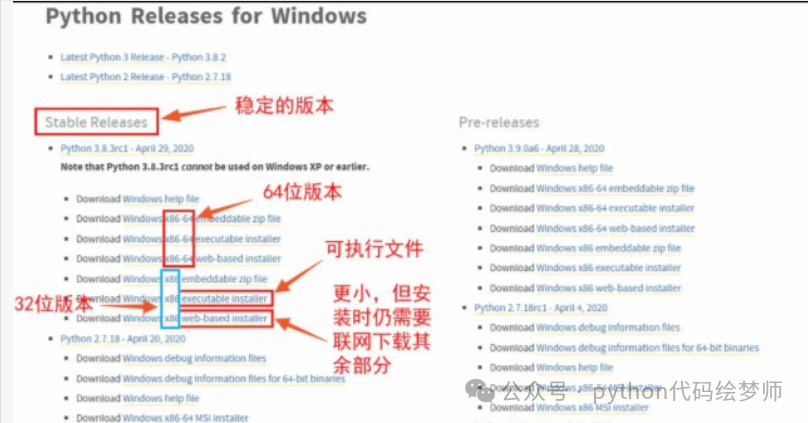
Python download official website
The bitness of the operating system can be determined by the following steps: right-click on This PC -> click Properties -> check the bitness; it is usually 64-bit
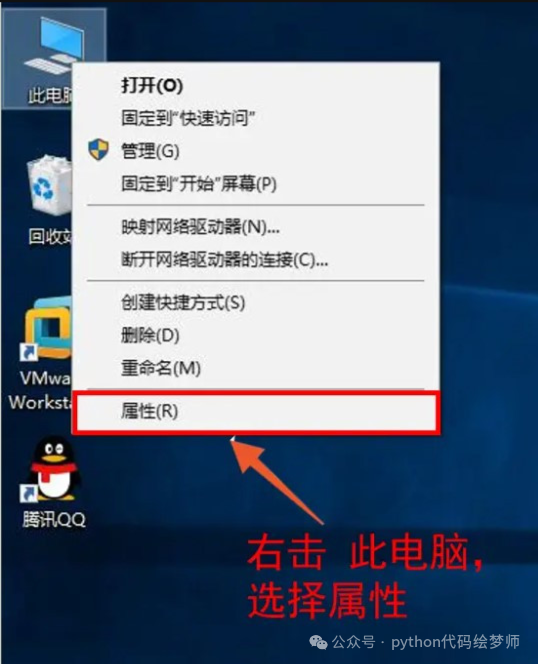
Check operating system bitness (1)
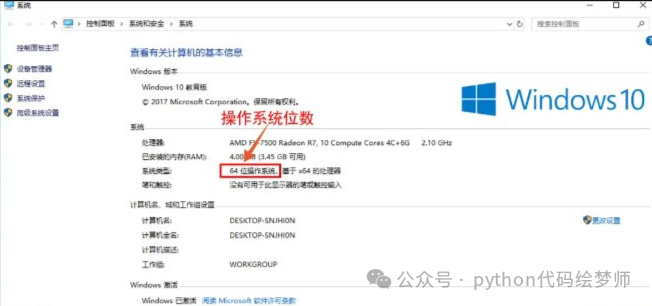
Check operating system bitness (2)
Overview of Python Versions
Python includes two major versions: Python 2 and Python 3. Python 3 has improved upon some shortcomings of Python 2, but since many applications were developed using Python 2, it is still necessary to maintain Python 2 for those applications, so Python 2 has not been completely phased out.
Additionally, a higher version is not always better, as some modules (libraries) do not support very high versions of Python.
2. Install Python
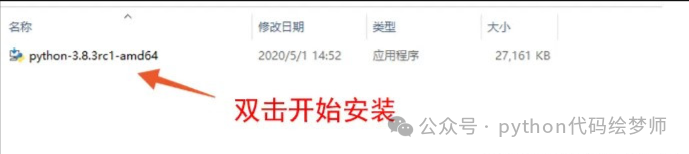
1. Open the folder where the installation package is located and double-click to start the installation.
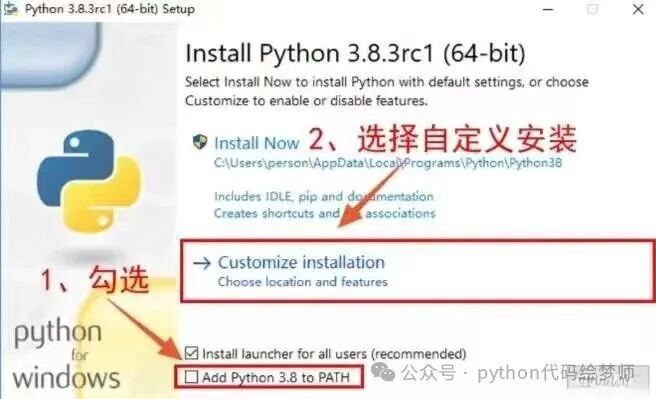
2. Check the “Add Python to PATH” checkbox and click “Customize installation”.
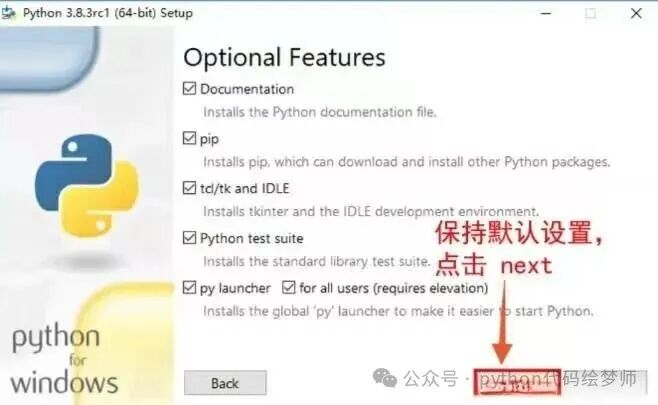
3. Keep the default settings and click “Next”.
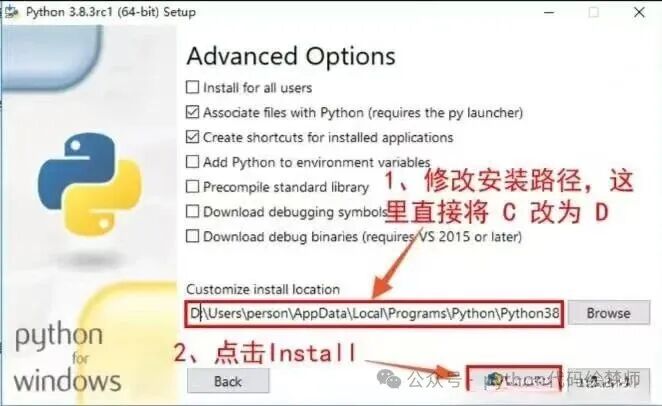
4. Modify the installation path (remember this path, as it may be needed later), it can be any drive with sufficient space (here, I changed C to D) -> click “Install” to start the installation.
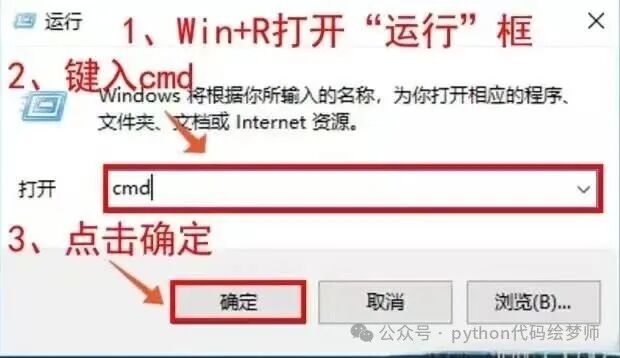
5. After installation is complete, open the command line as follows: press “Windows+R” -> type “cmd” -> click OK.
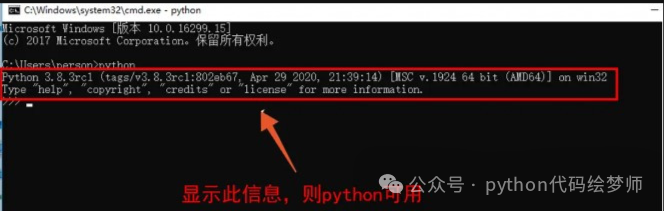
6. Type “python” -> press Enter. If the following information appears, it indicates that the installation was successful (the command line changes to three greater-than signs).
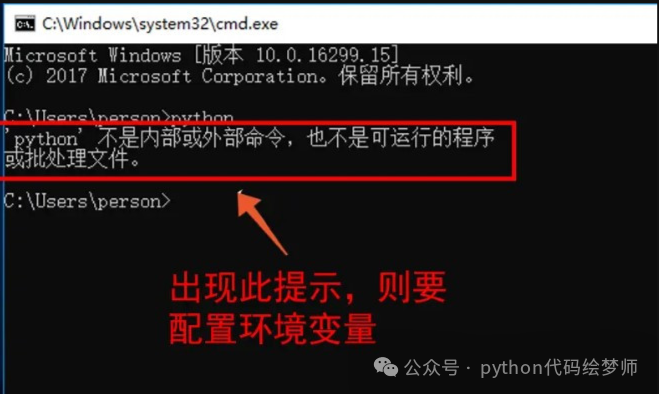
7. If the following information appears, you need to manually configure the environment variables (refer to the next section).
3. Configuring Environment Variables
The command line looks for executable files in the current directory first, and if it cannot find them, it will look in the directories specified by the Path variable. Therefore, adding the path of the executable file to the Path ensures that the program can be executed from any path.
Environment Variable Configuration
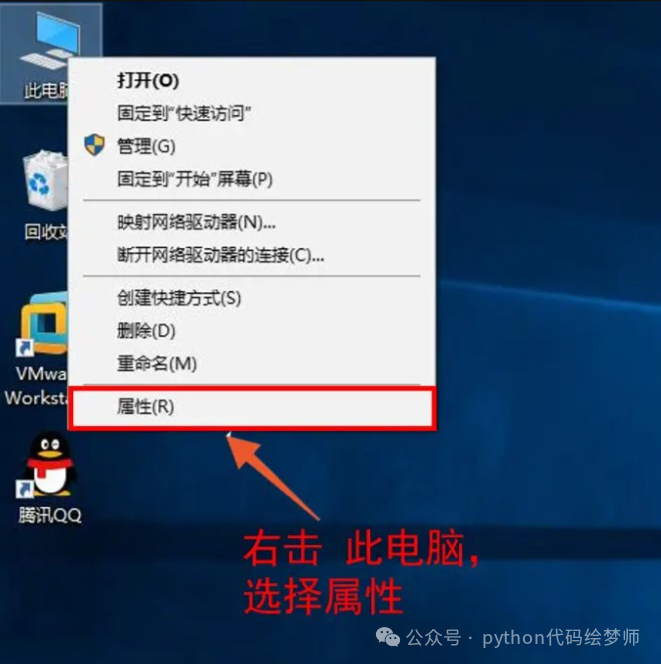
1. Right-click on This PC -> click Properties
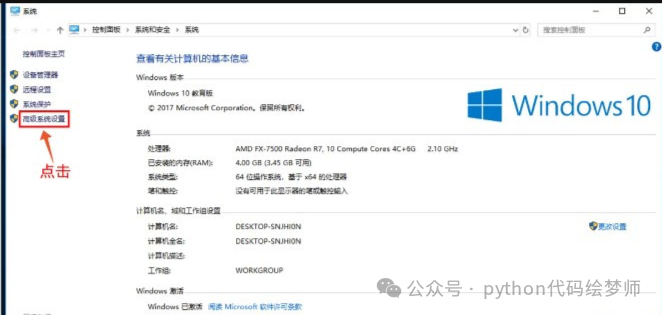
2. Click on “Advanced system settings” on the left
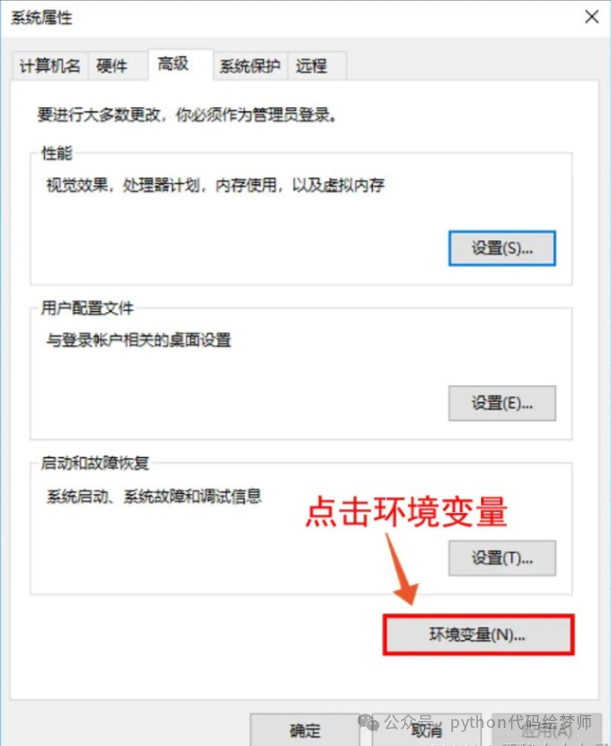
3. Click on “Environment Variables” (some computers may need to manually select the “Advanced” tab above)
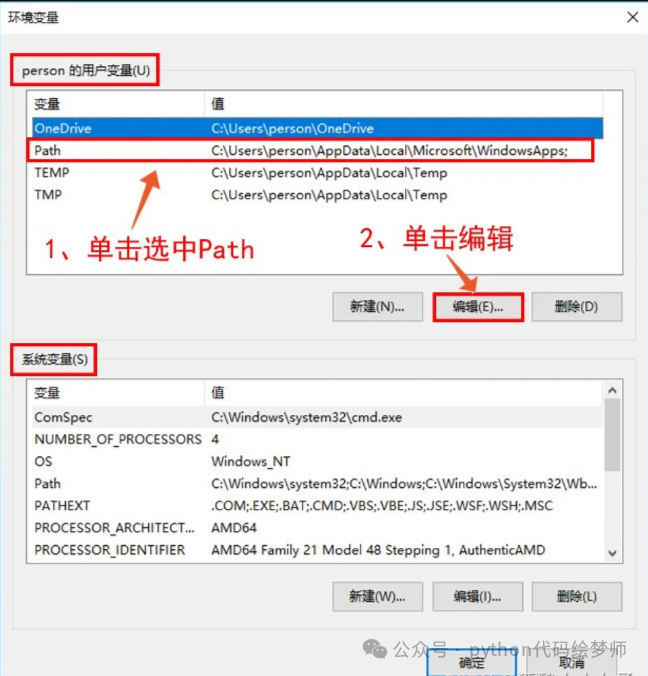
4. Click to select “Path” -> click Edit
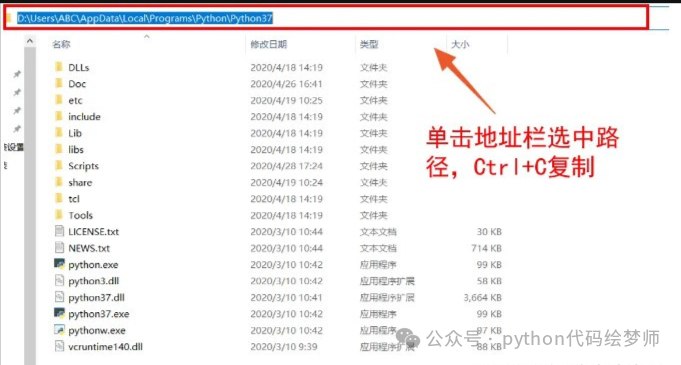
5. Open the installation path of Python (the one set during installation, which may differ from the author’s) -> click the address bar -> “Ctrl+C” to copy the path
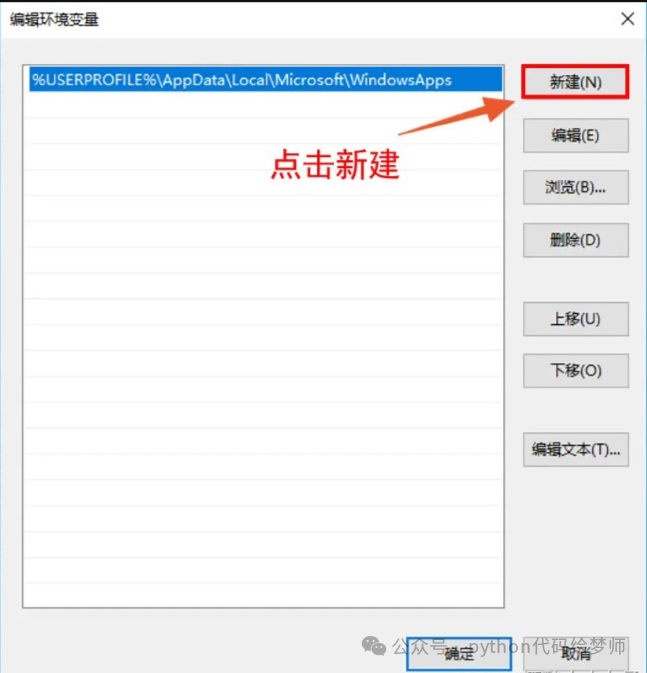
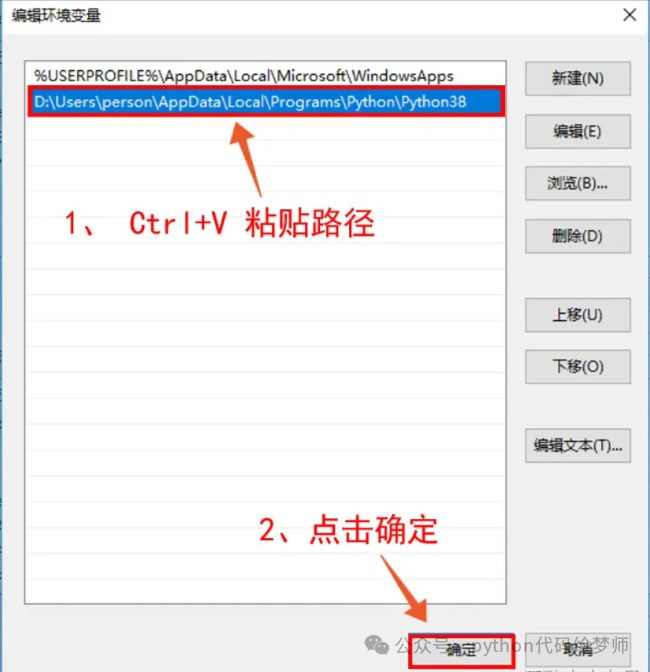
6. In the “Edit Environment Variable” tab, click New
7. Paste the path -> click OK
Notes
Sometimes, after configuring the environment variable, typing “python” in the command line will open the Microsoft Store. The solution is to move the Python path above the Microsoft Store in the Path variable:
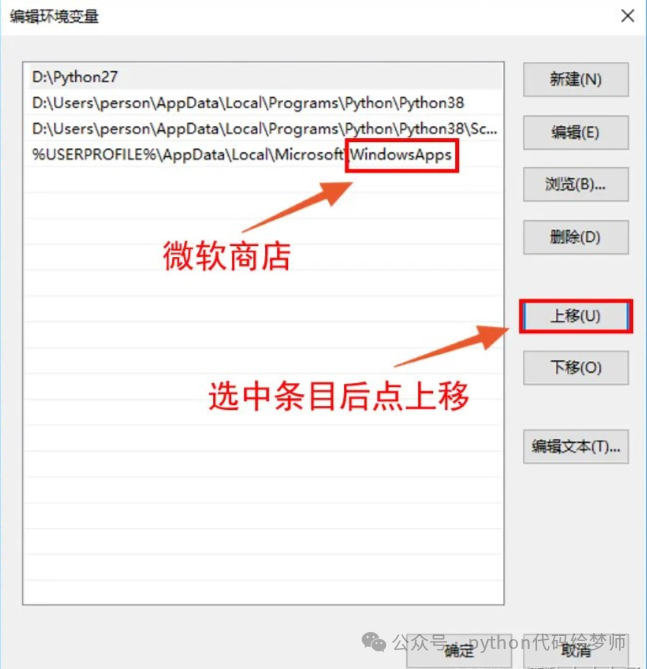
From the above issue, we can see that once the command line finds an executable program, it will ignore the subsequent items.
In the environment variable window, we can see two types of variables: “User Variables” and “System Variables”. The difference between the two is that user variables are effective for a single user, while system variables are effective for all users. If the computer has multiple users set up, setting user variables will make the installed software available only to a single user, while setting system variables will make it available to all users.
Pip Environment Variable Configuration
Python often uses the pip tool to install third-party libraries (modules). The pip tool is usually installed along with Python, but when using pip to install libraries, you may encounter the following error message:
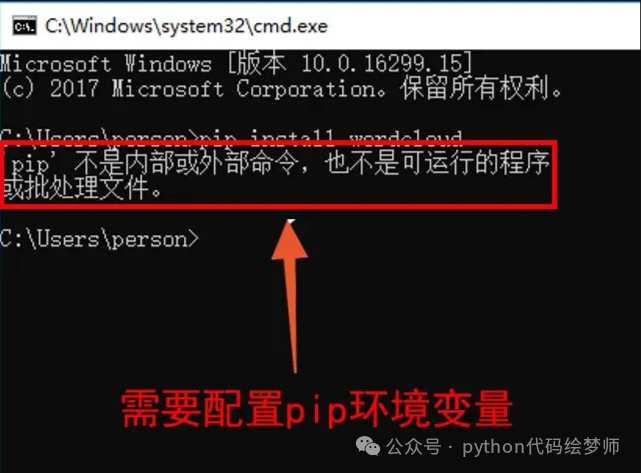
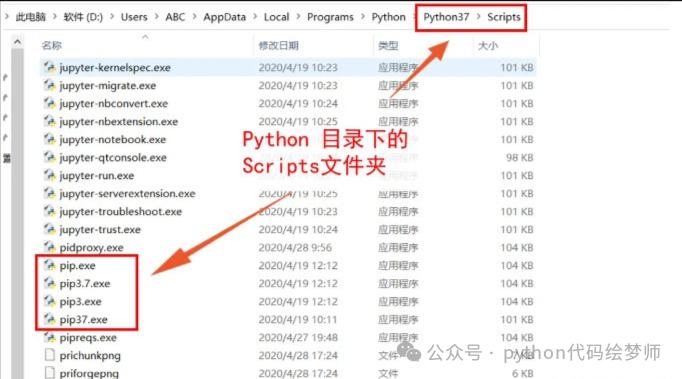
This can also be resolved by configuring the environment variable, and the configuration steps are exactly the same. It is important to note that the pip tool is located in the Scripts folder under the Python directory.
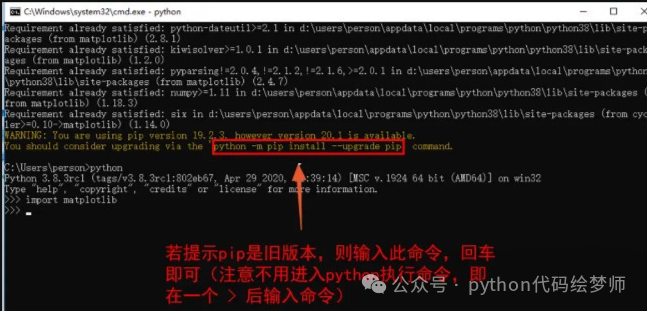
Additionally, when using pip to install libraries, you may be prompted that the pip version is too old. In this case, simply execute the command provided to update pip:
4. Configuring Multiple Python Versions
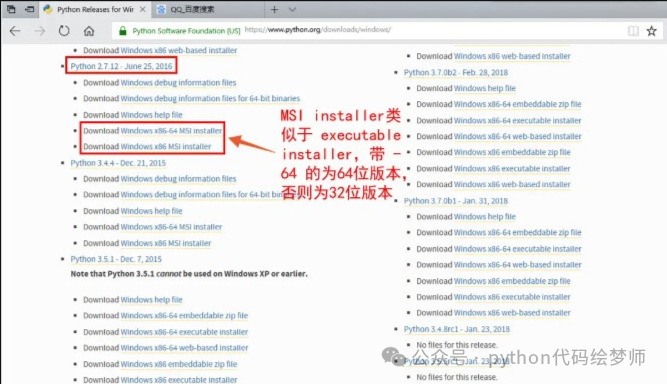
Due to special needs, we may need to install multiple versions of Python on one computer. For example, I installed Python 2.7, and it is worth mentioning that this installation package is an “MSI installer”, which is basically the same as the “executable installer”.
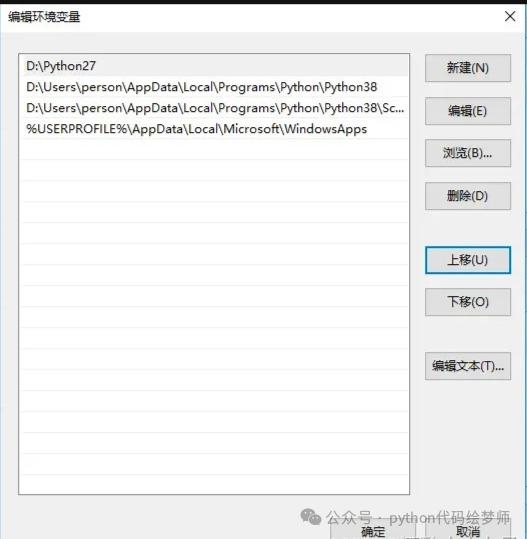
After completing the installation of Python 2.7, I configured the environment variables as shown below:
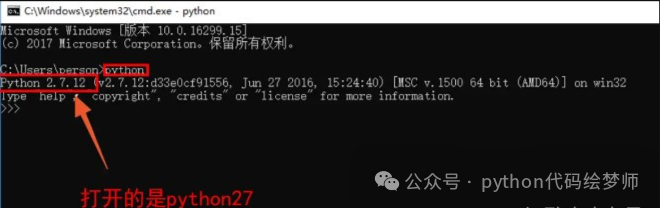
At this point, executing the “python” command in the command line enters Python 2.7:
How to enter Python 3? Taking Python 2 as an example, follow these steps:
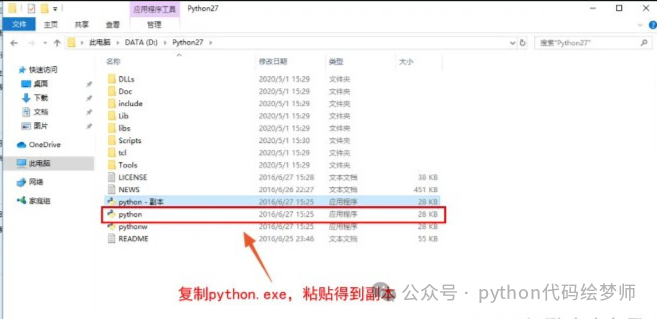
1. Open the Python 2 directory -> copy “python.exe” -> paste it directly to create a copy
2. Rename the copy to a distinguishable name (here it is named python2)
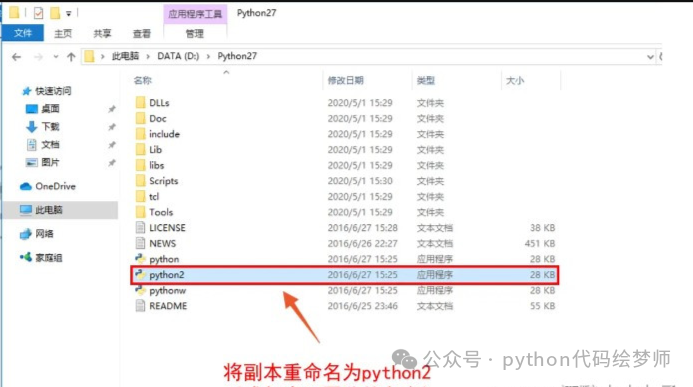
After the above operations, typing “python2” in the command line will enter Python 2.
The same steps can be applied to Python 3 and different versions of the pip tool.
Finally, I have organized a Python learning roadmap and resource code, hoping to help friends who are learning Python break through information barriers and progress together:
A compilation of technical points in all directions of Python, forming a summary of knowledge points in various fields. Its usefulness lies in that you can find corresponding learning resources according to the knowledge points above, ensuring that you learn comprehensively.
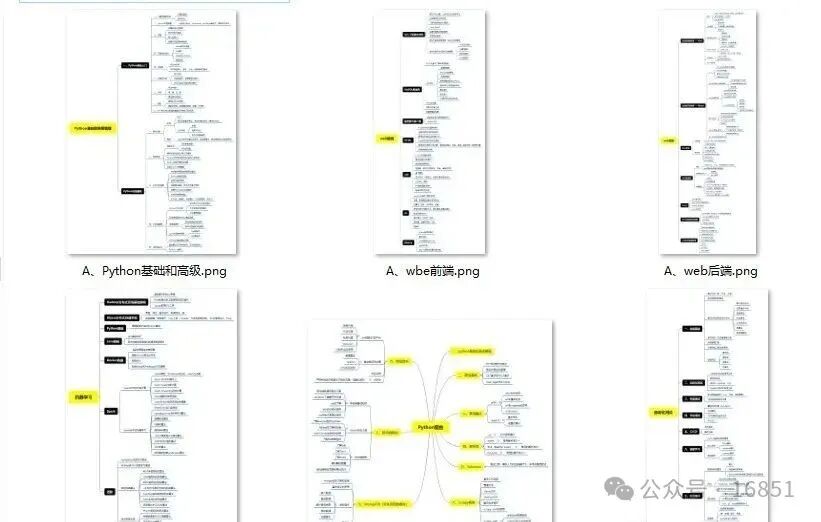
Essential Development Tools
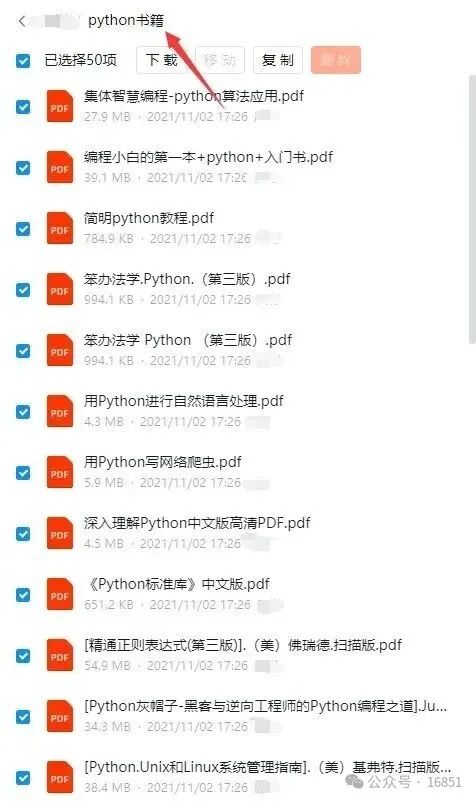
After having a certain foundation and independent understanding ability, I will read books by predecessors or take handwritten notes. These materials detail their unique understanding of technical points, allowing me to learn different ideas and broaden my horizons.
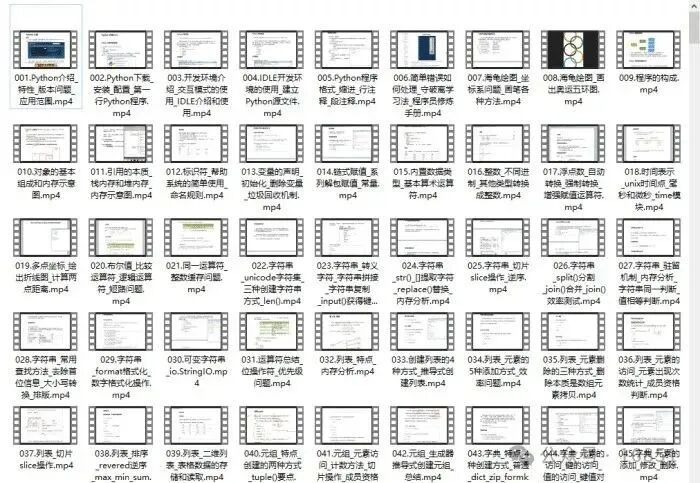
Watching learning videos is an efficient way to get started from a zero foundation. Following the teacher’s thought process from the basics to deeper levels can easily help grasp the introductory knowledge.
Optical theory is far from enough; it is essential to practice coding hands-on. Only through practical case exercises can what is learned be truly transformed into practical application skills.
How to Obtain:
1. Follow the public account
2. Forward + reply with the keyword “materials” to get it