Many people have installed both Windows 11 and Linux on a single computer, but they often encounter a frustrating issue: wanting to access the same folder from both systems, such as “project source code”, “video materials”, or “download directory”—only to find that they cannot see each other! In fact, once you learn the following steps, you can perfectly share hard drive space between Windows and Linux, achieving seamless collaboration between the two systems!
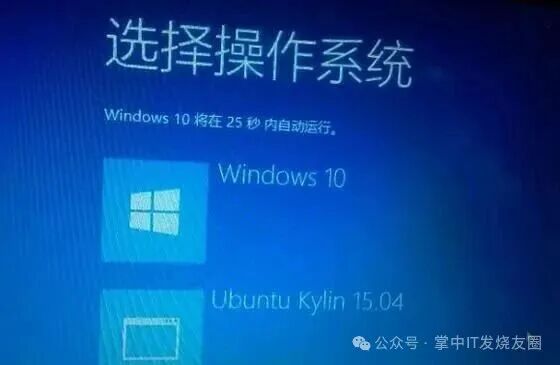
1. Principle Introduction: Why Can’t They See Each Other?
Windows uses the NTFS file system by default, while Linux commonly uses the ext4 file system. The file structures of the two systems are different, so they cannot directly access each other. The good news is that Linux supports mounting NTFS partitions; Windows can also access ext4 partitions through tools. Therefore, as long as we plan the partitions or mounts properly, we can achieve sharing!
2. Preparations
Applicable to:
- Windows 10 / 11
- Any Linux distribution such as Ubuntu / Debian / Fedora
- Computer with dual systems installed
Tools:
- Linux Terminal
- DiskGenius (to view partitions on Windows)
- ext2fsd or Linux File Systems for Windows (tools for Windows to access Linux partitions)
3. Method 1: Accessing Windows Folders from Linux (Recommended)
Step 1: Check Windows Partition Path
Open the Linux terminal and execute:
sudo fdisk -lLook for partitions labeled with ntfs in the output, for example:
/dev/sda3 204800 976773119 NTFS
Step 2: Create Mount Directory
sudo mkdir /mnt/winshareStep 3: Mount Windows Partition
sudo mount -t ntfs-3g /dev/sda3 /mnt/winshareNow you can access Windows files at /mnt/winshare!
If you want to mount it automatically, you can edit:
sudo nano /etc/fstabAdd the following line:
/dev/sda3 /mnt/winshare ntfs-3g defaults 0 0Save and reboot to apply automatically.
4. Method 2: Accessing Linux Partitions from Windows
Step 1: Download the Tool
Go tohttps://www.diskinternals.com/linux-reader/
Download and install Linux Reader.
Step 2: Open the Software
After installation, run it; it will automatically recognize the ext4 partitions of Linux.
Step 3: Export Files
Select the directory you want to access, right-click → “Save to Windows” to copy Linux files to the local disk.
⚠️ Note: Windows cannot write directly to ext4 partitions; it is recommended to use it in “read-only” mode to prevent data corruption.
5. Advanced Tip: Share a Common Shared Area!
If you frequently need to transfer data between the two systems, the best practice is to:
Create a dedicated NTFS partition named “Share” specifically for file sharing.
Create it in Windows:
- Open “Disk Management”;
- Right-click on unallocated space → “New Volume”;
- Format it as NTFS and label it as Share.
Mount it in Linux:
sudo mkdir /mnt/sharesudo mount -t ntfs-3g /dev/sda4 /mnt/shareNow both systems can access this shared area, eliminating the need to copy files back and forth!
6. Summary
|
Solution |
Advantages |
Disadvantages |
|
Linux mounts NTFS partition |
Simple and stable |
Cannot access ext4 features |
|
Windows reads ext4 partition |
Can read Linux files |
Cannot write |
|
Dedicated shared partition |
Highly recommended, safe and efficient |
Requires additional disk space |
Tip:
If you are using a virtual machine (like VMware or WSL2), you can also quickly achieve similar effects through the shared directory feature without partitioning.
Conclusion
Through this tutorial, you have learned how to share hard drive space between Windows 11 and Linux dual systems.
Whether you are a developer, designer, or regular user, this technique can make your cross-system experience smoother!
END
Selected Past Articles
◆Three methods to reinstall a clean version of the system, why do computer shops fear installing a clean version?◆14 different shutdown methods for Win10/11, how many do you know? 【Tested and effective】◆Installation and activation tutorial for genuine Office 2021◆Install Win11 on memory for unbeatable performance
◆ Recommended 15 websites to watch TV shows and movies for free, with URLs, tested and useful
◆ 7 methods to enter BIOS in Win11/10
8 high-quality Windows software that can turn your computer into a high-tech device
Simple steps to use WeChat payment functions without binding a bank card
How to schedule your computer to turn on and off
9 recommended websites to watch movies for free, with the latest films available online
◆How to download videos from WeChat video accounts?◆Five methods to transfer files between mobile phones and computers◆Removing watermarks from Word and PDF files is so simple, learn it in 1 minute◆ Huawei phone NFC function, learn how to copy various cards with one click
◆Can a mobile phone control a computer or another mobile phone? It’s simple, just follow these steps◆How to download videos from WeChat video accounts?◆Four methods to crack Windows system passwords 【Save for later】◆Removing watermarks from Word and PDF files is so simple, learn it in 1 minute◆How to recover deleted photos from WeChat + how to recover deleted photos from your phone?◆Six major reasons why a computer won’t boot and solutions 【Save for later】