(Add to favorites for Linux enthusiasts to enhance Linux skills)
Source: baiyutang
If you’ve used macOS, you must have a strong impression of iTerm2. Not to mention its split-screen feature, which is irreplaceable by other tools, along with convenient operations like theme colors, highlighting, searching, and shortcuts. Last year, I transitioned my productivity tools from Mac to Ubuntu and started exploring various alternatives, but I never found a terminal tool that felt right. There is a split-screen tool called Terminology, which many describe as powerful enough to play videos and open file systems, but split-screen functionality is a basic requirement. Recently, I encountered frequent issues, so I searched for a new tool, which is what I will introduce today: Terminator! When I first configured it, I almost felt like I was using iTerm2.
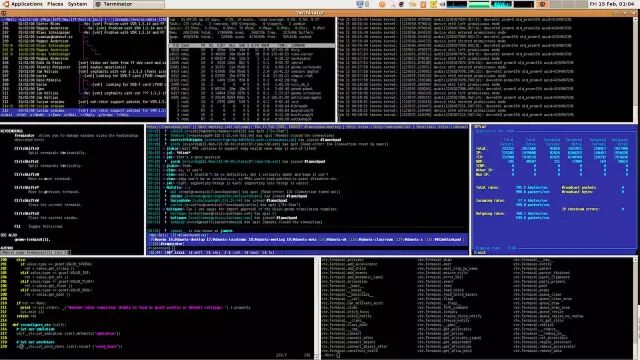
Preview
Features
Do you remember the features of iTerm2? Let’s take a look at the feature list provided by Terminator:
Terminal panel splitting within the same tab
Keyboard Shortcuts
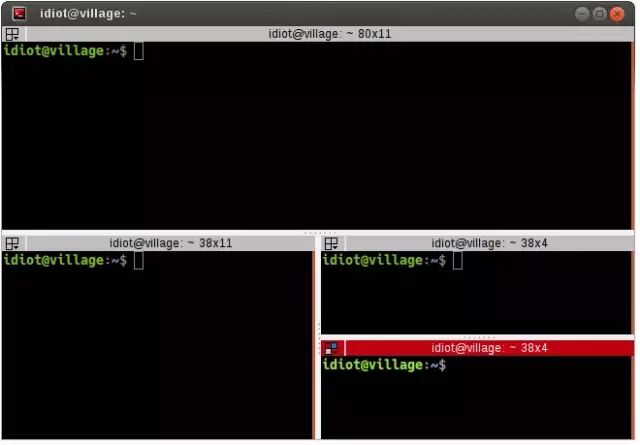
Set as the default terminal for the GNOME desktop, such as the CTRL + ALT + T shortcut for Terminator, plus many more shortcuts waiting to be discovered.
Selection Copy
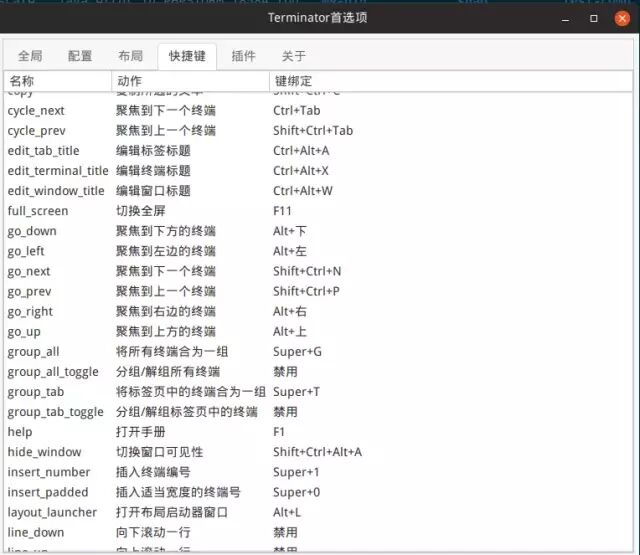
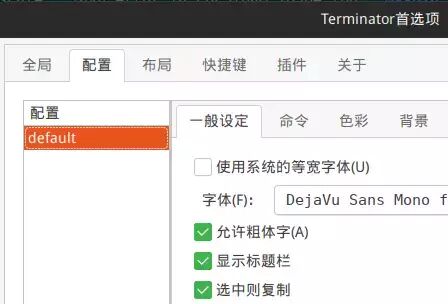
Terminator has a setting option called “Copy on Selection”; when checked, it behaves just like iTerm2.
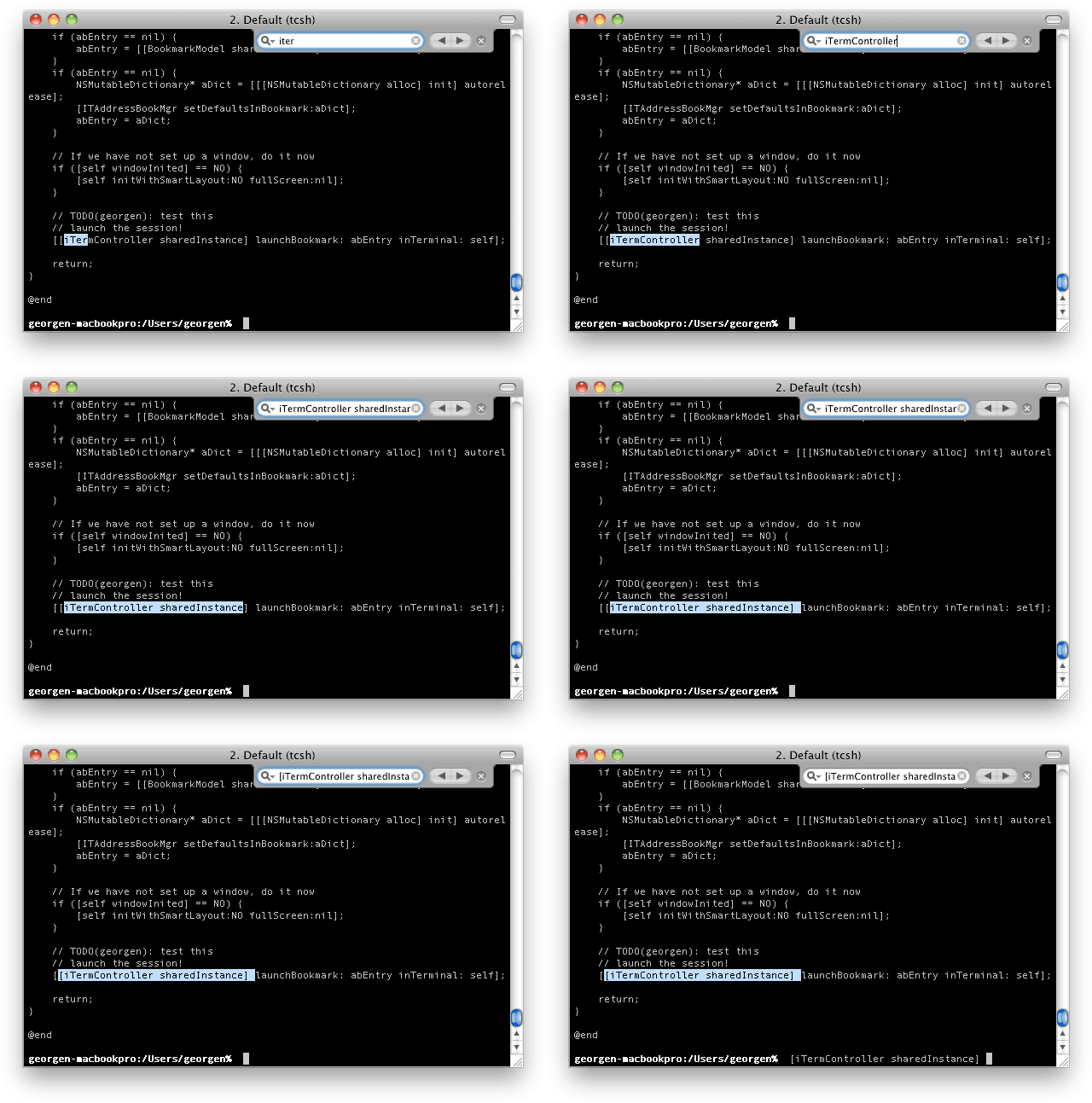
Demonstration of iTerm2’s silent copy effect
Background Transparency
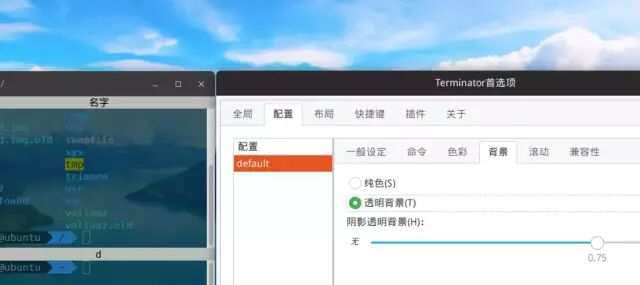
Configurable
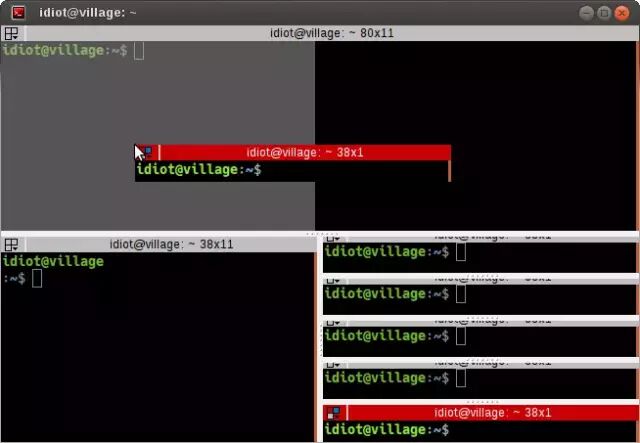
Drag and Drop Terminal
Clicking the window title allows you to drag the window to any position quickly.
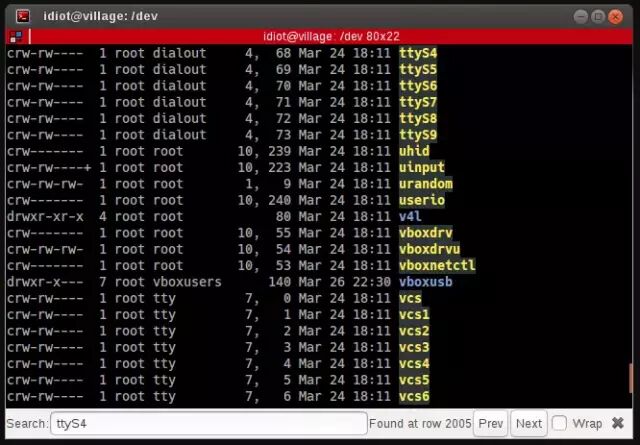
Search
The feature supports searching, but I haven’t figured out how to highlight yet, as the search results only indicate line numbers.
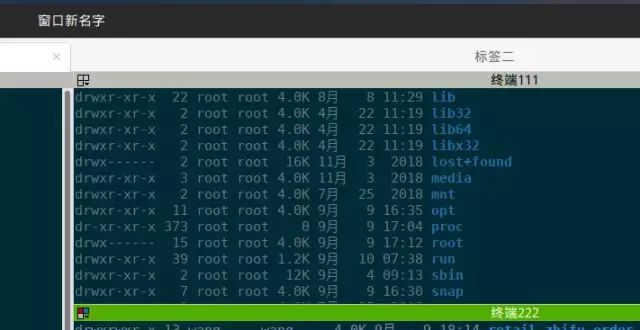
Set Title
As seen in the image below, the window, tab, and terminal can all be edited by double-clicking or using shortcuts.
Clickable Items
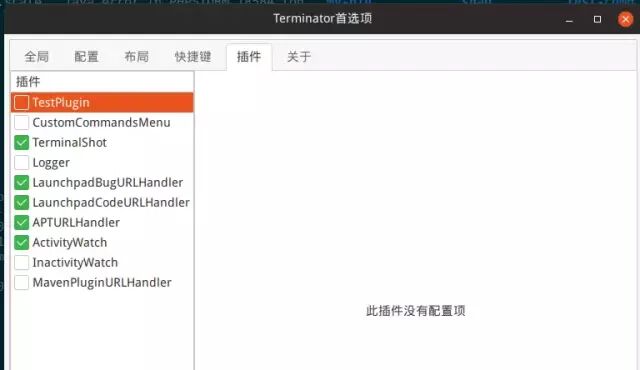
Ctrl + click will open the related URL resource with the default program; supported URL types can be referenced in the list.
Plugins
There are some extension plugins, but it’s still uncertain whether external plugins are supported. However, the above features are sufficient for daily work.
Installation
<span>sudo add-apt-repository ppa:gnome-terminator</span><span>sudo apt-get update</span><span>sudo apt-get install terminator</span>
Configuration
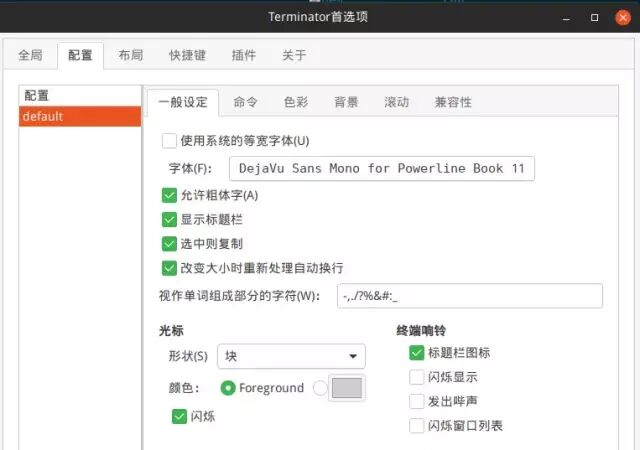
The default configuration is really unattractive; basic changes are as follows:
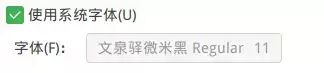
Preferences > Global, bottom right, choose a favorite font:
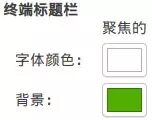
Preferences > Global, bottom left, change the color of the title bar when focused; the default red is too glaring:
Color Theme
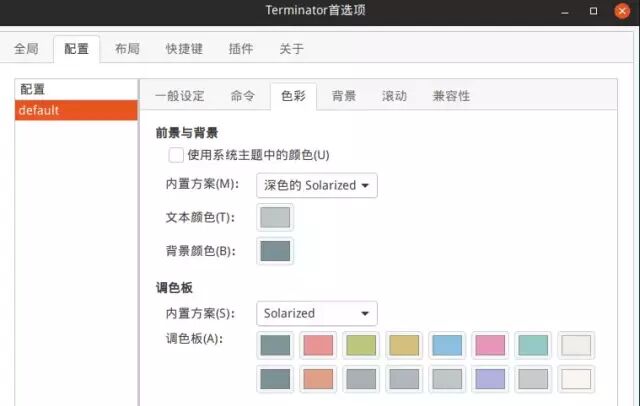
Others
You can adjust according to your preferences.
Recommended Reading
(Click the title to jump to read)
DomTerm: A terminal emulator designed for Linux
A comprehensive guide to understanding various terminal types and concepts in Linux
How to change your terminal colors?
If you found this article helpful, please share it with more people.
Follow “Linux Enthusiasts” and add to favorites to enhance Linux skills.
Great article, I’m reading it ❤️