(Click the public account above to quickly follow)
Source: Blog Garden
Link: http://www.cnblogs.com/Bob-FD/archive/2012/07/12/2588233.html and http://www.cnblogs.com/peida/archive/2012/11/21/2780075.html
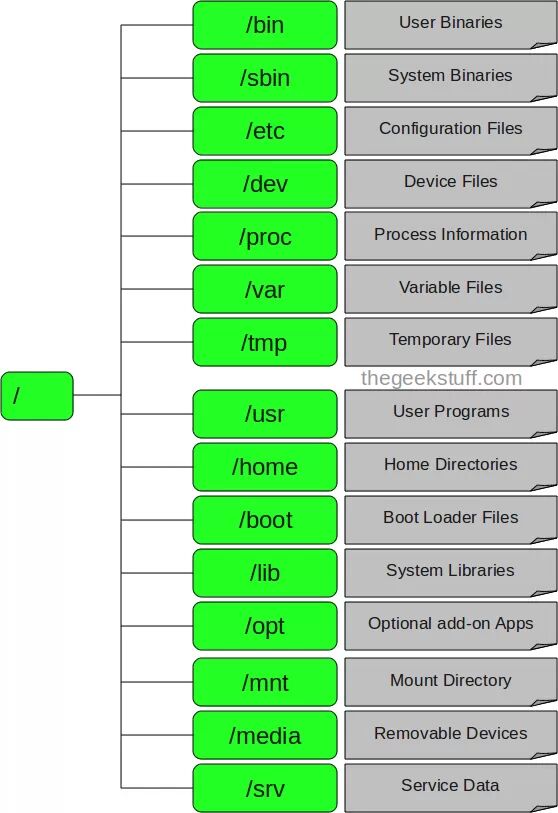
When starting to learn Linux, it is essential to understand the standard Linux directory structure.
/
●root — Contains core files used when booting Linux, such as the operating system kernel and the bootloader Grub.
●home — Stores personal files for regular users.
-
ftp — User service files.
-
httpd
-
samba
-
user1
-
user2
●bin — Contains executable files (binaries) required for system startup.
●sbin — Directory for executable programs, mostly containing commands related to system management. Only accessible with root privileges.
●proc — Virtual directory that contains the Linux kernel image; stores all kernel parameters and system configuration information.
-
1 — Process ID.
●usr — User directory, stores user-level files.
-
bin — Contains almost all commands used by users, also exists in /bin and /usr/local/bin.
-
sbin — System administrator commands related to users, such as most server programs.
-
include — Directory for C/C++ header files.
-
lib — Fixed program data.
-
local — Location for locally installed software.
-
man — Manual pages directory.
-
info — Information documents.
-
doc — Documentation for various packages.
-
tmp
-
X11R6 — This directory stores all files required to run X-Window. It also contains configuration files and binaries needed for GUI operation.
-
X386 — Functions similarly to X11R6, system files for X11 release 5.
●boot — Contains files required by the bootloader, system images are stored here.
●lib — Common libraries for programs and kernel modules in the root file system directory.
-
modules — Loadable modules, required for system restart after a crash.
●dev — Directory for device files.
●etc — Configuration files.
-
skel — Initializes the home directory.
-
sysconfig — Directory for network, time, keyboard, and other configurations.
●var
-
file
-
lib — Files in this directory change during system operation.
-
local — Data for programs installed in /usr/local, which changes.
-
lock — Locks files using specific devices or files, preventing access to others temporarily.
-
log — Log files.
-
run — Legal information for system operation.
-
spool — Directory for print, mail, proxy server spooling, etc.
-
tmp
-
catman — Cache directory.
●mnt — Temporary mount point for file systems. Generally, this directory is empty, and when we mount a partition, we create a directory here and mount the device we want to access, allowing us to access the files.
●tmp — Temporary file directory, temporary files after system startup are stored in /var/tmp.
●lost+found — Directory for files recovered during file system repair.
/: The root directory, generally only directories should be stored under the root directory, not files. /etc, /bin, /dev, /lib, and /sbin should be placed in the same partition as the root directory.
/bin:/usr/bin: Directories for executable binaries, such as commonly used commands like ls, tar, mv, cat, etc.
/boot: Contains files used during Linux system startup. /boot/vmlinuz is the Linux kernel file, and /boot/grub. It is recommended to have a separate partition, with a size of 100M.
/dev: Stores device files in the Linux system. Accessing a file in this directory is equivalent to accessing a device. Commonly used is mounting a CD-ROM with mount /dev/cdrom /mnt.
/etc: Directory for system configuration files. It is not recommended to store executable files in this directory. Important configuration files include /etc/inittab, /etc/fstab, /etc/init.d, /etc/X11, /etc/sysconfig, /etc/xinetd.d. Remember to back up before modifying configuration files.
Note: /etc/X11 stores settings related to X Windows.
/home: The default user home directory. When a new user account is created, the user’s home directory is stored here. ~ represents the current user’s home directory, and ~test represents the home directory of user test. It is recommended to have a separate partition and allocate a larger disk space for user data storage.
/lib:/usr/lib:/usr/local/lib: Directories for function libraries used by the system. When a program executes and needs to call additional parameters, it requires the assistance of function libraries. A particularly important directory is /lib/modules.
/lost+found: When errors occur in the system, some lost fragments are placed in this directory. This directory usually automatically appears in the mounted directory. For example, if a hard drive is mounted in /disk, this directory will automatically generate /disk/lost+found.
/mnt:/media: Default mount point for CDs, usually mounted under /mnt/cdrom, but can be mounted anywhere.
/opt: Directory for additional software installations on the host. For example, software developed by the Fedora community for FC4 can be installed here. In older Linux systems, it was commonly placed in the /usr/local directory.
/proc: This directory contains data that resides in memory, such as the system kernel, external devices, and network status. Since the data is stored in memory, it does not occupy disk space. Important directories include /proc/cpuinfo, /proc/interrupts, /proc/dma, /proc/ioports, /proc/net/*, etc.
/root: The home directory of the system administrator (root). Since the first partition to boot the system is /, it is best to place /root and / in the same partition.
/sbin:/usr/sbin:/usr/local/sbin: Contains executable commands used by the system administrator, such as fdisk, shutdown, mount, etc. Unlike /bin, these directories are for commands used by the system administrator (root), and regular users can only “view” them but not set or use them.
/tmp: Directory for temporary files for general users or currently executing programs. Anyone can access this directory, and important data should not be placed here.
/srv: Directory for data that needs to be accessed after services start, such as web data for the www service stored in /srv/www.
/usr: Directory for application storage. /usr/bin stores applications, /usr/share stores shared data, /usr/lib stores function library files that cannot be run directly but are essential for many programs. /usr/local: Stores software upgrade packages. /usr/share/doc: Directory for system documentation files. /usr/share/man: Directory for program documentation files, using man ls will query the content of /usr/share/man/man1/ls.1.gz. It is recommended to have a separate partition and allocate a larger disk space.
/var: Directory for files that frequently change during system execution, such as log files /var/log, /var/log/message: directory for all login files, /var/spool/mail: directory for storing emails, /var/run: directory where the PID of programs or services is stored after they start. It is recommended to have a separate partition and allocate a larger disk space.
Detailed Explanation of the Linux Directory Structure
For every Linux learner, understanding the directory structure of the Linux file system is a crucial step in mastering Linux. A deep understanding of the standards of the Linux file directory structure and the detailed functions of each directory is essential for effectively using the Linux system. Let us begin to explore the relevant knowledge of the Linux directory structure.
When using Linux, if you execute ls -l /, you will find that there are many directories under /, such as etc, usr, var, bin, etc. When we enter these directories, we find that there are also many directories or files. The file system in Linux appears to be a tree structure, so we can visually refer to the file system structure as a tree structure.
The file system is used to organize and arrange file access, so it is visible. In Linux, we can use tools like ls to view its structure. In the Linux system, we see a tree structure; for example, the operating system is installed in a file system, which manifests as a tree structure starting from /. The top of the Linux file system is /, which we call the root of Linux, that is, the file system of the Linux operating system. The entry point of the Linux file system is /, and all directories, files, and devices are under /. / is the organizer of the Linux file system and also the highest authority.
Since Linux is open-source, various companies and groups have created their own operations and programming based on the core code of Linux. This has led to differences in the directories under the root. This has made it impossible for individuals to use someone else’s Linux system PC because they do not know where some basic configurations and files are located. This has caused confusion. This is the reason for the establishment of the FHS (Filesystem Hierarchy Standard) organization. This organization is a group formed voluntarily by Linux enthusiasts, mainly to set some basic requirements for Linux to prevent operators from becoming ‘illiterate’ in Linux when switching to a different machine.
According to the official documents of FHS (http://www.pathname.com/fhs/), their main goal is to help users understand where installed software is typically placed, so they hope independent software developers, operating system creators, and users who want to maintain systems can follow the FHS standards. In other words, the focus of FHS is to standardize what kind of data should be placed in each specific directory. This has many benefits because the Linux operating system can develop the unique style desired by developers while maintaining the existing appearance (directory structure unchanged).
In fact, FHS has been continuously revised based on past experiences. FHS defines directories based on the frequency of use and whether users are allowed to modify them, categorizing them into four interactive forms, which can be represented in a table like this:
|
Shareable |
Unshareable |
|
|
Static |
/usr (software storage) |
/etc (configuration files) |
|
/opt (third-party software) |
/boot (boot and kernel files) |
|
|
Variable |
/var/mail (user mailboxes) |
/var/run (program-related) |
|
/var/spool/news (newsgroups) |
/var/lock (program-related) |
Four Types:
1. Shareable:
Directories that can be shared with other systems for mounting use, including executable files and user mail data that can be shared with other hosts on the network.
2. Unshareable:
Device files or socket files related to operations on the local machine, which are not suitable for sharing with other hosts.
3. Static:
Some data that does not change frequently, remaining constant with the distribution. For example, function libraries, file description files, and configuration files managed by system administrators.
4. Variable:
Data that changes frequently, such as login files and newsgroups that users can receive.
In fact, FHS only defines what data should be placed in the three lower-level directories of the directory tree structure:
/ (root): Related to the boot system;
/usr (Unix Software Resource): Related to software installation/execution;
/var (variable): Related to system operation processes.
1. The Significance and Content of the Root Directory (/):
The root directory is the most important directory in the entire system because not only do all directories derive from the root directory, but it is also related to booting, restoring, and system repair actions. Since the system requires specific boot software, kernel files, boot programs, function libraries, and other data when booting, if the system encounters an error, the root directory must also contain programs that can repair the file system. Because the root directory is so important, FHS requires that the root directory should not be placed in a very large partition, as the larger the partition, the more data you will store, which increases the likelihood of errors occurring in the root directory.
Therefore, FHS standards suggest that the partition where the root directory (/) is located should be as small as possible, and applications installed should preferably not be in the same partition as the root directory, keeping the root directory as small as possible. This not only improves performance but also reduces the chances of problems occurring in the file system of the root directory. In other words, the root directory is similar to the C drive in Windows.
Based on the above reasons, FHS believes that the root directory (/) should contain the following subdirectories:
|
Directory |
Content to be placed |
|
/bin |
There are many directories for executable files, but /bin is special because it contains commands that can still be operated in single-user maintenance mode. The commands under /bin can be used by both root and regular accounts, including common commands like cat, chmod (change permissions), chown, date, mv, mkdir, cp, bash, etc. |
|
/boot |
Primarily contains files used during booting, including Linux kernel files and boot menu and configuration files. The commonly used name for the Linux kernel is vmlinuz, and if using the grub boot manager, there will also be a /boot/grub/ directory. |
|
/dev |
In the Linux system, all devices and peripheral devices exist in this directory as files. Accessing a file in this directory is equivalent to accessing a device. Important files include /dev/null, /dev/zero, /dev/tty, /dev/lp*, /dev/hd*, /dev/sd*, etc. |
|
/etc |
Most of the system’s main configuration files are stored in this directory, such as user account password files, various service startup files, etc. Generally, the attributes of the files in this directory allow regular users to read them, but only root has the authority to modify them. FHS recommends not placing executable files (binaries) in this directory. Important files include: /etc/inittab, /etc/init.d/, /etc/modprobe.conf, /etc/X11/, /etc/fstab, /etc/sysconfig/, etc. Additionally, important directories include: /etc/init.d/: All service startup scripts are stored here, for example, to start or stop iptables: /etc/init.d/iptables start, /etc/init.d/iptables stop. /etc/xinetd.d/: This is the directory for configuration files managed by the super daemon. /etc/X11/: Various configuration files related to X Window are stored here, especially the xorg.conf or XF86Config configuration files for the X Server. |
|
/home |
This is the default user home directory. When you create a new regular user account, the default home directory is specified here. Importantly, there are two codes for the home directory: ~: Represents the current user’s home directory, while ~guest: represents the home directory of the user named guest. |
|
/lib |
There are many function libraries in the system, and /lib contains the function libraries used during booting and those called by commands under /bin or /sbin. What is a function library? You can think of it as a plugin; certain commands must have these plugins to execute successfully. Particularly important is the /lib/modules/ directory, as it contains kernel-related modules (drivers). |
|
/media |
Media is the English word for media, and as the name suggests, this directory contains removable devices. This includes floppy disks, CDs, DVDs, etc., which are temporarily mounted here. Common names include: /media/floppy, /media/cdrom, etc. |
|
/mnt |
If you want to temporarily mount some additional devices, it is generally recommended to place them in this directory. In the past, this directory served the same purpose as /media. However, with the introduction of /media, this directory is now used for temporary mounts. |
|
/opt |
This directory is for third-party software. What is third-party software? For example, the KDE desktop management system is an independent project, but it can be installed on the Linux system, so KDE software is recommended to be placed in this directory. Additionally, if you want to install extra software (not provided by the original distribution), you can also install it here. However, in older Linux systems, we still preferred to place it in the /usr/local directory. |
|
/root |
The home directory of the system administrator (root). It is placed here because if you enter single-user maintenance mode and only mount the root directory, this directory will have the root’s home directory, so we prefer to keep the root’s home directory in the same partition as the root directory. |
|
/sbin |
Linux has many commands used to set the system environment, which can only be used by root to configure the system; other users can at most use them to query. The commands needed during the boot process are stored in /sbin, including commands for booting, repairing, and restoring the system. Some server software programs are generally placed in /usr/sbin. The system binaries generated by locally installed software are placed in /usr/local/sbin. Common commands include: fdisk, fsck, ifconfig, init, mkfs, etc. |
|
/srv |
Srv can be seen as an abbreviation for service, which is the data directory needed by network services after these services start. Common services include WWW, FTP, etc. For example, the web data needed by the WWW server can be placed in /srv/www. It seems that the code we write should be placed here. |
|
/tmp |
This is a place for general users or currently executing programs to temporarily store files. This directory is accessible to anyone, so you need to clean it regularly. Of course, important data should not be placed in this directory. FHS even recommends that the data in /tmp should be deleted at boot time. |
In fact, the standards defined by FHS for the root directory are limited to the above table, but there are still some directories that we need to understand, as follows:
|
Directory |
Content to be placed |
|
/lost+found |
This directory is generated only when using the standard ext2/ext3 file system format, and its purpose is to place some lost fragments when the file system encounters errors. This directory usually exists at the top level of the partition; for example, if you add a hard drive in /disk, this system will automatically generate a directory /disk/lost+found. |
|
/proc |
This directory is a virtual file system. It contains data that resides in memory, such as the system kernel, process information, peripheral device status, and network status. Since the data in this directory is stored in memory, it does not occupy any disk space. Important files (directories) include: /proc/cpuinfo, /proc/dma, /proc/interrupts, /proc/ioports, /proc/net/*, etc. |
|
/sys |
This directory is very similar to /proc, also a virtual file system, mainly recording information related to the kernel, including currently loaded kernel modules and hardware device information detected by the kernel. This directory also does not occupy disk space. |
In addition to the content of these directories, it is also important to note that because the root directory is related to booting, only the root directory will be mounted during the boot process, while other partitions will continue to be mounted after the boot is completed. Because of this, directories related to the boot process cannot be placed in different partitions from the root directory. Which directories should not be separated from the root directory? They are as follows:
/etc: Configuration files.
/bin: Important executables.
/dev: Required device files.
/lib: Function libraries and kernel modules required by executables.
/sbin: Important system executables.
These five directories must not be placed in different partitions from the root directory. Please memorize this.
2. The Significance and Content of /usr:
According to the basic definition of FHS, the data in /usr belongs to shareable and unchangeable (shareable, static). If you know how to mount partitions over the network (for example, discussed in the server section about NFS servers), then /usr can indeed be shared with other hosts in the local network.
/usr is not an abbreviation for user; in fact, usr stands for Unix Software Resource, which is the directory for storing Unix operating system software resources, not user data. This point is important to note. FHS recommends that all software developers should reasonably separate their data into subdirectories under this directory and not create their own independent directories for the software.
Since all default system software (provided by the distribution) is placed under /usr, this directory is somewhat similar to the combination of C:\Windows\ and C:\Program Files\ in Windows. When the system is freshly installed, this directory will occupy the most disk space. Generally, the subdirectories of /usr are recommended to include the following:
|
Directory |
Content to be placed |
|
/usr/X11R6/ |
This directory stores important data for the X Window System. It is named X11R6 because the last version of X was the 11th version, and this was the 6th release. |
|
/usr/bin/ |
Most commands that users can use are stored here. Please note the difference from /bin (is it related to the boot process?). |
|
/usr/include/ |
Header and include files for programming languages like C/C++ are stored here. When we install certain data in tarball format (*.tar.gz), many include files from here will be used. |
|
/usr/lib/ |
This directory contains function libraries, object files, and executables or scripts that are not commonly used by regular users. Some software provides special commands for server configuration, which are not frequently operated by system administrators, and thus are placed in this directory. Note that if you are using an X86_64 Linux system, there may be a /usr/lib64/ directory. |
|
/usr/local/ |
System administrators should install software they download themselves (not provided by the distribution) in this directory for easier management. For example, if the software provided by your distribution is outdated and you want to install a newer version without removing the old one, you can install the new software in /usr/local to differentiate it from the old version. You can check /usr/local, which also has subdirectories like bin, etc, include, lib… |
|
/usr/sbin/ |
System commands that are not necessary for normal system operation. The most common are service commands (daemons) for certain network server software. |
|
/usr/share/ |
Directory for shared files, where the data stored is generally readable across different hardware architectures, as it mostly consists of text files. Common subdirectories include: /usr/share/man: online help files. /usr/share/doc: miscellaneous documentation files for software. /usr/share/zoneinfo: timezone files related to time zones. |
|
/usr/src/ |
Source code is generally recommended to be placed here, with the kernel source code suggested to be placed in /usr/src/linux/. |
3. The Significance and Content of /var:
If /usr is the directory that occupies a large amount of disk space during installation, then /var is the directory that gradually occupies disk space after the system is running. This is because the /var directory mainly targets files that change regularly, including cache, log files, and files generated by certain software operations, including program files (lock files, run files), or files for databases like MySQL. Common subdirectories include:
|
Directory |
Content to be placed |
|
/var/cache/ |
Temporary files generated during the operation of applications. |
|
/var/lib/ |
Directory for data files needed during the execution of programs. Each software should have its own directory in this directory. For example, MySQL databases are placed in /var/lib/mysql/, while RPM databases are placed in /var/lib/rpm. |
|
/var/lock/ |
Some devices or file resources can only be used by one application at a time. If two programs try to use the same device simultaneously, it may cause errors, so the device must be locked to ensure that it is only used by a single software. For example, if a burner is burning a CD, you can imagine what would happen if two people tried to use the same burner at the same time. If both people are burning, whose data will be written? Therefore, when the first person is burning, the burner will be locked, and the second person must wait until the first person is done before they can continue using it. |
|
/var/log/ |
Very important. This is the directory for login files. Important files include /var/log/messages, /var/log/wtmp (which records information about logins), etc. |
|
/var/mail/ |
Directory for personal email inboxes, but this directory is also linked to /var/spool/mail/, and usually, these two directories are linked files. |
|
/var/run/ |
After certain programs or services start, their PIDs are placed in this directory. |
|
/var/spool/ |
This directory usually contains queue data, where the so-called “queue” refers to data waiting for other programs to use. This data is usually deleted after being used. For example, when the system receives a new email, it is placed in /var/spool/mail/, but once the user retrieves the email, it is generally deleted. If an email cannot be sent temporarily, it will be placed in /var/spool/mqueue/, and once it is sent, it will be deleted. If it is scheduled job data (crontab), it will be placed in /var/spool/cron/. |
Since FHS only defines the content of the top-level (/) and second-level (/usr, /var) directories, developers can configure the contents of other subdirectories as they wish.
4. Directory Tree:
In Linux, all files and directories start from the root directory. This is the source of all directories and files, branching down one by one, so we also refer to this directory configuration method as a directory tree. The main characteristics of this directory tree are:
The starting point of the directory tree is the root directory (/, root);
Each directory can use not only the local partition’s file system but also the file system on the network. For example, you can mount a specific directory using a Network File System (NFS) server.
Each file in this directory tree has a unique file name (including the full path).
If we display the entire directory tree graphically and list the more important file data, the directory tree structure would look like the following:
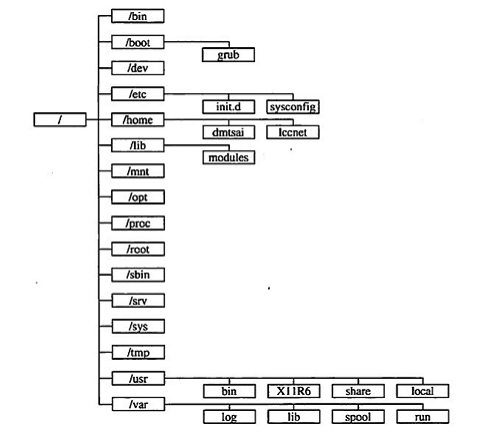
5. Absolute Path and Relative Path
In addition to the FHS directory configuration that requires special attention, we also need to pay special attention to file names. The different ways of writing file names can define what is called an absolute path (absolute) and a relative path (relative). The definitions of these two types of file names/paths are as follows:
Absolute Path:
File names or directory names that start from the root directory (/), for example, /home/dmtsai/.bashrc;
Relative Path:
File names written relative to the current path. For example, ./home/dmtsai or http://www.cnblogs.com/home/dmtsai/ etc. Any path that does not start with / is considered a relative path.
You must understand that the relative path represents the relative position based on your current location. For example, if you are currently in the /home directory and want to enter the /var/log directory, how would you write it?
cd /var/log (absolute)
cd ../var/log (relative)
Since you are in the /home directory, you need to go back one level (../) before you can continue moving to /var, so pay special attention to these two special directories:
. : Represents the current directory, and can also be represented as ./;
.. : Represents the parent directory, and can also be represented as ../.
The concepts of . and .. are very important; you will often see commands like cd .. or ./command, which represent the previous level and the current directory’s working state.
Example 1: How to enter the /var/spool/mail/ directory first, and then enter the /var/spool/cron/ directory?
Command:
cd /var/spool/mail
cd ../cron
Description:
Since /var/spool/mail and /var/spool/cron are both in /var/spool, there is no need to start from the root directory. This relative path is very helpful, especially for some software developers. Generally, software developers will place data in the various relative directories under /usr/local. But if users want to install to different directories, they must use relative paths.
Example 2: Network files often mention data like ./run.sh; what does this command mean?
Description:
Since executing commands requires variable support, if your executable file is in the current directory and this directory is not a standard executable file directory (/bin, /usr/bin, etc.), you must strictly specify the executable file. ./ represents the current directory, so ./run.sh means executing the file named run.sh in the current directory.
【Today’s WeChat public account recommendation↓】