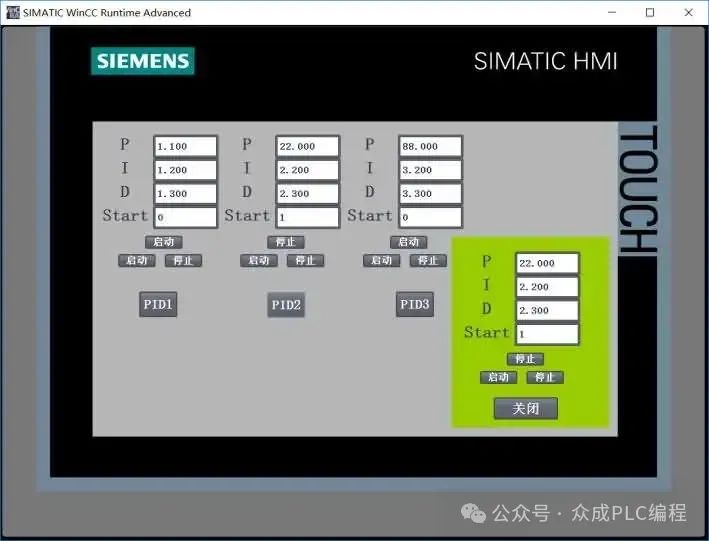
In various scenarios, it is often necessary to monitor and control a large number of similar devices, each of which needs to display its own parameters and control options on the Human-Machine Interface (HMI). Designing sub-screens for each device on the HMI would greatly increase repetitive work and make the HMI program cumbersome.
To simplify this process, we can adopt a strategy: design a generic “Faceplate Template” for these similar devices in the HMI program, and then load this template in a pop-up manner to display the corresponding parameters according to the needs of different devices. This approach can significantly reduce the complexity of configuration work.
Below is an example that demonstrates how to call the same faceplate template through a pop-up screen to separately display the PID adjustment parameters and device start/stop signal parameters of three groups of devices, and use toggle buttons to set or reset Boolean (Bool) variables.
Steps:
1. In the HMI environment, create multiple parameter variables related to similar devices (PID data types defined as UDT data types in the PLC program).
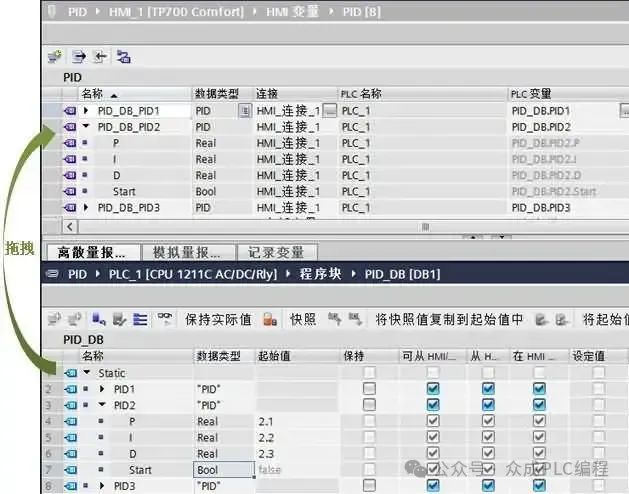
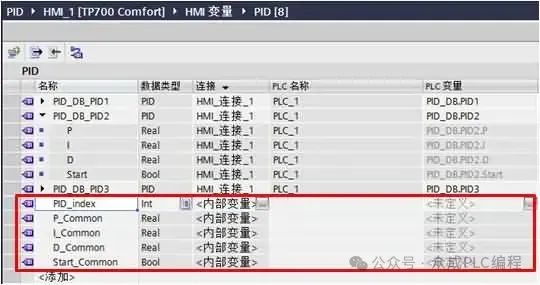
2. Next, set up internal variables in the HMI, including pointer index variables and pointer variables.
3. Configure these pointer variables so that they can point to different actual variables based on the value of the index variable.
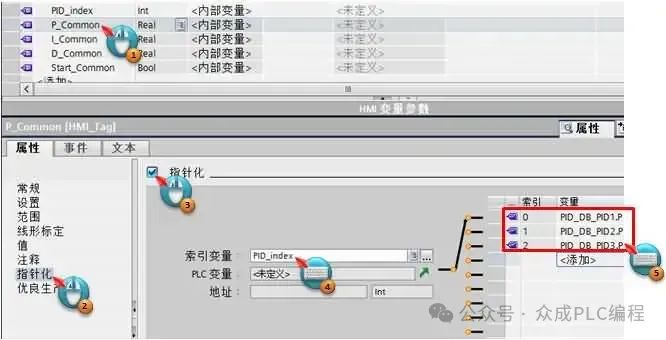
When PID_index is 0, P_Common points to PID_DB_PID1.P;
When PID_index is 1, P_Common points to PID_DB_PID2.P;
When PID_index is 2, P_Common points to PID_DB_PID3.P.
Similarly, configure the pointer variables “I_Common”, “D_Common”, and “Start_Common” in the same way.
4. Create a generic faceplate template in the project library.
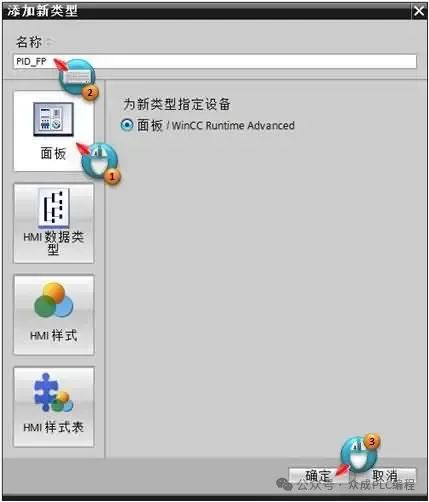
5. In this template, add the necessary dynamic properties.
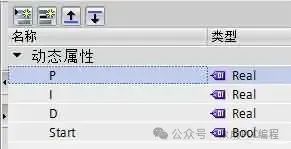
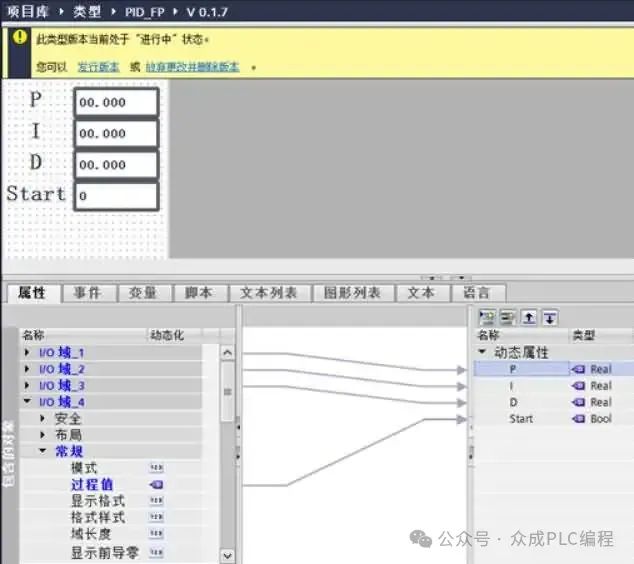
6. Add I/O fields for parameter display and input, and bind the process values of these fields to the corresponding dynamic properties.
7. Add a “Start/Stop” toggle switch to change the state of the Bool type variable to start or stop the device. Since pointer variables cannot directly use certain functions, we use the toggle state of the switch to indirectly control the Bool variable.
For the start/stop operation, there are two common implementation methods:
1) Use a single switch, setting its text to toggle between “Start” and “Stop”.
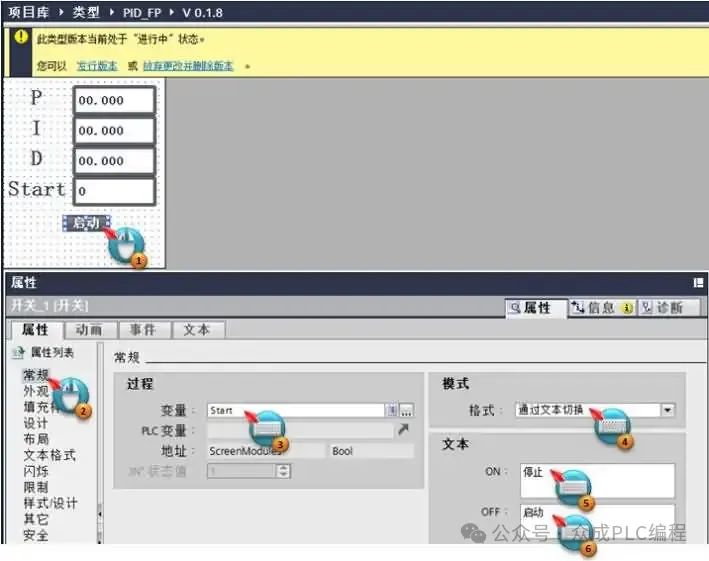
2) Use two switches, one specifically for “Start” and the other for “Stop”.
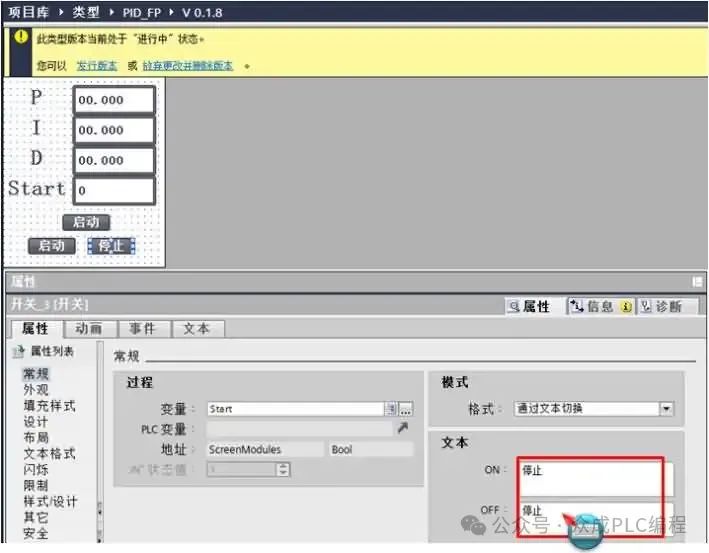
Add animations, choose “Controllability”.
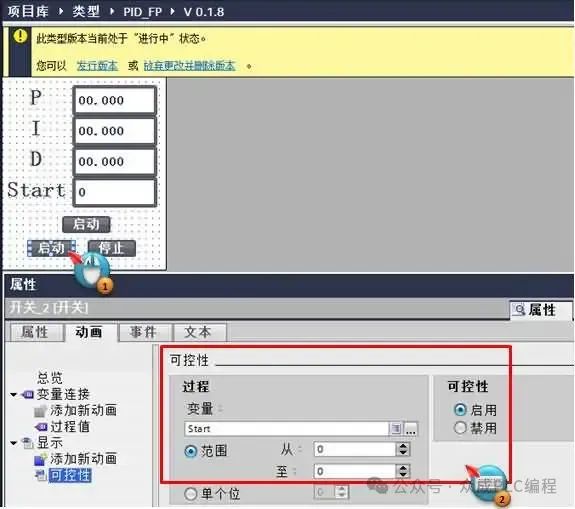
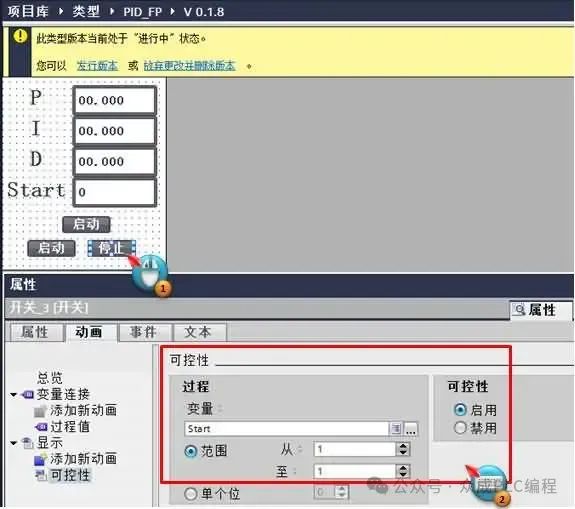
After completing these settings, publish the version in the faceplate template editor.
8. In the HMI’s pop-up screen management, add a new pop-up screen named “PID_Popup”, adjust its size, and add the previously created “PID_FP” template from the project library types.
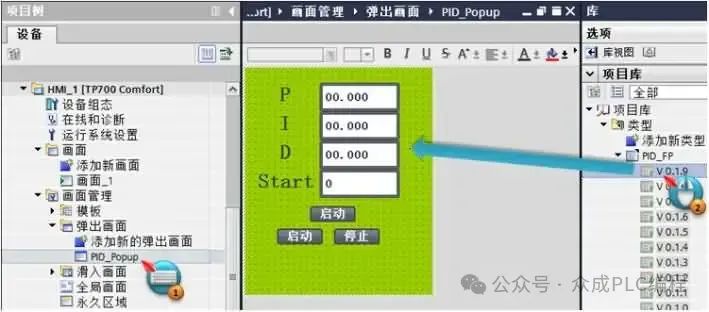
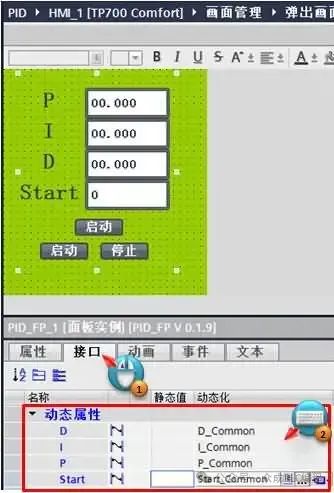
9. In this pop-up screen’s panel instance, associate the dynamic properties with the pointer variables created earlier.
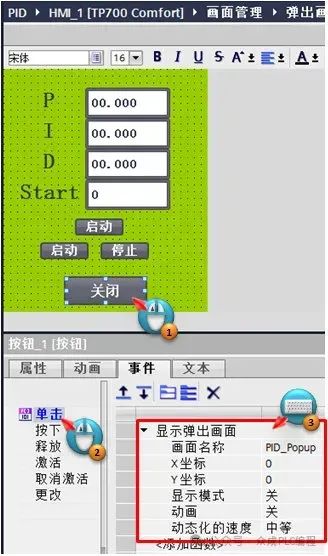
10. Add a “Close” button on the pop-up screen and set a function in its click event to close the pop-up screen.
11. Finally, add a button on the main screen to trigger the display of the pop-up screen, and add the corresponding function in the click event of that button.
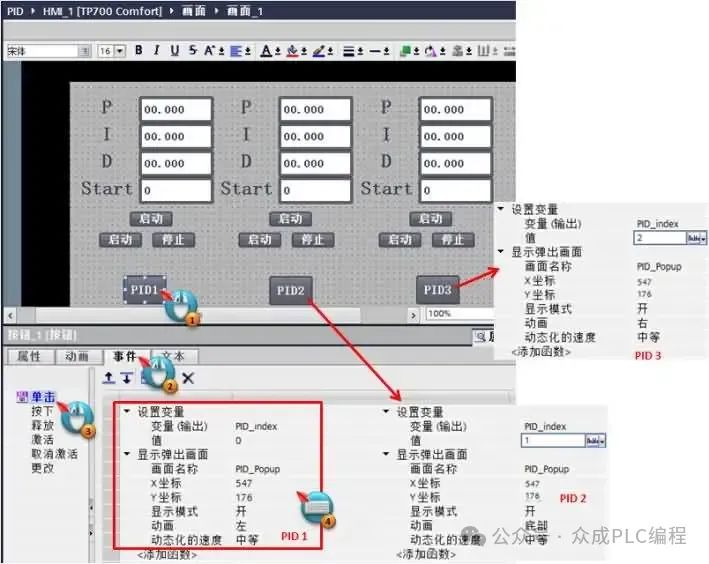
After completing the above steps, you can see the expected effect in actual operation: