Click on the top “Technical Training“, select “Pin to Top Public Account”
120,000+ industrial control professionals following this WeChat platform: technical sharing, learning exchange, industrial control videos
Issue 1: An error occurred when installing the latest Siemens touch screen software. How can I resolve this?
Solution:
The first item is just an authorization software, so you can skip it. Other programming like SETP7, WINCC, and communication line drivers, as long as they are Siemens software, will include the software from the first item in the image; it’s just a different version and does not affect usage. Although the specific reason for the error is unclear, you can avoid selecting this item in the previous step. Then, install another version of the authorization program from other software, or you might already have a lower version of this software on your computer.
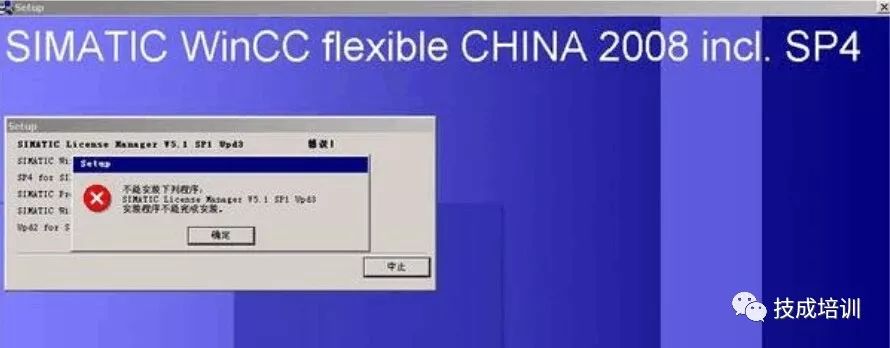
Issue 2: An error occurred during the installation of Siemens touch screen software.
Solution:
1. There is already an SQL Server 2005 version or lower version in the system, causing a conflict. 2. The system may not support this version of the software, consider changing the system.
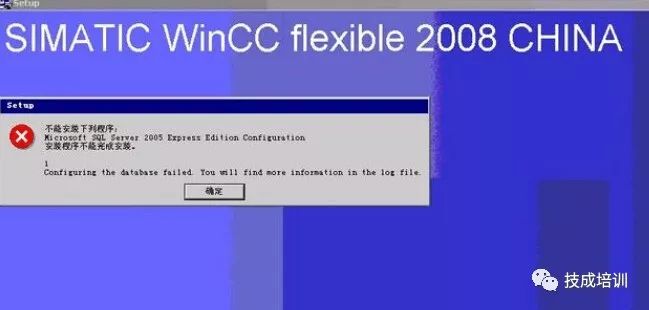
Issue 3: After installing the software, it cannot proceed with the wizard, but I can open previous project programs. I downloaded the 2008SP2 version online. What is the issue with this installation and how can I install it correctly?Solution:
<BR>The error code is <BR>Could not find folder; C:/DOCUMENTS AND SETTINGS/ALL USERS/APPLICATION DATA/SIEMENS AG/SIMATIC WINCC FLEXIBLE 2008/CACHES/1.3.2.0/READ <BR>/TEMPLATE -ZH-CN.TMP<BR>
When creating a new WinCC flexible 2008 project, if you see the error message “Could not find file “C:\Documents and Settings\All Users\Application Data\Siemens AG\SIMATIC WinCC flexible 2008\Caches\1.3.0.0_183.1\Read\Template_zh-CN.tmp” (temporary file not found in the specified folder), this is caused by deleting temporary files (*.tmp) while using 360 Guardian to clean junk files. Delete the folder “C:\Documents and Settings\All Users\Application Data\Siemens AG\SIMATIC WinCC flexible 2008” and then recreate the WinCC flexible project. The above folder will be recreated when the flexible software starts again, allowing you to create a new WinCC flexible project.
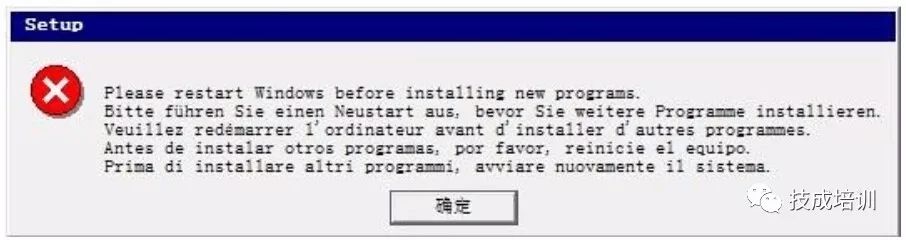
Issue 4: An error occurred during the installation of Siemens touch screen software WinCC flexible 2008 SP4, how to resolve the pop-up dialog box?
Solution:
1. If the installation prompts for a restart, especially if it repeatedly prompts for a restart, open the registry and find the key HKEY_LOCAL_MACHINE\SYSTEM\CURRENTCONTROLSET\CONTROL\SESSION MANAGER, check the key, delete the directory file it points to, and then delete the key or directly delete the construction. Do not restart, continue your software installation. 2. Using a vbs script method:
Set WshShell = Wscript.CreateObject(“Wscript.Shell”) WshShell.RegDelete
“HKEY_LOCAL_MACHINE\SYSTEM\CurrentControlSet\Control\Session Manager\PendingFileRenameOperations”
Set WshShell = Nothing
Save the above script to a text file, change the text file extension from TXT to VBS.
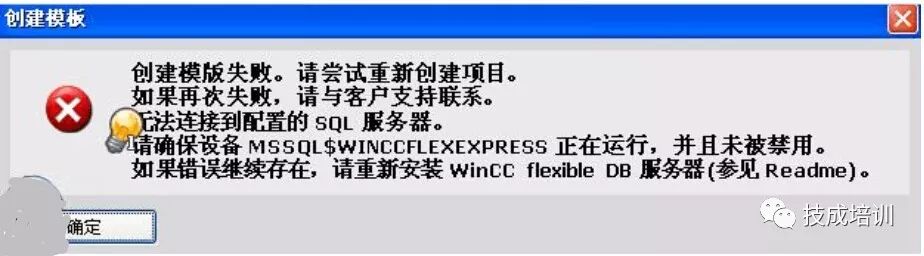
Issue 5: After successfully installing the Siemens touch screen software WinCC_flexible_2008_SP4, I cannot open or create a new project, it prompts
Solution:
The error is obvious; your SQL server is not open. Check if your antivirus software is blocking it. If you really can’t find the reason, uninstall it, disable all antivirus software, and reinstall (it may also be an incomplete installation). I had this situation before; it was due to an incomplete installation, mainly because of the system issue. My computer was on the Windows 7 Home Edition, then upgraded to the Ultimate Edition.
Notes:
1. When installing after extracting with WinRAR, ensure that the extraction directory does not contain Chinese names, and all upper-level folders during installation cannot have Chinese; otherwise, it will prompt errors like not finding SSF files. 2. If you encounter an infinite restart prompt during installation, please go to the registry HKEY_LOCAL_MACHINE\SYSTEM\CurrentControlSet\Control\Session Manager to delete PendingFileRenameOperations.
Issue 6: The installation program for Siemens human-machine interface prompts that the SSF file is not found and cannot be installed. How to resolve?Solution:
Copy the installation files to the root directory, ensuring there are no Chinese characters.
Since the installation program’s path contains Chinese names, the installation program cannot find the corresponding files during the detection process. The solution is to copy the installation folder to the root directory of the hard drive. For example, if your installation program is stored in the “STEP7” folder, you can copy it to “D:\”. Then you can find the “setup” icon in “D:\STEP7” and double-click to install.
Issue 7: Why does the installation of WinCC flexible 2008 keep prompting to restart WINDOWS?
Solution:
When installing Siemens touch screen software, if it keeps prompting to restart the computer and restarting does not work, you must delete the registry entry to continue. The specific path is as follows:
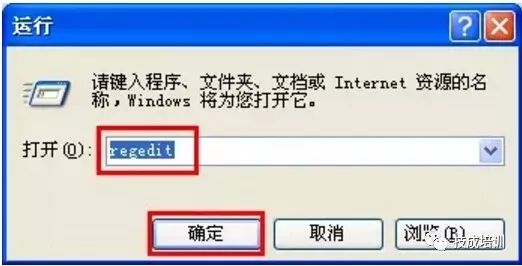
1. Click Start – Run, enter regedit to open the registry,
2. In the opened registry, click to open HKEY_LOCAL_MACHINE\System\CurrentControlSet\
Control\Session Manager.
Solution for Siemens touch screen software errors.
3. Click on Session Manager, check the file information on the right, and delete the PendingFileRenameOperations item.
Solution for Siemens touch screen software errors.
4. After deleting the registry, you do not need to restart the computer; you can start installing the Siemens touch screen software.
Source: Provided by Technical Training students
Share with friends to increase knowledge!
Click Read Original to learn about electrical engineering, PLC, frequency servo, CNC robots, and more.