We often encounter situations where we need to monitor log outputs while also starting services during environment deployment. At such times, you wish you had multiple monitors. Switching terminals using ctrl+alt+F1, F2, etc., can severely disrupt your workflow and reduce efficiency. This is where tmux plays a crucial role; it allows you to create multiple sessions, windows, and panes within a single terminal window, perfectly addressing the limitations of a single screen and significantly enhancing command-line work efficiency.
Most standard installations do not come with tmux pre-installed, so you need to install this tool manually:
# For Ubuntu/Debian systems
apt-get install tmux
# For CentOS/RHEL systems
yum install tmux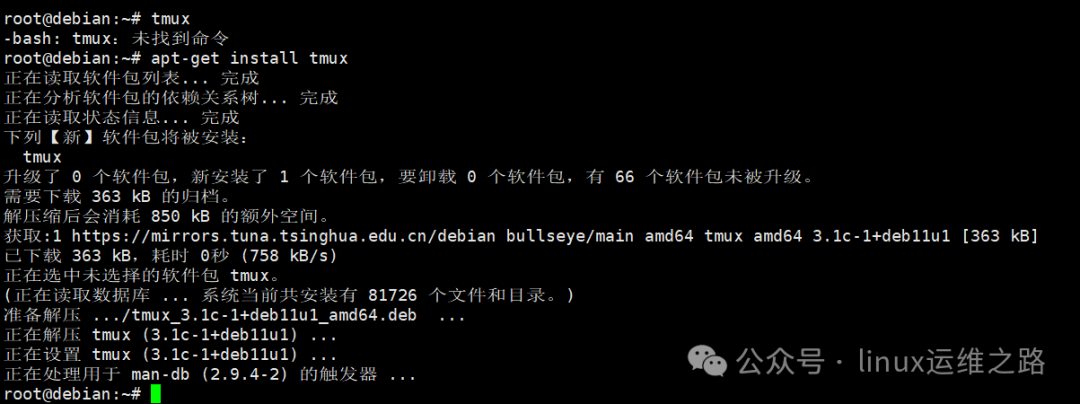 Starting and exiting tmux:
tmux                  # After starting, a green prompt will appear at the bottom
tmux new -s <name>    # Create a session with the specified name
exit                  # Exit the current session (automatically exits after all panes are closed)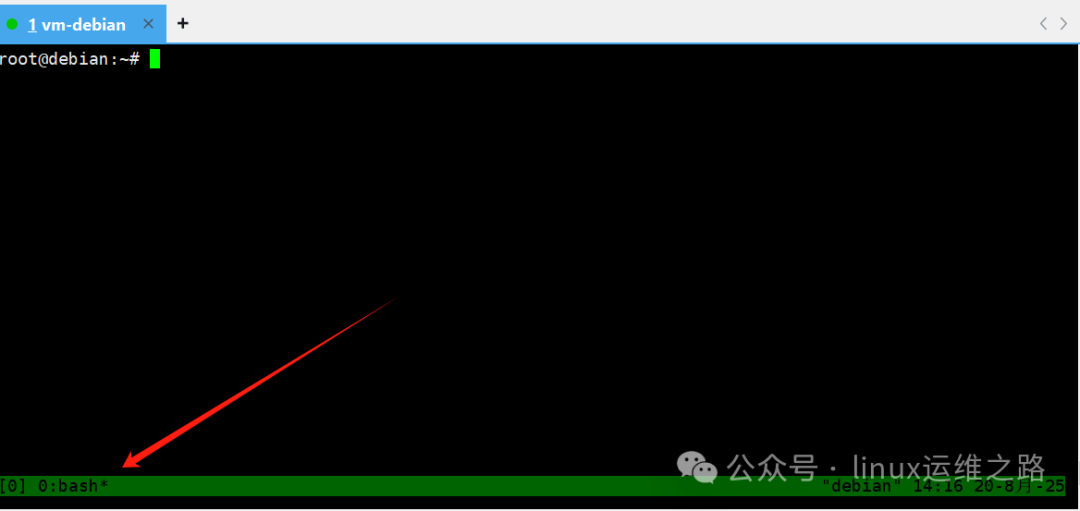
Most Commonly Used Shortcuts (Each step requires pressing the prefix key Ctrl+b)
Ctrl+b +%: Split the current pane vertically. You can then use ctrl+o (letter) or ctrl+arrow keys to navigate between each window. For example, the upper window can use htop to monitor resource usage while performing other operations below, which is very useful when debugging and deploying a new environment:
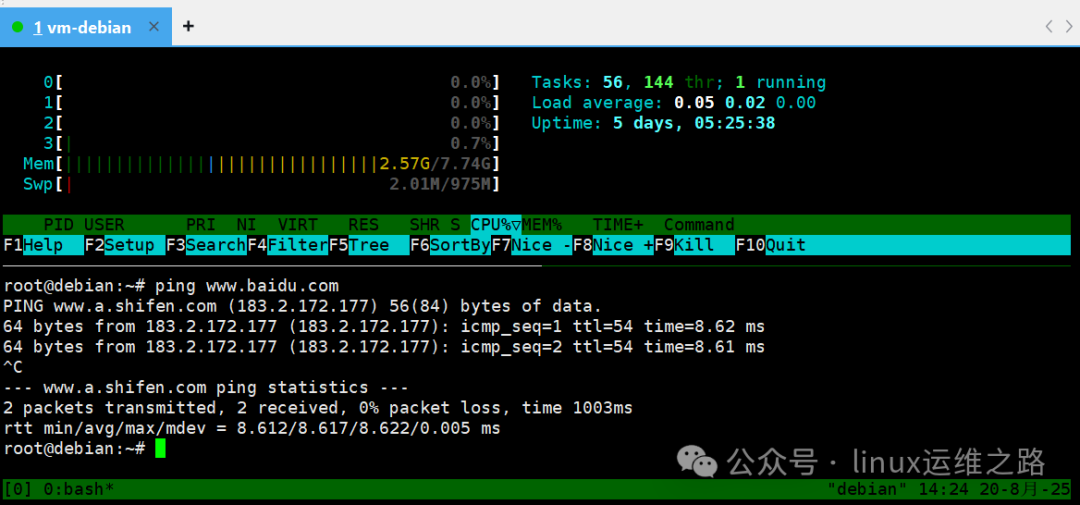
If you find that a pane needs to be larger, you can do the following: Ctrl+b, and while holding Ctrl, use the arrow keys to adjust the pane size.
You can also split the current pane again; for example, ctrl+b+% splits it horizontally, and you can further split the lower pane left and right, executing a ping operation on the left and running cmatrix (the Matrix screensaver effect) on the right. This method allows you to find a suitable arrangement of panes for your current work after multiple splits:
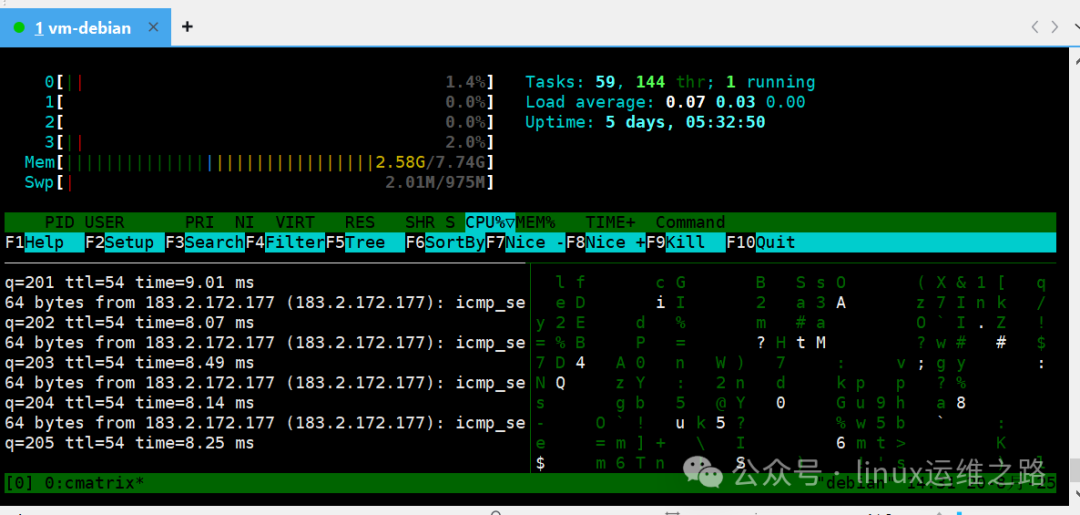
To exit tmux, simply type exit in the current pane. If there are multiple panes, you can flexibly choose which pane to exit. If the last one is exited, tmux will completely exit:
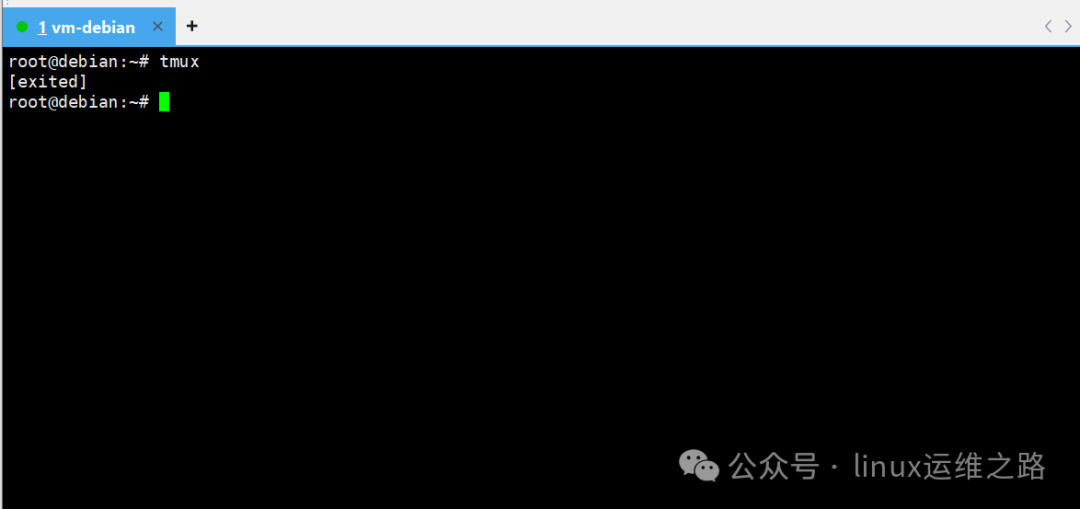
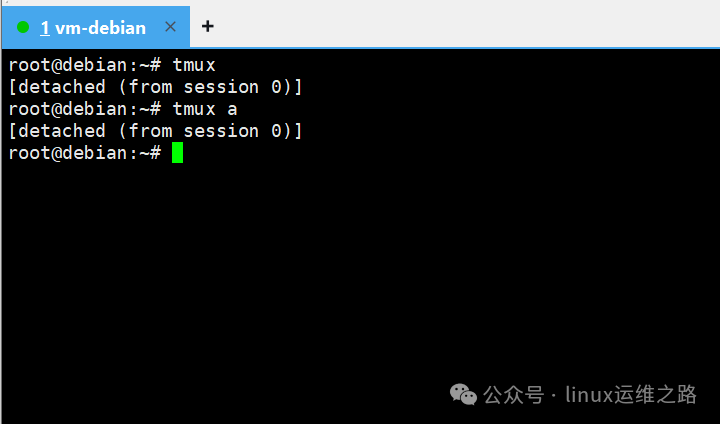
However, tmux has a powerful feature, which is also the original purpose of its creation: to run tasks in the background and prevent task interruption due to connection loss. For example, if you need to run a task that takes a long time, but you don’t want to use methods like nohup to run it in the background while still wanting to monitor its progress, tmux is very effective. After entering tmux, execute the task, and then press ctrl+b + d to detach the current pane, allowing it to run in the background. To re-enter the previous pane, type tmux a in the command line:
Here, I only list the features I commonly use; tmux has far more capabilities than these. Mastering its use will greatly facilitate operations and maintenance work. For other usage methods, I recommend checking its help documentation. Don’t understand English? No worries, use this method: super practical! The man command secret that Linux experts are using: 3 seconds to switch to Chinese, doubling efficiency!