
Have you ever forgotten the password you set after connecting to Wi-Fi for months? In fact, your device automatically stores all previously connected Wi-Fi passwords, which is why it can reconnect to the network automatically.
This article will introduce how to explore the saved passwords of any network you have previously connected to on Windows, Linux, and macOS.
 Recommended Related Learning
- Why is the Wi-Fi at the network engineer’s home faster than mine?
- Want to crack the LAN Wi-Fi password? This tutorial is super practical.
- These five Wi-Fi detection tools are incredibly useful.
Windows System
In Windows, you can view all saved Wi-Fi passwords without installing additional tools, just using the “Command Prompt”. The steps are as follows:
1. Open Command Prompt in Administrator Mode
- Click the “search bar” in the lower left corner of the desktop and type CMD.
- In the search results, right-click on “Command Prompt” and select “Run as administrator” (you must have administrator privileges, otherwise you may not be able to read the password).
2. View All Connected Wi-Fi Names
In the opened Command Prompt window, type the following command and press Enter:
netsh wlan show profiles
This command will display all the Wi-Fi network interfaces you have previously connected to. For example, you can see the Wi-Fi networks I have connected to below.
C:\Users\geekflare>netsh wlan show profiles

Profiles on interface Wi-Fi:

Group policy profiles (read only)
---------------------------------
    <None>

User profiles
-------------
    All User Profile     : OPPO A31
    All User Profile     : Jio 2g
    All User Profile     : Redmi
    All User Profile     : AndroidAP8840
    All User Profile     : belkin.637
    All User Profile     : Android GalaxyM-20
    All User Profile     : Free-wifi!
    All User Profile     : OnePlus 7
    All User Profile     : Micromax
    All User Profile     : sunsytesms_Wifi
    All User Profile     : GPONWIFI_C060
The next step is to explore the password for a specific interface. Just use the following command.
netsh wlan show profiles <interface name> key=clear
Here, you should provide the interface name for which you want to display the password.
Output:
C:\Users\geekflare>netsh wlan show profiles Micromax key=clear

Profile Micromax on interface Wi-Fi:
=======================================================================

Applied: All User Profile

Profile information
-------------------
    Version                : 1
    Type                   : Wireless LAN
    Name                   : Micromax
    Control options        :
        Connection mode    : Connect manually
        Network broadcast  : Connect only if this network is broadcasting
        AutoSwitch         : Do not switch to other networks
        MAC Randomization  : Disabled

Connectivity settings
---------------------
    Number of SSIDs        : 1
    SSID name              : "Micromax"
    Network type           : Infrastructure
    Radio type             : [ Any Radio Type ]
    Vendor extension          : Not present

Security settings
-----------------
    Authentication         : WPA2-Personal
    Cipher                 : CCMP
    Authentication         : WPA2-Personal
    Cipher                 : GCMP
    Security key           : Present
    Key Content            : 00000CD53

Cost settings
-------------
    Cost                   : Unrestricted
    Congested              : No
    Approaching Data Limit : No
    Over Data Limit        : No
    Roaming                : No
    Cost Source            : Default
In the security settings details, you can see the password for the provided interface (Key Content).
This is how you can easily find any interface’s Wi-Fi password using the Command Prompt in Windows.
Linux System

All Wi-Fi connection information for Linux distributions (such as Ubuntu, Kali Linux, CentOS, etc.) is uniformly stored in the “NetworkManager” system configuration directory, which can be read through terminal commands. The steps are as follows:
1. Enter the Wi-Fi Configuration File Directory
Open the Linux terminal (the shortcut is usually <span>Ctrl+Alt+T</span>), and type the following command to enter the folder where the Wi-Fi configuration files are stored:
cd /etc/NetworkManager/system-connections/
2. List All Saved Wi-Fi Configuration Files
Type the “list command” to view all files in this directory (each file corresponds to a previously connected Wi-Fi network):
ls -a
The example output is as follows (the file names usually match the Wi-Fi names):
GPONWIFI_CO60 Jio2g Redmi belkin.637
3. View the Password for a Specific Wi-Fi
Select the configuration file you need to query (for example, “GPONWIFI_CO60”), and enter the following command (you need to use <span>sudo</span> to gain administrator privileges) to read the file content:
cat <Interface name>
This command will display all information about the Wi-Fi network you selected.
For example, for “GPONWIFI_CO60”, the command is:
┌──(root💀kali)-[/home/writer]
└─# cd /etc/NetworkManager/system-connections

┌──(root💀kali)-[/home/writer/etc/NetworkManager/system-connections]
└─# ls -a
GPONWIFI_CO60     Jio2g

┌──(root💀kali)-[/home/writer/etc/NetworkManager/system-connections]
└─# sudo cat GPONWIFI_CO60
[connection]
id=GPONWIFI_C060
uudi=7cb198f4-5e6d-4277-8c13-29e24f04b07e
type=802-11-wireless

[802-11-wireless]
ssid=GPONWIFI_CO60
mode=infrastructure
mac-address=xx:xx:xx:xx:xx:xx
security=802-11-wireless-security


[802-11-wireless-security]
key-mgmt=wpa-psk
auth-alg=open
psk=00000Dwwqf2

[ipv4]
method=auto

[ipv6]
method=auto
After execution, the value of “[802-11-wireless-security]” section under “psk” is the password for that Wi-Fi (as shown in the example below <span>00000Dwwqf2 </span><code><span># This is the Wi-Fi password</span> )
macOS System

The Wi-Fi passwords in macOS are stored in the system keychain and can be directly extracted using the “Terminal” tool. The steps are simple and efficient:
1. Open Terminal
- Click on the “Launchpad” at the bottom of the screen and enter the “Applications” folder.
- Open the “Utilities” folder and double-click on “Terminal” to start it.
2. Execute the Password Query Command
In the terminal, type the following command, replacing <span><Interface-name></span> with the Wi-Fi name you want to query:
<span>security find-generic-password -ga Interface-name| grep “password:”</span>
3. Verify User Permissions (Key Step)
After executing the command, the system will prompt you to enter your “macOS user password” (the password you use to log into the computer). Enter it and press Enter (the password will not be displayed while typing, just type it directly).
4. Retrieve the Wi-Fi Password
Once verified, the terminal will output information containing the password, and the string after “<span>password:</span>” is the Wi-Fi password, as shown below:
password: "1234567890" # The string in double quotes is the Wi-Fi passwordConclusion
No matter which operating system you use, as long as you have successfully connected to Wi-Fi before, the system will automatically save its password, and you do not need to rely on third-party tools. You can easily retrieve it using the built-in command line tools: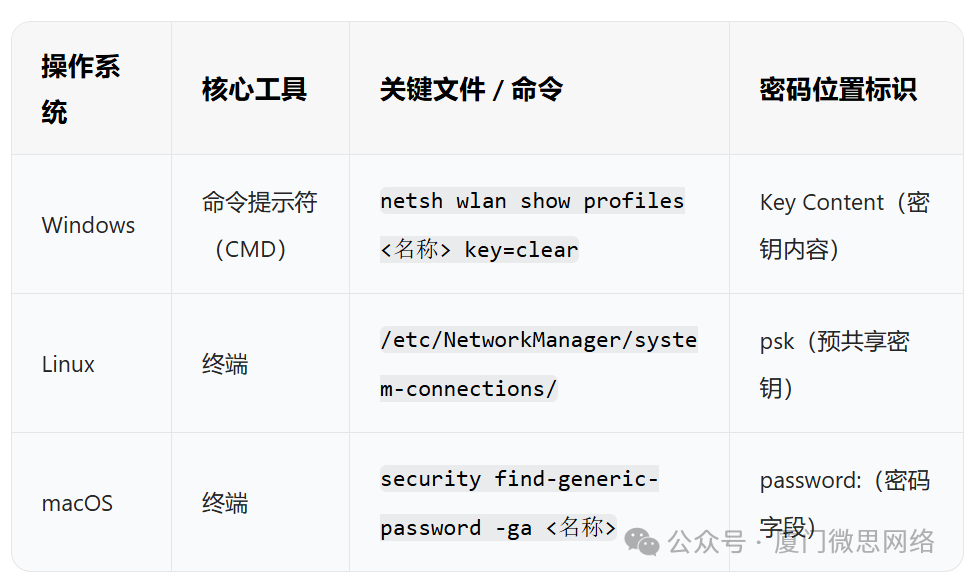 Using the above methods, you can quickly recover forgotten Wi-Fi passwords without resetting the router or asking others again.Micro Thought Network(Click to view introduction)
Established in 2002, specializing in certified training for over 20 years
Recruiting nationwide → Online live broadcast | Offline teaching


System Integration
Certification Training
IT Maintenance, find us
IT Training, find us Buy equipment, find us