Recently, my WeChat has been flooded with help requests from friends!
All of them are about Bluetooth connection troubles: headphones not connecting, mouse intermittently disconnecting, file transfers stuck at 99%… These issues are driving people crazy!
As someone who has been “fixing computers” for friends for five years, I’m going to share all my practical experience without holding back, ensuring that after reading this, you won’t need to take your computer to a repair shop anymore!
Why can’t devices be found? Check these three places first!
First, many people can’t connect because they haven’t put their devices into “pairing mode”.
Bluetooth headsets usually require you to press and hold the power button until the indicator light flashes rapidly, while keyboards and mice need to press the small button at the bottom.
On the computer side, don’t forget to turn on the Bluetooth switch in the settings!
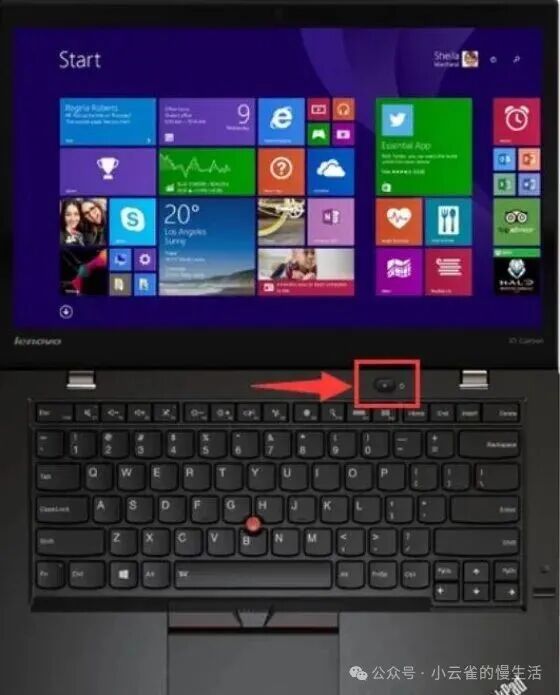
Secondly, don’t overlook those inconspicuous little switches on laptops!
For brands like ThinkPad and HP, there are often physical switches hidden on the keyboard or side; if this is off, clicking in the software won’t help at all.
Additionally, Bluetooth signals are particularly sensitive to “hard obstacles”; they can’t penetrate metal and thick walls, so placing the device next to the computer without anything in between can increase the success rate by 50%!
Finally, don’t underestimate those “digital ghosts”!
If pairing has failed before, there may be corrupted records left in the computer.
Quickly delete them, search for connections again, and the success rate will double immediately!
Disconnected after connecting? These details are overlooked by 90% of people!
The most easily ignored issue is the “2.4GHz war”!
Bluetooth, Wi-Fi, and microwaves are all crowded in this frequency band, so of course, they will interfere with each other!
Try setting your router’s channel to one of 1, 6, or 11, or temporarily turn off Wi-Fi while connecting Bluetooth.
I have a friend who had his headphones constantly being taken over because his phone, tablet, and laptop all had Bluetooth on at the same time, resulting in a frustrating listening experience!
Is your Bluetooth headset cutting in and out while listening to music?
I have a secret weapon!
Right-click the volume icon in the lower right corner of the computer → Sound settings → Sound Control Panel, find your headset, right-click properties → Advanced, and uncheck “Allow applications to take exclusive control of this device”.
This trick is a game changer, ensuring that the computer prioritizes audio stability. After I set this up for over ten friends, they all said their music playback was much smoother!
Don’t forget, a Bluetooth device with no power is like a person who hasn’t eaten; it wants to lie down after just a few steps.
Charge your headset and mouse before trying again.
Don’t overlook drivers either; outdated drivers are like rusty keys that can’t open new locks.
Update the Bluetooth driver in Device Manager, and the problem will often be resolved!
File transfer failures? Change these two settings and it will fly!
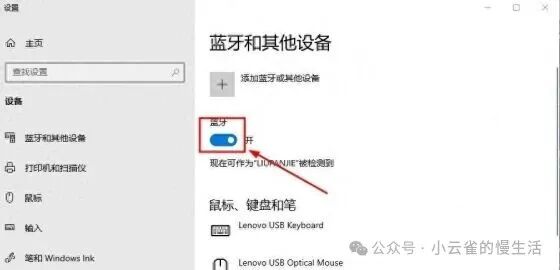
Can’t find the computer on your phone? That’s because your computer is set to “invisible mode” by default!
In the Bluetooth settings, find “More Bluetooth options”, check “Allow Bluetooth devices to find this computer”, and set the discoverable time to the maximum.
With this, your computer will be like it’s turned on location services, and your phone will be able to find it instantly!
Is file transfer always getting stuck halfway?
Try right-clicking the Bluetooth icon in the taskbar, select “Receive Files”, and send from your phone at the same time.
If that doesn’t work, find the computer’s “Services” and change “Bluetooth User Support Service” from “Delayed Start” to “Automatic”, then restart, and file transfers will be as smooth as if they had a booster!
Universal trick: One-click reset of the Bluetooth module
If none of the above methods work, then it’s time to use the ultimate trick!
Force shutdown, unplug all external devices, and hold the power button for 30 seconds to “discharge” (this trick is effective for various mysterious faults).
After booting up, the Bluetooth module will be refreshed as if it had taken a shower; I have successfully rescued countless “dying” Bluetooth devices with this trick!
Super practical trivia to make you a Bluetooth expert among your friends!
Few people know that the Bluetooth version has a huge impact on stability!
Version 5.0 has double the transmission distance of 4.0 and is particularly resistant to interference.
If your device is an older version, spending a few bucks on an external Bluetooth adapter can make a world of difference, offering great value!
The differences between connecting Bluetooth on Mac and Windows are also significant.
Apple computers are straightforward, while Windows requires you to manually click “Add Device” each time.
By the way, Mac’s Bluetooth compatibility is indeed better than Windows, so Windows users should choose Bluetooth devices with the “Microsoft Certified” label to avoid many detours!
Don’t want to mess with drivers yourself?
Just download the “Driver Manager” for your computer brand!
For example, Lenovo computers have Lenovo Driver Manager, which updates all drivers with one click, saving time and effort!
In fact, Bluetooth issues are like puzzle games; once you master the methods, you can solve them in no time.
Next time you encounter a connection failure, don’t rush to find someone to help; try following the steps I mentioned, and I bet 90% of the problems can be solved!
Even if you do encounter hardware damage, don’t worry; spending a few bucks on a Bluetooth adapter can still bring your old computer back to life!
Have you ever encountered strange Bluetooth issues? Or do you have any solutions I didn’t mention? Feel free to share in the comments!