Click the blue “One Linux” in the upper left corner, and select “Set as Favorite“
Get the latest articles first


☞【Resources】Learning Path for Embedded Driver Engineers
☞【Resources】Linux Embedded Knowledge Points - Mind Map - Free Access
☞【Employment】A Comprehensive IoT Project Based on Linux for Your Resume
☞【Employment】Resume Template
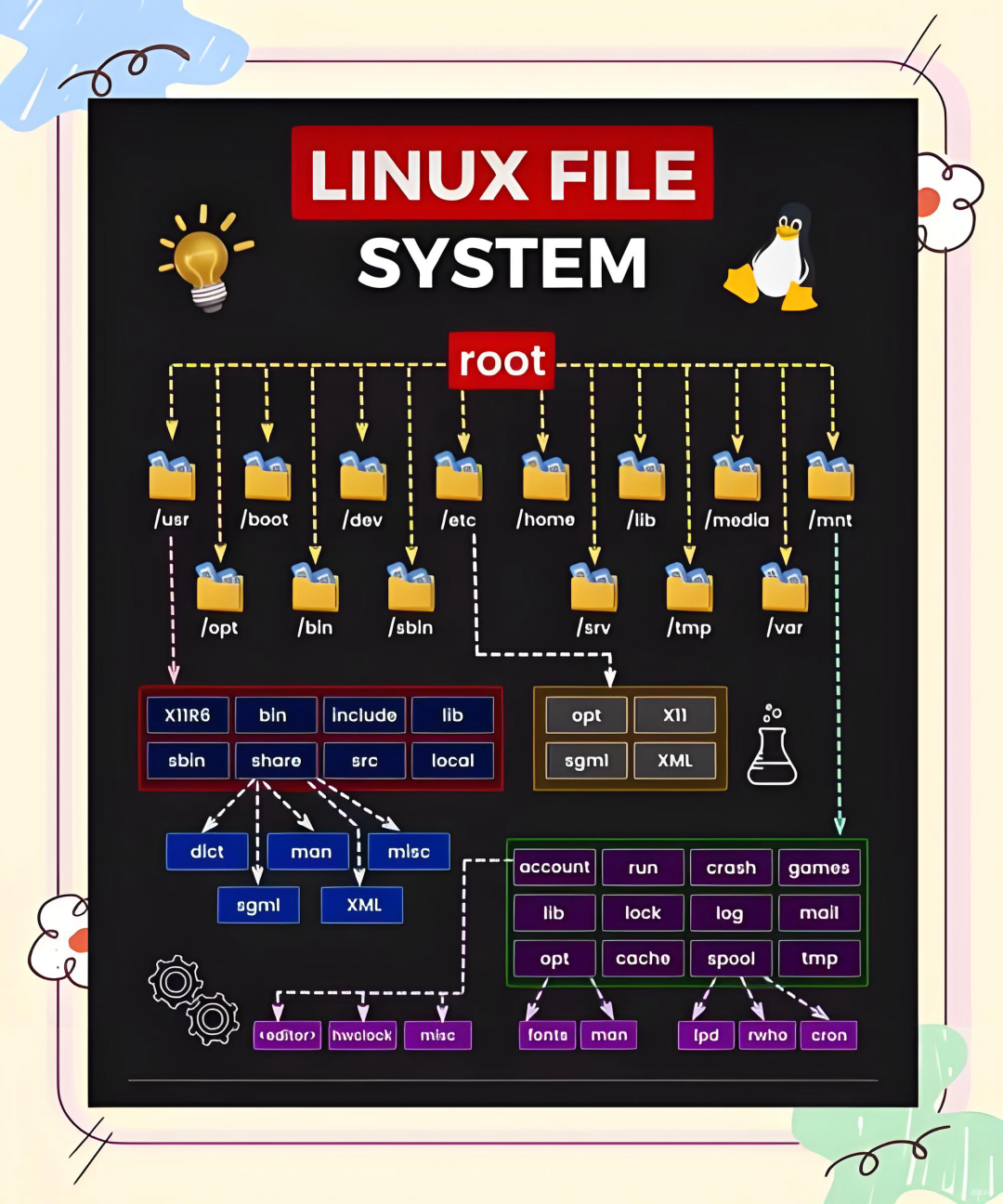
/etc Directory
/etc/profile # Configure Environment Variables Aliases
/etc/bashrc # Aliases
1. /etc/profile
This file sets environment information for every user on the system (it is executed when each user logs in for the first time).
2. /etc/profile.d
This directory is actually a subdirectory of /etc/profile, storing configuration files for new environments, facilitating the classification and use of new environment configurations.
3. /etc/bashrc
This file is executed for every user running a bash shell (it is read when the bash shell is opened).
4. ~/.bash_profile
This file is dedicated to shell information for each user (it is executed once when the user logs in. It sets some environment variables and executes the user’s .bashrc file).
5. ~/.bashrc
This file contains bash information specifically for each user’s bash shell (it is read when logging in and each time a new shell is opened).
6. ~/.bash_logout
This file is executed each time the user logs out of the system or exits the bash shell.
7. /etc/motd
This file is used to store welcome messages. To edit, use vi and input (disconnect and reconnect to the terminal to see changes).
8. /etc/issue
Both /etc/issue and /etc/issue.NET are files that store welcome messages for Linux terminal logins. The usage of /etc/issue is quite similar to that of /etc/motd.
The main difference is:
When a network user logs into the system via serial port, the content of /etc/issue is displayed before the login prompt, while the content of /etc/motd is displayed after the user successfully logs in. (When we log into the terminal tty1~tty6 using ctrl+alt+f1~f7, the prompt strings displayed are written in /etc/issue, which can be viewed using vi /etc/issue).
There is also an /etc/issue.NET file, which is used by telnet remote login programs. By default, the contents of /etc/issue and /etc/issue.NET are the same, but can be modified as needed.
#cat /etc/issue
The difference between /etc/issue.net and /etc/issue:
/etc/issue and /etc/issue.net are both welcome messages displayed before logging into the system.
However, /etc/issue is displayed during local terminal logins, while /etc/issue.net is displayed during remote logins. Additionally, /etc/issue.net does not support escape characters.
Whether to display welcome messages for remote logins also depends on the ssh configuration file, /etc/ssh/sshd_config’s Banner field.
It is generally advisable to avoid exposing system version information to others.
>/etc/issue>/etc/issue.netThe pwconv command
The pwconv command is used to enable user shadow passwords. In Linux systems, user and group passwords are stored in files named passwd and group, located in the /etc directory. For system operation, these files must be readable by anyone, which poses a security risk. Shadow passwords move the passwords from these files to the shadow and gshadow files in the /etc directory, which are only readable by system administrators, while replacing the original passwords with “x” characters, effectively enhancing system security.
The pwunconv command, on the other hand, reverses the function of pwconv, disabling user shadow passwords. It moves passwords from the shadow file back to the passwd file. This method reduces system security, as anyone can read the contents of passwd, while only the root user has read and write permissions for the shadow file.
9. /etc/fstab Automatic Mounting on Boot
[root@xuegod63 ~]# mount /dev/sr0 /mnt/[root@xuegod63 ~]# echo "/dev/sr0 /mnt iso9660 defaults 0 0" >> /etc/fstab10. /etc/rc.local Commands for Startup
Configuration Analysis of /etc Directory Related Files
1. /etc/profile
This file is primarily used to set environment information for each user on the system. It is automatically executed when each user first logs into the system and can be used to configure environment variables and set aliases.
2. /etc/profile.d
This directory is actually a subdirectory of /etc/profile, serving to store configuration files for new environments. This design greatly facilitates the classification management and use of new environment configurations.
3. /etc/bashrc
This file executes corresponding operations for each user running a bash shell. When the bash shell is opened, this file is read and can also be used to set aliases.
4. ~/.bash_profile
This is the shell information configuration file dedicated to each user. When the user logs into the system, this file is executed once. Its functions include setting necessary environment variables and executing the user’s .bashrc file.
5. ~/.bashrc
This is the configuration file used specifically for each user’s bash shell. It is read when the user logs into the system and each time a new shell is opened.
6. ~/.bash_logout
This file is executed when the user logs out of the system or exits the bash shell.
7. /etc/motd
This file is used to store welcome messages. To edit, use the vi editor for input operations, then disconnect and reconnect to the terminal to see the changes take effect.
8. /etc/issue and /etc/issue.NET
These two files are used to store welcome messages for Linux terminal logins. The usage of /etc/issue is quite similar to that of /etc/motd, with the main difference being that when a network user logs into the system via serial port, the content of /etc/issue is displayed before the login prompt, while the content of /etc/motd is displayed after the user successfully logs in.
For example, when we log into the terminal tty1 using ctrl + alt + f1~f7, the prompt strings displayed are stored in the /etc/issue file, which can be viewed using the command vi /etc/issue.
Additionally, the /etc/issue.NET file is used by telnet remote login programs. By default, the contents of /etc/issue and /etc/issue.NET are the same, and users can modify them according to their needs.
Common Escape Characters Explanation
- \d: Represents the date of the local time.
- \l: Used to display the interface of which terminal.
- \m: Displays the hardware level (e.g., i386, i486, i586, i686, etc.).
- \n: Displays the network name of the host.
- \o: Displays the domain name.
- \r: Displays the version of the operating system. For example, #cat /etc/issue may display CentOS release 6.1 (Final) Kernel \r on an \m, where \r and \m are escape characters.
Other Configuration Files
~/.bash_logout can be used to write operations that the system should perform after logging out (this file is hidden).
~/.bash_history is the command history file, where all used commands are recorded. They are first cached in memory and then written to this file for storage.
end
One Linux
Follow and reply with 【1024】 to receive a wealth of Linux resources
Collection of Wonderful Articles
Article Recommendations
☞【Album】ARM☞【Album】Fan Q&A☞【Album】All Originals☞【Album】LinuxIntroduction☞【Album】Computer Networks☞【Album】Linux Drivers☞【Resources】Learning Path for Embedded Driver Engineers☞【Resources】All Knowledge Points of Linux Embedded – Mind Map