Click the blue text to follow us

1. Introduction
The chmod (change mode) command is used to change the permissions of a file for users.
chmod (change mode) is a command in the Linux system used to change the permissions of files or directories, controlling access for the file owner, group, and other users.
Note: Only the file owner and superuser can modify the permissions of files or directories.
In Linux/Unix, file access permissions are divided into three levels: file owner (Owner), user group (Group), and other users (Other Users).
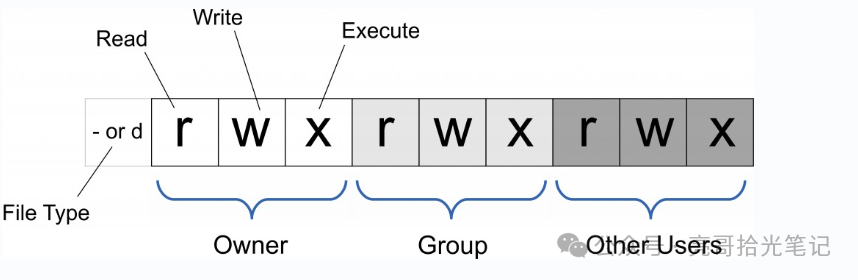
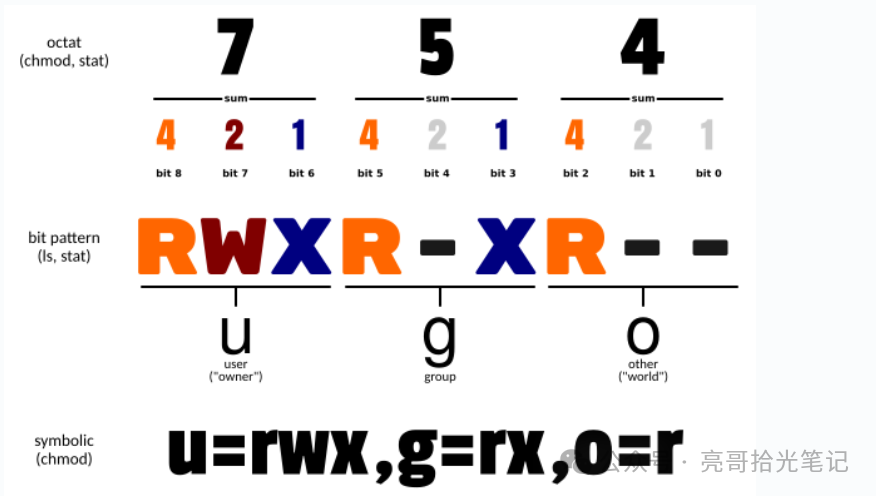
Permissions can also be specified using absolute mode (octal number mode) or symbolic mode.
2. Syntax
Syntax: chmod [options]… [owner][:[group]] file or directory…
Parameter Description:
-c: Only display changes if the file permissions have actually changed
-f: Suppress error messages if the file permissions cannot be changed
-v: Display detailed information about permission changes
-R: Recursively change permissions for all files and subdirectories in the current directory
–help: Display help information
–version: Display version information
Permission Modes:
Symbolic Mode (ugoa+/-permissions): [ugoa…][[+-=][rwxX]…][,…]
Description:
u: Represents the file owner,
g: Represents users in the same group as the file owner
o: Represents all other users
a: Represents all three.
+: Indicates adding permissions
-: Indicates removing permissions
=: Indicates setting permissions exclusively.
r: Indicates read permission
w: Indicates write permission
x: Indicates execute permission
X: Indicates execute permission only if the file is a directory or has been set as executable.
Using symbolic mode allows setting multiple items: who (user type), operator (operator), and permission (permissions), with each item separated by commas.
The chmod command modifies the access permissions for the user types specified by who, which can be indicated by one or more letters as shown in the who symbolic mode table:
|
who |
User Type |
Description |
|
u |
user |
File owner |
|
g |
group |
Group of the file owner |
|
o |
others |
All other users |
|
a |
all |
All users, equivalent to ugo |
Operator symbolic mode table
|
Operator |
Description |
|
+ |
Add permissions for the specified user type |
|
– |
Remove permissions for the specified user type |
|
= |
Set the specified user permissions, resetting all permissions for that user type |
Permission Types
|
Mode |
Name |
Description |
|
r |
read |
Set to read permission |
|
w |
write |
Set to write permission |
|
x |
execute |
Set to execute permission |
|
X |
special execute |
Set to executable only if the file is a directory or other types of users have execute permission |
|
s |
setuid/gid |
Set the setuid or setgid permission for the file based on the user type specified by the who parameter when the file is executed |
|
t |
sticky bit |
Set the sticky bit, which can only be set by the superuser, allowing only the file owner to use this bitu can use this bit |
Octal Syntax
The chmod command can use octal numbers to specify permissions.
|
Number |
Permission |
Number |
|
4 |
read(r) |
4 |
|
2 |
write(w) |
2 |
|
1 |
execute(x) |
1 |
Combination:
Owner permissions (first digit)
Group permissions (second digit)
Other user permissions (third digit)
Common Combinations:
755: rwxr-xr-x
644: rw-r–r–
700: rwx——
The permission bits for files or directories are controlled by 9 permission bits, grouped into three, representing the read, write, and execute permissions for the file owner (User), user group (Group), and other users (Other).
|
# |
Permission |
rwx |
Binary |
|
7 |
read + write + execute |
rwx |
111 |
|
6 |
read + write |
rw- |
110 |
|
5 |
read + execute |
r-x |
101 |
|
4 |
read only |
r– |
100 |
|
3 |
write + execute |
-wx |
011 |
|
2 |
write only |
-w- |
010 |
|
1 |
execute only |
–x |
001 |
|
0 |
none |
— |
000 |
For example, 765 would be interpreted as:
Owner permissions are expressed numerically: the total of the three permission bits for the owner. For rwx, it is 4+2+1, which equals 7.
Group permissions are expressed numerically: the total of the permission bits for the group. For rw-, it is 4+2+0, which equals 6.
Other users’ permissions are expressed numerically: the total of the permission bits for other users. For r-x, it is 4+0+1, which equals 5.
3. Practical Examples
1. Set a file to be readable by everyone
[root@app01 abc]# chmod ugo+r aa.logor
[root@app01 abc]# chmod a+r aa.log2. Set a file to be writable by a specific user or group, while preventing others from writing
[root@app01 abc]# chmod ug+w,o-w aa.log3. Grant execute permission to the file owner
[root@app01 abc]# chmod u+x aa.log4. Change all files or directories in a directory to be readable by all users
[root@app01 abc]# chmod -R a+r *The chmod command can also use numbers to represent permissions.
Syntax: chmod abc filename/dir
Where a, b, c represent numbers indicating User, Group, and Other permissions.
r=4, w=2, x=1
To have rwx permissions, 4+2+1=7;
To have rw- permissions, 4+2=6;
To have r-x permissions, 4+1=5.
For example:
# chmod a=rwx file is equivalent to chmod 777 file
# chmod ug=rwx,o=x file is equivalent to chmod 771 file
More explanations
|
Command |
Description |
|
chmod a+r file |
Add read permission for all users of file |
|
chmod a-x file |
Remove execute permission for all users of file |
|
chmod a+rw file |
Add read and write permissions for all users of file |
|
chmod +rwx file |
Add read, write, and execute permissions for all users of file |
|
chmod u=rw,go= file |
Set read and write permissions for the file owner, clearing all permissions for the group and other users (space represents no permissions) |
|
chmod -R u+r,go-r docs |
Add read permission for the user to the docs directory and all files in its subdirectory structure, while removing read permission for the group and other users |
|
chmod 664 file |
Set read and write permissions for the file owner and group, and read permission for other users |
|
chmod 0755 file |
Equivalent to u=rwx (4+2+1),go=rx (4+1 & 4+1).0 No special mode. |
|
chmod 4755 file |
4Sets the set user ID bit, with the rest equivalent to u=rwx (4+2+1),go=rx (4+1 & 4+1). |
|
find path/ -type d -exec chmod a-x {} \; |
Remove execute permissions for all users on path/ and all its directories (excluding files), using ‘-type f’ to match files |
|
find path/ -type d -exec chmod a+x {} \; |
Allow all users to browse or pass through the directory path/ |
Long press the QR code to follow us


CSDN Blog丨Countless Stars
https://blog.csdn.net/myself88129
Some images and explanations in this article are sourced from the internet, hereby noted.