
【Software Name】: Code Composer Studio
【Installation Environment】: Windows
【Download Link】: Click “Read the original text” at the bottom
【Download Link】: https://www.sssam.com/6219.html
Software Introduction

Code Composer Studio is a powerful Eclipse software development environment, commonly referred to as an IDE. This software features easy-to-use configuration and graphical design, supporting TI’s microcontroller and embedded processor product series. Its functionalities conveniently include an optimized C/C++ compiler, source code editor, project build environment, debugger, descriptors, and various other features, enabling developers to quickly meet their development needs.
Installation Steps
1. Select the software zip file and choose “Extract to CCS”. 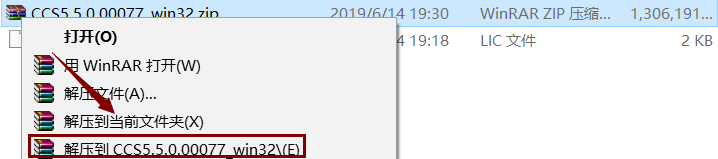 2. Open the extracted folder, right-click on “CCS”, and select “Run as administrator”.
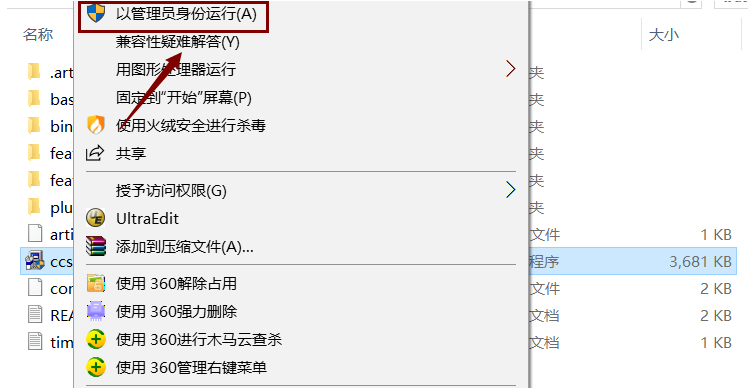 3. Click “YES”.
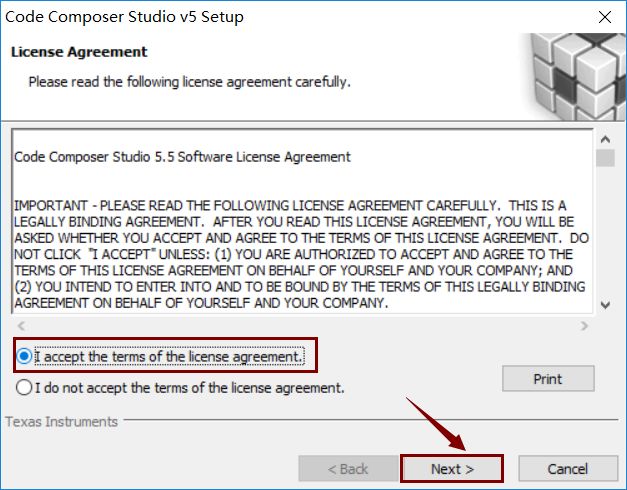
 4. Select “I accept the terms…” and then click “Next”.
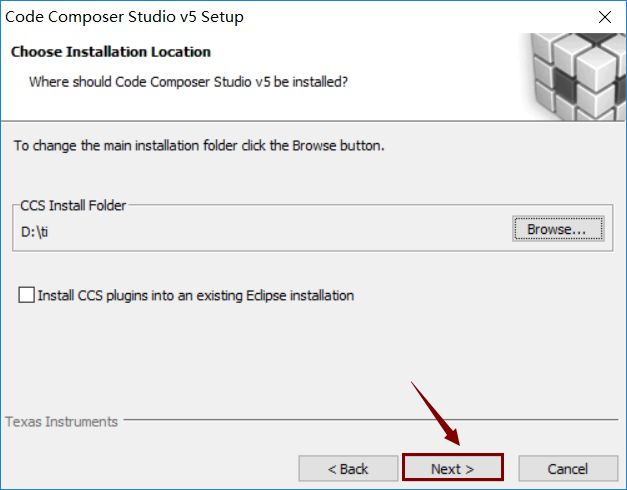
 5. Choose the installation path (path must be in English), then click “Next”.
 6. Click “Next”.
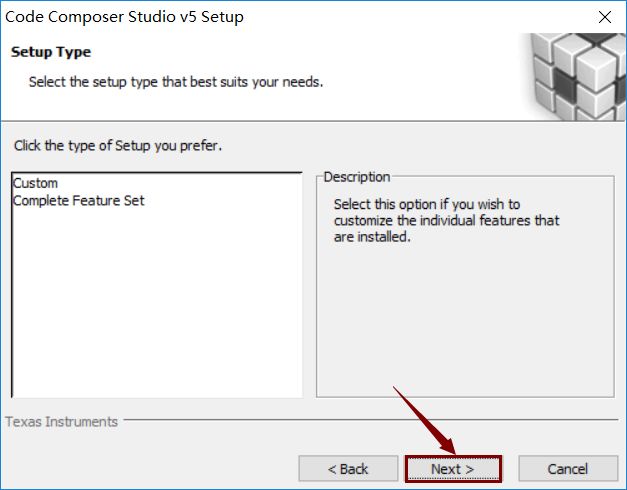 7. Select “MCU”, I selected all, then click “Next”.
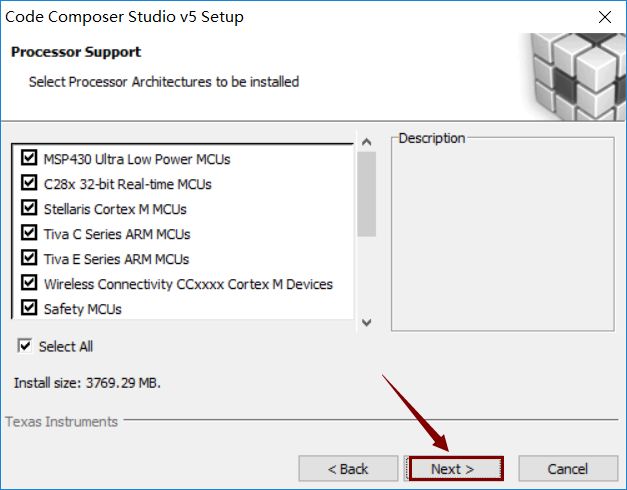 8. Choose according to your needs, I selected all, then click “Next”.
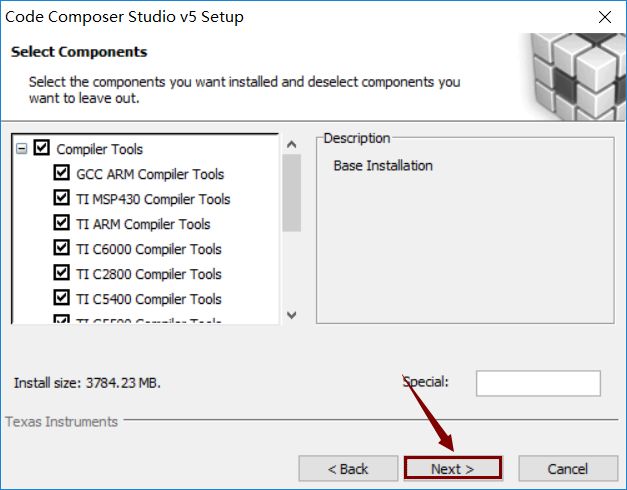 9. Make selections based on your needs, I selected all, then click “Next”.
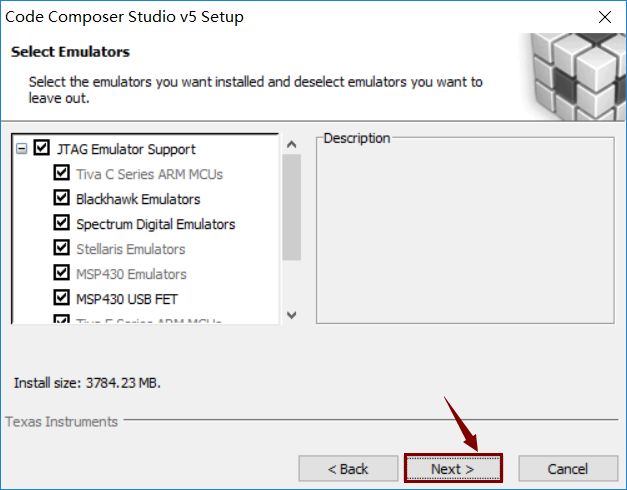 10. Click “Next”.
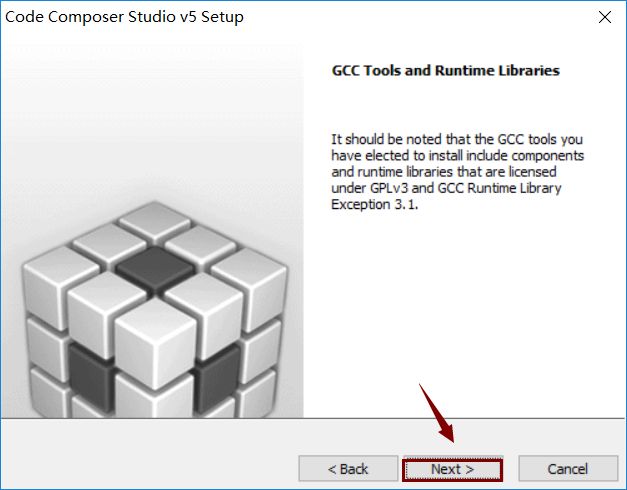 11. Click “Next”.
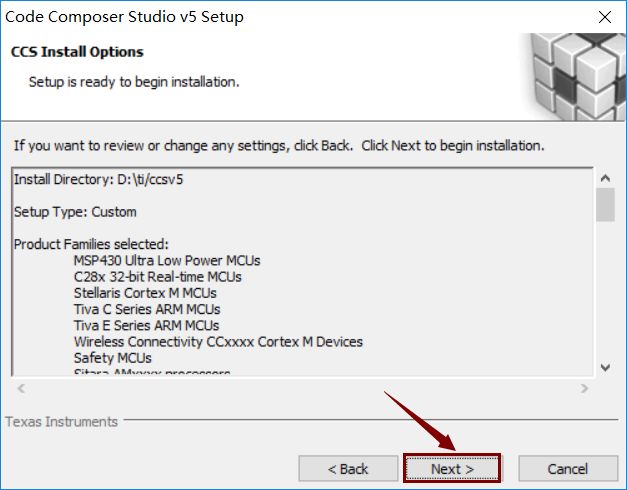 12. The software is installing, please be patient, thank you.
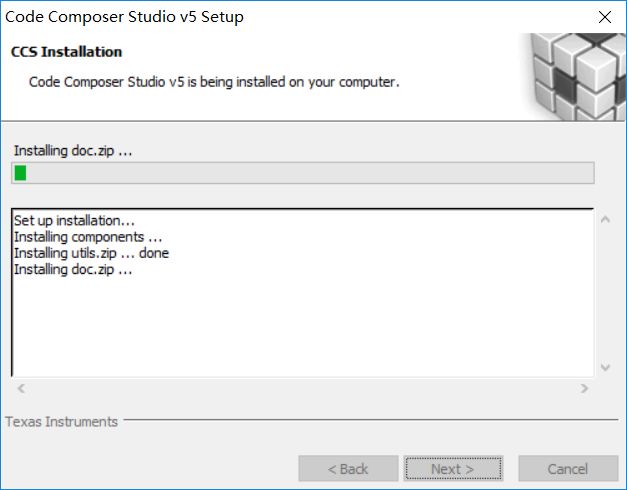 13. Click “OK”.
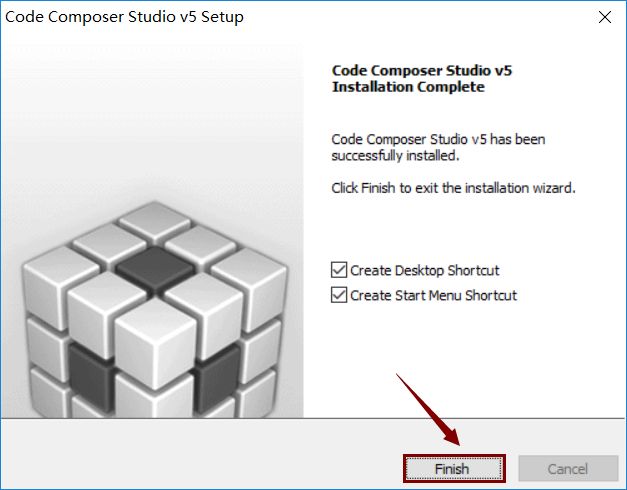
 14. Click “Finish”.
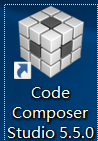
 15. Double-click “Code Composer Studio 5.5.0”.
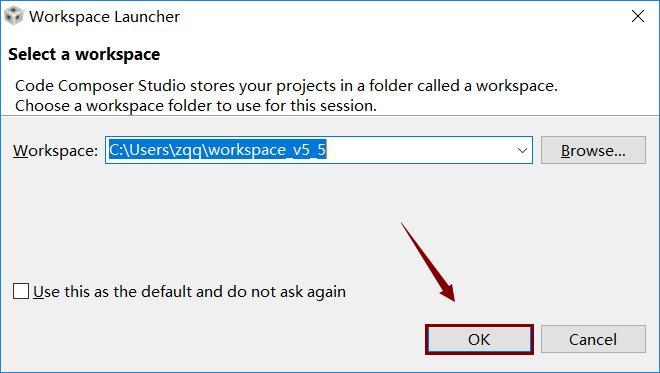
 16. Select the workspace and then click “OK”.
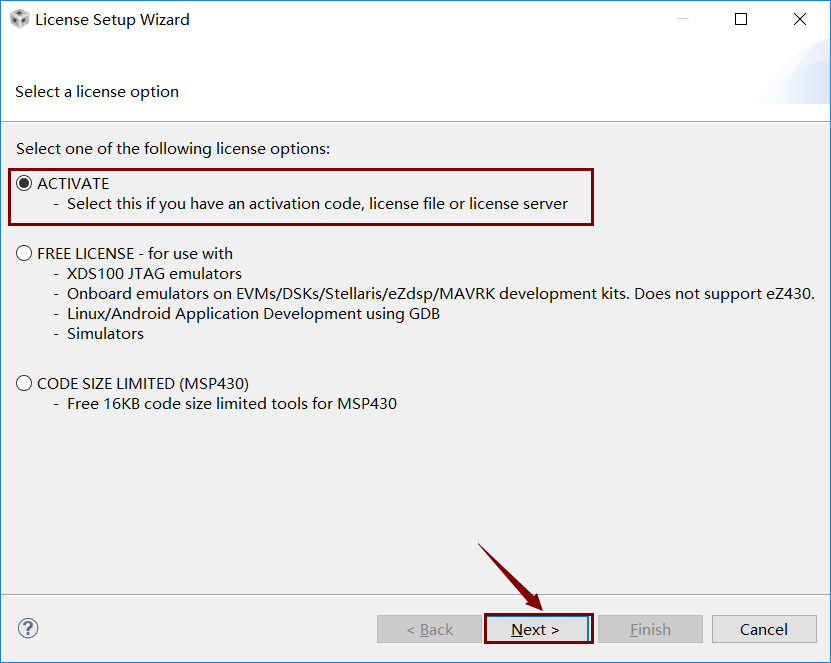
 17. Select “ACTIVATE”, then click “Next”.(If this window does not pop up, in the software interface select “Help>Code Composer…”, then choose “Upgrade>Launch License…”).
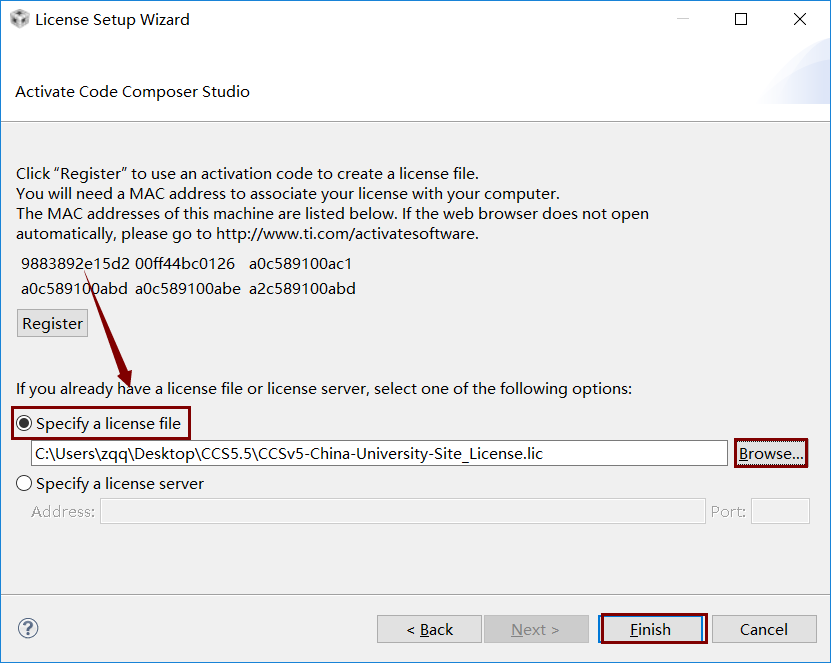
 18. Select “Specify a license file”, then click “Browse”, choose the folder downloaded from the cloud disk, select “CCSv5-China…”, then click “Finish”.
 19. Installation complete.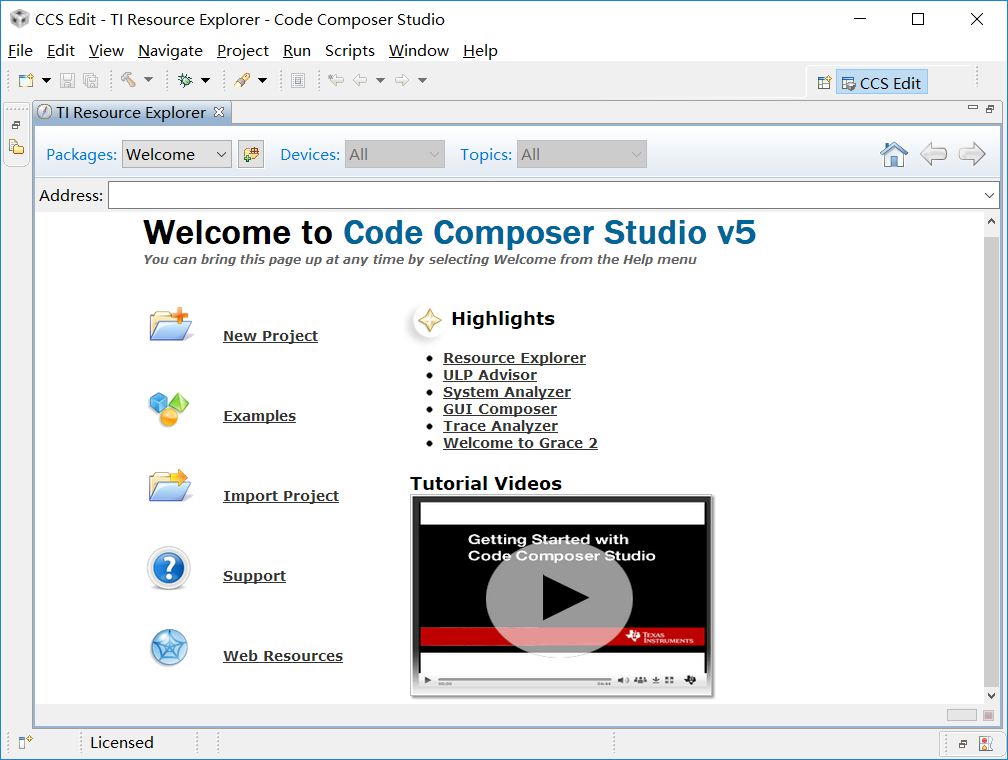

↙ Click “Read the original text” below to obtain the software