This content is derived from the book edited by Teacher Xia Liqin, titled “Linux Network Operating System Configuration and Management”, intended for the teaching of first-year vocational college students. Let’s work hard together for those who want to learn seriously!
1. Introduction
The Linux operating system provides two operating environments: graphical and character interfaces.
The appearance and operation of the graphical interface in Linux are similar to those of the Windows operating system. Currently, the main graphical interface software for Linux includes GNOME, KDE, and XFCE. Although the graphical interface is easy for beginners to use and can accomplish many tasks, it consumes more system resources and is often not adopted by Linux servers. In fact, Linux servers may not even require a monitor, as most management and maintenance operations are performed via remote login.
Additionally, the graphical interface does not provide all operational functions, so it is essential to master operations in the character interface as well.
2. The Operating Interface of Linux
The operating interface of Linux is commonly referred to as the Shell
The Shell is the interface provided by the operating system for user interaction (both graphical and character), allowing users to interact with the kernel. When a user issues a command (either through command line or mouse operation), the command is first sent to the Shell, which translates the user’s command and forwards it to the kernel, which then controls the hardware. The kernel sends the hardware’s operational status back to the Shell, which returns the hardware’s operational information and status.
Classification of Shells:
-
Graphical Shell: GNOME, KDE
-
Character Shell (Command Line Shell)
Commonly used character Shells:
Tip: You can use the command to view:more /etc/shells or chsh -l.
2.1 Understanding GNOME and KDE Graphical Interfaces
2.1.1 GNOME Graphical Interface
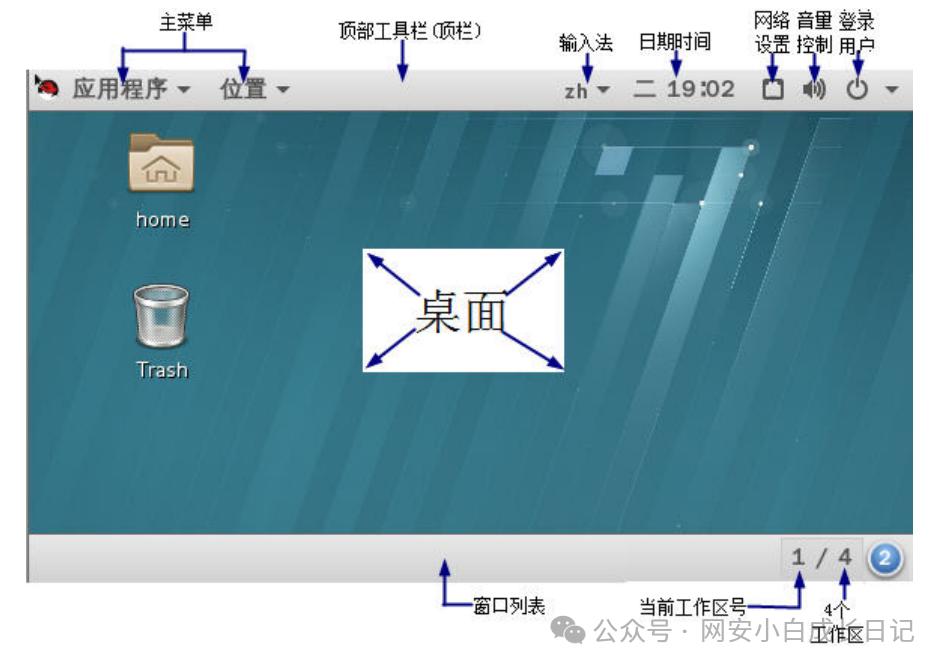
is the abbreviation for GNU Network Object Model Environment, a powerful and user-friendly graphical user interface. Components include:
① Top Bar
② Main Menu
③ Desktop
④ Window List:
 2.1.2 Switching Between Graphical and Character Interfaces
2.1.2.1 RHEL System Operating Modes
RHEL Operating Mode Description
-
rescue.target Single-user character interface mode, only the root user can log in to the system
-
multi-user.target Multi-user character interface mode
-
graphical.target Multi-user graphical interface mode
Command to view the current operating mode: systemctl get-default
Command to change the default operating mode at system startup to multi-user character interface mode: systemctl set-default multi-user.target
Command to change the default operating mode at system startup to graphical interface mode: systemctl set-default graphical.target
2.1.2.2 Selecting and Switching Virtual Consoles
RHEL7 has a default of 6 virtual terminals (Virtual Terminal), called virtual terminals because they are simulated using the current computer’s keyboard and display. Among them:
-
The first virtual terminal (tty1) is the graphical interface
-
The second to sixth virtual terminals (tty2 to tty6) are character interfaces
Each virtual terminal supports independent login sessions, allowing multiple users to log in simultaneously or run multiple applications at the same time.
The command to display the current virtual terminal is: tty
Users can choose to log in to a specified virtual terminal or freely switch between different virtual terminals after logging in. Switching keys: ALT+F1~F6 in the graphical interface, while in the virtual terminal, use Shift+Alt+F1 ~ F6 to switch.
2.1.3 Switching from Graphical Interface to Character Interface
Method 1: Right-click on the desktop
Method 2: Based on Method 1, execute the following command:
systemctl isolate multi-user.targetMethod 3: Ctrl+Alt+Fn (In VMware environment, use: Ctrl+Alt+Shift+Fn)
To return to the graphical interface, press 【Ctrl+Alt+F1】 or 【Alt+F1】 key combinations.
In the character interface, press 【Ctrl+Alt+Fn】 or 【Alt+Fn】 key combinations to switch between character virtual terminals.
2.1.4 Switching from Pure Character Interface to Graphical Interface
Method 1: Enter the command in the character interface:
startxMethod 2: Execute the following command in the character interface:
systemctl isolate graphical.target3. Character Interface Initial Use of Shell
3.1 Bash Shell Command Prompt
Ordinary user login:[Current logged-in user@HostnameCurrent working directory] $
Root user login:[root@HostnameCurrent working directory] #
The environment variable HOME represents the home directory of the current user; the command line continuation character is “\” .
lscpu // Display CPU information
free -h // Display memory information
lsblk // Display external storage information
df -h // Display disk partition information
ip addr show // Display network card information
uname -r // Display the operating system kernel version information
cat /etc/os-release // Display the operating system release version information
cat /etc/redhat-release // Display the Red Hat release version information
cat /etc/shells // Display currently installed shells
echo $SHELL // Display the currently used character shell
hostname // Display the hostname
3.2 Shell Command General Format
Shell commands generally follow this format: Command Name [-Options] [Arguments]
Where command name, options, and arguments are separated by spaces, and extra spaces will be ignored. The parts enclosed in square brackets indicate that they are optional. For example, directly entering the command date at the prompt will display the current date and time. Below is an introduction to the meaning and function of each component of the command.
(1) Command Name — Determines what the command does
The command name consists of lowercase English letters, often representing the corresponding function in English words or abbreviations.
(2) Options — Determines how the command is executed
Different commands may have different options (in terms of quantity and content), indicated by a “-” (hyphen). Multiple options can be combined into one, such as “-la” is equivalent to “-l -a”. Note that the hyphen is generally not omitted, although in some commands, the hyphen in options can be omitted, such as in the tar command.
(3) Arguments — Determines who the command is applied to
Arguments provide relevant information required for command execution or the filenames used during command execution. Some commands can be executed without arguments, while others may require multiple arguments.
(4) Linux commands, options, and arguments are case-sensitive, with most being lowercase.
(5) Pressing 【Ctrl+C】 can interrupt a running command.
3.3 Command, Options, and Arguments Auto-completion
After typing the first few characters of a command keyword, pressing the Tab key can auto-complete the command. It can also auto-complete filenames and directory names (in the current path).
3.4 Viewing Command History
To query previously executed commands: the hidden file .bash_history in the user’s home directory, or the history command
Use the up or down arrow keys to navigate through the history.
The second method is to execute the “history [n]” command to query.
3.5 Breaking Long Command Lines
For long commands with many symbols, although the system automatically wraps long command lines to the next line when reaching the end, you can also use a backslash “\” followed by Enter to split a long command into multiple lines for better readability. After the line break, the system automatically displays the prompt “>” indicating that you are still entering a long command, and you can continue to input the subsequent parts of the command on the new line.
3.6 Entering Multiple Commands on One Line
If you want to enter and execute multiple short commands on one line, you can use a semicolon to separate the commands.
4. Characteristics of the Linux Directory Structure
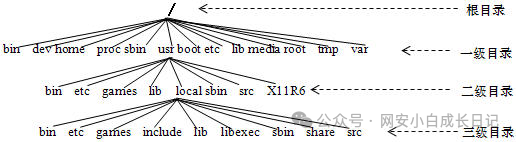
Linux uses a tree-like directory structure to organize and manage files.
The entire system has only one root directory located in the root partition (the root of the tree), and all other partitions, directories, files, and external devices (such as hard drives, optical drives, etc.) are mounted at some directory in the directory tree, starting from the root directory. Access to these partitions is achieved through the mount point directory.
The root directory of Linux is represented by “/”.
4.1 Default Directories and Their Functions in RHEL 8/CentOS 8 Directory Name
-
/ The top-level root directory of the Linux file system, all other directories are subdirectories of this directory
-
/bin Abbreviation for Binary, stores executable programs or commands for ordinary users
-
/boot Files required for the system kernel and boot programs
-
/dev Stores special files representing hardware devices, for example, /dev/hda represents the first IDE device
-
/etc Stores system configuration files, which can be opened and edited using editors (such as vim, gedit, etc.)
-
/home The home directory for ordinary users to store personal data and configuration files, the default home directory
-
/lib Stores shared function libraries (library) needed by the system for 32-bit programs
-
/lib64 Stores shared function libraries (library) needed by the system for 64-bit programs
-
/media
-
/mnt Mount points for various device file systems (mount), the two mount points are essentially indistinguishable
-
/opt This directory is usually provided for larger third-party applications, such as Sun Staroffice, Corel WordPerfect, etc., to avoid scattering files throughout the file system
-
/proc Stores files related to kernel parameters, hardware parameters, etc. (can be viewed using the ps command)
-
/root The home directory for the administrator (root)
-
/run Used to store dynamic, non-persistent data for running programs, such as process files containing process IDs, and files describing system information since the system boot
-
/sbin Abbreviation for System Binary, stores executable programs or commands for administrator users (root)
-
/srv Data directories that need to be accessed after services are started
-
/sys This directory maps some information from the kernel for use by applications
-
/tmp A globally writable space for temporary files. Files that have not been accessed or modified within 10 days will be automatically deleted from this directory
-
/usr Stores user-defined related programs or files, such as editing and typesetting applications like Open Office
-
/var Stores dynamic, frequently changing data files (such as logs, emails, web files, etc.)
4.2 Working Directory, User Home Directory, and Paths
A path refers to a line from a certain directory level in the tree structure to a specific file or subdirectory.
A path consists of multiple directory names separated by the delimiter ” / “.
Paths can be divided into:
-
Absolute Path: Refers to the representation of the location of a certain file (or directory) in the system starting from the root directory ” / “
-
Relative Path: Usually starts from the current directory, representing the location of a certain file or directory in the directory structure.
4.3 File Types in Linux
File types in Linux can be roughly divided into:
-
Regular Files: Files used to store data, programs, and other information.
-
Directory Files: Files composed of directory entries contained in a directory within the file system.
-
Link Files: Also known as symbolic link files, used for sharing files across different directories. They actually point to another file.
-
Device Files: Files that provide connections to I/O devices, divided into
-
Block Device Files: Represent disks, CDs, etc.
-
Character Device Files: Connect to terminals, keyboards, and other devices that operate on a character basis.
-
Pipe Files: Mainly used for passing data between processes.
-
Socket Files: Socket files are usually used for network data connections.
Note: Linux does not have hidden attributes; to hide a file or directory, simply prefix the name with a ” . ” (dot).
To view hidden files or directories, the ls command must be used with the ” -a ” parameter.