Hello everyone, I am Derek, focusing on practical operations, cutting-edge technology analysis, and career growth stories. If you are interested in “practical operational skills”, “popular interpretations of new technologies”, or “real workplace advancement experiences”, feel free to follow and share, let’s avoid detours on the technical road together~
In operational work, forgetting the root password is not uncommon. Fortunately, both CentOS 7 and CentOS 8 allow you to enter maintenance mode through GRUB boot parameters to safely reset the root password.
This article organizes the two most commonly used and stable methods, covering CentOS 7 and CentOS 8, with clear steps and risk-free operations, which can serve as your daily troubleshooting manual.
1. Method One: Enter Emergency Mode via rd.break (Recommended)
rd.break is the officially recommended method by the Red Hat series. By appending parameters to the kernel boot line in GRUB, the system pauses during the initramfs stage and provides an emergency shell. The advantage is that the process is more standardized and has good compatibility.
Step 1: Enter the GRUB Edit Interface
After the system restarts, press “e” when you see the GRUB menu:
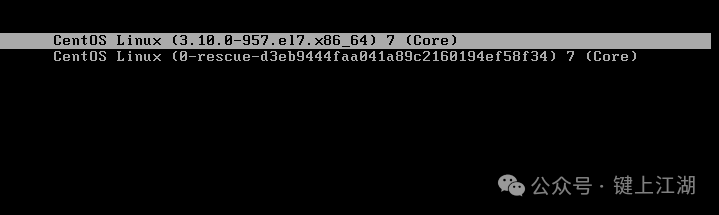
-
In CentOS 7, it usually starts with:linux16 line
-
In CentOS 8, it usually starts with:linux line
Step 2: Append rd.break
Delete rhgb quiet and addrd.break at the end of the line:
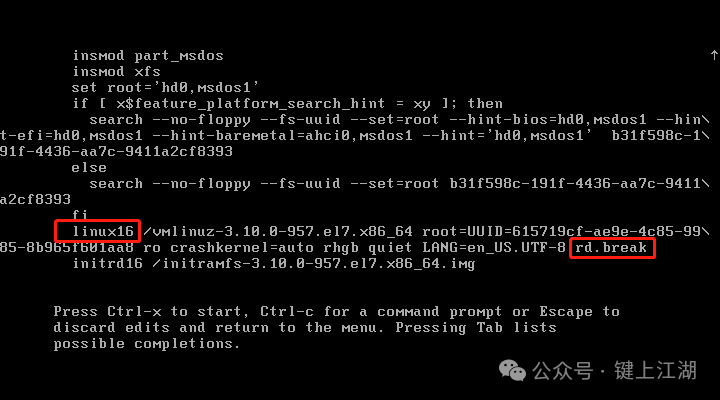
After adding, pressCtrl + X:
The system will enter the initramfs prompt.
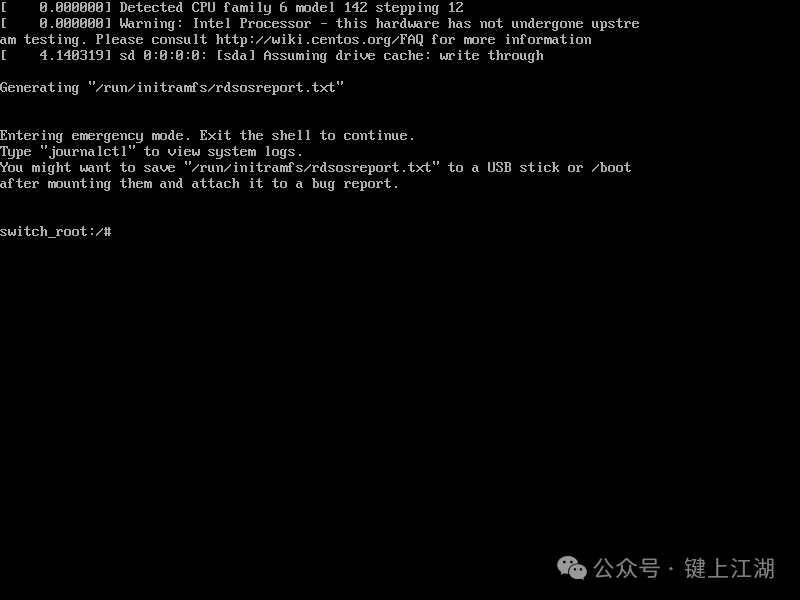
Step 3: Remount the Root Filesystem as Writable
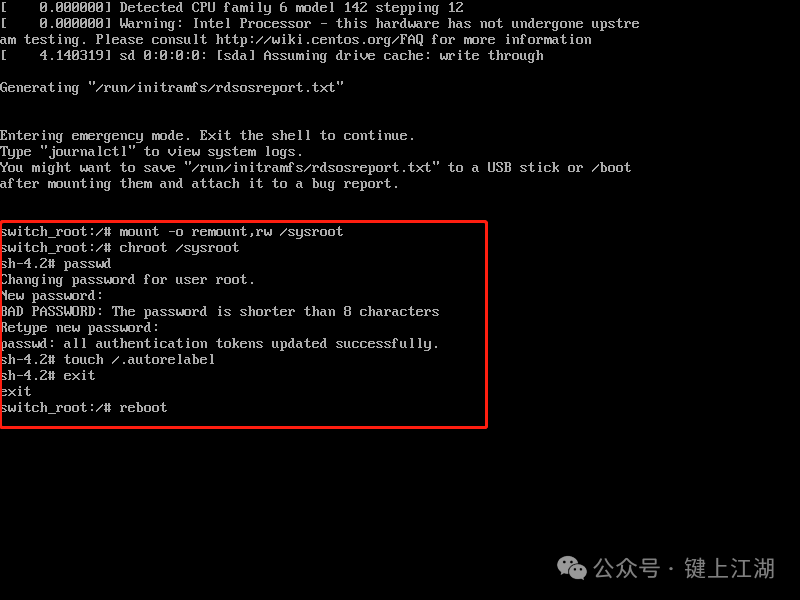
By default, it is read-only, so it needs to be changed to writable:
mount -o remount,rw /sysrootStep 4: Switch to the Real System Environment
chroot /sysrootStep 5: Set a New Root Password
passwd rootStep 6: Trigger SELinux Relabeling (Must Do)
touch /.autorelabelTo avoid being unable to log in normally after rebooting.
Here are the actual operation steps for reference:
Step 7: Exit and Restart
# centos 7.x restart
exec /sbin/init

# centos 8.x restart
exec /usr/sbin/reboot
The system will automatically restart, and SELinux will perform relabeling, just wait for it to complete.
2. Method Two: Use /bin/bash to Enter System Shell
The second method is to modify the kernel parameters to let the system directly enter the root filesystem shell at startup. The operation steps are shorter, but it is not the officially recommended method. It is applicable to both CentOS 7 and CentOS 8.
Step 1: Edit GRUB
Press e in the GRUB menu.
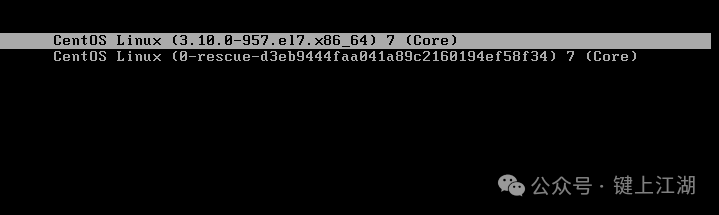
Find:
- CentOS 7:linux16 starts
- CentOS 8:linux starts
Step 2: Change ro to rw, delete rhgb quiet, and append init=/bin/bash
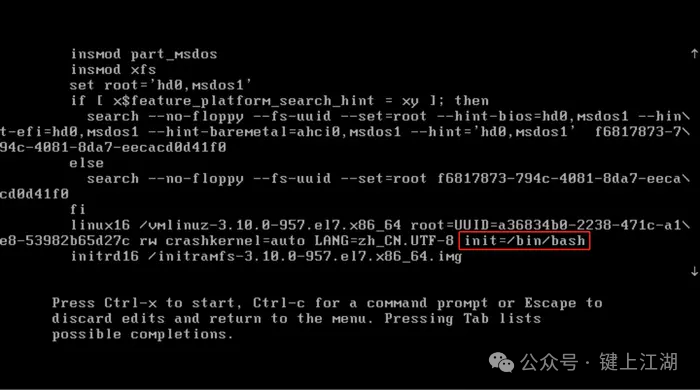
After completing, press Ctrl + X to boot.
Step 3: Switch the System Root Environment
# Mount / as read-write
mount -o remount,rw /
Step 4: Reset Root Password
passwd rootStep 5: SELinux Relabeling
touch /.autorelabelStep 6: Restart
# centos 7.x restart
exec /sbin/init

# centos 8.x restart
exec /usr/sbin/reboot
3. Summary
Whether you are using CentOS 7 or CentOS 8, as long as you can enter GRUB, you can safely reset the root password using the two methods provided in this article:
- Recommended to use rd.break: official standard, good compatibility
- init=/bin/bash: shorter steps, higher efficiency
It is recommended to add these two methods to your emergency manual for future reference.
ENDImportant Reminder
🔴 Because of your attention and feedback, sharing becomes more meaningful ❤️.
✨ If you want to see more heartfelt articles in the future, don’t forget to follow, light up recommendations, and encourage each other with friends.