Click the blue text to follow Servo and Motion Control

Today, the Motion Assistant will share with you how to use the EtherCAT motion control card ECI2820 for debugging through the ZDevelop auxiliary debugging tool. This article demonstrates the debugging content using a single-axis example.Before we formally start learning, let’s first understand the motion control cards ECI2618 and ECI2828 from Zheng Motion Technology. These two products are 6-axis and 8-axis motion control cards, respectively.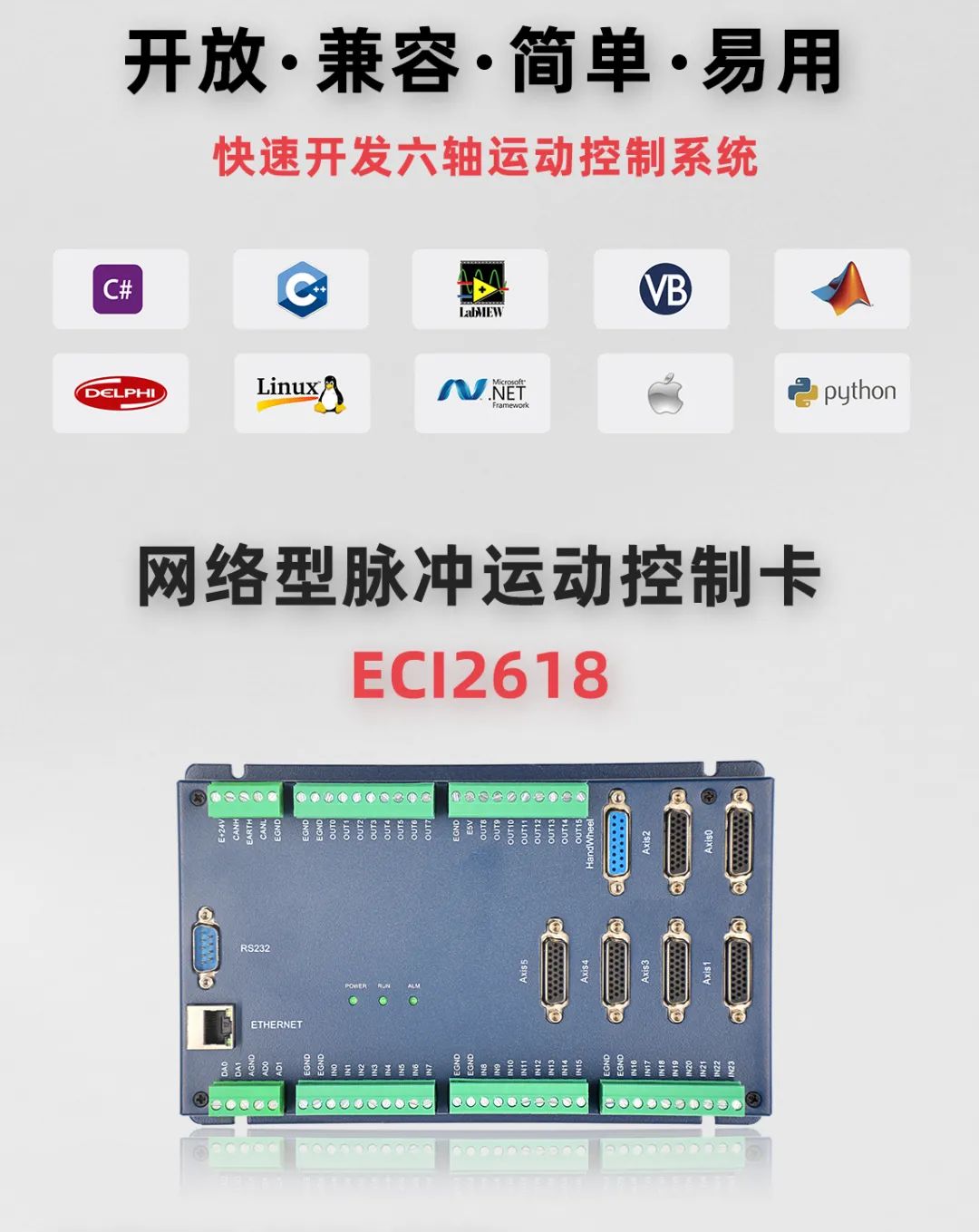 ECI2618 supports 6-axis pulse input and encoder feedback, with 24 input points onboard, 16 output points, 2 AD, 2 DA, and supports handwheel interfaces, with specific output ports supporting high-speed PWM control.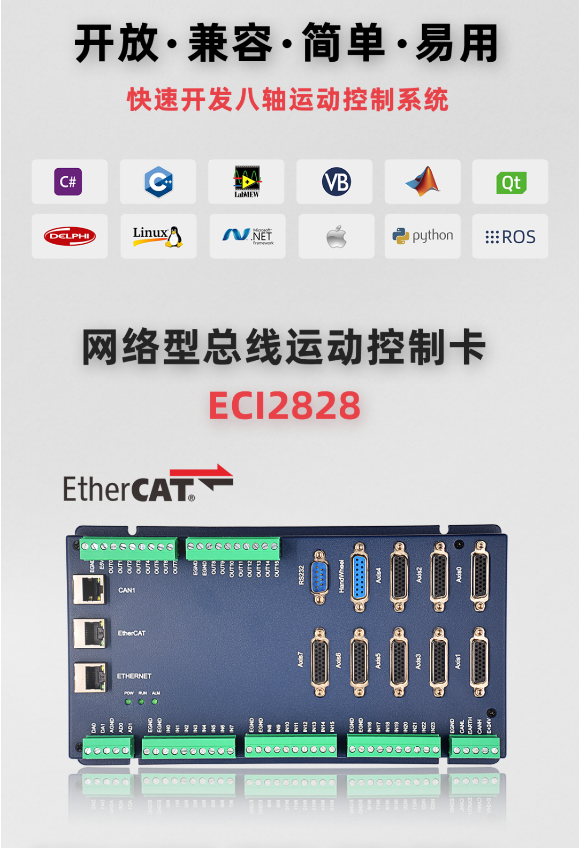
ECI2828 supports 8-axis bus-type input and encoder feedback, with 24 input points onboard, 16 output points, 2 AD, 2 DA, and supports handwheel interfaces, with specific output ports supporting high-speed PWM control.
Both ECI2618 and ECI2828 use the same set of API functions and support development languages such as C, C++, C#, LabVIEW, Python, Delphi, etc. They support platforms like VC6.0, VB6.0, Qt, .Net, and operating systems including Windows, Linux, WinCE, and iMac.
Next, let’s get to the main topic.
1. Introduction to the Hardware of the ECI2828 Motion Control Card
The ECI2828 series motion control card supports up to 16-axis linear interpolation, arbitrary arc interpolation, spatial arcs, helical interpolation, electronic cams, electronic gears, synchronous follow, virtual axes, and robotic commands; it uses an optimized network communication protocol to achieve real-time motion control.
The ECI2828 series motion control card can be connected to a computer via Ethernet or 232 communication interfaces to receive commands from the computer. It can connect to various expansion modules through the EtherCAT bus and CAN bus to expand the number of input/output points or motion axes.
The application program for the ECI2828 series motion control card can be developed using VC, VB, VS, C++, C#, etc. During program execution, the dynamic library zmotion.dll is required. During debugging, the ZDevelop software can be connected to the controller simultaneously for easier debugging and observation.
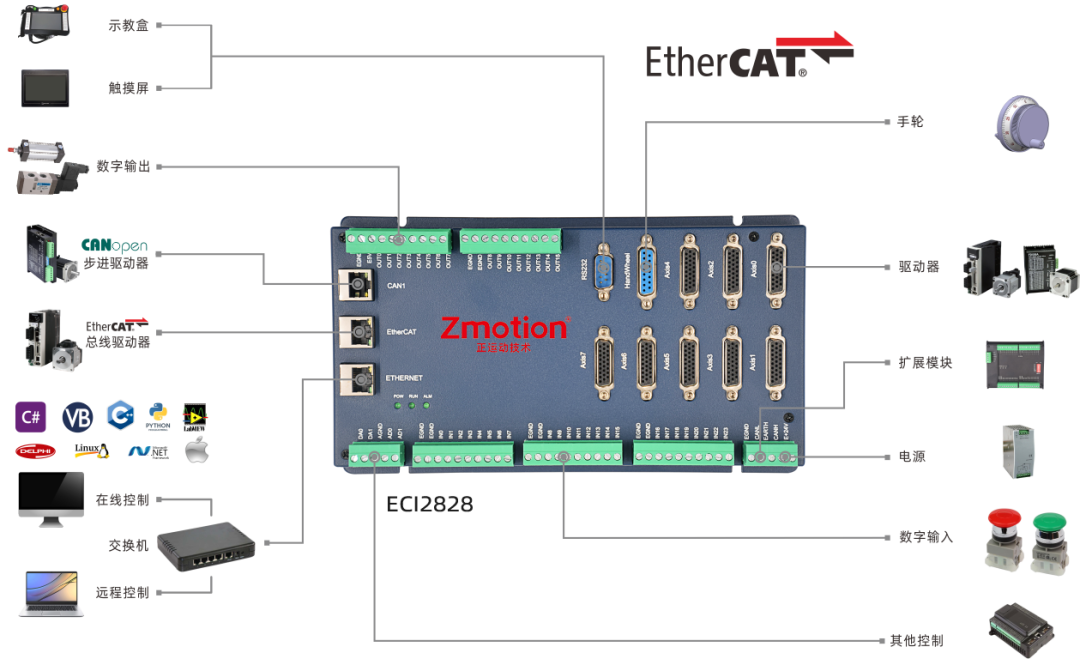
Typical connection configuration diagram of the ECI2828 series2. Motion Control Development in C#
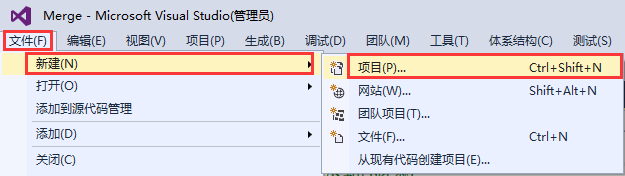
1. In the VS2015 menu, select “File” → “New” → “Project” to start the project creation wizard.
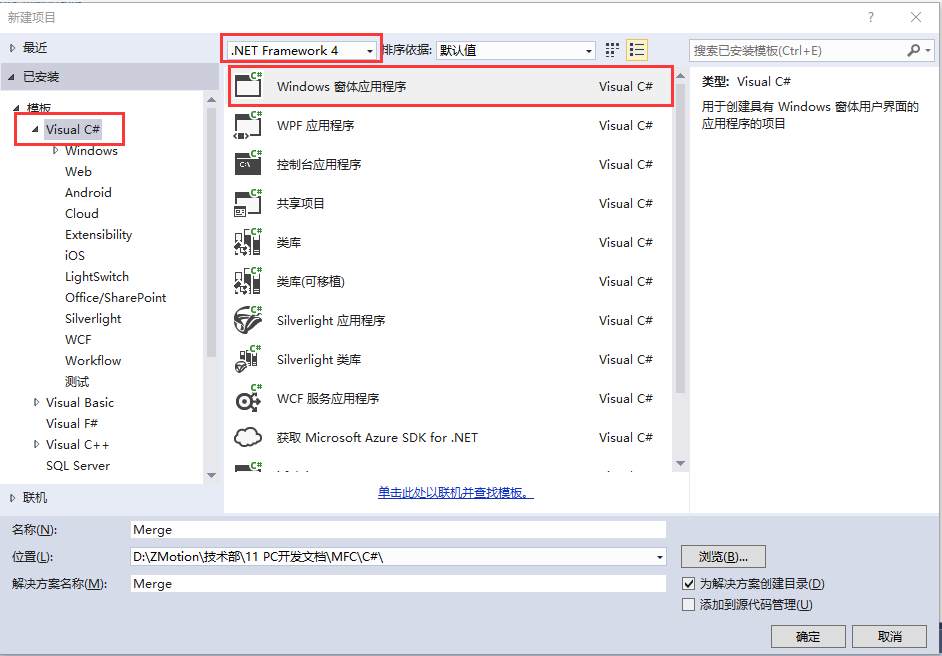
2. Select the development language as “Visual C#” and .NET Framework 4, as well as Windows Forms Application.
3. Find the C# function library provided by the manufacturer in the CD materials, with the following path (using the 64-bit library as an example):
A. Enter the “8.PC functions” folder in the materials provided by the manufacturer.
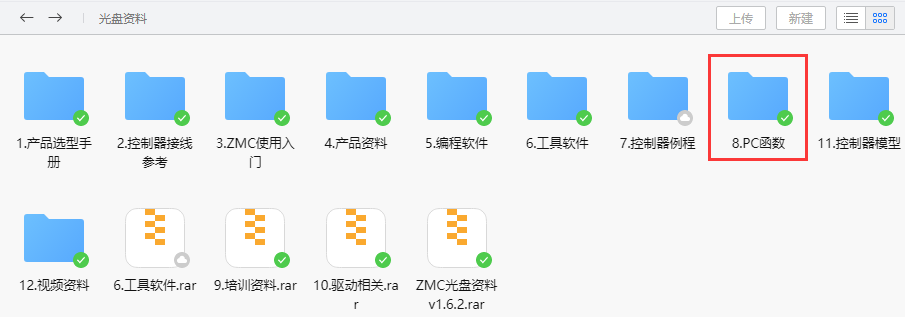
B. Select the “Function Library 2.1” folder.
C. Select the “Windows platform” folder.
D. Choose the corresponding function library as needed, here we select the 64-bit library.
E. Unzip the C# compressed package, which contains the corresponding function library for C#.
F. The specific path of the function library is as follows.
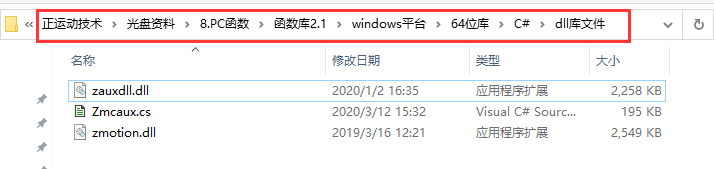
4. Copy the C# library files and related files provided by the manufacturer into the newly created project.
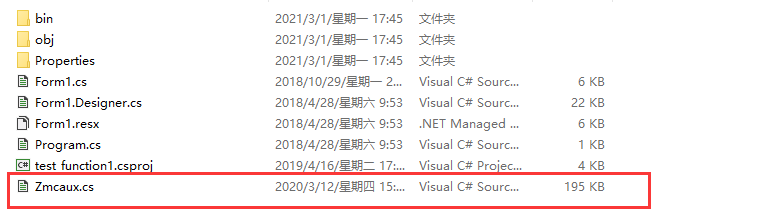
A. Copy the zmcaux.cs file into the newly created project.
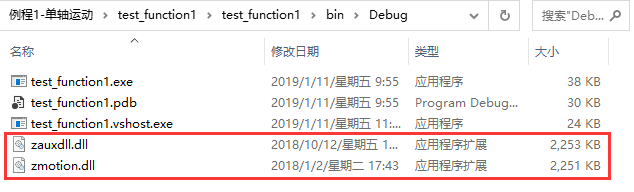
B. Place the zaux.dll and zmotion.dll files in the bin\debug folder.
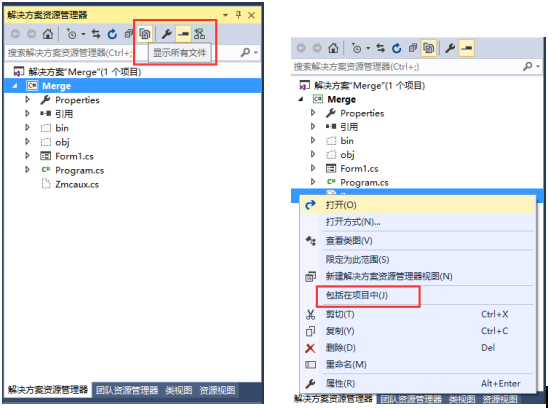
5. Open the newly created project file in VS, click to show all in the solution explorer on the right, then right-click the zmcaux.cs file and click to include it in the project.
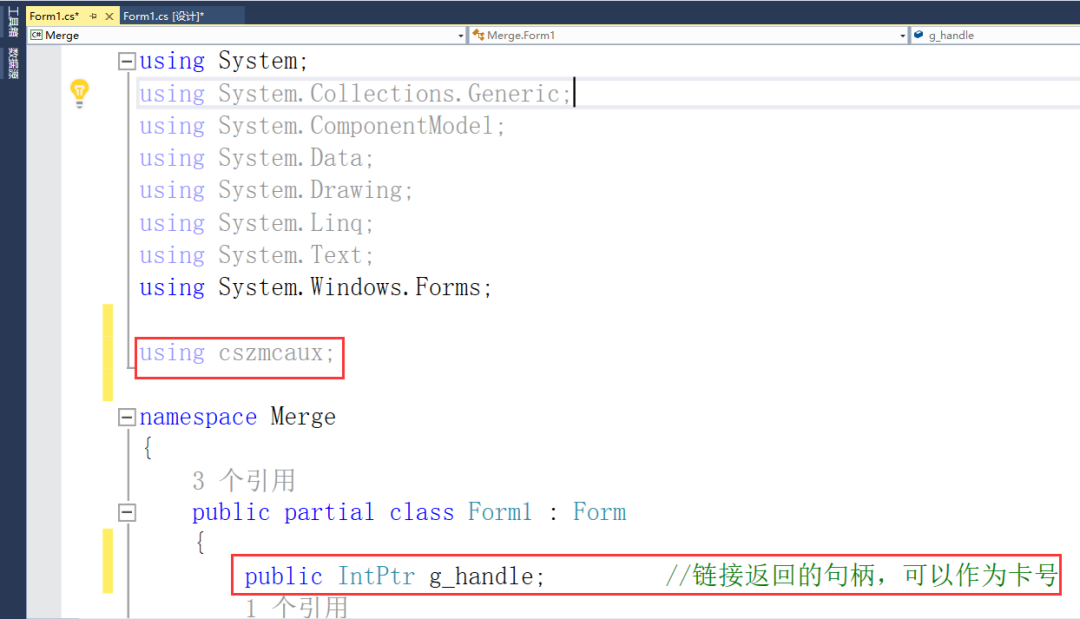
6. Double-click Form1.cs inside Form1 to open the code editing interface, and write using cszmcaux at the beginning of the file, declaring the controller handle g_handle.
At this point, the project has been created and C# project development can proceed.
The detailed development process of the single-axis motion example will not be described here. For details, please refer to Zheng Motion Assistant’s article, “EtherCAT Motion Control Card Hardware Wiring and C# Single-Axis Motion Control.”
The human-machine interface for single-axis motion control is as follows.
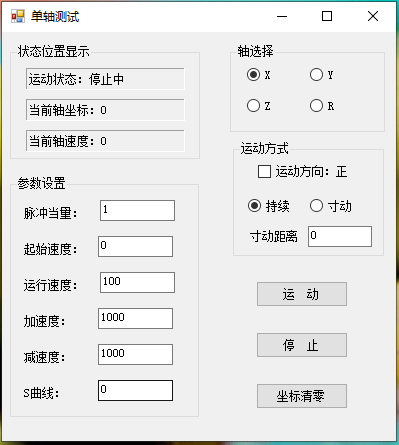
3. Functions of the Auxiliary Debugging Tool ZDevelopCompile and run the example while connecting the ZDevelop software for debugging, monitoring the axis parameters and motion conditions of the motion control.
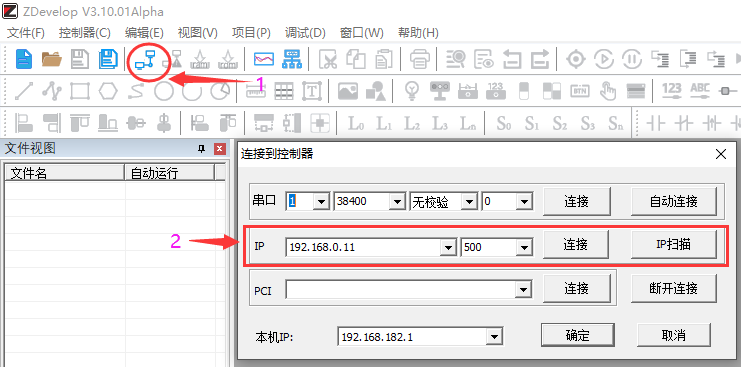
1. Axis Parameters
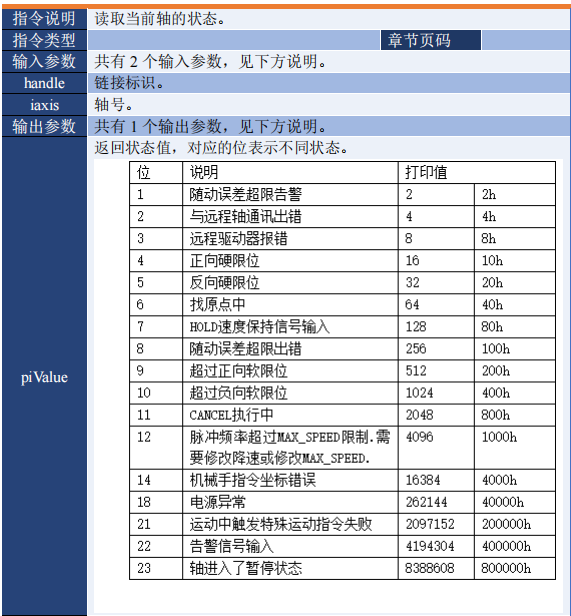
During operation, you can monitor the corresponding axis parameters through the ZDevelop software to view position, speed, acceleration, etc., and also check the axis status parameters to query whether the current controller is in alarm.
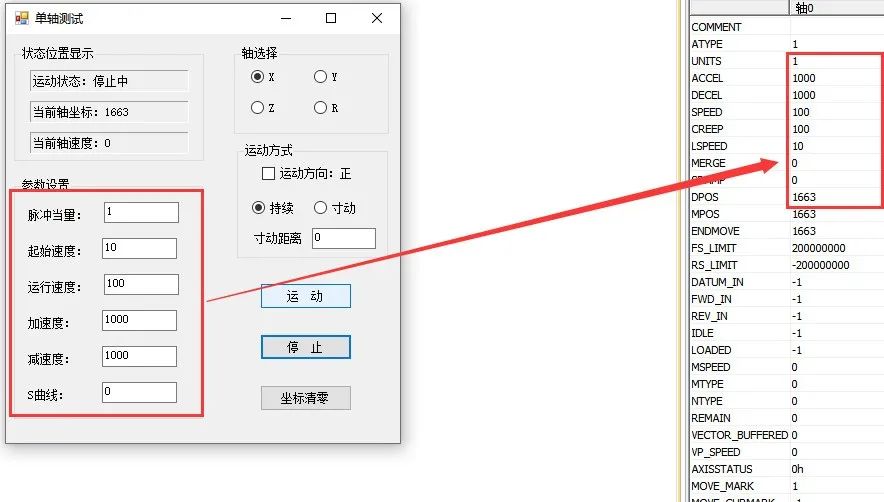
If an alarm signal is triggered for a certain axis during motion, the corresponding axis alarm code will be displayed in the AXISSTATUS parameter section. You can refer to the ZDevelop help documentation to query the AXISSTATUS axis status command, check the current alarm code, and make the necessary corrections.
The alarm code list is as follows:
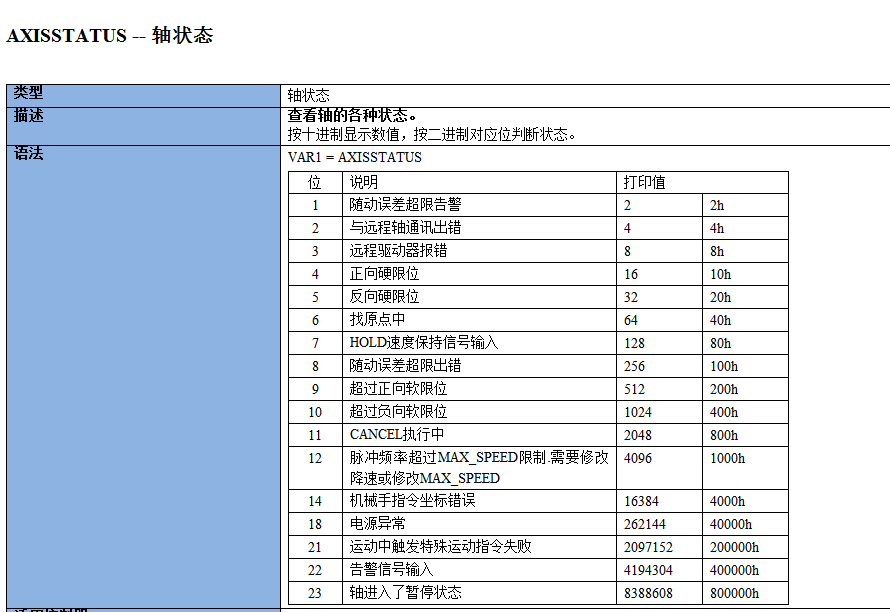
In the upper computer function, you can also query the current axis status through the function interface: ZAux_Direct_GetAxisStatus.
The specific description is as follows:

2. Oscilloscope
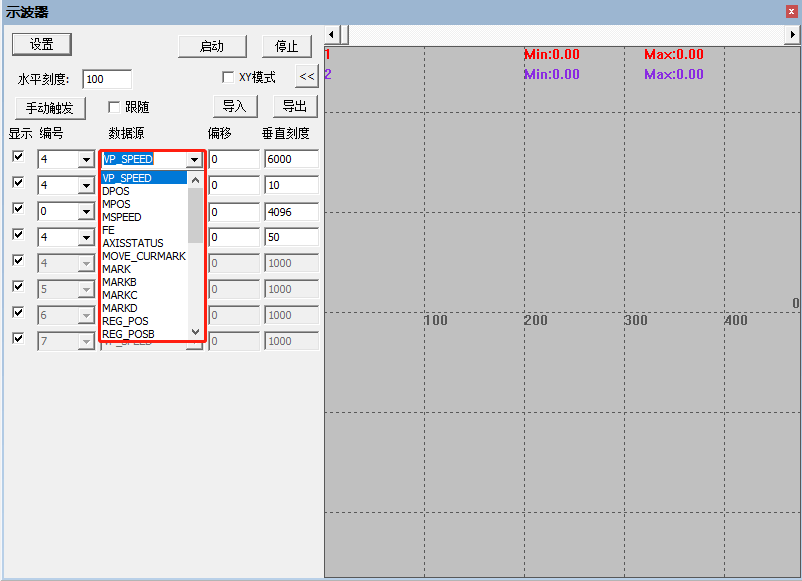
The oscilloscope is an extremely important part of program debugging and operation, used to convert signals that are not visible to the naked eye into graphs, facilitating the study of various signal changes. The oscilloscope uses the data processed internally by the controller to display the data as graphs. Various signals, such as axis parameters and axis status, can be displayed using the oscilloscope. In the “View” – “Oscilloscope,” you can open the oscilloscope window or click the shortcut button in the menu bar. Through the oscilloscope waveform, we can accurately observe the motion waveform performed by the upper computer software and the changes in various parameters during the operation process, all of which can be seen from the oscilloscope.
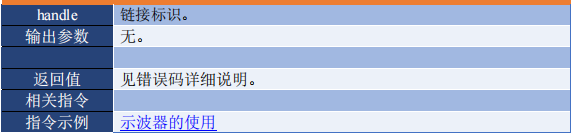
The oscilloscope must be started and triggered in order to sample successfully. After opening the oscilloscope and setting the relevant parameters, click start; you can manually trigger the sampling or include the ZAux_Trigger function in the upper computer program to automatically trigger the oscilloscope sampling.
The ZAux_Trigger function is a function for triggering the oscilloscope to capture waveforms, mainly for convenience in using the upper computer for debugging and capturing corresponding waveforms for analysis. This function interface allows automatic triggering without the need for manual triggering of the oscilloscope.
The function description is shown in the figure below:

In the oscilloscope, various parameters such as axis position and axis speed can be captured to observe the current motion state.
As shown in the figure below:
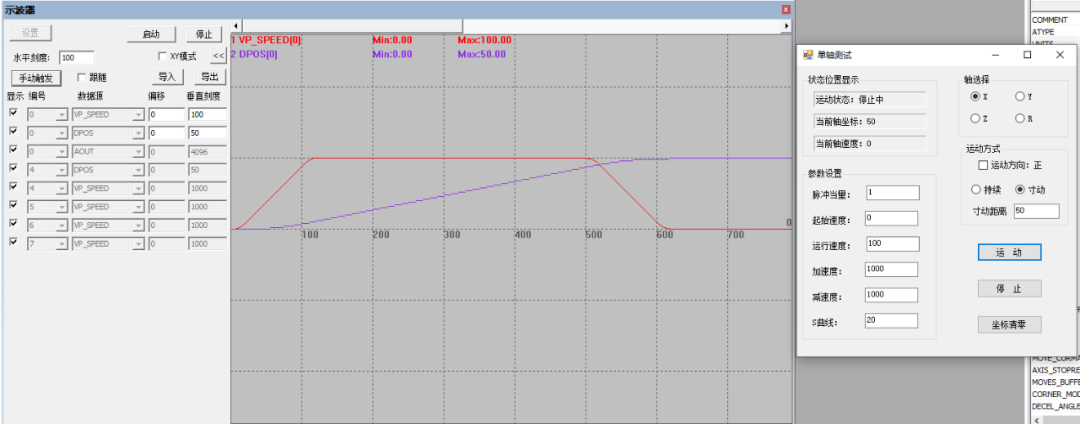
Example:
Taking the C# single-axis motion example, the axis moves a distance of 50 with a speed setting of 100; the speed waveform curve and position curve can be clearly seen from the figure.
As shown in the figure:
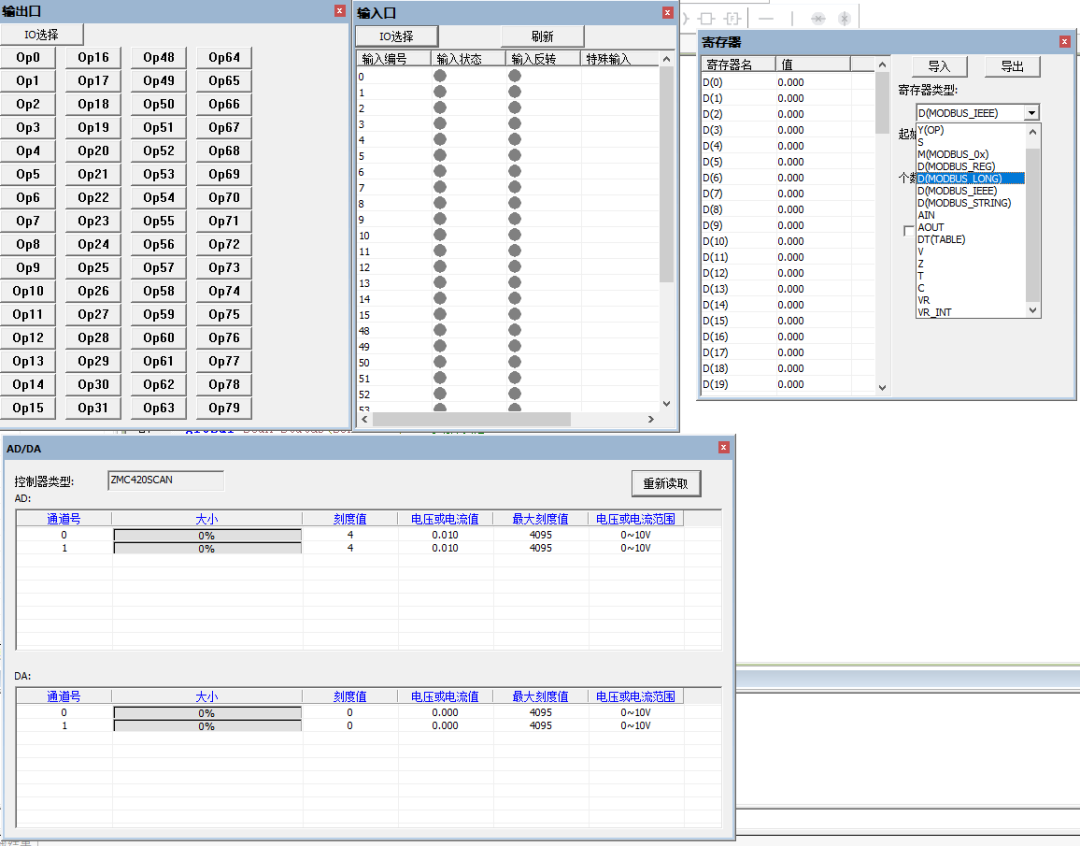
3. Input and Output
In the ZDevelop software, you can also monitor the hardware’s input and output, the magnitude of AD, DA energy, and the internal storage content of various hardware registers, as shown in the figure below:
4. Manual Motion
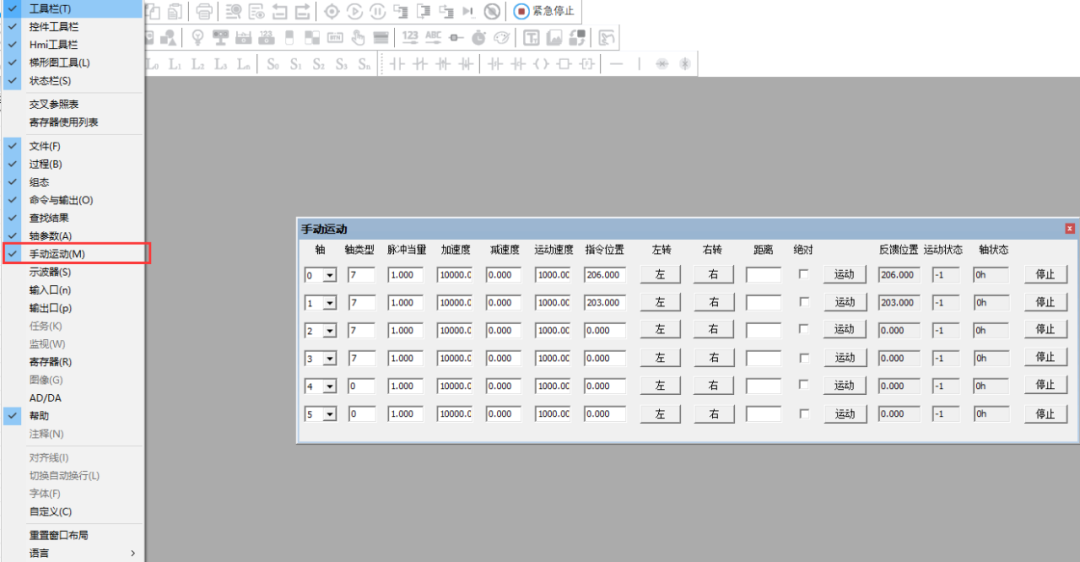
In the ZDevelop software, you can directly operate the manual motion view to perform corresponding axis operations. This function can help determine if the upper computer’s drive axis operation is unsuccessful; if manual motion is unsuccessful, it may be a hardware wiring issue or a driver setting issue. If manual motion is successful, then there may be an issue with the upper computer code that needs modification.
As shown in the figure:
5. Remote IO Expansion
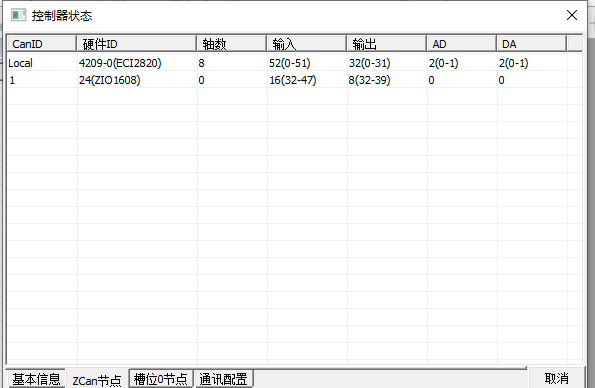
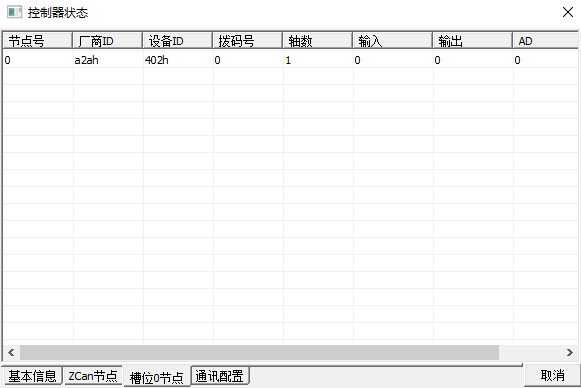
Through the ZDevelop software, you can also view the current status of the expansion board connected via CAN communication and the device information connected via the EtherCAT bus.
As shown in the figure:
Before performing bus control, it is necessary to load the bus initialization program of the controller. After loading is complete, you can perform the corresponding drive. For detailed control processes, please refer to the article “Setting Bus Axis Parameters and Axis Motion for EtherCAT Motion Control Card.”
6. Quick Diagnosis and Debugging of EtherCAT Servos
In the “Commands and Outputs,” entering “?*ethercat” allows you to view the status of each EtherCAT servo.
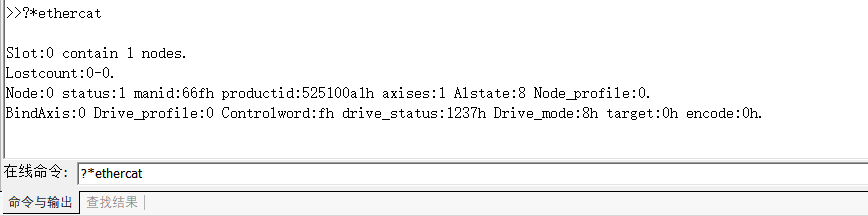
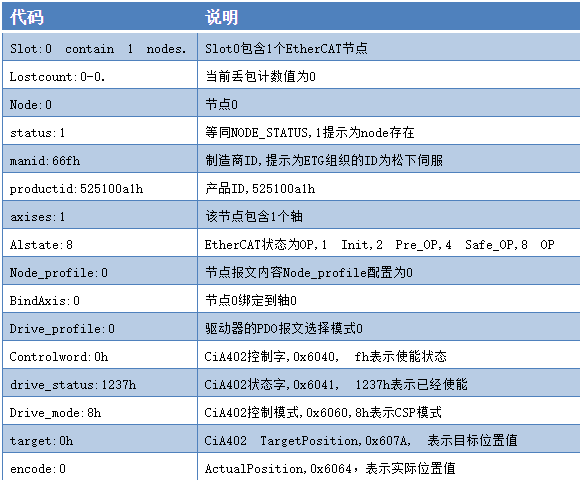
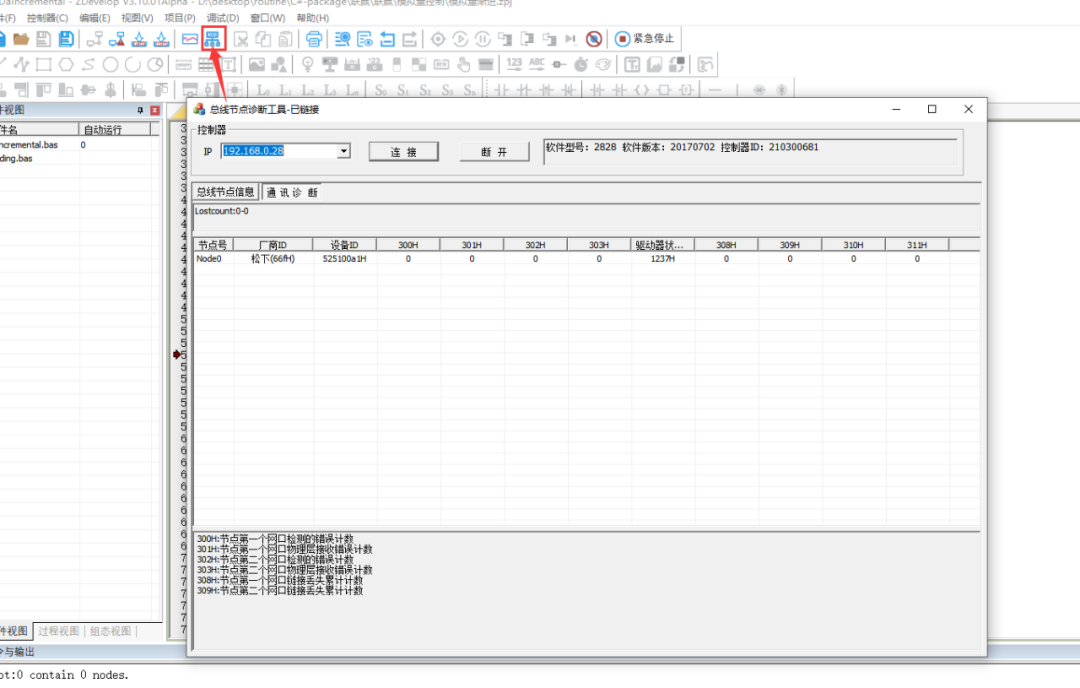
Additionally, you can use the bus diagnostic tool in the ZDevelop software to connect to the controller and check the current connection status.
As shown in the figure:
This time, we shared the introduction to the auxiliary debugging tools and methods for the EtherCAT motion control card from Zheng Motion Technology.
For more exciting content, please follow the “Zheng Motion Assistant” public account. If you need relevant development environments and example codes, please consult Zheng Motion Technology sales engineers: 400-089-8936.
This article is original by Zheng Motion Technology. Everyone is welcome to reprint it for mutual learning and improvement of China’s intelligent manufacturing level. The copyright of the article belongs to Zheng Motion Technology, and please indicate the source if reprinted.
Review of Previous Content
EtherCAT Motion Control Card Hardware Wiring and C# Single-Axis Motion ControlEtherCAT Motion Control Card Hardware Wiring and C# Hardware Peripheral Read/Write and Return to Zero MotionEtherCAT Motion Control Card Bus Axis Parameter Setting and Axis Motion
Motion Control Card Application Development Tutorial for ROS (Part 2)
Motion Control Card Application Development Tutorial for ROS (Part 1)
Motion Control Card Application Development Tutorial for C++
Motion Control Card Application Development Tutorial for C#
Motion Control Card Application Development Tutorial for Python
Motion Control Card Application Development Tutorial for Linux
Motion Control Card Application Development Tutorial for VB.NET
Motion Control Card Application Development Tutorial for VB6.0
Motion Control Card Application Development Tutorial for VC6.0
Motion Control Card Application Development Tutorial for Using Qt
Motion Control Card Application Development Tutorial for LabVIEW
Zheng Motion Technology | High-Precision Hardware Comparative Output in Visual Flying Photography Applications
Zheng Motion Technology | UVW Positioning Platform Control Algorithm Applications in Visual Guidance
About Zheng Motion Technology
Zheng Motion Technology focuses on the research of motion control technology and the development of general motion control software and hardware products, is a national high-tech enterprise, and its main products include motion controllers, motion control cards, vision motion control integrated machines, human-machine interfaces, and expansion modules.
Zheng Motion Technology has gathered excellent talents from companies such as Huawei and ZTE, while adhering to independent innovation, actively collaborating with major universities to study the basic technologies of motion control. It is one of the fastest-growing companies in the domestic industrial control field and one of the few companies that has a complete grasp of core motion control technologies and real-time industrial control software platform technologies.