Environment Configuration
Kali Version: kali-linux-20xx.x-VMware-amd64
Virtual Environment: VMware Workstation 17 Pro
The virtual machine requires significant resources, so please ensure your computer has sufficient space and configuration to support the virtual machine operation before installation.
1. Installing VMware Workstation 17 Pro
The virtual machine environment used in this tutorial is VMware Workstation 17 Pro.
As is well known, VMware has been acquired by Broadcom, and it has announced that versions 17.5 and later of VMware Workstation Pro will be free for personal users. Due to changes in the official website’s download method, the new download link is listed here:
Home – Support Portal – Broadcom support portal – Support Portal
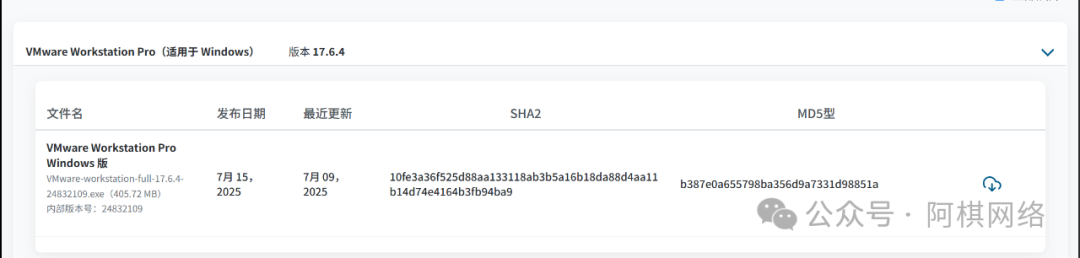
If you find the official website cumbersome, you can click the Quark cloud disk link below.
Link: https://pan.quark.cn/s/912eaad7f710?pwd=9c4n
Extraction Code: 9c4n

Click to install
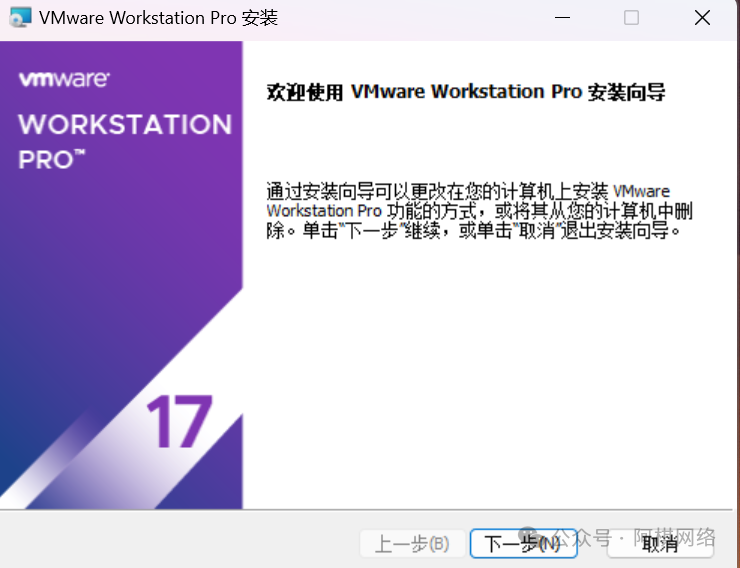
During installation, it is best to check all the options provided, especially the option to add system variables (the PHP option) (except for joining the experience program). Then enter the activation code below.
JU090-6039P-08409-8J0QH-2YR7F (this has been tested to work, others have not been tried)4A4RR-813DK-M81A9-4U35H-06KNDNZ4RR-FTK5H-H81C1-Q30QH-1V2LAJU090-6039P-08409-8J0QH-2YR7F4Y09U-AJK97-089Z0-A3054-83KLA4C21U-2KK9Q-M8130-4V2QH-CF810MC60H-DWHD5-H80U9-6V85M-8280D
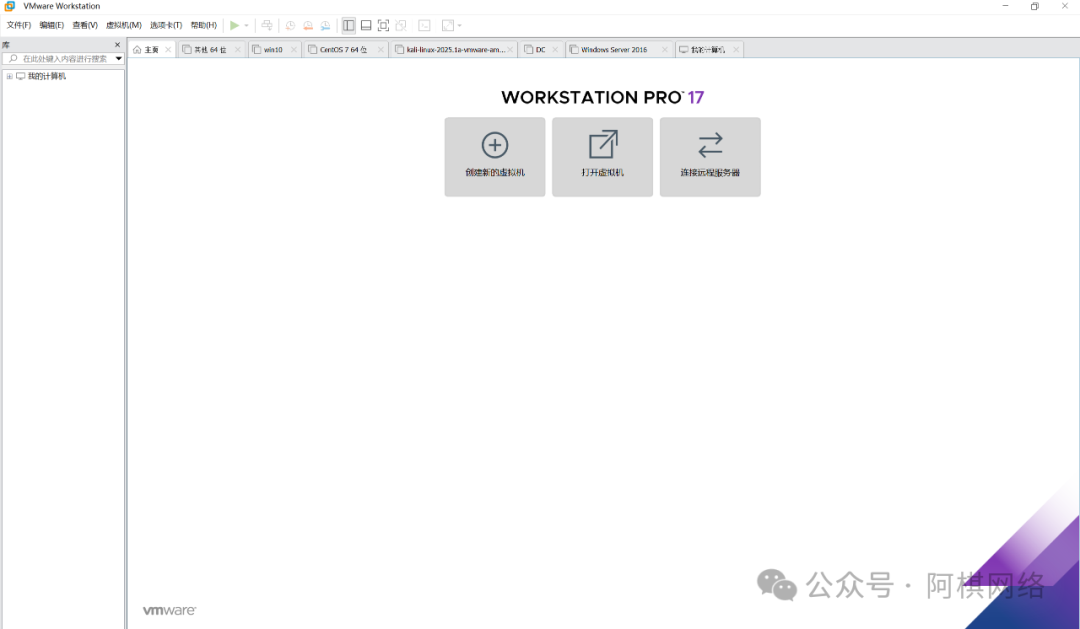
The interface will appear as follows:
2. Downloading and Installing Kali
Official Download Website
Get Kali | Kali Linux
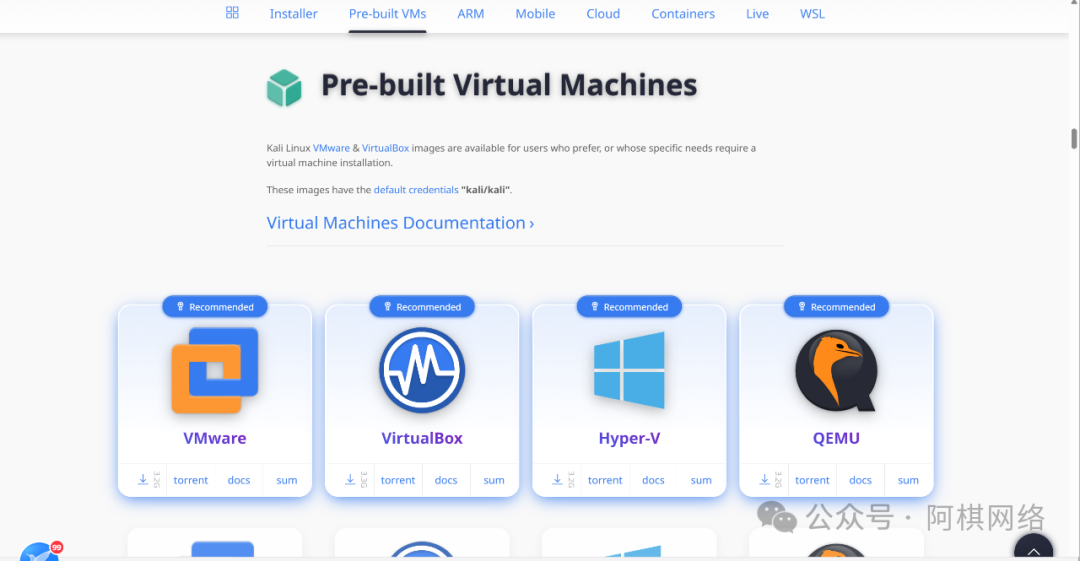
Select this option (vmdk version):
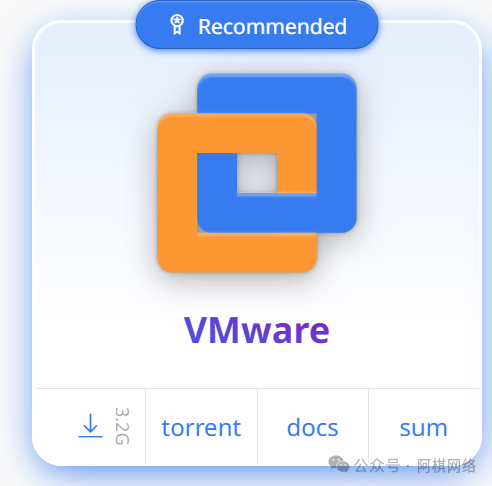
Due to slow download speeds using domestic networks, I have placed the downloaded image and VMware software in one link, which can be downloaded from the link above.
2.2 Installation Process
Extract the files (use the file explorer to extract directly, no need for other software; if Win11 reports an error, it is recommended to use 7z) (recommended to extract to a non-system disk to reduce usage).Open VMware, click on the open virtual machine option, and find the address of the extracted files.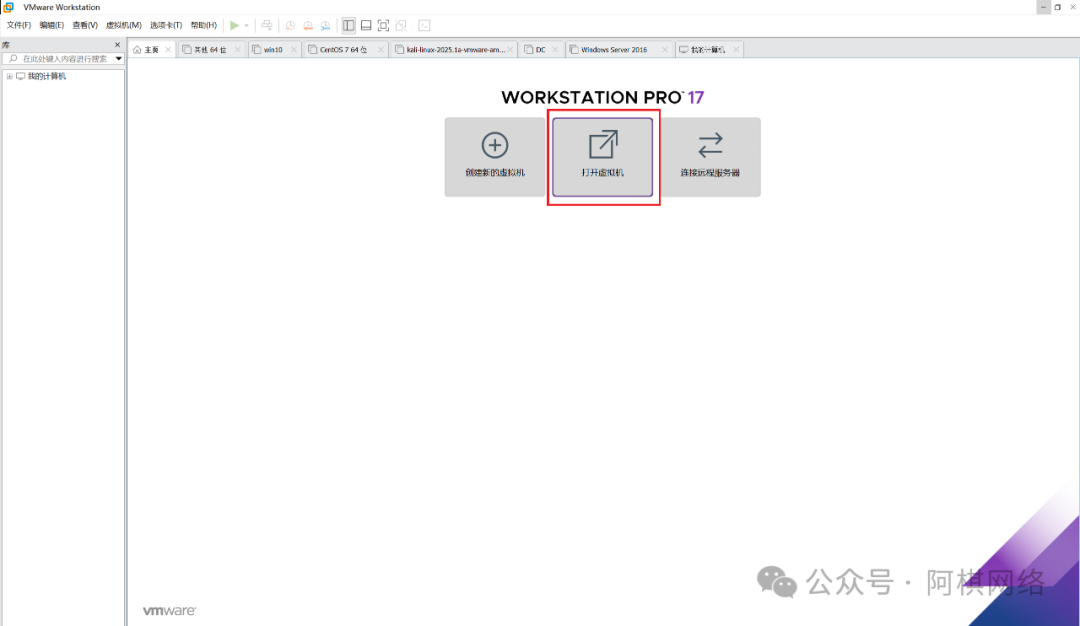 Open that file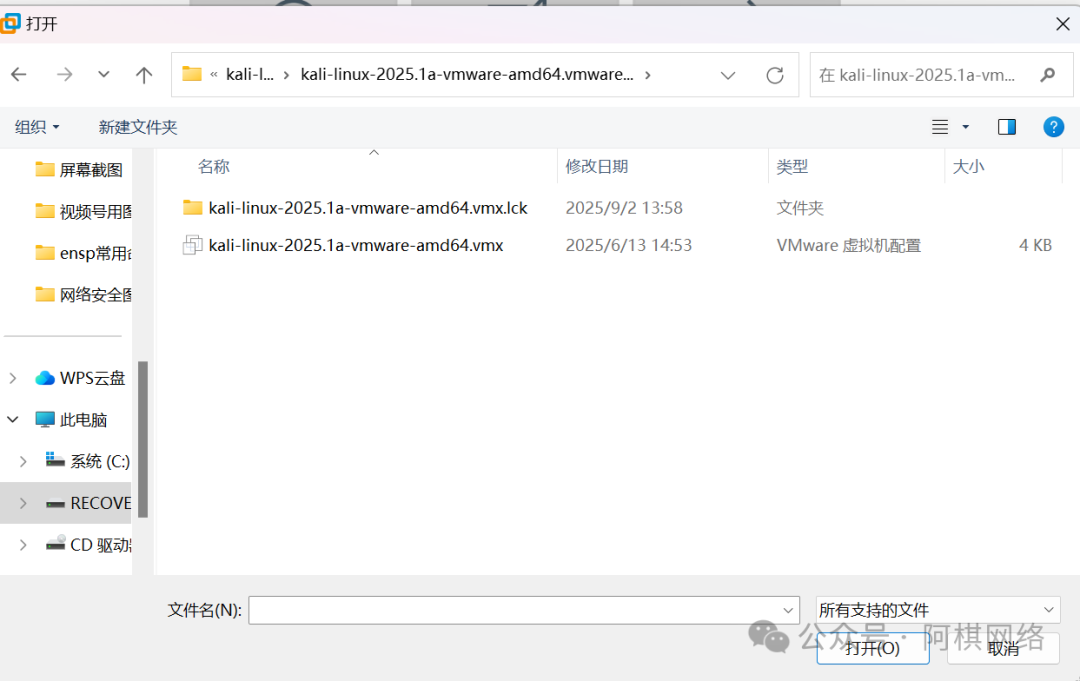
Friendly Reminder:
For beginners, it is recommended to take a snapshot after performing major operations (such as changing sources, updating, modifying system files, installing programs, etc.) to avoid system errors or incomprehensible situations that may require reinstalling the virtual machine. After the system is running normally and stably, you can delete the old snapshots.