
A professional conference call system can greatly enhance corporate communication efficiency and serves as a fundamental communication guarantee in the IT information construction of enterprises. The Desite conference call system can expand powerful conference call functions by integrating with the existing voice communication systems of enterprises through simple deployment.
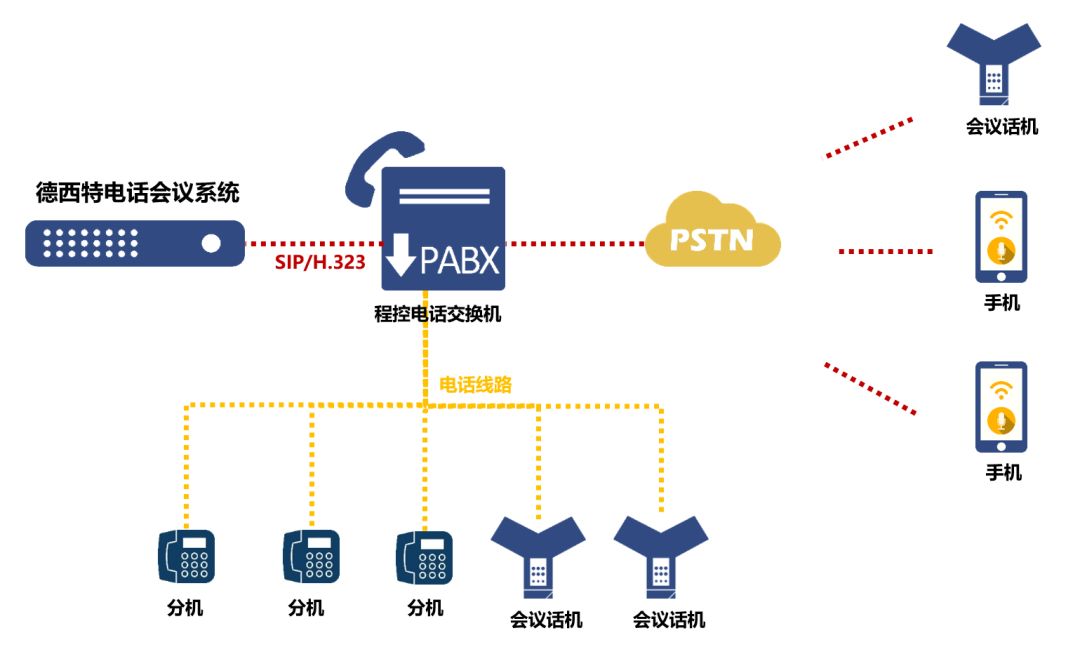
The Desite conference call system interfaces with the current programmable telephone exchange of the enterprise, expanding rich conference call functionalities.
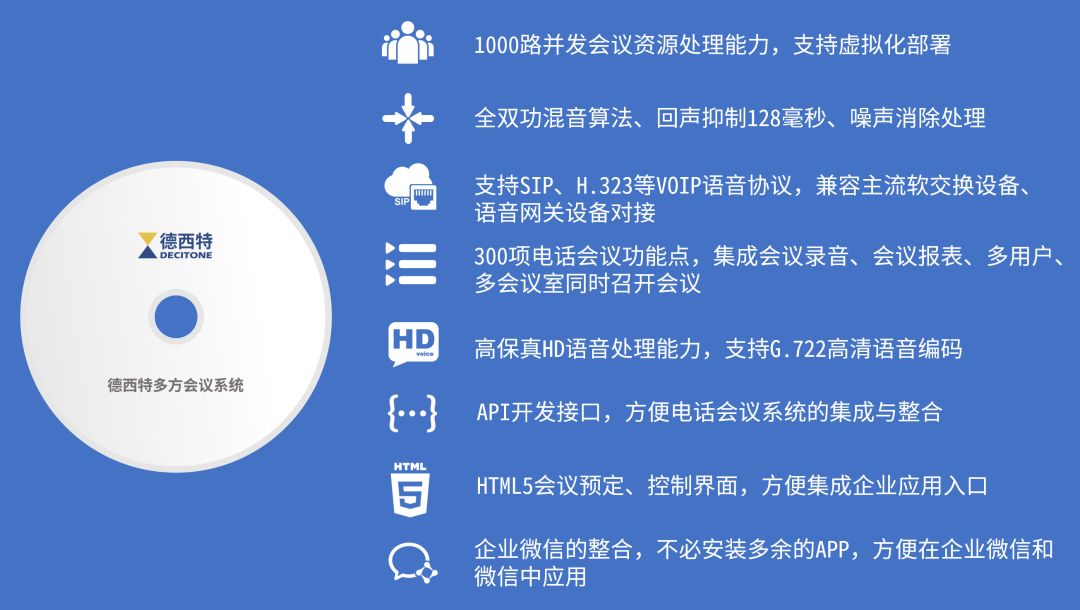
The Desite conference call system provides installation image files that simplify the deployment process, enabling easy virtualization deployment and server installation. Its processing capacity can reach 1000 concurrent conference call resources, meeting the needs of various types of users.
Here, I will introduce how to quickly deploy a professional-level conference call system through virtualization.
01
Environment Preparation
meeting
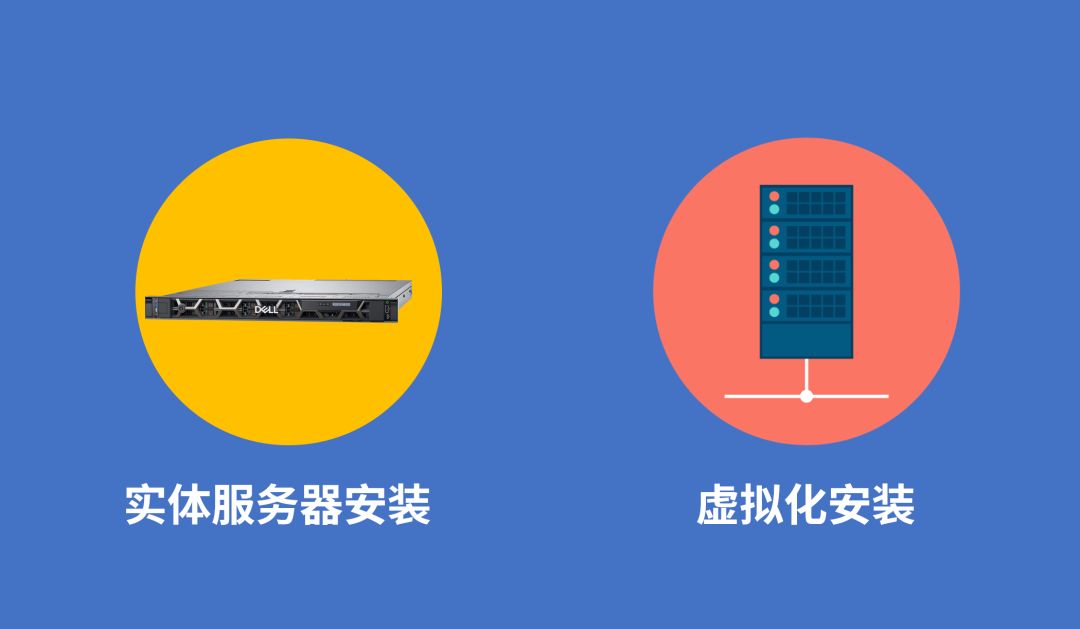
The Desite conference call system provides an integrated installation image CD that includes the CentOS operating system, so you do not need to prepare an operating system when deploying the Desite conference call system. You only need to prepare a server; of course, we recommend using a virtual machine for deployment, as it is easier to install and saves your deployment costs.
A 1.8G dual-core CPU can handle 200 concurrent conference calls, so you do not need to configure a high-level server or virtual machine; the most basic conference server can meet the needs of most enterprises for conference calls.
Memory configuration of 2G is sufficient. Basic hard disk space should be 40G; if additional recording file storage is needed, it can be configured at 1M per minute.
Note: The above configuration data uses G.711 voice encoding
Regarding the choice of virtual machine, you can choose any platform’s virtual machine, as long as you virtualize a CentOS operating system, whether you use VMware or other platforms.
02
Obtaining Installation Image
meeting
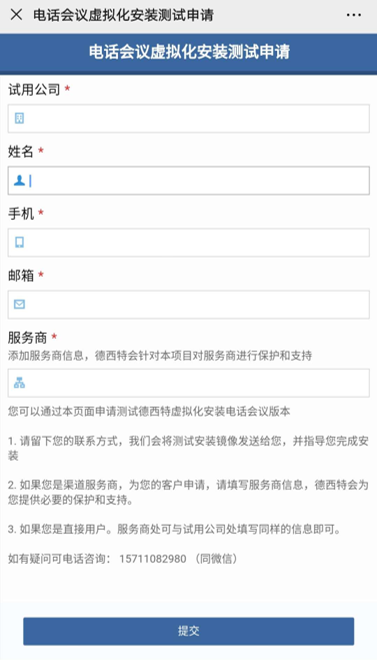
The Desite conference call system is easy to install and deploy, providing free testing deployment for users to easily deploy and experience professional conference call functions. Follow the “Desite” public account and fill in the relevant information in the contact us – test application.
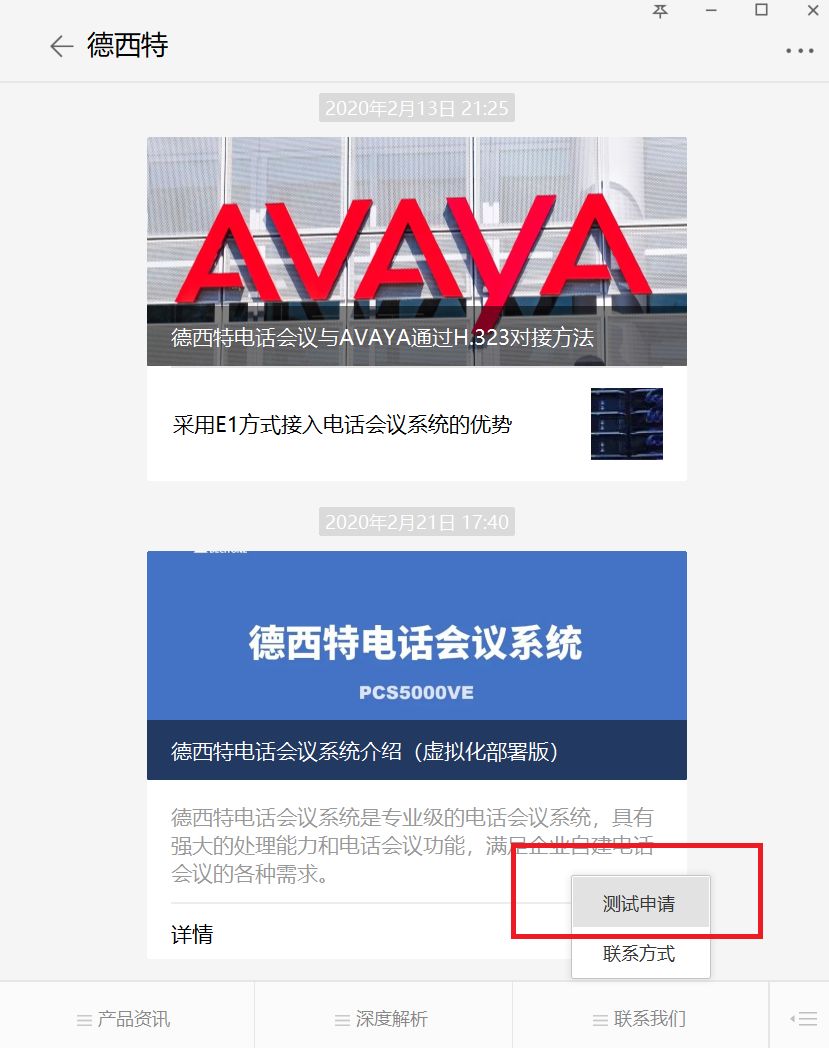
Desite company’s professionals will provide you with the installation CD image and offer technical guidance for installation and deployment, so you can complete the professional conference call deployment within a day.
03
Virtual Machine Installation
meeting
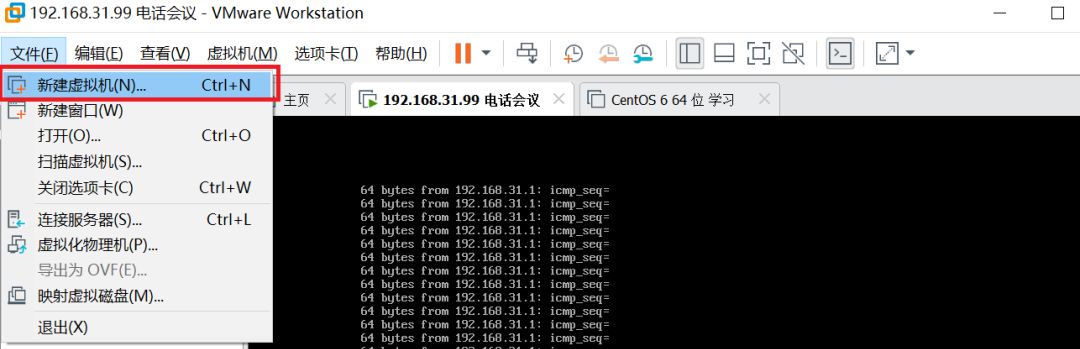
Prepare the virtual machine; this example uses VMware as a reference, while other virtual machines are similar.
Create a new virtual machine
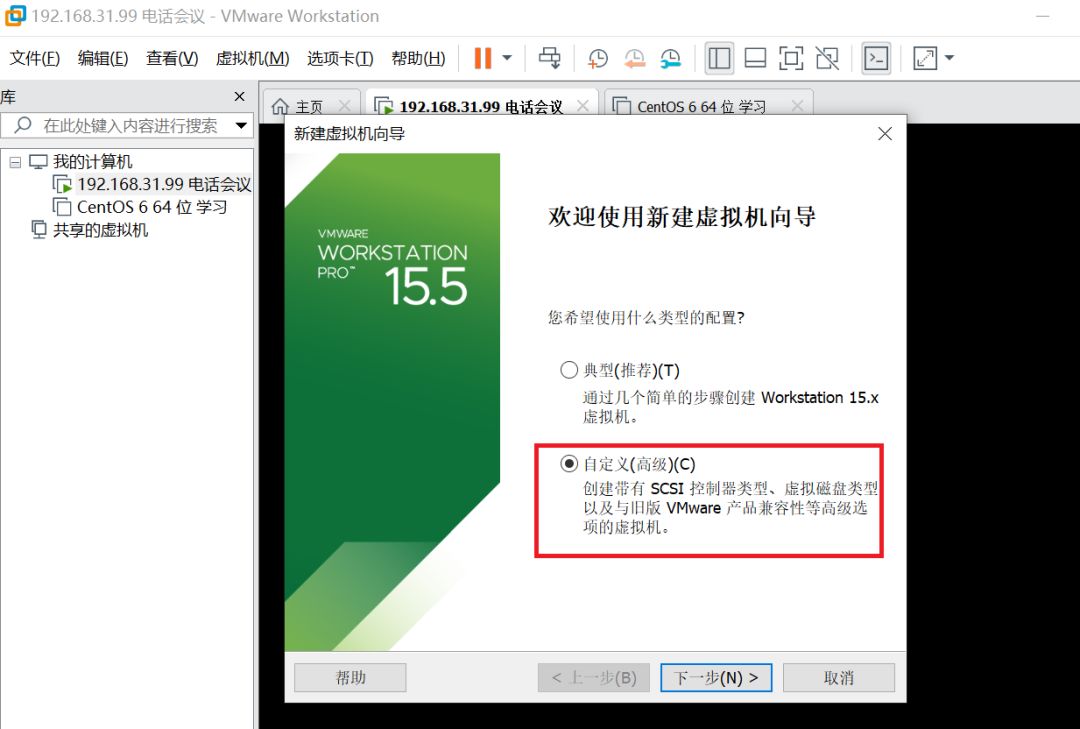
Select custom virtual machine
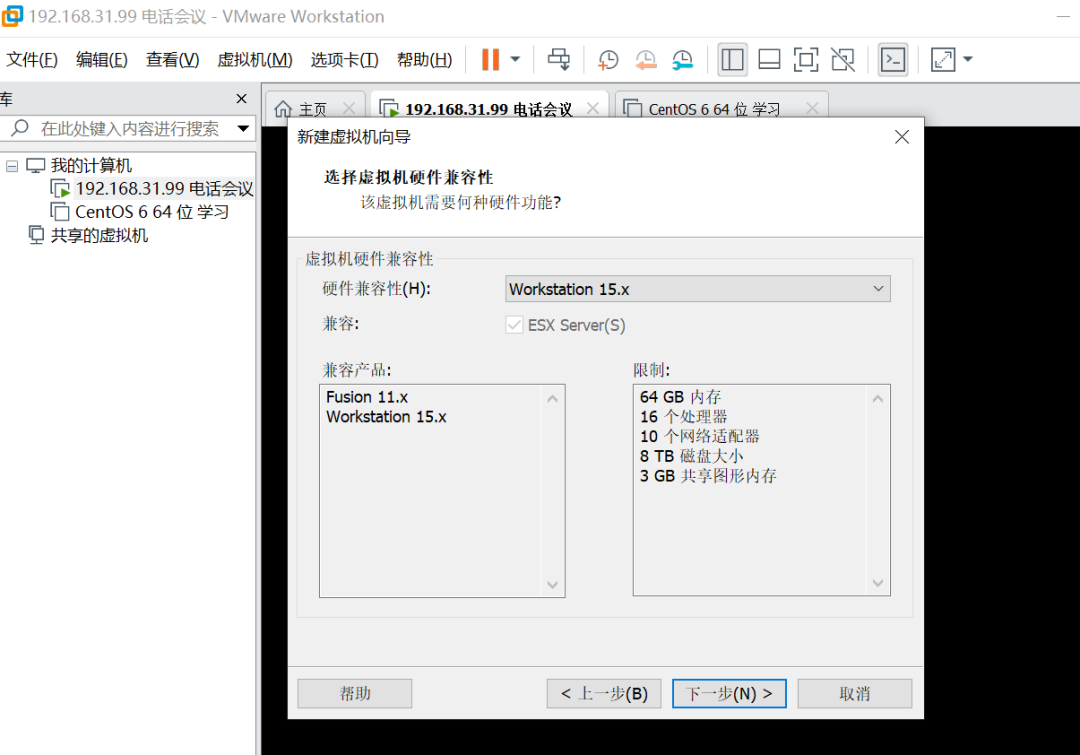
Use the default compatibility configuration
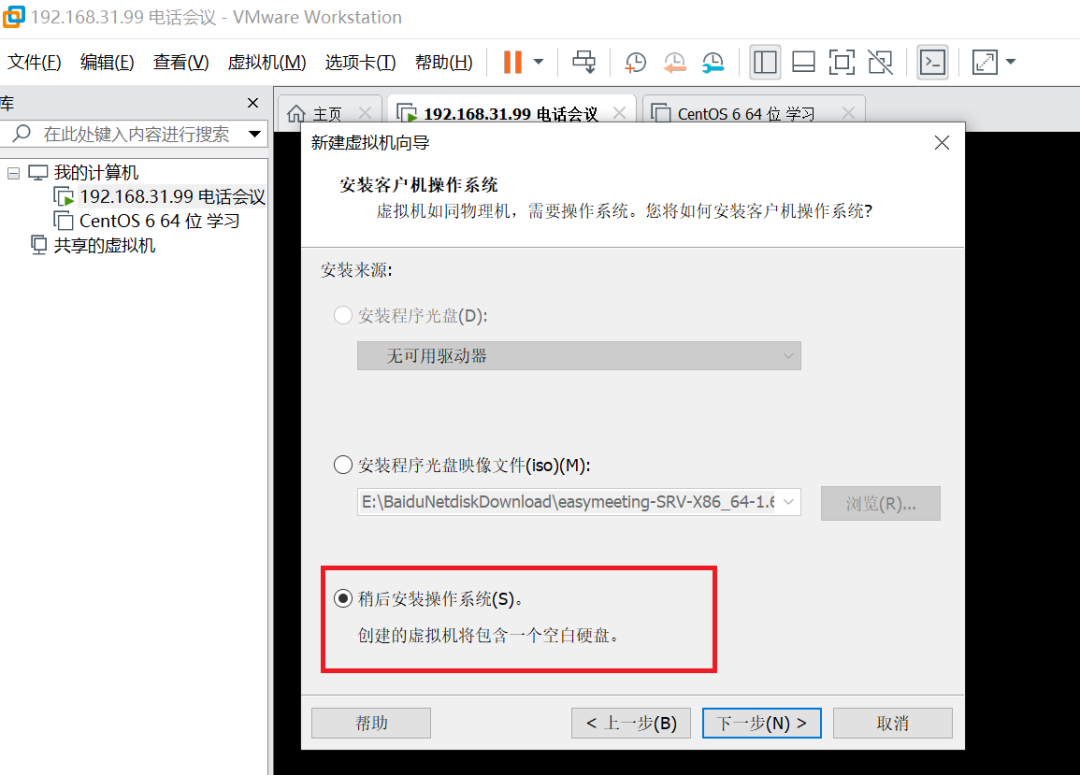
Select to install the operating system later
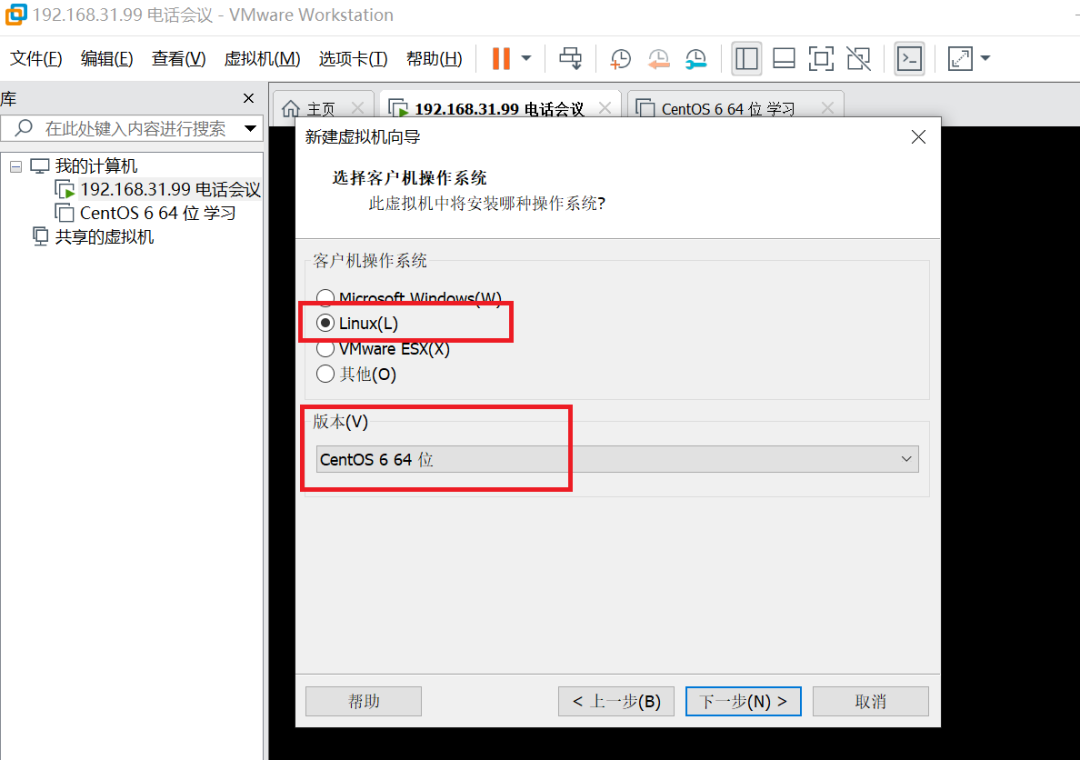
Select install Linux version CentOS 6 64-bit as the installation version for the virtual machine
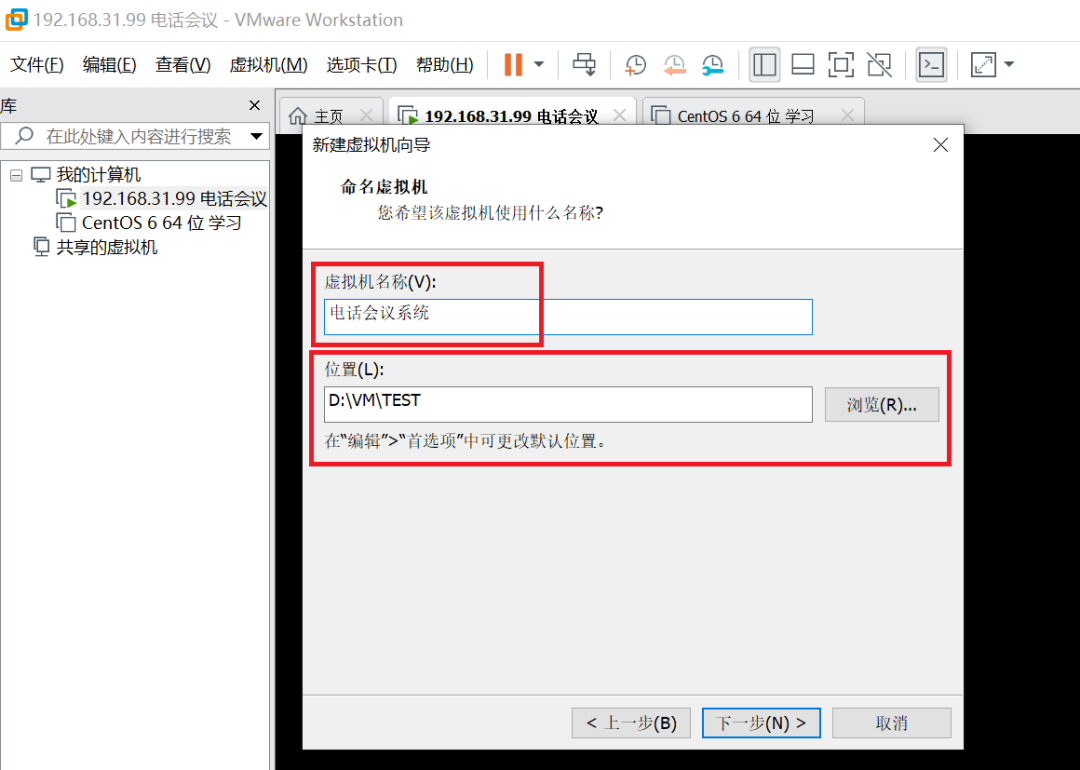
For easier management, give the new virtual machine a name and choose the storage location for the virtual machine files.
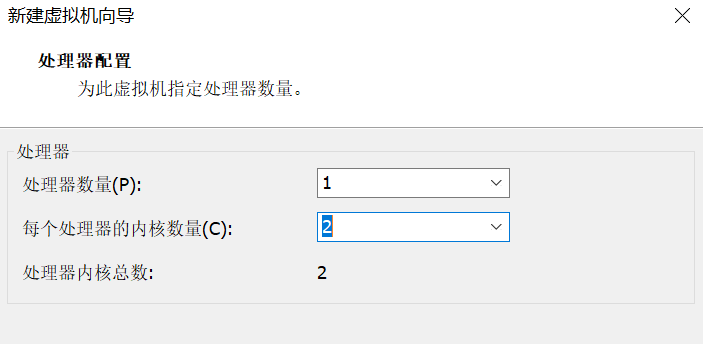
Select the number of processors for the virtual machine; this can be chosen based on actual conditions. Generally, a single-core processor can handle up to 100 concurrent conference mixing capabilities. Leave some margin based on the virtual machine configuration.
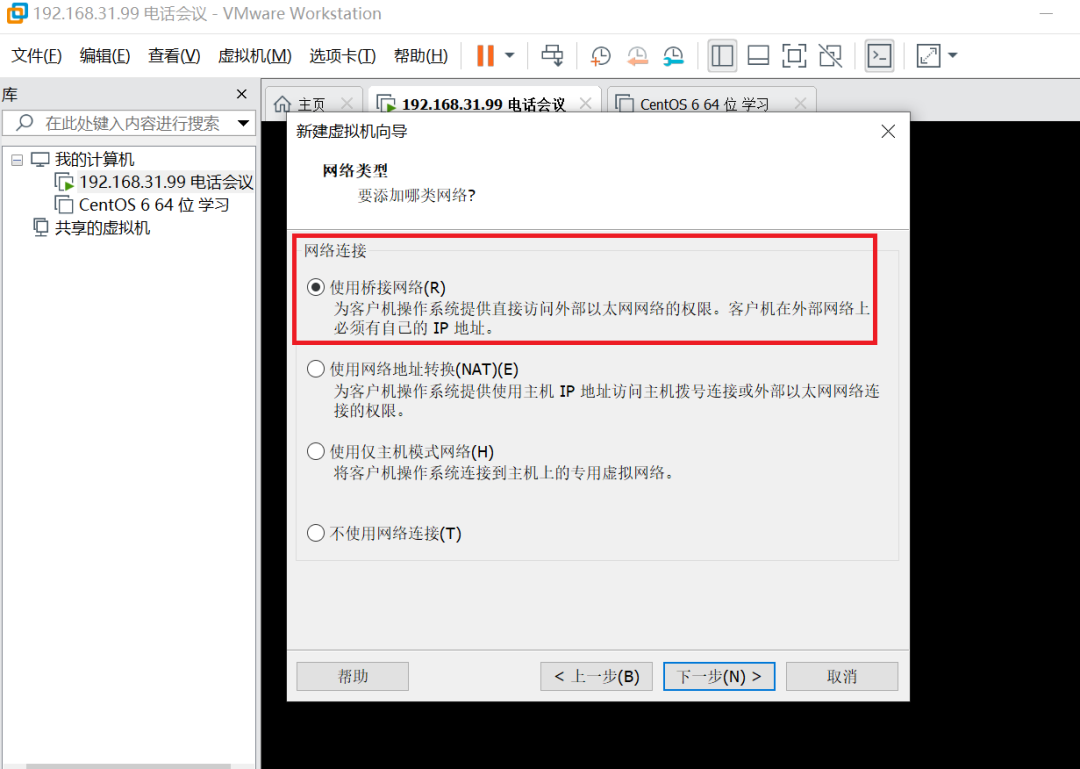
Configure the network access mode, it is recommended to use bridged networking, but using NAT mode is also acceptable.
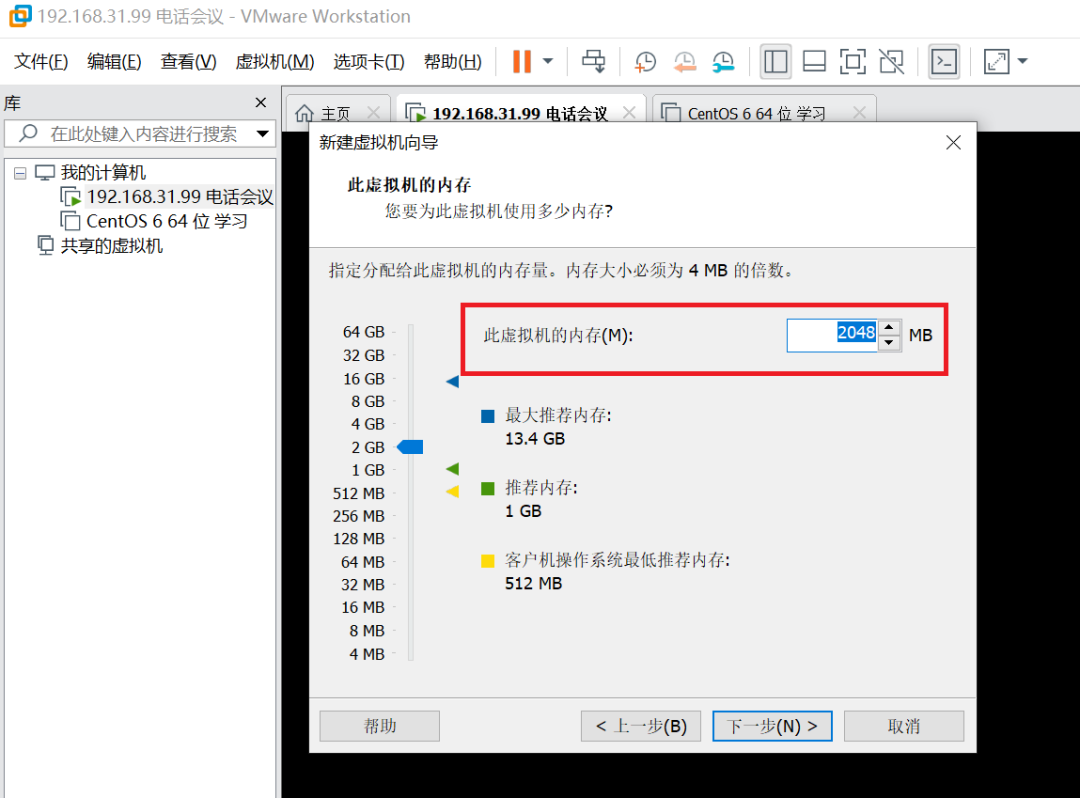
Configure memory, allocate 2G memory for the conference call system; if your virtual machine’s memory resources are not very rich, 1G memory space can also ensure normal operation.
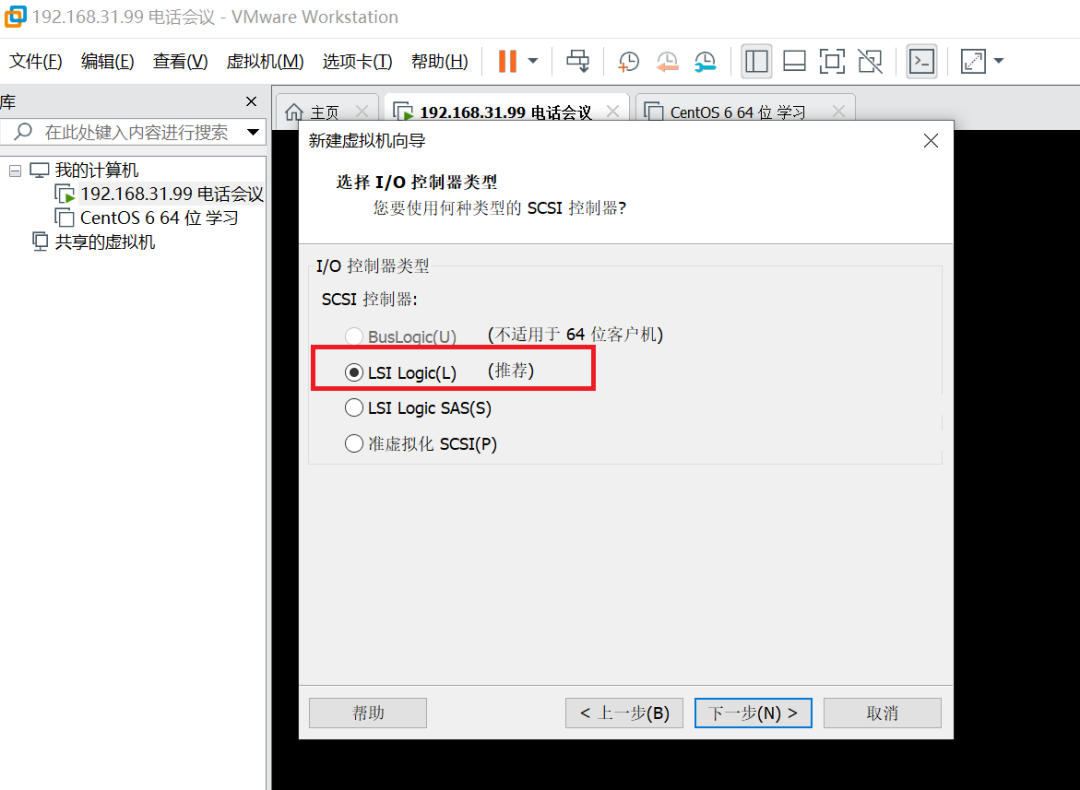
Choose the recommended default configuration for I/O controller settings.
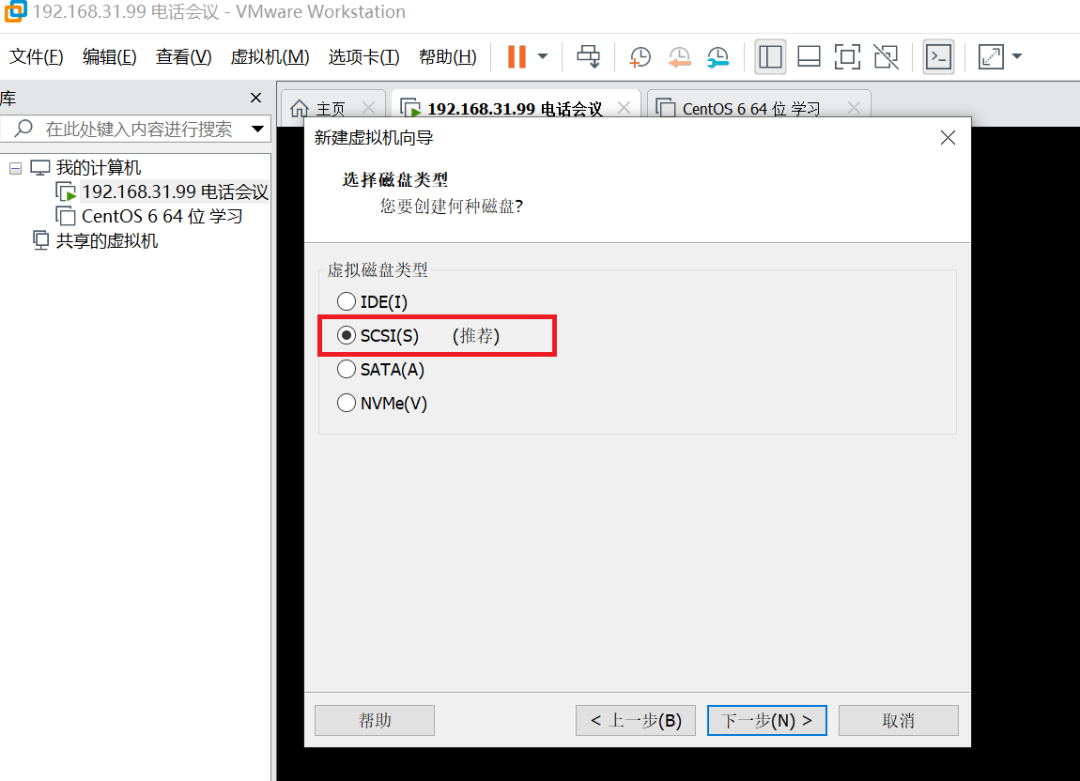
Select the disk type as SCSI in the default mode.
Configure hard disk space for the virtual machine, setting 40G space is sufficient to ensure the operation of the conference call system. If more conference call recordings need to be stored, configure it at 1M per minute.
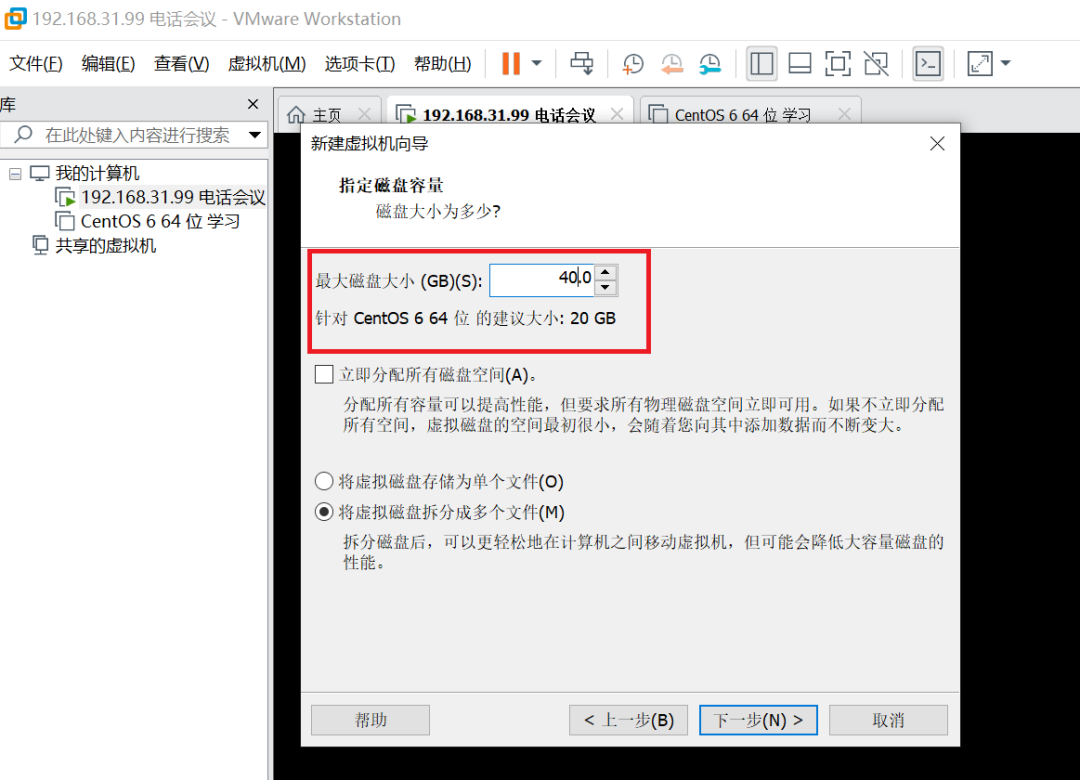
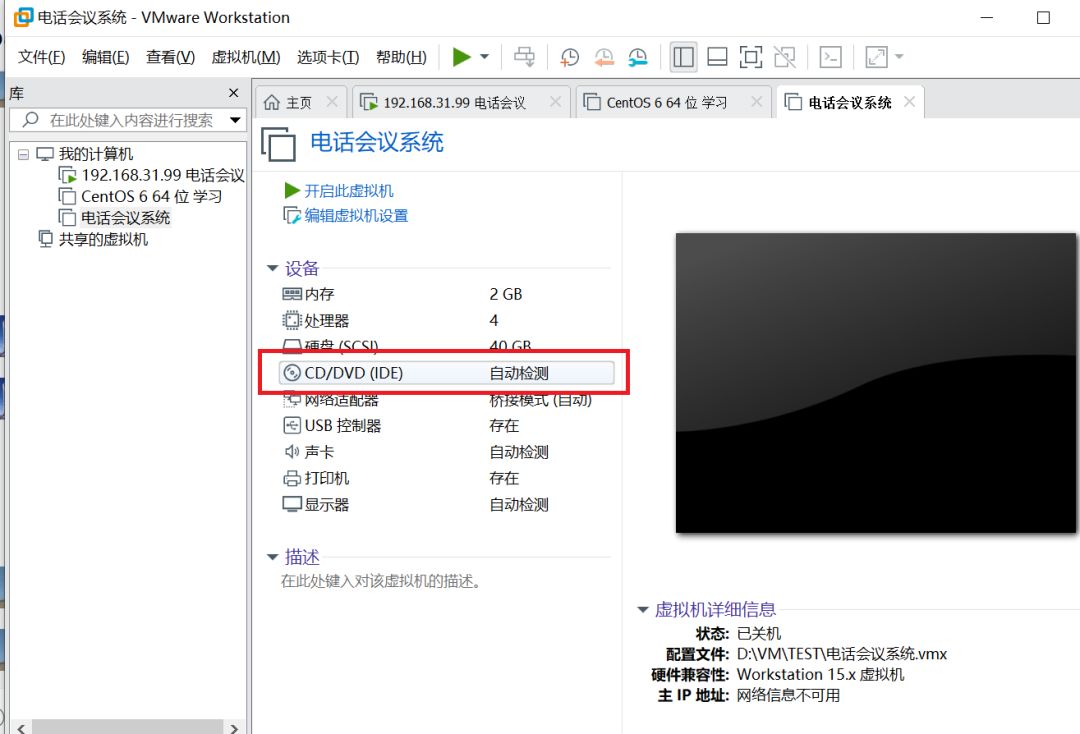
After configuration is complete, choose to mount the installation CD for this virtual machine. To obtain the installation image, please contact the editor at 15711082980 (same as WeChat).
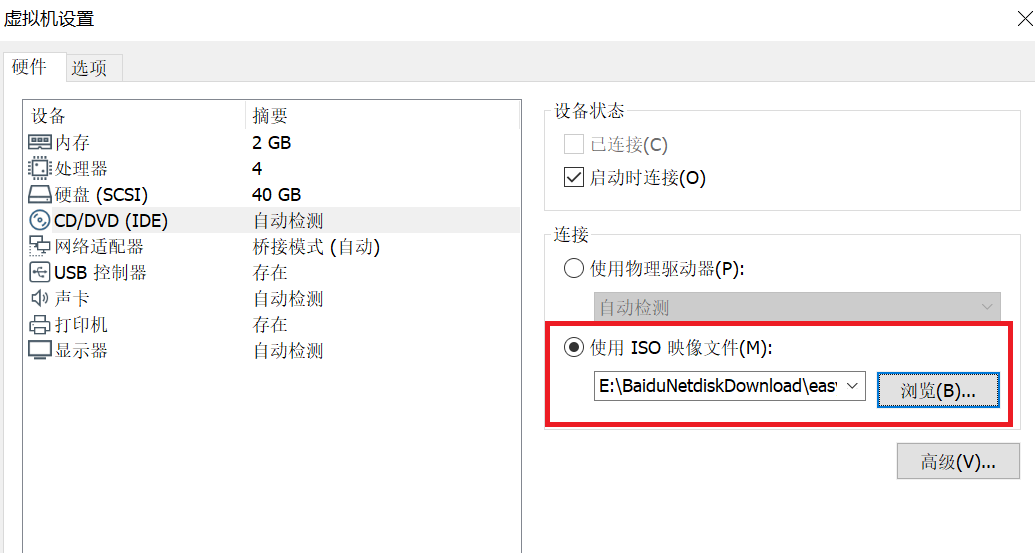
Load the ISO image file, find the storage location of your ISO image file, and select it.
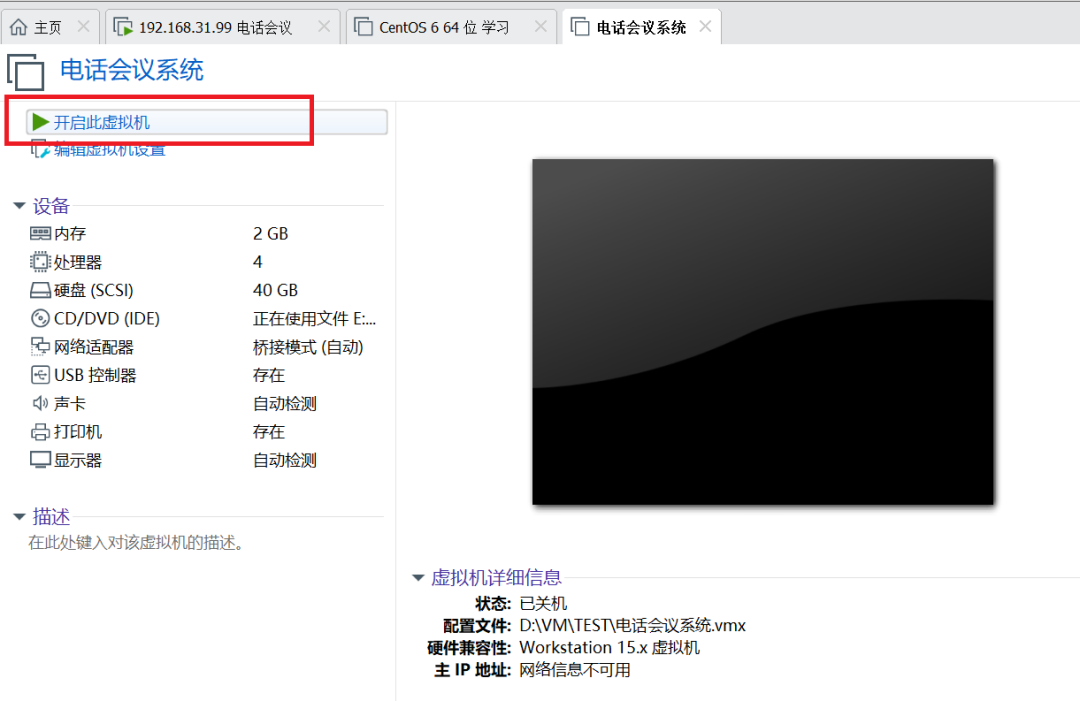
After loading the installation CD, you can start the virtual machine.
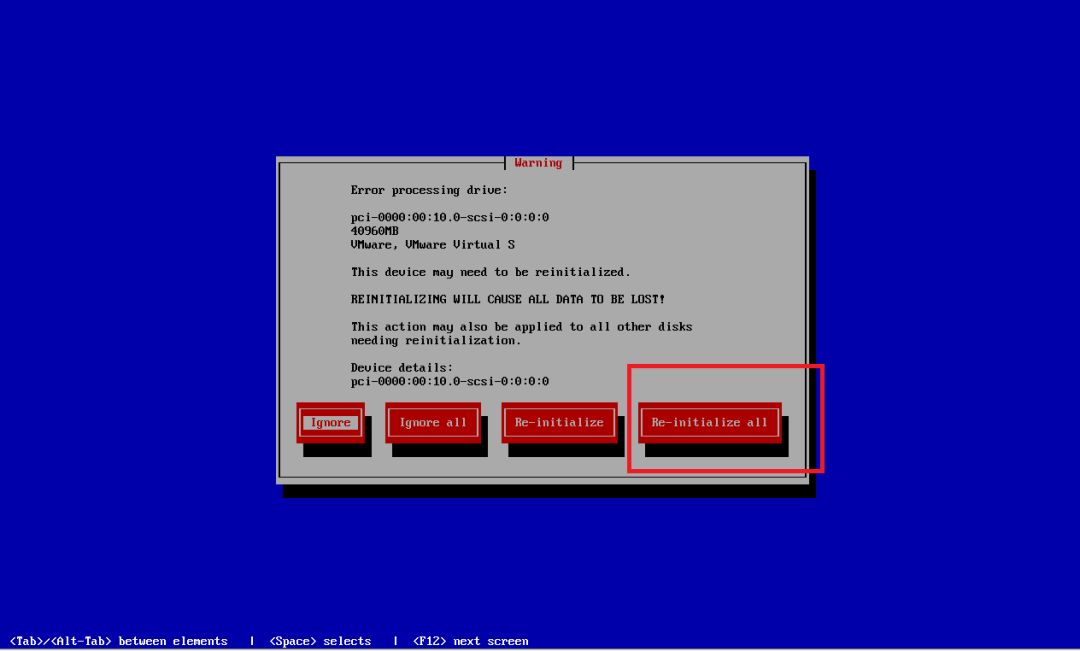
The system will boot from the installation CD and automatically enter the conference call system installation interface; select Re-initialize all.
The system will automatically enter the installation process without any operation required.
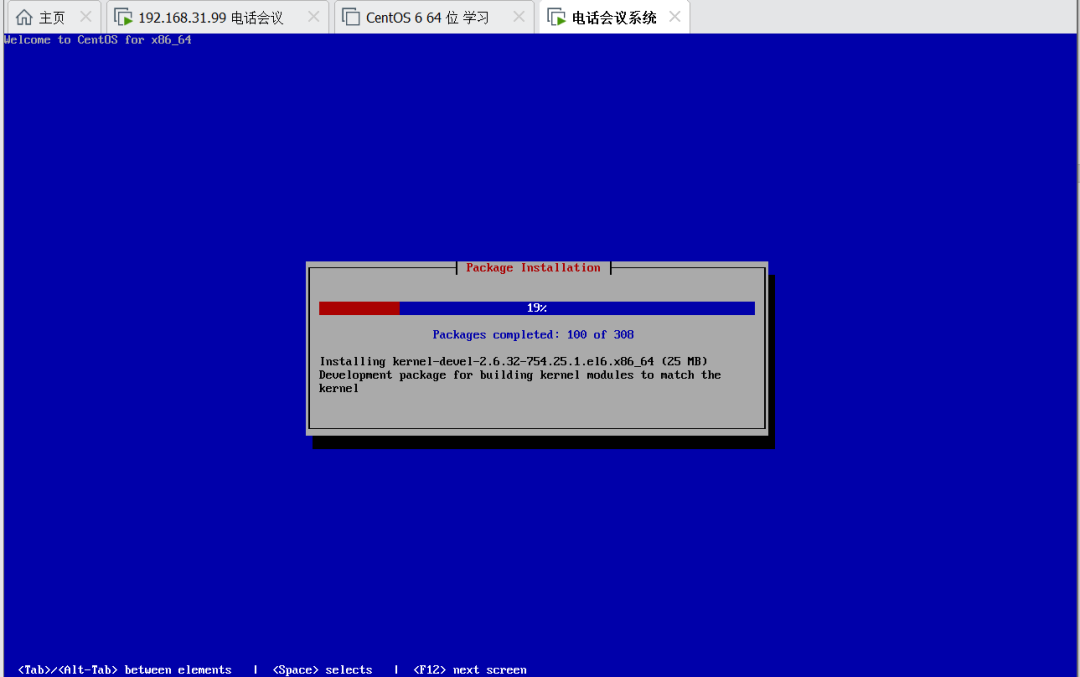
After installation is complete, the system will automatically shut down. Restart the virtual machine, and the conference call system will run.
After entering the system login interface, it indicates that the conference call system is in normal operation.
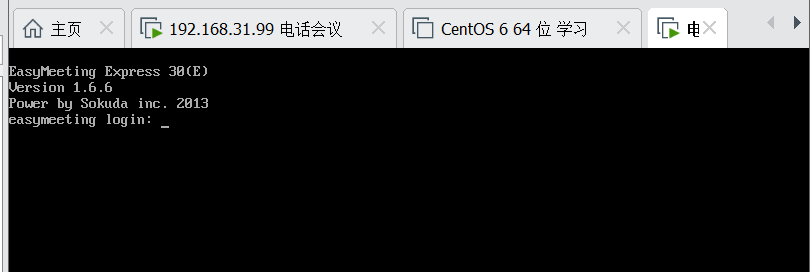
The default IP address of the Desite conference call system is 192.168.1.100 with a subnet mask of 255.255.255.0; you can configure your computer to be in the same subnet. Access the login IP address through your computer’s browser.
For related configuration manuals and solutions, please contact the editor. Or follow the Desite public account to learn more about Desite’s professional conference call solutions and use cases.
●Previous Recommendations ●
● Desite deployed 200 conference calls for CNOOC to enhance emergency communication capabilities
● Connection method of Desite conference call with AVAYA via H.323
● Solutions for enhancing emergency consultation capabilities in conference rooms
● The value of building your own conference call system
Copyright Statement
This article is copyrighted by Beijing Desite Technology Co., Ltd. You may reproduce this article, but you must not modify or change its content. Any modification of the product names, brands, models, etc. in this article will be regarded as an infringement of copyright. Beijing Desite Technology Co., Ltd. reserves the right to pursue legal responsibility for any losses caused by this.

Desite

Scan to Follow Us
Follow the Desite public account for more information
WeChat: Same as mobile phone
Contact: 18611101714 (Manager Hao)