Click the blue text above to follow us
 12. Virtual Machine HardwareWhen creating a virtual machine, it is necessary to configure virtual hardware devices that support the guest operating system. However, the requirements of the guest operating system may change. If it is necessary to modify the virtual hardware configuration and add or remove virtual devices, we can edit the virtual machine settings.Learning Objectives
- Virtual Machine Compatibility and Hardware Version
- Understanding How to Configure Virtual Machine Virtual Hardware
- Adding and Removing Virtual Hardware Components
12.1 About Virtual Machine Virtual Hardware1 Virtual Machine CompatibilityVirtual machine compatibility settings determine the host version on which the virtual machine runs and the virtual machine’s hardware version:
- ESXi host versions that can run the virtual machine
- The virtual hardware versions supported by the virtual machine
Choosing virtual machine compatibility is like selecting the motherboard model for a physical computer. The compatibility settings define the components (such as CPU, GPU, RAM) that can be used with the virtual machine and the number of components.After selecting the compatibility settings, virtual hardware can be configured at two points in time:
- During the process of creating the virtual machine
- After installing the guest operating system
2 ESXi and Virtual Hardware VersionsBy configuring an earlier compatibility setting for the virtual machine, it can be ported across multiple versions of ESXi hosts, for example:
- A virtual machine with virtual hardware version 13 can run on ESXi 6.5 and later.
- A virtual machine with virtual hardware version 17 cannot run on any host prior to ESXi 7.0.
The newer the ESXi version, the more virtual devices supported by ESXi.Upgrade the virtual machine’s compatibility only when the guest operating system requires special hardware introduced in a higher version of virtual hardware.(Upgrading the virtual machine’s hardware version is not recommended unless features in the new version are needed.)Warning: Upgrading a VM’s HW version is not recommended unless features in the new version are needed.
| Virtual Machine Compatibility | Virtual Hardware Version |
| ESXi 8.0 U2 (8.0.2) | 21 |
| ESXi 8.0 (8.0.0) | 20 |
| ESXi 7.0 U2 (7.0.2) | 19 |
| ESXi 7.0 U1 (7.0.1) | 18 |
| ESXi 7.0 (7.0.0) | 17 |
| ESXi 6.7 U2 and later | 15 |
| ESXi 6.7 and later | 14 |
| ESXi 6.5 and later | 13 |
| ESXi 6.0 and later | 11 |
| Virtual hardware versions 12 and 16 are specific to Workstation and Fusion Pro. |
Each ESXi version supports the latest hardware version.12.2 Available Virtual Hardware for Virtual MachinesConfigure it based on the application of virtual hardware devices and the requirements of the guest operating system.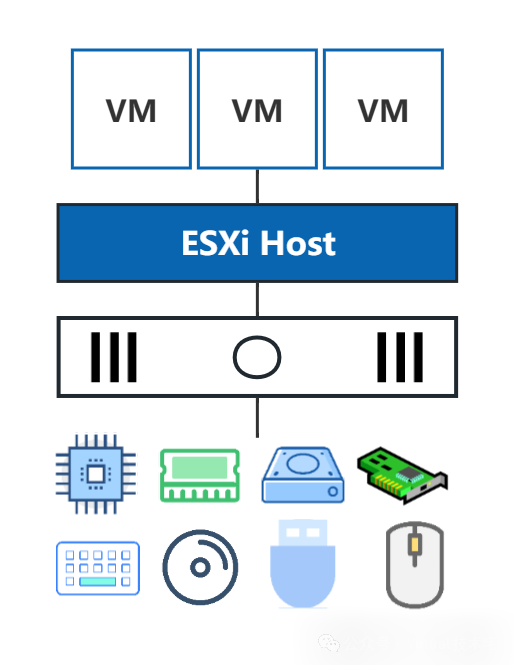 Below are some common maximums for virtual devices:
- Up to 256 virtual CPUs (the number of virtual CPUs directly depends on the number of CPU cores available on the host).
- Up to 24 TB of RAM
- Up to 10 network cards
- Multiple ports and controllers for connecting different devices
The virtual hardware available to the virtual machine corresponds to the physical hardware available on the host.For more details on the maximum configuration limits for virtual machines, please refer to: [vSphere 8.0 Configuration Limits – Virtual Machine Maximums](https://configmax.broadcom.com/guest?vmwareproduct=vSphere&release=vSphere%208.0&categories=1-0)1 Features Supported by Virtual Machine CompatibilityThe increase and update of virtual hardware features generally change with hardware versions. For brevity, please refer to the Broadcom official documentation: [Hardware features available with virtual machine compatibility settings](https://techdocs.broadcom.com/us/en/vmware-cis/vsphere/vsphere/8-0/vsphere-virtual-machine-administration-guide-8-0/configuring-virtual-machine-hardwarevsphere-vm-admin/virtual-machine-compatibilityvsphere-vm-admin/hardware-features-available-with-virtual-machine-compatibility-levelsvsphere-vm-admin.html)12.3 Configuring Virtual Machine Hardware1 Modifying Virtual Machine ConfigurationAs vSphere administrators, we sometimes change the virtual hardware configuration of a virtual machine. For example, it may be necessary to change the type of network adapter or CPU and memory resources to improve the performance of the virtual machine.We can modify the configuration of the virtual machine after it has been created by following these steps:① Select the target VM, right-click, and choose Edit Settings to enter the settings editing interface.② Modify, add, or remove virtual hardware.Add New Virtual DeviceFind the target virtual device, click the three vertical dots on the right, and the Remove Device option will appear.win10-1 virtual machine is powered on
- Some guest operating systems support adding CPU and memory while the virtual machine is powered on.
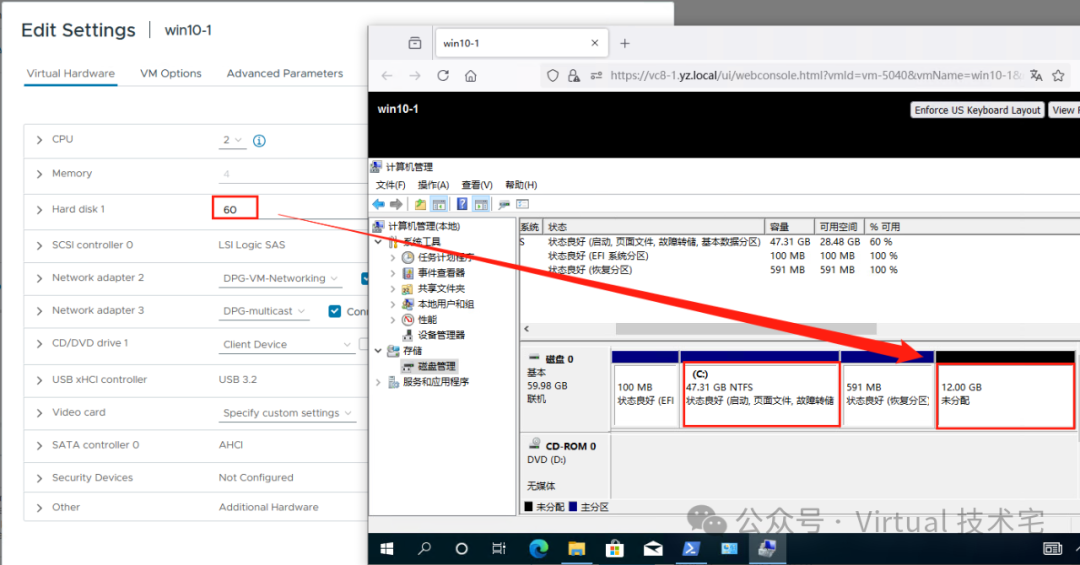
- In the example of the win10-1 virtual machine, the “CPU” is set to 2, and the “Memory” is set to 4, with that option grayed out. Grayed out settings mean that CPU and memory cannot be changed while the virtual machine is powered on.
- Virtual hardware can only be removed when the virtual machine is powered off. For example, to remove a virtual disk that is no longer needed, the virtual machine must be powered off first.
2 Increasing the Capacity of Virtual DisksIf the virtual machine’s disk space is insufficient, we can increase the capacity of the virtual disk. This operation can be performed while the virtual machine is powered on.After increasing the capacity of the virtual disk, it is also necessary to increase the disk capacity within the guest operating system. Administrators need to use appropriate tools in the guest operating system so that it can utilize the newly allocated disk space.In the above example, the virtual machine’s hard disk capacity is increased from 48 GB to 60 GB. In the guest operating system, the unallocated disk space can be claimed to the C: volume to extend its space.3 Adding a Virtual Hard Disk to the Virtual MachineIn addition to increasing the size of existing virtual disks, we can also add a new virtual disk to the virtual machine. For example, when the business in the virtual machine OS requires support for a second virtual disk, a new virtual disk can be added through ADD NEW DEVICE > Hard Disk.The specific steps to add a new virtual disk are:
- Select the target VM, right-click, and choose Edit Settings to enter the settings editing interface.
- Select Add New Device > Hard Disk
- After the new disk is added, expand New Hard disk and customize the settings for the new hard disk.
For more information on the configuration options and considerations for adding virtual hard disks, please refer to [vSphere 7.0 Virtual Disk Configuration](https://docs.vmware.com/en/VMware-vSphere/7.0/com.vmware.vsphere.vm_admin.doc/GUID-90FD3678-AC9F-40CC-BB66-F499141E2B99.html#GUID-90FD3678-AC9F-40CC-BB66-F499141E2B99) or [vSphere 8.0 Virtual Disk Configuration](https://docs.vmware.com/en/VMware-vSphere/8.0/vsphere-esxi-host-client/GUID-90FD3678-AC9F-40CC-BB66-F499141E2B99.html)12.4 Virtual Disk ProvisioningWhen creating a virtual disk, you can choose between thick provisioning and thin provisioning types of virtual disks.1 Thick ProvisioningThe traditional storage configuration method is as follows:
- Allocate a fixed proportion of available space in the datastore for the virtual disk of the virtual machine.
- The entire provisioned space will be used for the virtual disk.
- The virtual disk immediately occupies the entire provisioned space.
(Image from VMware)Example:
- Datastore capacity = 100 GB
- Virtual disk allocation = 20 GB
- Storage capacity available for other virtual disks = 80 GB
At this point, the datastore can host up to five similarly sized virtual disks.2 Thin ProvisioningThe on-demand storage allocation works as follows:
- Allocate storage space on the datastore for the virtual disk of the virtual machine.
- Thin disks only use the storage space needed for the initial run. In this example, the thin provisioned disk only occupies 20 GB of storage space.
- If the disk requires more space, it can expand to the entire 40 GB provisioned space.
- The total disk space allocated to multiple virtual machines may exceed the total space you actually have on the datastore.
 (Image from VMware)Example:
- Datastore capacity = 100 GB
- Virtual disk allocation = 40 GB
- Used datastore capacity: 80 GB
3 Comparing Thick and Thin ProvisioningEach type of provisioning has its pros and cons.
| Thick Provisioning | Thin Provisioning |
| If it is necessary to ensure that each disk has enough capacity at creation, use thick provisioning. | If not all datastore capacity needs to be consumed when creating a virtual disk, use thin provisioning. |
| The virtual machine will not compete for storage space. | Users need to closely monitor datastore capacity to avoid running out of space. |
| Unused datastore capacity will be wasted. | Multiple virtual machines can use datastore capacity more efficiently. |
In both cases, we can increase the capacity of virtual disks as needed without interruption.SummaryWhen requirements change, we can modify the virtual hardware settings of the virtual machine, such as CPU and memory size. We can also dynamically add storage space to the virtual machine by adding new virtual disks or increasing the capacity of existing disks. However, it is essential to check the virtual hardware options before making any changes. Some features may not be supported by the guest operating system or the ESXi version.
References
-
– [Virtual machine hardware versions](https://knowledge.broadcom.com/external/article/315655/virtual-machine-hardware-versions.html)
-
– [Upgrading a virtual machine to the latest hardware version (multiple versions)](https://knowledge.broadcom.com/external/article/315390/upgrading-a-virtual-machine-to-the-lates.html)
——The End——