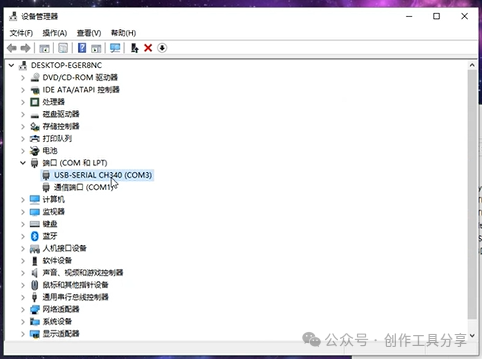
To use USB serial communication in the Keil5 development environment, it is necessary to install the CH340 driver. This driver supports Windows operating systems and the installation process is simple and quick. Users only need to download the official driver package, run the installer, and follow the prompts to complete the installation. After restarting the computer, the COM port number can be viewed through the Device Manager, and the corresponding serial parameters can be configured in Keil5 to enable program flashing and debugging functions.
Installation Requirements: Operating System: Windows XP/7/8/10/11 32/64-bit Processor: 1GHz or higher Memory: 512MB or higher
Software Acquisition: Follow the official account or send the number: 1 to automatically receive the software package link.
Detailed Software Installation Steps:
1. Right-click the Start menu and click here.
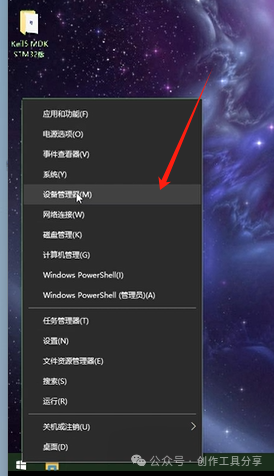
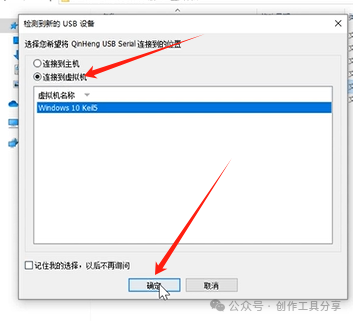
2. Connect the USB cable to the computer, select the second option, and click OK.
3. Click this file to install.
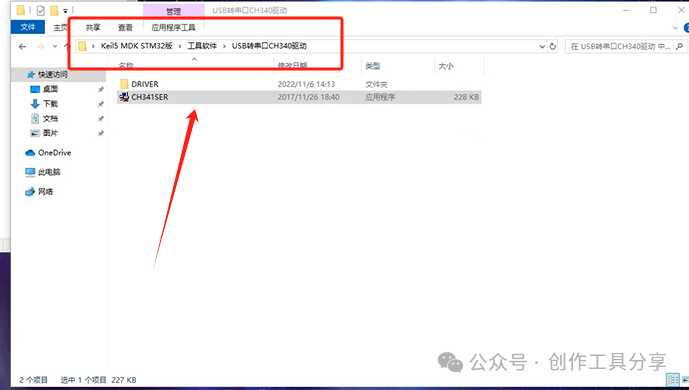
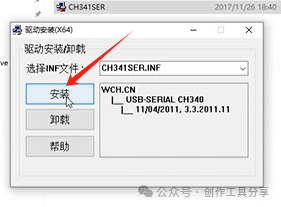
4. Click Install.
5. Click OK.
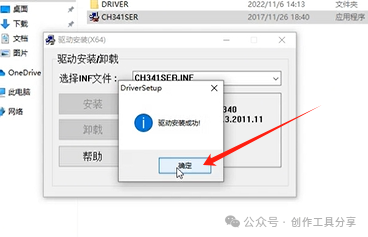
6. Installation complete.