Introduction
With the deep integration of edge computing and AI technology, developers have an increasing demand for AI tools that can be deployed quickly, at low cost, and with high performance. For instance, in the past, if you wanted to deploy DeepSeek, you had to have a server to host it, whether it was a local machine or a cloud server, you ultimately could not escape the server requirement. However, recently, the combination of Tencent Cloud’s EdgeOne Pages’ MCP Server (edge computing platform) and DeepSeek R1 (open-source inference model) has broken this limitation. You can deploy your own DeepSeek easily without a server or local machine. Before we start, let’s first understand the main characters involved in this article.
EdgeOne Pages
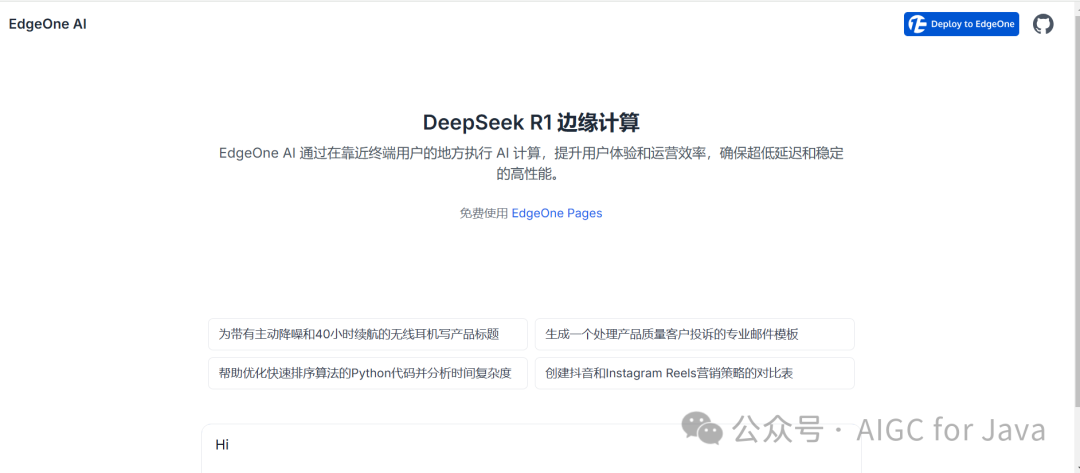
What is EdgeOne Pages? Here is the official description: 【EdgeOne Pages is a front-end development and deployment platform built on Tencent EdgeOne infrastructure, designed for modern web development, helping developers quickly build and deploy static sites and serverless applications. By integrating edge function capabilities, it achieves efficient content delivery and dynamic functionality expansion, supporting fast access for global users.】 Below is a preview page after we deployed on the EdgeOne Pages public test platform, without the need to configure and manage servers or other infrastructure, you can enjoy free and stable services with just a few simple steps.
Quick Deployment
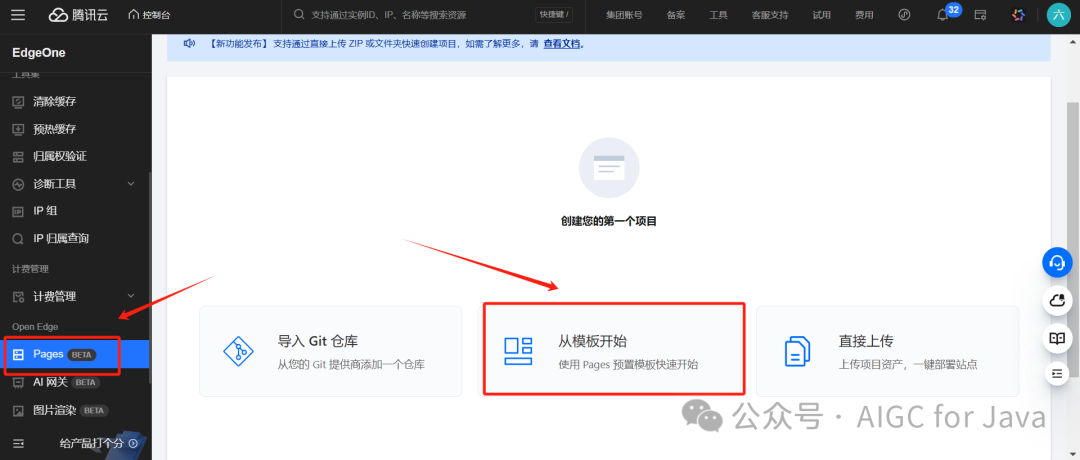
First, enter the Pages console, select the left menu 【Pages】, and choose 【Start from Template】 on the right to open the template list page.
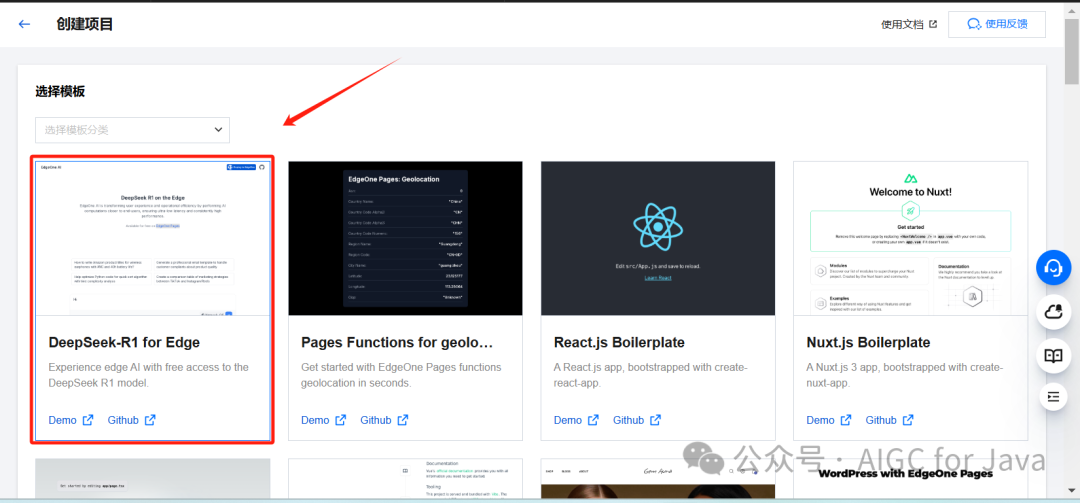
Select the 【DeepSeek-R1 for Edge】 template from the template list page to enter the template details page.
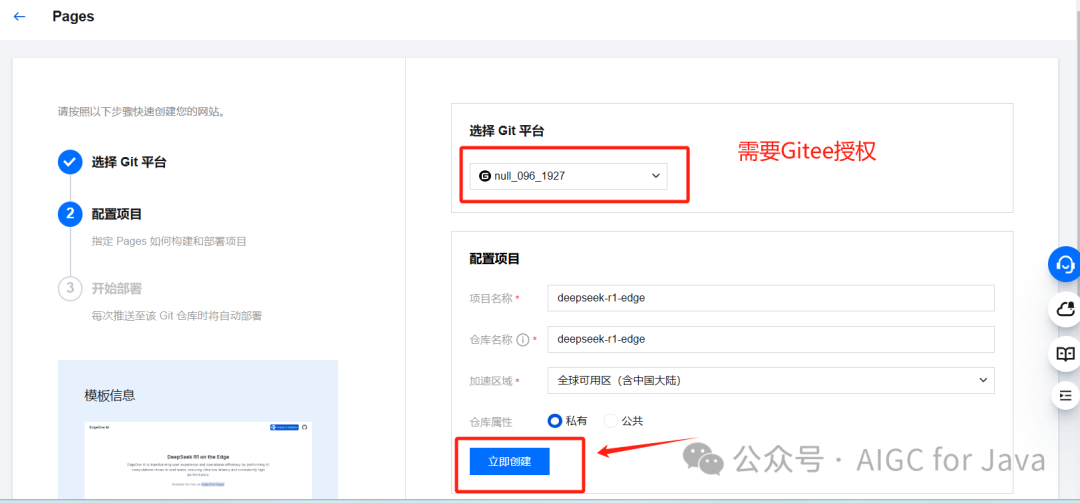
On the template details page, select the Git platform; here I choose the Gitee platform and authorize it. After authorization, you can select your account space, keep the other defaults, and click 【Create Now】. After clicking Create Now, EdgeOne Pages will create the code for the current deployment of the DeepSeek-R1 for Edge template project in your Gitee personal repository.
After waiting for the deployment to complete, you can see the specific build logs, build products, functions, and other information on the build deployment page.
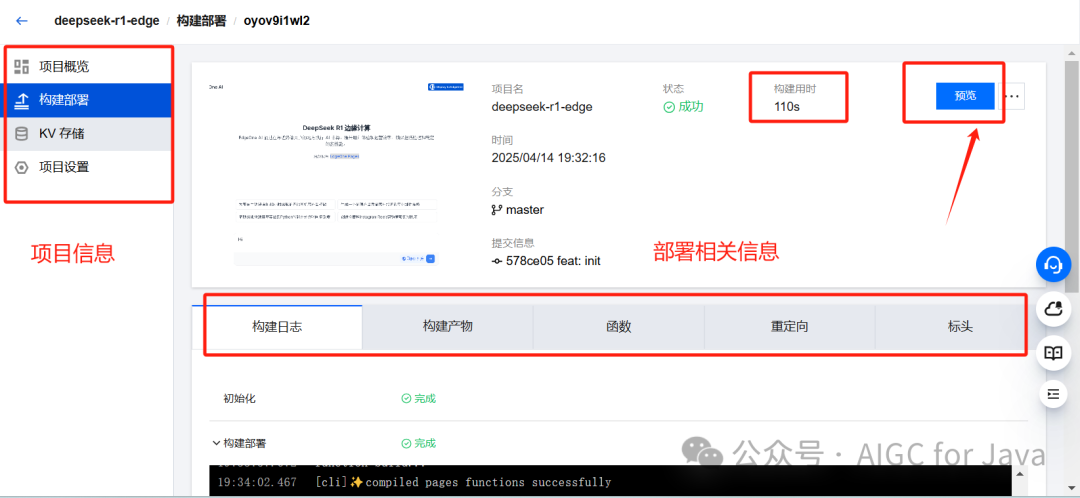
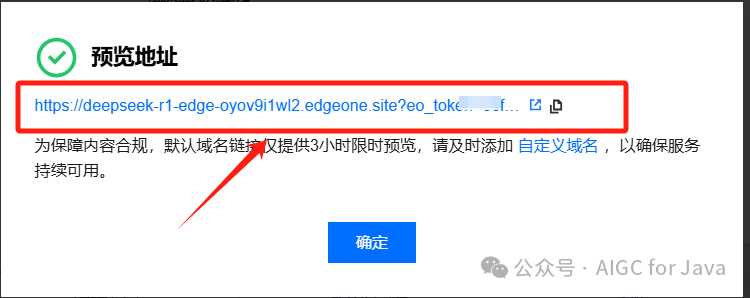
On the successful deployment page, click 【Preview】 to directly open the access page for our deployed DeepSeek-R1.
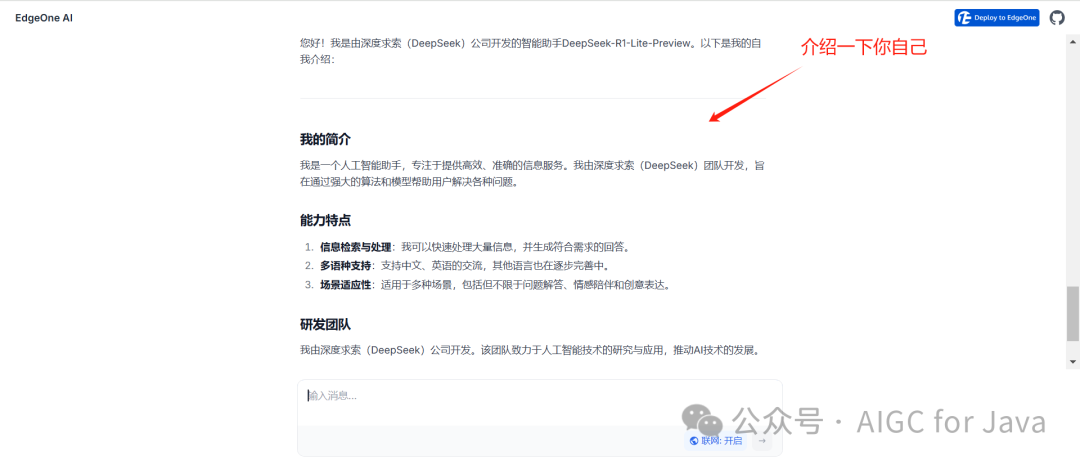
We can directly input the questions we want to know, such as 【Introduce yourself】, and below is the fast streaming output we see after sending the question to DeepSeek R1.
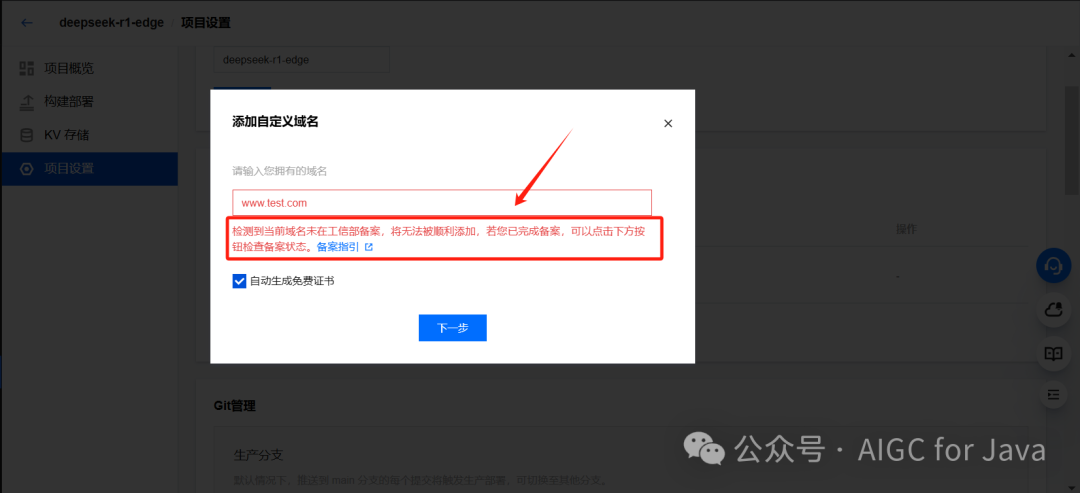
Here we can also click 【Preview】 in the pop-up page under the DeepSeek-R1 access address to select 【Custom Domain Name】, or click the left menu 【Project Settings】 to choose a custom domain name. This is because the project domain name has a time limit, which is defaulted to 3 hours. After customizing the domain name, it can remain valid indefinitely. The custom domain name needs to be a registered domain; arbitrary input of domain names is invalid.
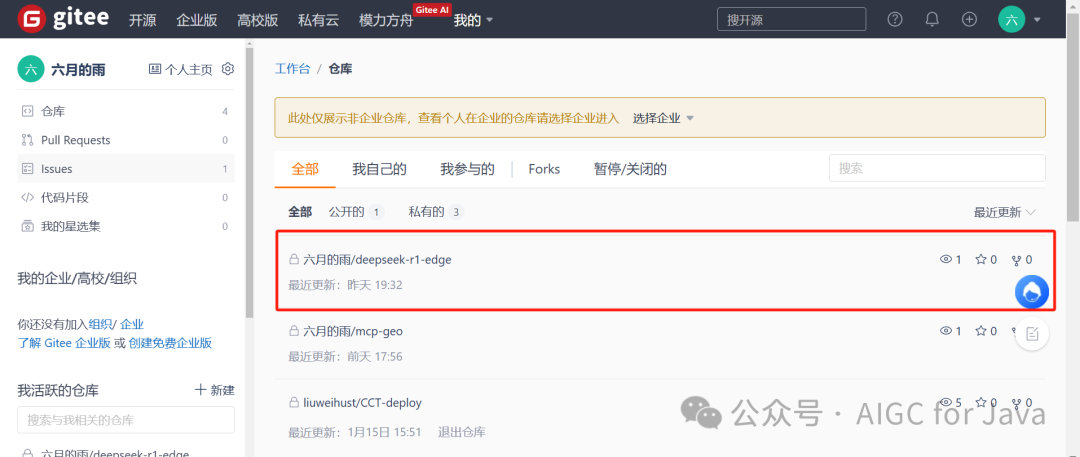
After experiencing the deployment of DeepSeek-R1 based on EdgeOne Pages, we can see the automatically loaded template source code in our Gitee account repository.
Project Application
At this point, the operation of quickly building a conversational AI website based on EdgeOne Pages is complete. The entire operation is very simple. After completion, you can directly embed the access domain name into the business system, allowing business operators to experience the DeepSeek-R1 AI conversational service without logging in or server deployment, enabling AI conversations directly within the business system.
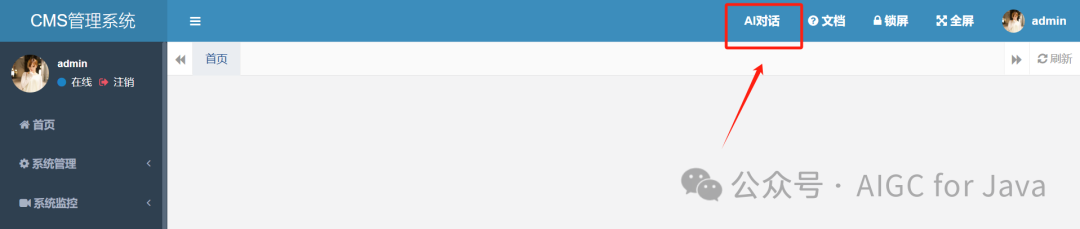
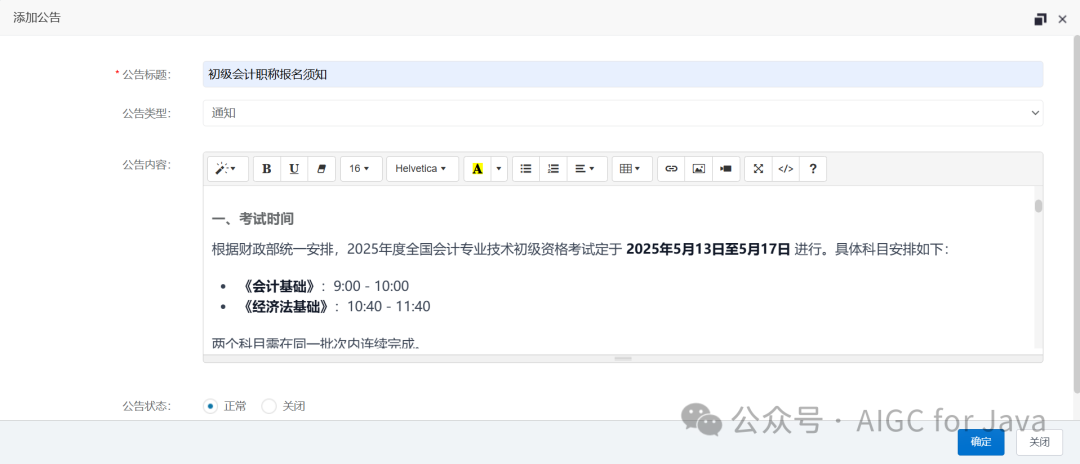
We directly embed the access domain name of the EdgeOne Pages platform project into the business system. For example, if I need to generate an announcement for the registration of a junior accountant qualification, I can directly click 【AI Conversation】, input 【Generate an announcement for the junior accountant qualification registration】 in the redirected AI conversation page, and after waiting for the AI conversation to return, I can place the returned content into the announcement addition page’s editing input box.
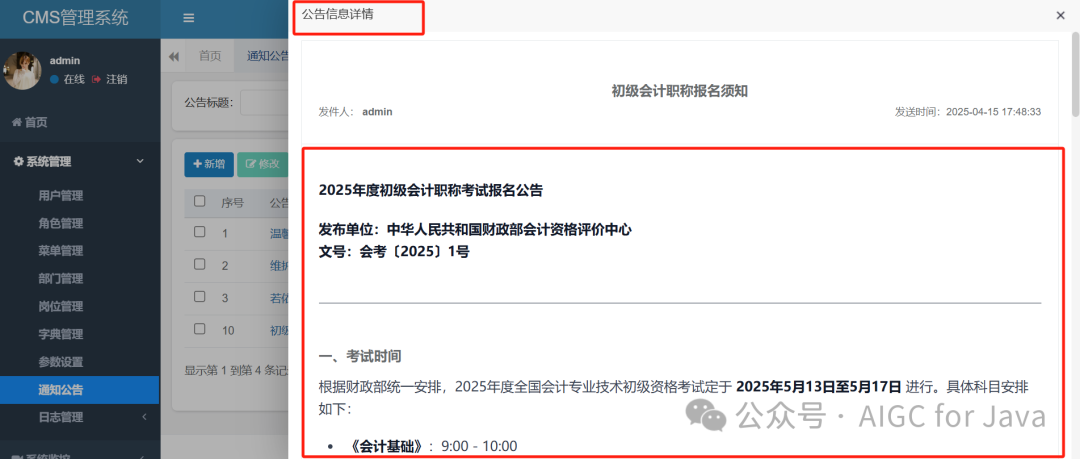
After saving, you can click on the announcement name in the announcement management list page to view the detailed information of the current announcement. Here you can see that the content generated by the AI conversation template deployed through EdgeOne Pages can be directly copied with formatting, making it convenient for modification and adjustment compared to accessing through the API interface, which retains the original format.
Source Code Deployment
So why use EdgeOne Pages? Before answering this question, let’s first locally deploy the 【DeepSeek-R1 for Edge】 template mentioned above. Before local deployment, we need to prepare the runtime environment and tools, here we will use the cursor runtime tool.
Installing Cursor
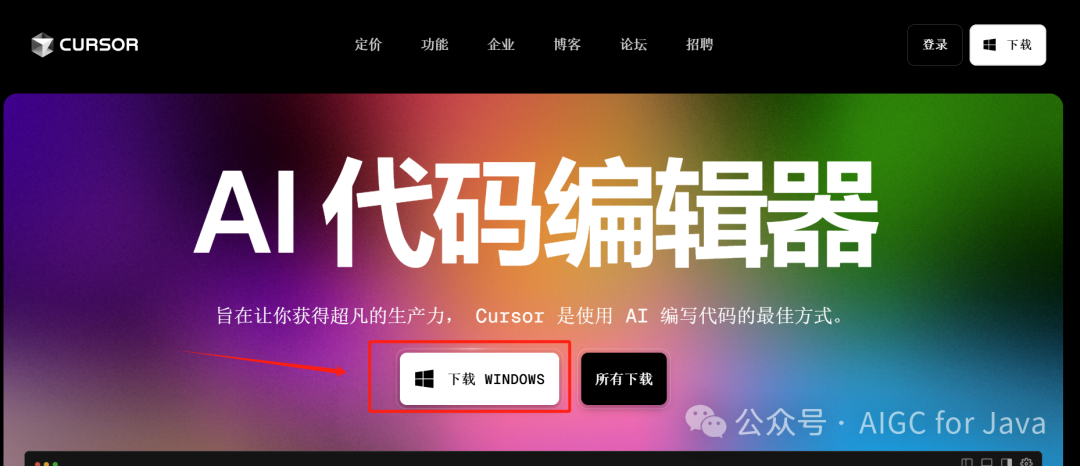
First, we need to install a project opening and development tool, which we will use cursor. Open the cursor official website: https://www.cursor.com/cn, and directly click 【Download WINDOWS】 development tool. After downloading, install it locally, and select the default options.
Installing Node.js
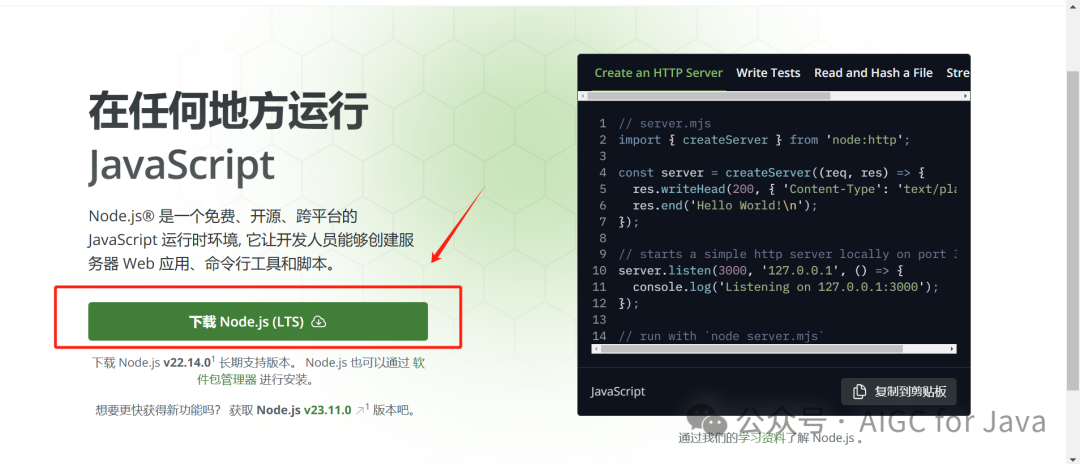
Open the Node.js official website in your browser: https://nodejs.org/zh-cn. On the homepage, directly click 【Download Node.js (LTS)】 to download Node.js to your local machine and double-click to install.
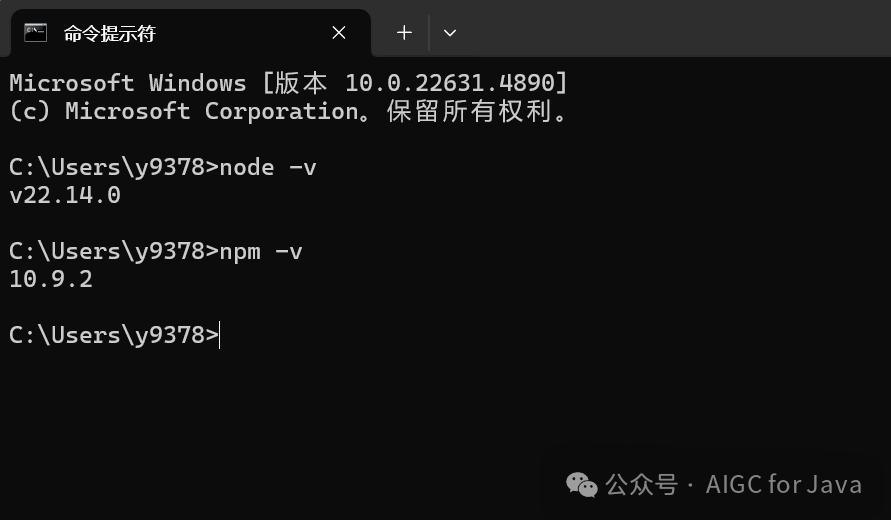
The entire installation process can be done with the default options. After installation, open the cmd command and enter the following command to verify if Node.js is installed successfully.
node -v
npm -v
After executing, you should see the following content, indicating that Node.js has been installed successfully.
Downloading the Template Project
Log in to the Gitee repository at: https://gitee.com/dashboard/projects. This Gitee is the repository address of the Gitee account selected during the quick deployment authorization. In the Gitee repository, you can see the source code pushed during deployment.
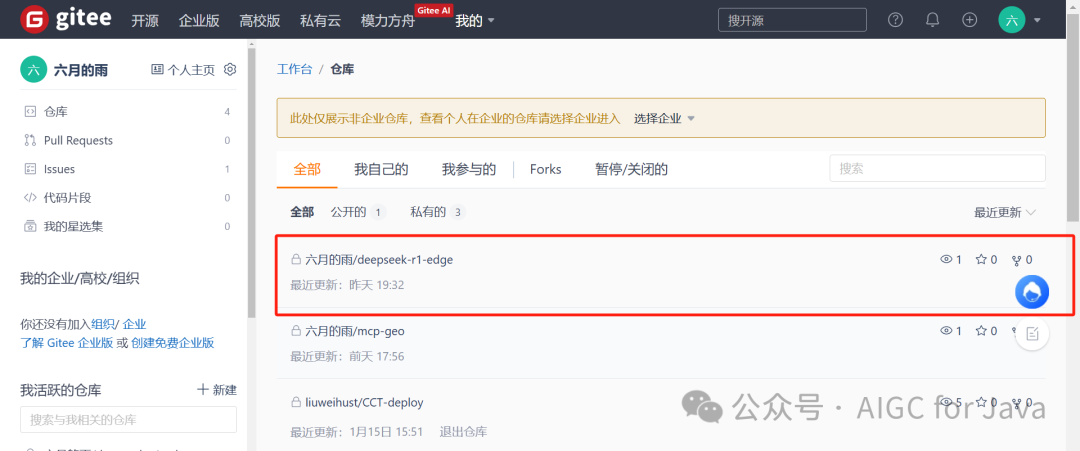
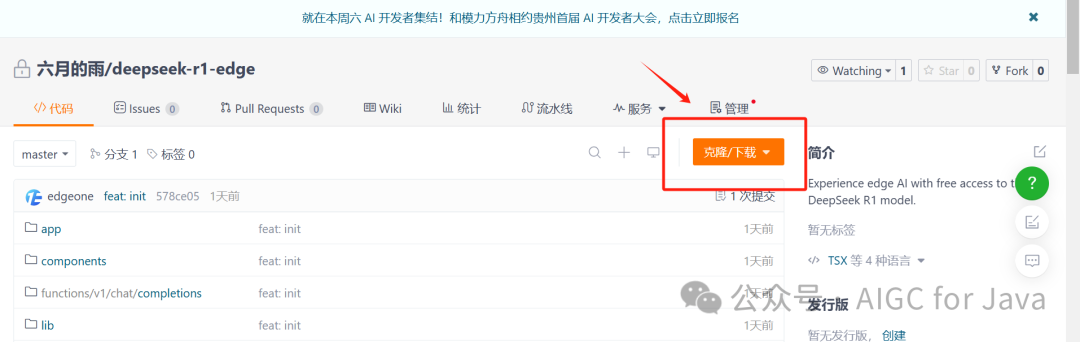
Click on the project name 【deepseek-r1-edge】 to enter the project details page. On the project details page, click 【Clone/Download】 to download the deepseek-r1-edge source code to your local machine.
Starting Locally
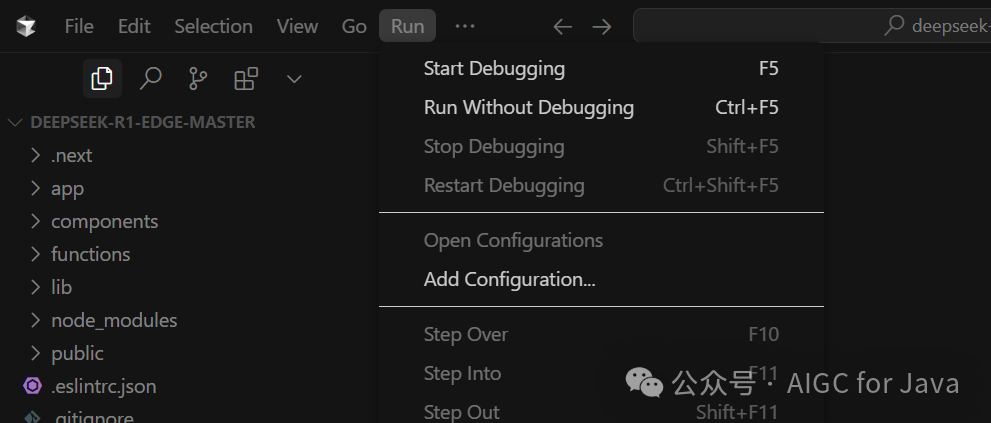
Unzip the downloaded deepseek-r1-edge source code package to a local directory, then open the project with cursor. In the opened project page, click 【Run】 – 【Start Debugging】.
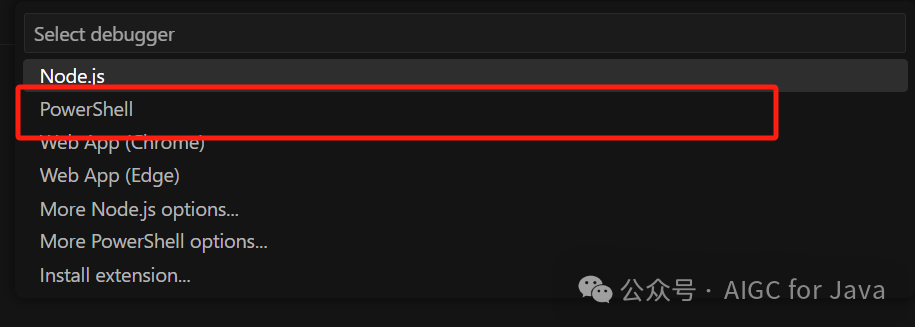
In the pop-up Select Debugger page, choose 【PowerShell】 to run the project in the command line.
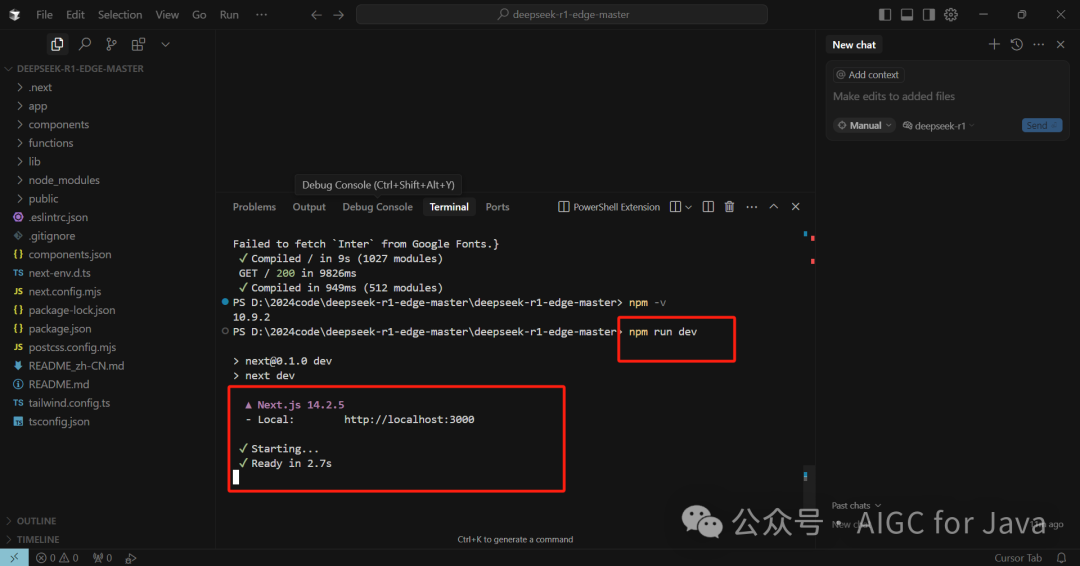
Then, in the command line window 【Terminal】, enter the following commands to run the local template project.
npm -v # Verify environment validity
npm run dev # Run local environment
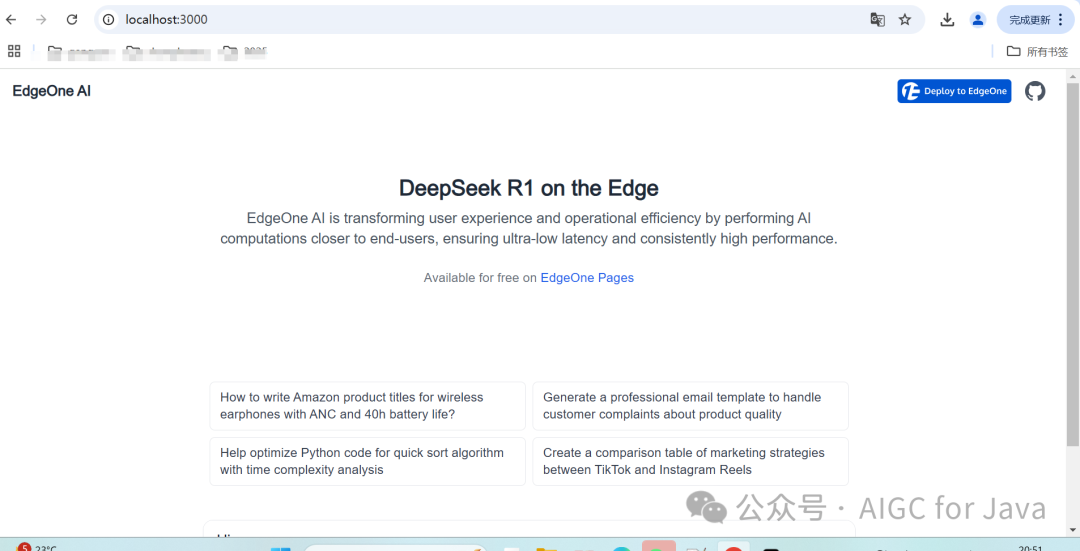
After executing the commands, you should see that the local template project has started successfully.
In the browser, enter the address: http://localhost:3000/ to see that our locally deployed DeepSeek-R1 for Edge template is running successfully.
Why Use EdgeOne Pages
Now, let’s discuss why we need to use EdgeOne Pages. Comparing our quick deployment and local deployment methods, using EdgeOne Pages, the efficient deployment process shortens the time from code writing to deployment, ensuring rapid project iteration and helping enterprises quickly respond to market demands. At the same time, there is no need to configure and manage servers or other infrastructure, allowing for ultra-low latency server-side logic to be written in JS at edge nodes close to users. In contrast, local deployment relies on specific runtime environments (such as Node.js, Python, or Docker), which limits the applicable scenarios, complicates operations, and requires a certain level of technical expertise, resulting in a narrower audience.
MCP
Before discussing MCP, let’s first understand what MCP is.
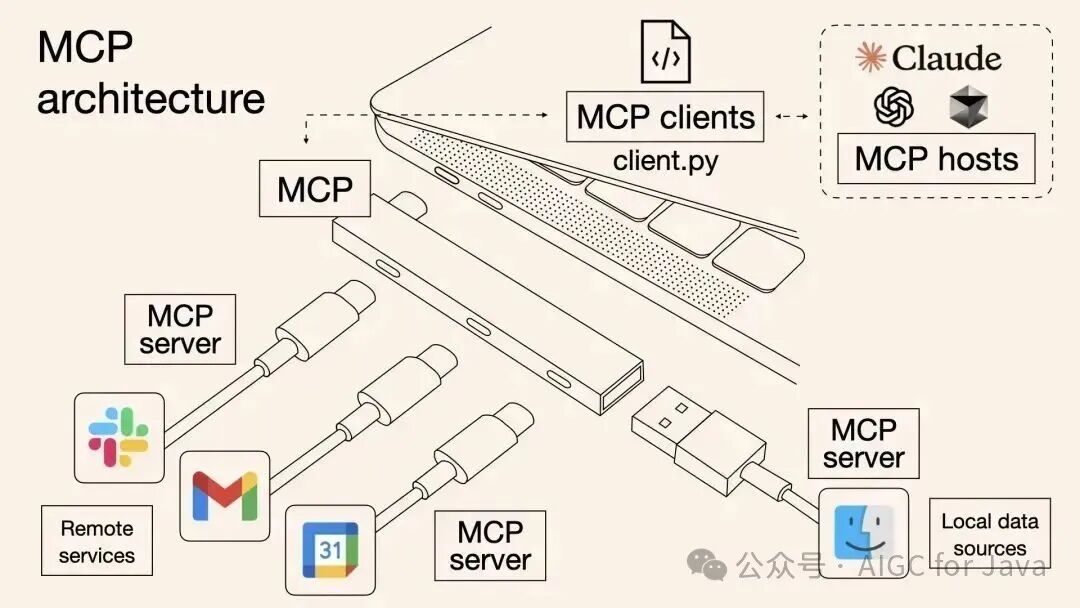
MCP stands for Model Context Protocol, an open-source protocol developed by Anthropic (the company behind Claude), designed to allow large language models (LLM) to connect to external data sources and tools in a standardized way. With the MCP standard protocol, it’s like giving AI large models a “universal interface” that allows AI models to seamlessly interact with different data sources and tools. It is similar to a USB-C interface, providing a standardized method to connect AI models to various data sources and tools. Additionally, MCP can maintain context between different applications/services, enhancing the overall ability to autonomously execute tasks.
Pages MCP Server
EdgeOne Pages Deploy MCP is a dedicated service that can quickly deploy HTML content to EdgeOne Pages and generate public access links. This allows you to preview and share AI-generated web content immediately. Let’s distinguish the use of Pages MCP Server through a simple game.
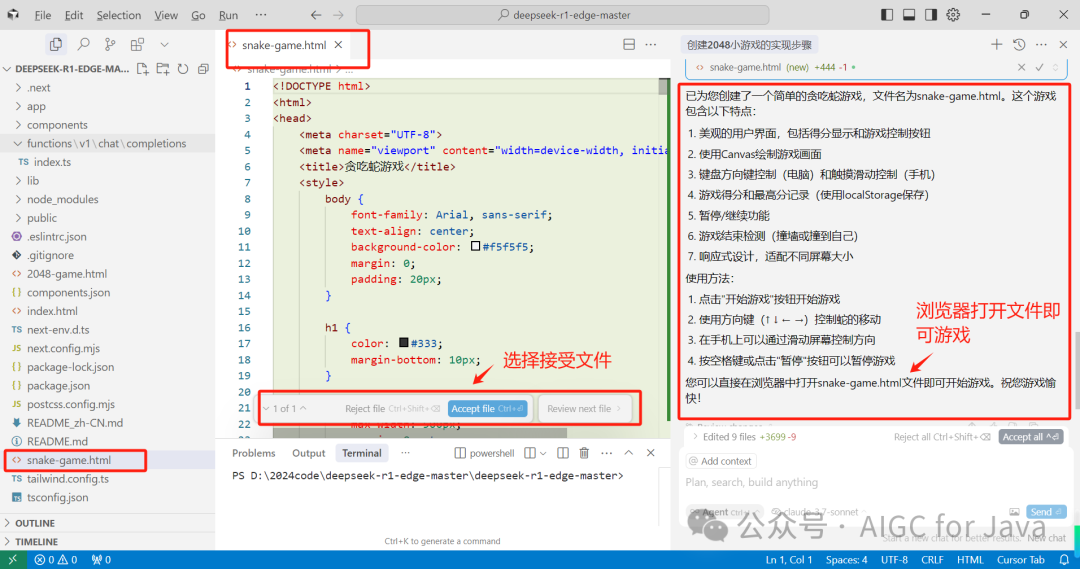
In the opened cursor AI dialog, input 【Generate a simple snake game】, and we will get a snake-game.html page along with specific gameplay instructions, like this.
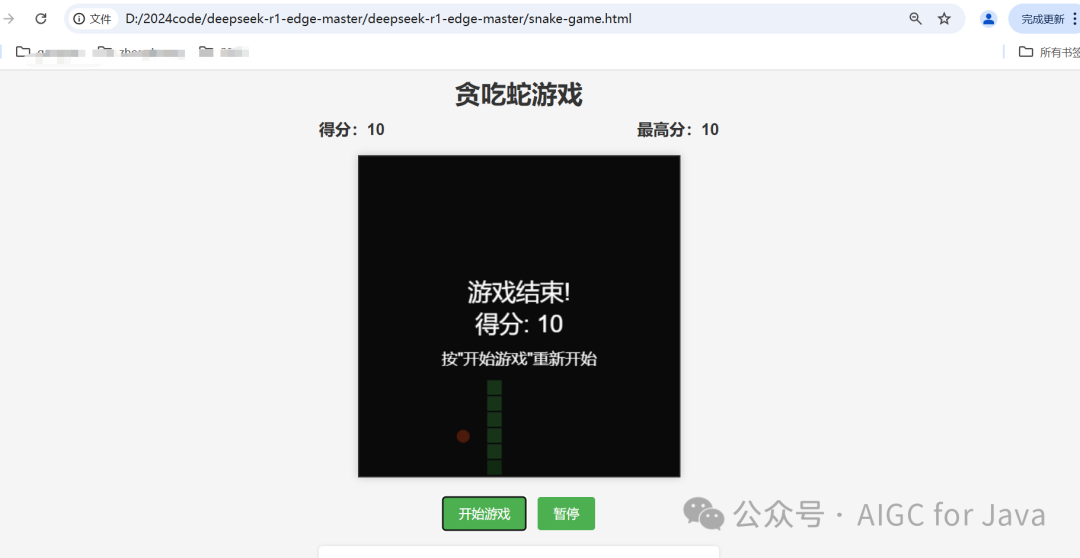
Now we can open the snake-game.html page in the browser and play.
Next, we will configure the MCP Server in our development tool cursor and try generating a snake game again to see what differences arise. First, configure the MCP Server in cursor.
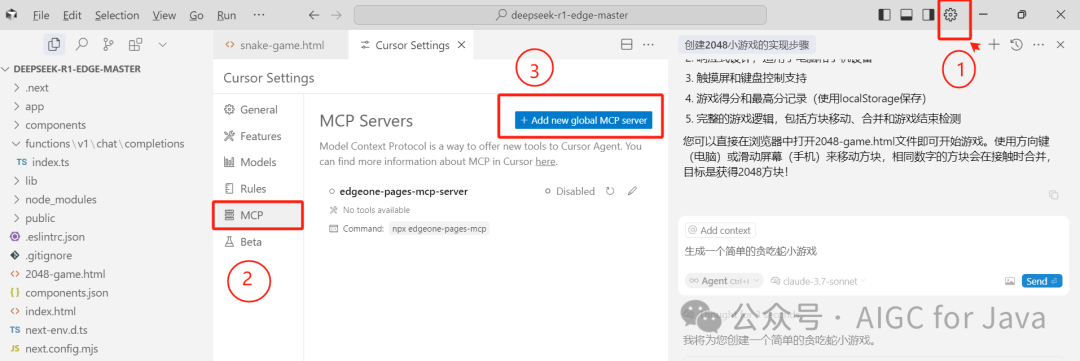
Click 3 【Add new global MCP server】 and in the mcp.json configuration pop-up, input the following content.
{ "mcpServers": { "edgeone-pages-mcp-server": { "command": "npx", "args": ["edgeone-pages-mcp"] } }}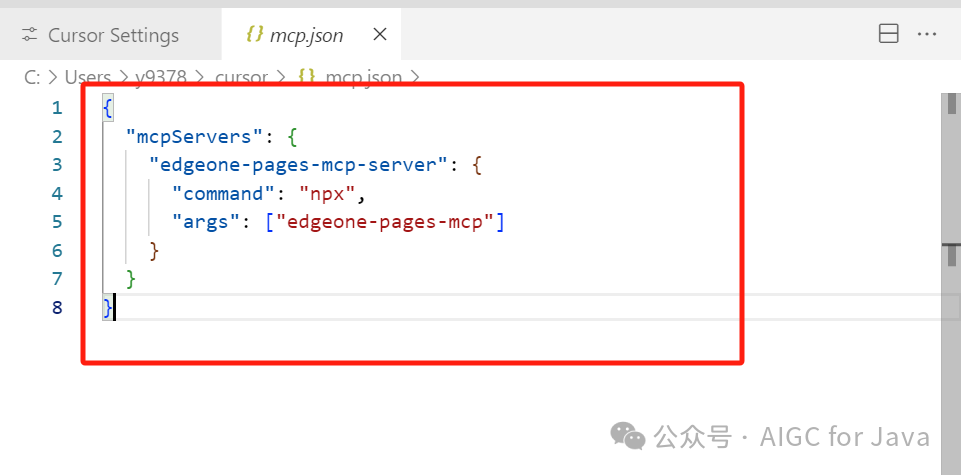
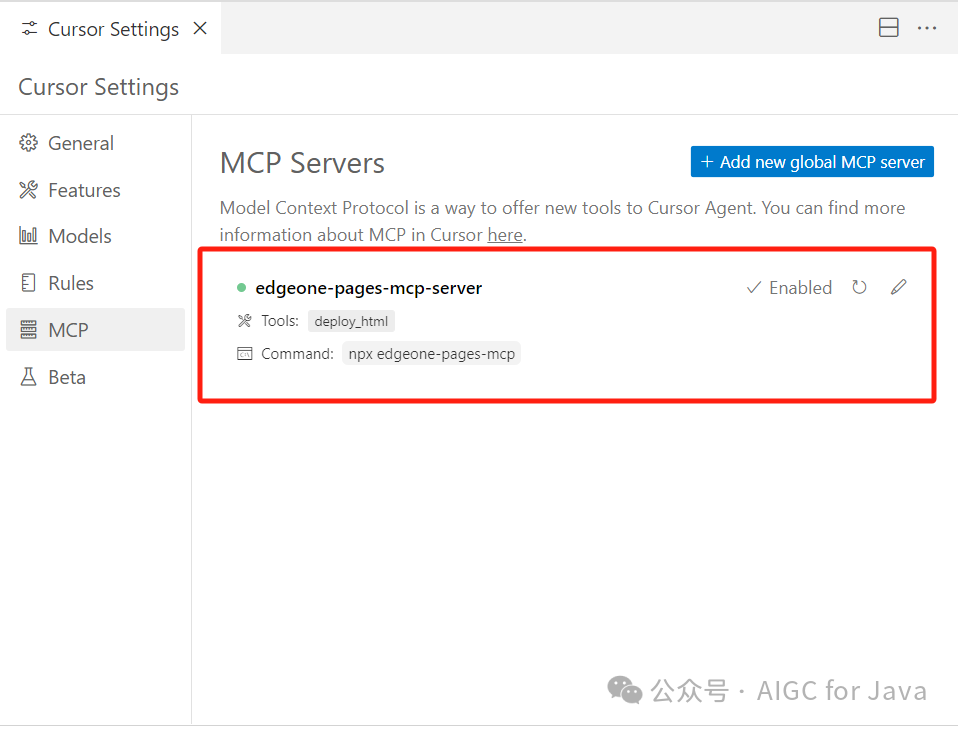
After configuring the MCP Server, set it to 【Enabled】, and you will see the indicator in front of edgeone-pages-mcp-server turn green.
At this point, we can input our content again 【Generate a simple snake game, reduce speed】. After generating the snake game, input 【Publish the above game】, and the AI will automatically call our deployed MCP Server and execute the deploy_html tool to automatically publish the game. This means that the Pages MCP Server utilizes serverless edge computing capabilities and KV storage to receive HTML content via API, automatically generating an immediately effective public access link, like this.
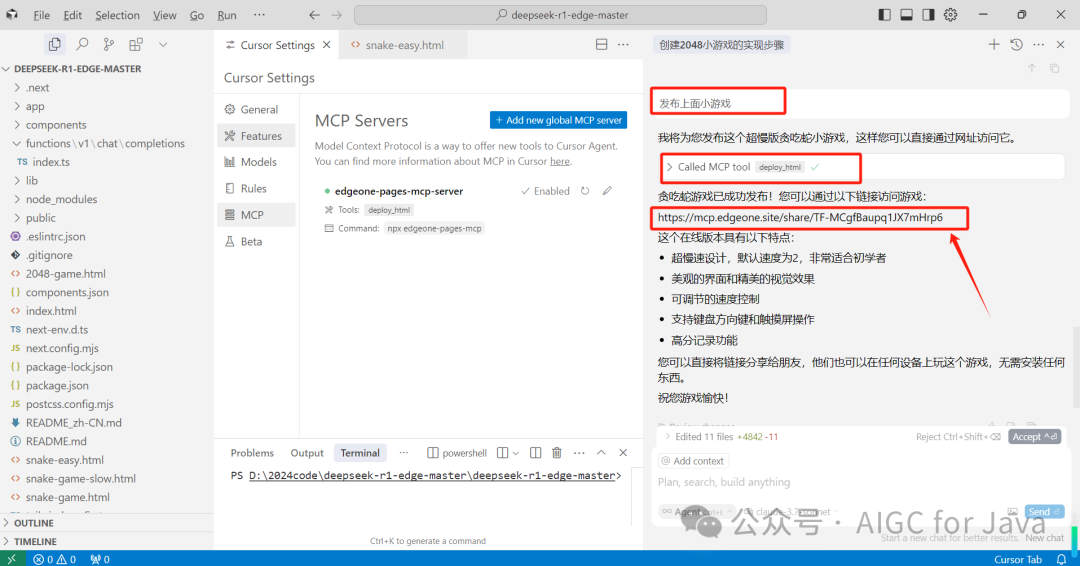
We can then place the effective public access link in the browser for direct access, as shown in the image.
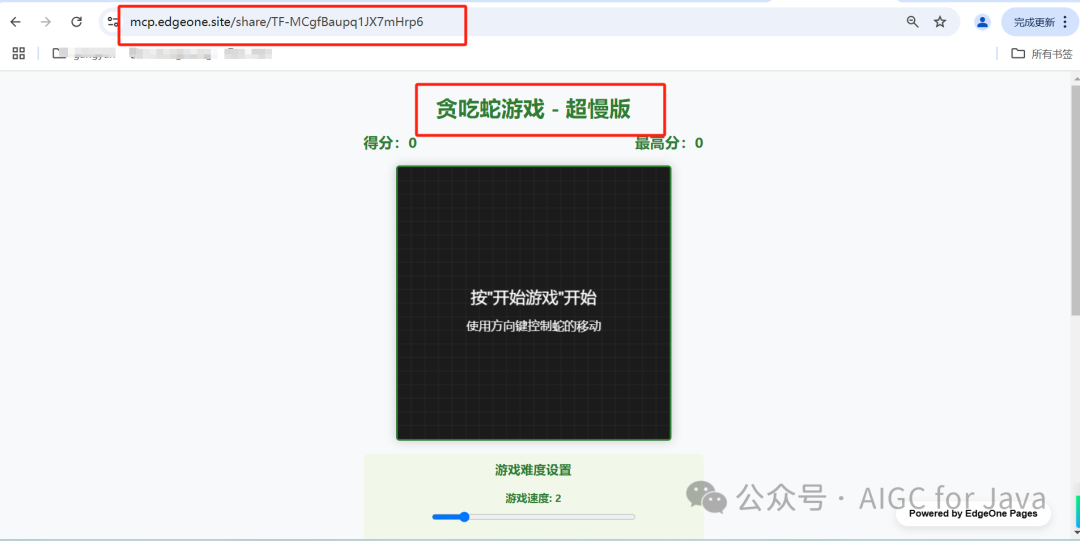
Here, during the AI conversation process, MCP allows AI to call external services, which is the tool that calls our deploy_html to publish the page and achieve public access link access.
Conclusion
In AI-driven development scenarios, the issues of functional fragmentation and system silos are becoming increasingly prominent. If developers want to integrate capabilities such as networked search, email notifications, and cloud configuration management into an AI application, they need to connect to different service API protocols one by one, facing repetitive adaptation work such as permission management, data format compatibility, and error retries, leading to exponentially rising development costs. The emergence of MCP (Modular Communication Protocol) aims to solve this core contradiction: by defining unified interface standards and communication specifications (such as data formats, authentication mechanisms, and service discovery), it abstracts heterogeneous services (AWS, Slack, Github, etc.) into pluggable “capability modules”. Developers do not need to focus on the underlying protocol differences; they only need to declare their needs through MCP (such as “send email” or “query cloud configuration”), and the platform will automatically match and schedule standardized service interfaces. This “protocol layer decoupling” significantly reduces the marginal cost of system integration, allowing developers to focus on business logic innovation rather than repetitive “reinventing the wheel”, thus accelerating the deep integration of AI and toolchains, truly unleashing the potential of automated development.
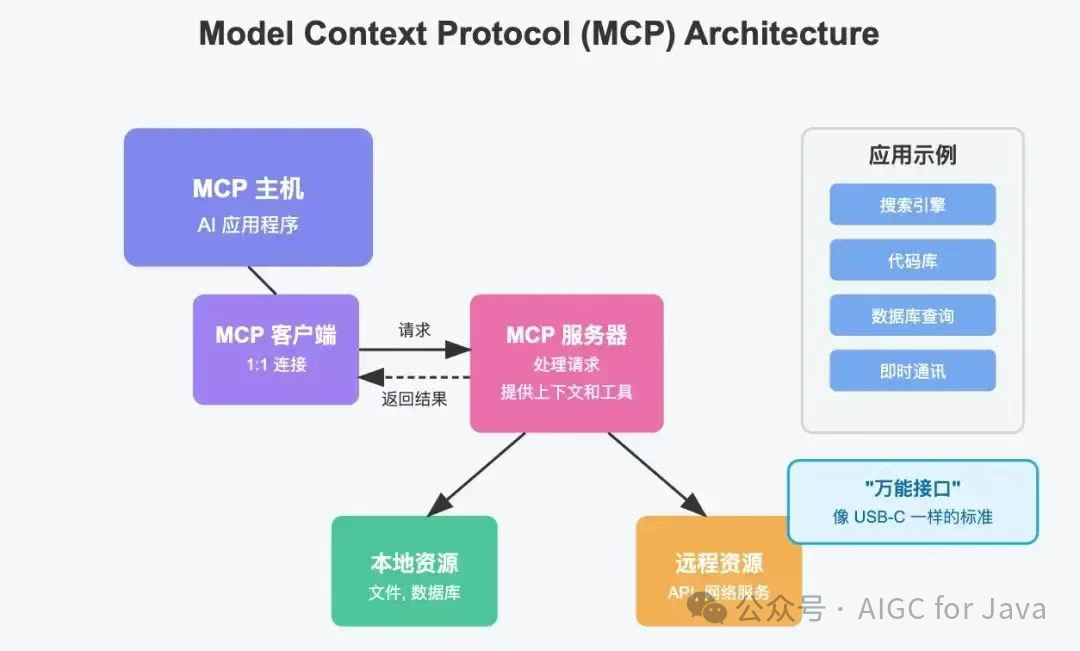
In the past, each software (like WeChat, Excel) had to create an interface for AI separately. Now, MCP has unified the standards, just like all electrical appliances use a USB-C charging port, allowing AI to connect to all tools with one interface. For example, if you tell AI to help me organize the students’ grades for this semester, AI will automatically complete it: using the “universal plug” MCP to connect to your computer, read the Excel grades, and output the content you want through analysis. The entire process does not require manual operation, and the data will not leave your device, ensuring security and efficiency.
This is the charm of MCP, a universal interface that allows AI to automatically call the MCP Server tool based on your description and output the content you want according to your needs, making it a more understanding AI assistant.
Original article link: Zero-Cost Edge AI: Quickly Build Your Own DeepSeek R1 Based on EdgeOne Pages – Tencent Cloud Developer Community – Tencent Cloud