Warm Reminder:
Follow the public account: send the keyword: keil_v5.36 to obtain the software installation packageKeil5 software installation is divided into three chapters:
Chapter 1: Install MDK (Steps 1~9)
Chapter 2: Activate MDK (Steps 10~15)
Chapter 3: Install STM32 Chip Package (Steps 16~20)
Chapter 1Install MDK
Step 1:Download the compressed package of Keil5 and unzip it, then double-click 【MDK536.EXE】

Step 2:Click 【Next】
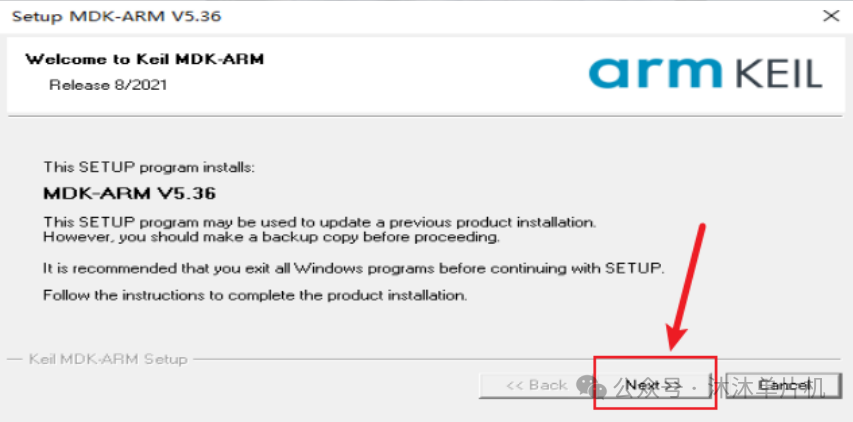
Step 3:Check 【I agree to …】, then click 【Next>>】
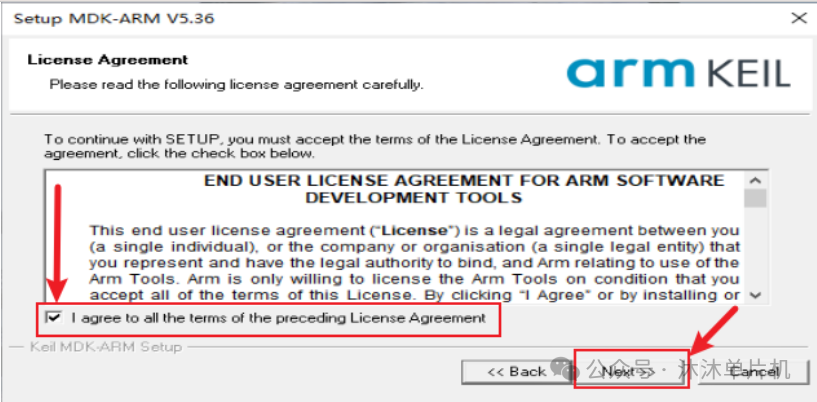
Step 4:Modify the software installation path (for example: create a folder on the D drive to store the software), click 【Next>>】. Packs is the path for installing chip support packages; I default it to be the same as the Keil5 software installation path, so it will be set up automatically in the third part when installing the chip support package.
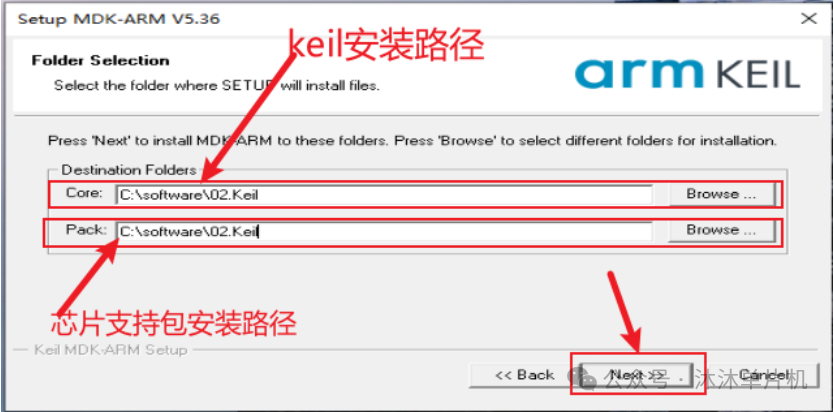
Step 5:Enter 【First Name, Last Name, Company, Email】 (can be filled in arbitrarily), click 【Next>>】.
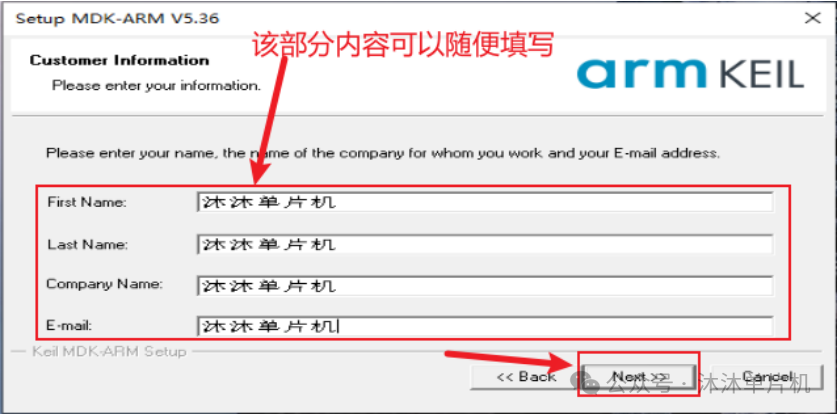
Step 6:Installing…
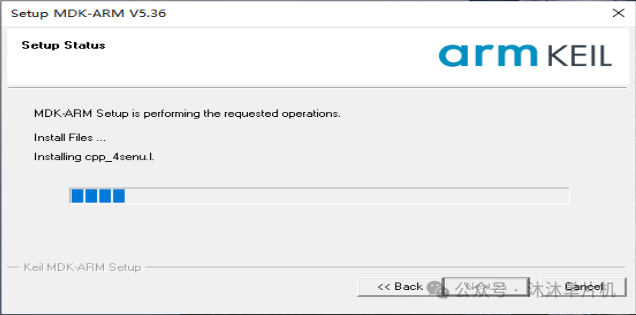
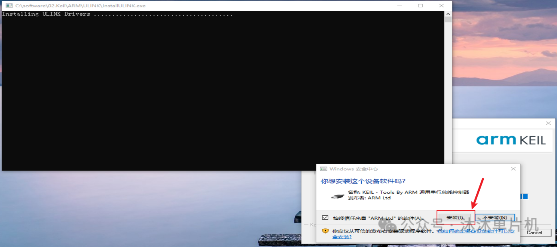
Step 7:Install driver files
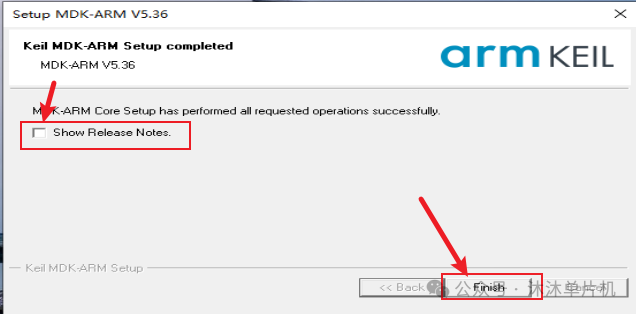
Step 8:Uncheck 【Show Release Notes】, click 【Finish】
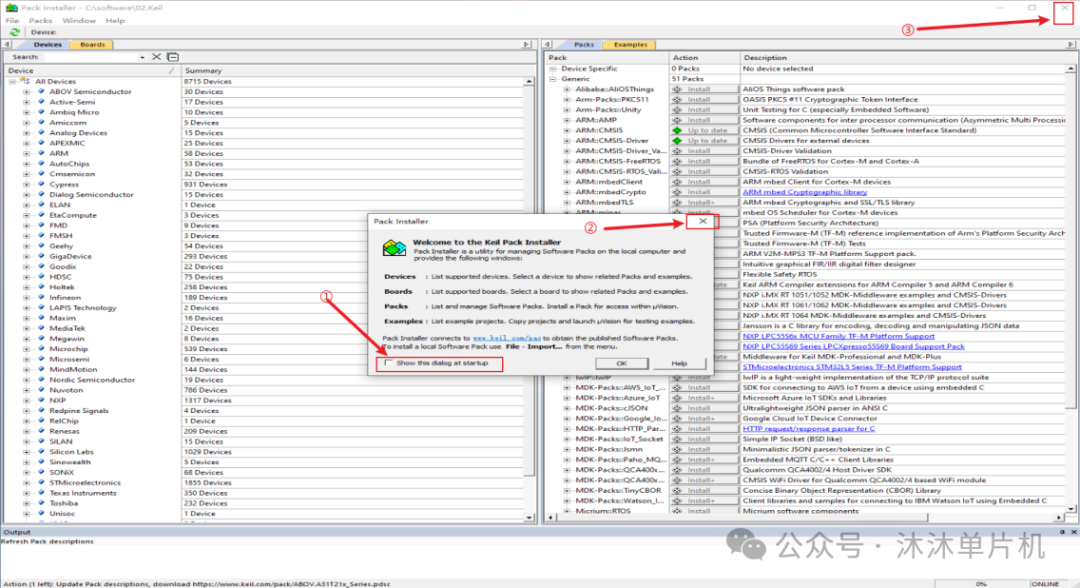
Step 9:Close the Pack Installer window that pops up
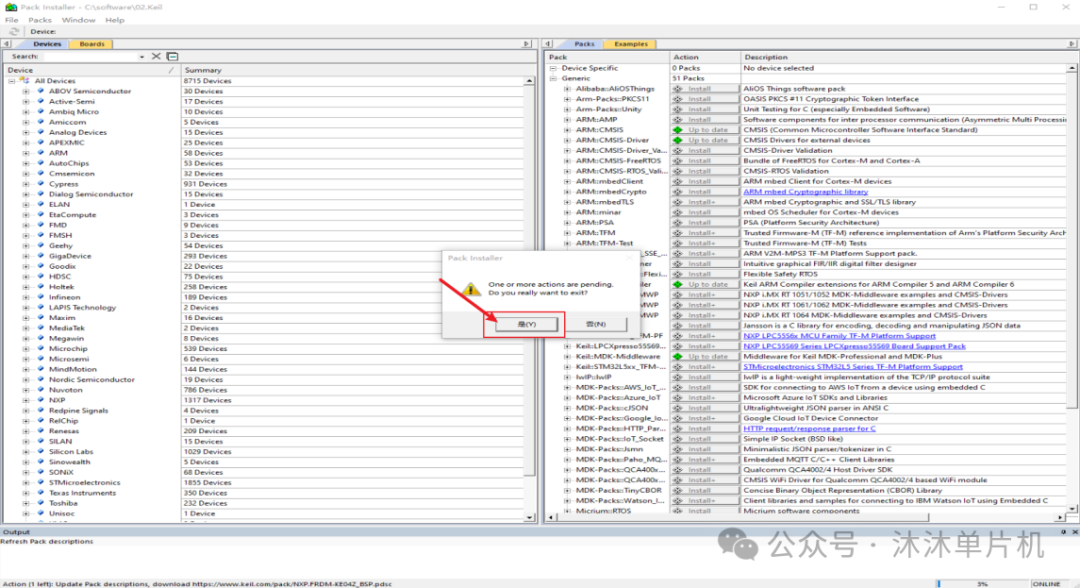
Chapter 2 Activate MDK
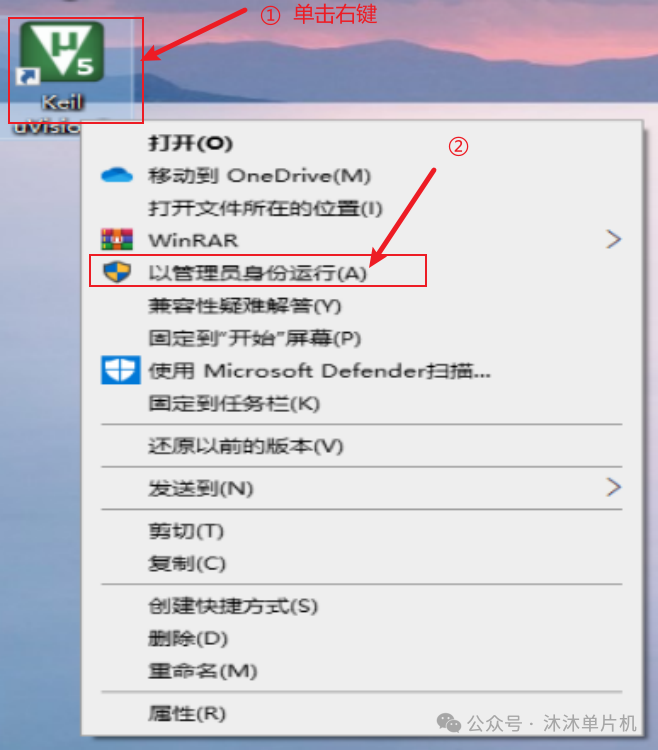
Step 10:Right-click the Keil icon on the desktop, and select Run as Administrator from the pop-up options (this is very important!!!)
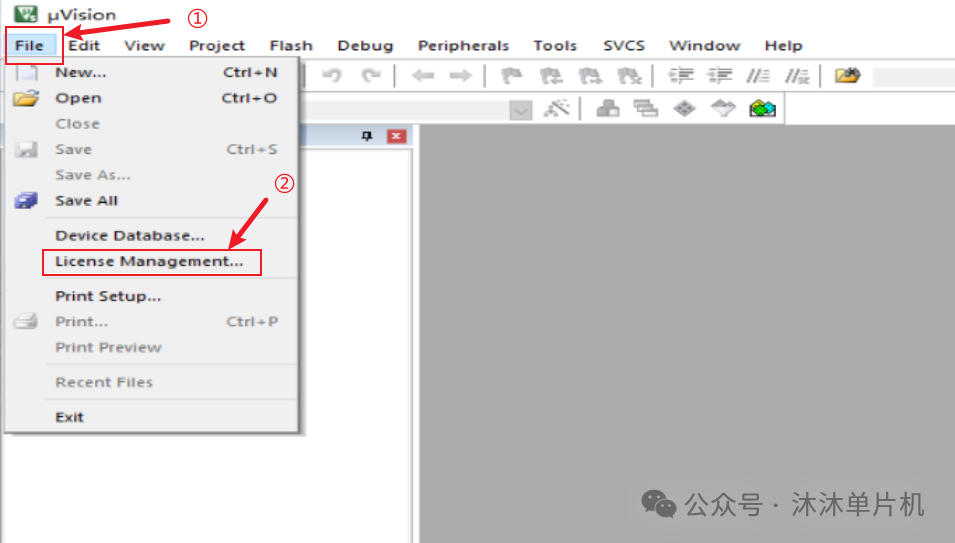
Step 11:Click 【File】 and select 【License Management】 (do not close this interface)
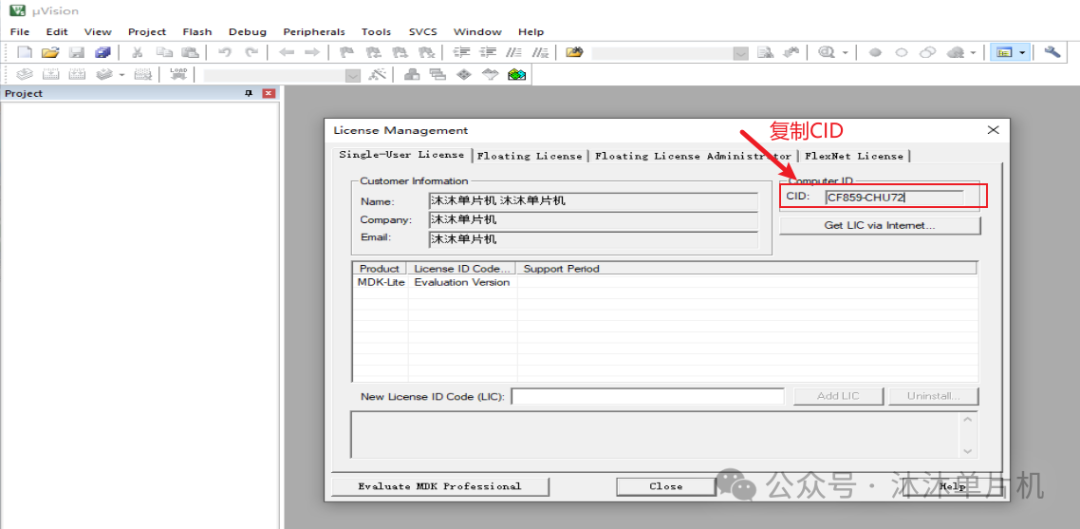
Step 12:Copy the CID (do not close this interface)
Step 13:Open the unzipped 【Keil5 MDK5.39(64bit)】 folder, right-click the 【Crack】 compressed package and unzip it.
Note: Before unzipping 【Crack】: You need to close all antivirus software (some computers’ built-in “McAfee” also need to be closed), firewalls, and Windows Defender, otherwise the antivirus software may mistakenly delete the program or cause it to not run properly.
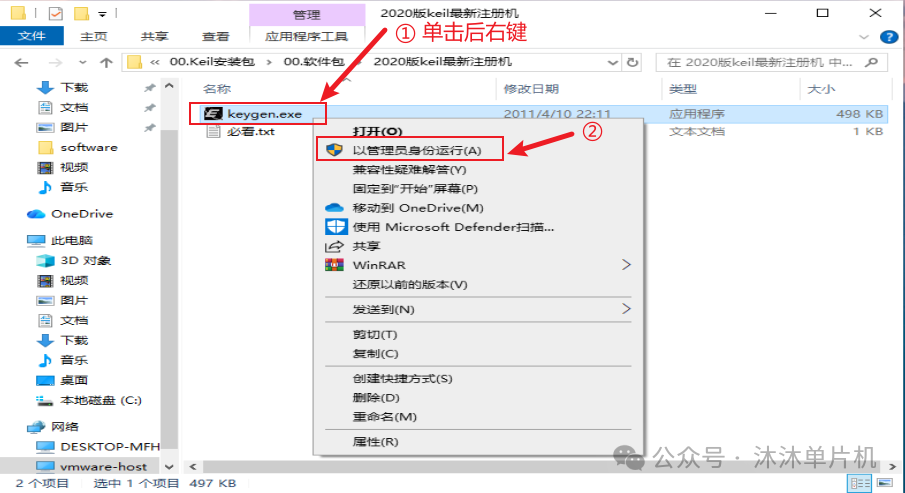
After unzipping 【Crack】, right-click 【Keygen】 and select 【Run as Administrator】.
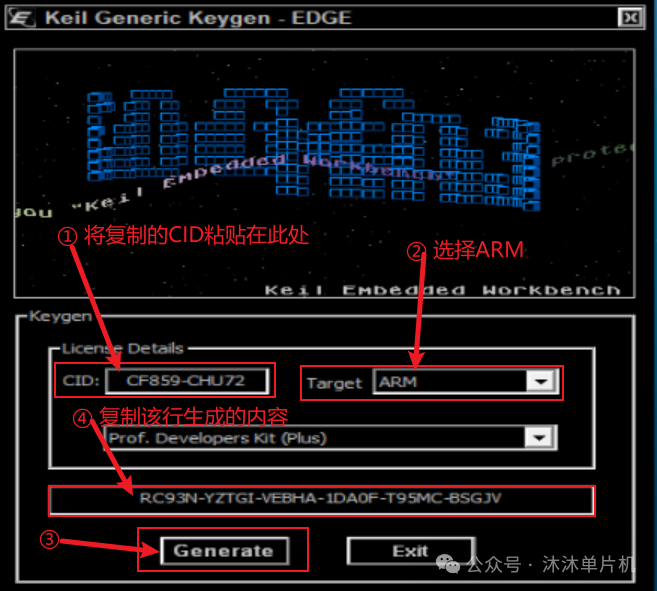
Step 14:Paste the copied CID (copied in step 11), select Target as ARM, click Generate to generate the activation code
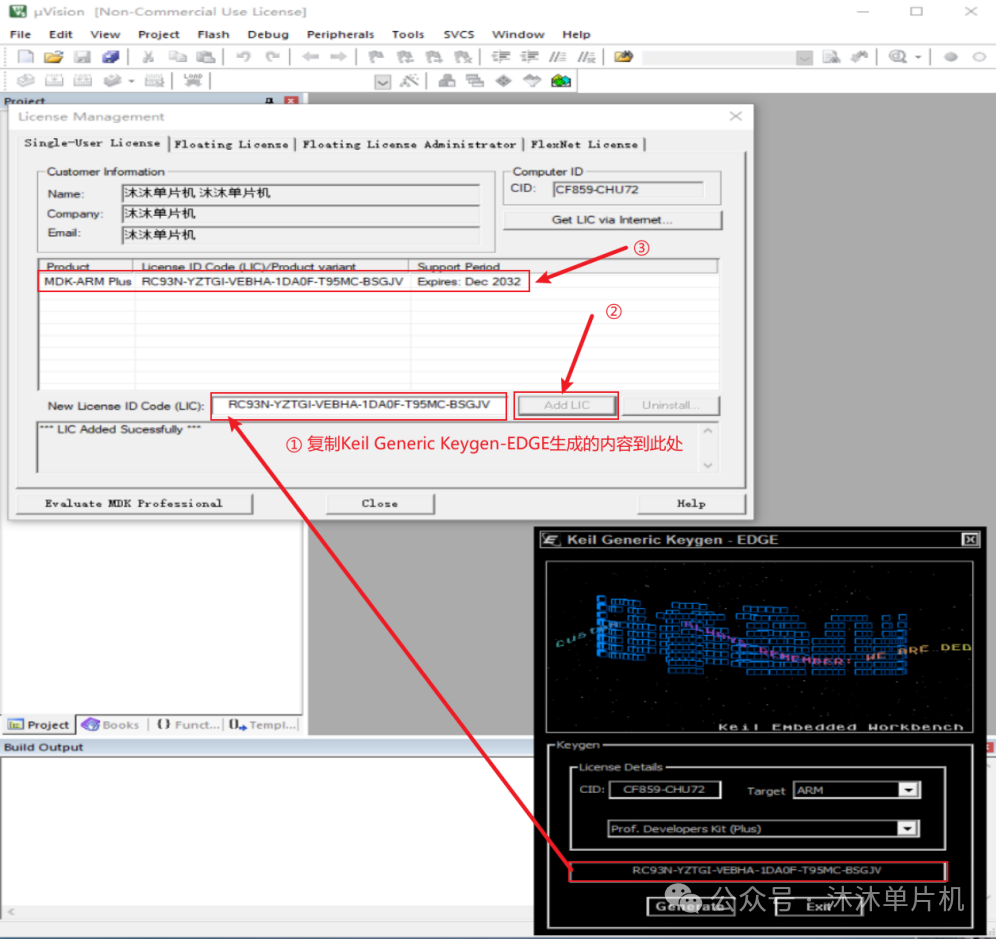
Step 15:Copy the generated activation code, paste it in the New License ID Code field (the interface from step 10 that was not closed), and click Add LIC to successfully activate MDK, showing the usage period of MDK.
Chapter 3 Install STM32 Chip Package
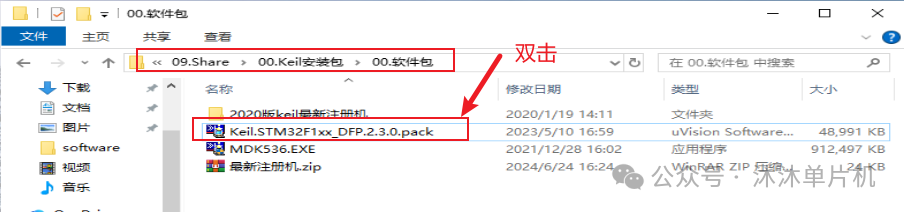
Step 16:Double-click Keil.STM32F1xx_DFP.2.4.1.pack, click 【Next>>】 to start installing the chip support package
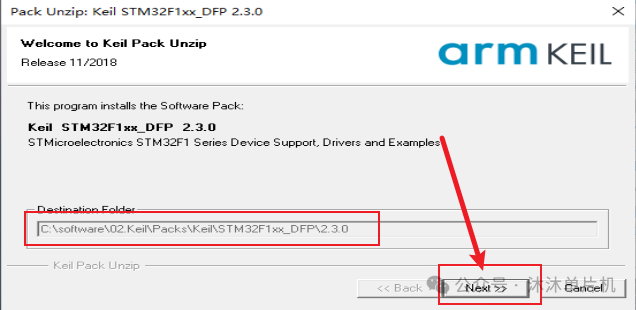
Step 17:Installing…
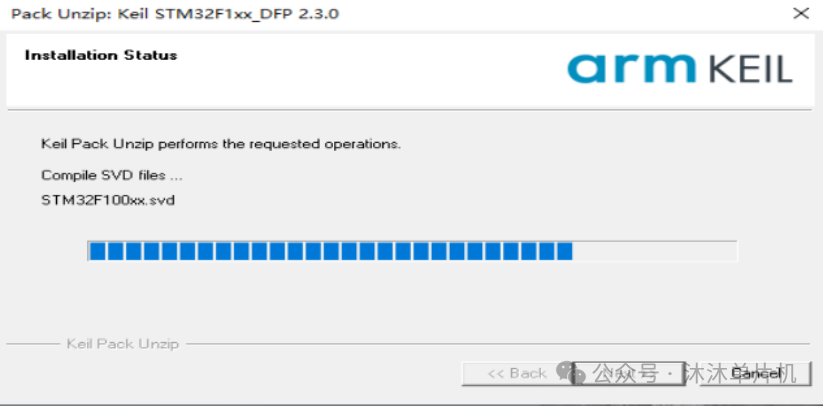
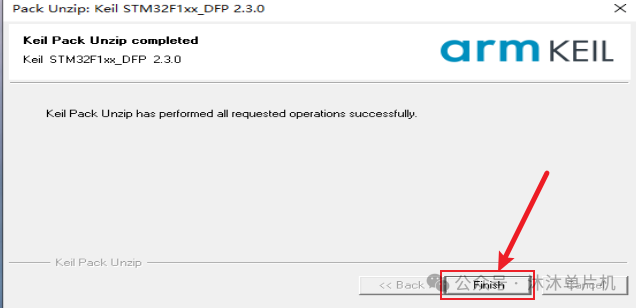
Step 18:After installation is complete, click Finish
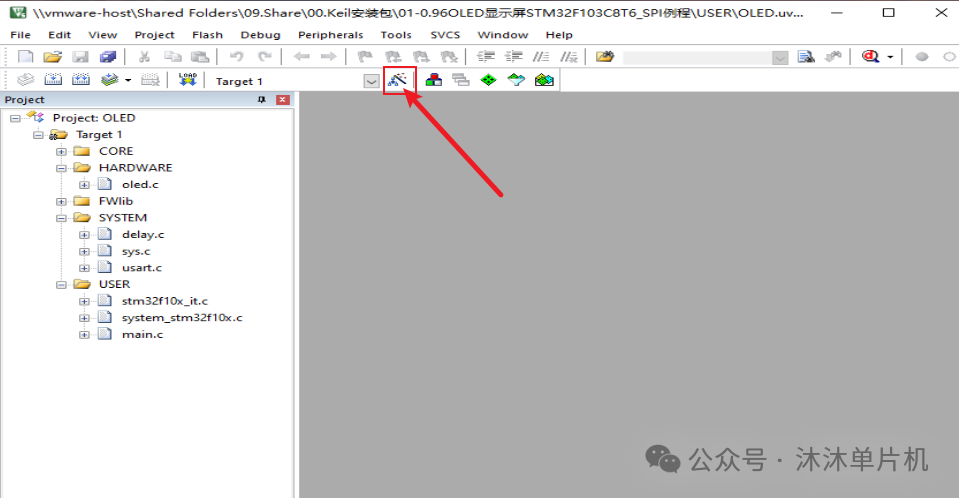
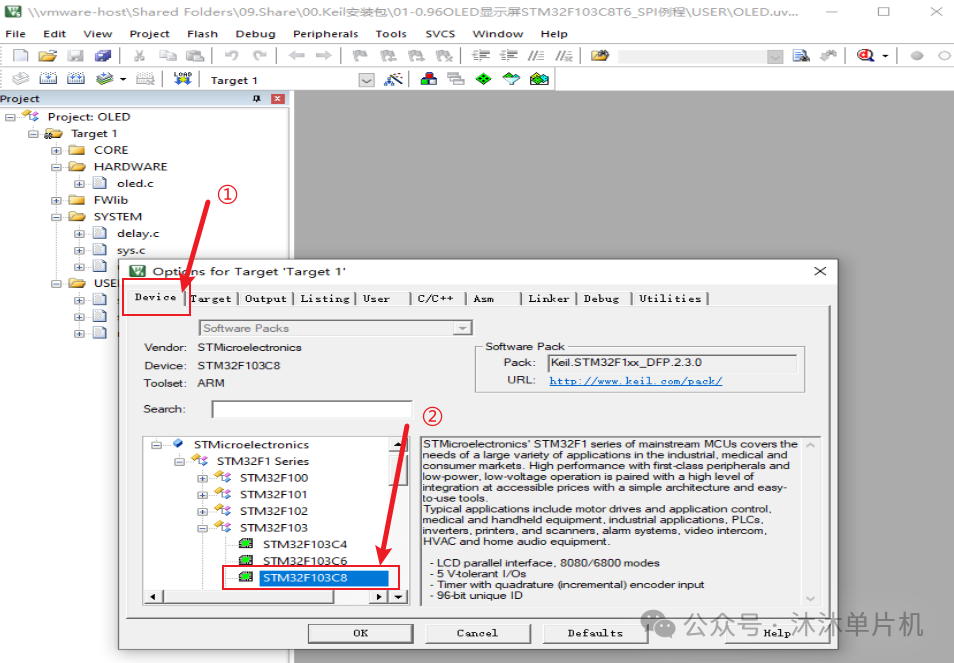
Step 19:Reopen Keil5, open any project, and click the magic wand button on the toolbar
Step 20:Select Device, and you can see that the STM32F1 series chips have been added. If you need support for other chip models, the method is the same. Here is the official address for the STM32 chip package:https://www.keil.arm.com/packs/
Thus, the installation of Keil5 is complete.