Table of Contents:
- 1. Advantages of Using macOS as a Home Server
- 2. Basic Environment Setup
- 1. Installing Homebrew Package Manager (Core Software Installation Source)
- 2. Enabling Screen Sharing
- 3. Enabling Remote Login
- 3. Recommended Core Services
- 1. File Sharing/Private Cloud
- 2. Media Center
- 3. Download Management
- 4. Notes and Documents
- 5. Database
- 6. System Monitoring
- 7. Automation and Smart Home
- 4. Remote Access and Security
- 5. Containerization: Using Docker on macOS
- 6. Summary and Expansion
- 7. Previous Recommendations
Innovative Uses for Mac: Practical Guide to Building a Home Server with macOS
1. Advantages of Using macOS as a Home Server
- Stable system with low power consumption: macOS is based on a Unix architecture, offering strong stability and excellent resource scheduling, especially when paired with M chip Mac Studio/mini, which performs excellently in terms of power consumption;
- Native support for SMB file sharing protocol;
- Powerful command line and development environment support: built-in Shell, supports Homebrew package manager, making it easy to install various development tools, very suitable for running background services.
- Easy to maintain, user-friendly graphical interface;
- Silent operation & minimalist design.
2. Basic Environment Setup
1. Installing Homebrew Package Manager (Core Software Installation Source)
# Install Xcode command line tools
xcode-select --install

# Install Homebrew package management tool
/bin/bash -c "$(curl -fsSL https://raw.githubusercontent.com/Homebrew/install/HEAD/install.sh)"
It is recommended to use Tsinghua source for installation and configuration in a non-magical environment.
2. Enabling Screen Sharing
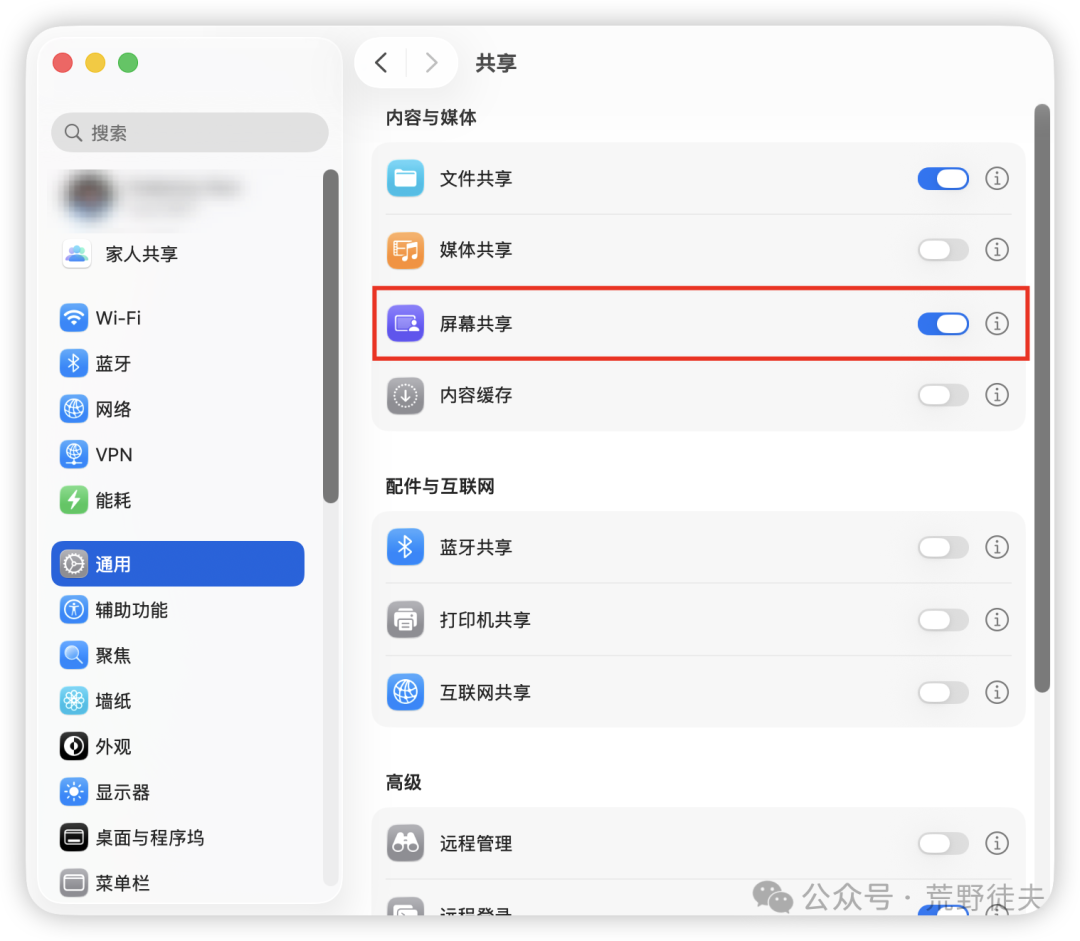
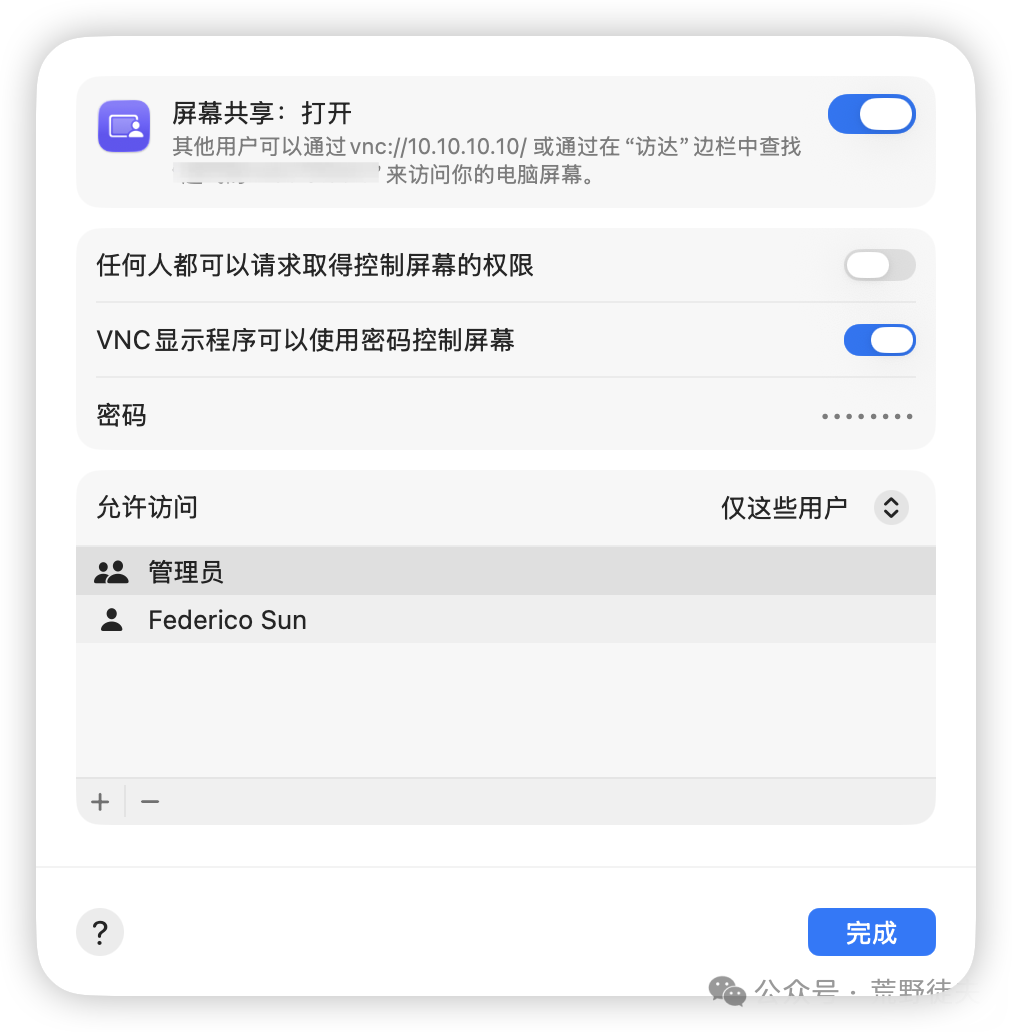
After enabling screen sharing, you can remotely access the host desktop through macOS’s “Screen Sharing” application or other systems’ VNC clients.
3. Enabling Remote Login
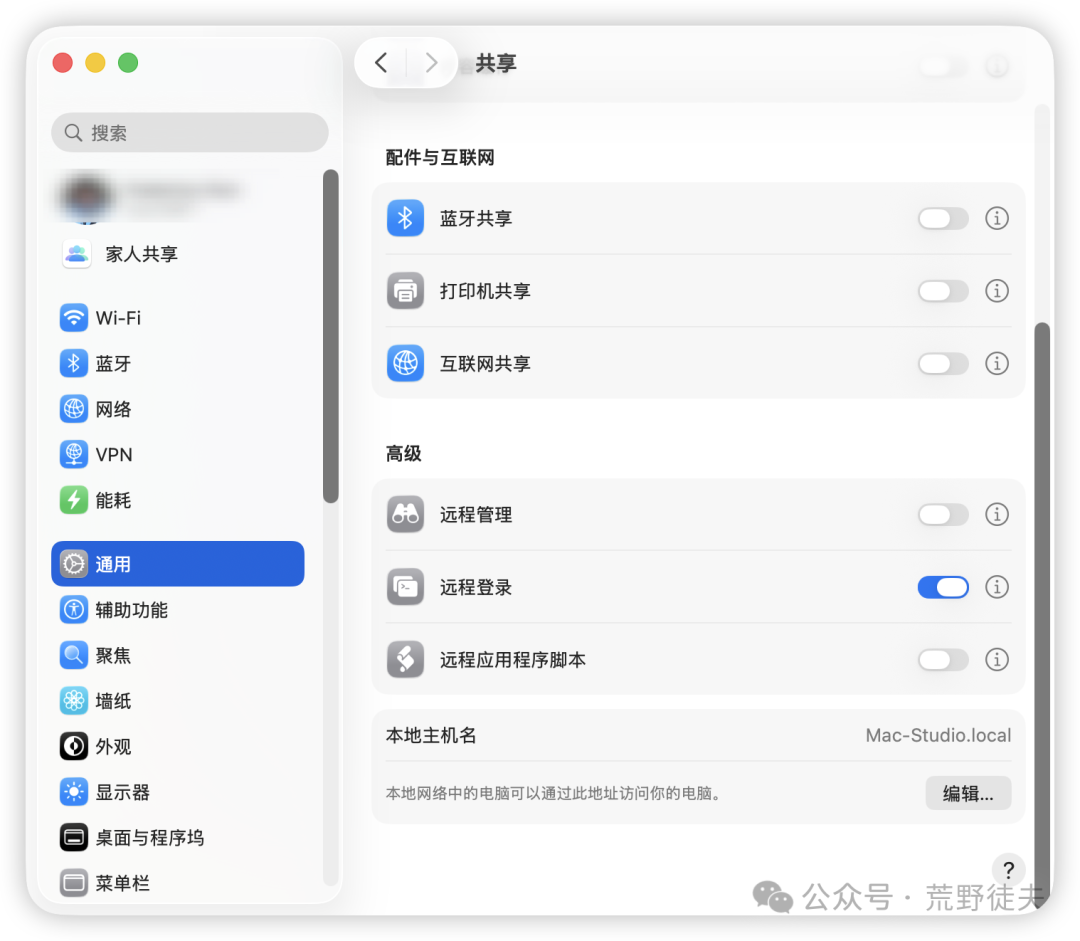
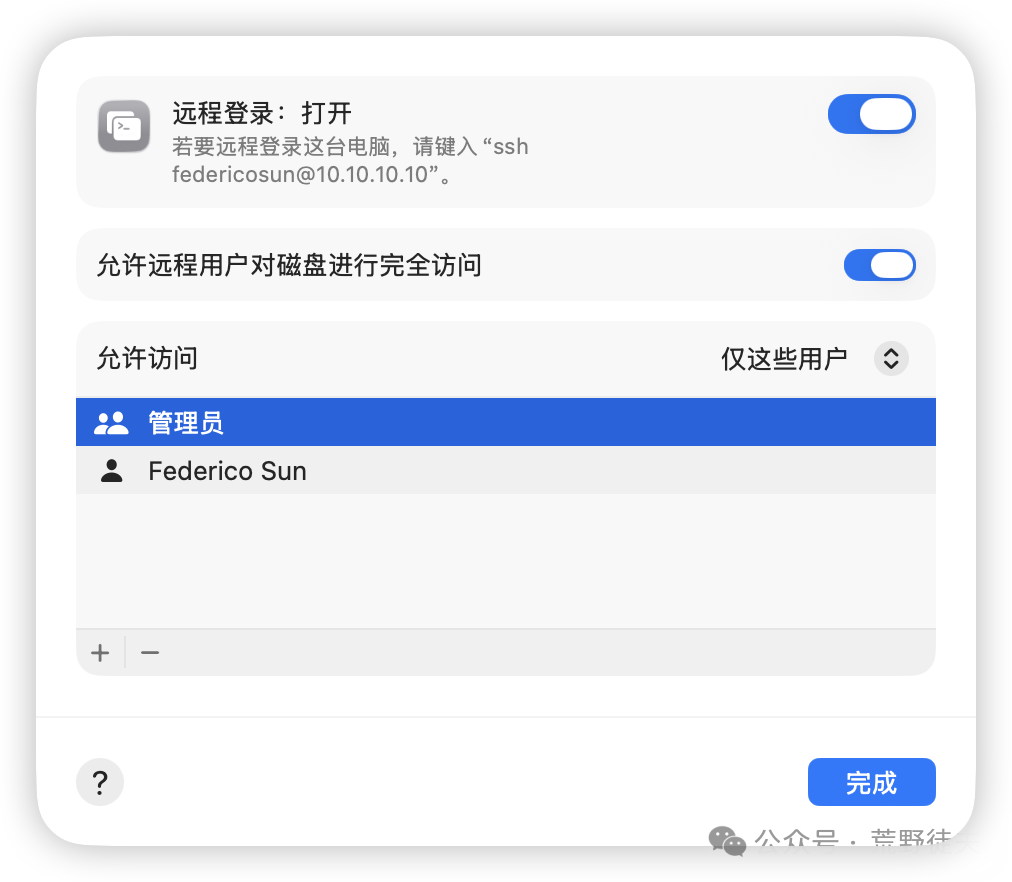
Supports remote login via SSH, allowing other devices to authenticate and connect to the host as long as they are reachable on the network.
3. Recommended Core Services
1. File Sharing/Private Cloud
- SMB File Sharing:
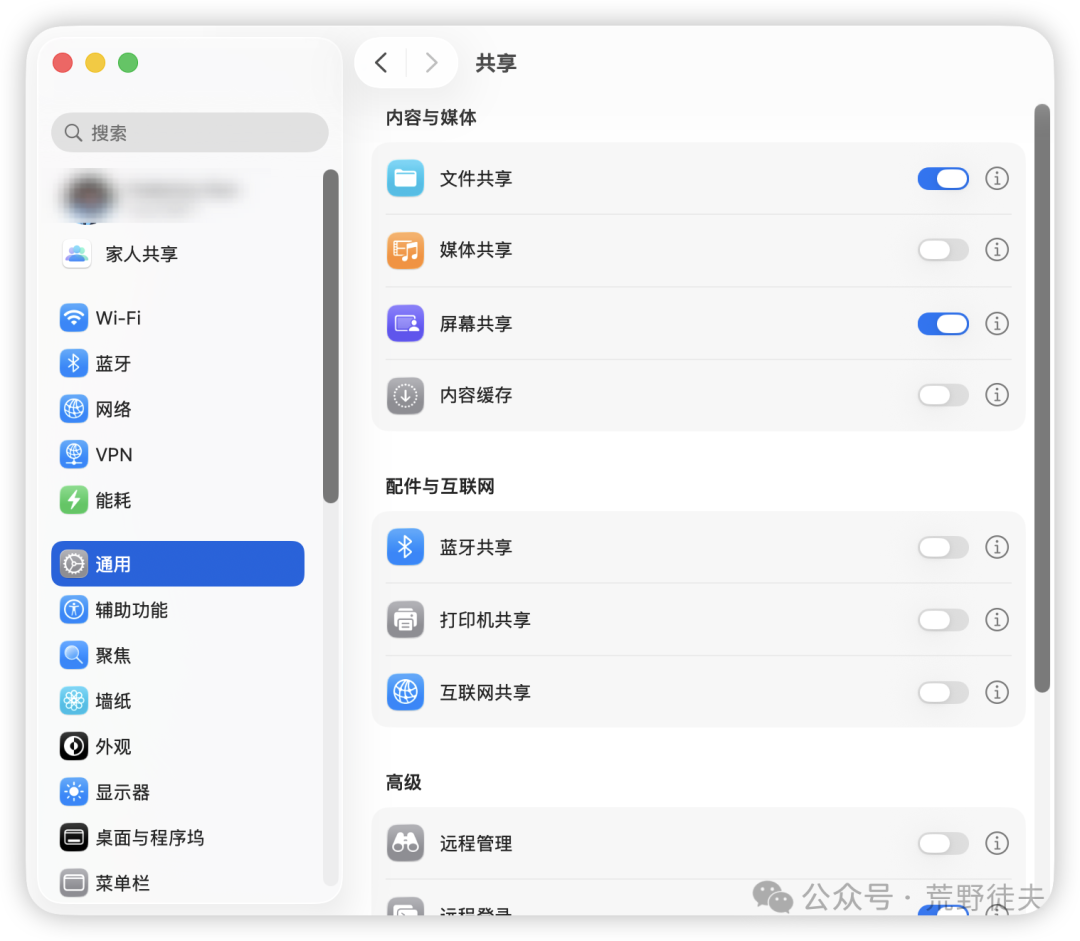
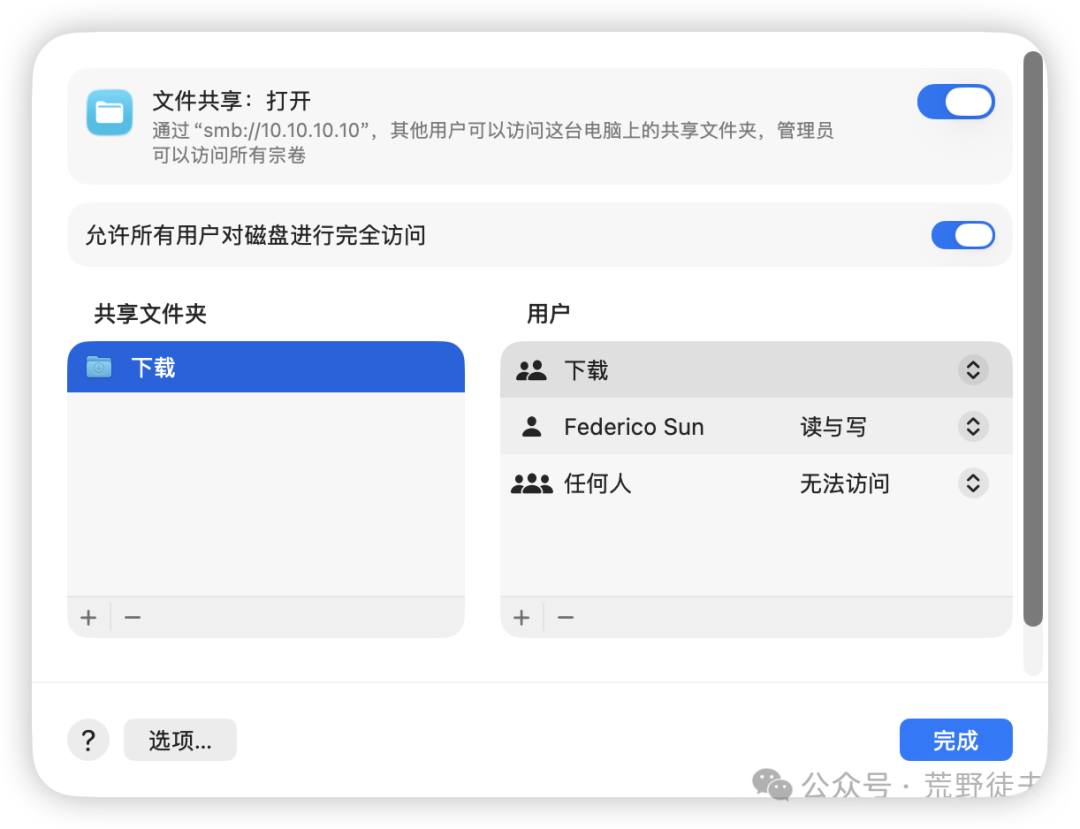
Enable SMB local area network file sharing feature.
- Nextcloud: Private cloud storage, etc.
2. Media Center
- Plex/Jellyfin: Video streaming;
- PhotoPrism: Photo management, etc.
3. Download Management
- Xunlei;
- qBittorrent / Transmission: BT/PT downloads;
- Various cloud storage;
- Aria2/AriaNG: Multi-protocol download tools.
4. Notes and Documents
- Joplin Server/Outline: Private knowledge base;
- Syncthing: Cross-device file synchronization tool.
5. Database
- Relational databases: MySQL, PostgreSQL, etc.;
- NoSQL databases: Redis, Memcached, etc.
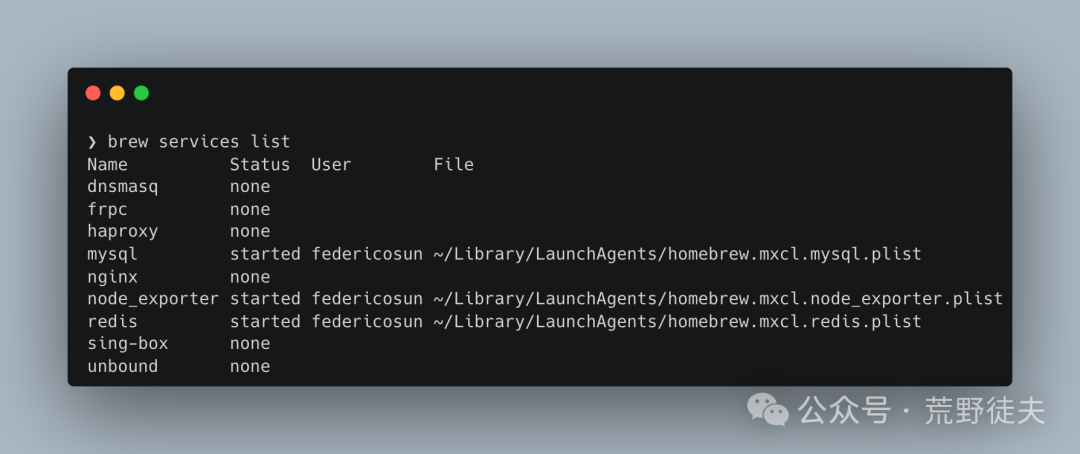
brew install mysql
brew install redis
One command can complete the installation, supporting personalized deployment by modifying configuration files as needed.
6. System Monitoring
- node_exporter;
- grafana;
- Prometheus.
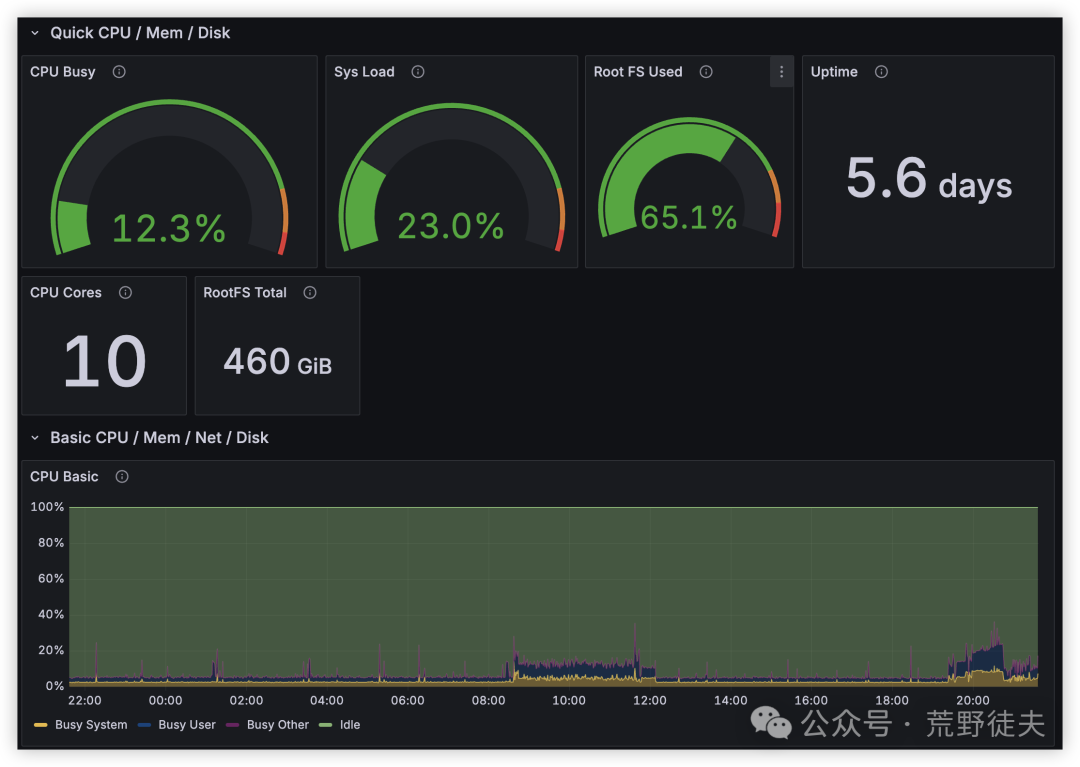
7. Automation and Smart Home
- Home Assistant: Central hub for home automation
4. Remote Access and Security
- Intranet penetration/remote networking: EasyTier, WireGuard, Frp, etc.;
- Basic security recommendations: If public services need to be exposed, it is recommended to configure firewall whitelists, set strong passwords, and regularly back up critical data to ensure the security and stable operation of services.
5. Containerization: Using Docker on macOS
- Install Docker Desktop;
- Common services can be deployed with one-click using Docker Compose.
6. Summary and Expansion
- Target audience: Users with a Mac in a home environment and a certain technical background;
- Expandable: Combining NAS and Raspberry Pi can create a more powerful experimental environment;
- Outlook: The Mac is no longer just a personal computer, but a central hub for home digitalization.
7. Previous Recommendations
“Double Your Efficiency” Essential Software List for macOS
Make good use of the option key to double your efficiency: Advanced macOS System Usage
Efficient macOS Usage Guide: Those System Settings You Might Have Missed