“ Are you still troubled by inconsistent component library versions among team members and the cumbersome organization of BOM tables? The KiCad HTTP Library feature provides you with an elegant solution. Unlike traditional ODBC-based database solutions, Httplib adopts a REST API, which is more open and flexible, allowing for quick integration with enterprise ERP/PLM systems to share data.”
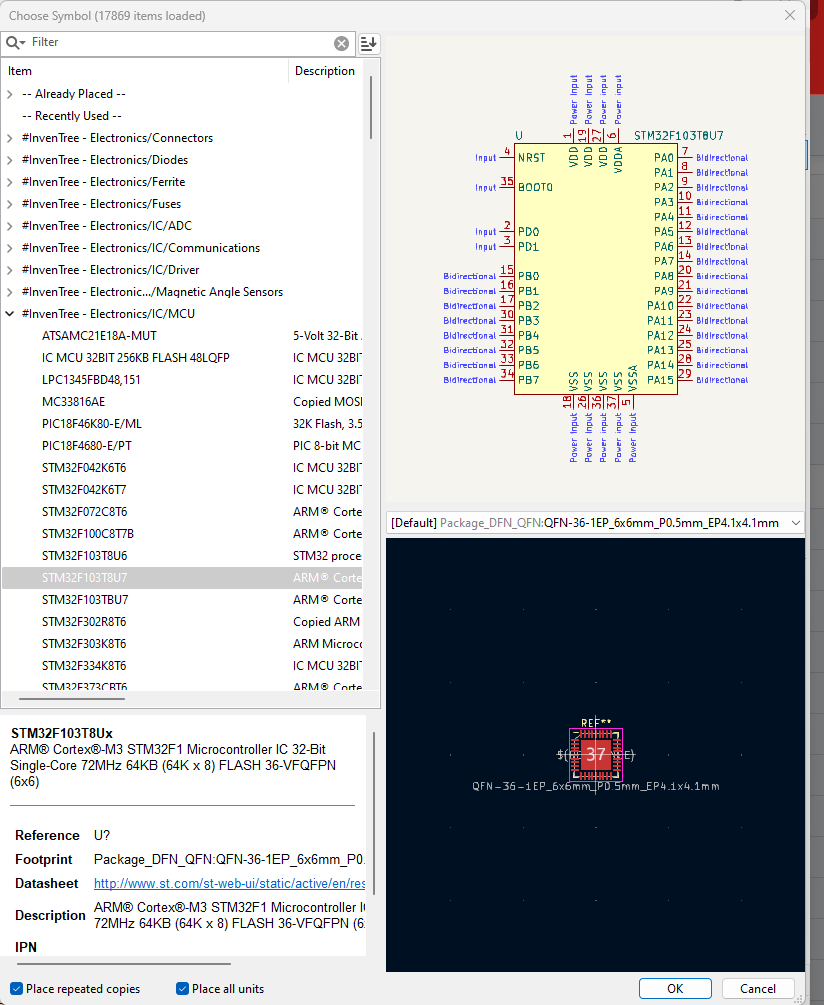 The Common Issue of a “Unified” Component Library
For every hardware engineer, a well-organized and comprehensive component library is the cornerstone of efficient design. However, in traditional EDA workflows, managing the component library is often a headache:
-
Team collaboration is difficult: Each engineer has a local copy of the component library with different versions, often leading to design errors and production issues.
-
Information silos: Schematic symbols, PCB footprints, 3D models, specifications, supplier information, inventory quantities… These key pieces of information are scattered everywhere, making unified management and retrieval difficult.
-
Redundant labor: For each new project, a significant amount of time is spent organizing and verifying component information and creating BOM tables, leading to inefficiency.
Traditional solutions are usually based on ODBC database solutions, commonly including Altium’s DBLib, Cadence’s CIS, and KiCad’s Database Library. These are good solutions, but the problem is the high maintenance cost: even an independent SQL database is not something most electronic engineers can handle; if integration with PLM/PDM is needed, it requires repeated communication and confirmation of requirements between electronic engineers (business) and IT, and even if it is finally implemented, it is still difficult to apply…
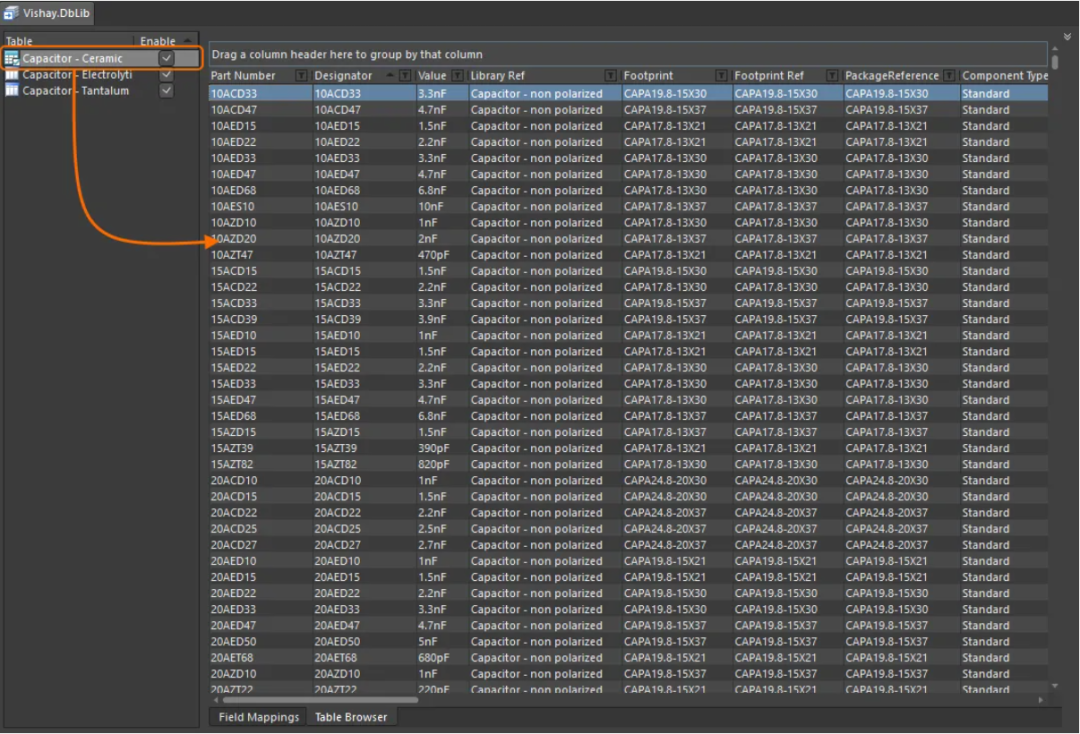
Altium was the first company to recognize this problem, which led to the development of Altium 365. Although it is powerful and useful, it is indeed too expensive for everyone; moreover, A365 is a closed-source ecosystem, making it very troublesome to interface with internal enterprise systems like ERP and PLM.
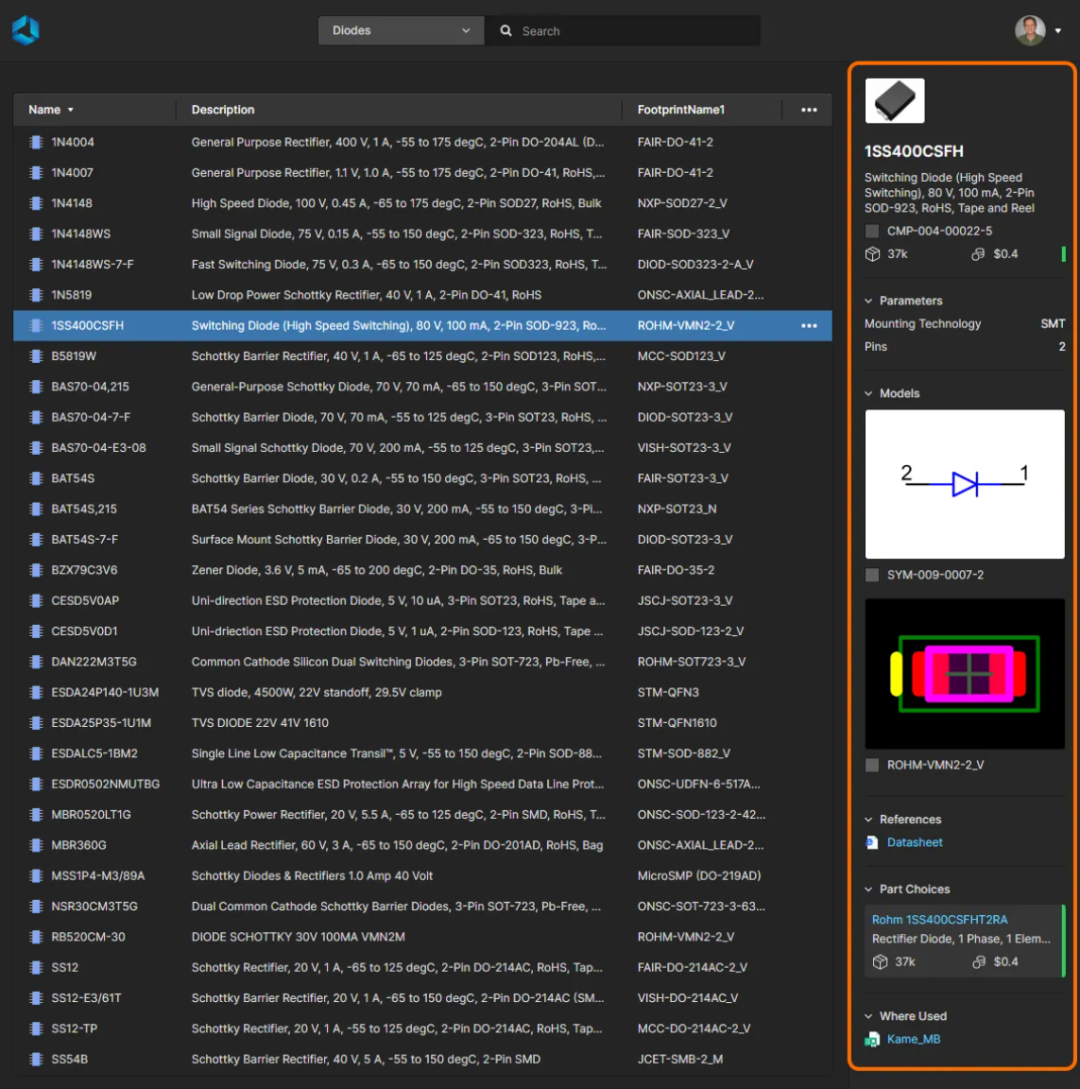
Now it’s time for the KiCad HTTP Library to shine. Unlike ODBC, Httplib adopts a more modern and flexible REST API approach. This means its backend is no longer limited to a specific database but can be any web service that provides an API interface compliant with KiCad specifications. This opens up infinite possibilities for integration with modern cloud services, SaaS applications (like InvenTree), and self-developed web systems within enterprises.
Let’s compare these solutions in a table:
|
Feature Comparison |
KiCad HTTP Library |
Cadence Capture CIS (ODBC) |
Altium DBLib |
KiCad Database Library |
|
Core Architecture |
REST API (Http/Https) |
ODBC (Open Database Connectivity) |
ODBC (Open Database Connectivity) |
ODBC (Open Database Connectivity) |
|
Data Source |
Any web service that supports API (e.g., InvenTree, ERP, self-developed systems) |
Any database that supports ODBC (e.g., SQL Server, Oracle, Access) |
Any database that supports ODBC (e.g., SQL Server, Oracle, Access, Excel) |
Any database that supports ODBC (e.g., SQLite, MySQL, PostgreSQL) |
|
Setup Complexity |
Medium (requires configuration of server endpoints and client files) |
Complex (requires configuration of ODBC data sources, ini files, database table structures) |
Complex (requires configuration of ODBC data sources, svn/git, database table structures) |
High (requires configuration of ODBC drivers, .kicad_dbl files, database table structures) |
|
Real-time Capability |
Very High (can fetch the latest data from the server on each access) |
High (depends on real-time database connection) |
High (depends on real-time database connection) |
High (depends on real-time database connection) |
|
Cross-Platform Compatibility |
Excellent (naturally cross-platform, only requires network connection) |
Poor (ODBC driver configuration is cumbersome across different systems) |
Poor (ODBC driver configuration is cumbersome across different systems) |
Good (more flexible than commercial software, but still limited by ODBC drivers) |
|
Team Collaboration |
Very Suitable (designed for remote collaboration, flexible permission control) |
Suitable (requires database server to support remote access) |
Suitable (requires database server to support remote access) |
Suitable (requires database server to support remote access) |
|
Highlights |
Flexibility and Web Integration, can interface with any modern web system |
Can integrate with enterprise PLM systems, requires custom development |
Can integrate with enterprise PLM systems, requires custom development |
Native open-source database solution provided for the KiCad ecosystem |
|
Typical Scenarios |
Internet teams, teams needing integration with self-developed systems/InvenTree |
Large enterprises with strict material management and approval processes |
Enterprises using the Altium ecosystem for design and data management |
Teams/individuals wishing to use structured database management for components in KiCad |
Note: The KiCad Database Library currently does not support connections to Access or Excel.As can be seen, the biggest highlight of the KiCad HTTP Library is its use of REST API for integration with various systems. In simple terms, as long as the internal systems of the enterprise develop compliant query interfaces, KiCad can directly read categories, data, and component details through httplib, making it very efficient. This is why httplib is considered an “enterprise-level” feature, and currently, no other EDA tools have similar functionality.Next, let’s look at how Httplib is implemented.
HTTP Library
The HTTP Library is a type of KiCad symbol library that can fetch component data from external sources (such as ERP systems). Unlike standard KiCad libraries, they do not contain any symbol or footprint definitions themselves. Instead, they reference symbols and footprints found in other KiCad libraries.
The HTTP Library is currently read-only, but future versions will support read/write operations. Currently, it only supports REST or REST-like APIs, but support for other types of libraries can be easily added in the future.
HTTP Library Configuration File
To create an HTTP library, you must create a configuration file that contains the information needed for KiCad to connect to the provided library (API) and retrieve data. Here is a complete configuration file:
{
    "meta": {
        "version": 1.0
    },
    "name": "KiCad HTTP Library",
    "description": "A KiCad library sourced from a REST API",
    "source": {
        "type": "REST_API",
        "api_version": "v1",
        "root_url": "http://localhost:8000/kicad-api",
        "token": "usertokendatastring",
        "timeout_parts_seconds": 60,
        "timeout_categories_seconds": 600
    }
}
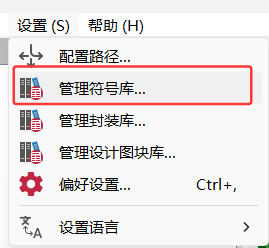
Copy the above template into a new file and save it with the .kicad_httplib file extension. Then, you should edit this file and replace the root_url and token values with your own. After saving, use the “Configure Symbol Library” dialog to add this file to the global symbol library table, which can be found under “Settings” → “Manage Symbol Libraries…”.
Users can choose to configure two timeout settings. The timeout_parts_seconds setting specifies the validity period of component information, while the timeout_categories_seconds setting determines the validity period of categories. The default values are set to 60 seconds and 600 seconds, respectively, but if it is expected that the data remains unchanged for a long time, higher values can be chosen. This will significantly speed up the opening of the symbol selector. It is worth noting that regardless of these timeout settings, KiCad will re-cache the data upon first startup.
Authentication
Authentication is done solely through an Access Token; the token is typically issued by the application providing the service. This token will be used in each request and follows the request header format:<span><span>'AUTHORIZATION': 'Token usertokendatastring'</span></span>.
REST API Endpoint Definition
Unlike ODBC, REST APIs provide pre-formatted information. KiCad does not need to know anything about the tables or the underlying database structure of the provider application (API).
KiCad requires a root URL and an API version to access the library. This information must be provided through the configuration file. There are two endpoints that will provide all necessary data to KiCad, which are:
-
categories
-
parts
Example
For example, using the <span><span>root-url</span></span> and <span><span>api-version</span></span> shown in the configuration file, to return all components under the category with ID = 16:<span>{root-url}/{api-version}/parts/category/16.json</span>. Referring to the example configuration file, this corresponds to:<span>http://localhost:8000/kicad-api/v1/parts/category/16.json</span>.
Another example is using a non-integer ID, such as <span>Resistors</span>:<span>{root-url}/{api-version}/parts/category/Resistors.json</span>.
As shown below, KiCad requires an ID (which can be numeric or non-numeric) for querying the API, as well as an optional human-readable name that will be displayed as the component name to the user. If the API does not return the optional <span>name</span> key, KiCad will use the <span>id</span> key as the component name.
Note that KiCad only accepts strings. All integers, booleans, double-precision floats, single-precision floats, etc., must be converted to strings when responding to requests.
Endpoint Validation
KiCad will query the root URL <span>{root-url}/{api-version}/</span> and expects it to return a dictionary with endpoints as key-value pairs.
Note: Only the keys are validated.Values can be left empty or set to actual URLs.
Getting Categories
To get categories, KiCad uses a standard GET request to query <span>{root-url}/{api-version}/categories.json</span>. KiCad expects the server to respond with a JSON-formatted array containing one or more categories. For each category, it only needs the <span>id</span> and <span>name</span>, which will be displayed as libraries in the Symbol Chooser. Components belonging to that category will be displayed under these libraries.
HTTP_200_OK[
    {        "id": "16",        "name": "Active Parts/Clock and Timer ICs",        "description" : "A description of Active Parts/Clock and Timer ICs"    },    {        "id": "17",        "name": "Active Parts/Driver ICs",        "description" : "A description of Active Parts/Driver ICs"    },    {        "id": "20",        "name": "Active Parts/Embedded Processors and Controllers",        "description" : "A description of Active Parts/Embedded Processors and Controllers"    },    {        "id": "22",        "name": "Active Parts/Interfaces",        "description" : "A description of Active Parts/Interfaces"    },    {        "id": "15",        "name": "Active Parts/Logic ICs",        "description" : "A description of Active Parts/Logic ICs"    }
]
Getting Components
To display components under a specific category in KiCad’s Symbol Chooser, KiCad will use a standard GET request to query the parts endpoint:
<span>{root-url}/{api-version}/parts/category/16.json</span>; where 16 is an example of a specific category’s numeric ID. KiCad expects the server to respond with an array containing one or more components under that specific category.
For each component, KiCad only needs an <span>id</span>. If a different name is needed to display in the Symbol Chooser, the optional <span>name</span> key can be used as shown below. Additionally, the <span>description</span> key can provide a description of the component.
Tip: Since these component details are only used for a high-level overview in the Symbol Chooser, only the minimum required data should be responded to. This will speed up the data retrieval process, thus enhancing user experience. Therefore, KiCad only expects to receive the minimum amount of information needed to display the components. At this stage, any other key-value pairs will be ignored. However, if it is easier to implement and bandwidth is not an issue, the API can also send complete details.
Getting Detailed Component Information
When a user clicks on a component in the Symbol Chooser, KiCad will attempt to retrieve the complete detailed information of that component using the parts endpoint and a standard GET request:<span>{root-url}/{api-version}/parts/16.json</span>. KiCad expects to receive a single JSON object containing the keys as shown below (note: this example uses the <span>name</span> key).
The dictionary <span><span>fields</span></span> can contain any number of additional key-value pairs; it can also be an empty dictionary! A <span>key</span> represents a FIELD Name visible in the KiCad symbol editor. The server can provide as many fields as needed, with no limit on quantity.
Each KiCad FIELD is represented by a dictionary and must contain at least the <span>value</span> key. Additionally, the API can return whether the field is visible through an optional <span>visible</span> key. If this key is not specified, KiCad will default to displaying the field.
As mentioned above, all types must be converted to strings. Allowed boolean strings are: “1”, “0”, “true”, “false”, “yes”, “no”, “y”, “n”. These strings are case-insensitive.
HTTP_200_OK{
    "id": "16",
    "name": "R_0R0_0603_0.125W_1%",
    "symbolIdStr": "Device:R",
    "exclude_from_bom": "False",
    "exclude_from_board": "False",
    "exclude_from_sim": "True",
    "fields": {
        "footprint": {
            "value": "Resistor_SMD:R_0603_1608Metric",
            "visible": "False"
        },
        "datasheet": {
            "value": "www.kicad.org",
            "visible": "False"
        },
        "value": {
            "value": "0R0"
        },
        "reference": {
            "value": "R"
        },
        "description": {
            "value": "I am a resistor",
            "visible": "False"
        },
        "keywords": {
            "value": "RES passive smd",
            "visible": "False"
        },
        "custom1": {
            "value": "MyText1",
            "visible": "False"
        },
        "custom2": {
            "value": "MyText2",
            "visible": "False"
        },
        "custom3": {
            "value": "MyText3",
            "visible": "False"
        }
    }
}
Symbol Attributes
As shown in the example above, the API provides functionality for exclusion flags. These attributes are used to specify certain preferences in KiCad software. The following exclusion flags are currently supported:
-
<span>exclude_from_bom</span>(exclude from BOM) -
<span>exclude_from_board</span>(exclude from board) -
<span>exclude_from_sim</span>(exclude from simulation)
It is important to note that if one or more of these exclusion flags are not explicitly specified, KiCad will assume they are not set for exclusion. In other words, the default behavior is to include all items and functionalities in the relevant processes (BOM generation, board layout, and simulation) unless explicitly specified using these exclusion flags.
Server Response Codes
If KiCad receives a response that is not HTTP 200, it will only display an error message to the user and completely ignore the result of that specific request. This means that if the API does not comply, KiCad may ultimately fail to display some or any categories or components.
How to Test?
Since it requires the server to return the format specified by the Http library, actual testing is not so easy. Experts can set up a local server to simulate this process. Others can try deploying some open-source systems locally, such as:
- Part-DB:https://github.com/Part-DB/Part-DB-server
- Inventree:https://inventree.org/
Both platforms already support KiCad httplib and can connect directly after configuration. Inventree also provides a plugin for direct configuration:
https://github.com/afkiwers/inventree_kicad
ConclusionFinally, we conclude the introduction of the HTTP Library with Eli Hughes’s presentation at KiCon US. Eli detailed how he uses Httplib in enterprises while allowing both Altium and KiCad to use a consistent data source:KiCad has supported importing Altium projects.
Note: If you want to receive KiCad content updates immediately, please click the business card below, follow, and set it as a star.
Common Collection Summary:
-
Learn KiCad with Dr. Peter
- KiCad 8 Exploration Collection
- KiCad Usage Experience Sharing
- KiCad Design Projects(Made with KiCad)
- Common Problems and Solutions
- KiCad Development Notes
- Plugin Applications
- Release Records