



This article describes how to migrate an IAR EWARM project to SEGGER Embedded Studio (SES). With the built-in project importer in Embedded Studio, users can continue to use the IAR toolchain in SES or switch to the SEGGER toolchain integrated within Embedded Studio. Migrating projects to Embedded Studio allows users to directly benefit from SES’s powerful features, such as multi-threaded compilation, fast and easy project search, and precise indexing. If you still decide to use the IAR toolchain in Embedded Studio, there are many practical features available.
The project import instructions are based on the SEGGER emPower evaluation board, and the example project can be accessed at: https://kb.segger.com/images/6/6a/IAR_to_ES_Tutorial.zip (copy the link to your browser) to download.

1
Import Steps

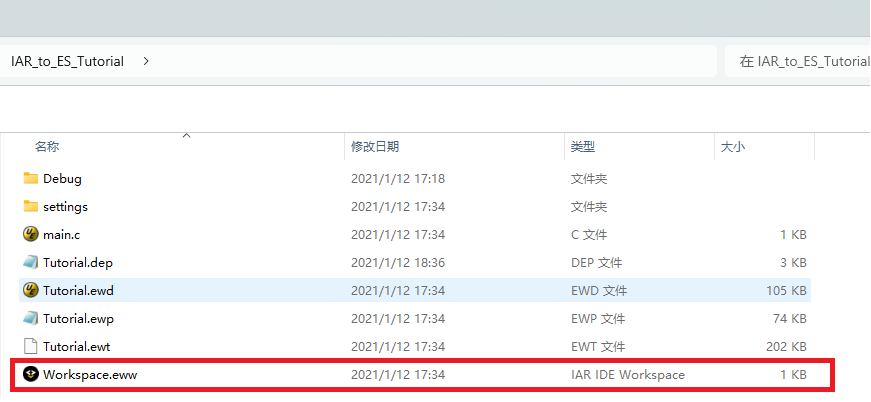
1 Open Embedded Studio, select the menu File→Import IAR EWARM Project…, and choose the project file Workspace.eww to import.
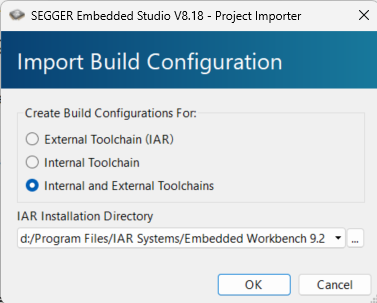
2 Next, set the toolchain to be used:
• External Toolchain: Import the project and configure it to use the original IAR toolchain for building.
• Internal Toolchain: Import the project and set it to use the SES toolchain.
• Internal and External Toolchain: Create two sets of build configurations, one using the original IAR toolchain to build the project, and the other using the Embedded Studio toolchain.
• “IAR Installation Directory”, used to set the external IAR compiler to be used.
3 To smoothly migrate the project to Embedded Studio, it is recommended to create a build configuration based on Internal and External Toolchain. In subsequent development, you can easily switch between toolchains based on application needs.
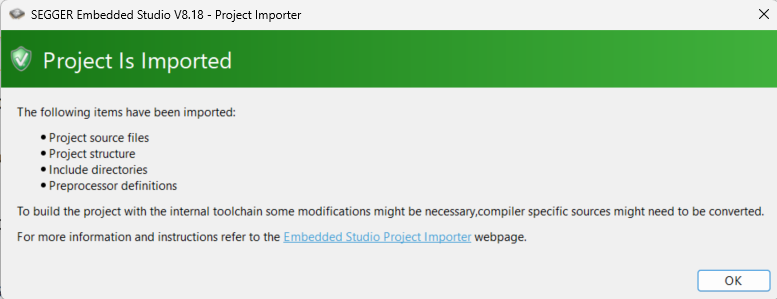
4 If the import process is successful, the following status window will pop up:
5 Embedded Studio will automatically create build configurations for debug and release versions based on the internal and external compilers used, and the configurations will match those already existing in the IAR project. To switch between different build configurations, you can use the drop-down menu in the “Project Explorer”.
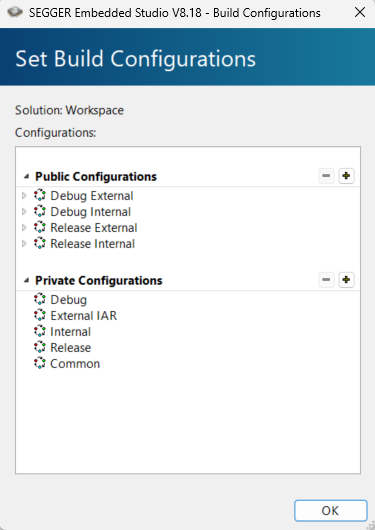
6 To debug the example project using the IAR compiler, select “Debug_External” from the drop-down menu, and then press F7 to build the project.
7 For most projects, you can import and run successfully using the above steps. If there are build errors, please refer to the “Troubleshooting” section.
Note: Although you can run only the external configuration that calls the external toolchain, we recommend switching to the SEGGER toolchain, as some debugging features may not be available when debugging code created by the external toolchain.
2
How to Switch to the Embedded Studio Internal Compiler
To fully utilize the features of Embedded Studio, the SEGGER internal compiler, which is based on Clang, needs to be used.
In the provided example project, by selecting “Debug_Internal” from the drop-down menu and pressing F7, the project will be built using the SEGGER internal compiler. If you need to use another internal compiler, such as gcc, it can be enabled in the project options.
After successfully building the project with the internal compiler, Embedded Studio will automatically calculate the application’s Flash and RAM usage and visually display it in the output window.

Note: This feature is only available when using the internal compiler.
If you plan to use the SEGGER toolchain, we recommend skipping the import tool and directly creating a new project using the project wizard. If there are available CPU support packages, you can create a new project based on the support package and the wizard. This way, all project settings related to Embedded Studio and the target will be automatically configured. Users only need to add the source code files from the IAR project into the Embedded Studio folder, fix IAR-specific compilation errors, and refer to the troubleshooting section to revise the linker scripts and memory mapping settings. This approach can save a lot of time and improve project migration efficiency.
3
Troubleshooting
The imported project can be rebuilt and run directly using the external toolchain, but if built with the SEGGER internal toolchain, some manual changes may be required to the project build configuration.
Generally, if the source code is created according to Clang-compatible standards, these files can be directly used in the SEGGER toolchain. If the project is based on a package or SDK, it may already contain SEGGER toolchain-compatible source files, which can replace the previously toolchain-compatible files.
The following lists the key points that need to be changed when migrating the project to Embedded Studio:
3.1 Internal Configuration
Memory Linker Script
The Embedded Studio project importer does not automatically import linker scripts (such as the IAR icf file). It only sets basic memory mapping for the selected target processor, placing code in internal Flash and data in internal RAM.
For more complex or special configurations, the memory mapping file and segment placement file must be set accordingly.
In Embedded Studio, there are two ways to set the placement of memory segments:
1 Directly place segments through the “Linker→Memory Segments” option in project options.
2 Create a memory map .xml file or edit the default file provided by Embedded Studio and set the “Linker→Memory Map File” to point to that file.
For example, a device memory mapping file with two memory segments named FLASH and RAM:

The corresponding linker file will reference the memory segments of the memory mapping file and list the sections to be placed in those segments.
To add new segments or sections, simply edit the default file provided by Embedded Studio. The linked file can be found in the “Linker→Linker Script File” option.
Third-Party Software and Libraries
Third-party software, especially libraries, may be based on a specific toolchain configuration and cannot be compiled directly with other toolchains.
Check if there are ported versions of the software libraries for the Embedded Studio/SEGGER toolchain, or reconfigure the software libraries based on the SEGGER toolchain configuration.
While libraries built with other toolchains can be linked to Embedded Studio, it is important to check if the interface with the library works as expected at runtime to avoid system errors.
Assembly Code
The syntax for assembly program code and control commands differs between toolchains. Although the final assembly instructions are the same, assembly code written for different toolchains may differ. For example, the declaration of numeric constants differs between IAR and GCC/Clang compilers.
Control commands for writing assembly code also differ. The syntax for symbols, labels, function definitions, etc., needs to be adjusted according to the compiler requirements to ensure the code works correctly in the new toolchain.
The table below shows some common assembly instructions and their replacements in different toolchains:
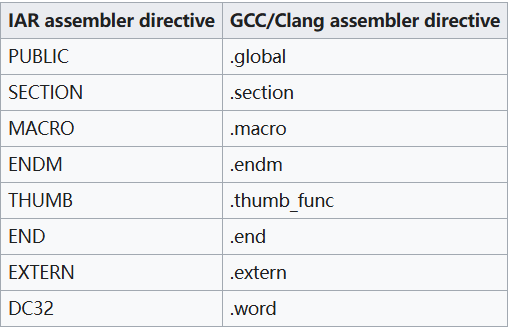
A complete list of instructions can be referenced in the corresponding assembly manual.
Preprocessor Definitions
Different toolchains use different predefined macros to identify the compiler being used and allow for conditional compilation based on core, device, endianness, and other settings.
When migrating the project, it is essential to select the correct definitions and it is recommended to generate warnings or errors when the required conditions are not defined.
IAR defines __ICCARM__ and __IAR_SYSTEMS_ICC__ to identify its toolchain, while Embedded Studio defines __SES_ARM and __SEGGER_CC__.
For the target device, IAR defines __ARM7M__ and __CORE__=__ARM7M__ when compiling for Cortex-M4, while Embedded Studio uses __ARM_ARCH_7M__ instead.
Toolchain Inline Functions
Some compiler-specific functions, such as __disable_interrupt() or __no_operation(), do not exist in Embedded Studio. You need to write corresponding replacement functions or avoid using similar functions.
For the SEGGER compiler, the replacement function for __no_operation() can be defined as:

To achieve backward compatibility with IAR, redefinitions can be nested within preprocessor definitions. IAR EWARM uses __ICCARM__, while Embedded Studio uses __SEGGER_CC__.
Project Settings
Most project settings are automatically set by the project importer for external and internal build configurations. In some more complex projects, certain project settings may need to be added manually.
For example, by default, no files are excluded in the internal build configuration, so if there are files incompatible with the compiler, the compiler will attempt to compile them and display errors (such as assembly files incompatible with GCC/Clang).
You can right-click on the project in Project Explorer and select “Edit options” to modify.
User Include Directories
Many complex projects have source code distributed across multiple folders in different paths. Ensure that all required folders are included in the build configuration under “Preprocessor→User Include Directories”.
Pre/Post Build Commands
Embedded Studio provides pre/post build commands similar to those in IAR EWARM. However, due to syntax differences between IAR and Embedded Studio, the project importer does not automatically import these commands.
If these commands were used in IAR, ensure to simulate these instructions accordingly in the internal and external build configurations of Embedded Studio. To execute multiple commands at once, you can also use batch scripts.
For example, to enable a post-link batch script, you can open the build configuration in project options, and edit the post-link Command under “User build Step”. In this entry, enter the relative or absolute path of the bat file along with optional parameters in the format: path/ Example.bat Param1 Param2….
3.2 External Configuration
Since Embedded Studio simply calls the IAR toolchain via the command line, it can work with external builds by calling it in the same way as EWARM. The import tool will attempt to detect as many project settings as possible from the IAR project settings. However, since the IAR IDE may change with updates, certain options may not be detected correctly.
The simplest way to resolve this is to export the build command line from IAR and match it with the settings in Embedded Studio. The steps are as follows:
Open the IAR project in EWARM
Right-click in the Build window and select Filter Level: All
Rebuild the project
Copy the build log into the editor
Close EWARM and open Embedded Studio
Right-click on the project in the project explorer and select Export Build
Compare the build command lines of EWARM and Embedded Studio, check for missing options in Embedded Studio, and correct them.
Fixing Build Configurations
To fix the differences between the IAR build command line and Embedded Studio, simply open the project options in Embedded Studio. In most cases, it is necessary to correct the command line calls for the compiler (iccarm), assembler (iasmarm), and linker (ilinkarm). Users can set the corresponding project options for the build command line themselves or go directly to the external build options in project options and edit the command line directly.
After completing the above steps, if the build commands of EWARM and Embedded Studio have been successfully matched, the application can be successfully built based on Embedded Studio.
Micron Technology provides commercial licensing for SEGGER Embedded Studio, with extensive knowledge and experience in software development and debugging tools. For inquiries, please contact [email protected].
Follow our WeChat public account【Micron Technology】, reply “Join Group” to join the technical exchange group as instructed.
Product inquiries:
Beijing: 010-62975900
Shanghai: 021-62127690
Shenzhen: 0755-82977971