Communicating between the KingView configuration software and S7-200 SMART PLC via Ethernet can be a bit challenging for beginners who are unsure about the configuration and communication process. Let’s go through the steps together.
01 Download Driver
Step 1: (Download the TCP driver file from the official KingView website)
Download link: http://www.kingview.com/down_info.php?id=S7_TCP.dll
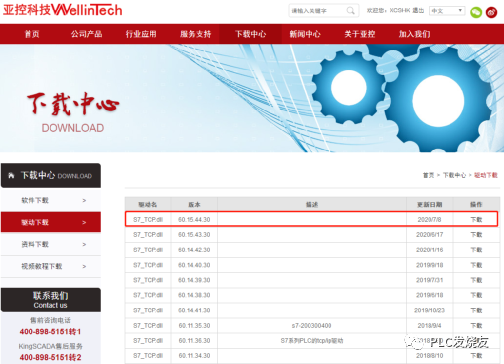
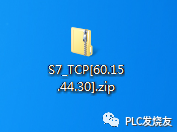
Step 2: (Once downloaded, it should look like the image below)
Compressed file
02 Configure TCP Driver File
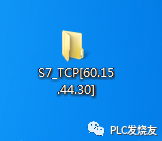
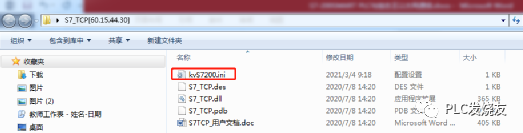
Step 1: (Extract the TCP driver file)
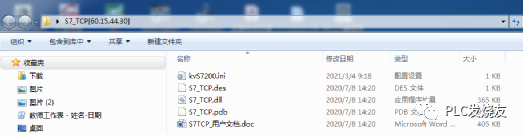
Step 2: (Double-click to open the kvS7200.ini file with Notepad)
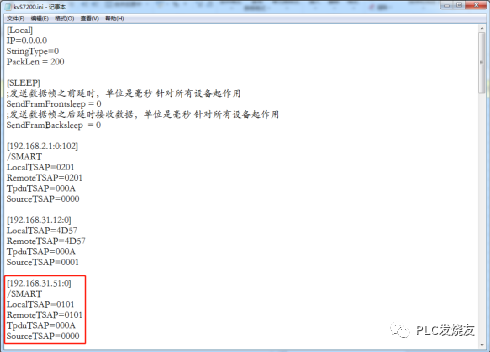
Step 3: (Keep and modify the section within the red box shown in the image below, delete everything else)
Original format:
[192.168.31.51:0]
/SMART
LocalTSAP=0101
RemoteTSAP=0101
TpduTSAP=000A
SourceTSAP=0000
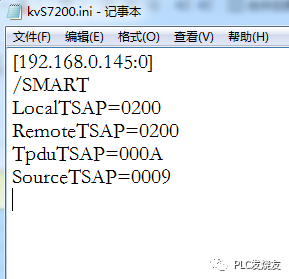
Modified format:
[192.168.0.145:0] (PLC IP address)
/SMART
LocalTSAP=0200
RemoteTSAP=0200
TpduTSAP=000A
SourceTSAP=0009
Here, “192.168.0.145” is the CPU’s IP address. If there are multiple PLCs, list their IP addresses, for example:
[192.168.0.146:0]
[192.168.0.147:0]
Step 4: (After modification, it should look like the image below, and save it)
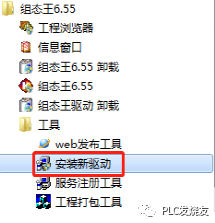
Step 5: (Start menu bar – KingView – Open Install New Driver)
Step 6: (Click the three dots in the red box and select TCP driver)
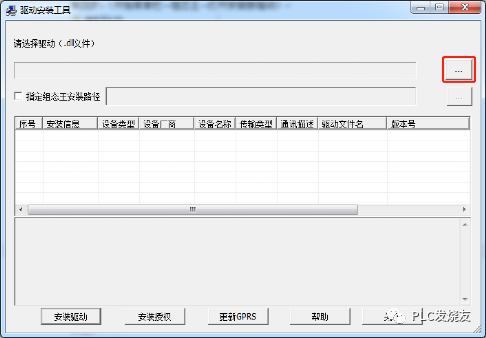
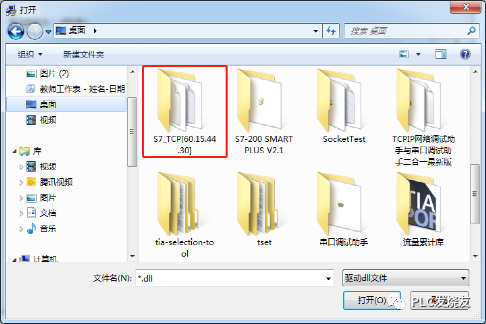
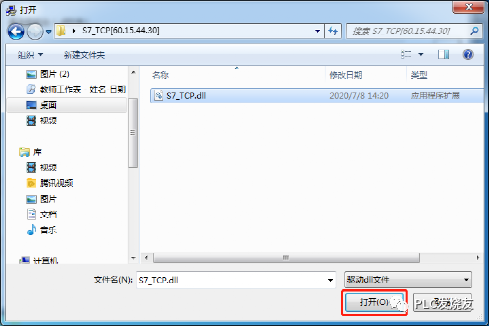
Step 7: (Select the extracted and modified TCP driver folder, choose S7_TCP.dll)
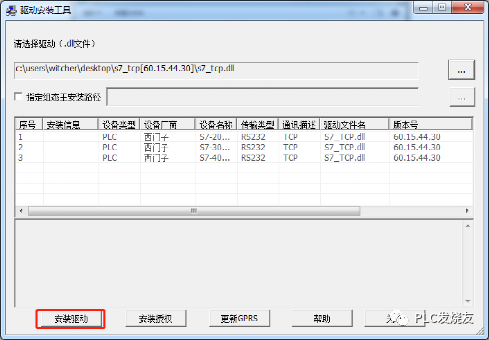
Step 8: (Click Install Driver)
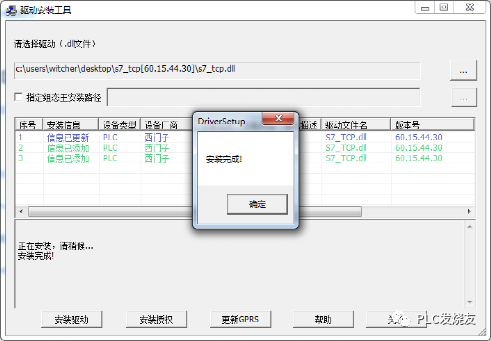
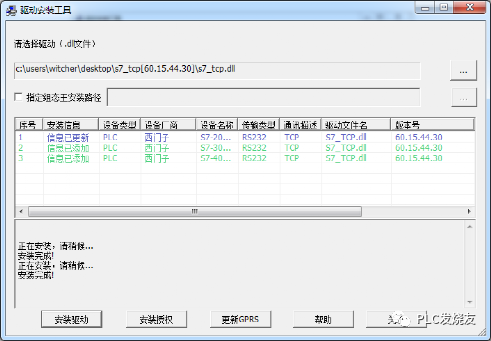
03 KingView Connection Configuration
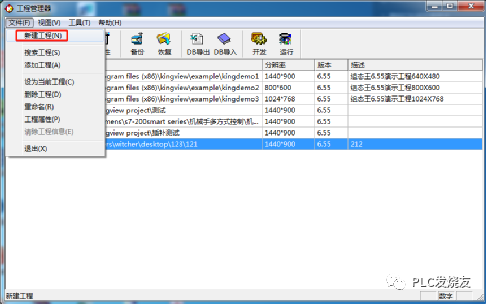
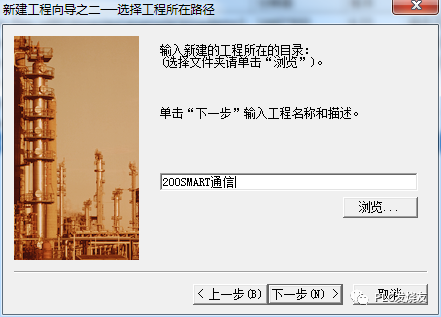
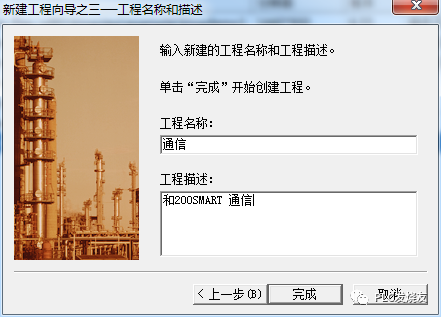
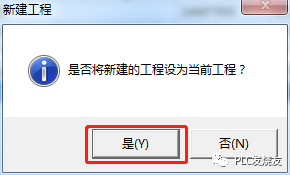
Step 1: (Create a project, enter a name, and click yes)
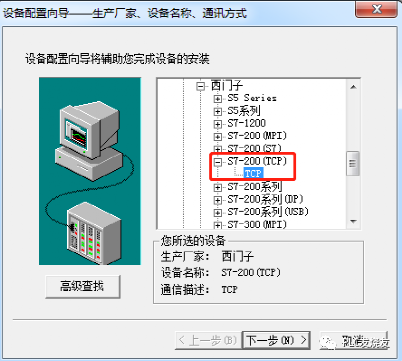
Step 2: (Click device and select S7-200 TCP driver)
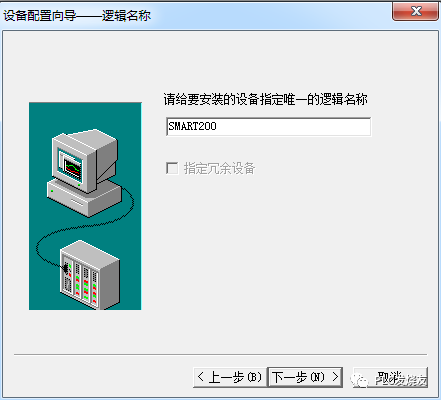
Step 3: (Enter logical name)
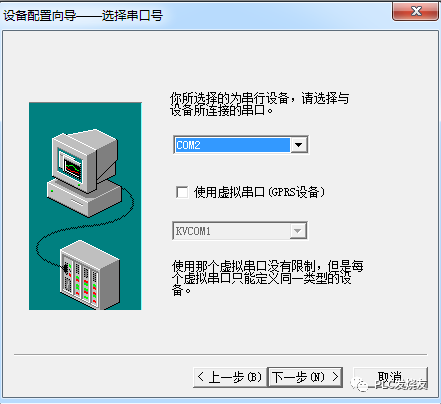
Step 4: (Select any serial port or default)
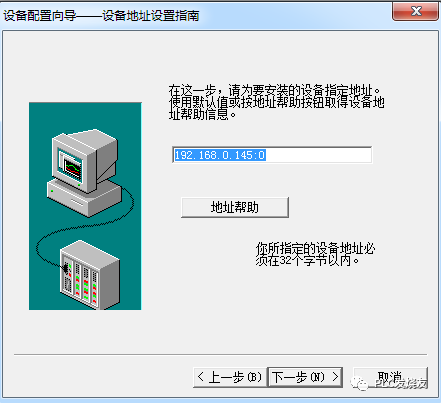
Step 5: (Set the 200 SMART PLC IP address)
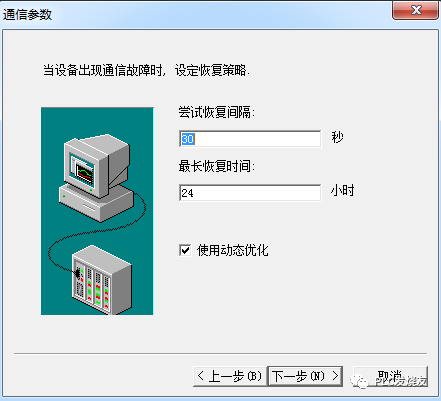
Step 6: (Default is fine)
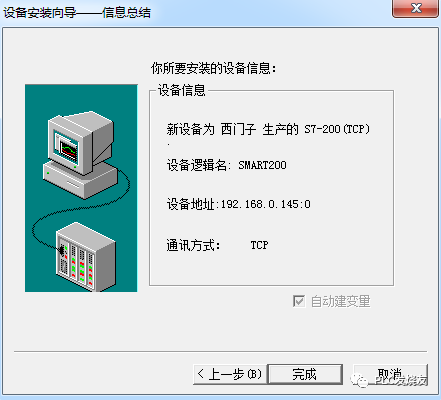
Step 7: (Creation completed)

04 PLC Program Writing
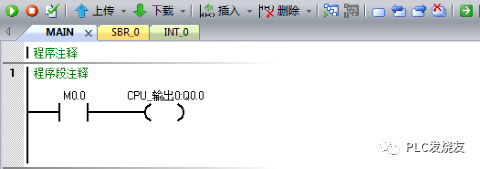
Step 1: (Write a start-stop program)
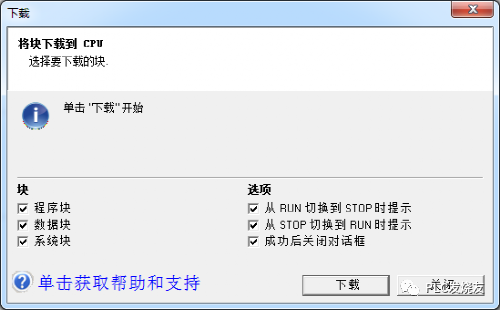
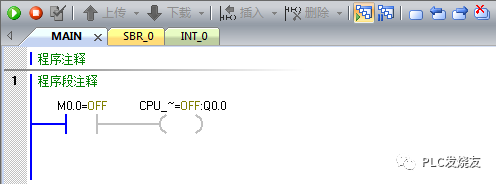
Step 2: (Download the program to the PLC and monitor)
05 Design Screen
Step 1: (Data dictionary – define variables)
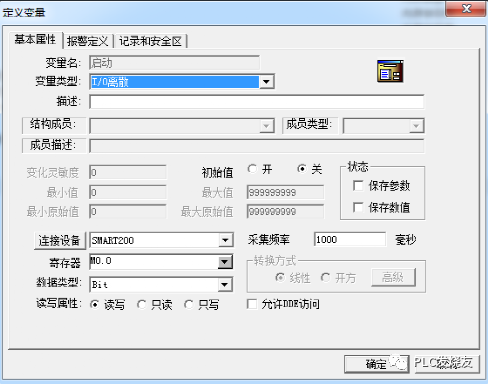
Variable name: Start
Variable type: IO discrete
Connected device: Created driver name
Register: M0.0
Data type: BIT
Read/Write property: Read/Write
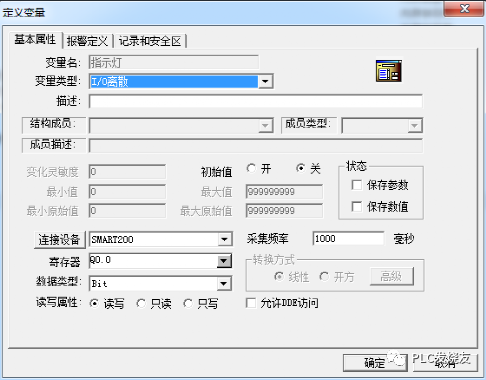
Variable name: Indicator light
Variable type: IO discrete
Connected device: Created driver name
Register: Q0.0
Data type: BIT
Read/Write property: Read/Write
Step 2: (Creation completed)

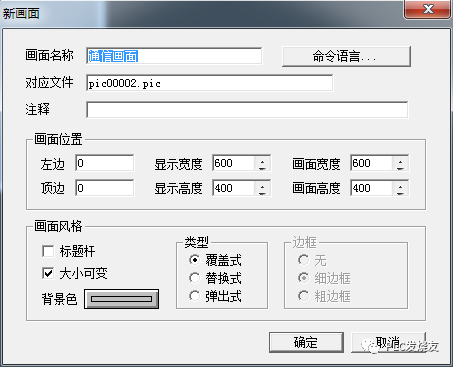
Step 3: (Screen – create a new screen)
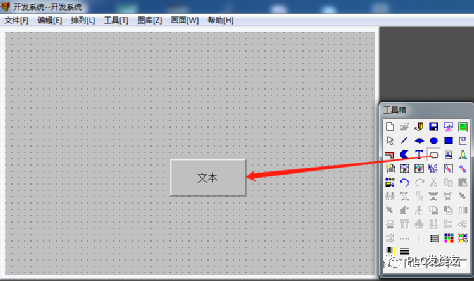
Step 4: (Use button to create a button in the screen)
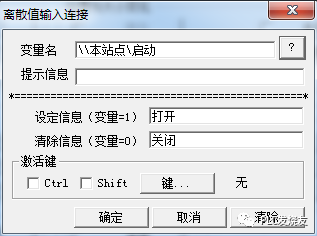
Step 5: (Check discrete input)
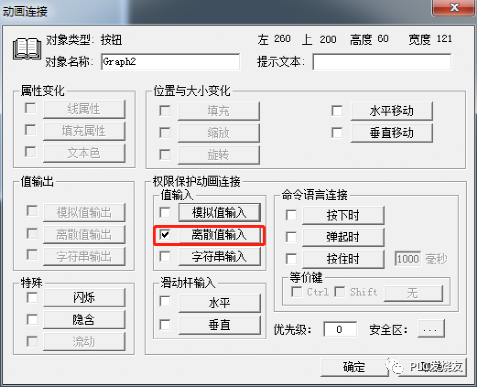
Step 6: (Click the question mark to associate the start variable)
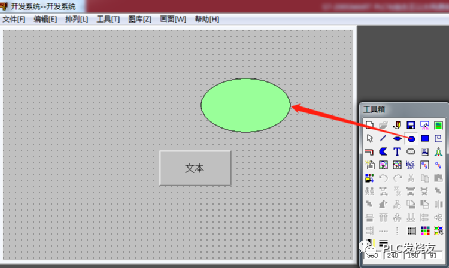
Step 7: (Use an ellipse to create an indicator light)
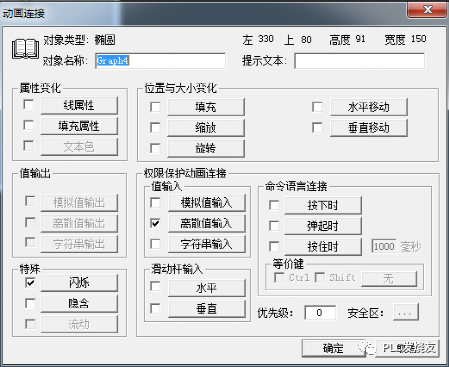
Step 8: (Check discrete input)
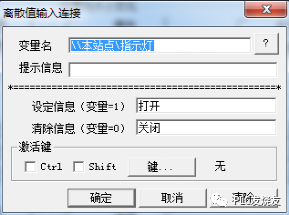
Step 9: (Click the question mark to associate the indicator light variable)
06 Demonstration Effect
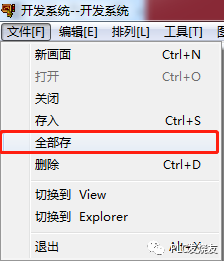
Step 1: (File – Save All)
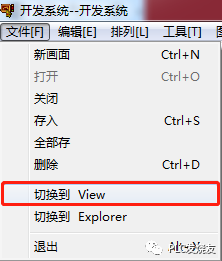
Step 2: (Click to switch to View)
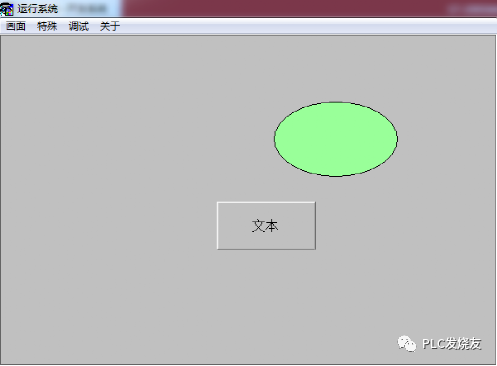
Step 3: (Enter running state)
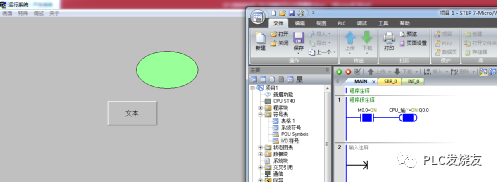
Step 4: (Click the button to communicate)
Source: 技成撇下我, Author: 徐陈爽. Please indicate the source when reprinting! In the comments, everyone can supplement explanations that are incorrect or lacking in this article, so that the next person who sees it can learn more. What you know is exactly what everyone needs…
 1164 Mitsubishi PLC Cases Long press the QR code to receive immediately.
Disclaimer: This article is reproduced from the internet, and the copyright belongs to the original author. If there are any copyright issues, please contact us for deletion, thank you!
HISTORY/Previous Recommendations
Complete question bank for the 2021 electrician junior exam (includes answers)
Three must-have tools for electricians, just open with WeChat!
[Collection] The “way out” for ten-year-old electricians, the secret to earning over ten thousand a month!
Which of the five major electrical drawing software (CAD, Eplan, CADe_simu…) do you pick?
The latest electrical CAD drawing software, with super detailed installation tutorial!
The latest electrical drawing software EPLAN, with super detailed installation tutorial!
Common problems for beginners using S7-200 SMART programming software (with download link)
Super comprehensive electrical calculation EXCEL sheet, automatically generated! No need for help with electrical calculations!
Bluetooth headsets, electrician/PLC introductory books available for free? Come and receive your electrical gifts!
Basic skills in PLC programming: Ladder diagram and control circuit (includes 1164 practical cases of Mitsubishi PLC)
Still can’t understand electrical diagrams? Basics of electrician diagram reading, simulation software for quick hands-on!
12 free electrician video courses, 10GB software/electronic book materials, and 30 days of free electrician live courses are available for free!
Don’t forget to like and watch!