
MERRY CHRISTMAS
Technicians often encounter the problem: why can’t my touchscreen communicate with the PLC? For example, the following two issues:
1. The Weintek touchscreen cannot communicate with the Siemens PLC, it keeps prompting that the PLC has no response. What should I set?
Solution approach:
Make sure to set the same baud rate, the same data bits, the same stop bits, and the station number must not be the same, meaning the PLC and touchscreen addresses cannot be the same. Then check if the communication line is normal…
2. How to determine if there is a communication fault between the touchscreen and PLC through the program?
Solution approach:
The usual method is to use heartbeat detection. Define a boolean variable, and the HMI sets this point at a fixed frequency. After the PLC receives this point as an ON signal, it resets it. If the ON signal is not received within a certain period, say 5 seconds, it is considered that communication is interrupted.
The PLC sends the memory clock byte to the screen, which uses a script to assign this byte’s value to another address within the PLC. Then the PLC checks whether the returned byte’s value is the same over two scan cycles. If it is the same, it indicates that communication is interrupted.
For example, see the steps below:
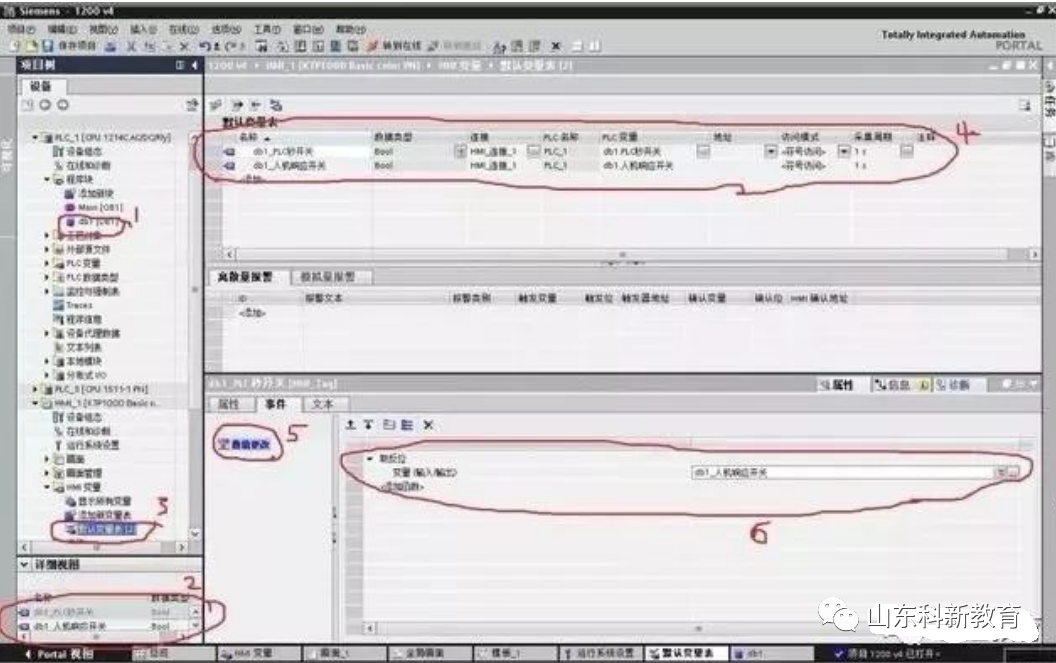
1. Create a DB1 data block in the PLC, setting two switch variables: “PLC Second Switch” and “HMI Response Switch”;
2. Connect these two variables in the HMI variables;
3. In the properties of the HMI “PLC Second Switch” variable – events – value change, add “invert”, allowing the “HMI Response Switch” variable to change with the “PLC Second Switch”;
4. In the PLC program block, program the “PLC Second Switch” to toggle every 0.5 seconds, and then use the TON delay instruction to output “HMI communication failure” if the “HMI Response Switch” does not act within 1 second, as the “HMI Response Switch” will no longer change after HMI communication fails.
In fact, any touchscreen on the market that cannot communicate with the PLC generally needs to confirm four issues:
1. Are the PLC parameters consistent with those in the project?
2. Is the communication line connected according to the wiring diagram?
3. Is the COM port set in the project correctly connected on the screen?
4. If the parameters and lines are confirmed to be OK, check if there is an issue with the PLC program or the PLC address.
Method:
First, check the parameters:
1. Use the PLC programming software to connect to the PLC and test to see what the PLC parameters are, and whether they match the parameters set in the project.
2. Online simulation: Use our configuration software, connect the PLC’s communication cable to the computer, and simulate online to see if the project can communicate. You can use a numerical input component or switch to operate and check if the previous operations still exist after closing the simulator and reopening the online simulation. If NC is directly prompted (NC means previous operations were not recorded, indicating no communication).
Test the lines:
Use a multimeter to test the wiring according to the wiring diagram’s pin definitions.
1: Touchscreen parameters. Check the parameter settings of the touchscreen.
There are a few parameters that need special attention:
1: Communication port settings – make sure to confirm whether the PLC connects to COM1 or COM2 of the touchscreen.
2: Device type – this is the most important; if the protocol is not selected correctly, there is no need to mention anything else.
3: Connection method – confirm whether the connection between the PLC and touchscreen is RS485 or RS232C.
4: Interface parameters and PLC station numbers – must match the settings in the PLC.
2: If the parameters are confirmed to be set correctly, the next step is to check the line issues.
Confirm whether the wiring for RS485 and RS232C is correct, as the wiring methods between the touchscreen and various PLCs are different. This can be referred to in the Weikong (PLC and touchscreen communication wiring help document) to see the basic methods for troubleshooting communication issues.
Next, I will teach you how to bypass touchscreen issues – online simulation. When communication fails, some customers may speculate that it could be a touchscreen issue or an interface issue. Online simulation bypasses the touchscreen and connects the PLC directly to the computer.
Specific steps:
1: Connect the PLC to the computer via RS232. Some PLCs have RS232 interfaces, while others do not; those without can connect to the computer using an adapter.
2: Create a simple project. Place two components, one for numerical display and one for numerical input. Set the address to match the address in the PLC.
3: Project parameter settings must match the settings in the PLC.
4: Click the online simulation function.
This way, you can clearly see if the PLC can communicate with the PC. If communication is possible, it eliminates issues on the PLC side and parameter settings.
MERRY CHRISTMAS
Source: This article is reprinted from the internet, and the copyright belongs to the original author. If there are any copyright issues, please contact us for deletion. Thank you!

Scan to follow
WeChat ID|13615417996
Follow the left QR code to get free access
[Siemens Data Collection]