Download the compressed package below:
mingw-w64.zip (If you need the compressed package, please leave a message, and I will reply with the download link)
Extract the compressed package:

Copy this folder to the C:\Program Files directory:
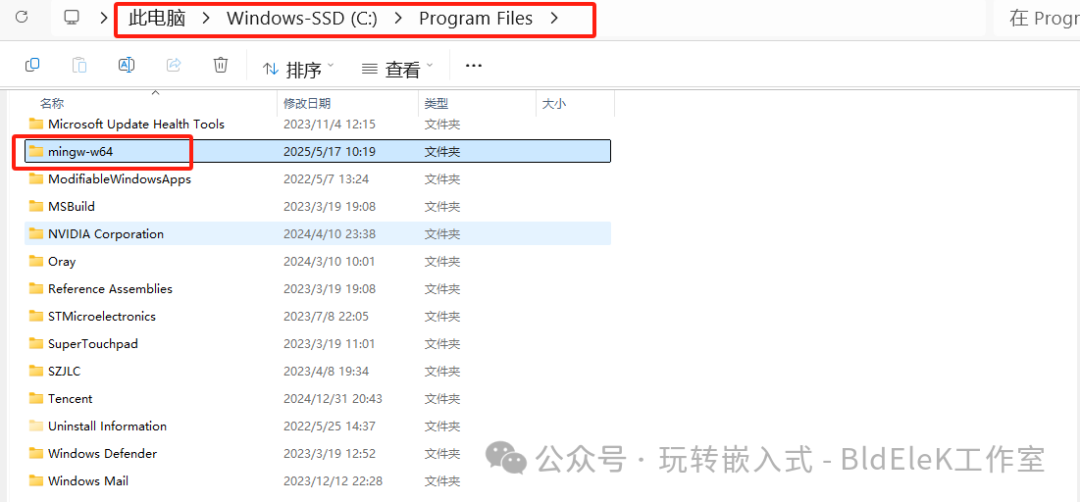
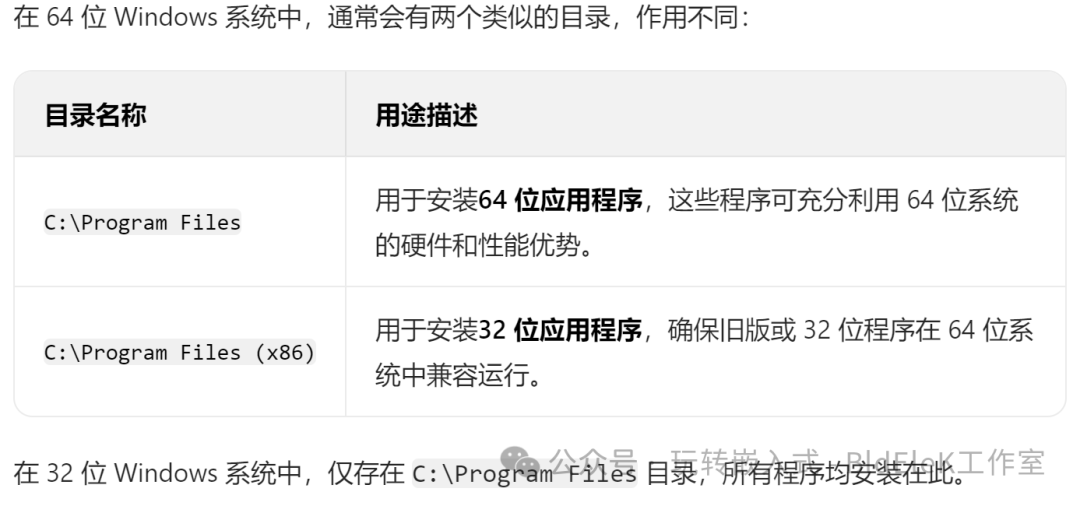
Click on the bin folder under the mingw-w64 folder and copy the path:
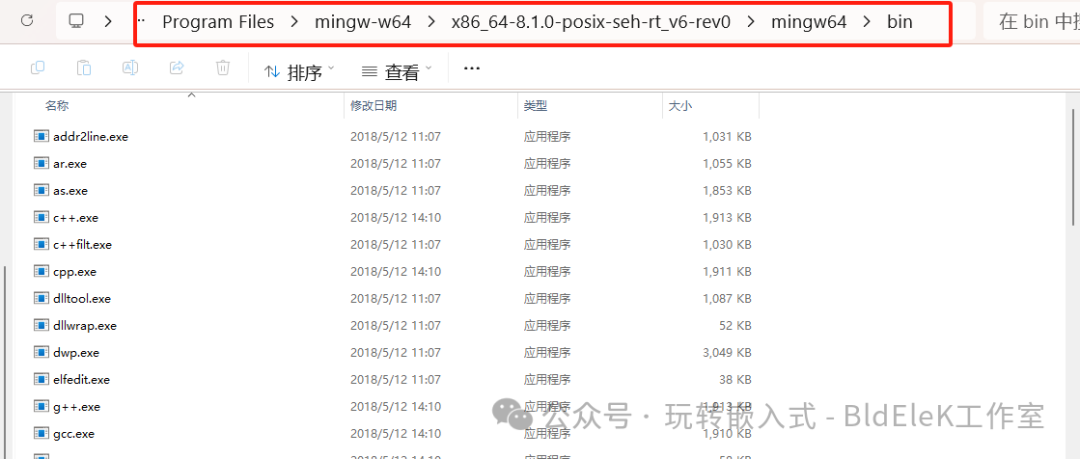
C:\Program Files\mingw-w64\x86_64-8.1.0-posix-seh-rt_v6-rev0\mingw64\binConfigure environment variables:
Right-click on This PC, and select Properties.

Search for environment variables and select Edit environment variables.
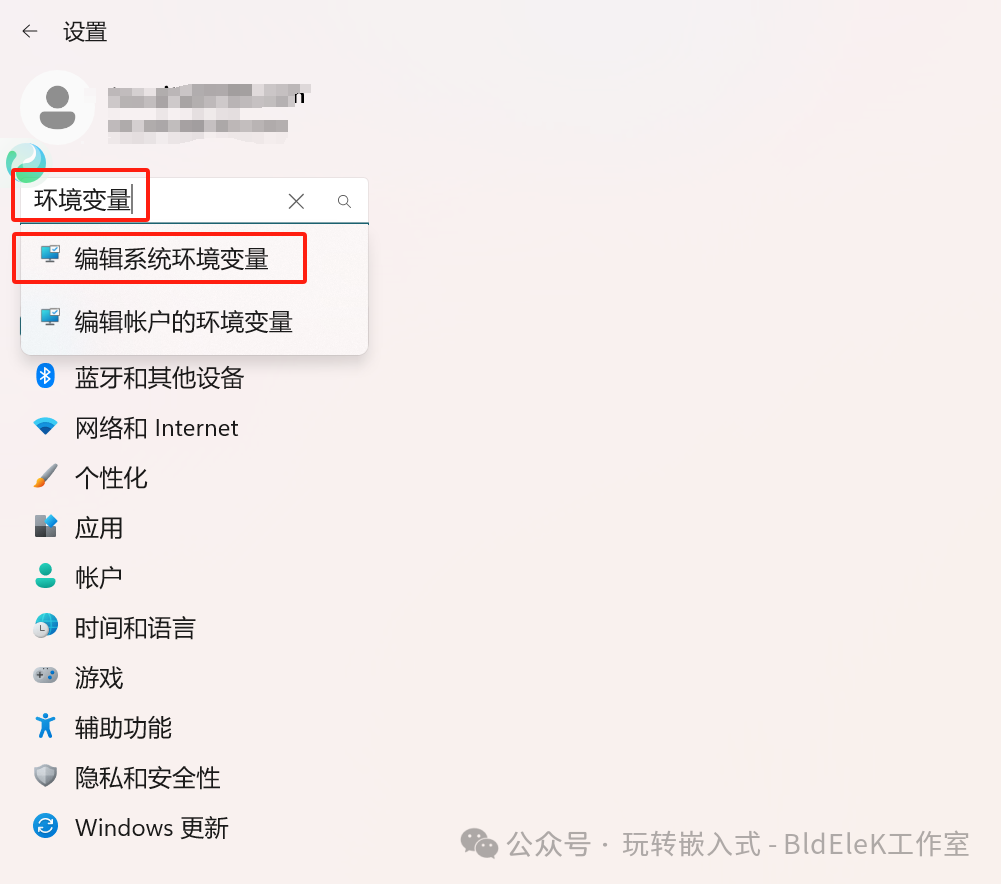
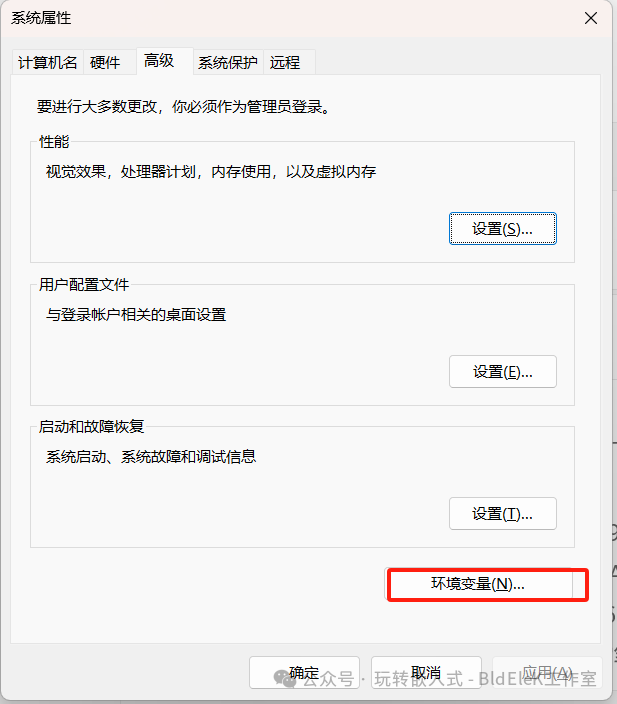
In the pop-up System Properties dialog, select the Environment Variables (N) option.
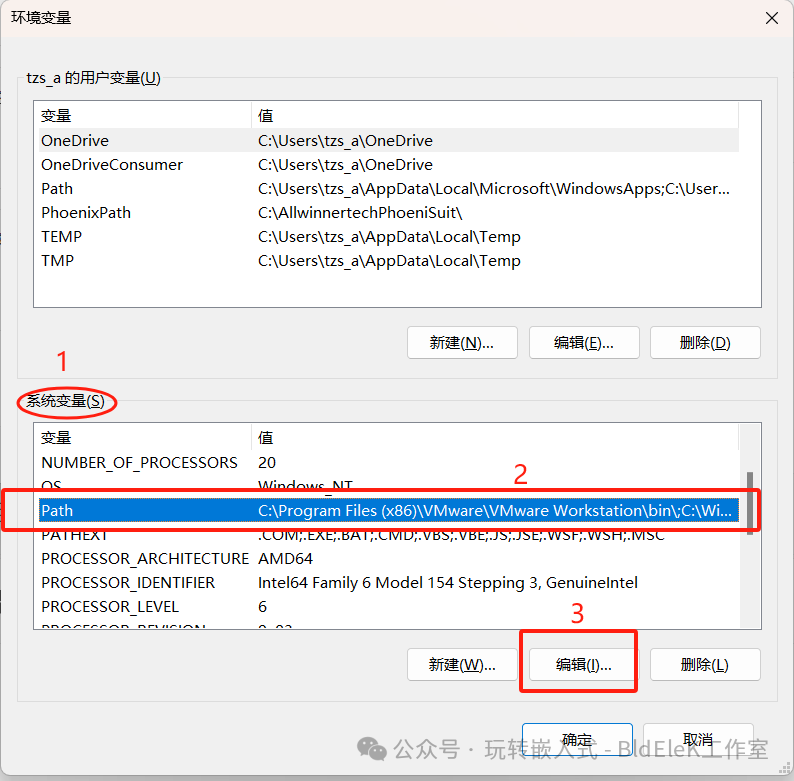
Edit the environment variables:
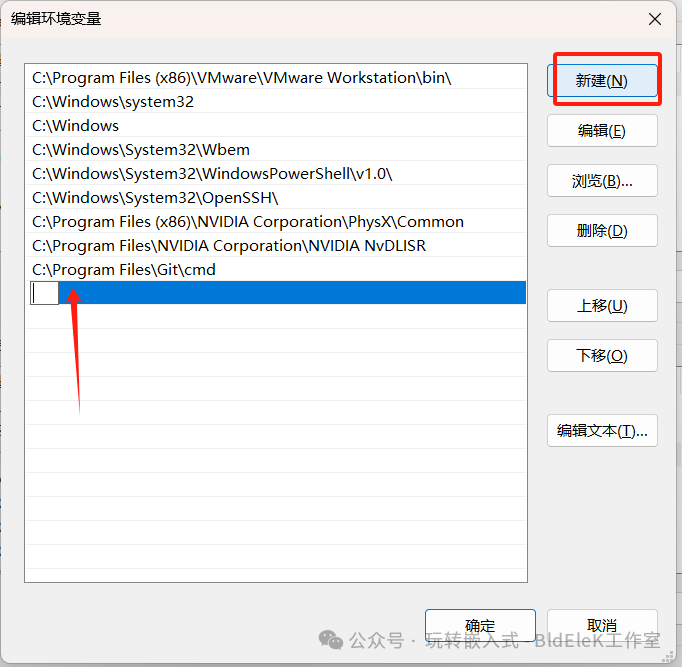
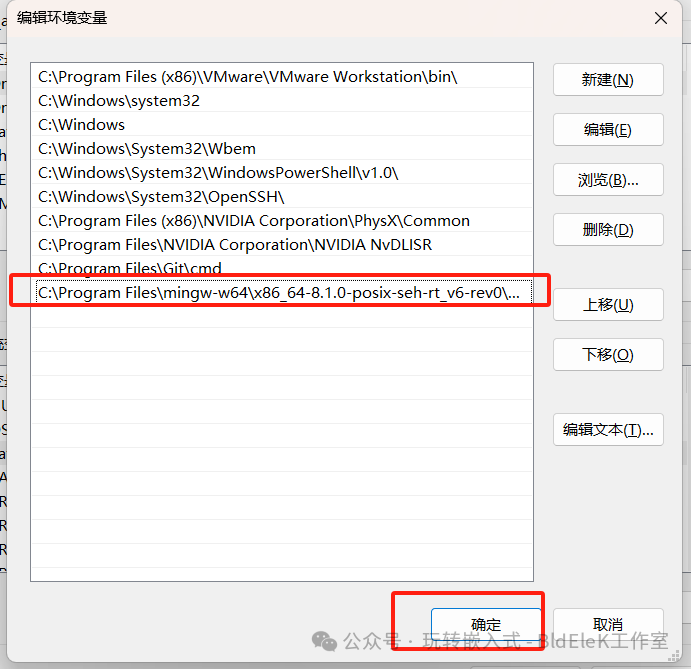
Copy the previously obtained bin path into the newly created environment variable.
Verify the compiler:
Create a folder for storing the C files we will learn next.
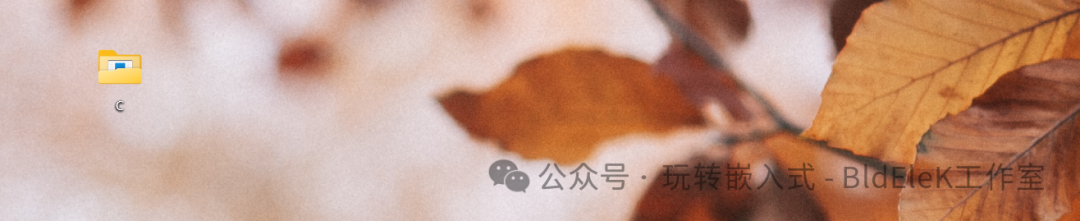
Open Vscode, select our C folder, create a new C file, and double-click to open it.
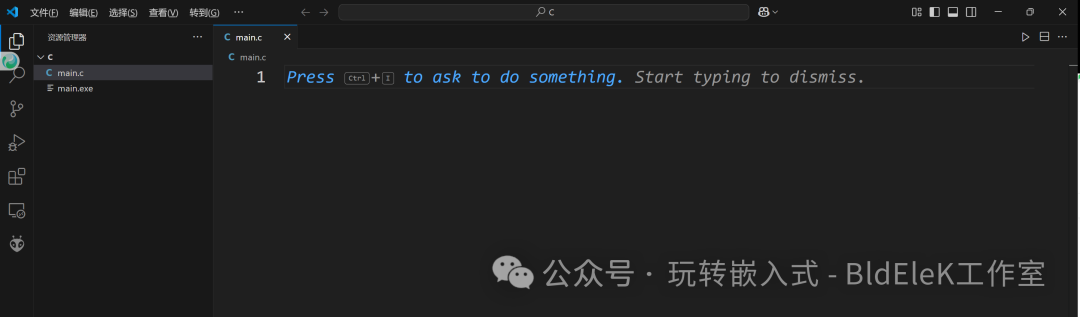
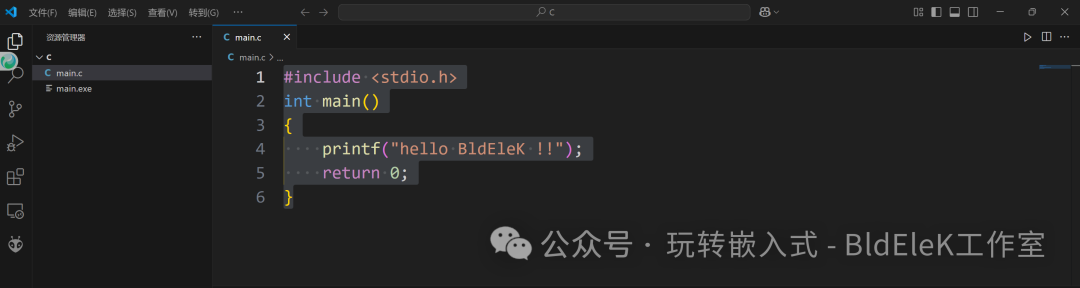
Input the following code:
#include <stdio.h>
int main()
{
    printf("hello BldEleK !!");
    return 0;
}
Click the triangle symbol in the upper right corner to run the code:
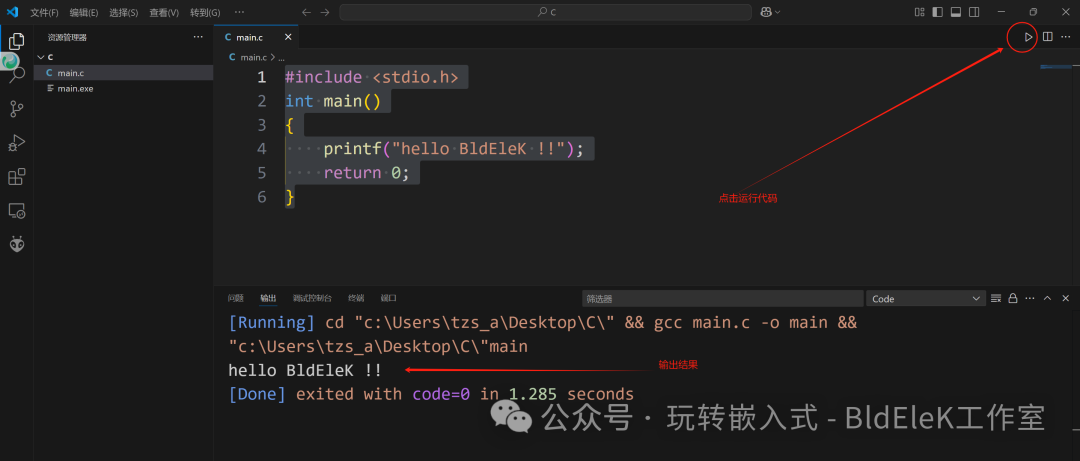
Finally, we need to configure Vscode to support the scanf input function for C language:
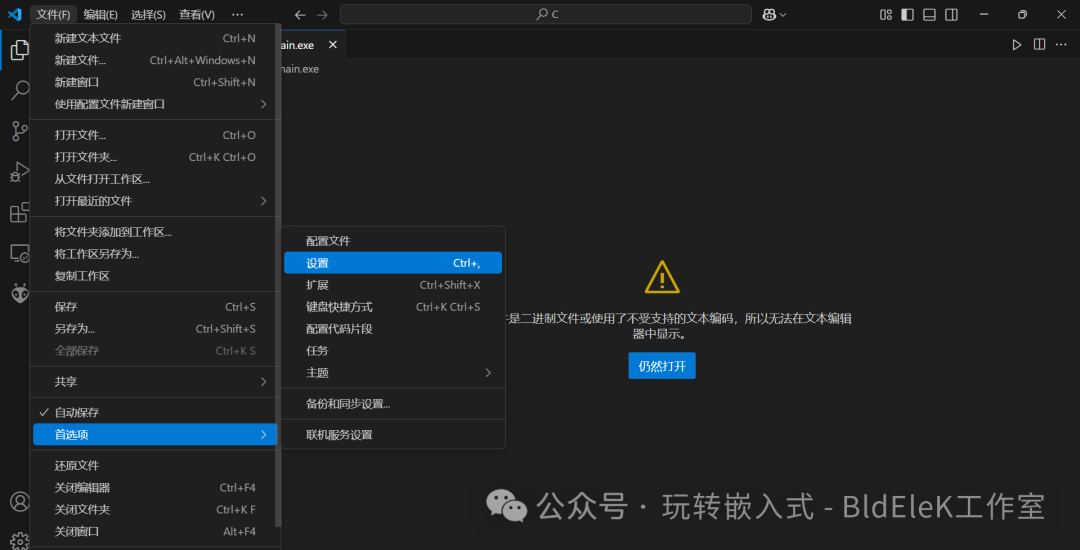
In the upper left corner, go to File – Preferences – Settings:
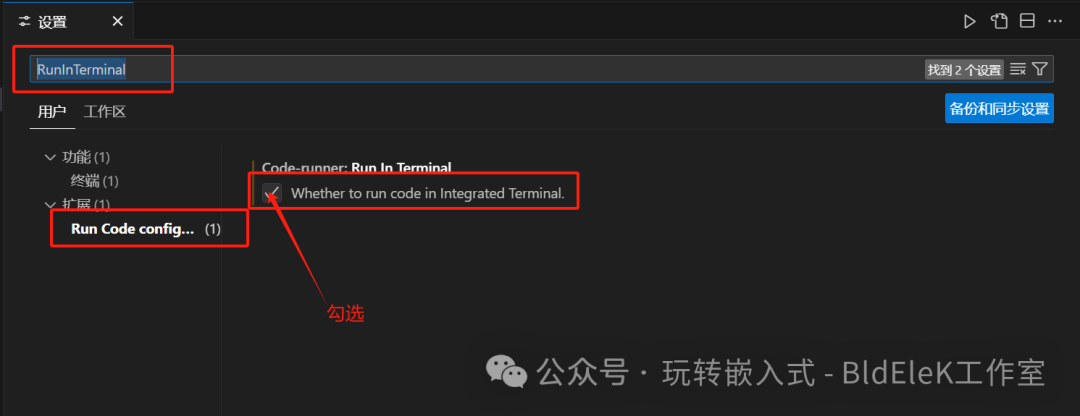
Type RunInTerminal in the search box,
Let’s verify the input function:
Modify the previous example code as follows.
#include <stdio.h>
int main()
{
    char a;
    scanf("%d", &a);
    printf("The number you entered is :%d", a);

    return 0;
}
Run the code.
You can see that the output is garbled.
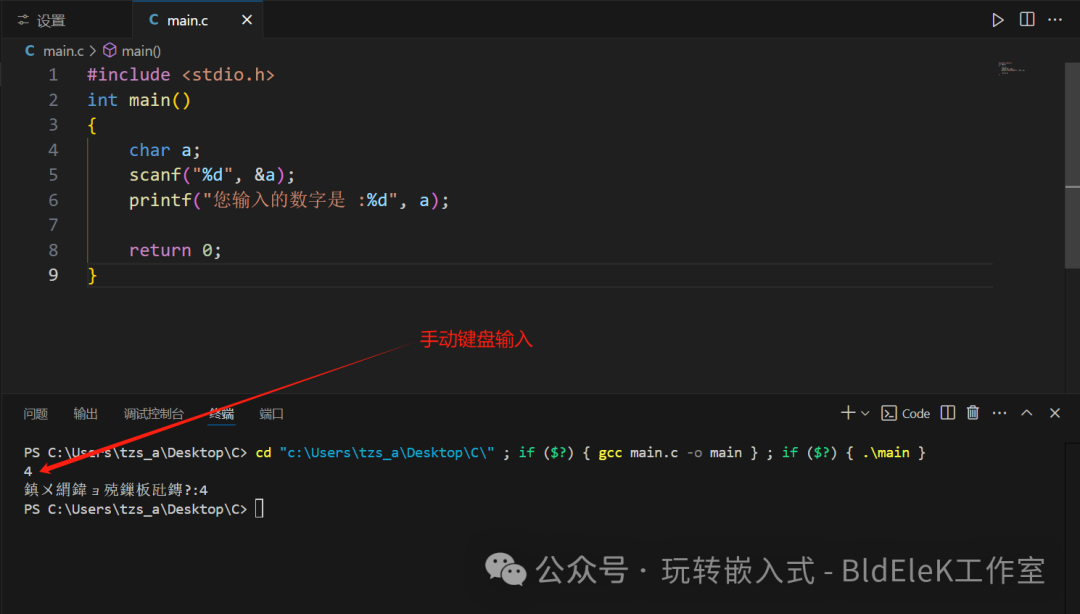

The solution is as follows.
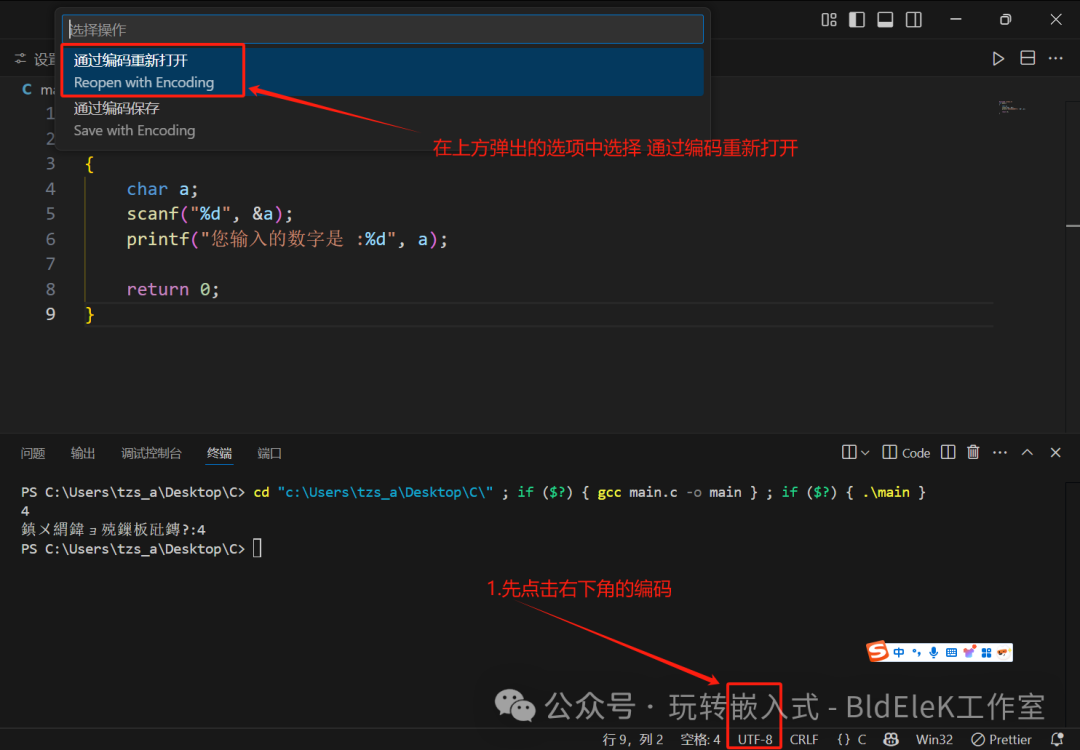
Select GB2312.
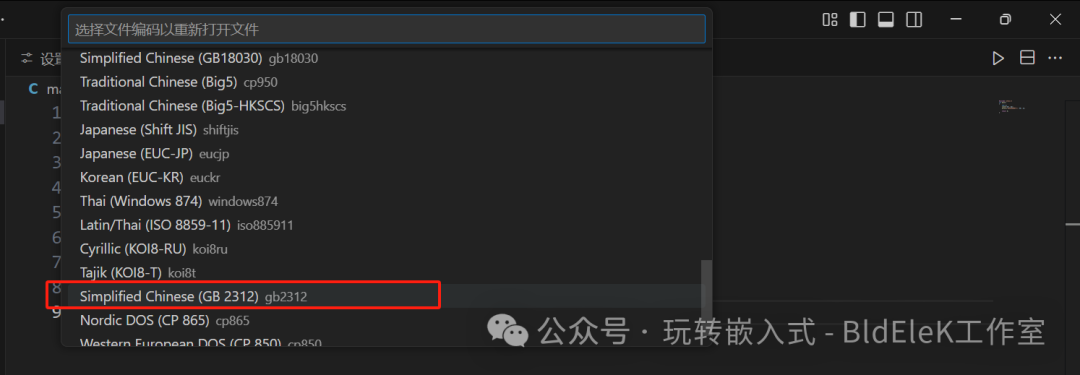
Even after selecting GB2312, it is still garbled.
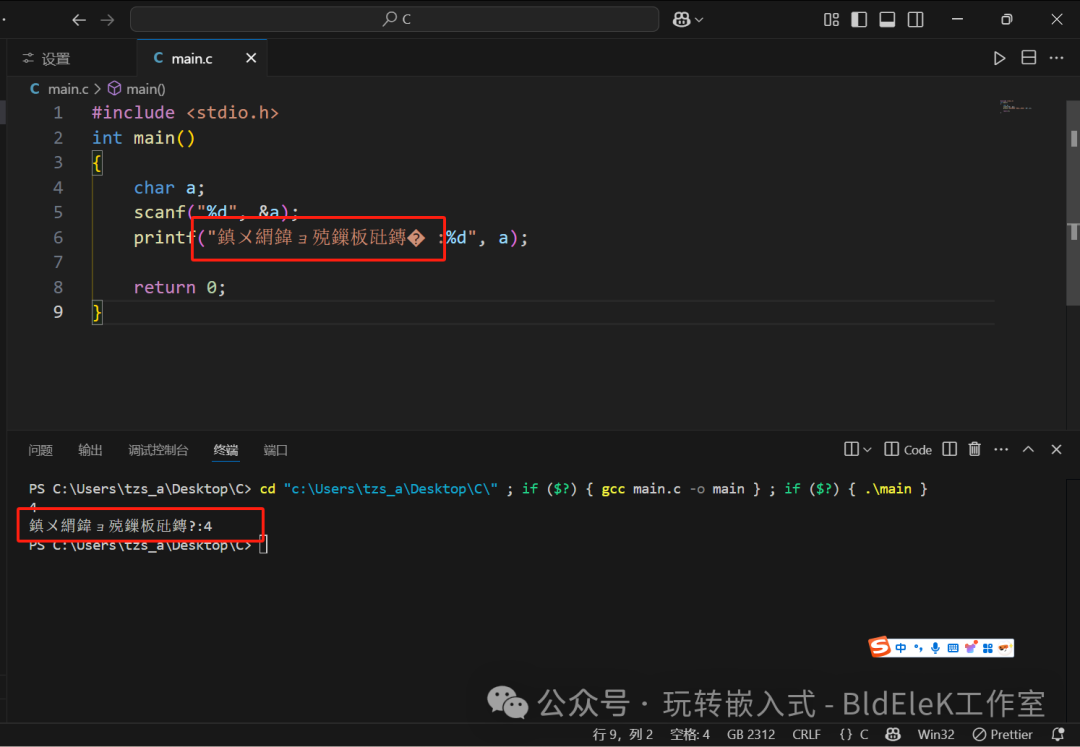
Press Ctrl+Z, and the Chinese characters in the code will display correctly.
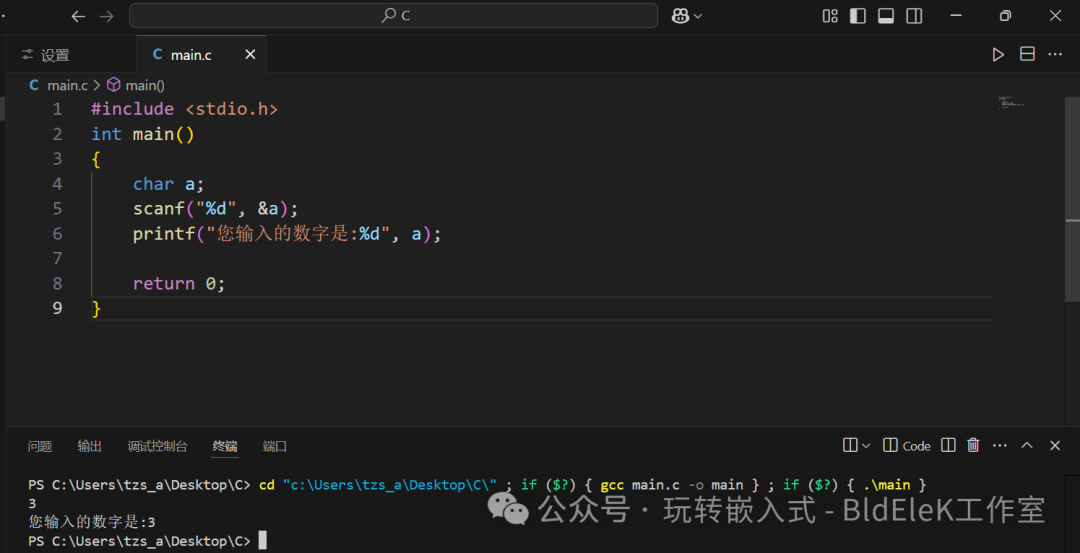
Everyone can click to run the output of Chinese characters a few times to display normally.
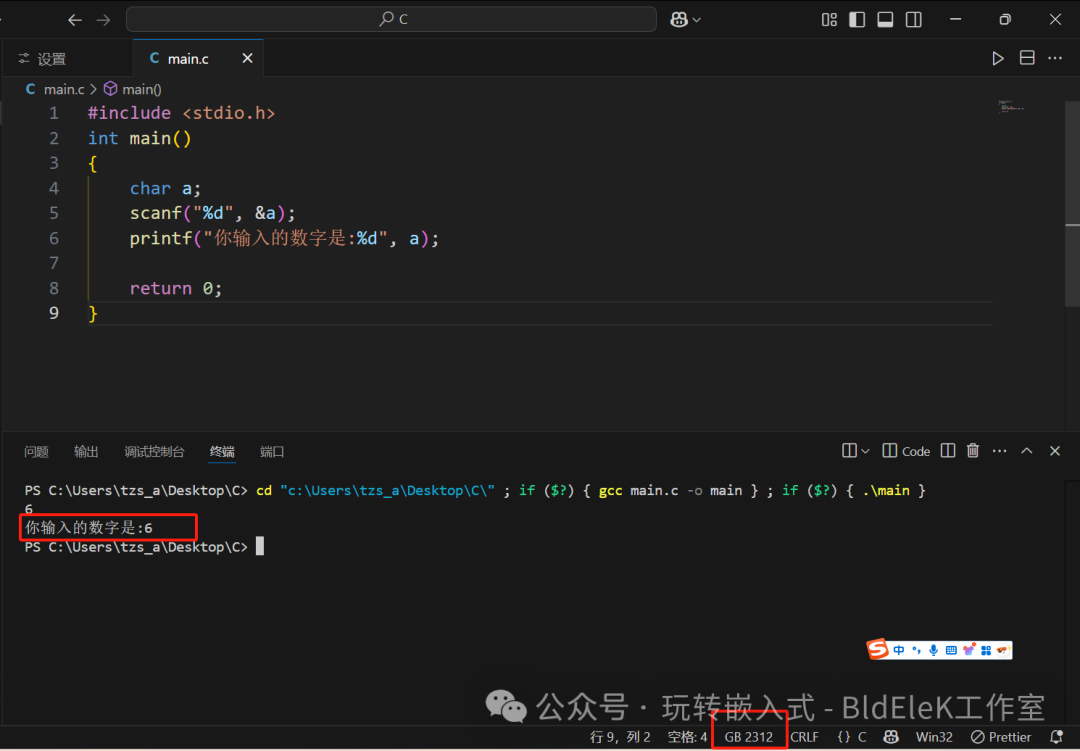
If the above verification is OK, the following reference materials can be ignored; our main focus is to learn C language.
Reference materials:
https://blog.csdn.net/m0_67446994/article/details/140244943
MinGW official website:
https://sourceforge.net/projects/mingw/files/
https://blog.csdn.net/qq_41885673/article/details/115353394