Today, I will share some important points regarding Linux account management that beginners often overlook.
1. Disable Remote Login for Root
By default, Linux allows the <span>root</span> account to log in remotely via SSH, which effectively exposes the system’s highest privilege account to the public network. Hackers only need to guess the password to cause trouble.
The correct approach is to prohibit root login. Edit the SSH configuration file:
vim /etc/ssh/sshd_config
Find this line and change it to:
PermitRootLogin no
Then restart the SSH service:
systemctl restart sshd
It is recommended to create a regular user with sudo privileges, which significantly enhances security. However, some companies do not set this up for convenience, depending on company requirements.
2. Remove or Lock Unused Accounts
A forgotten account may have had its permissions “borrowed” by someone.
Check for long-unused accounts:
lastlog
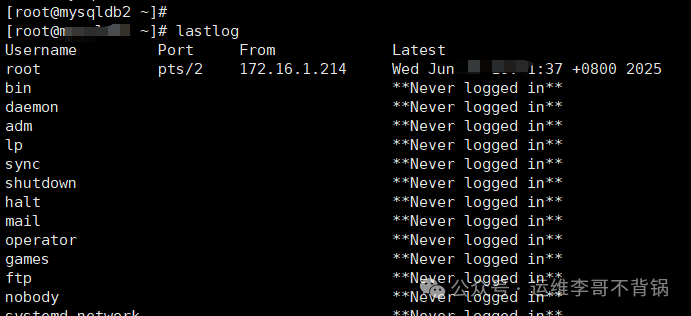
Or view all accounts:
cut -d: -f1 /etc/passwd
For unnecessary accounts, perform the following actions:
- Lock the account:
usermod -L username
- Delete the account:
userdel -r username
For example, users like lp, mail, etc., can be disabled.
3. Restrict Sudo Privileges
Avoid “everyone is an administrator.” Many people add all users to the <span>sudoers</span> file for convenience, making it difficult to find accountability when issues arise, and it may allow privilege escalation.
Correct approach:
- Only configure sudo for trusted users.
- Edit the sudo configuration using:
visudo
- Use the principle of least privilege, for example, only allow specific commands to be executed:
username ALL=(ALL) NOPASSWD:/usr/bin/systemctl status mysqld
4. Set Password Complexity and Expiration Time
Don’t let weak passwords become vulnerabilities. Many attacks start with weak passwords like “123456” or “password.”
Strengthen password policies:
Edit <span>/etc/login.defs</span> or use the <span>chage</span> command:
cat /etc/login.defs
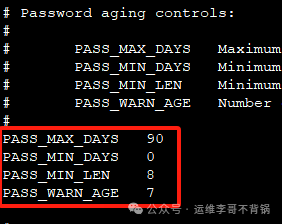
chage --maxdays 90 username   # Password expires in 90 days
chage --mindays 7 username    # Cannot change password within 7 days
Use the <span>pam</span> module to enhance password complexity:
vim /etc/pam.d/system-auth
Add or modify the following content:
password requisite pam_pwquality.so retry=3 minlen=10 ucredit=-1 lcredit=-1 dcredit=-1 ocredit=-1
5. Enable Login Auditing
Linux provides a powerful logging system. By configuring logging and auditing policies, you can trace all operation records.
Enable auditing (auditd):
yum install auditd && systemctl enable --now auditd
Monitor sensitive operations, such as <span>/etc/passwd</span>:
auditctl -w /etc/passwd -p wa -k passwd_change
ausearch -k passwd_change
What other security points do you think need attention? Feel free to let me know in the comments!
Feel free to share! If there are any mistakes or omissions, please correct me! If you find this useful, don’t forget to like 👍 and follow 🌟~
If you have any operational issues, feel free to add me for consultation. There is also a group chat you are welcome to join: lige_linux
Recommended technical series collection:
Basic Linux Knowledge
Enterprise Basic Services
Docker Series Articles
Kubernetes Series Articles
Monitoring System Series Articles
Database Series Articles