Thank you for taking the time

.

.

Read this article
Hello everyone! I am “Feng Says You Listen”, welcome to follow this account!
 Click on “Feng Says You Listen” above to follow for more exciting content!
Creating content is not easy, and I hope friends who like it can like and share it, so that those around you can also benefit. If it is for commercial use, please contact me in advance.
Some articles will have keywords at the end, reply with the correct keywords in the public account message area to get the relevant links. The reply must be “accurate”; random input will result in the robot responding with “invalid” etc., please be aware.
All software and resources have timeliness, and tutorials may also have timeliness (for example, system updates, software patches, etc.). Please try to read as soon as possible to avoid missing opportunities.
When busy, I have materials but no time to organize and write them out. By the time I have free time, I may have forgotten some content, and some may have become outdated, making it meaningless to write. I hope everyone can send me any small computer or phone issues or confusions you discover in work and life, and I can try to help solve them. This way, it helps you, provides me with more material, and may help more people!

For smart networking with three or more Huawei routers, please refer to the guidance below; for smart networking with two Huawei routers, please refer to the two Huawei routers for smart networking.

- The main router must be in router mode (i.e., the main router’s internet access method is: automatically obtain IP / broadband account access / manually input IP). Please refer to how to modify the internet access method of Huawei routers to check the internet access method of the main router.
- To ensure Wi-Fi stability, if the wireless smart networking is successful, it is recommended to place the secondary router in a room that is only separated by one wall from the main router, and it is not recommended to use it separated by two walls.
- It is recommended to use a higher configuration, better performance Huawei router as the main router. The Huawei Q series powerline version and Huawei X3 Pro router can only serve as the main router when networking with other Huawei routers; the sub-routers in the package do not support being the main router.
- The Honor router (WS831) / Huawei router WS832 cannot network with some routers.
Wireless Smart Networking
When using a router as the main router, it is recommended that the number of secondary routers in wireless smart networking does not exceed 5. After successful smart networking, you can place the secondary routers in suitable locations to improve Wi-Fi coverage.

- If some main routers do not have H (Hi) or WPS (WPS/RESET) button, please place the new secondary router near an already networked secondary router (for example, the Huawei Lingxiao mother-child router Q6E should be placed near the already networked sub-router).
- Some routers do not support 3-level cascading.
Situation 1: 2-Level Cascading
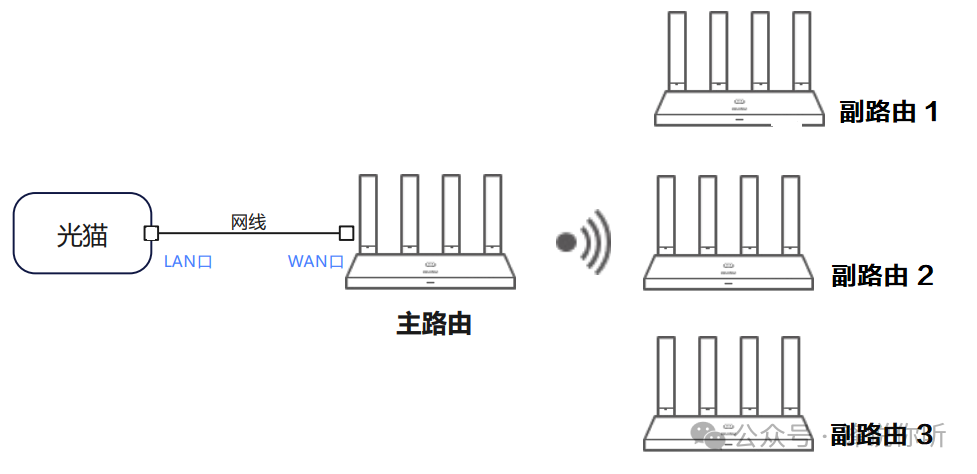
- Configure one of the routers as the only main router for internet access.
- Place the second router (new or reset to factory settings) near the main router (recommended within 1 meter) and power it on. Wait for the main router’s indicator light to slowly flash, then press the main router’s H (Hi) button and release it; the indicator light will flash faster. Wait for the secondary router’s indicator light to turn solid green/white/blue or stop breathing, indicating successful smart networking.
- Connect the 3rd, 4th… routers to the main router using this method.
Situation 2: 3-Level Cascading
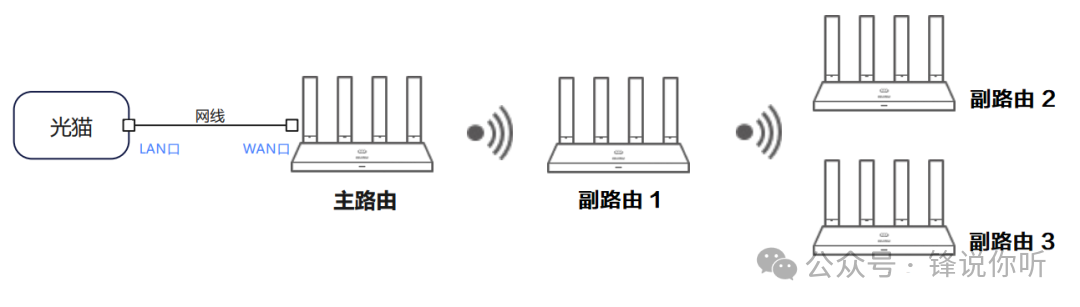
- Configure one of the routers as the only main router for internet access.
- Place the second router (new or reset to factory settings) near the main router (recommended within 1 meter) and power it on. Wait for the main router’s indicator light to slowly flash, then press the main router’s H (Hi) button and release it; the indicator light will flash faster. Wait for the secondary router’s indicator light to turn solid green/white/blue or stop breathing, indicating successful smart networking.
- Connect the 3rd, 4th… routers to the 2nd router using this method.
Wired Smart Networking (Direct Cable Connection)
For wired smart networking, it is recommended that the total number of routers does not exceed 6, and cascading does not exceed 3 levels; otherwise, it may not function properly. After successful smart networking, you can place the secondary routers in suitable locations to improve Wi-Fi coverage.
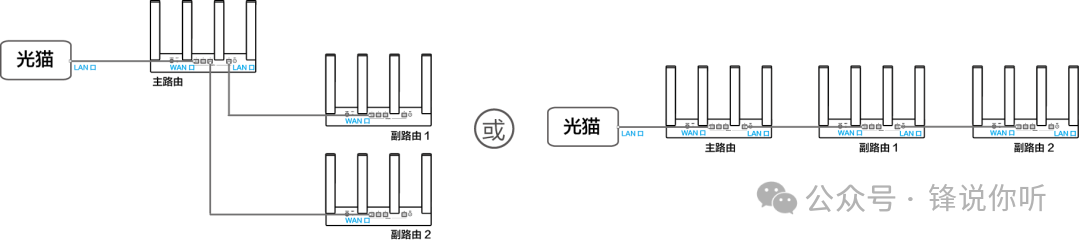
Configure one of the routers as the only main router for internet access.
- Connect the LAN port of the main router to the WAN port of the second router with a network cable (if the port does not have separate WAN and LAN labels or has WAN/LAN labels, there is no need to distinguish between WAN and LAN ports). Wait for the indicator light of the second router to turn solid green/white/blue, indicating successful smart networking.
For the Huawei X3 Pro router as a secondary router, if it has been configured for the first time, the indicator light will remain on as per user settings; if it has not been configured for the first time, the indicator light will stop breathing and turn solid, indicating successful smart networking.
- Connect the WAN ports of the 3rd, 4th… routers to the LAN port of the main router, or first connect the WAN port of the second router to the LAN port of the first router, and then connect the WAN ports of the 3rd, 4th… routers to the LAN port of the second router.
Your attention is the source of continuous updates.
- Alright, that’s it for this article.
- Welcome to follow and share and look forward to seeing you again ❤❤❤❤! If you like it, click the public account above to follow to avoid missing articles.