Storage Card Functionality
The S7-1500 uses the SIMATIC storage card as a program memory. The SIMATIC storage card primarily has the following functions:
-
As the CPU‘s loading storage area, the CPU cannot operate without the storage card.
-
Can be used to update the firmware version of the S7-1500 CPU and centralized IO modules.
-
Read service data.
Clearing Project Data from the Storage Card
There are situations where it is necessary to clear project data from the storage card:
-
If you forget the set read/write protection password and need to download the program again.
-
If the current project version to be downloaded is lower than the project version on the storage card, for example, if the project version on the storage card is V16 but the current project version to be downloaded is V15, it may not be possible to download.
-
If there is an unexpected termination during the project download, such as a network interruption, this can result in incomplete project data on the storage card, making it impossible for TIA STEP7 to reconnect to the CPU for downloading.
Methods to clear project data from the storage card:
-
Format via the CPU’s display.
-
Format using TIA STEP 7.
-
Use a commercially available SD card reader to delete project files.
1. Formatting via the CPU’s Display
This method requires no additional hardware or software, but the firmware version of the CPU and display must be greater than or equal to V2.0. This method is suitable for cases where the read/write protection password is forgotten. The specific steps are as follows:
(1) Use the left and right arrow keys to select the Settings menu and press OK to enter, as shown in Figure 1.
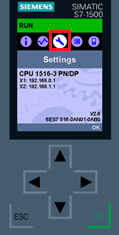
Figure 1 Select and enter the Settings menu
(2) Use the down arrow key to select the Card handling menu item and press OK to enter, as shown in Figure 2.
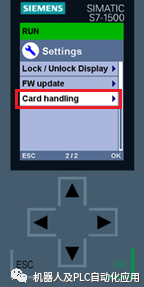
Figure 2 Select and enter the Card handling menu item
(3) Select the Format card menu item and press OK to enter, as shown in Figure 3.
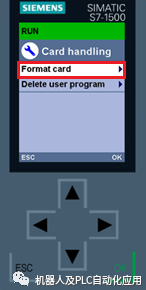
Figure 3 Select and enter the Format card menu item
(4) Press OK to confirm the formatting operation; the PLC will enter STOP mode, as shown in Figure 4.
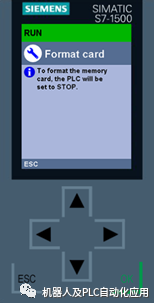
Figure 4 Confirm the formatting operation
2. Formatting Using TIA STEP7
This method requires a computer with the TIA Portal software installed and an online connection to the CPU; this method is not suitable for cases where the read/write protection password is forgotten.
The specific steps are as follows:
① In the project tree, double-click “Online Access”.② Select the computer’s network card.③ Double-click the “Update Accessible Devices” menu item.④ Select the connected CPU found.⑤ Open the CPU’s “Online and Diagnostics” view.⑥ Select “Format Storage Card” from the “Function” menu.⑦ Click “Format”.⑧ Click “Yes” to confirm the prompt.
The above operation steps are shown in Figure 5.
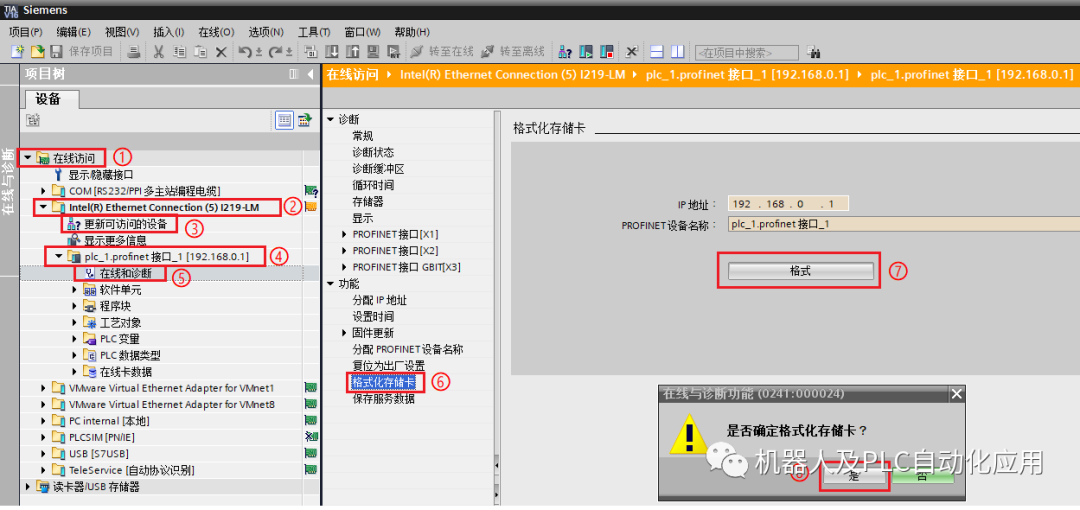
Figure 5 TIA STEP7 formatting operation
3. Using a Commercially Available SD Card Reader to Delete Project Files
This method requires a computer and a commercially available SD card reader, and does not require the TIA Portal software to be installed; this method is suitable for cases where the read/write protection password is forgotten. The specific steps are as follows:
-
Insert the SIMATIC storage card into the SD card reader.
-
Open the reader using Windows Explorer.
-
Delete the project data files as shown in Figure 6.
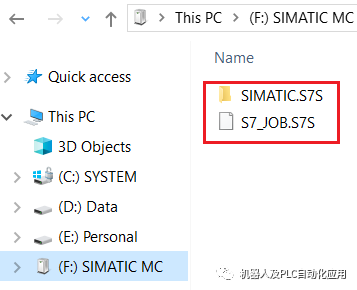
Figure 6 Deleting project files using a commercially available SD card reader
4. Before removing the storage card from the reader, you should first perform the “Eject” operation, as shown in Figure 7, otherwise, data may be lost.
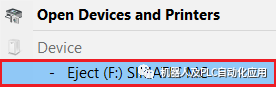
Figure 7 “Eject” the storage card
Note: If the computer is set to show hidden files, you can also see hidden system files, as shown in Figure 8; these system files cannot be deleted, and formatting the storage card using Windows is not allowed.
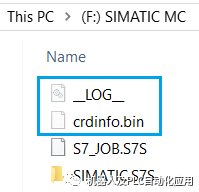
Figure 8 Cannot delete system files