2025/09/019
Friday, Lunar Calendar July 18
First Edition
DAILY NEWS

DAILY NEWS
Setting the router to AP mode allows the main router (upstream router) to provide IP address allocation and DHCP functionality, which can reduce network latency and improve LAN NAT forwarding performance (removing one NAT reduces bandwidth resource loss). Below are several methods to set OpenWrt to switch/AP mode.
Method One
If your firmware has a switch setting, you can easily set OpenWrt to switch/AP mode using the following method, fully utilizing the physical WAN port as a LAN port (recommended).
1
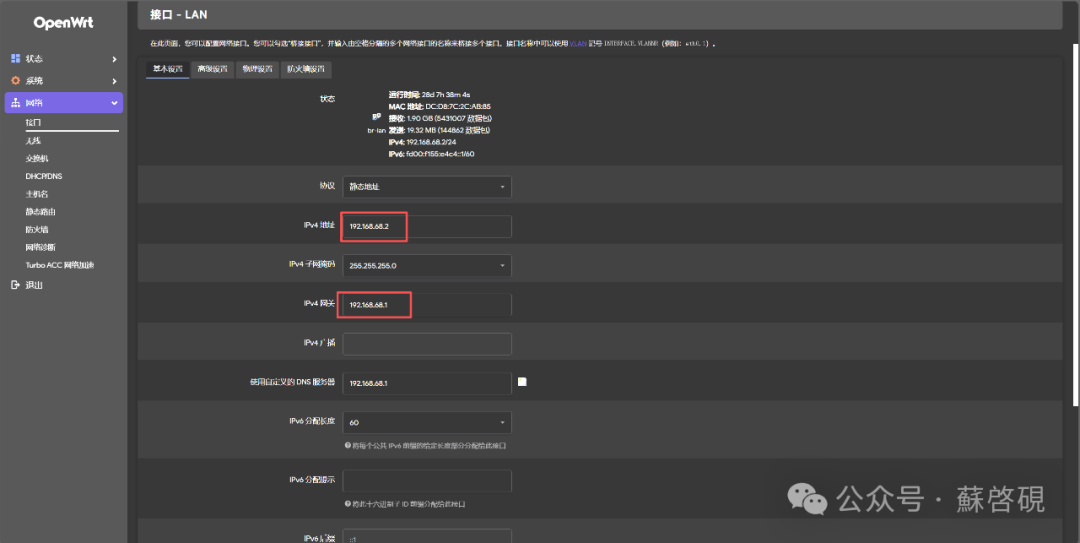
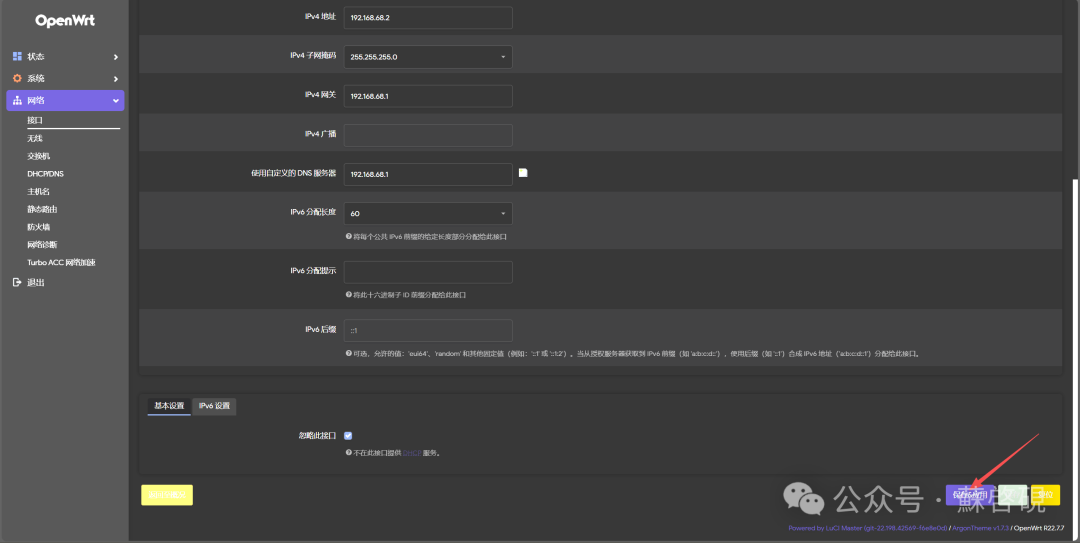
Set the LAN IP to an IP within the main router’s subnet (not conflicting with the main router or already assigned list), and set the gateway and DNS to the main router’s IP.
2
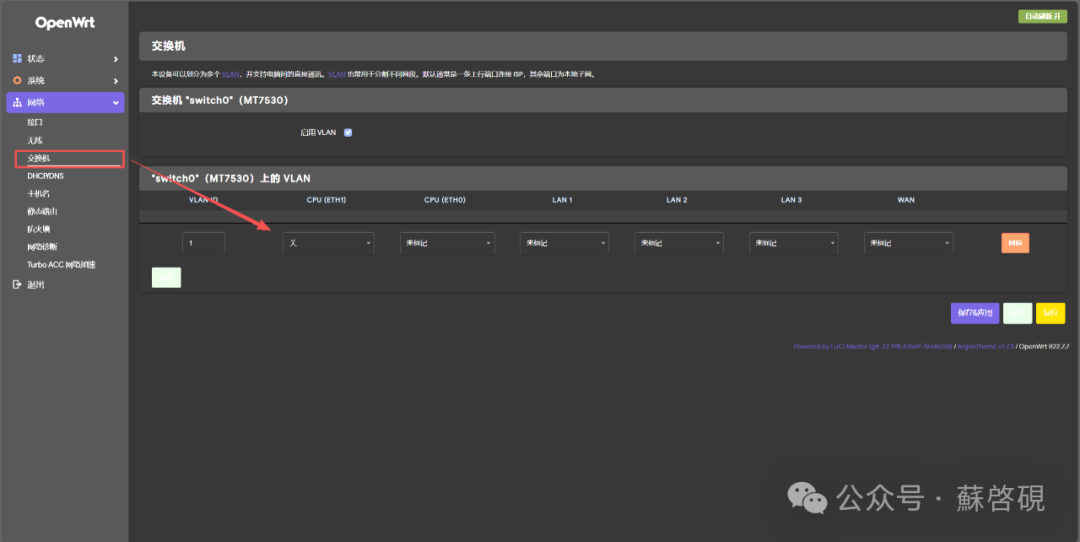
Remove VLAN ID 2 from the switch, and set the WAN port in VLAN ID 1 to untagged;
3
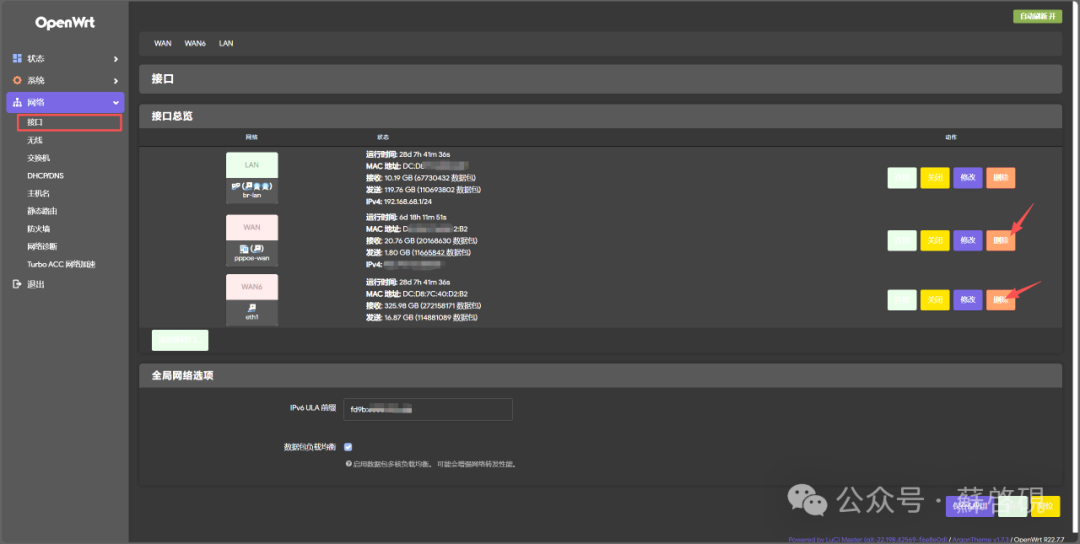
Remove the WAN port (including WAN6) from the interfaces;
4
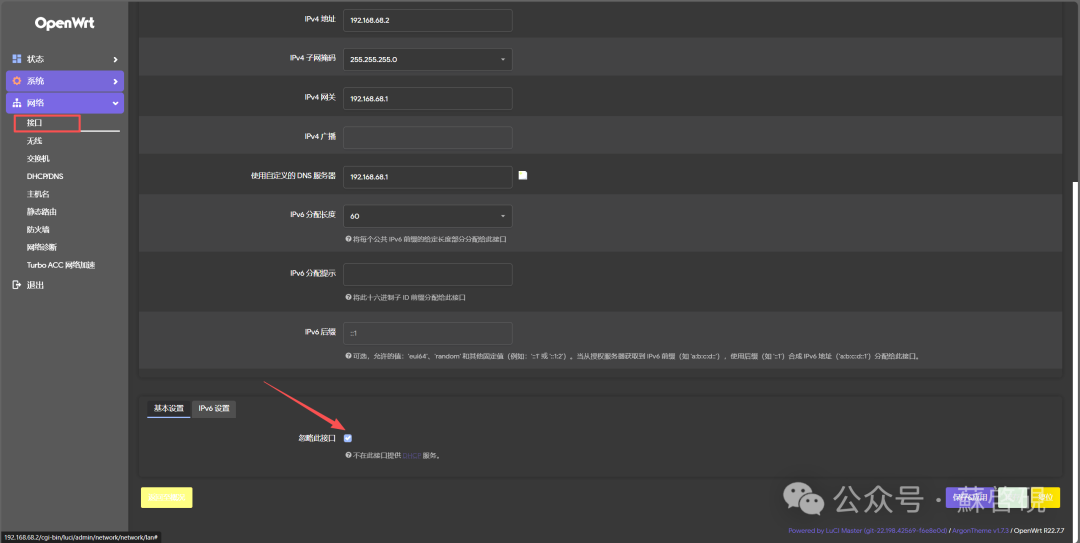
Go to Interfaces – LAN – Modify – Basic Settings, check ‘Ignore this interface’, and disable the DHCP service to let the main router (upstream router) take over.
5
Save and apply, then restart the router.
Method Two
If your firmware does not have a switch setting, you can achieve this through the following method, but the downside is that it will waste one WAN port.
1
Change the protocol type of the WAN port in Network – Interfaces to ‘Unconfigured’;
2
Set the LAN port’s IP in Network – Interfaces to an IP address within the main router’s (upstream router) subnet, and fill in the gateway and DNS with the main router’s (upstream router) IP;
3
Go to Interfaces – LAN – Modify – Basic Settings, check ‘Ignore this interface’ to disable the DHCP service and let the main router (upstream router) take over.
4
Unplug the network cable from the WAN port and plug it into the LAN port.
5
Save and apply, then restart the router.