First, download the OpenWRT x86_64 firmware
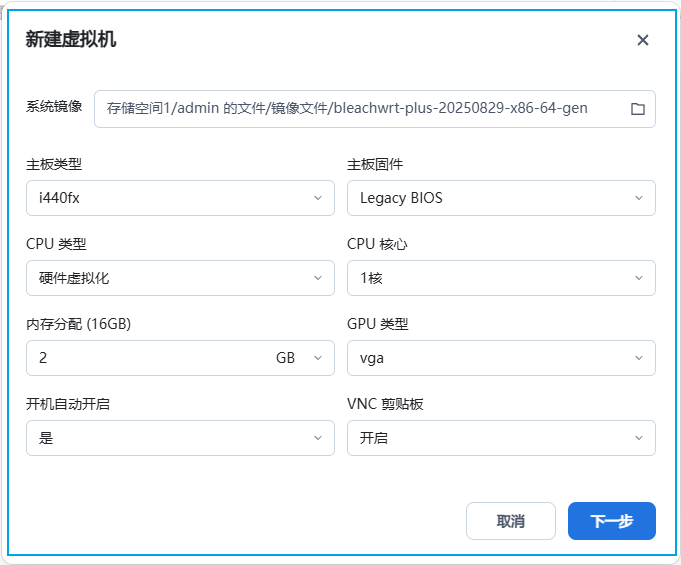
https://openwrt.mpdn.fun/?dir=lede/x86_64/2025-08-29__03-05-34--plus-daily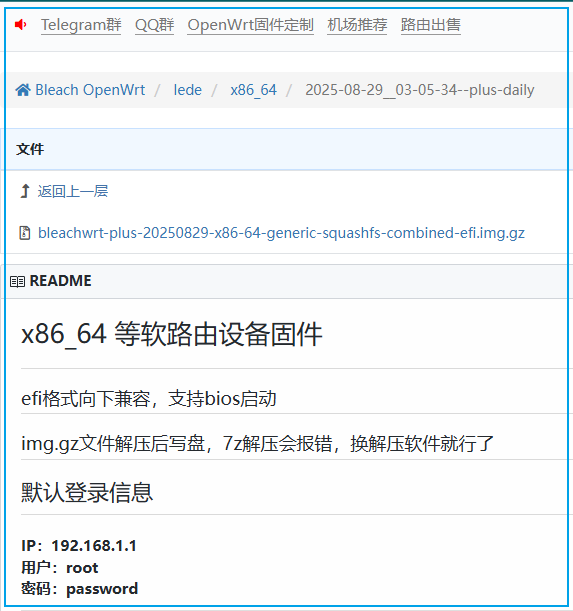 Create a virtual machine on Feiniu
 Select the downloaded OpenWRT firmware
 Add a hard disk
 Enable OVS on the network port in advance
 Add a network card
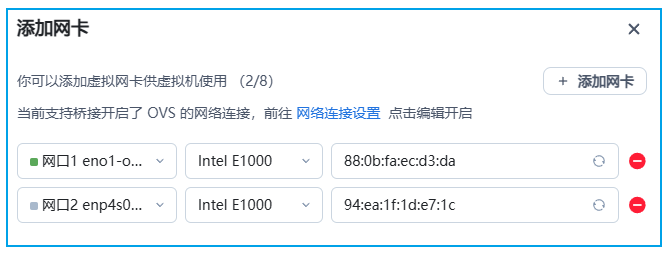 Here, add two network cards, one for the WAN port and one for the LAN port. The physical machine needs to have multiple network ports. I am using a server as a NAS host, which has two network ports.
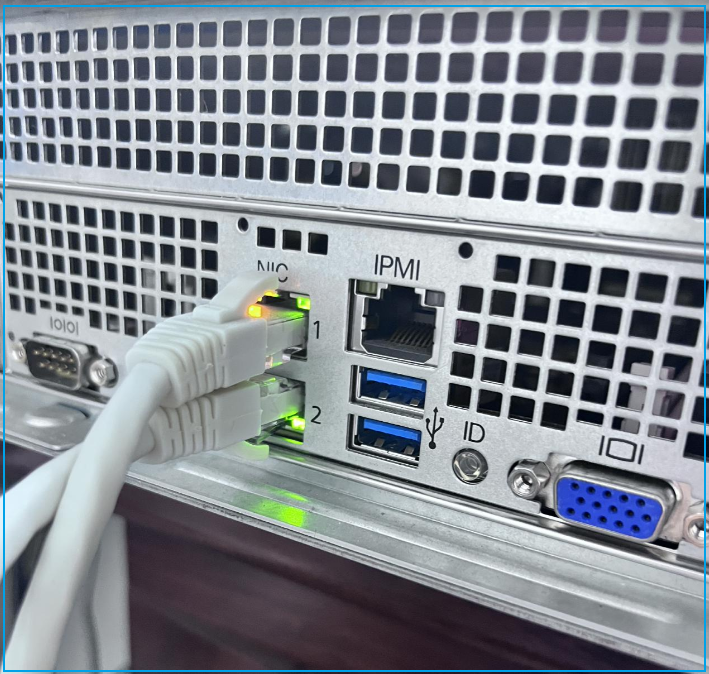 Start the virtual machine and enter the virtual machine’s backend. Ensure that the LAN and WAN ports are correctly matched; if they are incorrect, make adjustments.
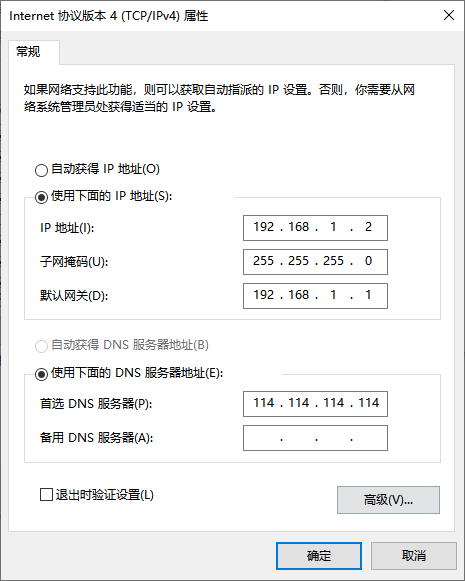
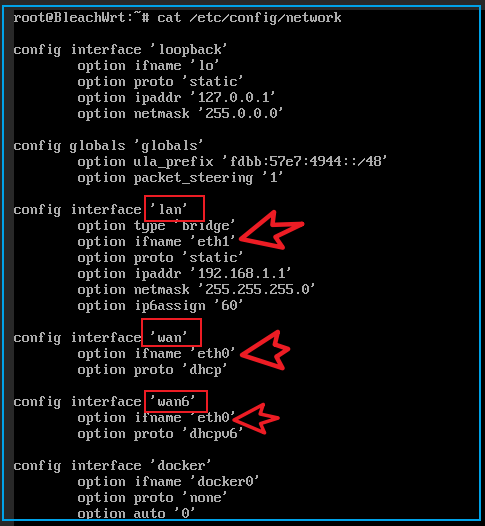 The default gateway address for the LAN port is 192.168.1.1. Connect the network cable and configure a static IP on the laptop to access the OpenWRT system.
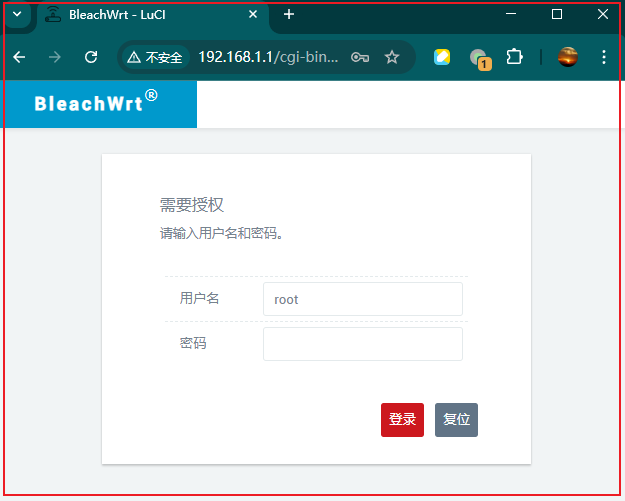
 Access http://192.168.1.1 to enter the OpenWRT backend. The default username and password are available in the firmware information.
 I tested PassWall, and the subscription function works normally.
 Next, I will test whether internet access through the LAN port is normal:
 This firmware has some issues with the DHCP function; after connecting to the LAN port, DHCP does not work properly, and the Feiniu system connection also becomes unstable, occasionally disconnecting. I will try a different firmware later.The end.Food Video