Abstract
This article focuses on practical operations with Docker, introducing the usage of the docker ps container command, covering the acquisition, operation, and homepage modification of the Nginx image, explaining the features, installation, uninstallation, and operation of the BusyBox tool, and also involving the pulling and pushing of images to Hub and the creation and operation of Tencent Cloud repositories, including rich practical cases.
1. Container Command of Docker Image Repository<span>Docker</span> Command: <span>Docker ps</span>
==Usage:==
- Function: Lists containers (both running and previously run).
- Syntax:
<span>docker ps [OPTIONS]</span> - Alias:
<span>docker container ls</span><span>docker container list</span><span>docker container ps</span>
- Key Parameters:
<span>-a</span>: Show all containers, including those not running.<span>-f</span>: Filter output based on conditions.
| Filter Field | Description | Example |
|---|---|---|
<span>name</span> |
Filter by container name | <span>-f name=mycentos</span> |
<span>id</span> |
Filter by container ID | <span>-f id=abc123...</span> |
<span>status</span> |
Filter by status (e.g., <span>running</span>, <span>exited</span>) |
<span>-f status=running</span> |
<span>ancestor</span> |
Filter by image name/ID | <span>-f ancestor=mycentos:latest</span> |
<span>label</span> |
Filter by label | <span>-f label=env=prod</span> |
<span>--format</span>: Specify the template file for the return value (e.g., json or table).<span>-l</span>: Show the latest container.<span>-n</span>: List the last n created containers.<span>--no-trunc</span>: Do not truncate output.<span>-q</span>: Silent mode, only show container IDs.<span>-s</span>: Show total file size.
Operation Demonstration
<span>-a:</span>
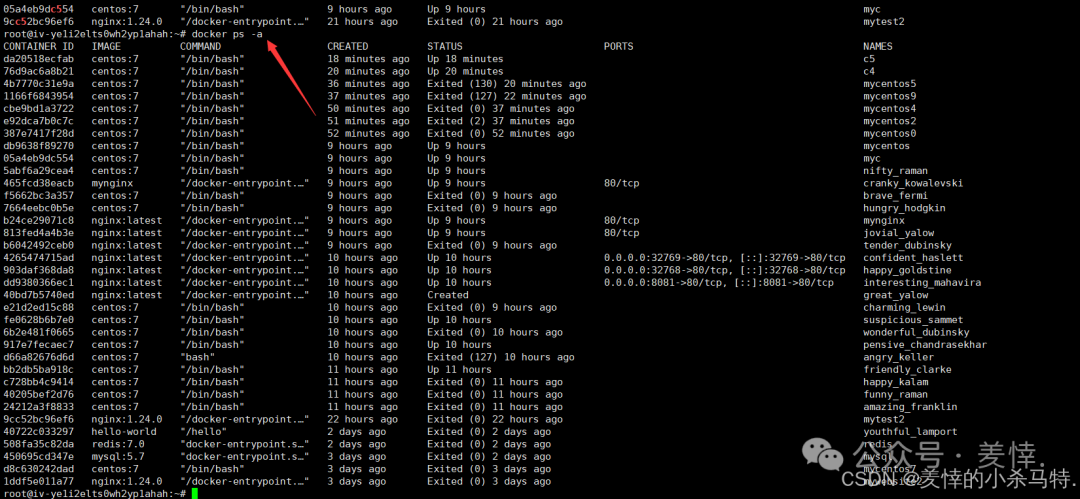
<span>-f:</span>

<span>-format (default is table format):</span>
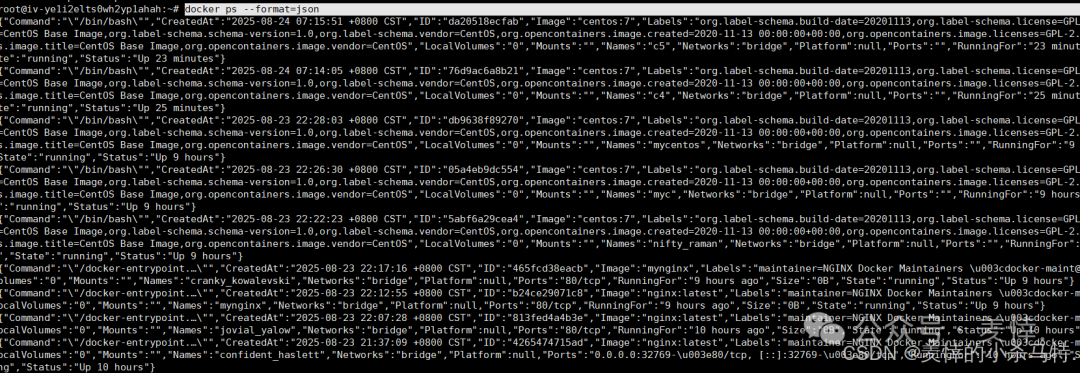
<span>-l -n</span>


<span>--no-trunc -q -s:</span>
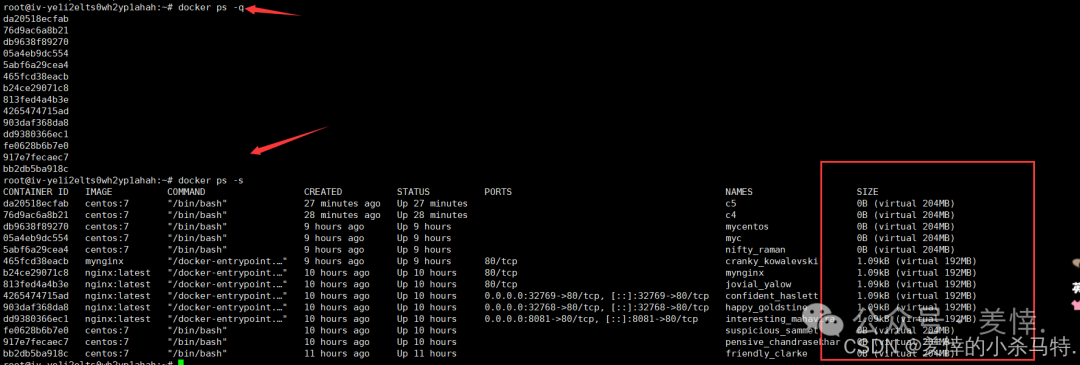
- Only show shortened ID or display file size.
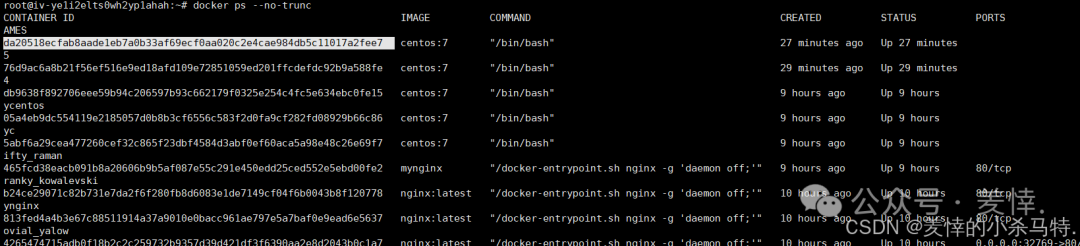
- ID has become longer.
2. Acquiring Nginx Image and Modifying Homepage
First, pull the image and run it in the background:

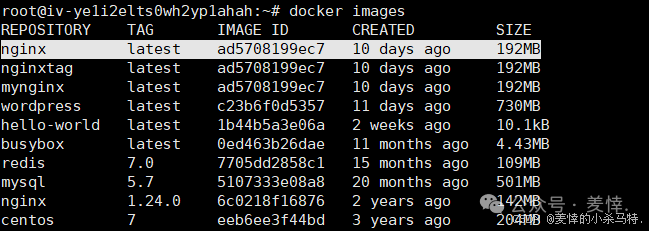
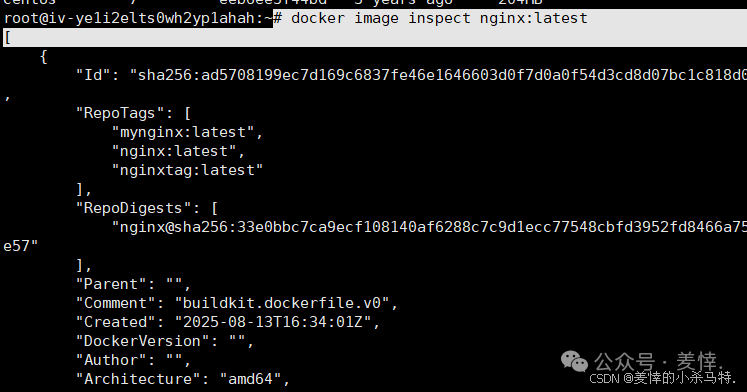
- Successfully pulled, check the details of the corresponding image, and you can see that the default container runs on port 80.
Run in the foreground:
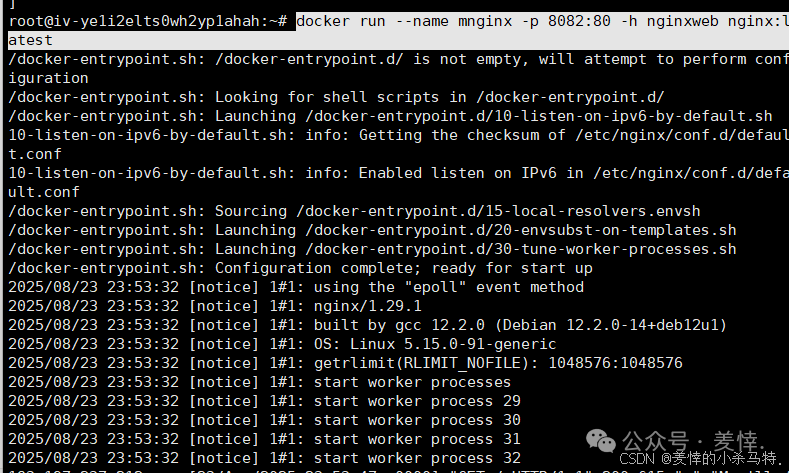
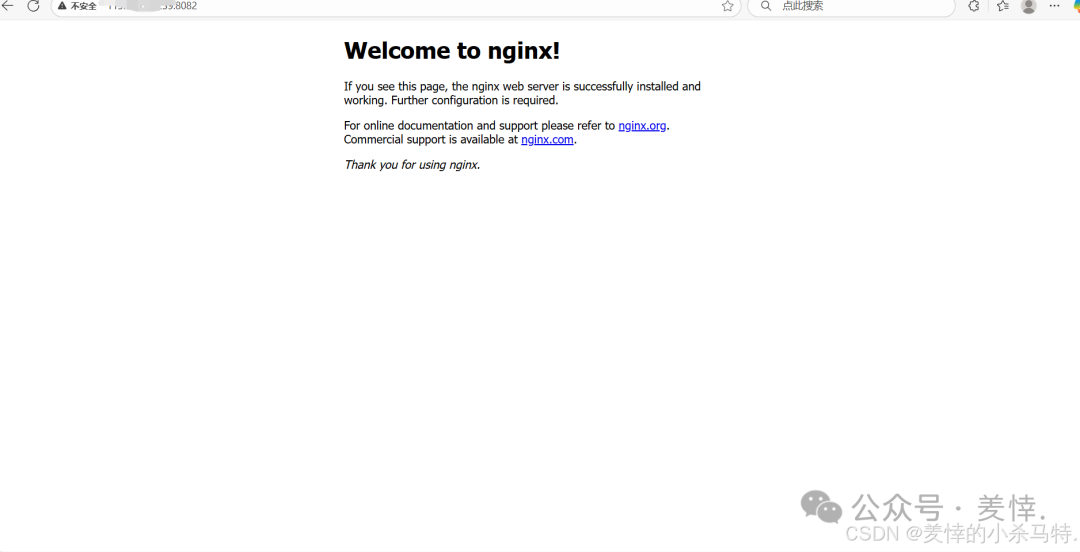
- Successfully accessed, but the foreground is occupied.
Next, use ctrl+c to terminate the foreground program:
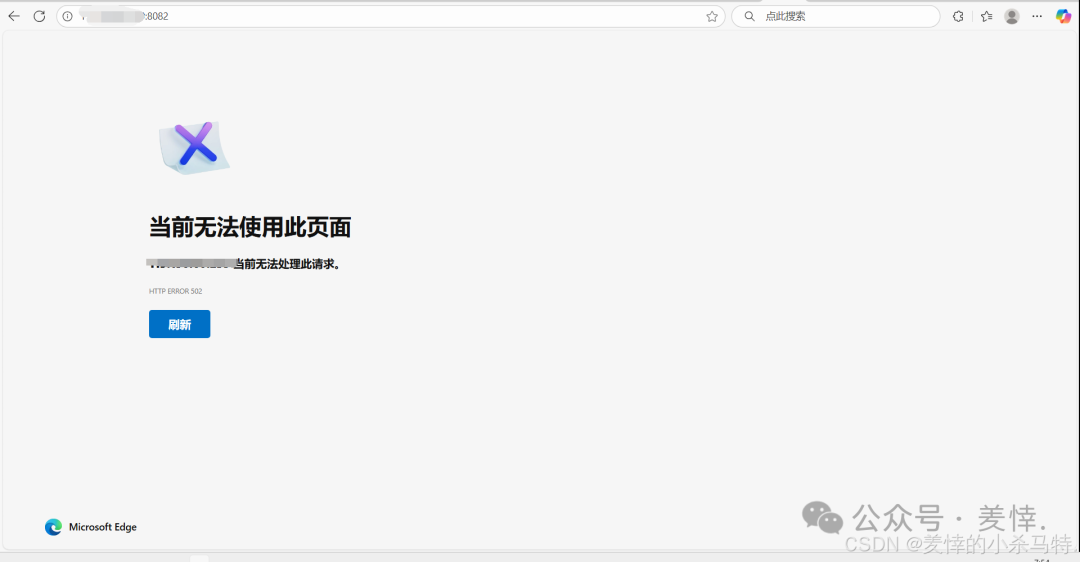
- Found that the corresponding nginx container also stopped, making it inaccessible.
Run in the background

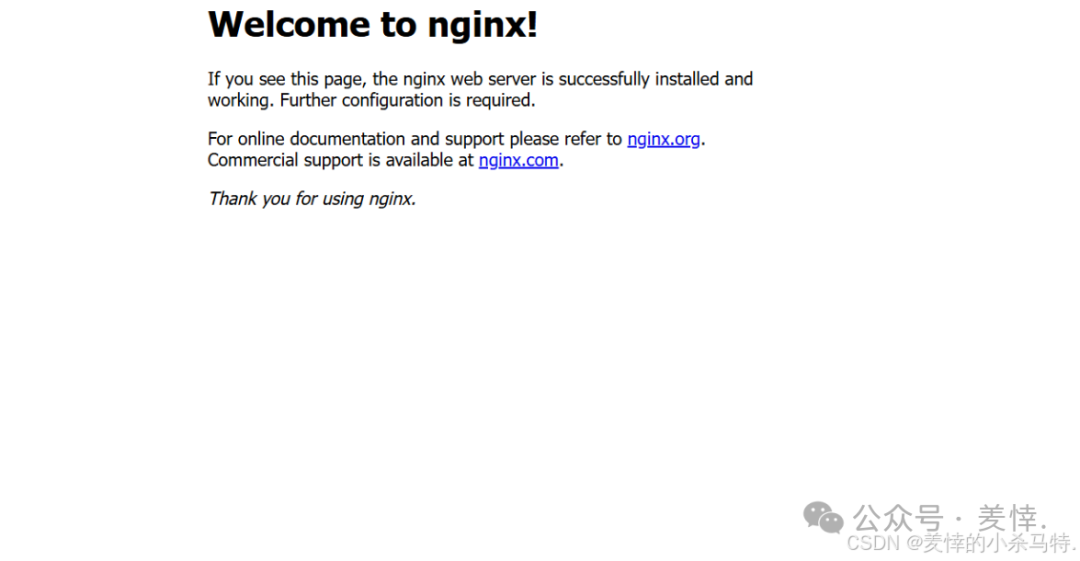
- No matter what, ctrl+c can still access.

- Port has also been successfully mapped.
Run bash terminal

- The bash inside the container can also use some functions, but nginx needs to be manually run.
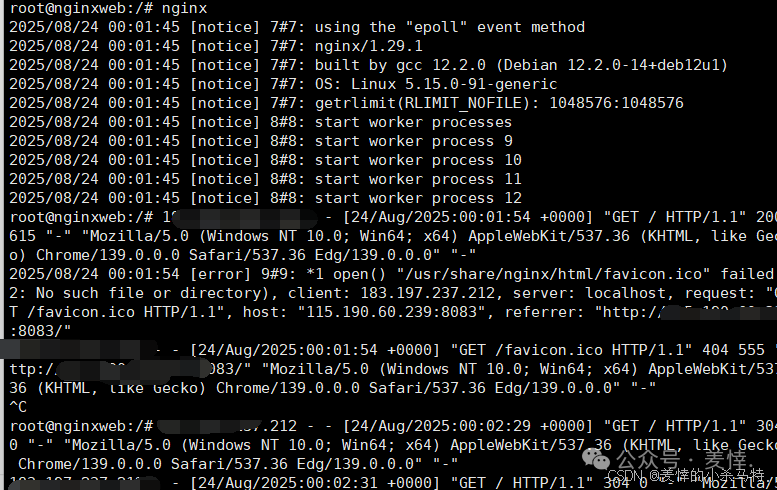
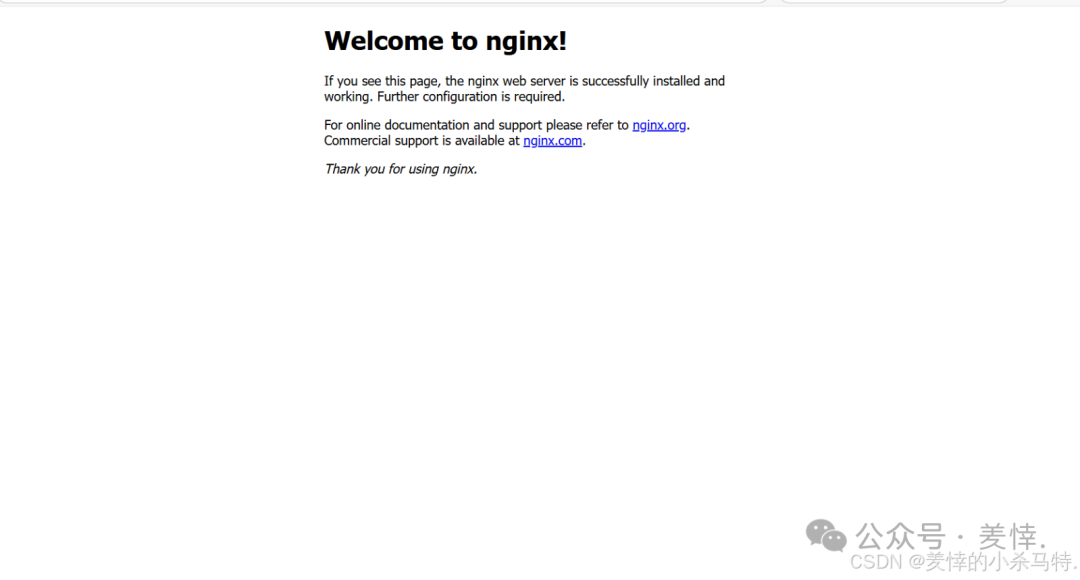
- It is found that no matter what, the webpage can still be accessed.
Next, modify the homepage (find the corresponding HTML and complete the modification):
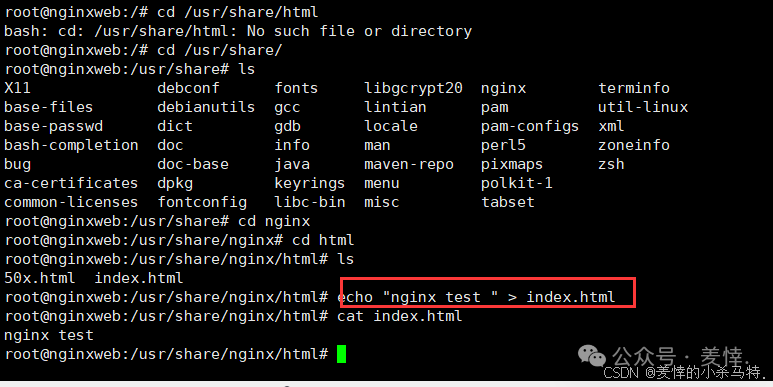
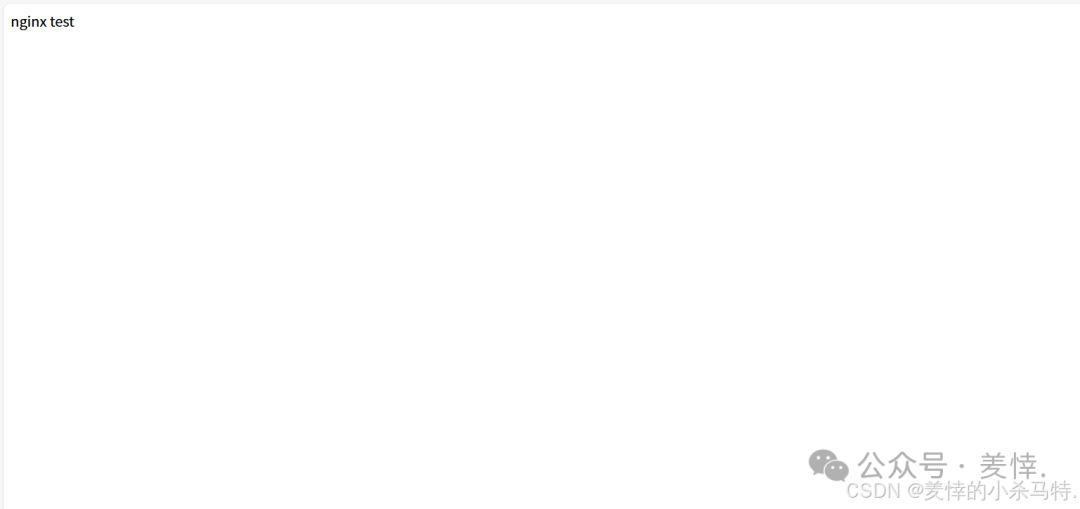
- Meets expectations.
==In summary:==
The Docker image opened here is equivalent to a main function, and nginx can be understood as a website when it runs. It can be chosen to run in the foreground or background. If it runs in bash, it enters the container and opens a terminal for basic command interaction, but nginx needs to be manually input to run. If started, it also runs in the background by default, meaning commands can still be input from this terminal.
3. Installing BusyBox and Completing Image Pulling and Pushing in Hub
Basic Knowledge of BusyBox
- Definition and Function:
- BusyBox is a software that integrates over 300 of the most commonly used Linux commands and tools.
- It includes simple tools (like ls, cat, echo, etc.) and complex tools (like grep, find, mount, telnet, etc.), and also integrates the Linux system’s built-in shell, HTTP server, and telnet server.
- Due to its rich functionality and small size (about 1MB), it is known as the Swiss Army knife of Linux tools.
- Overseas Bandwidth: Overseas bandwidth is limited, making it suitable for pulling this image and pushing it to one’s own repository.
<span>In summary: it is a toolkit that integrates many Linux commands.</span>
Uninstalling BusyBox
- Uninstalling on Ubuntu: Use the command
<span>apt --purge autoremove busybox</span>. - Uninstalling on CentOS: Clean the corresponding directory (the document does not provide specific commands, manual cleaning of related directories is required).
Installing BusyBox
- Installing on Ubuntu: Use the command
<span>apt install -y busybox</span>. - Installing on CentOS:
- Step 1: Download via
<span>wget https://busybox.net/downloads/binaries/1.28.1-defconfig-multiarch/busybox-x86_64 --no-check-certificate</span>. - Step 2: Execute
<span>mv busybox-x86_64 busybox</span>to rename. - Step 3: Execute
<span>chmod +x busybox</span>to grant permissions. - Step 4: Execute
<span>./busybox</span>to run.
Demonstration of Running (CentOS + Ubuntu)
CentOS
Since it will crawl to the current directory, first create a directory and then crawl:
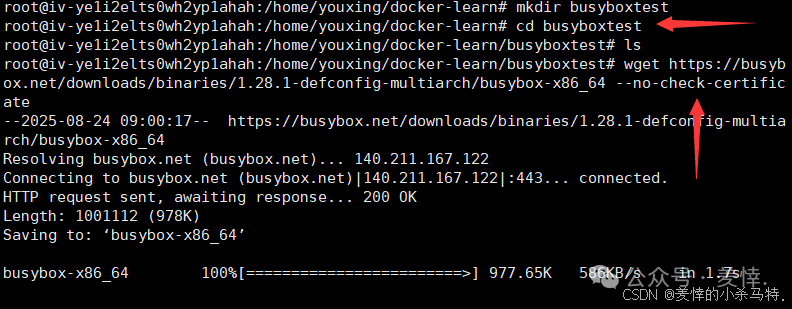
Grant it the corresponding execution permissions:  Next, let’s look at the supported commands:
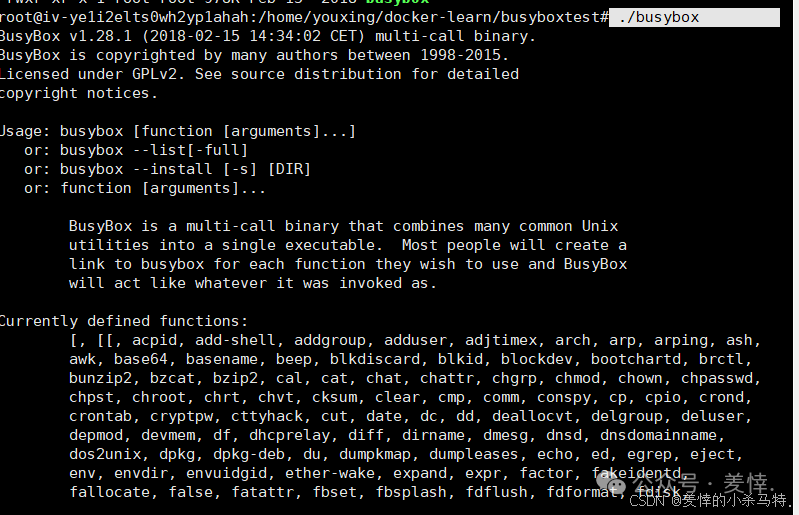
Run a test effect:
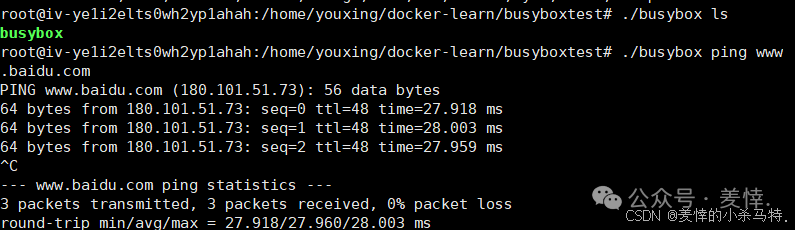
Ubuntu
First delete and then install:
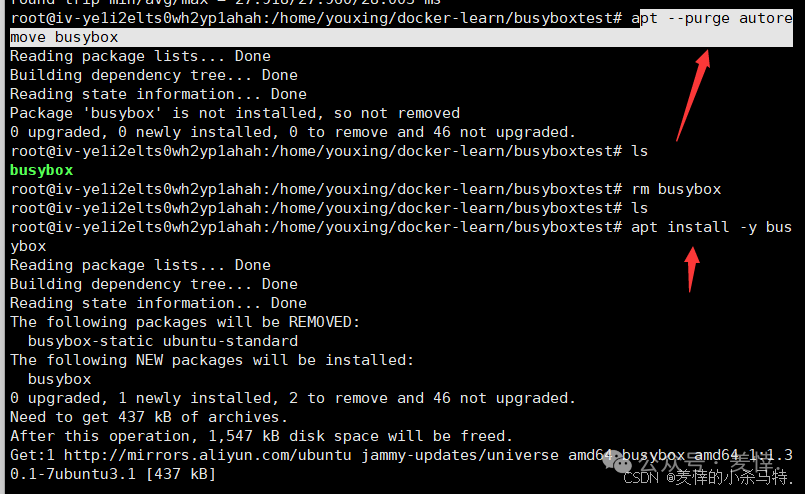 Perform the corresponding test: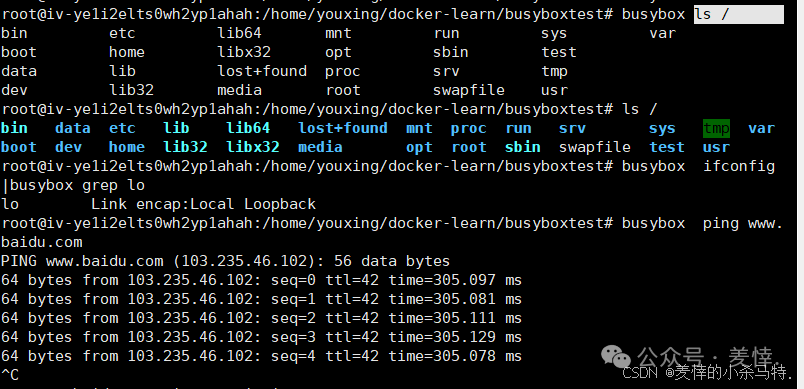
- It is found that there are still differences compared to CentOS.
Image Testing
First perform a pull:
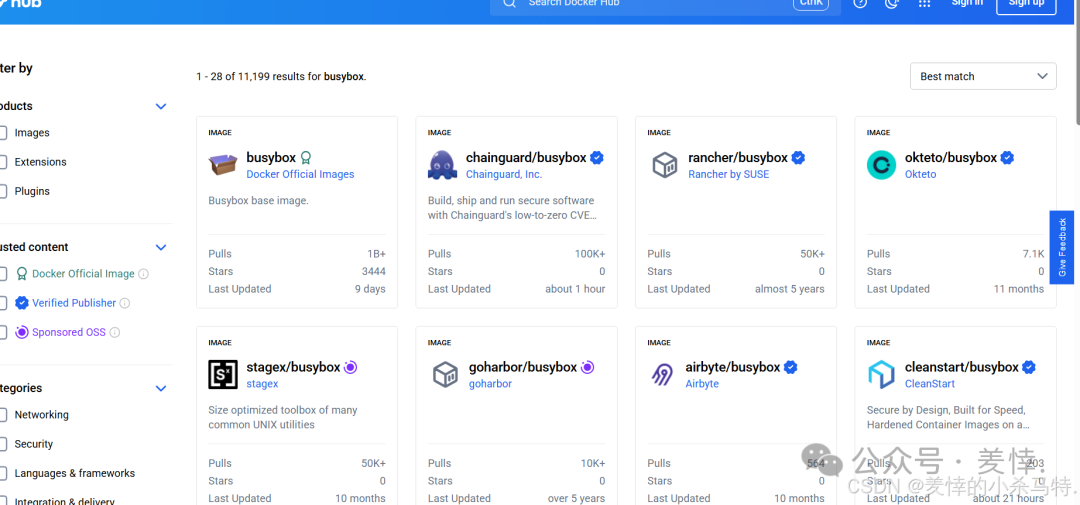
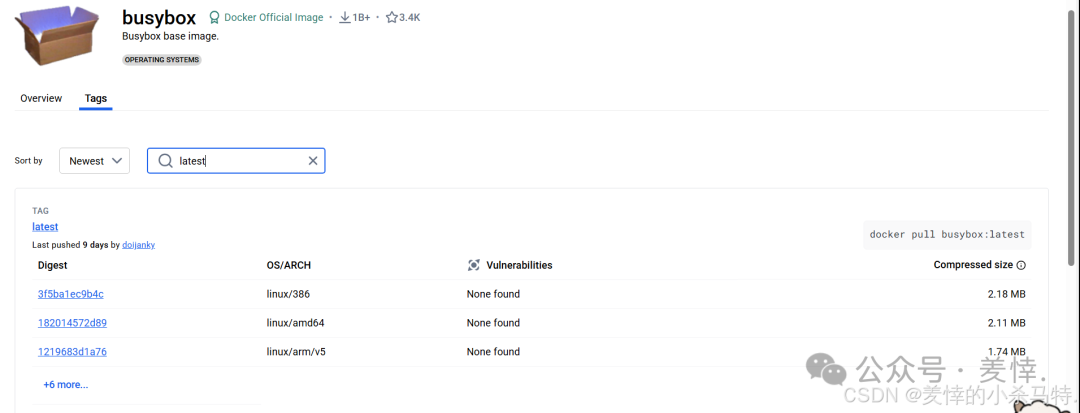

- It was mentioned that it has been pulled before.
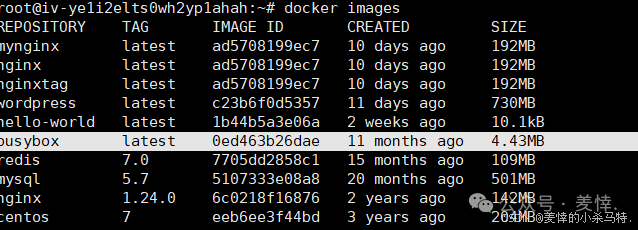 Next, create a repository, give it an alias, and complete the push:
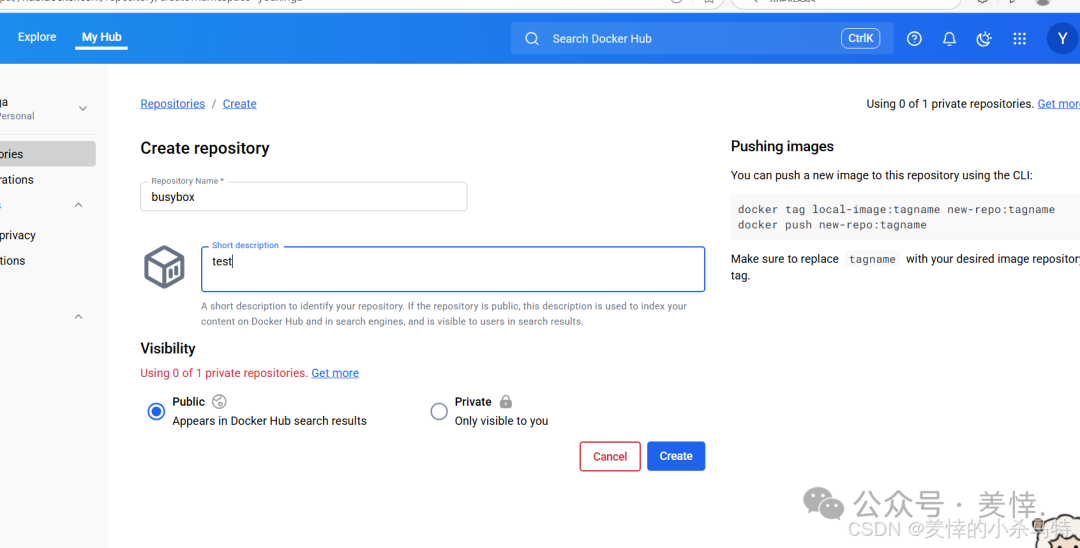
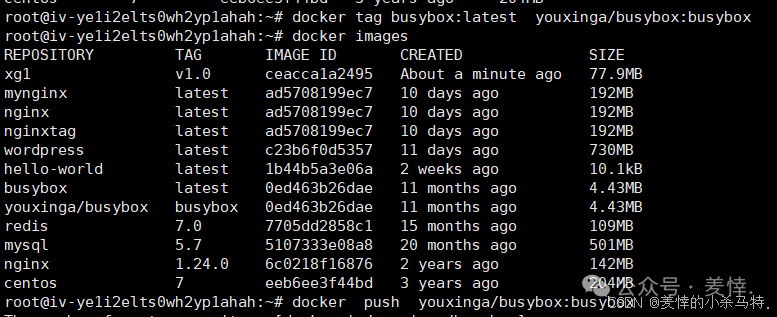
- Finally, after pushing, you can see the content (you can also push multiple with different tags directly using
<span>docker push repository_location -a</span>).
4. Creating an Image Repository on Tencent Cloud and Completing Repository Operations
First, log in to the official website: Tencent Cloud Official Website
Search for image services to enter: 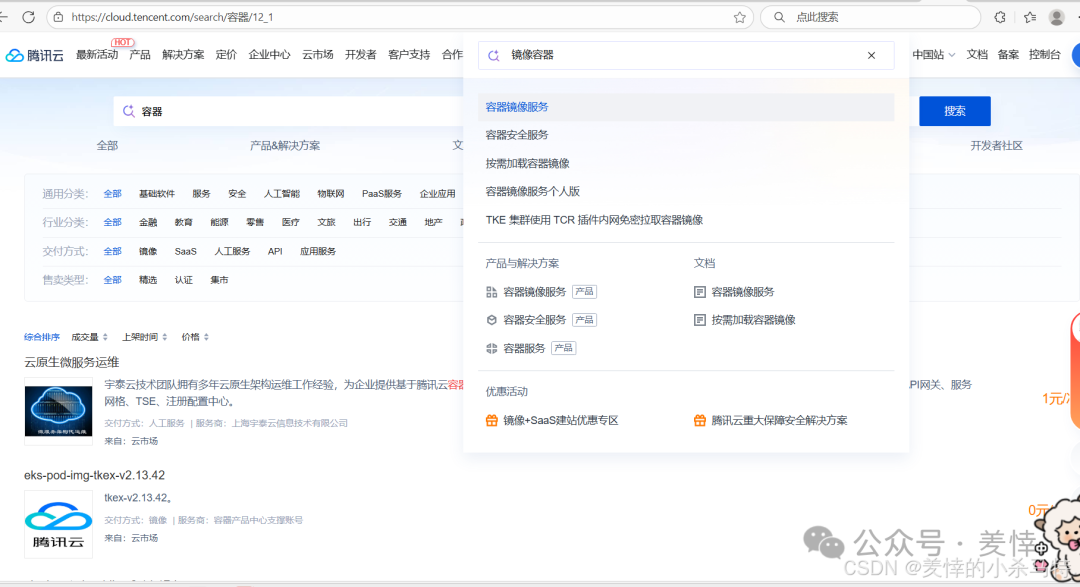
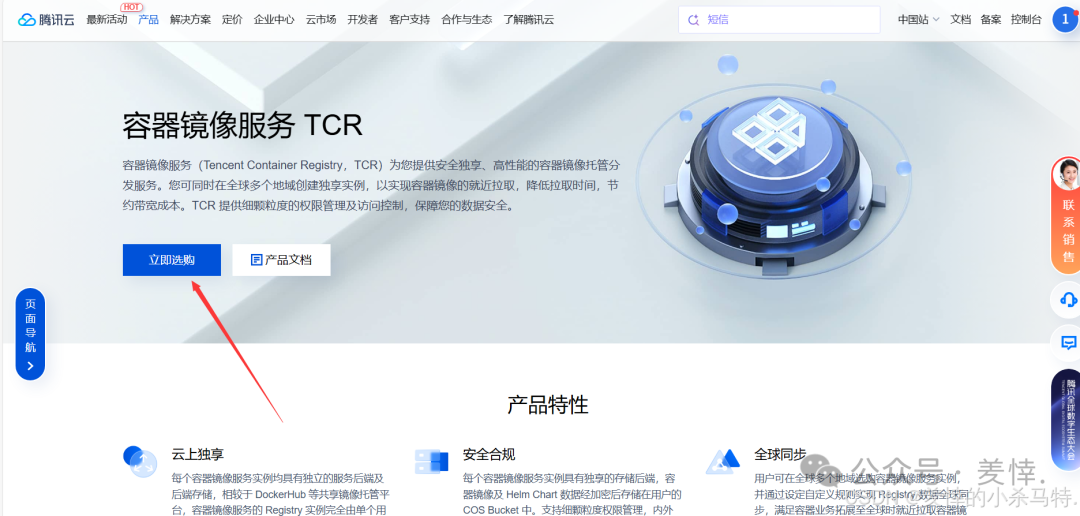
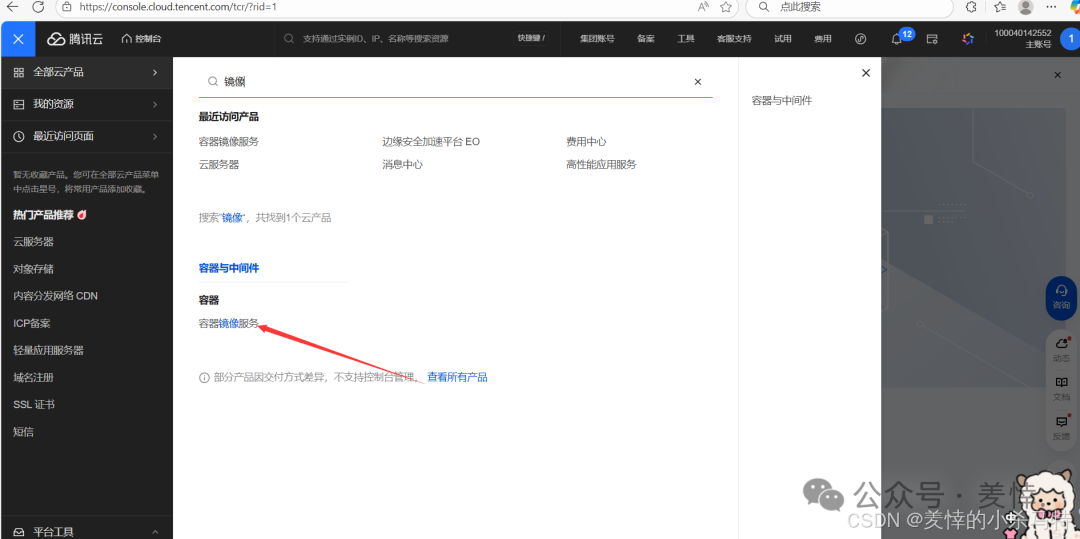
First, create a namespace:
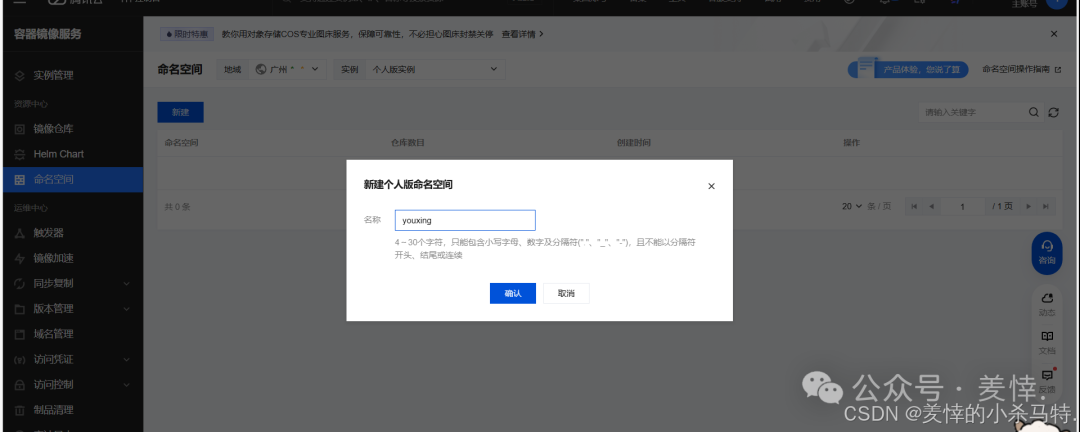
Set it to private for easier testing later:
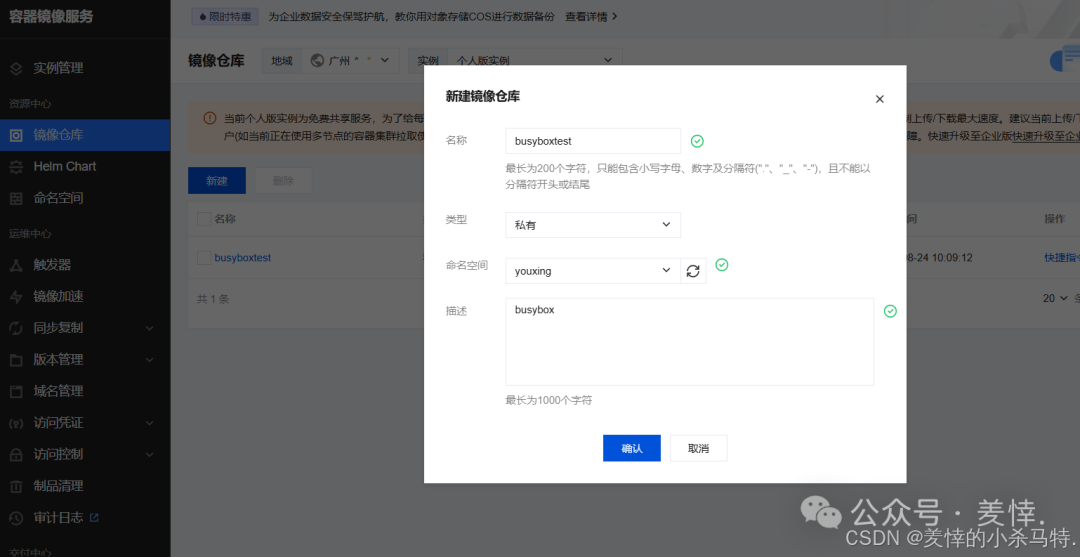
You can see that corresponding shortcut commands are provided, and then proceed with the operation:
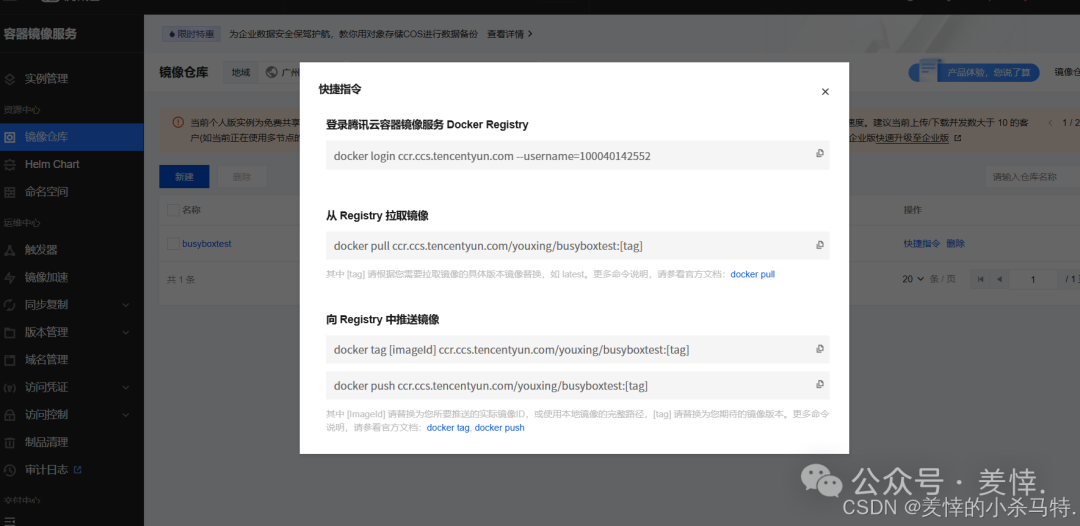
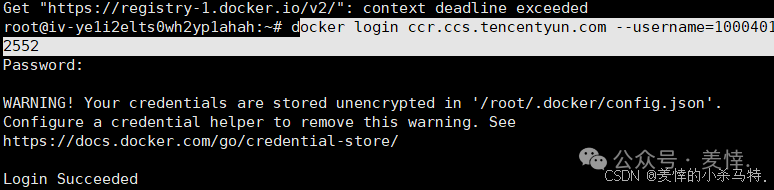
First, log in with the corresponding Linux account:
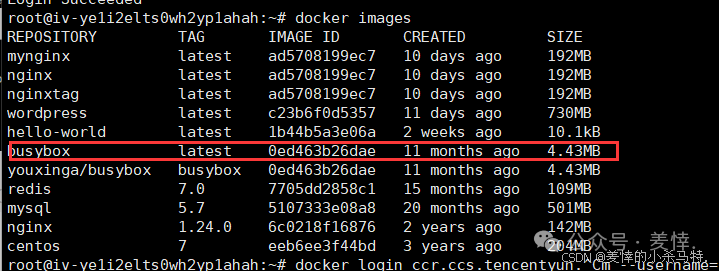
 Find the corresponding image to complete the push:
Proceed to tag:

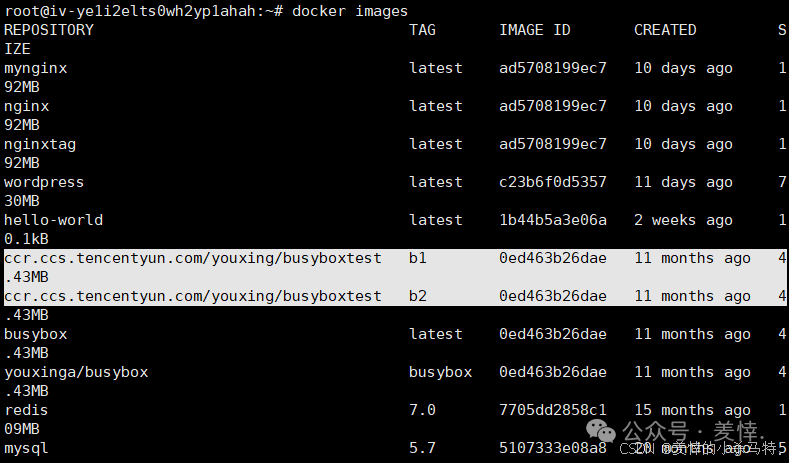
- Tagging here is to facilitate identification of the location when pushing in Linux.
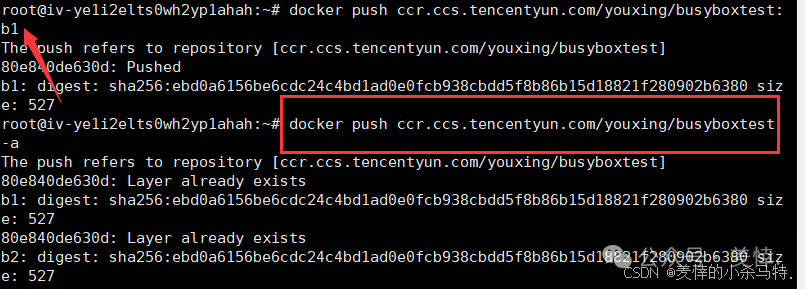
- Successfully completed the push.
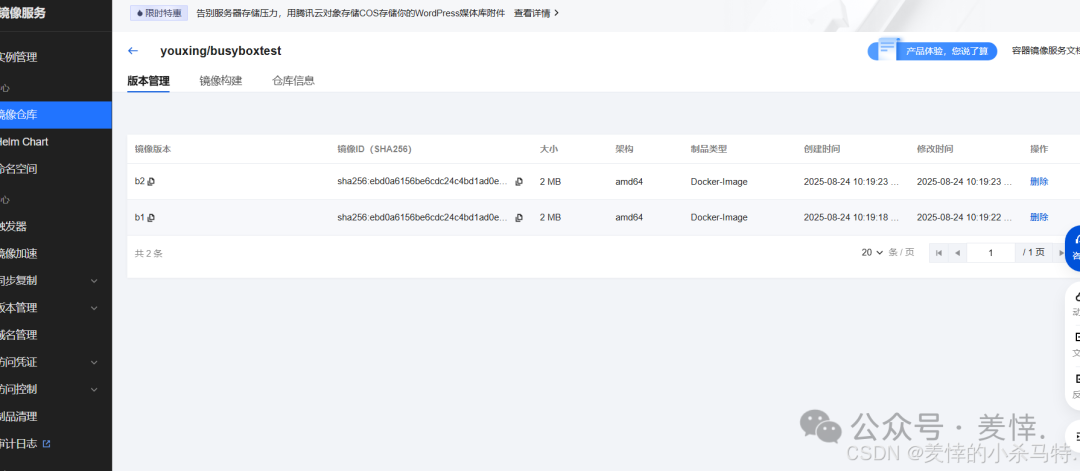
Check the corresponding repository:
Next, pull it down:

- Normal pull.
Next, log out and test the pull:
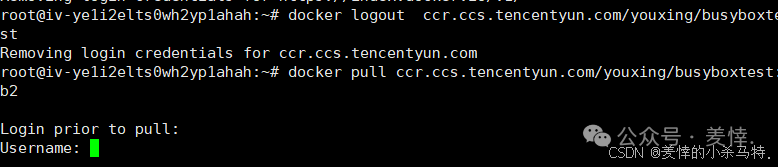
- It is found that re-login is required because it is set as a private repository.
5. Practical Application Summary Based on Images
- Generally, large companies have dedicated image production organizations that select corresponding system versions as base images, such as Huawei selecting Euler and Tencent selecting TLinux.
- Images produced by large companies undergo strict security scanning and serve as basic components for various departments, avoiding issues of unusable original systems due to lack of maintenance.
- Generally, companies also recognize the base version of images, and individuals do not need to be too entangled when choosing base images.
6. Conclusion
This article covers practical operations with Docker container commands, Nginx applications, BusyBox tools, and cloud repository operations, mastering Docker image management, container operation, and private repository usage, familiarizing with the entire process from basic operations to cloud deployment.