Installing Multiple Versions of ESP32 IDF in VSCode

1. Install the Offline Version of IDF

For details, see the article:Setting Up the ESP32_IDF Development Environment on Windows 11

2. Install Espressif Plugin in VSCode on Windows
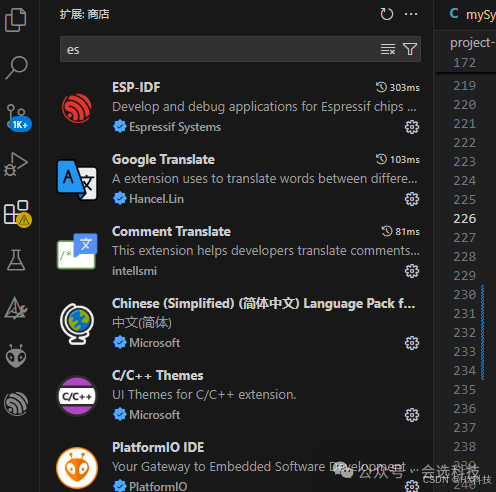
Installing Multiple Versions of ESP32 IDF in VSCode

3. Import the Already Installed IDF (Binding the VSCode Plugin with the Locally Installed IDF)

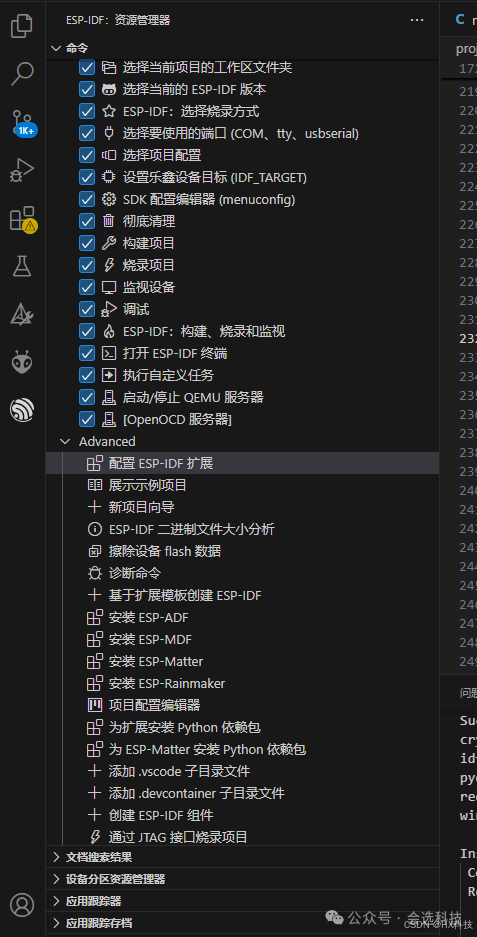
1. Select “Configure ESP-IDF Extension”Installing Multiple Versions of ESP32 IDF in VSCode

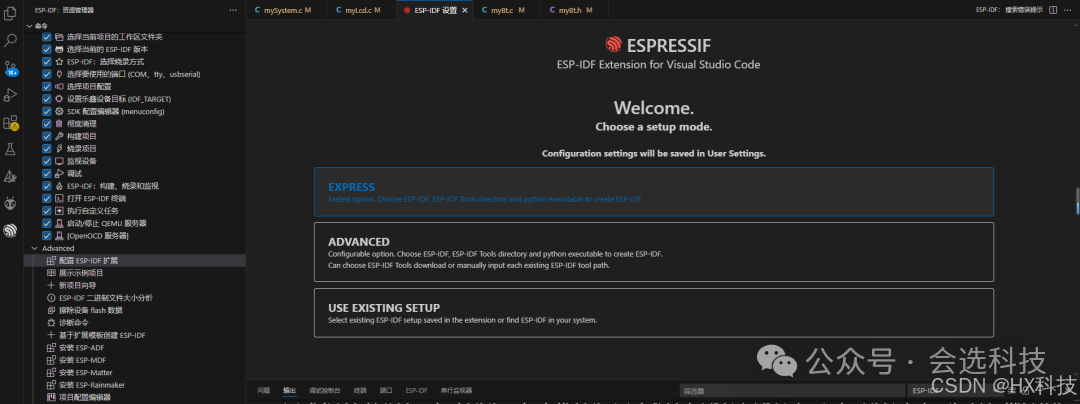
2. Choose the first option “EXPRESS”Installing Multiple Versions of ESP32 IDF in VSCode

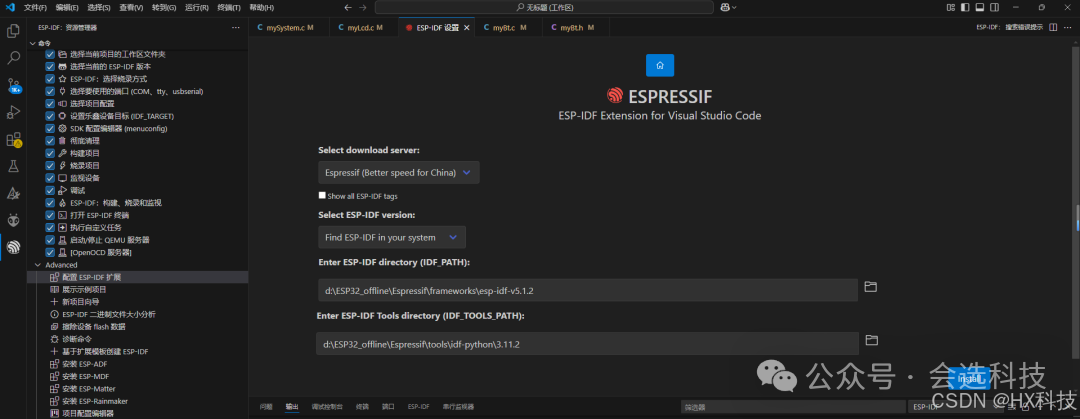
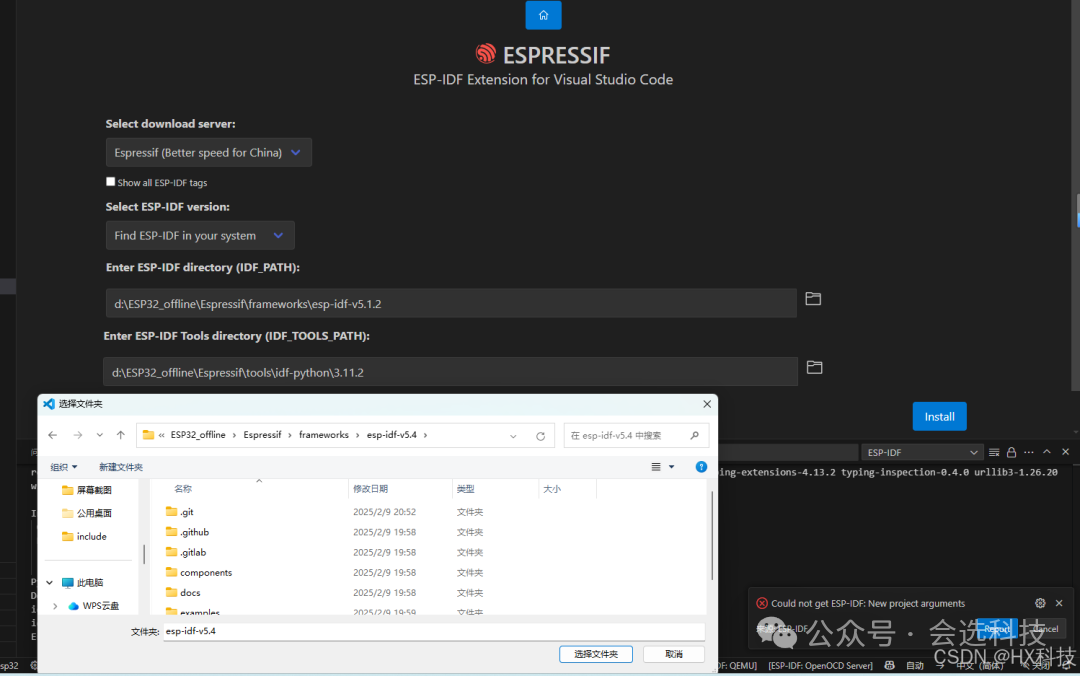
3. Pay attention to the two path selections at the bottom; the upper selection is for the IDF version to be installed, and the lower selection is for the Python environment path required by these IDF versionsInstalling Multiple Versions of ESP32 IDF in VSCode

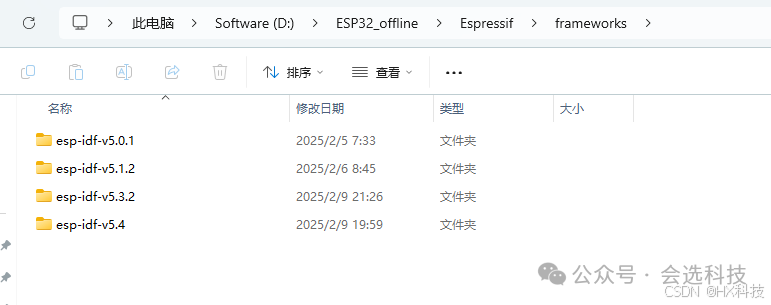
4. The local IDF version path I installedInstalling Multiple Versions of ESP32 IDF in VSCode

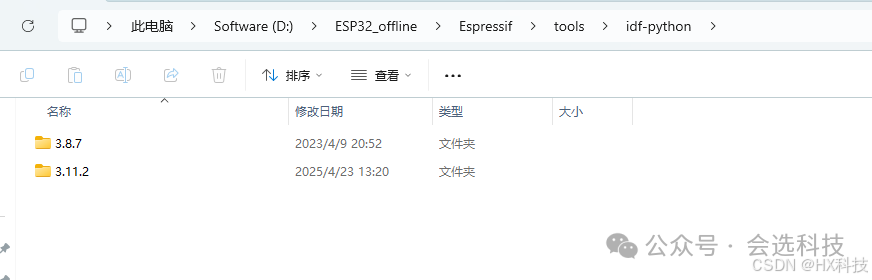
5. The Python environment path required by these IDF versionsInstalling Multiple Versions of ESP32 IDF in VSCode

4. Install Other Versions of IDF

1. The Python environment path does not need to be changed; just reselect the IDF version to be installedInstalling Multiple Versions of ESP32 IDF in VSCode

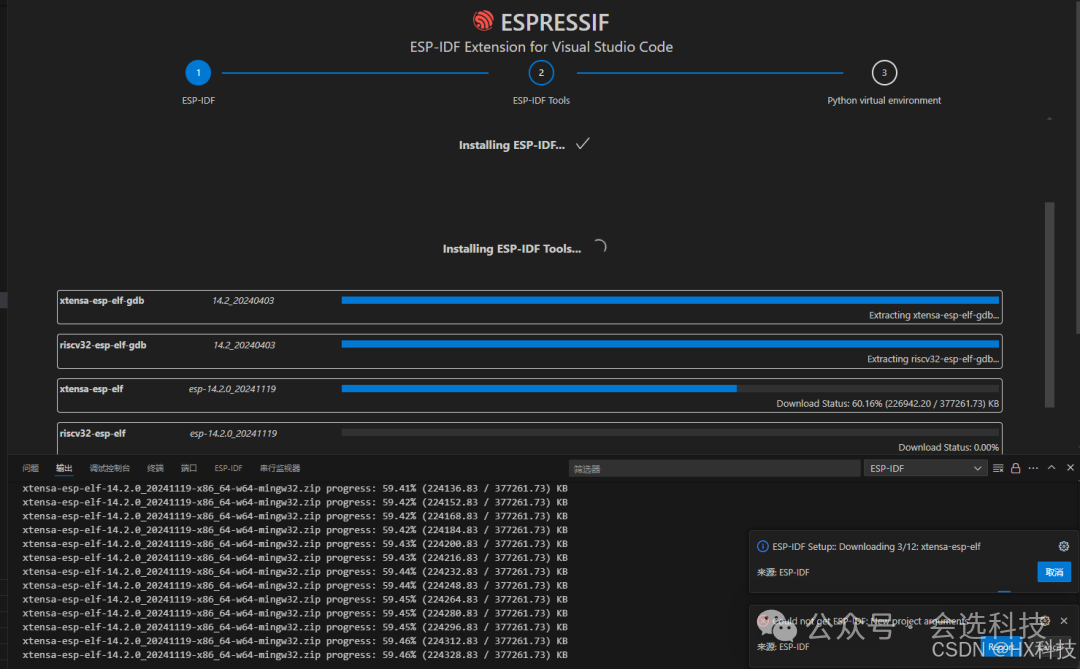
2. Click “install” to startInstalling Multiple Versions of ESP32 IDF in VSCode

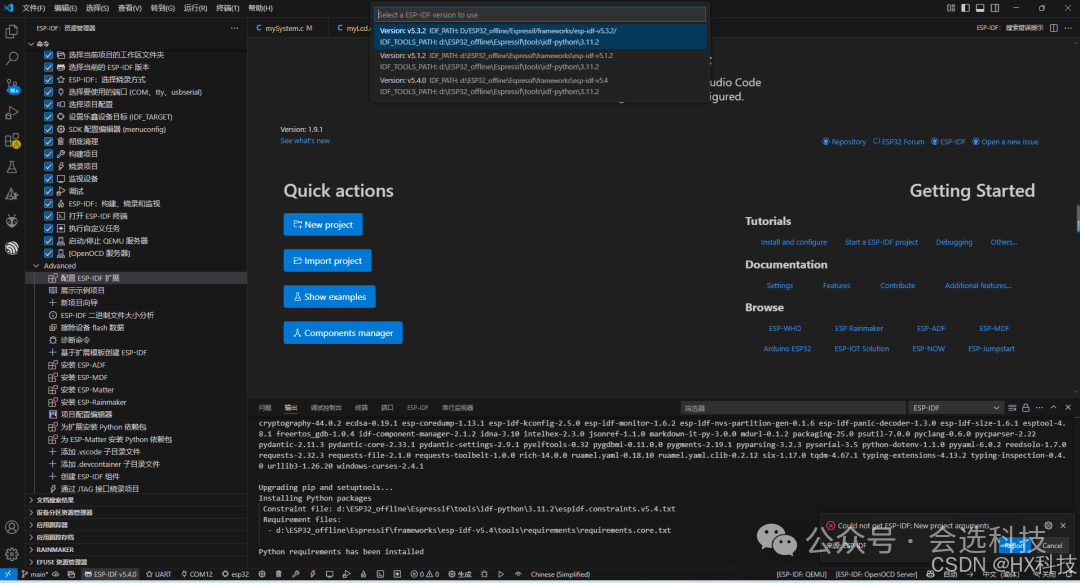
3. Installation complete (I can see that I have installed 3 versions)Installing Multiple Versions of ESP32 IDF in VSCode

Leave a Comment