Click to follow our public account for practical technical articlesStay updated
Some friends have asked if we can talk about the usage of the ping command. We have mentioned some command uses before, but we haven’t elaborated on the ping command. Generally, we only use its basic functions. Today, let’s take a detailed look at the ping command’s usage.
1. Detailed Usage of Ping
In networking, ping is a very powerful TCP/IP tool. Its main purposes are:
1. To check network connectivity and analyze network speed.
2. To obtain the server IP based on the domain name.
3. To determine the operating system used by the other party and the number of routers the data packet passes through based on the TTL value returned by ping.
We usually use it to directly ping an IP address to test network connectivity.
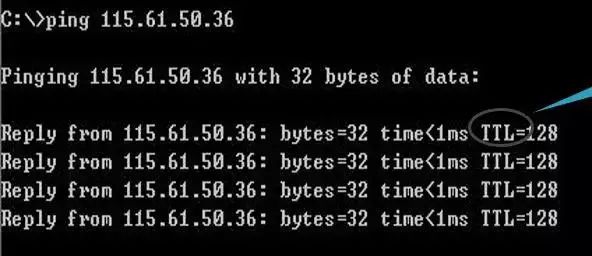
For example, directly ping an IP address or gateway. If ping is successful, it will display the above data. Some friends may ask what bytes=32; time<1ms; TTL=128 means.
Bytes value: The size of the data packet, measured in bytes.
Time value: Response time; the smaller this time is, the faster your connection to this address.
TTL value: Time To Live, which indicates how long the DNS record exists on the DNS server. It is a value in the IP protocol packet that tells routers when the data packet should be discarded. By analyzing the TTL value returned by ping, you can roughly determine whether the target system is a Windows or UNIX/Linux series.
By default, the TTL value for Linux systems is 64 or 255, for Windows NT/2000/XP systems it is 128, for Windows 98 it is 32, and for UNIX hosts, it is 255.
Thus, generally, the TTL value:
-
Between 100~130ms indicates a Windows system;
-
Between 240~255ms indicates a UNIX/Linux system.
However, today we are mainly interested not just in these but in other references for ping.
In addition to directly pinging the network IP address to verify network connectivity and speed, the ping command has these usages.
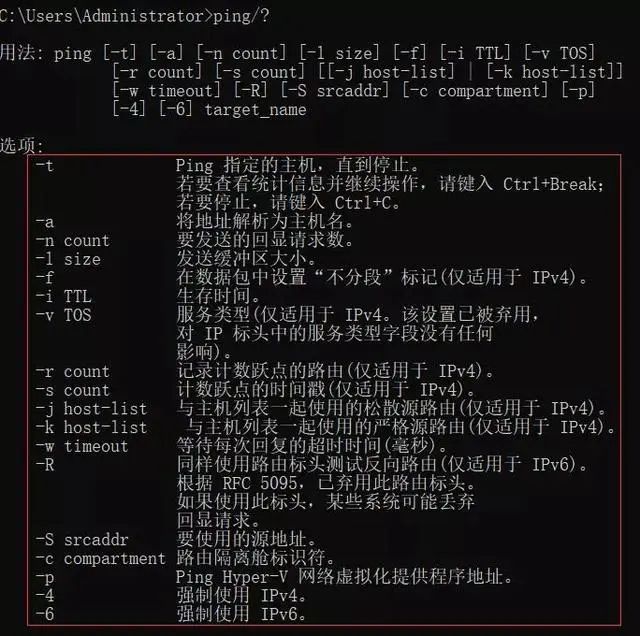
2. Usage of ping -t
Pings a specified computer continuously until interrupted by the administrator.
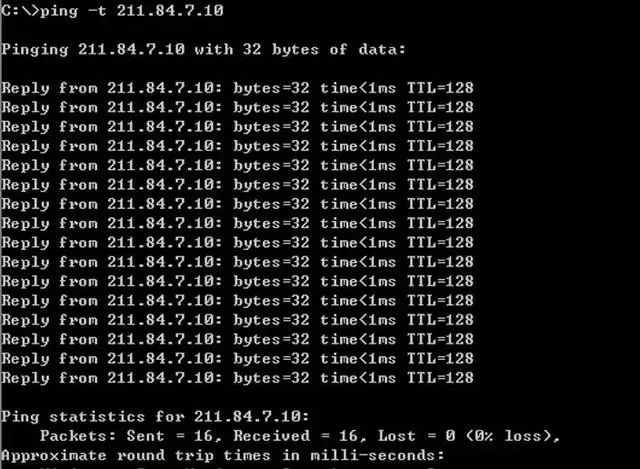
This indicates that the computer is connected to the router and the network is performing well. Pressing Ctrl+C will stop the continuous ping and summarize how many packets were sent and how many were successful.
3. Usage of ping -a
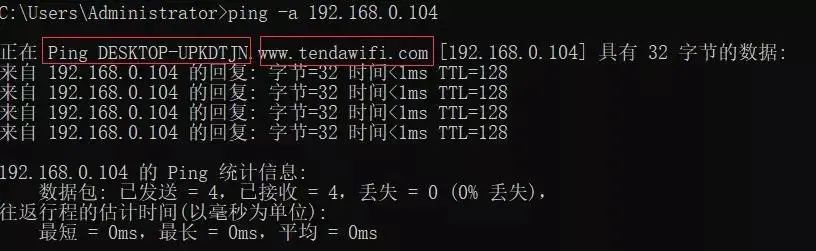
ping -a resolves computer names with NetBios names. You can ping its IP address to resolve the hostname.
4. Usage of ping -n
By default, it sends four data packets. With this command, you can define the number of packets sent, which is very helpful for measuring network speed. For example, if I want to test sending 10 packets and find out the average, fastest, and slowest response times, I can do so as follows:
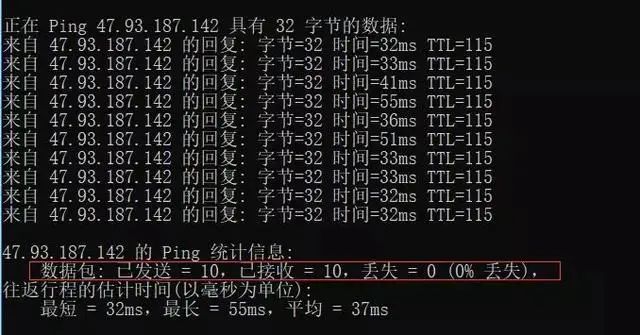
From the above, I can see that when sending 10 packets to 47.93.187.142, all 10 were returned with no loss. Among these 10 packets, the fastest response time was 32ms, the slowest was 55ms, and the average speed was 37ms. This indicates that my network is good.
In cases of poor networks, such as those with severe lag in monitoring systems, testing might show packet loss. If a significant number of packets are lost, it indicates a poor network, providing a clear judgment of the network situation.
5. Usage of ping -l size
-l size: Sends a data packet of specified size to the target host.
By default, the size of the data packet sent by Windows ping is 32 bytes, and it can send a maximum of 65500 bytes. If the size of a data packet sent at once exceeds or equals 65500 bytes, it may cause the receiving computer to crash. Therefore, Microsoft has limited this value; this parameter, in combination with others, can be very dangerous. For example, an attacker can use it with the -t parameter to perform a DOS attack (so it is dangerous and should not be used casually on others’ computers).
For example: ping -l 65500 -t 211.84.7.46
This will continuously ping the IP address until interrupted by the user with Ctrl+C.
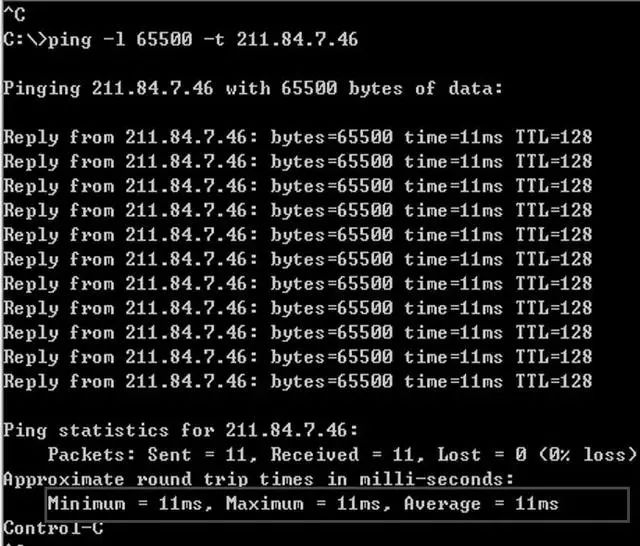
This will continuously send data packets of size 65500 bytes to 211.84.7.46. If you have only one computer, it may not have much effect, but if there are many computers, it can completely paralyze the other party, causing severe network congestion, demonstrating its significant power.
6. Usage of ping -r count
Records the route of outgoing and returning data packets in the “Record Route” field, tracing the number of routes passed, but can only track up to 9 routes.
ping -n 1 -r 9 202.102.224.25 (sends one data packet and records up to 9 routes)
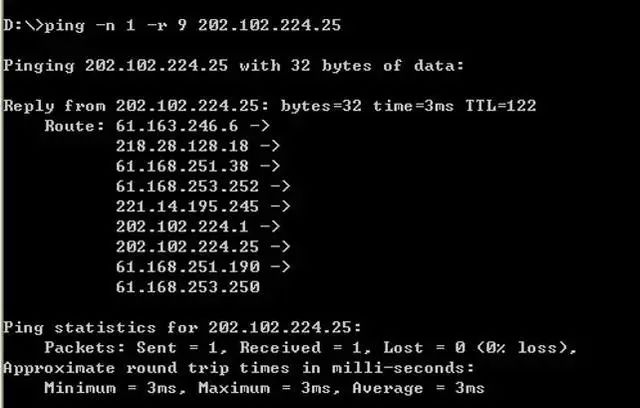
It will display all 9 routes passed, as shown in the image above.
The commonly used ping commands are these 6 types, which you may use in your projects.
7. Batch Ping a Subnet
For a subnet with numerous IP addresses, if checking each one individually is cumbersome, we can directly batch ping the subnet to quickly identify which IP address has issues.
First, see the code; simply enter the following in the command line window:
for /L %D in (1,1,255) do ping 10.168.1.%D
Modify the IP address range to the one you want to check.
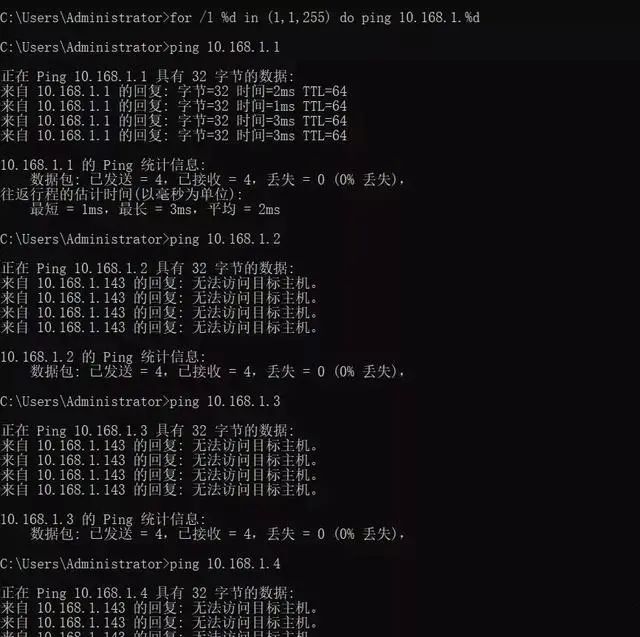
When you input the batch command, it will automatically ping all IP addresses in the subnet until finished.
So what does the code “for /L %D in (1,1,255) do ping 10.168.1.%D” mean?
The (1,1,255) in the code indicates the starting and ending range, which checks all IP addresses between 192.168.1.1 and 192.168.1.255, incrementing by 1 each time until all 255 IP addresses are checked.
Source: toutiao.com/a6783191796659782148
Recommendations
Java Interview Questions Handbook
Technical Community, let’s learn together!!

PS: Due to changes in the public account platform’s push rules, if you don’t want to miss content, remember to read to the end and click“Looking”, and add a“Star”, so that new articles will appear at the top of your subscription list. Click“Looking” to support us!