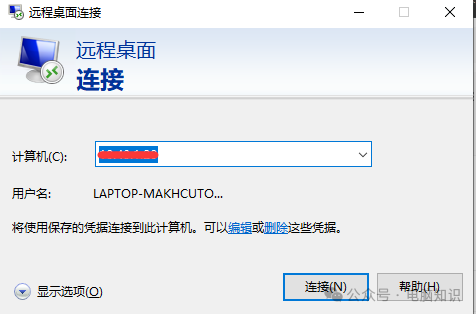
It is well known that Windows systems have a remote desktop tool called mstsc.exe. This tool allows users to remotely connect to another Windows desktop, which is very convenient. But how can we achieve remote desktop connection from a Windows computer to a Linux system?1. Introduction to Linux DesktopThere are many desktop environments available for Linux systems, such as Gnome, KDE Plasma, XFCE, LXDE, MATE, Cinnamon, Deepin DE, etc. A comparative analysis of each desktop environment is as follows: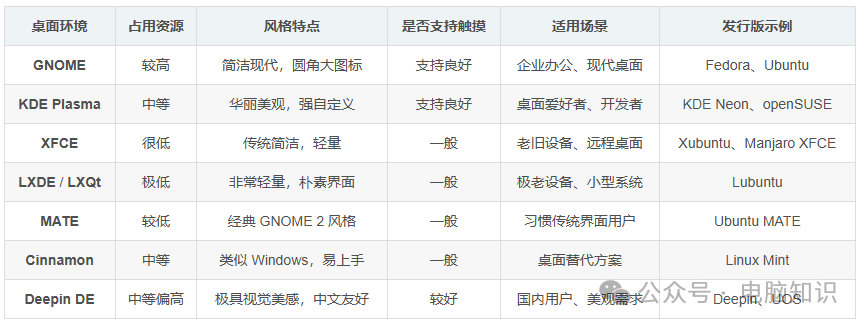 The installation is also quite simple; you can install it directly using yum or apt install. Note that the prerequisite is that the system needs to have network access or use an internal network ISO image.2. Introduction to Remote Connection ToolsIn Linux systems, remote desktop connection usually refers to using a graphical interface to remotely access another computer.There are many tools available for remote desktop connection to Linux systems, with commonly used ones including: Xrdp, TigerVNC, NoMachine, TeamViewer, AnyDesk, etc. A comparative analysis of each tool is as follows:
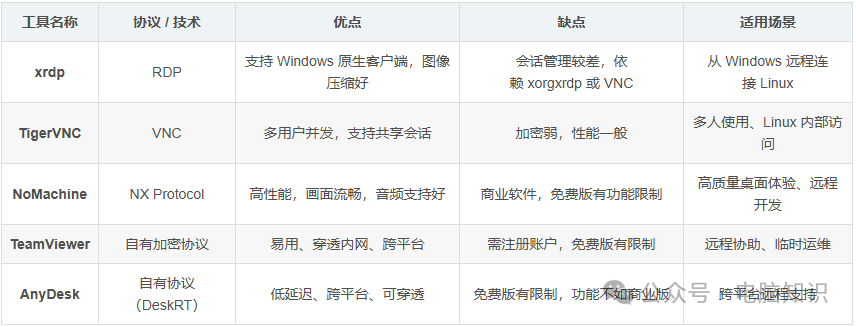 3. Introduction to VNC and RDP Tools
Among the various tools for remotely accessing another Linux system using a graphical interface, the most commonly used are VNC and XRDP. Below, we will focus on introducing these two tools:
1. VNC
Installing the VNC Server
On Ubuntu or Debian systems, you can use the following command to install the TightVNC server:
sudo apt-get update
sudo apt-get install tightvncserver
On CentOS or Red Hat systems, you can use the following command:
rpm -ivh tigervnc-server-1.3.1-3.el7.x86_64.rpm # Find the latest version of VNCAfter installation, use vncpasswd to initialize, which will prompt you to set a password. You can start and stop the service using service or systemctl.
vncpasswd
# Start VNC service:
service vncserver start
# Stop VNC service:
service vncserver stop
After initialization, you need to close the firewall or allow port 5901.
Client Connection
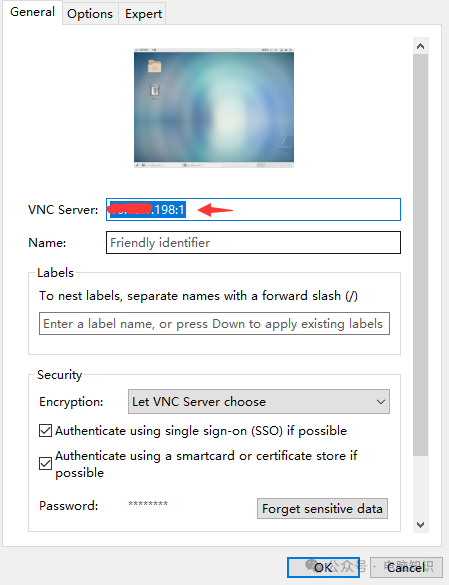
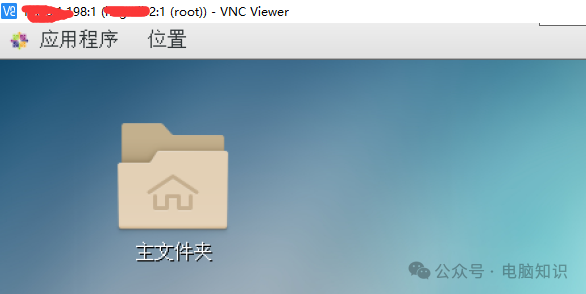
On the client side, you can use VNC Viewer (commonly referred to as VNC Viewer or RealVNC) to connect to the remote server. After downloading and installing VNC Viewer, enter the server’s IP address:1 as shown in the figure below. Whether it is 1 or 2 depends on whether you opened port 5901 or 5902, then enter the password to connect.
2. XRDP
Installing the XRDP Server
Use the apt install or yum install command to install. Then use the following command to set the default session for xrdp.
echo "gnome-session" > ~/.xsession
echo "startxfce4" > ~/.xsession
chmod +x ~/.xsession
Modify the XRDP Startup Script
vim /etc/xrdp/startwm.sh  # Comment out the default X11 startup method
#  ./etc/X11/Xsession   gnome-session    # Set to start with gnome
startxfce4      # Set to start with xfce
# Restart the service
systemctl restart xrdp
Client Connection
XRDP can be connected using Windows’ Mstsc.exe tool. Open the tool, enter the IP address, username, and password to remotely connect to the other server’s desktop.