Introduction: I just realized today is the Qixi Festival after seeing it on social media. I read an article on WeChat: Quickly Build a Bioinformatics Analysis Platform on Windows. Previously, I had installed the Linux subsystem for Windows due to some overseas issues, but later uninstalled it because we had servers in the lab. Now, I am starting a new project, and the server in the new research group is not very user-friendly, as it is a standard account with limited permissions. I had previously used Singularity containers to install some software, but the new group’s server does not allow Singularity installations, so I have no choice. Therefore, I happened to see this article and thought I would reinstall it myself. This is also a good opportunity to write an article.Step 1:1.1 Search for and open “Turn Windows features on or off”.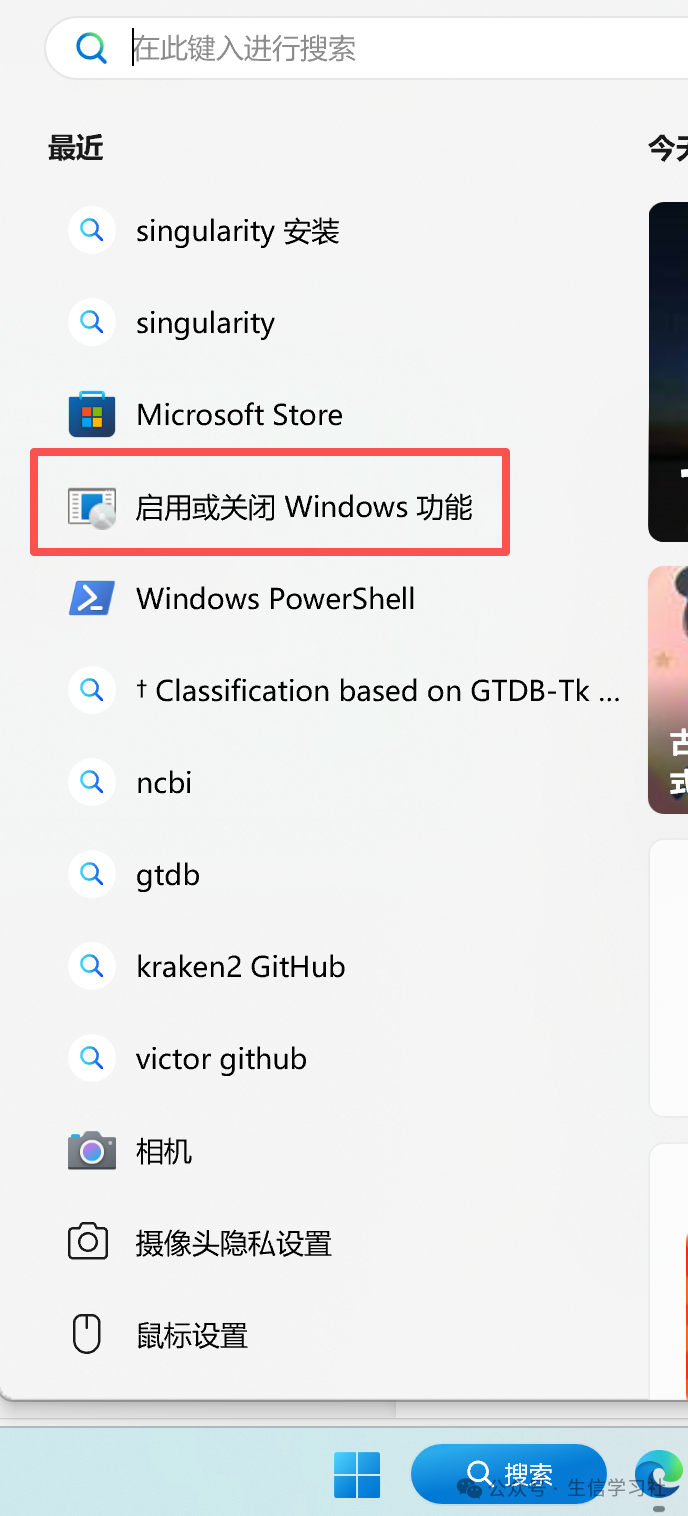 1.2 In the list, find and check the two features mentioned above. Click “OK” and restart your computer.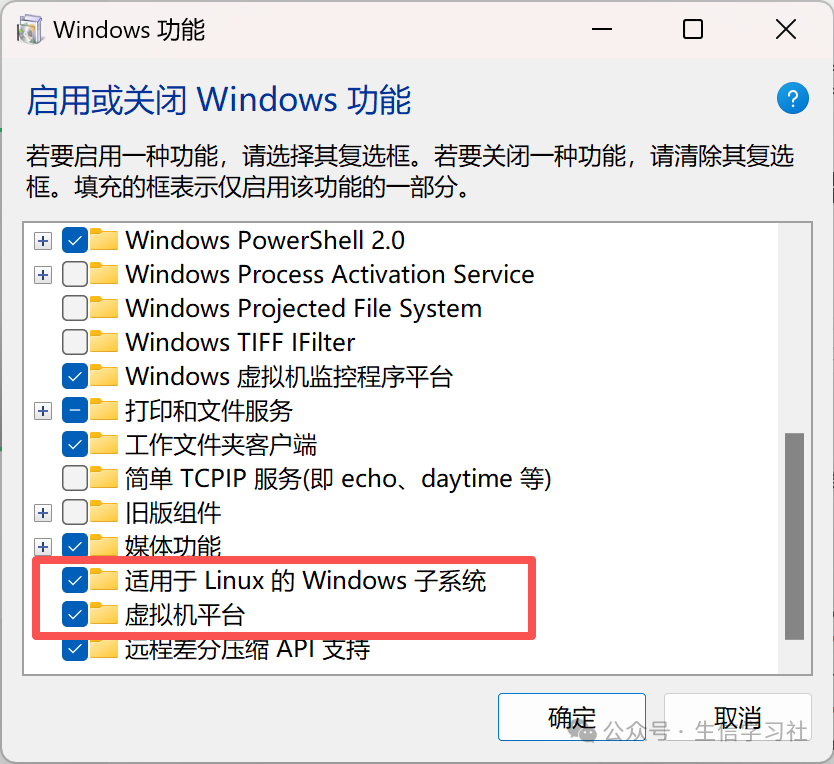
Step 2: Manually Download and Install the WSL Kernel Update
https://wslstorestorage.blob.core.windows.net/wslblob/wsl_update_x64.msiStep 3: Set the Default WSL Version to WSL2
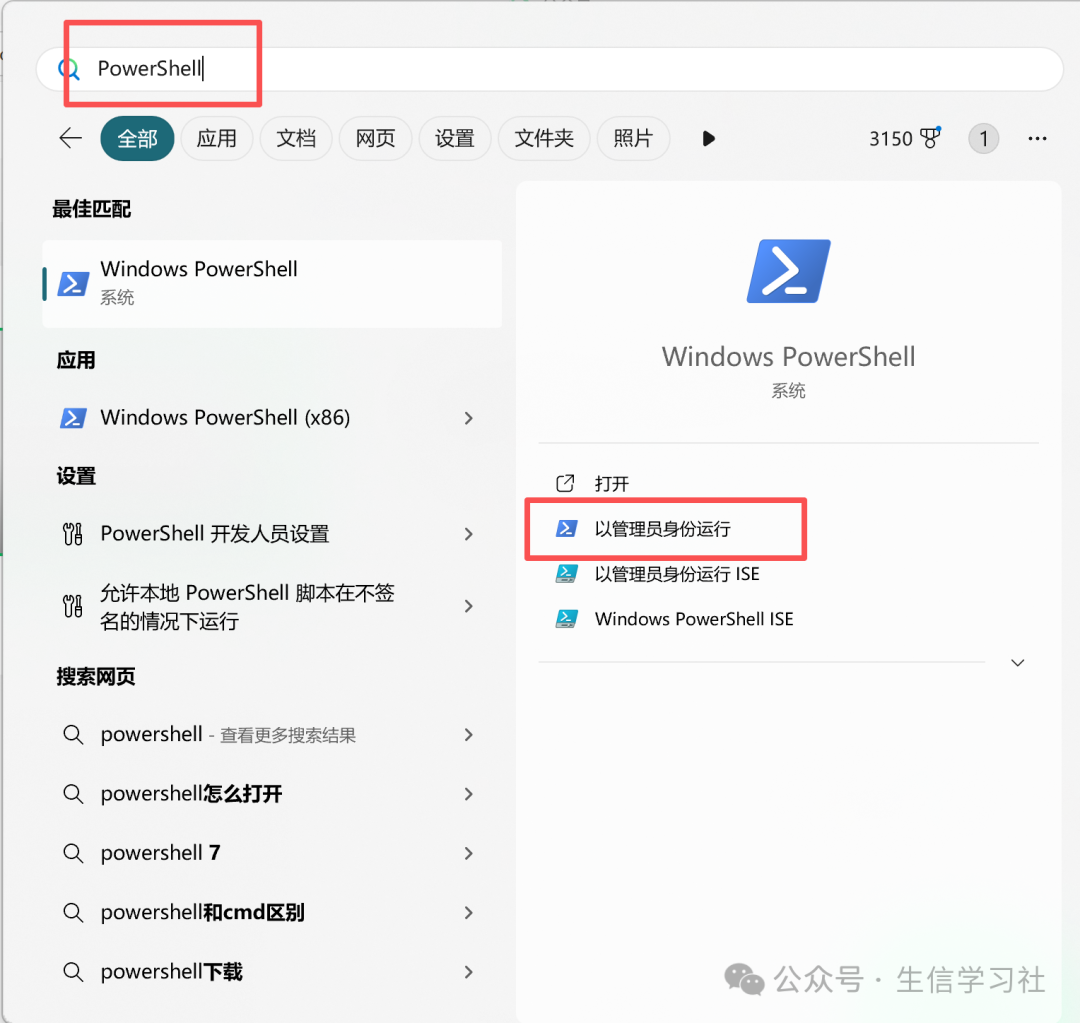
Open PowerShell and run the following command to set WSL 2 as the default version when installing new Linux distributions:
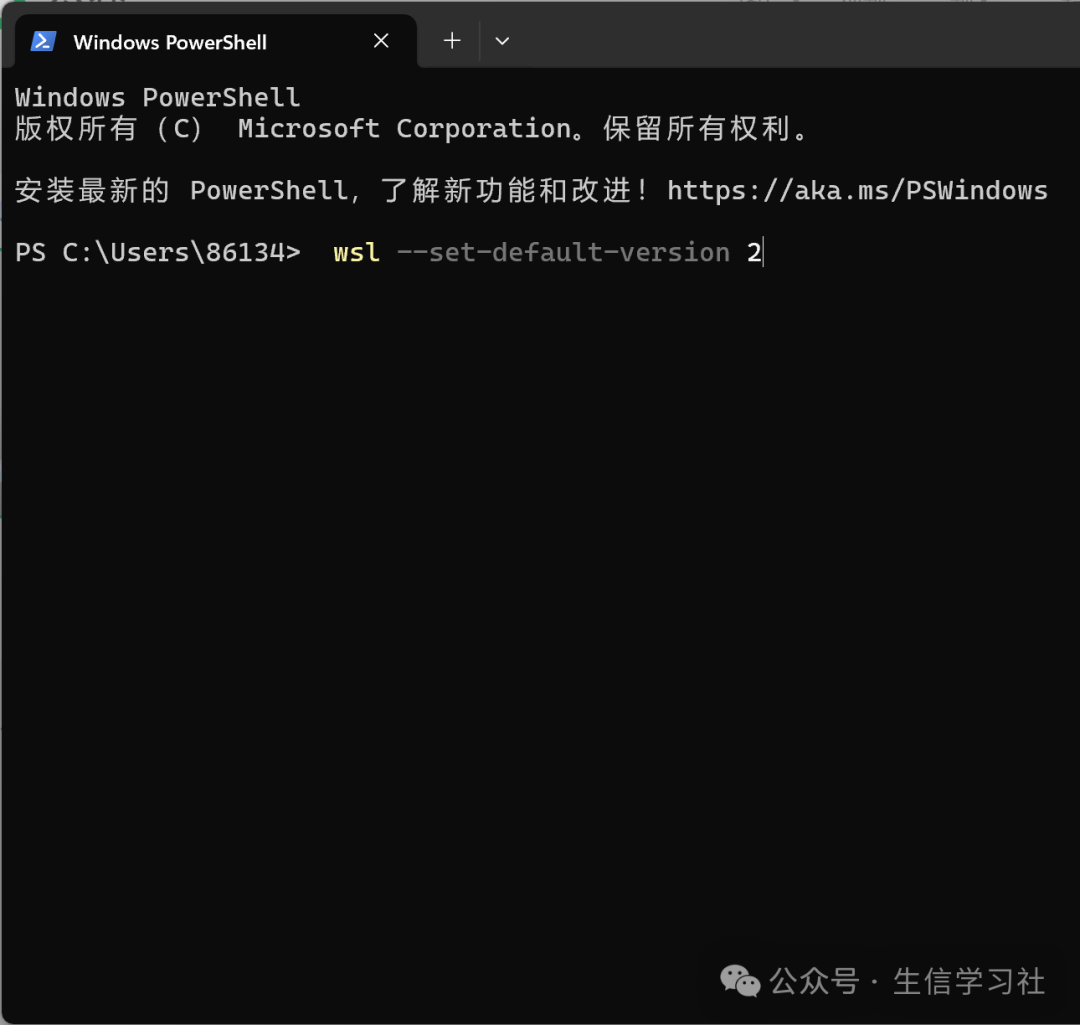
wsl --set-default-version 2Step 4:Install your preferred Linux distribution from the Microsoft Store, such as Ubuntu 22.04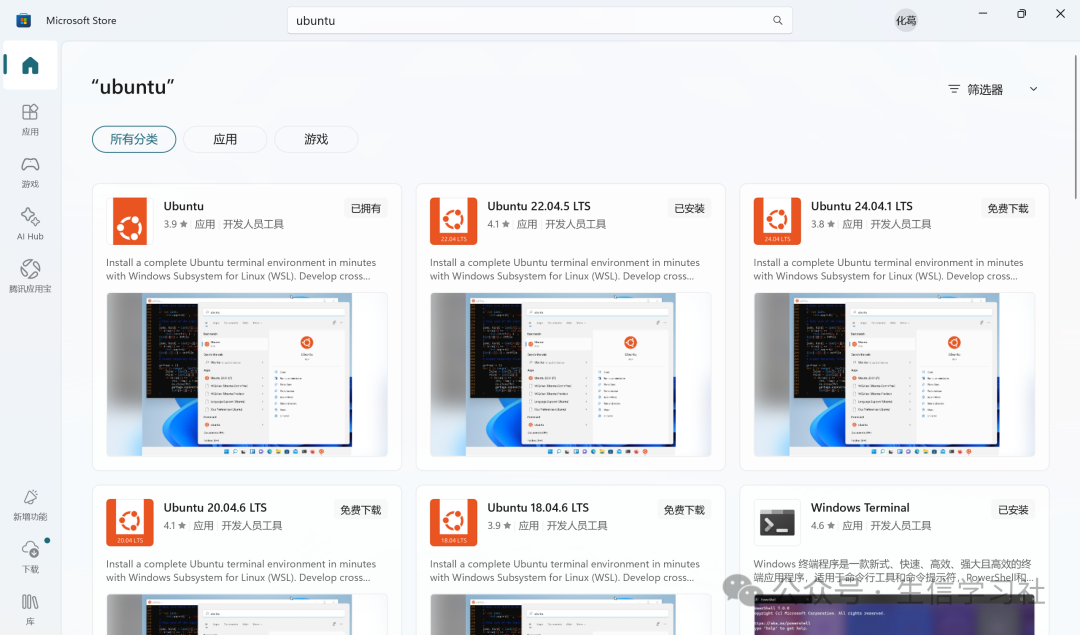 Step 5:After installing Ubuntu 22.04, reopen PowerShell and it will prompt you to create an account, just follow the instructions. Once installed, you can use it by opening PowerShell.
Installing, this may take a few minutes... Please create a default UNIX user account. The username does not need to match your Windows username. For more information visit: https://aka.ms/wslusers Enter new UNIX username: ghm New password: Retype new password: passwd: password updated successfully Installation successful! The Windows Subsystem for Linux is now available in the Microsoft Store! You can upgrade by running "wsl.exe --update" or install WSL from the Microsoft Store at https://aka.ms/wslstorepage for the latest WSL updates, faster. For more information, visit https://aka.ms/wslstoreinfo< > To run a command as administrator (user "root"), use "sudo <command>". See "man sudo_root" for details. Welcome to Ubuntu 22.04.5 LTS (GNU/Linux 5.10.16.3-microsoft-standard-WSL2 x86_64) * Documentation: https://help.ubuntu.com * Management: https://landscape.canonical.com * Support: https://ubuntu.com/pro System information as of Fri Aug 29 19:12:50 CST 2025 System load: 0.13 Processes: 9 Usage of /: 0.4% of 250.98GB Users logged in: 0 Memory usage: 1% IPv4 address for eth0: 172.xx.xx.198 Swap usage: 0% This message is shown once a day. To disable it please create the /home/ghm/.hushlogin file. ghm@LAPTOP-IL3CE0VR:~$ ll total 24 drwxr-x--- 3 ghm ghm 4096 Aug 29 19:12 ./ drwxr-xr-x 3 root root 4096 Aug 29 19:12 ../ -rw-r--r-- 1 ghm ghm 220 Aug 29 19:12 .bash_logout -rw-r--r-- 1 ghm ghm 3771 Aug 29 19:12 .bashrc drwxr-xr-x 2 ghm ghm 4096 Aug 29 19:12 .landscape/ -rw-r--r-- 1 ghm ghm 0 Aug 29 19:12 .motd_shown -rw-r--r-- 1 ghm ghm 807 Aug 29 19:12 .profile ghm@LAPTOP-IL3CE0VR:~$ pwd /home/ghm ghm@LAPTOP-IL3CE0VR:~$Questions:
1: How to access your Windows files? How to edit Windows files in Linux?
# View the contents of the /mnt directory, you will see all Windows disk partitions ls /mnt # Typically, you will see results like this: # c d e # This means your Windows C drive, D drive, etc. correspond to /mnt/c/, /mnt/d/ # Switch to your Windows C drive cd /mnt/c/ # List the files and folders in the root directory of C drive, you will find it is your familiar C drive ls # Enter your Windows user directory (replace 'YourWindowsUserName' with your actual username) cd /mnt/c/Users/YourWindowsUserName/ # Now you can operate on all files in your Windows user folder ls ### Access Windows files in Linux ls /mnt/c/Users/YourUserName/Documents/project.pdf # View the file cp /mnt/c/Users/YourUserName/Documents/project.pdf /home/ghm/ # Copy to Linux home directory # Edit Windows files in Linux nano /mnt/c/Users/YourUserName/Documents/note.txt
2: Very Important Warning: Best Practices for File Operations
It is strongly recommended to follow these rules to avoid file corruption and data loss:
-
Do not create or edit Linux system files directly in Windows (
<span>%userprofile%\AppData\Local\Packages\...</span>). The virtual hard disk files of WSL are locked during operation. Although Windows can see the<span>ext4.vhdx</span>file, absolutely do not open, modify, move, or delete files inside it using Windows Explorer (for example, do not try to access via<span>C:\Users\...\LocalState\ext4.vhdx\home\ghm\</span>path). This will lead to file system corruption. -
The best place for cross-system file operations:
-
Access Windows files from Linux: Always use the
<span>/mnt/c/...</span>path. This is completely safe. You can edit, run, or delete any Windows files under<span>/mnt/c/</span>or<span>/mnt/d/</span>. -
Access Linux files from Windows: Although it is technically possible to access via a network path like
<span>\\wsl$\Ubuntu-22.04\home\ghm</span>in Windows File Explorer (very convenient!), Microsoft officially recommends that if you need to modify files with Windows programs, it is best to first copy the files to the Windows file system (like<span>C:\</span>or<span>D:\</span>some directory) before operating, to avoid potential permission and metadata issues.
3: If you do not want to operate as the root account, you can create an administrator account
3.1 In your WSL Ubuntu terminal, enter the following command. (I created an administrator account named ghm01)
sudo adduser ghm013.2 Add the new user to the <span>sudo</span> group
sudo usermod -aG sudo ghm013.3 Verify the new account’s <span>sudo</span> permissions
# Switch to the newly created ghm01 user to test permissions su - ghm013.4 Try executing a command that requires administrator privileges, such as updating the package list:
sudo apt update4: If your computer is low on storage space and you happen to have an idle hard drive, you can completely migrate the WSL subsystem to your larger idle hard drive.
If you do not want to delete the original system, you can first clone it to a new location, confirm the new system is correct, and then delete the old one.
Steps to operate (execute in PowerShell):
-
Shut down WSL:
wsl --shutdown
Export the current system: ## Export the subsystem to D drive (must have executable permissions, exporting to C drive does not work for me, so exporting to D drive is best),
wsl --export Ubuntu D:\ubuntu_backup.tar<span><span><span># Please note</span><span>,</span></span></span><strong><span><span> It is recommended to run PowerShell as an administrator</span></span></strong><span><span><span> before executing the above command to effectively avoid possible "access denied" issues</span></span></span>
Import and create a new system (to the new hard drive E, change to your own drive):
wsl --import Ubuntu-new E:\WSL\ D:\ubuntu_backup.tar| Parameter | Description | Your Situation |
|---|---|---|
<span>--import</span> |
Indicates that an import operation is to be performed | |
<span>Ubuntu-22.04-new</span> |
Name of the new distribution. To avoid conflict with the original <span>Ubuntu-22.04</span>, a new name is given here. |
You can modify as needed, as long as it does not conflict with existing names. |
<span>E:\WSL\</span> |
Target installation location. Specifies that the new virtual hard disk file (<span>ext4.vhdx</span>) will be created in the WSL folder on drive E. |
Please ensure there is enough space on drive E.<span>WSL</span> folder will be created automatically if it does not exist. |
<span>D:\ubuntu_backup.tar</span> |
Location of the source backup file. Points to the tar backup file you just successfully exported. |
-
Here a new name
<span>Ubuntu-new</span>is given, so it will not conflict with the original<span>Ubuntu</span>.
Start the new system for testing:
wsl -d Ubuntu-new(Optional) If the new system <span>Ubuntu-new</span> works correctly, you can safely unregister the old system to free up space on C drive:
##powershell wsl --unregister Ubuntu6. An important step after importing: Set the default user
Start the new system (will enter as root): #powershell wsl -d Ubuntu-22.04-new # In the opened WSL command line (as root), execute the following command to set the default user (replace ghm with your previous username): bash echo -e "[user] \n default=ghm" >> /etc/wsl.conf # Exit WSL: #bash exit # Completely shut down WSL: #powershell wsl --shutdown # Restart the new system, now it should automatically log in to the ghm user: #powershell wsl -d Ubuntu-22.04-new7. Check storage space
df -hghm01@LAPTOP-IL3CE0VR:/mnt/c/Users/86134$ df -h Filesystem Size Used Avail Use% Mounted on /dev/sdb 251G 1.4G 237G 1%/none 3.9G 4.0K 3.9G 1% /mnt/wsl tools 147G 89G 58G 61% /init none 3.9G 0 3.9G 0% /run none 3.9G 0 3.9G 0% /run/lock none 3.9G 0 3.9G 0% /run/shm none 3.9G 0 3.9G 0%/run/user tmpfs 3.9G 0 3.9G 0% /sys/fs/cgroup drivers 147G 89G 58G 61% /usr/lib/wsl/drivers lib 147G 89G 58G 61% /usr/lib/wsl/lib drvfs 147G 89G 58G 61% /mnt/c ##C drive drvfs 330G 140G 190G 43% /mnt/d ##D drive drvfs 1.9T 114G 1.8T 7% /mnt/e ## Hard drive5: If you simply unplug and reinsert, as long as Windows recognizes it as the same drive letter (for example, still E drive), it usually will not affect usage. But there is a key premise and an important risk to note.
5.1 The biggest risk: Windows assigns a different drive letter:
If the system recognizes your hard drive as <span>F:</span> or another drive letter this time, WSL will fail to start because it cannot find the <span>E:\WSL\ext4.vhdx</span> file.
Solution:
-
Manually specify the drive letter: You can manually fix the drive letter of that hard drive in Windows Disk Management permanently to
<span>E:</span>. -
Press
<span>Win + X</span>, select “Disk Management”. -
Find your external hard drive, right-click, and select “Change Drive Letter and Paths“.
-
Click “Change”, then assign the specified drive letter (for example,
<span>E:</span>). -
This way, every time you connect, it will be the same drive letter.
5.2 The most dangerous behavior: Not safely removing hardware
If you do not “safely remove” and directly unplug, and WSL is running or files are being read/written at that time, then it is very likely to cause <span>ext4.vhdx</span> virtual hard disk file corruption.
This is like cutting off power while the computer is running. The consequences may be:
-
WSL fails to start, reporting file system errors.
-
The system requires a disk check (
<span>fsck</span>). -
In the worst case, it may lead to data loss.
Solution:
-
Develop an absolute habit of safely removing: Before unplugging, be sure to:
#powershell wsl --shutdownThen wait a few seconds, and safely remove hardware through the system tray.
### Now you have an administrator account, and you can use containers. The new system installation of Singularity always prompts that dependencies are not installed. Look for deepseek. Thanks to deepseek for saving my life.