Follow+Star Public Account, don’t miss out on exciting content

Source | Renesas Embedded Encyclopedia
e2 studio is an integrated development environment (IDE) for Renesas MCUs that can configure and generate initialization code with one click and compile to create executable files.This development environment is based on the globally widely used Eclipse platform, and e2 studio helps customers complete the entire development process from code development, compilation, downloading, to debugging, effectively improving development efficiency.In earlier versions of e2 studio, the default installed compiler for Renesas’s RA series RAM core products was GCC.However, in practical applications, many customers are accustomed to using IAR or Keil IDE to develop their products, and the compilation efficiency of IAR and Keil compilers is higher than that of GCC. Therefore, starting from version 2022-07 and later, e2 studio began to support IAR and Keil compilers.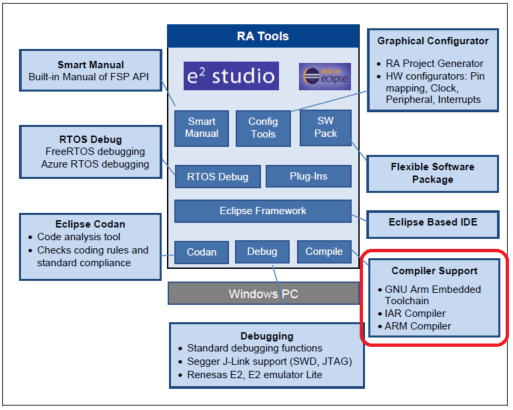
Below, we will introduce how to add IAR and Keil ARM compilers to e2 studio.
Supported Compiler Versions
● GNU Arm Embedded Toolchain (Version: 10.3-2021.10 or newer)
● IAR Compiler 9.20.2 or newer
● Arm Compiler (Version: 6.18 or newer)
Note: The PC system must first have EWARM and Keil IDE fully installed.
1. Install IAR C/C++ Compiler for ARM
e2 studio defaults to the GCC toolchain, and the IAR Compiler needs to be installed separately. Please note that the IAR Compiler requires an IAR license.
The Renesas official website has English instructions for installing the IAR Compiler. You can copy the following URL and open it in your browser:
https://en-support.renesas.com/knowledgeBase/19772607
The specific installation process is as follows:
① Install the licensed IAR Embedded Workbench
② Configure the License for IAR C/C++ Compiler for ARM
③ Start e2 studio 2022-07 or higher
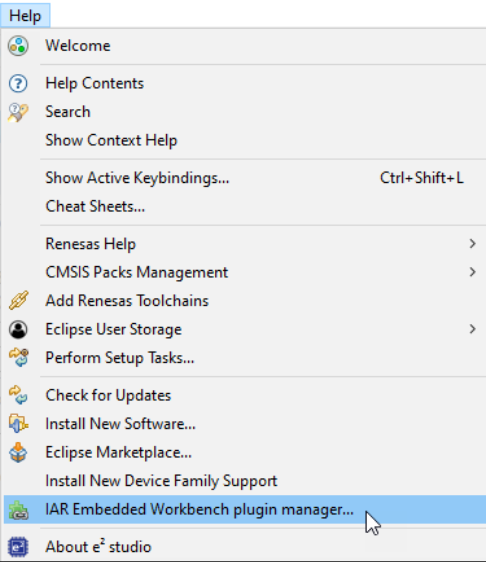
④ Select IAR Embedded Workbench plugin manager… from the Help option in e2 studio
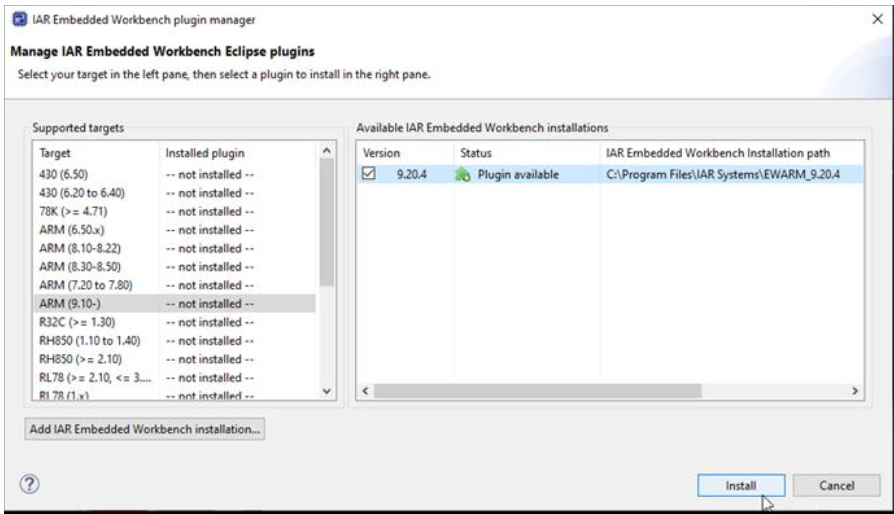
⑤ In the pop-up menu, select the corresponding version of the IAR compiler for installation
⑥ During this process, e2 studio will access the IAR repository. Please wait for a while, then select all options in the pop-up menu and click the Next option.
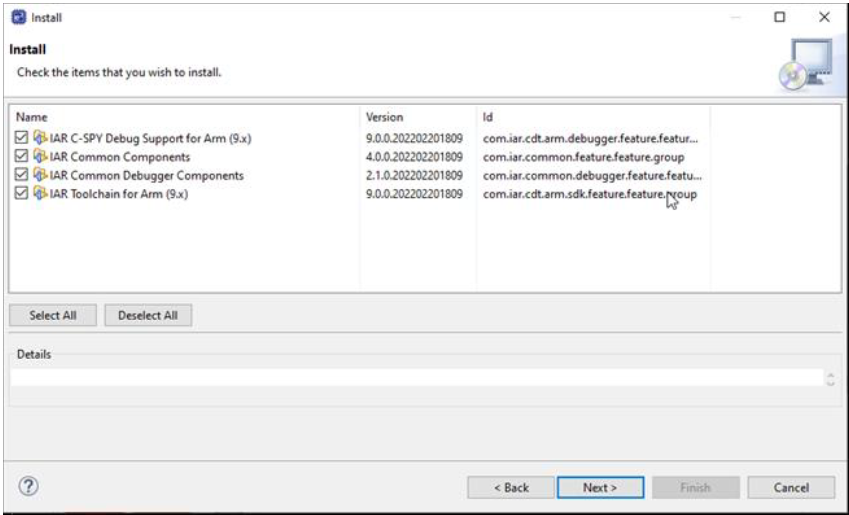
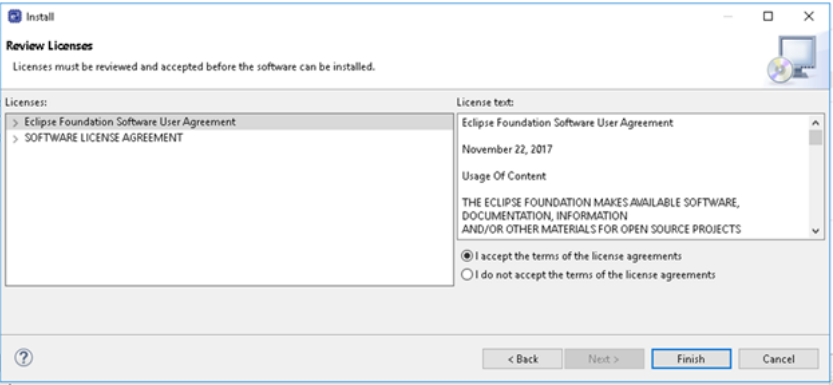
⑦ In the pop-up menu, select to accept the License agreement and click the Finish button
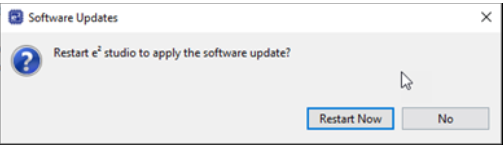
⑧ Follow the prompts to restart e2 studio
⑨ After creating a new project in e2 studio, you can choose to use the IAR compiler
2. Install Keil ARM Compiler
① Obtain Keil MDK License authorization and install Keil MDK
② Start e2 studio 2022-07 or higher
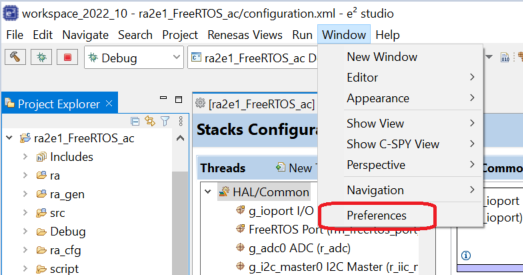
③ Select Preferences from the Window option in e2 studio
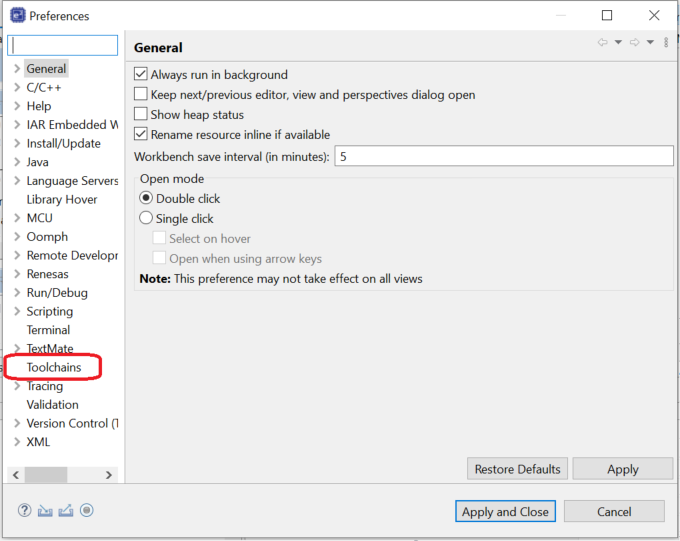
④ In the pop-up menu, select Toolchains option
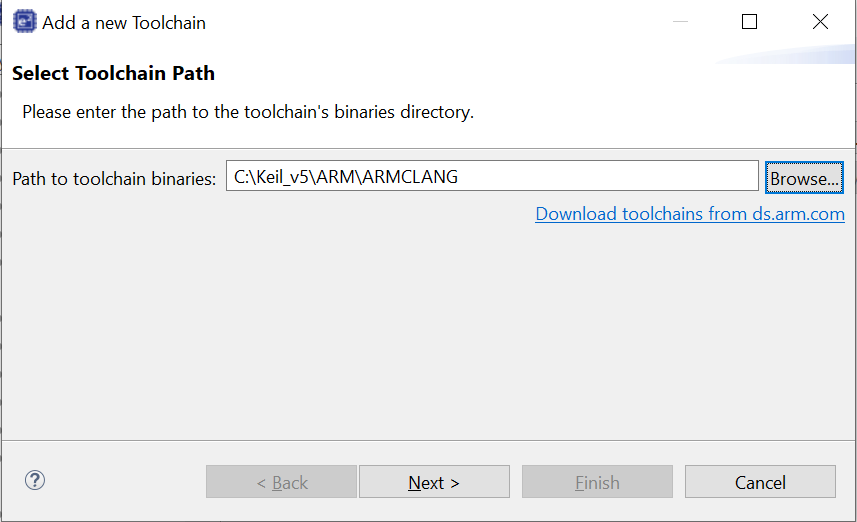
⑤ In the pop-up menu, add the path of the Keil compiler, for example: C:\Keil_v529\ARM\ARMCLANG, which is the installation path of the Keil ARM Compiler, then click Next
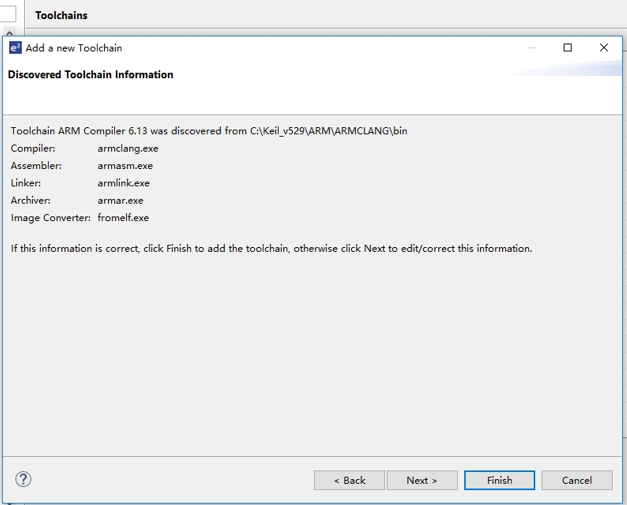
⑥ The pop-up menu will display related information about the Keil ARM compiler. Click Next → Finish to complete the installation
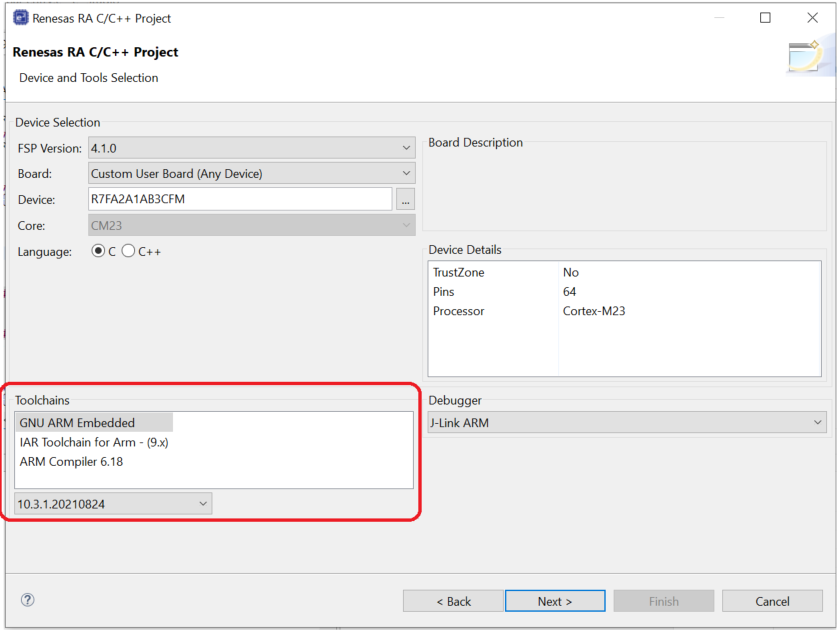
⑦ After creating a new project in e2 studio, you can choose to use the Keil ARM compiler
 ———— END ————
Microcontroller CRC Principles and Monitoring Applications

The Importance of Initializing Local Variables in MCU Programming
Key Points of Artificial Intelligence in Embedded Systems