Download Keil MDK 5.11 Installation Package
[Name]: Keil MDK 5.11 (32/64-bit)
[Size]: 300MB
[Baidu Cloud Download Link]:
https://pan.baidu.com/s/1FVoemmldJEmA5P6C_j9PFQ
[Extraction Code]: 8wc9
If you have questions during the download and installation process, please click ☛Summary of Solutions for Download and Installation Issues☚
Software Introduction
Keil MDK: also known as MDK-ARM, Realview MDK, I-MDK, KEIL MDK-ARM, KEIL ARM, uVision5 (older versions are uVision4 and uVision3), is a microcontroller software development platform developed by the well-known German software company Keil (now acquired by ARM). It is currently supported by three domestic agents providing technical support and related services. The latest Keil MDK 5 still provides compiler, installation package, and debugging tracing, with the main new feature being the package manager function, supporting LWIP. Its SWD download speed is also 5 times faster than KEIL4. Unlike previous versions, Keil MDK5 separates MDK Core and Software Packs into two parts, where MDK Core includes the uVision5 IDE integrated development environment and ARM Compiler5, while Software Packs can be managed (downloaded, updated, removed) independently without changing the MDK Core. The new software packs are divided into device, CMSIS, and Middleware. This software is favored by many engineers developing ARM applications.
Installation Steps:
1. Download the resources from Baidu Cloud to your computer and unzip them. Then find the unzipped Keil5 folder and double-click to open the file.
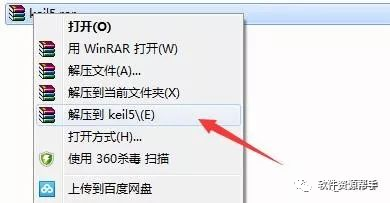
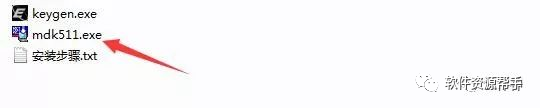
2. Right-click the mdk511 program and click install;
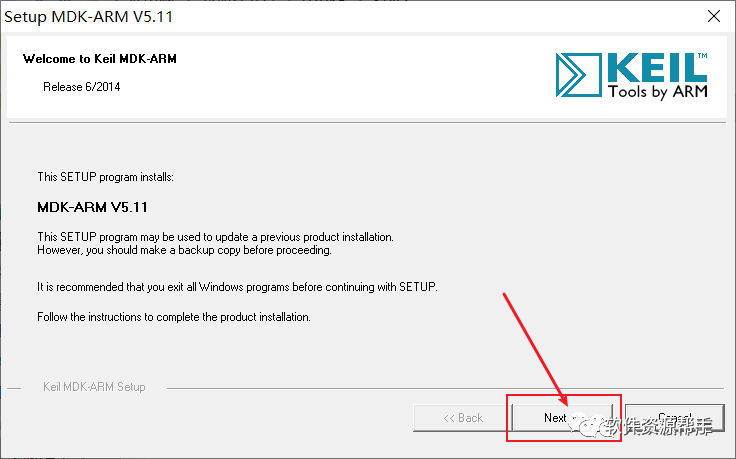
3. Click Next;
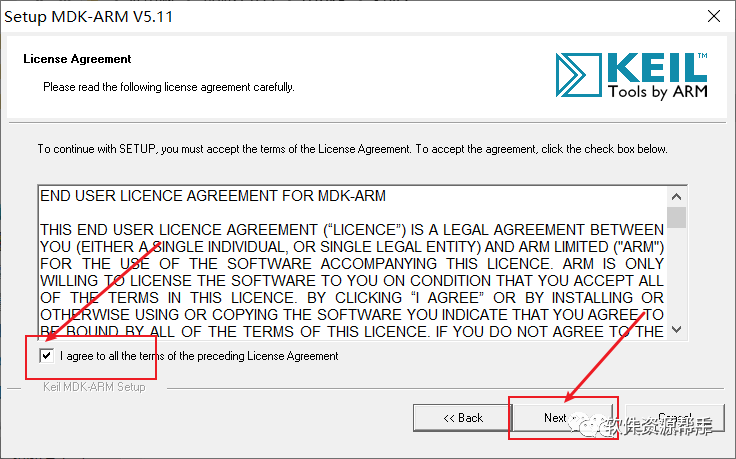
4. First click I agree…, then click Next;
5. The software is installed by default on drive C, change C to D, then click Next;
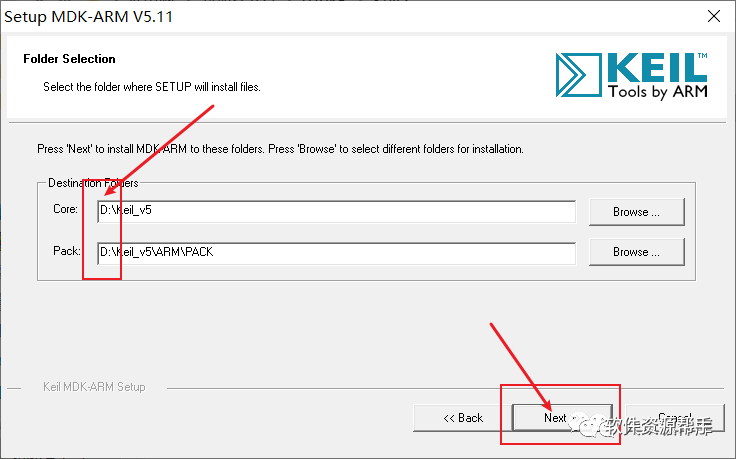
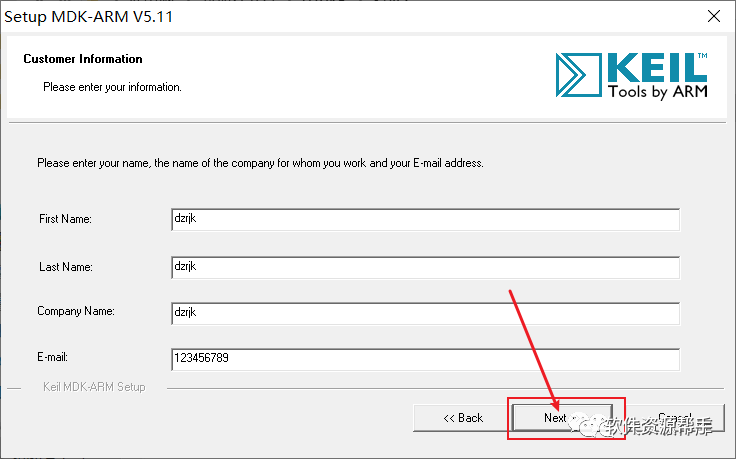
6. Enter a username randomly, then click Next;
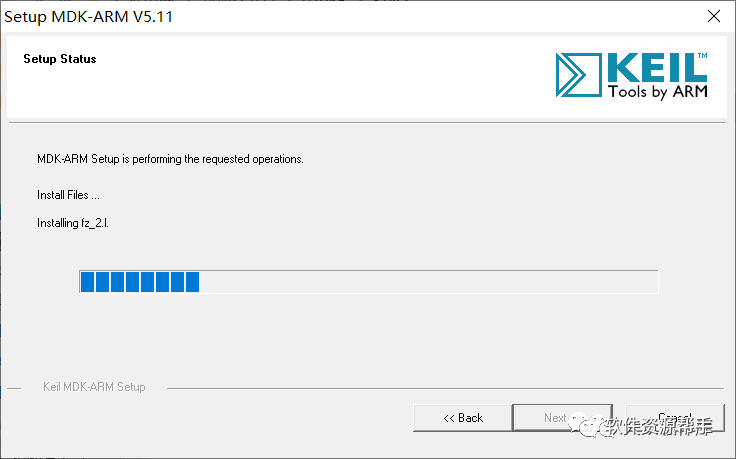
7. The software is installing, please wait…
8. If this interface pops up, click install, if it doesn’t pop up, skip;
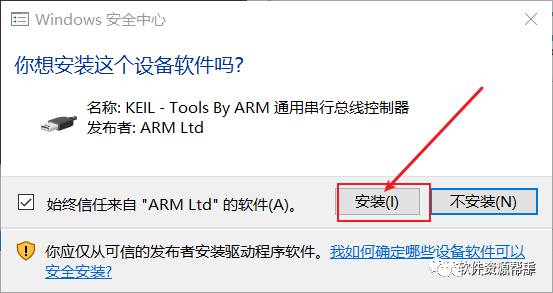
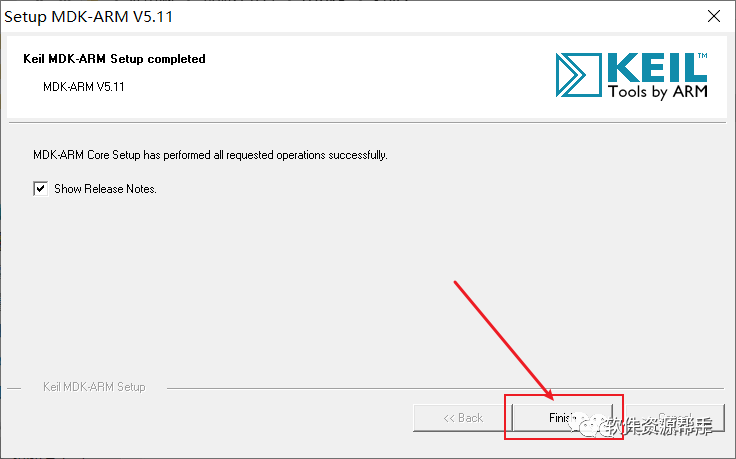
9. Uncheck the box above (I forgot to take a screenshot here) and click Finish;
10. Double-click to open the Keil software on the desktop;

11. The software is opening;

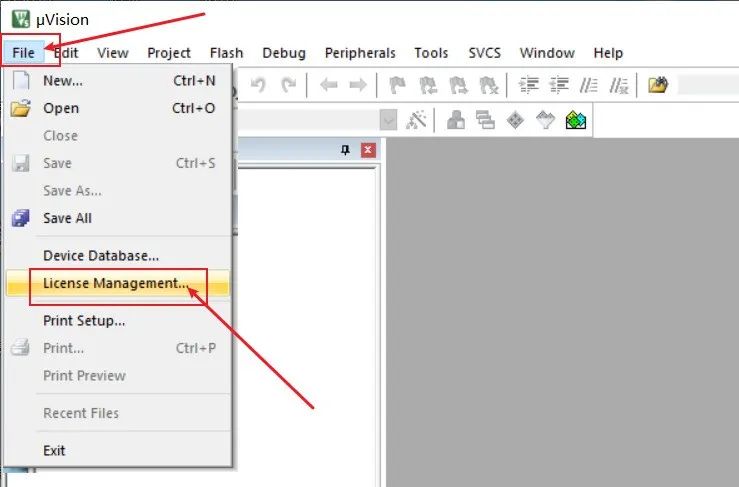
12. Click on the top left File, then click License Management;
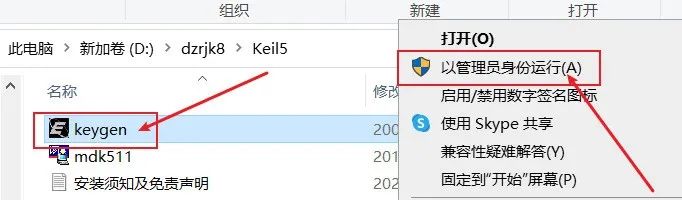
13. Return to the installation package, right-click to open keygen as administrator;
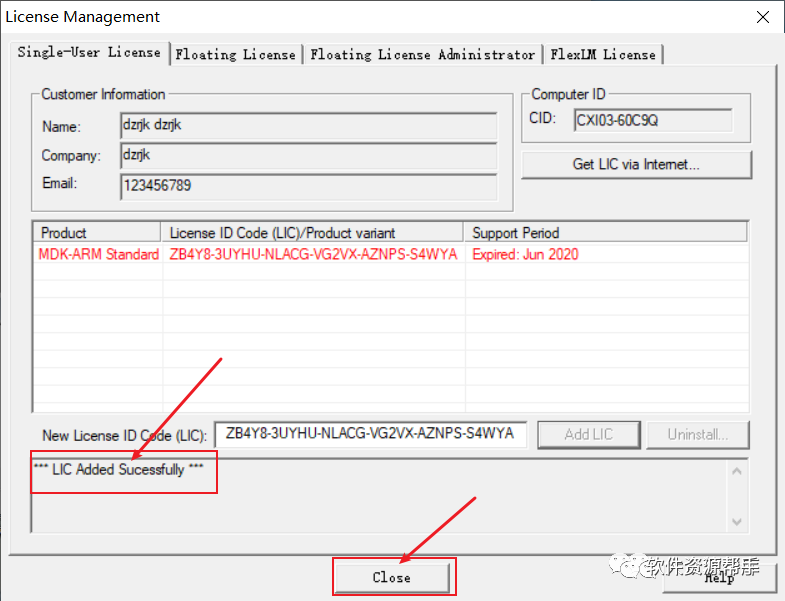
14. First copy the CID generated by the software and paste it into the CID field of the keygen. Then set Target to ARM, click Generate, copy the generated Code and paste it into the software, then click Add LIC, and finally close the keygen;
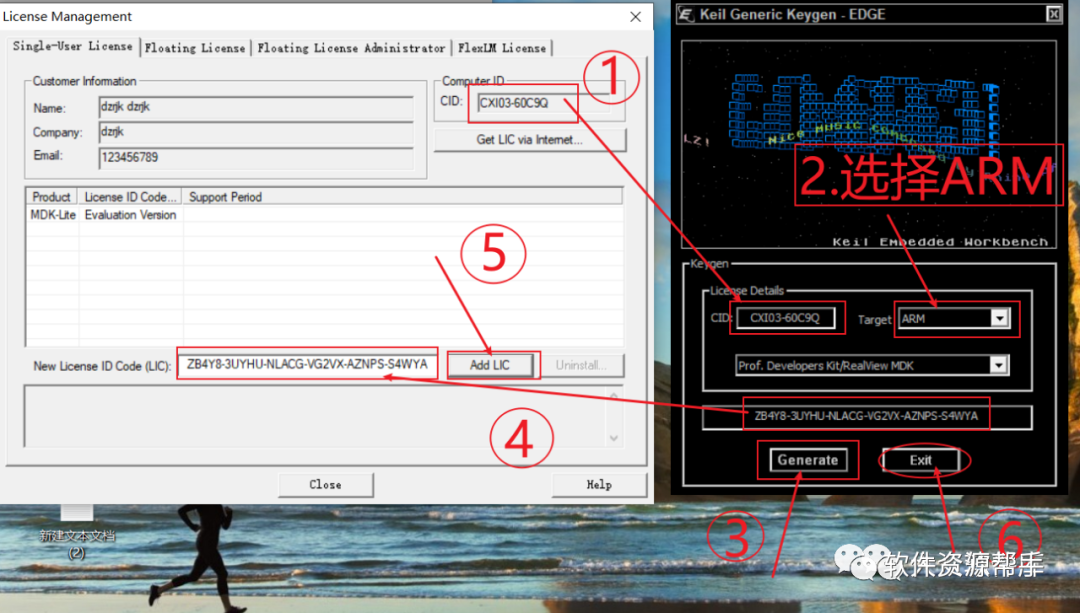
15. After showing success, click Close to exit;
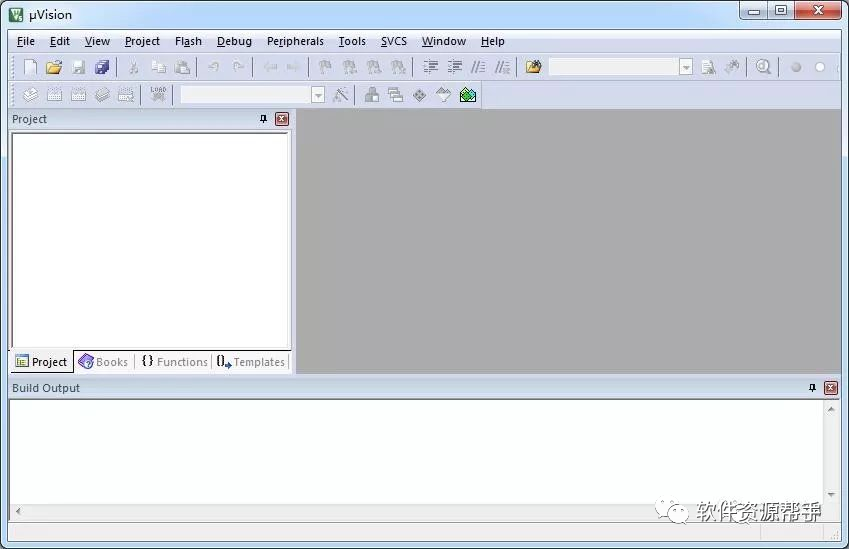
16. The software installation is successful, the interface is as follows:


Click Read the Original Text to view the tutorial. If you find the resource useful, please give me A Look