As a Linux system administrator, have you ever encountered these frustrating scenarios: the newly installed system does not recognize the wireless network card, external devices do not respond when plugged in, or you want to update a driver but do not know which version is currently in use? In fact, driver information is hidden within the system. Mastering the following commands will help you easily solve the driver query problem!1. First, check the “in-use” drivers: Kernel module queryMost Linux drivers exist in the form of “kernel modules”. To find out which drivers are currently active, these two commands will do the trick:1. List all active drivers
lsmodExecuting this will display three columns of key information: Module (module name, i.e., driver name), Size (memory usage), Used by (which programs are using it)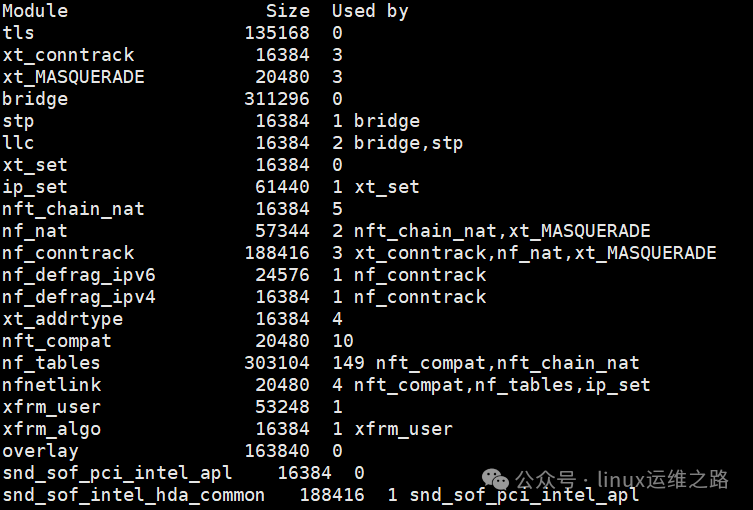 2. Want to know the version, author, dependencies, and other core information of a specific driver? Use modinfo followed by the driver name, for example, to check the wired network card driver:
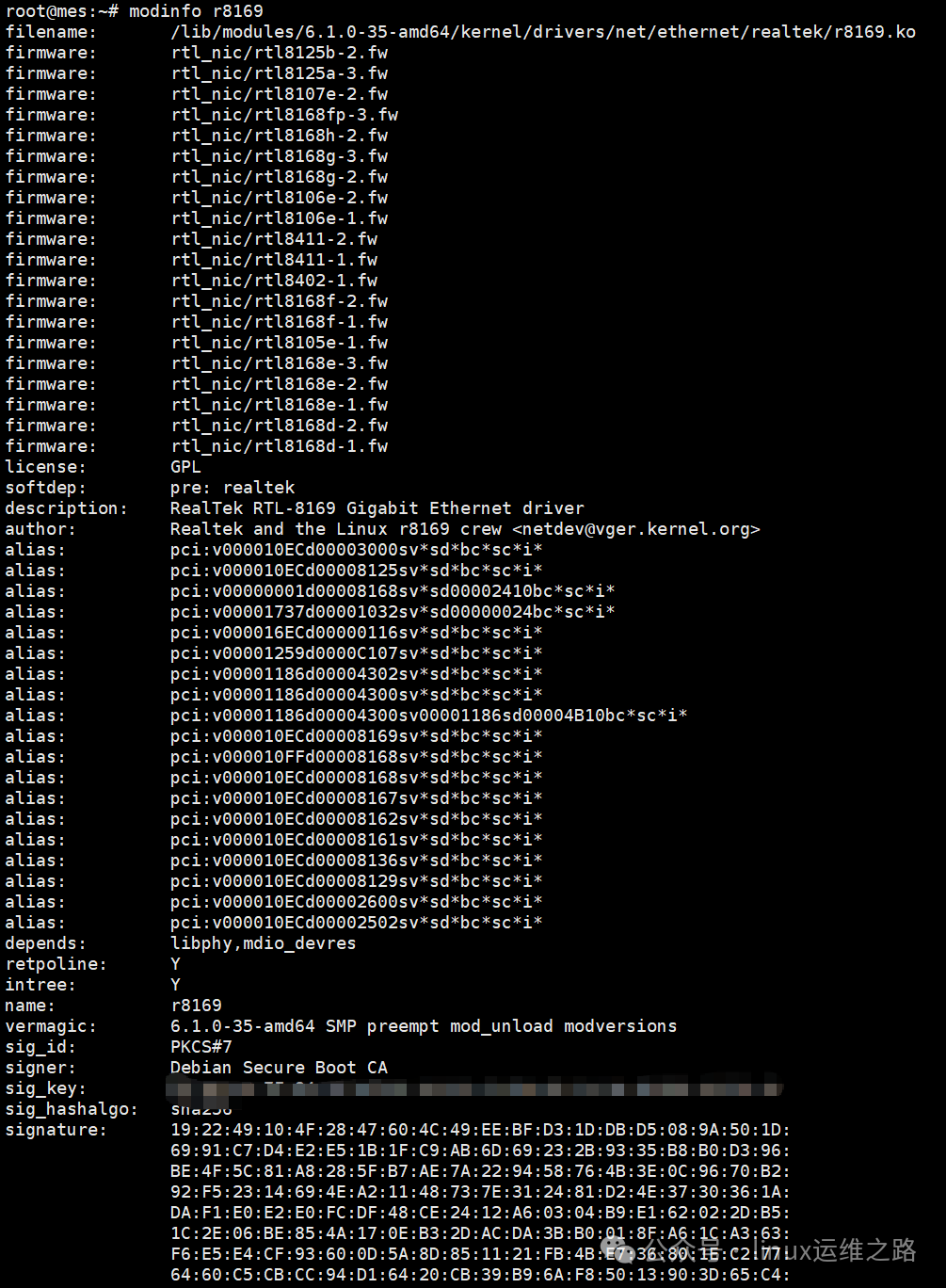 The vermagic field in the output represents the kernel version related to the driver, and the description can help you confirm which hardware the driver corresponds to.2. Find “available” drivers: Inventory of all available modulesIn addition to the running drivers, there are many unloaded drivers hidden in the system. To find out which drivers the system supports, check as follows:1. All Linux driver files are stored in the /lib/modules directory. Use this command to list them all at once:
find /lib/modules/$(uname -r) -type f -name "*.ko"Here, $(uname -r) will automatically get the current kernel version, ensuring that you find the compatible drivers.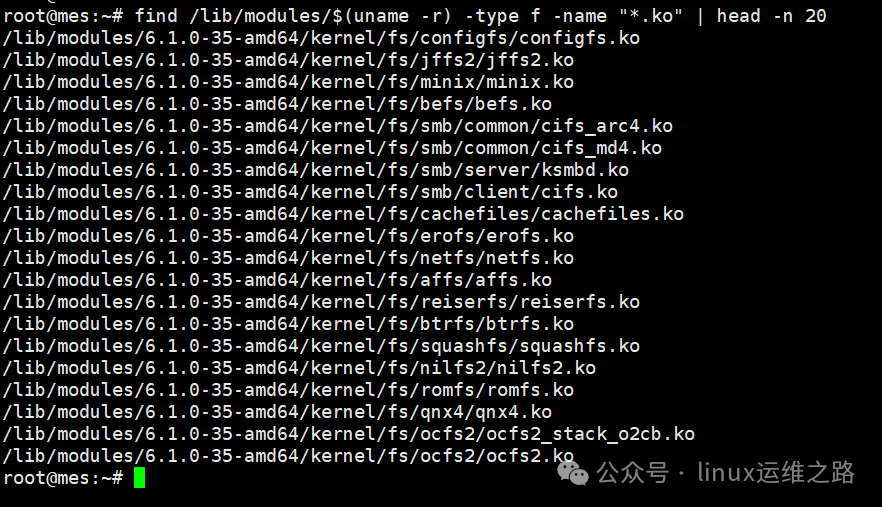 2. To search for a specific driver, for example, to find the wireless network card driver, simply add a keyword filter:
find /lib/modules/$(uname -r) -type f -name "*.ko" | grep -i "wifi" Replace wifi with usb or sound to quickly locate specific types of drivers such as USB or sound card drivers.3. Check drivers by hardware: Match PCI/USB devices one by oneThe most practical scenario: when you see a certain hardware, directly check which driver it uses. Different types of devices require different query commands:1. PCI devices (graphics cards, network cards, motherboard interfaces, etc.), this is the most commonly used hardware type
lspci -kThe output’s “Kernel driver in use” is the current driver, and “Kernel modules” are the available drivers. To check detailed hardware + driver:
lspci -vThis is suitable for troubleshooting driver loading issues, allowing you to see whether the device is enabled, interrupt numbers, and other details.2. USB devices (mouse, USB flash drive, external keyboard, etc.)
lsusb -v | grep -i "driver"4. Check logs + use tools: In-depth troubleshooting of driver issuesIf the previous commands still do not solve the problem, try these two “advanced solutions”:1. Find driver clues from logsThe system records the driver loading process during startup. Use dmesg to dig up historical information:
dmesg | grep -i "driver"  # Search all driver-related logs
dmesg | grep -i "error"   # Check for errors related to driver loading failures
For example, seeing “usb 1-1: device not accepting address 2, error -71” indicates that there was an error loading the USB device driver.2. If you find the above operations too complicated, try the lshw hardware information tool, which is generally not installed by default and needs to be installed before use. A must-have skill for system administrators: use the lshw command to collect server hardware configurationView all hardware + drivers:
lshw -short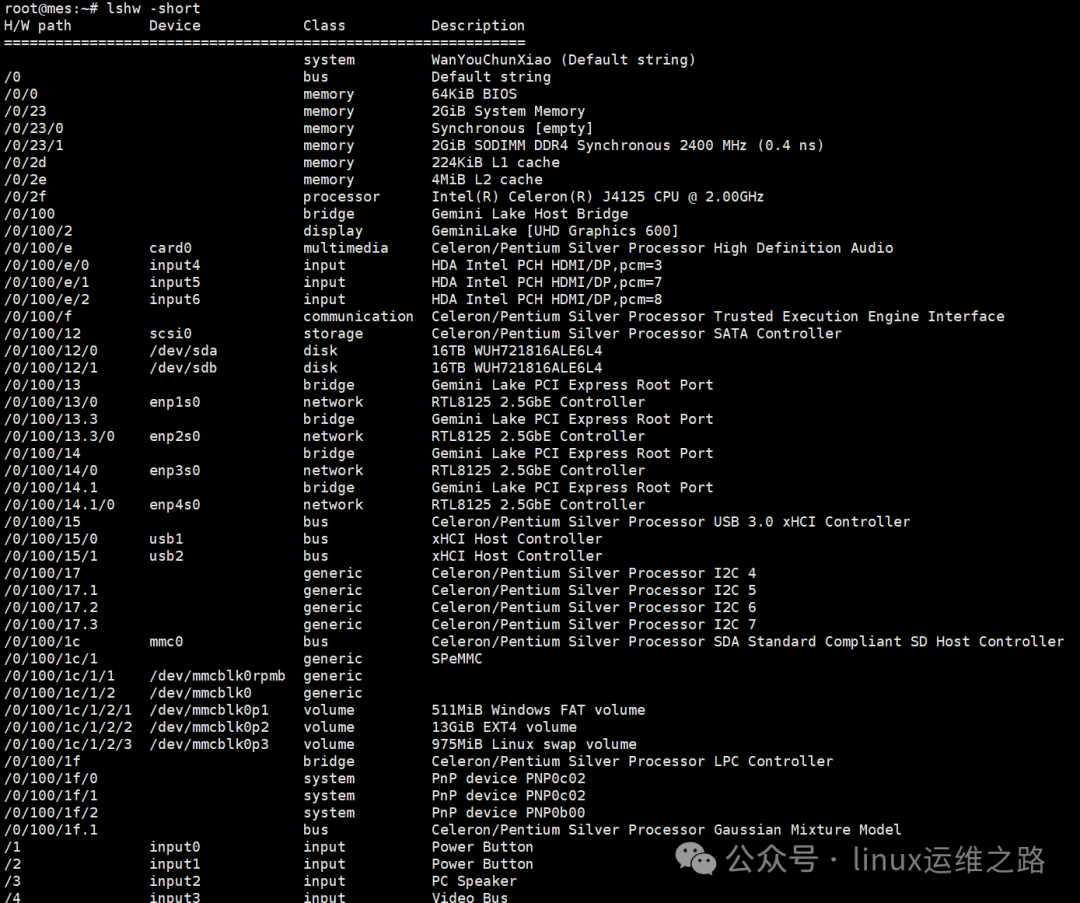 To view only network device drivers,it comprehensively presents the hardware specifications of network devices in the system, system identifiers, and operational configurations, facilitating understanding and management of network devices.
lshw -class network