Click on the “IT那活儿” public account — focusing on full-stack operation and maintenance technology sharing for enterprises, no matter what IT tasks, just get it done!!! One
Principle of Bridge Mode
Bridge mode is one of the most commonly used network configurations for KVM virtual machines. It allows virtual machines to connect directly to the physical network of the host machine, obtaining an independent IP address in the same subnet as the host, enabling direct communication with external networks.1.1 Working MethodCreate a virtual bridge (e.g., br0) on the host machine and bind the physical network card (e.g., eth0) to the bridge.The virtual network card of the virtual machine (vnetX) connects to the bridge, equivalent to directly accessing the physical network.1.2 FeaturesThe virtual machine and the host are in the same local area network, with IP addresses assigned by an external DHCP or manually configured;supports direct communication between virtual machines and between virtual machines and external devices.1.3 Essence of Bridge ModeA virtual switch is created at the data link layer (L2), allowing the virtual machine to share the physical network card with the host, remaining in the same broadcast domain.The virtual machine obtains an independent IP address in the same subnet as the host, and its network behavior is equivalent to that of a physical machine.1.4 Comparison with NAT Mode
| Feature | Bridge Mode | NAT Mode |
| IP Assignment | External DHCP or manual configuration | Host internal DHCP (private IP) |
| Network Location | Same as host network layer | Behind the host (isolated subnet) |
| External Access | Directly reachable | Requires port mapping |
| Typical Use | Server deployment, cluster environment | Development testing, isolated environment |
Two
Installing KVM Virtualization Module
2.1 Install KVMCheck if the system supports virtualization and whether the CPU supports virtualization: Use yum to install the main components and tools of KVM:
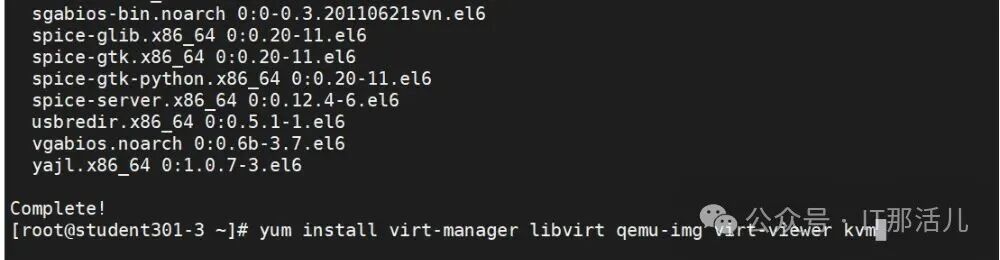 After installation, confirm whether it was successful and check if the modules are loaded:
 Edit /etc/libvirt/qemu.conf, add vnc_listen = “0.0.0.0”:
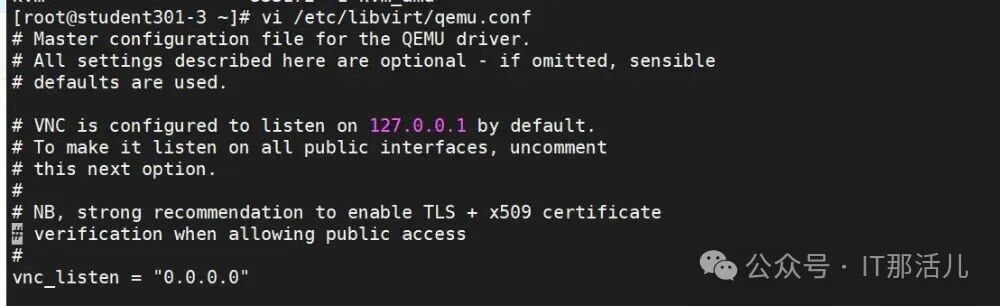 2.2 Restart libvirtd service
 2.3 Create a symbolic link
 2.4 Check the image type
 Three
Three
Configure KVM Virtual Machine to Use NAT Network
3.1 Edit NAT startup script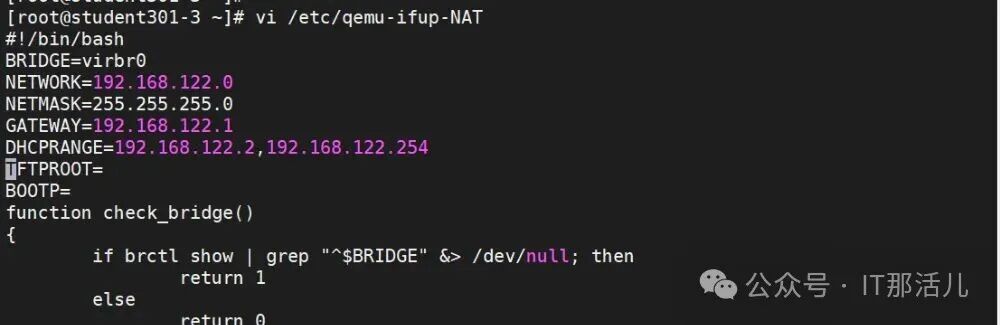 3.2 Create KVM virtual machine in NAT modeGrant execution permissions to the script:
 Start the virtual machine:
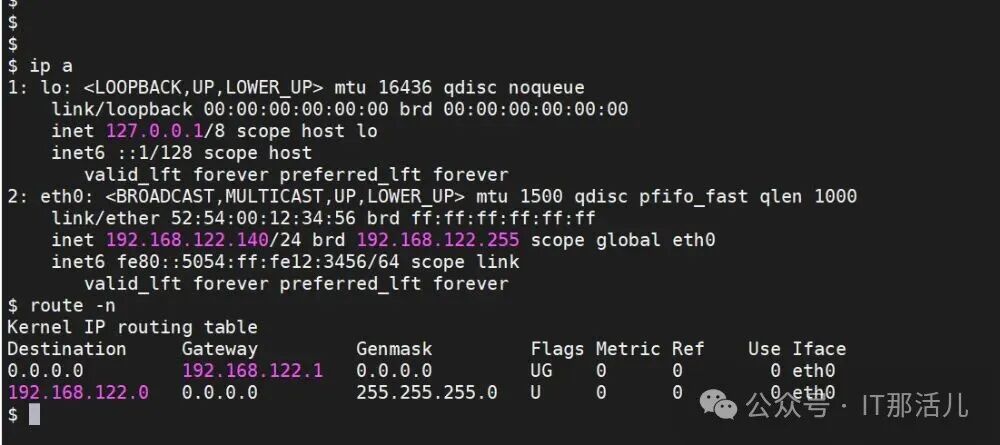
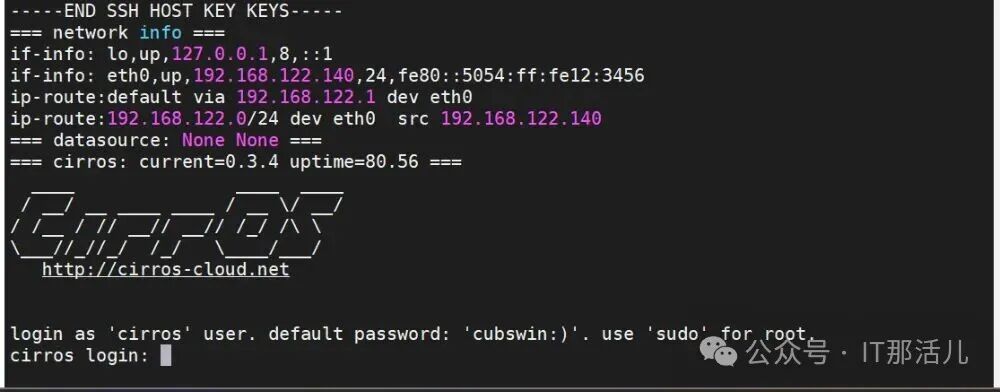 Use VNC Viewer software to remotely access the virtual machine, listing the IP address, subnet mask, and other information of this virtual machine, and also view the routing information of this system:
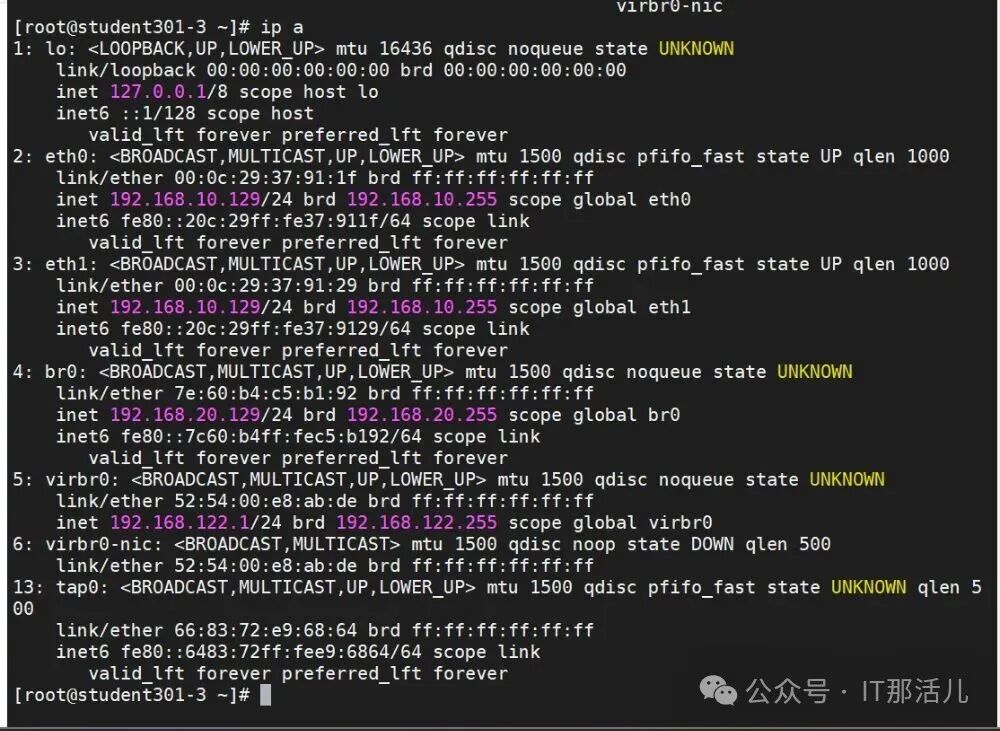
 Check the system’s bridge information, you can see the interface mounted on the virbro bridge:
 Check the TAP interface:
 Four
Four
Configure KVM Virtual Machine to Use Bridge Network
4.1 Configure Basic EnvironmentEdit the qemu-ifup script file: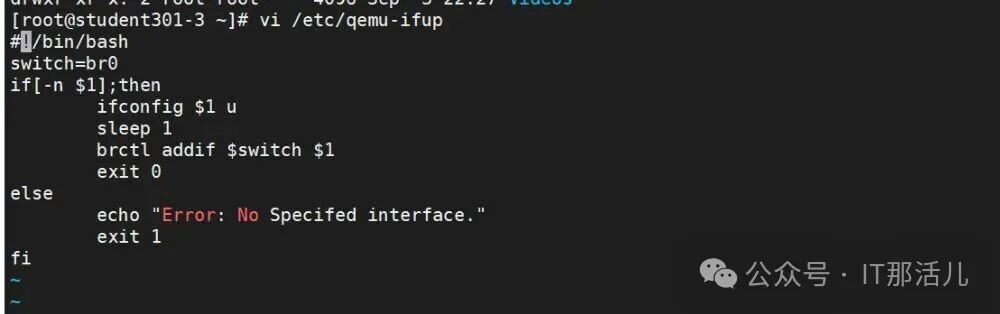 Edit the qemu-ifdown file:
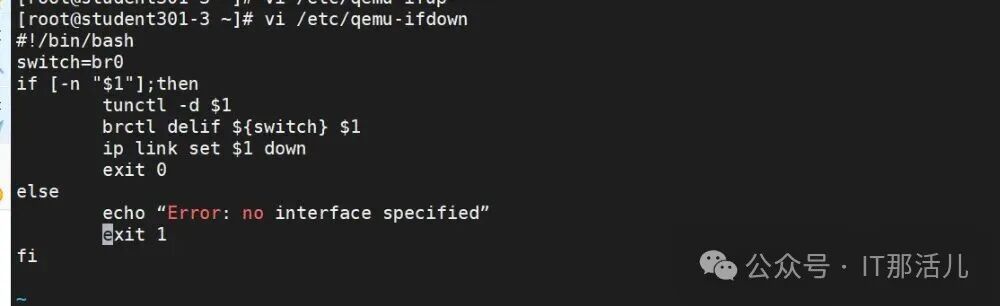 Install brctl and tunctl tools:
 Check if the tun module is loaded:
 Create a Bridge:
 Create the corresponding bridge IP: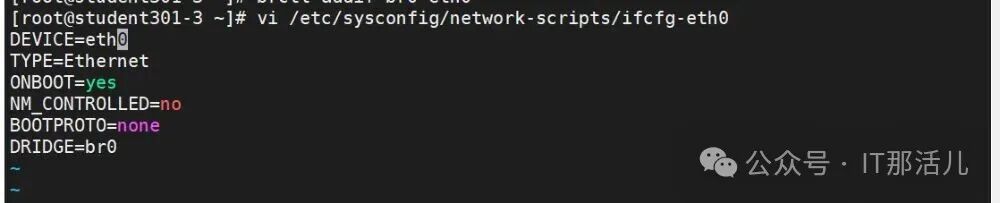
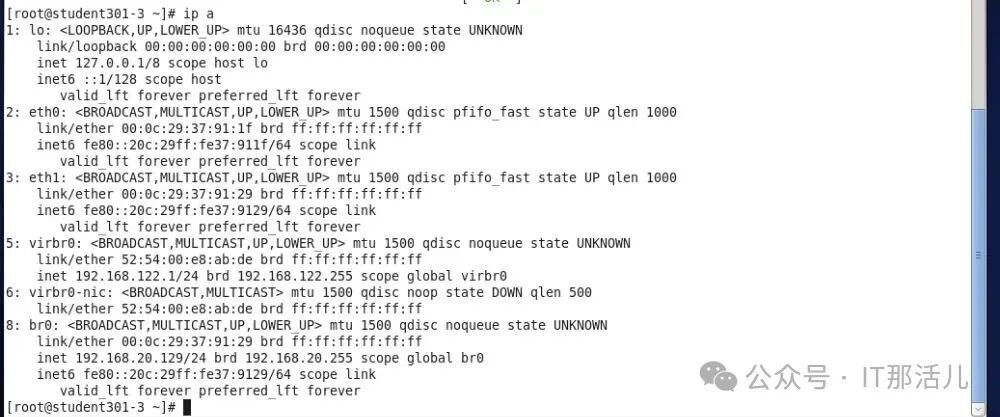
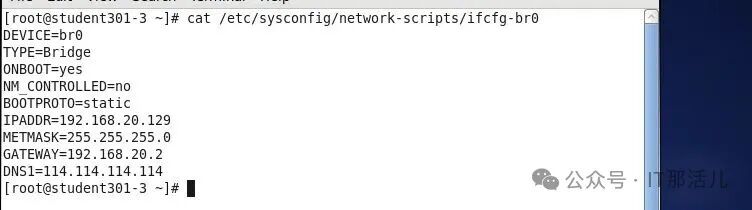 After configuration, restart the network and check the network and bridge configuration information:
 4.2 Start the virtual machineUse the command to start the virtual machine:
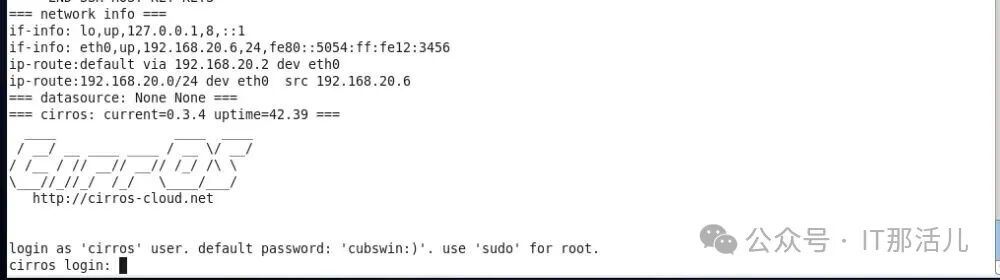 Check the br0 bridge:
 Five
Five
Conclusion
This experiment achieved seamless connection between the virtual machine and the physical network by configuring the Bridge network of KVM virtual machines.5.1 Experiment Steps
- Environment PreparationCheck if the system supports virtualization and whether the CPU supports virtualization.Ensure that KVM virtualization support is functioning properly.
- Bridge CreationUse brctl to create the virtual bridge br0, bind the physical network card eth0 to the bridge, release its original IP and transfer it to br0.
- Virtual Machine ConfigurationWhen creating a virtual machine with virt-install, specify –network bridge=br0, or modify the XML configuration of an existing virtual machine to set the network interface type to bridge mode.
- Validation TestInside the virtual machine, use ip addr to confirm that it has obtained an IP address in the same subnet as the host and can successfully access the external network.
5.2 Experiment ResultsThe virtual machine successfully connected to the physical network, with a communication delay of less than 1ms and performance close to that of a physical machine.5.3 Issues and SolutionsAfter the initial configuration, the virtual machine could not access the internet because the host did not correctly assign an IP to br0. This was resolved by dynamically obtaining an IP through dhclient br0.The communication delay between virtual machines was high, but performance significantly improved after disabling the STP protocol on the bridge.5.4 ConclusionBridge mode is suitable for scenarios where virtual machines need to be directly exposed to the physical network (such as server deployment), but attention must be paid to IP management and network security policies. END
END
Author of this article: Zhang Shuai(Shanghai Xinjuzhongbei Team)
Source of this article: “IT那活儿” public account
