Click the above “walkingcloud” to follow and select “Star” public account
Using GrayLog Alert Function for Scheduled Work Reminders via DingTalk Bot
1. Create a Syslog Input in GrayLog
To receive system logs from Linux servers
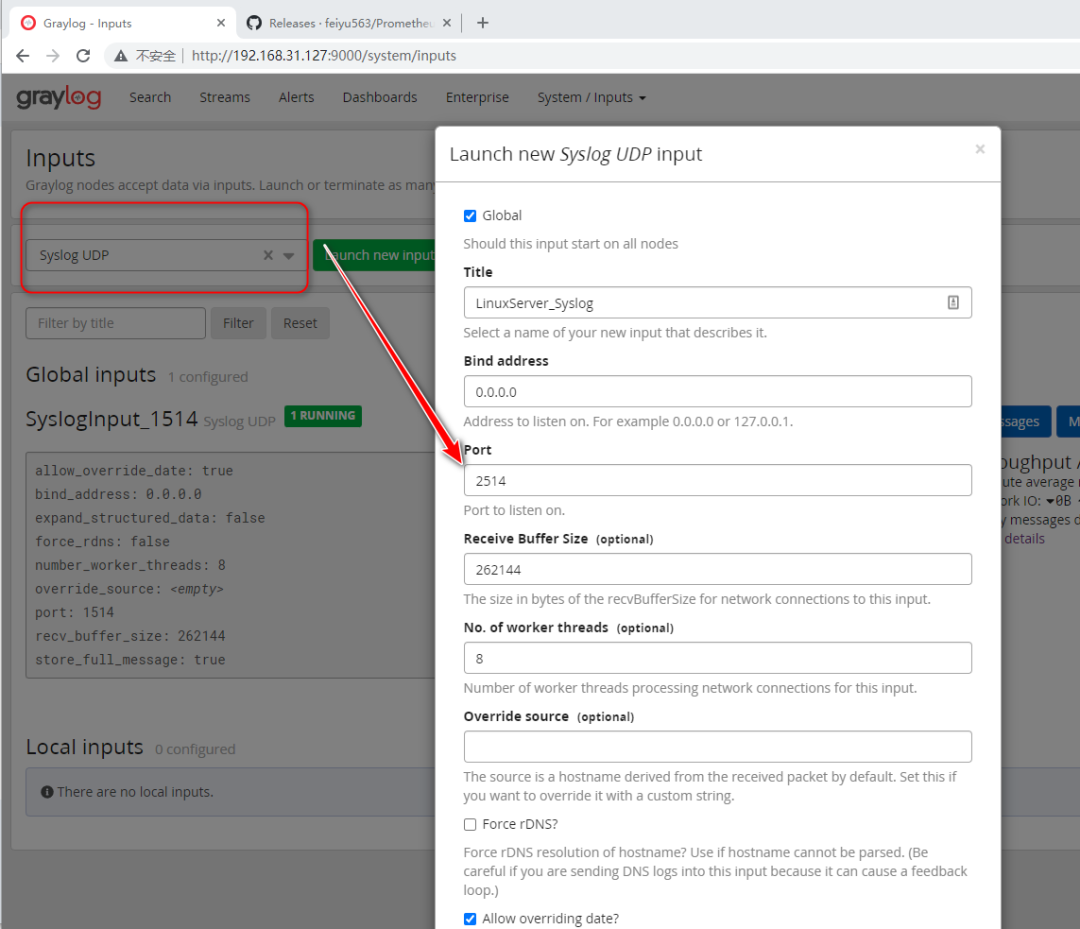
(Click the image to enlarge)
It is recommended to create a separate Index
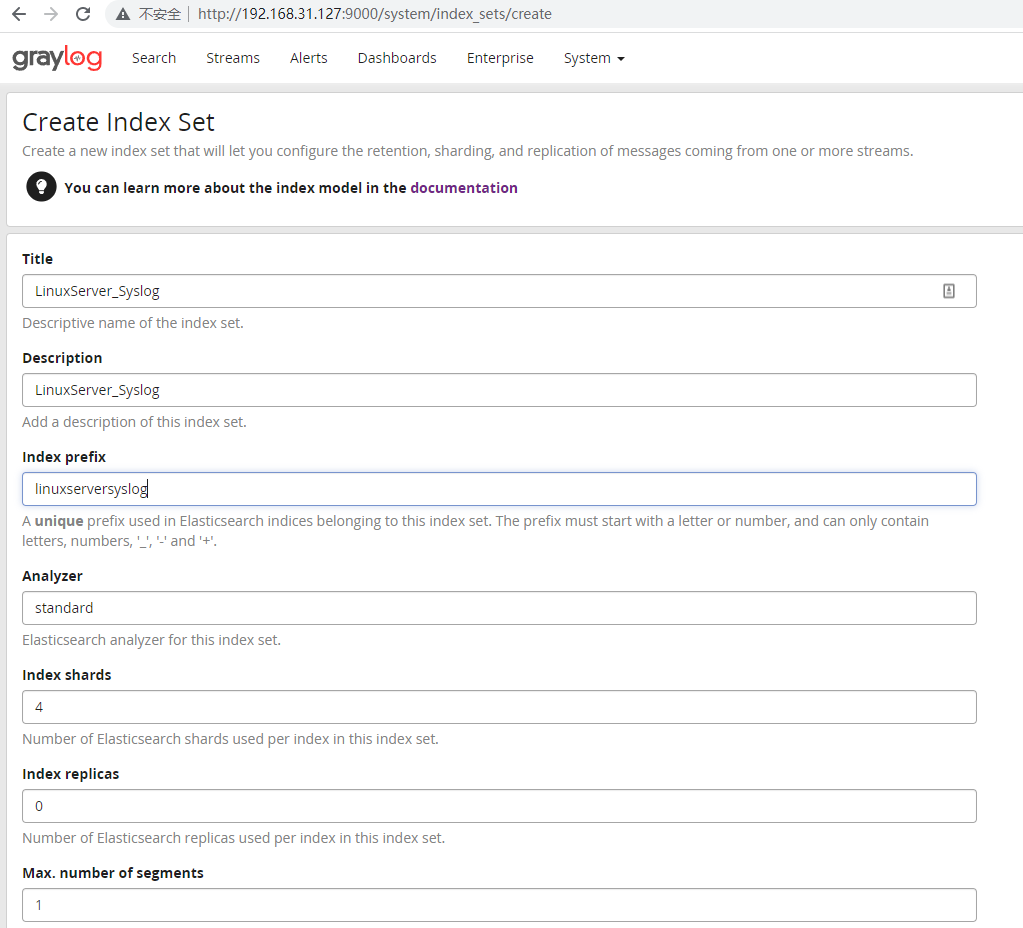
(Click the image to enlarge)
And configure a separate Stream
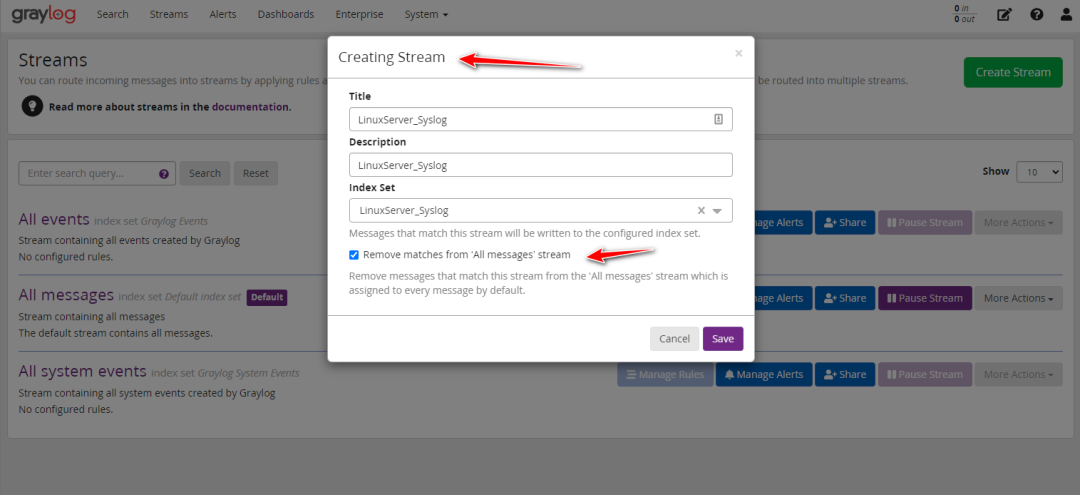
(Click the image to enlarge)
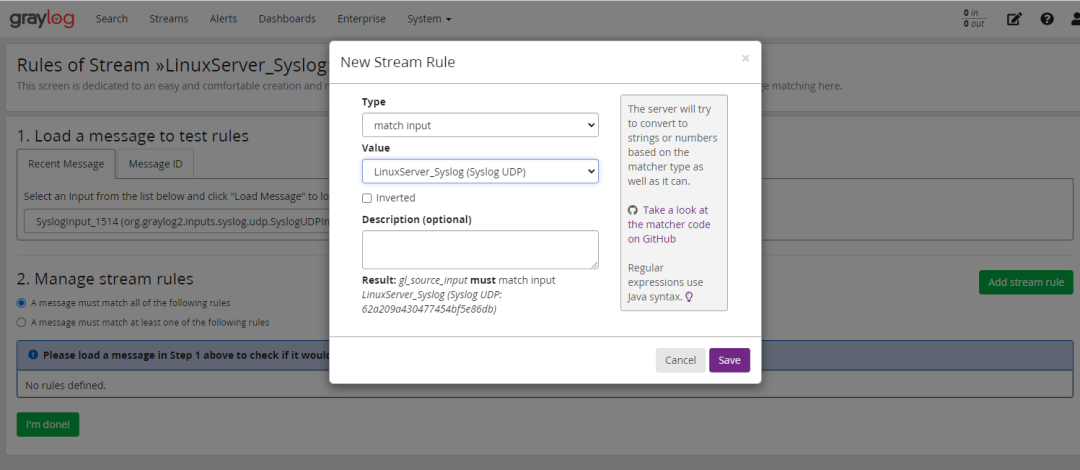
(Click the image to enlarge)
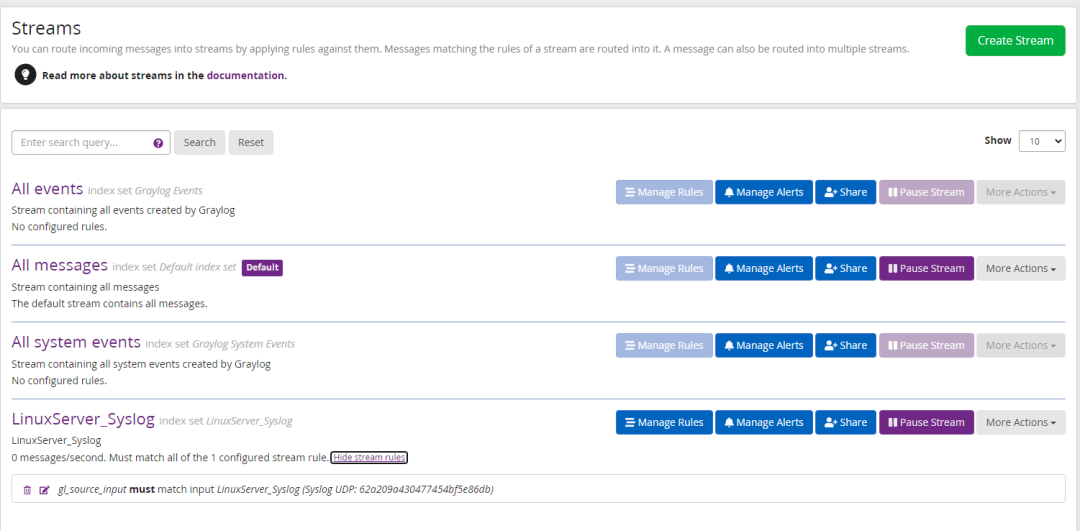
(Click the image to enlarge)
Open the Input port in the firewall
[root@centos opt]# firewall-cmd --permanent --zone=public --add-port=2514/udp
success
[root@centos opt]# firewall-cmd --reload
success
2. Connect Linux Server System Logs to GrayLog
For convenience, we will use Graylog itself as the source of Linux server logs
[root@centos opt]# echo "*.* @192.168.31.127:2514;RSYSLOG_SyslogProtocol23Format" >> /etc/rsyslog.conf
[root@centos opt]#
[root@centos opt]# tail -n 4 /etc/rsyslog.conf
# remote host is: name/ip:port, e.g. 192.168.0.1:514, port optional
#*.* @@remote-host:514
# ### end of the forwarding rule ###
*.* @192.168.31.127:2514;RSYSLOG_SyslogProtocol23Format
[root@centos opt]#
[root@centos opt]# systemctl restart rsyslog 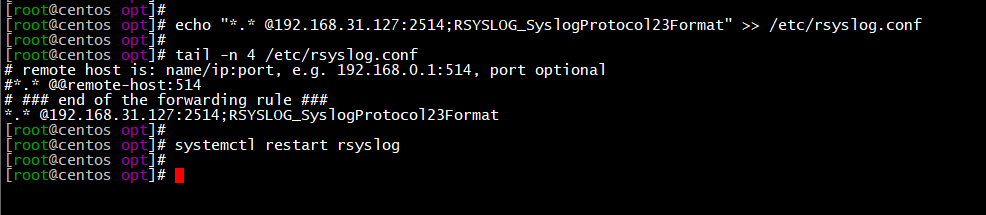
(Click the image to enlarge)
3. Check if the logs are queried normally
You can see that the logs are being received normally
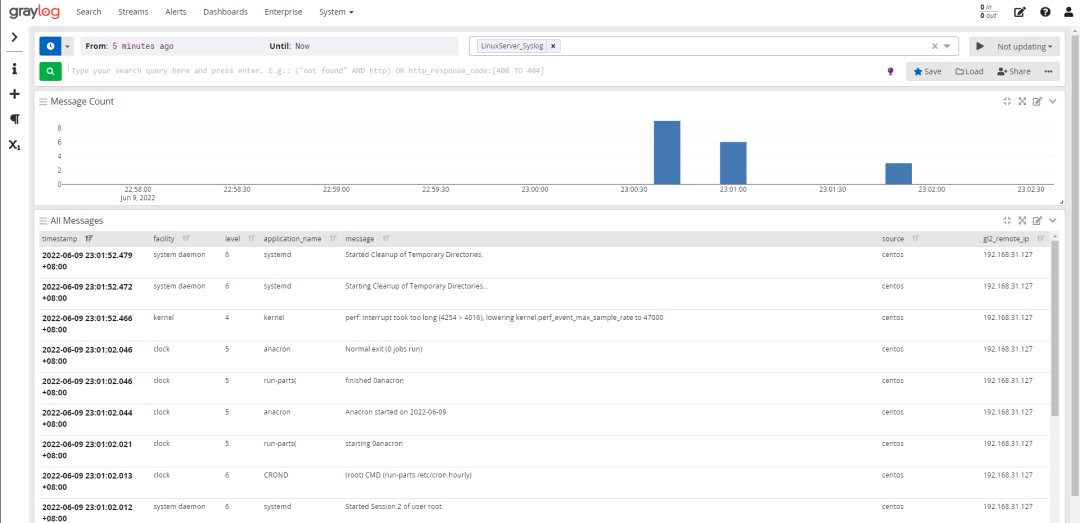
(Click the image to enlarge)
4. Write a script for periodically writing to system logs and set up a Crontab task
vi replace_username.sh
#!/bin/bash
temp_day=`date +%a`
case $temp_day in
Mon)
   echo "Today’s duty reminder @Zhang San A" > /etc/work_alert.txt;
   ;;
Tue)
   echo "Today’s duty reminder @Li Si B" > /etc/work_alert.txt;
   ;;
Wed)
   echo "Today’s duty reminder @Wang Wu C" > /etc/work_alert.txt;
   ;;
Thu)
   echo "Today’s duty reminder @Yuan Fan (Xing Yun) " > /etc/work_alert.txt;
   ;;
Fri)
   echo "Today’s duty reminder @Yuan Fan" > /etc/work_alert.txt;
   ;;
Sat)
   echo "Today’s duty reminder @Zhang San F" > /etc/work_alert.txt;
   ;;
Sun)
   echo "Today’s duty reminder @Zhang San G" > /etc/work_alert.txt;
   ;;
*)
  exit;
esac
Configure the scheduled tasks for this month
crontab -e
1  0 1,2,6,7,8,9,10,13,14,15,16,17,20,21,22,23,24,27,28,29,30  * * /opt/replace_username.sh
00 17 1,2,6,7,8,9,10,13,14,15,16,17,20,21,22,23,24,27,28,29,30  * * /usr/bin/logger -f /etc/work_alert.txt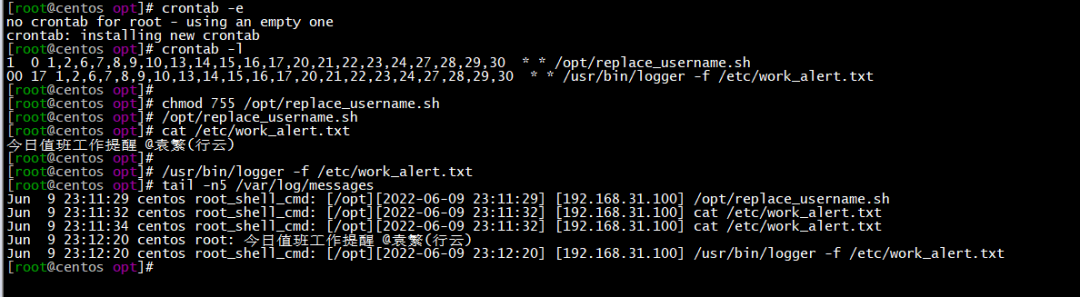
Which means the workdays of June
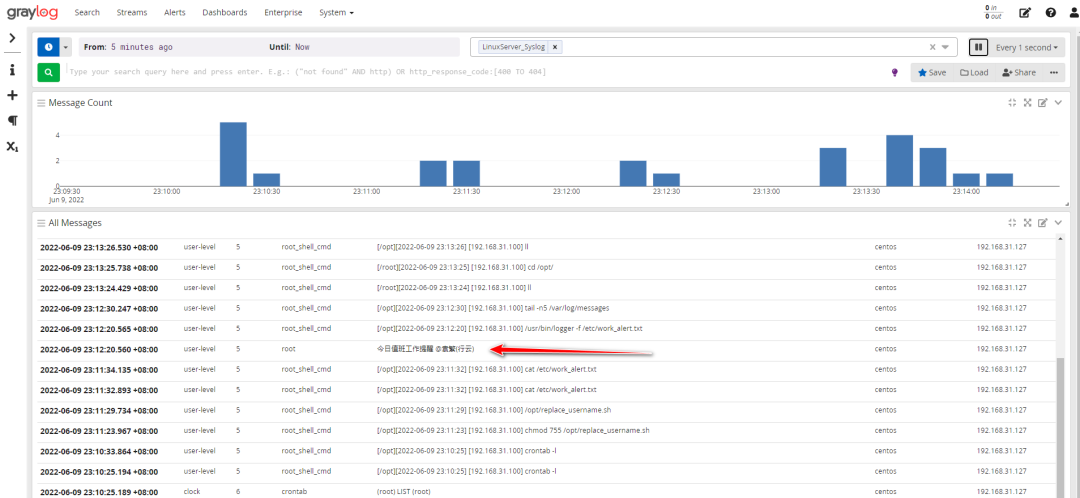
1. Every day at 00:01, automatically replace the names of the personnel in /etc/work_alert.txt file, related weekly and daily shifts are for different personnel
2. Execute the logger -f command at 17:00 to write to the system logs
(Click the image to enlarge)
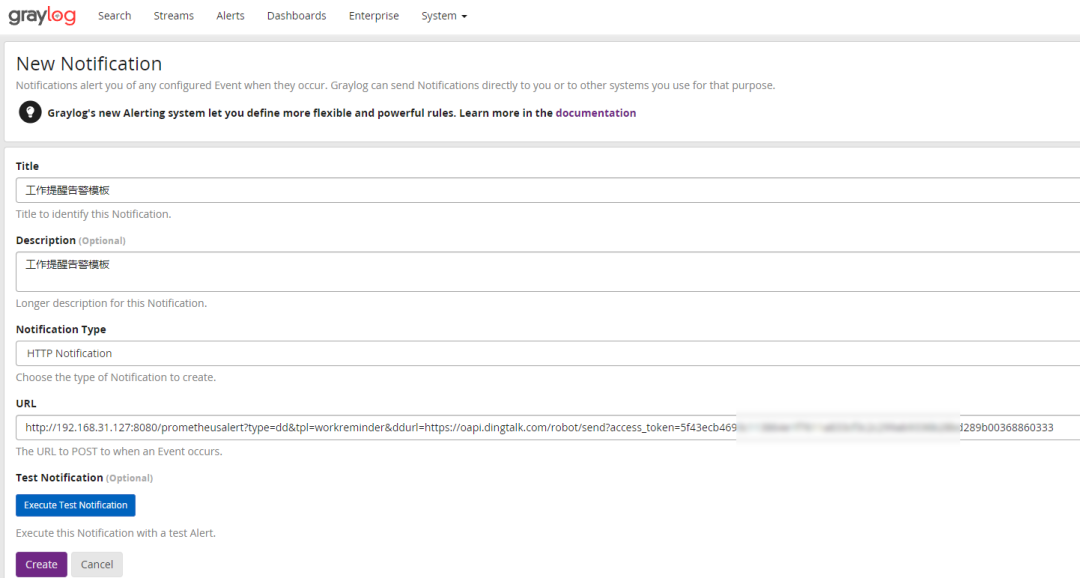
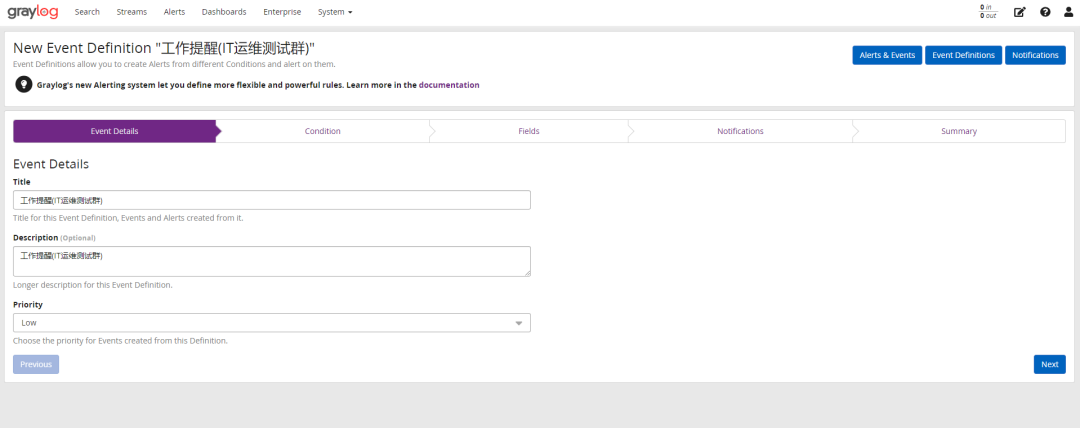
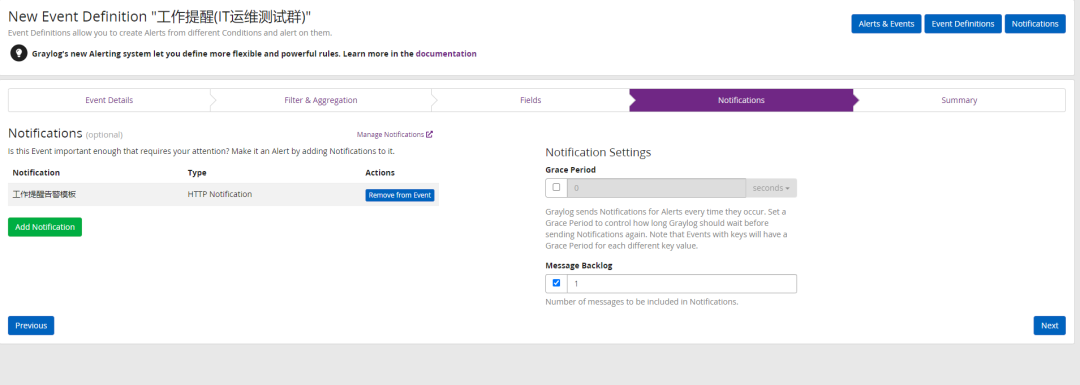
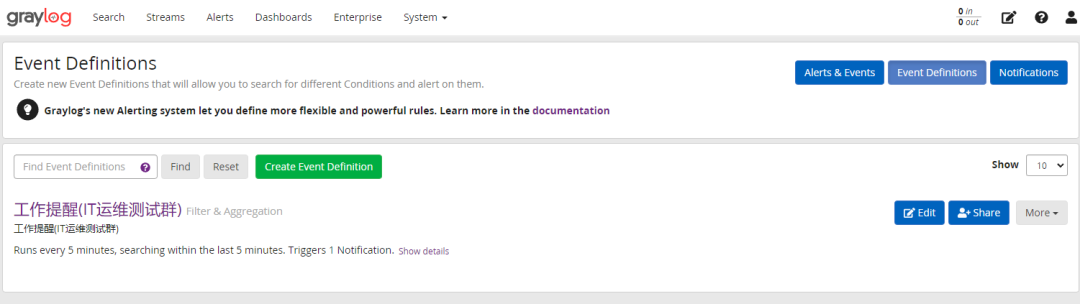
5. Configure Alert Templates
(Click the image to enlarge)
(Click the image to enlarge)
(Click the image to enlarge)
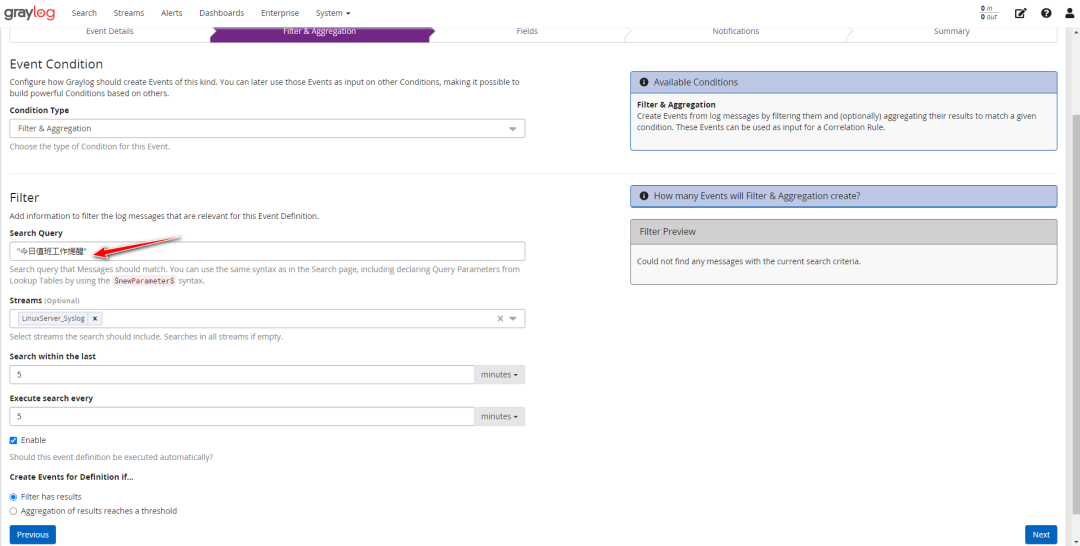
Search Query
“Today’s duty reminder”
Search within the last you can write 5 minutes or shorter 3 minutes
Execute search every suggestion should be consistent with the time set in Search within the last
(Click the image to enlarge)
(Click the image to enlarge)
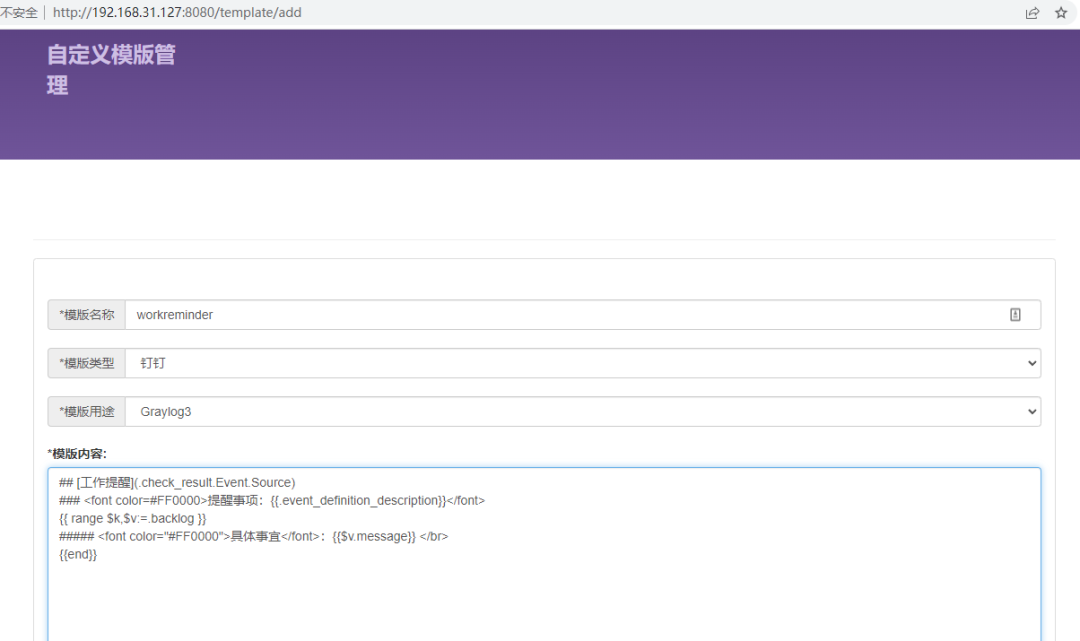
Please configure the alert template on PrometheusAlert yourself
As shown in the screenshot
(Click the image to enlarge)
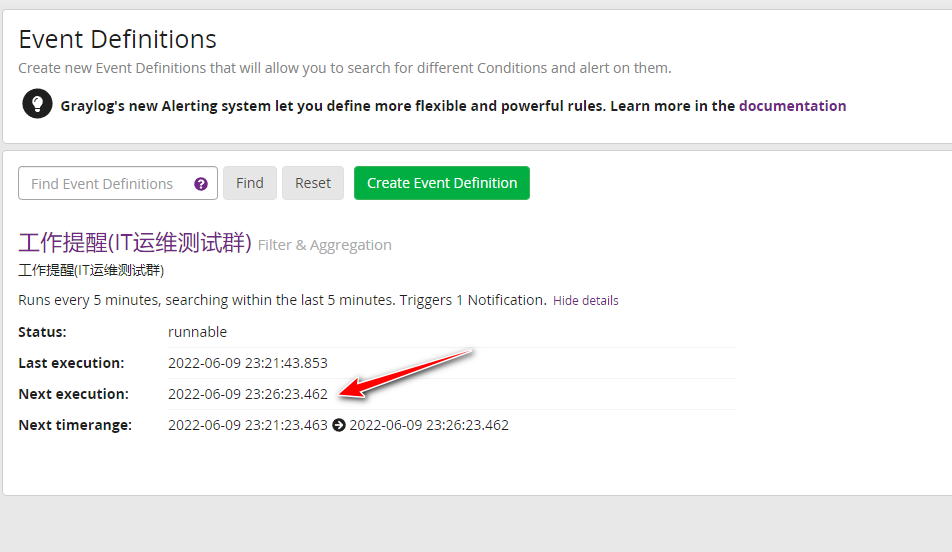
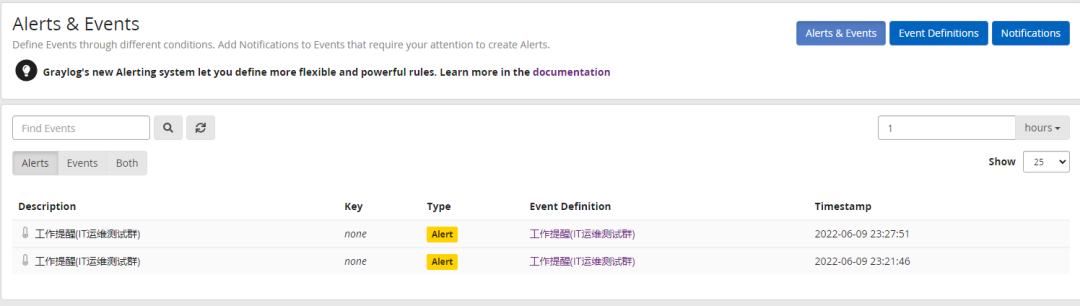
6. Manually Trigger Logs and Test Alerts
[root@centos opt]# /usr/bin/logger -f /etc/work_alert.txt
[root@centos opt]# date
Thu Jun  9 23:21:51 CST 2022
[root@centos opt]# cat /etc/work_alert.txt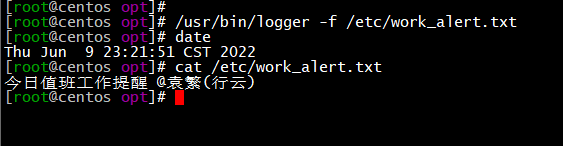
(Click the image to enlarge)
(Click the image to enlarge)
(Click the image to enlarge)
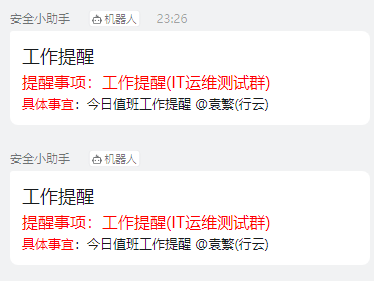
Wait for 5 minutes to see if you can receive the alert
(Click the image to enlarge)
7. Tips
1) Theoretically, if the crontab scheduled task script has no issues, it will send alerts normally
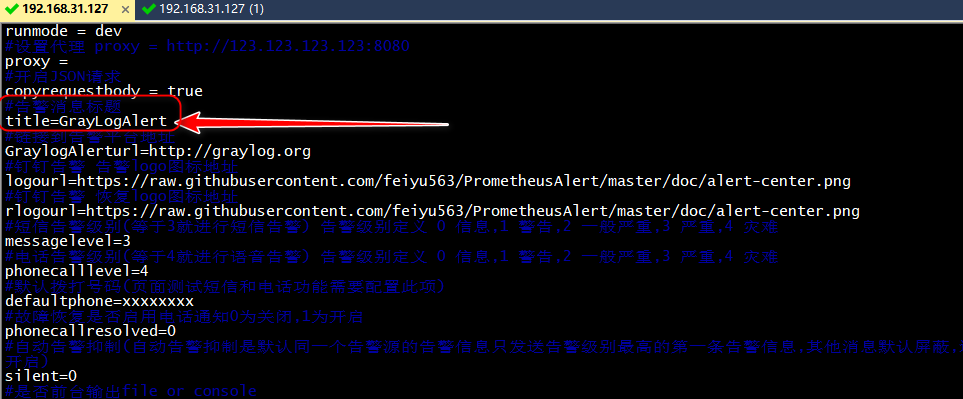
2) Disable @everyone in PrometheusAlert and modify the alert notification title
(Click the image to enlarge)
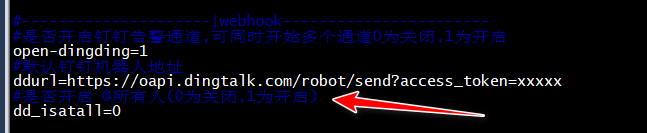
(Click the image to enlarge)
3) Note: Currently, the function of @someone has not been successfully implemented
Further research is needed, the replace_username.sh script needs to be rewritten