In embedded system development, properly managing boot auto-start projects can optimize the system startup process, ensuring that critical services and applications load and run on time. This article will provide a detailed introduction to the boot auto-start configuration method based on the System V init service management mechanism in the Linux 5.10.209 system on the ELF 2 development board, offering developers a comprehensive configuration reference.
Overview of the System V Init Service Management Mechanism
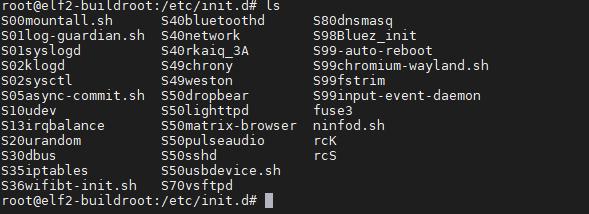
Systems built with Buildroot use the System V init service management mechanism, which is responsible for managing the Linux system’s startup process, service management, and system state transitions. Service management can be implemented by setting up run scripts in /etc/init.d. Some systems introduce run levels, referencing certain run scripts in /etc/init.d based on different run levels; however, the ELF 2 development board’s system has only one run level, which executes all scripts in /etc/init.d.
Scripts in /etc/init.d typically start with S or K, where S indicates start and K indicates kill. System V init operates in a serial manner, and the number following S or K indicates the execution order.
For example, files starting with S99 are executed last.
Disabling Default Startup Applications
If you want to disable a service that starts at boot, you can either delete the script or change S to K. For example, if you do not want vsftpd to start by default, you can rename S70vsftpd to K70vsftpd.
root@elf2-buildroot:/etc/init.d# mv S70vsftpd K70vsftpd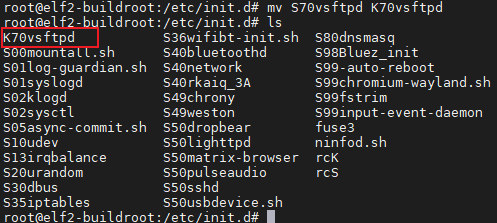
Auto-Starting Qt Applications
The default startup is the matrix-browser desktop, which is initiated through the /etc/init.d/S50matrix-browser file. This file includes settings for the Qt-related environment variables and operations to start the desktop. Therefore, to start a personal Qt application, you can directly modify the S50matrix-browser file to disable the desktop startup operation and instead start your personal Qt application.
Below, we will use the built-in Qt demo of the development board as an example, without describing the process of copying personal Qt applications to the board.
First, open S50matrix-browser using the vi editor.
root@elf2-buildroot:~# vi /etc/init.d/S50matrix-browserAfter opening the file, comment out /usr/bin/matrix-browser -no-sandbox –disable-gpu 127.0.0.1 >> /dev/null & and killall matrix-browser, and replace it with the commands to start and stop your application. For example, to start and stop the qtdemo_wifi application:
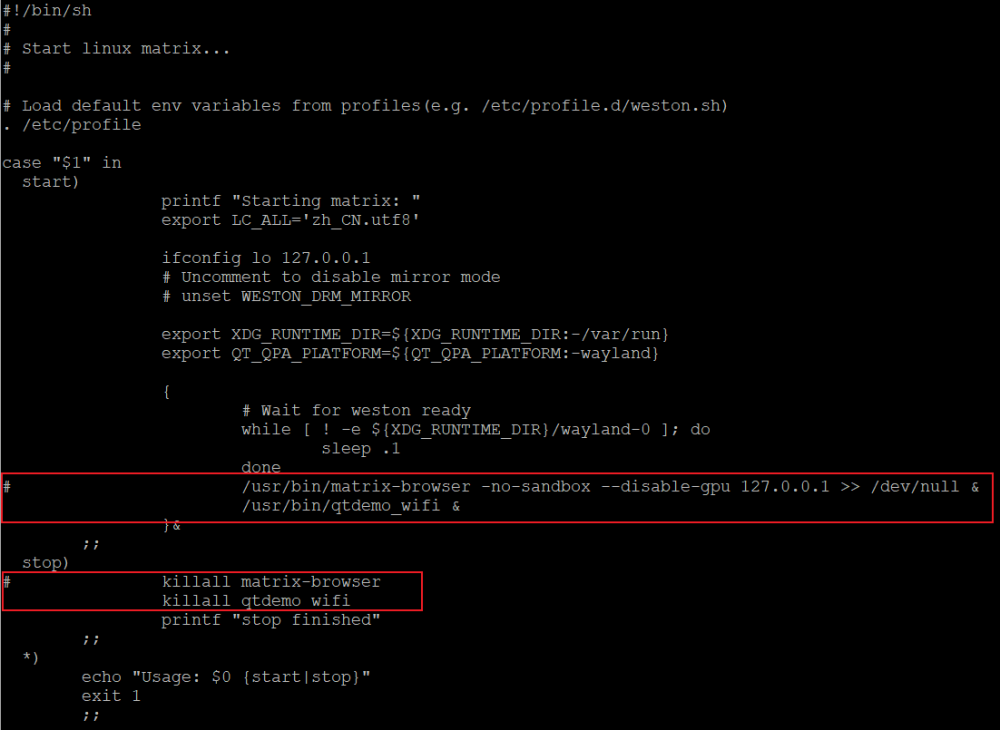
It is important to note that when starting the application, you must use the absolute path (the & symbol indicates that the program runs in the background and will not cause blocking).
Auto-Starting Non-GUI Applications
As an example of achieving automatic WiFi dialing after boot, create a script starting with S99 in the /etc/init.d/ directory, writing the dialing command into it, and attaching execution permissions to the script.
Note: When dialing or starting other applications, you must use the absolute path.
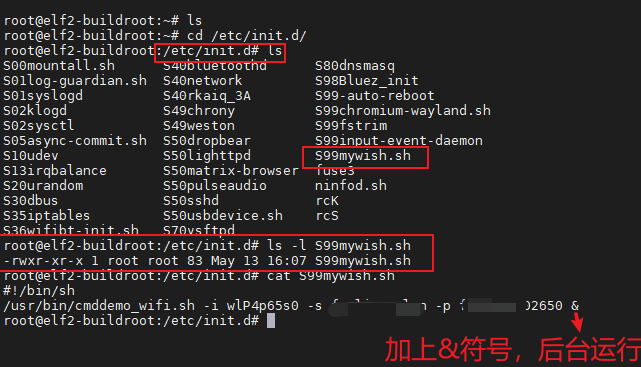
By following the above steps, you can achieve boot auto-start on the ELF 2 development board. Developers should pay attention to script naming conventions, execution permission settings, and the use of absolute paths for commands to ensure the accuracy and stability of the auto-start configuration. If you encounter any issues during practice, feel free to reach out for discussion!