Hello everyone!
Recently, I’ve received several private messages from friends in the background, and the questions are surprisingly consistent:
“I want to change my IP to test a webpage, or I want to hide my real IP. How do I set up an HTTP proxy in my browser? Looking at a bunch of parameters makes my head spin…”
To be honest, this question sounds very technical, but in practice, it’s actually easier than ordering takeout.
Today, I won’t delve into the theoretical principles; instead, I’ll provide a step-by-step practical tutorial. Whether you’re using Chrome, Edge, or Firefox, after reading this, you’ll be able to give your browser a “disguise” like a hacker (just kidding).

▍ 01 Why Set Up an HTTP Proxy?
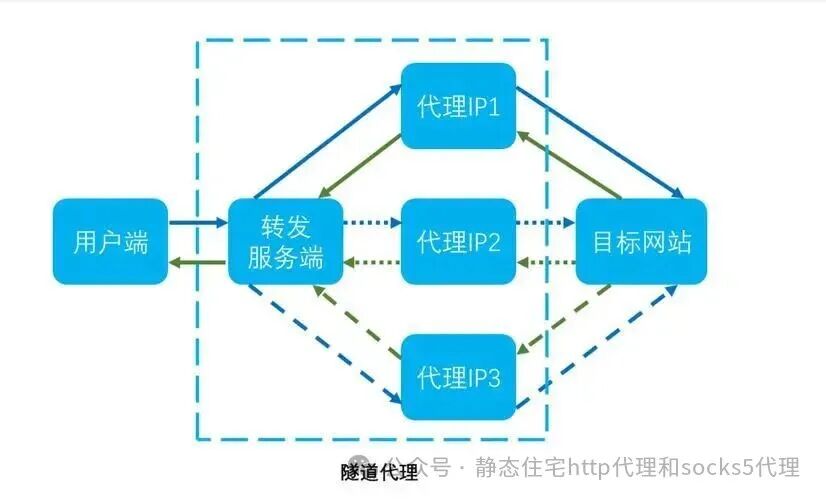
Simply put, it’s to find a “middleman” for your browser.
🚫 Normally: You ➔ Website ✅ Using a Proxy: You ➔ Proxy Server (Middleman) ➔ Website
This way, the website sees the IP of the “middleman” instead of yours. This is essential for web scraping tests, protecting privacy, or solving specific network access issues.
▍ 02 Method 1: Directly in Browser/System Settings
Applicable to: Friends who use it occasionally and don’t want to install any plugins.
Most mainstream browsers (Chrome, Edge) actually share system proxy settings. In other words, changing the browser settings also changes the computer’s system settings.
🅰 Chrome / Edge Browsers
These two brothers are like peas in a pod, and the setup method is almost the same:
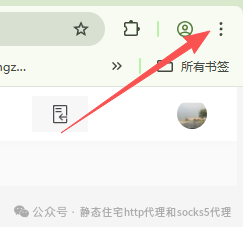
1. Open Settings Click the three dots in the upper right corner of the browser <span>...</span>, then click [Settings].
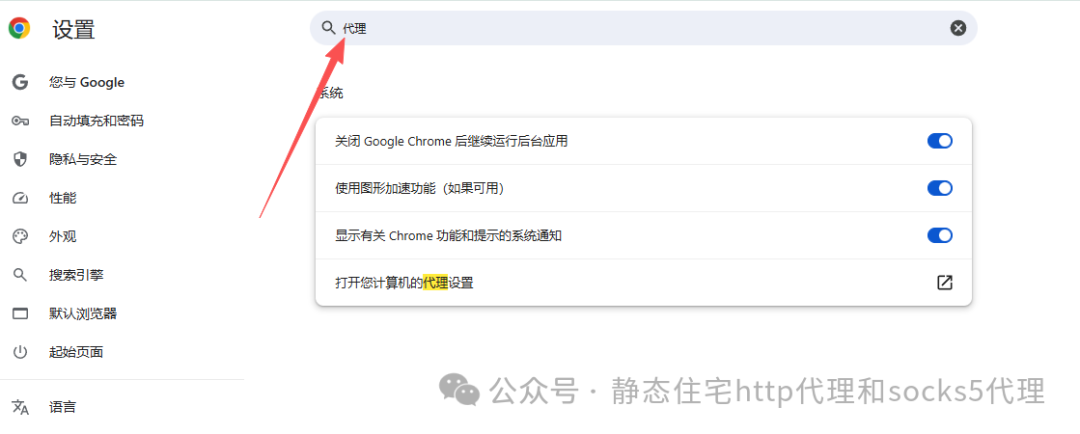
2. Search Entry In the search box, directly search for the word “proxy” (search Proxy in the English version).
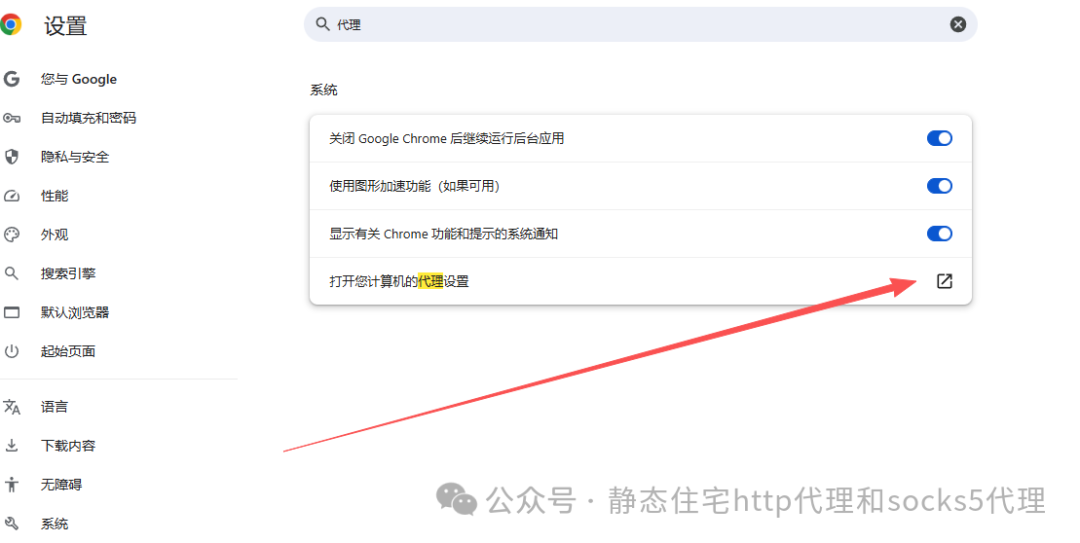
3. Enter System Settings You will see a button that says “Open your computer’s proxy settings” or “Open system proxy settings”; click it without hesitation.
4. Fill in Parameters (Key Step) In the pop-up system window, find “Manual proxy setup”:
● Turn on the switch for “Use a proxy server”.
● In the IP Address and Port fields, fill in the proxy information you obtained. (👉 For example, fill in IP: 192.168.1.1, Port: 8080) Free IP proxies, residential IPs, and socks5 proxies are not recommended for now.
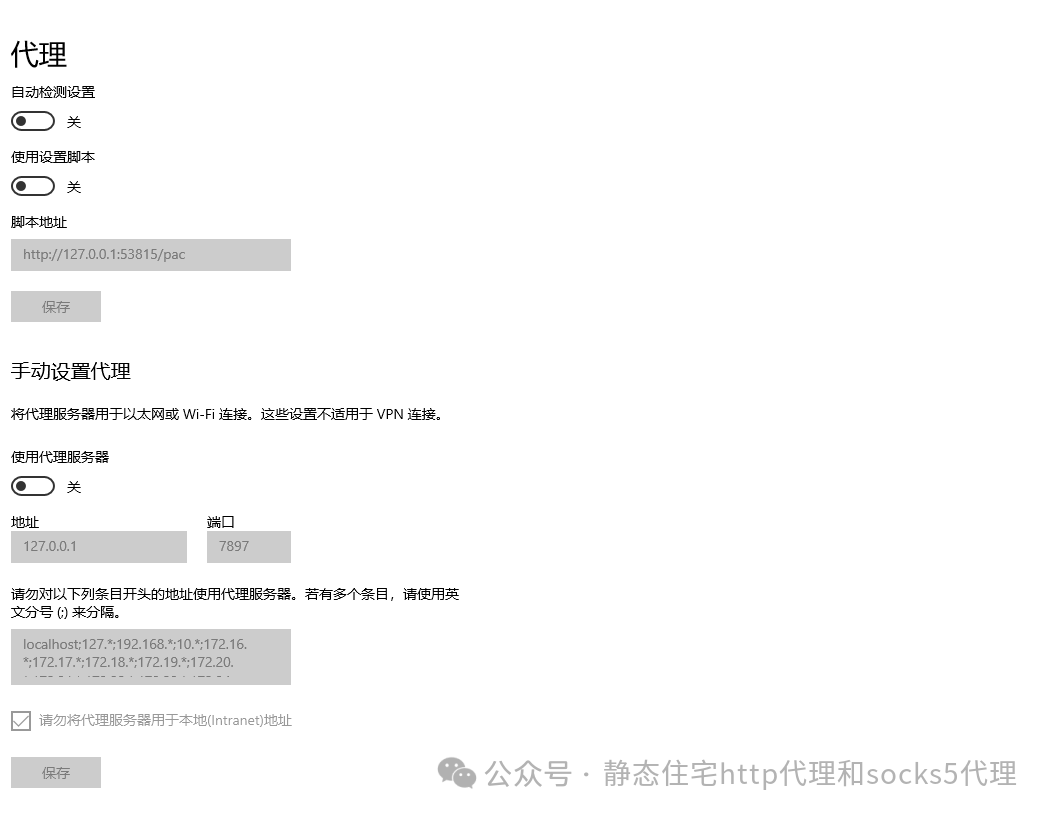
5. Save Click save, and you’re done! Now open Baidu and search for “IP”; the displayed IP should be the new one.
🅱 Firefox Browser
Firefox is quite unique; it allows you to set a proxy just for the browser, without affecting other software on the computer (like QQ or WeChat), which is a huge plus! 👍
1. Operation Path Settings ➔ General ➔ Scroll to the bottom to find [Network Settings] ➔ Click [Settings].
2. Parameter Configuration Select [Manual proxy configuration], and fill in the IP and port in the HTTP proxy field.
3. Important Detail Be sure to check “Use this proxy for HTTPS also”, otherwise, accessing encrypted websites will expose your real IP.
▍ 03 Method 2: Using a Plugin (Recommended for Advanced Users)
If you need to switch proxies frequently, or if you need to use a proxy now and turn it off later, constantly changing system settings is really too! much! hassle!
At this point, you need a powerful plugin, such as SwitchyOmega (the eternal god). This is not a paid promotion.
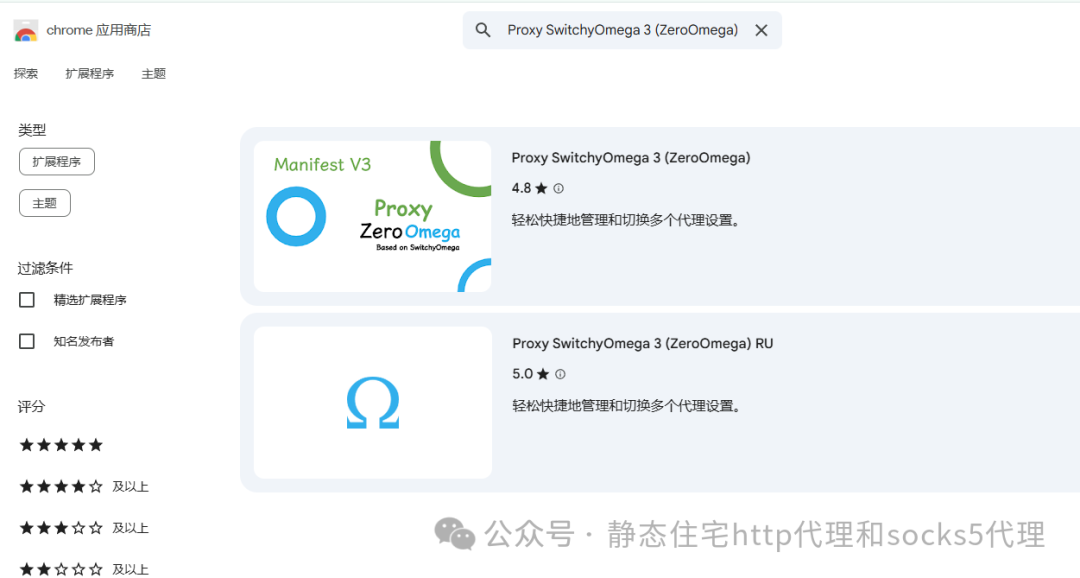
💡 Why Recommend It? You can toggle the proxy on and off with just one click on the icon, without digging through settings; you can also set up smart routing, deciding who uses the proxy and who connects directly, making it very clear.
Setting Steps Only Require Three Steps:
Step 1: Install Go to the Chrome or Edge extension store, search for <span>Proxy SwitchyOmega</span> and install it.
Step 2: Configure Click the plugin icon ➔ Options ➔ Create a new scenario ➔ Select protocol <span>HTTP</span> ➔ Fill in IP and port ➔ Click [Apply Options] in the lower left corner.
Step 3: Enable Click the plugin icon in the upper right corner of the browser, select the mode you just created. The icon will change color, and the proxy will take effect! ✨
⚠️ Pitfall Guide (Must Read)
Although the setup is simple, many friends find that after setting it up, their internet is disconnected, usually due to the following reasons:
❌ Proxy is Invalid: 99% of free proxies found online are unstable, and it’s common for them to not connect. If it’s a paid proxy, check if it’s expired.
❌ Forgot to Turn It Off: Remember to turn off the proxy after use! Otherwise, you may find that your WeChat desktop version or online games suddenly can’t log in (if you changed the system settings).
❌ Authentication: Some high-quality proxies require a username and password. When you first open a webpage after setting it up, a pop-up will prompt you to enter your username and password; don’t think it’s a virus, just fill it in.
📝 Summary
● If you don’t want to install plugins: Directly search for “proxy” in the browser settings and change the system configuration.
● If you want smooth switching: Strongly recommend installing a free browser plugin.
● Firefox Users: It has independent settings; cherish it while you can.
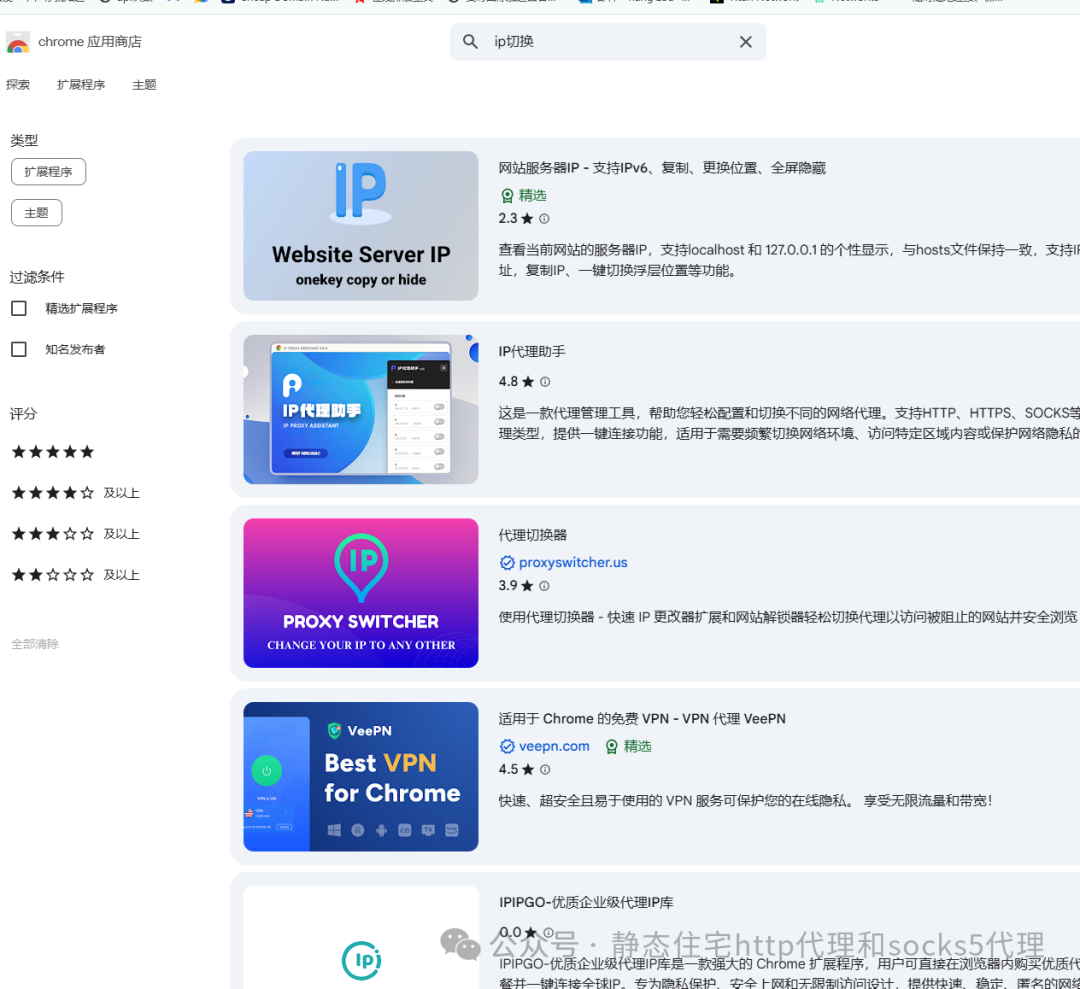
Alright, that’s it for today’s tutorial. Wasn’t it as difficult as you imagined?
If you found this content useful, remember to click **[Looking]** or share it with friends who need it; it really means a lot to me! ❤️
See you next time! 👋