Linux is a powerful operating system, ubiquitous from servers to personal computers. Unlike the intuitive graphical interface of Windows, Linux relies more on command-line operations, and its file system is more complex. You might encounter scenarios where you need to find a configuration file but don’t know where it’s hidden; or you want to confirm the installation path of a command but don’t know where to start. Mastering file search techniques can not only save you time but also empower you to explore this system with more confidence.
This article will take you into the world of four search methods. Whether you want to search by filename, locate by content, or track command paths, there are tools here that suit your needs. Ready? Let’s get started!

Method 1: Use the <span>find</span> Command to Dig Deep
If there’s a “universal key” in Linux, it must be the <span>find</span> command. It is powerful and can search for files and folders based on filename, type, size, or even modification time. When used well, it’s like a super detective that can help you uncover any secrets hidden deep within the system.
How to Use <span>find</span>?
<span>find</span> has a very simple basic usage:
find [search_start] [conditions]- Search Start: Tells
<span>find</span>where to start looking, such as the current directory (indicated by<span>.</span>) or a specific path (like<span>/home</span>). - Conditions: Tells it what to look for, such as filename, file type, etc.
Commonly Used Search Tools
<span>find</span> provides many options to help you precisely target your search:
<span>-name</span>: Search by filename, supports wildcards (<span>*</span>represents any character,<span>?</span>represents a single character).<span>-iname</span>: Same as<span>-name</span>, but case-insensitive.<span>-type</span>: Specify file type, such as<span>f</span>(regular file),<span>d</span>(directory).<span>-size</span>: Search by file size, such as<span>+10M</span>(greater than 10MB) or<span>-500k</span>(less than 500KB).<span>-mtime</span>: Search by modification time,<span>-7</span>means within 7 days,<span>+30</span>means older than 30 days.
Practical Exercises
- Find all
<span>.txt</span>files in the current directory
Suppose you are writing a document and want to find all text files:
find . -name "*.txt"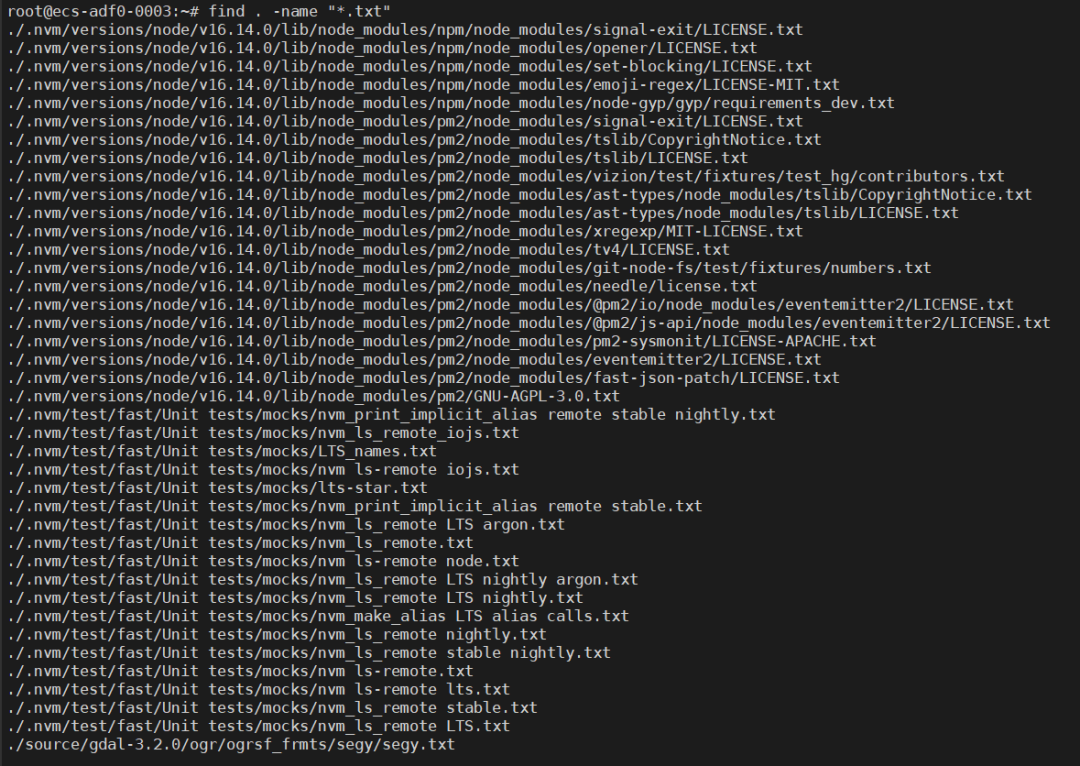
This will list all files ending with <span>.txt</span> in the current directory and its subdirectories.
- Find configuration files ending with
<span>conf</span>under<span>/etc</span>
System configurations are usually stored in <span>/etc</span>, you can use:
find /etc -name "*.conf"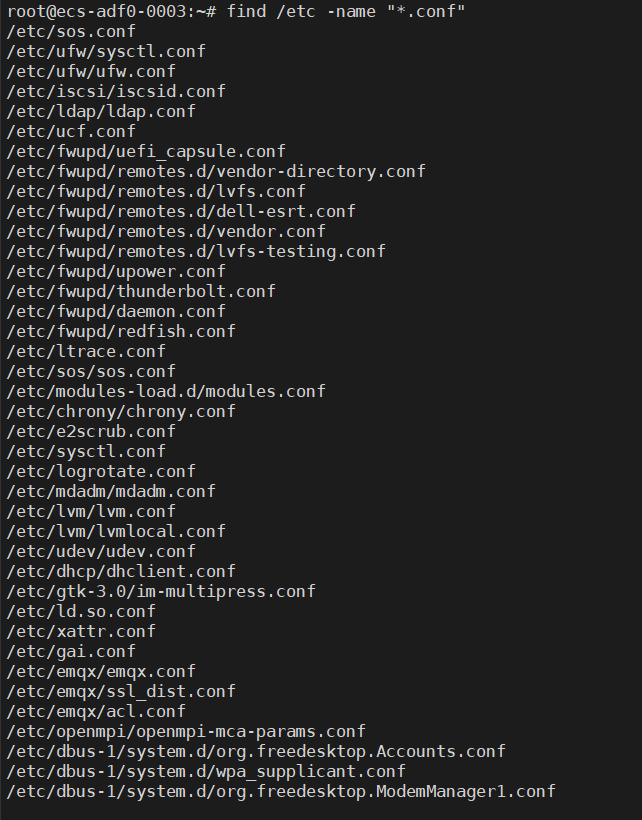
- Uncover large files in the system
Is your hard drive almost full? Find files larger than 100MB:
find / -size +100MTip: This command will scan the entire system, may require root privileges (add <span>sudo</span>), and may display some permission errors, which can be ignored.
- Find logs modified in the last 7 days
Check for fresh logs under <span>/var/log</span>:
find /var/log -mtime -7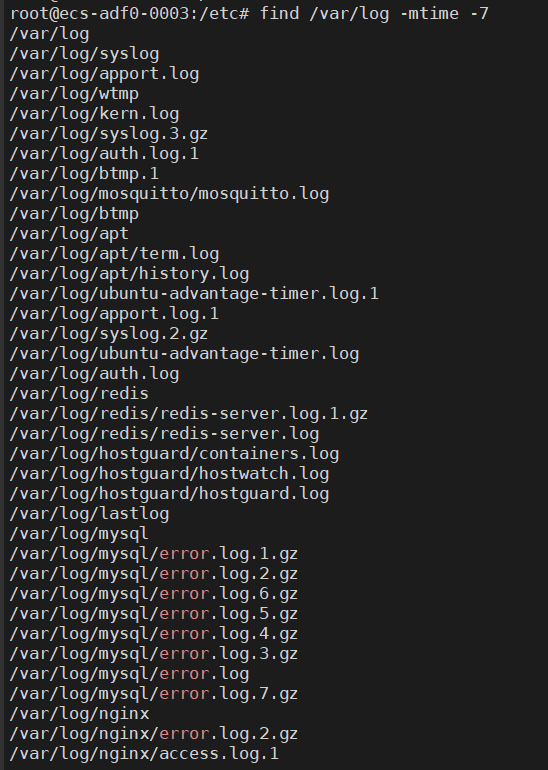
Advanced Techniques
- Combine Conditions: Want to find files modified within the last 7 days and larger than 1MB? Use
<span>find /var/log -mtime -7 -size +1M</span>. - Execute Actions: After finding files, you can also do something with them, like deleting all
<span>.bak</span>files:
find . -name "*.bak" -exec rm {} \;- Case Insensitive Search: Not sure about the case of the filename? Use
<span>-iname "*.txt"</span>.
Summary
<span>find</span> is like a Swiss Army knife, with so many functions that it can be overwhelming. Its downside is that it can be a bit slow because it traverses directories in real-time. However, once you master the options, it can solve almost all search problems.
Method 2: Use the <span>locate</span> Command for Lightning Fast Searches
If <span>find</span> is the detective, then <span>locate</span> is a “seer.” It relies on a pre-built database to search, making it incredibly fast, especially suitable for quickly locating files.
How Does It Work?
<span>locate</span> does not directly scan the file system but checks a database. This database records the paths of all files in the system, usually updated automatically by the <span>updatedb</span> command. Because it does not require real-time scanning, it is lightning fast.
Usage Is Super Simple
locate [filename or pattern]Just type in the filename or part of the name you want to find.
Try It Out
- Find the
<span>.bashrc</span>file
Input:
locate bashrcIt may return paths like <span>/home/user/.bashrc</span>.
- List All
<span>.jpg</span>Images
Use wildcards:
locate "*.jpg"Important Notes
- Database Must Be Fresh: If you just created or moved files,
<span>locate</span>may not find them because the database hasn’t been updated. Manually running<span>sudo updatedb</span>can solve this. - Limited Options: You can use
<span>-i</span>to ignore case, or<span>-n 10</span>to limit the number of results, but you cannot filter by size or time like with<span>find</span>.
Summary
<span>locate</span> is synonymous with speed, ideal for quick daily searches. However, it relies on a database, so it is less responsive to dynamically changing file systems. Think of it as a lightweight version of <span>find</span>.
Method 3: Use the <span>grep</span> Command to Find Files by Content
<span>grep</span> is a text search tool in Linux, typically used to find content within files. However, with a little creativity, it can also help you locate files.
Basic Usage
grep [options] [keyword] [file]To search for filenames, we need to use pipes and clever tricks.
Practical Examples
- Find filenames containing
<span>error</span>in the current directory
List filenames and then filter:
ls | grep errorThis will return files like <span>error.log</span>.
- Recursively find filenames containing
<span>network</span>under<span>/etc</span>
Use <span>ls -R</span> to list all files, then use <span>grep</span>:
ls -R /etc | grep network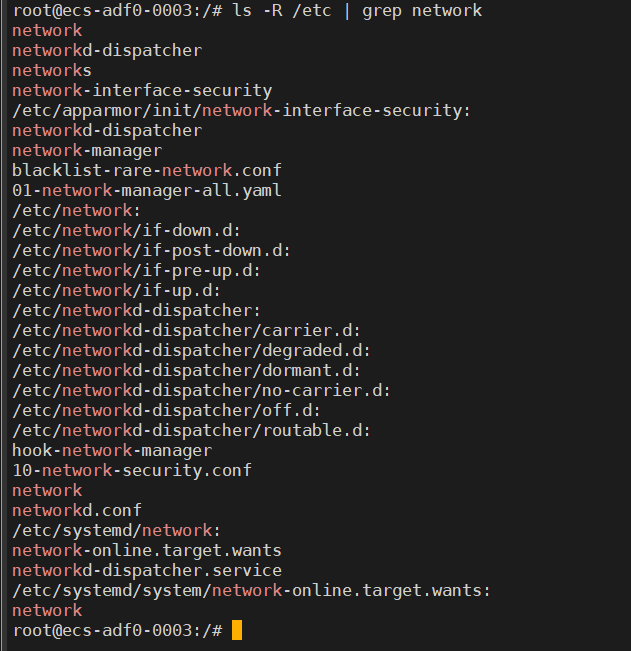
- Directly search file contents
If you know a keyword exists in a file, such as “password”:
grep -r "password" /etc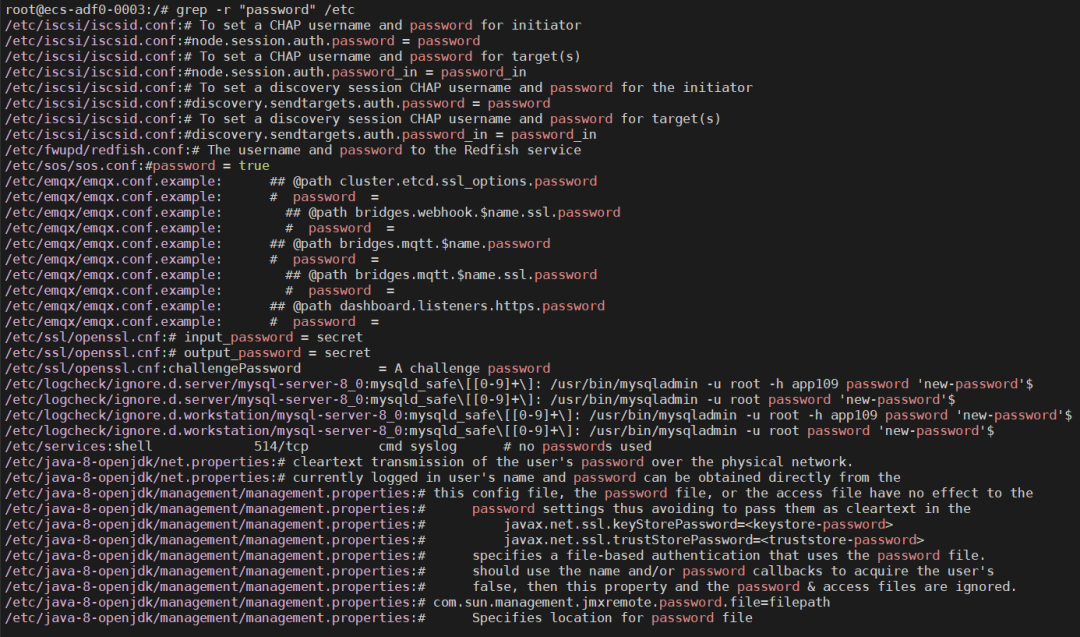
<span>-r</span> means recursive search, and will list files containing “password” along with the specific lines.
Tips and Tricks
- Case Insensitive: Add
<span>-i</span>, for example,<span>grep -i error</span>. - Show Filenames: Use
<span>-l</span>to list only matching filenames:
grep -rl "password" /etcSummary
<span>grep</span> excels at content searching, but it’s also good for finding filenames. Its flexibility comes from its ability to work with pipes and regular expressions, though it may not be as comprehensive as <span>find</span>, it is quite practical in certain scenarios.
Method 4: Use <span>whereis</span> and <span>which</span> to Trace Command Paths
The last two tools, <span>whereis</span> and <span>which</span>, are designed specifically to search for commands and executable files. If you want to know where a program is installed, these two are your best partners.
<span>whereis</span>: Comprehensive Investigation
<span>whereis</span> can find the binary file, source, and manual page of a command.
Usage
whereis [command_name]Example
Find the location of <span>gcc</span>:
whereis gccThe output may be:

<span>which</span>: Direct to the Core
<span>which</span> only tells you the executable path of a command, straightforward and to the point.
Usage
which [command_name]Example
Find where <span>python</span> is located:
which pythonThe result may be:

Differences Between the Two
<span>whereis</span>: More comprehensive information, suitable for finding complete paths.<span>which</span>: Only looks at the first match in PATH, suitable for confirming the current version in use.
Summary
These two tools are lightweight and easy to use, perfect for resolving the confusion of “where did the command go.” They are not as general as <span>find</span> or <span>locate</span>, but are essential tools for programmers and administrators.
Conclusion: Choosing the Right Tool Makes All the Difference
The four methods for searching files in Linux each have their strengths:
<span>find</span>: All-rounder, suitable for complex searches.<span>locate</span>: Speed king, for quick locating.<span>grep</span>: Content expert, also finds filenames.<span>whereis</span>and<span>which</span>: Command tracing specialists.
In daily use, you can mix and match based on your needs. For example, use <span>locate</span> for a quick initial search, and if you can’t find it, use <span>find</span> for a deeper dive; or use <span>grep</span> to lock in content and then use <span>whereis</span> to check commands. By flexibly applying these tools, you can navigate the Linux file system with ease.
Bonus: Tips to Enhance Your Search Skills
- Speed Up Searches: Use
<span>locate</span>for large systems, and<span>find</span>for smaller scopes. - Smart Use of Wildcards:
<span>*</span>and<span>?</span>can make<span>find</span>and<span>locate</span>more precise. - Keep the Database Fresh: Regularly run
<span>sudo updatedb</span>to ensure<span>locate</span>stays reliable. - Regular Expressions Magic: Learn some regular expressions to make
<span>grep</span>even more powerful.

Important! Operations and Maintenance Discussion Group Open to the Public!Scan to add the editor’s WeChat, apply to join the group ▲ Long press to join the group