1. What is an Offline Downloader
💡 In simple terms, an offline downloader is a tool that can help you program a chip without connecting to a computer or using specialized software. Just plug in the power and press a button, and the firmware will automatically download into the MCU, making it ideal for mass production, after-sales service, and maintenance scenarios.
2. Behind Chip Freedom: How to Make the Downloader No Longer “Recognize Chips”?
In traditional downloaders, “supporting a certain chip” often means that the manufacturer has hardcoded the supported chips, and users can only wait for official upgrades. However, this closed approach can be broken by using dynamic loading of chip algorithms + script-controlled programming processes to achieve “chip freedom”.
This capability can be broken down into two key parts:
📦 1. FLM Algorithm Loading Mechanism: Teaching the Downloader to “Learn” Chip Support
The downloader itself does not need to have any chip programming algorithms built-in; instead, it completes programming by loading the FLM download algorithm (Flash Loader) files provided by Keil MDK or the chip manufacturer.
FLM is a standardized chip Flash programming algorithm format, usually derived from official Pack packages, containing the following core contents:
Init: Chip initialization code (power on, clock, etc.)
Erase/Program: Functions for erasing/writing Flash
Sector Info: Metadata such as size and layout of each Flash page
🔍 How does the IDE use the FLM file to download firmware?
In IDEs like Keil and IAR, the firmware download process generally follows these steps:
- Select the chip or target board: The IDE automatically associates the corresponding FLM file based on the chip model.
- Load FLM into RAM: The IDE loads the code segments from the FLM algorithm file into the target MCU’s RAM via the downloader.
- Jump to execute: Through the debug interface (such as SWD), the IDE controls the MCU to jump to execute functions like Init, Erase, Program, etc.
- Write user firmware: The IDE completes Flash programming by writing the compiled bin file using the FLM algorithm.
In simple terms, the IDE does not “carry” all the programming code for every chip; instead, it dynamically loads the FLM algorithm and delegates the programming task to be executed in the chip’s RAM.
📁 How to obtain FLM files:
- Extract from the Keil MDK installation path (usually in
<span>Keil\ARM\Flash</span>) - Extract from the Pack package provided by the chip manufacturer
How to achieve offline downloading using FLM?
- Parse the FLM file: Use the FLM file extraction tool to extract the necessary code segments (Init, Erase, Program, etc.) from the FLM file with one click.
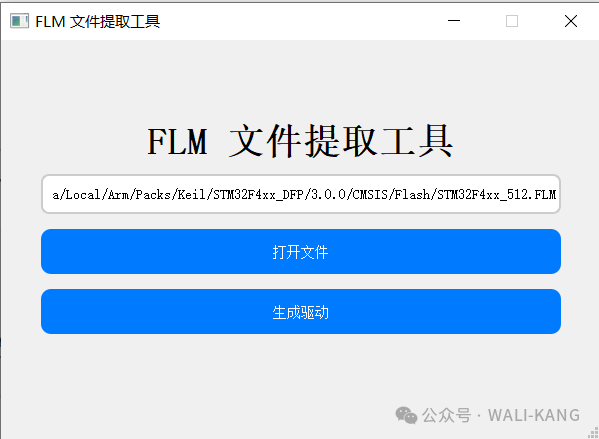 2. Load the download algorithm functions into the MCU RAM: Run as a “dynamic programmer” 3. Call the programming functions: Perform operations on the target chip’s Flash
During this process, the downloader does not care about the chip model; it only needs to:
- Have the appropriate FLM algorithm
- Know the Flash starting address
- Have the appropriate download data (bin)
This is about “delegating chip support to the algorithm provider”; the downloader is only responsible for execution and coordination.
💡 2. Python Script Control Mechanism: Making the Programming Process Smarter
With the FLM algorithm in place, the next question is:How to control the entire programming process? For example, first program the boot, then the app, then the external Flash, and finally prompt for success.
Traditional offline downloaders often have a fixed process and do not support customization. However, if Python scripts can be used, users can define their own “programming process” with code.
Example script:
import FLMConfig
import PikaStdLib
import PikaStdDevice
import time

time = PikaStdDevice.Time()
buzzer = PikaStdDevice.GPIO()
buzzer.setPin('PA4') # Buzzer
buzzer.setMode('out')

ReadFlm = FLMConfig.ReadFlm()
# Load the first FLM download algorithm file
result = ReadFlm.load("STM32/STM32F7x_1024.FLM.o", 0x08000000, 0x20000000)
if result != 0:
    return

# Program boot.bin and rtthread.bin
result = load.bin("boot.bin", 0x08000000,"rtthread.bin", 0x08020000)
if result != 0:
    return

# Load the external Flash's FLM download algorithm file
result = ReadFlm.load("STM32F767_W25QXX.FLM.o", 0x90000000, 0x20000000)
if result != 0:
    return

# Program HZK.bin
result = load.bin("HZK.bin", 0x90000000)
if result != 0:
    return
# Buzzer beeps once to indicate programming completion
buzzer.enable()
buzzer.high()
time.sleep_ms(500)
buzzer.low()
time.sleep_ms(500)
This script loads the FLM algorithm file and programs multiple binary files (such as boot.bin, rtthread.bin, and HZK.bin) into the internal and external Flash of the STM32, and uses a buzzer to indicate programming completion.
Note: Modify the following content according to your actual project needs:
- Download algorithm file names (e.g.,
<span>"STM32/STM32F7x_1024.FLM.o"</span>and<span>"STM32F767_W25QXX.FLM.o"</span>): Should be replaced with the corresponding FLM files for the chip and Flash model.- BIN file names and addresses (e.g.,
<span>"boot.bin"</span>,<span>"rtthread.bin"</span>,<span>"HZK.bin"</span>and their corresponding addresses): Ensure that the file names and programming addresses are consistent with your program structure.If the file names or addresses are set incorrectly, it may lead to program malfunction or programming failure.
🧭 The script’s functions are:
- Dynamically load multiple FLM algorithms (for multiple Flash)
- Flexibly control the programming order and file distribution
- Add control logic: judgment, log output, status indication
- Control peripherals: for example, beep the buzzer after successful programming
- Future extensibility for logic judgment, encryption verification, etc.
🔧 The downloader runs a Python interpreter internally (based on PikaPython), and the offline download script will be executed line by line in the script engine, just like running an embedded program flexibly.
This essentially provides users with a highly flexible platform, allowing them to define programming strategies without being limited by the tool’s “support list”.
3. Creating a Chip-Free Offline Downloader
After understanding the principles, let’s see how to actually use the offline downloading function of MicroLink. The entire process is very simple, requiring no specialized software and no reliance on a computer to complete the entire programming action.
✅ Step 1: Prepare FLM algorithm files and programming scripts
Simply copy the following files to the offline download directory of MicroLink (similar to a USB drive folder):
| File Name | Function |
|---|---|
<span>*.FLM.o</span> |
FLM download algorithm files (multiple supported), can be generated using the FLM file extraction tool |
<span>*.bin</span> |
Firmware files to be programmed |
<span>offline_download.py</span> |
Python script controlling the programming process (mandatory) |
Example directory structure:
/MICROLINK/
│
├── offline_download.py
├── STM32F7x_1024.FLM.o
├── STM32F767_W25QXX.FLM.o
├── boot.bin
├── rtthread.bin
└── HZK.bin
✅ Step 2: Trigger Offline Download (Two Methods)
MicroLink supports two methods for triggering offline programming:
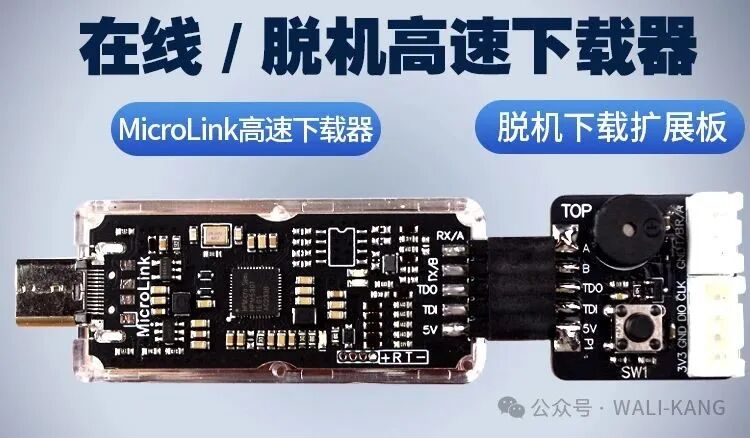
🔘 Method 1: Button Trigger
Used with a dedicated offline download expansion board, which has a download button and a buzzer.
- Press the button → MicroLink automatically executes the
<span>offline_download.py</span>script - Programming successful → The buzzer beeps to notify the user
- Suitable for mass production, after-sales maintenance, and offline environments
Purely offline operation, without relying on a host computer.
💻 Method 2: Serial Command Trigger
If MicroLink is connected to a computer, you can send the <span>load.offline()</span> command via USB CDC virtual serial port and press enter, resulting in the following:
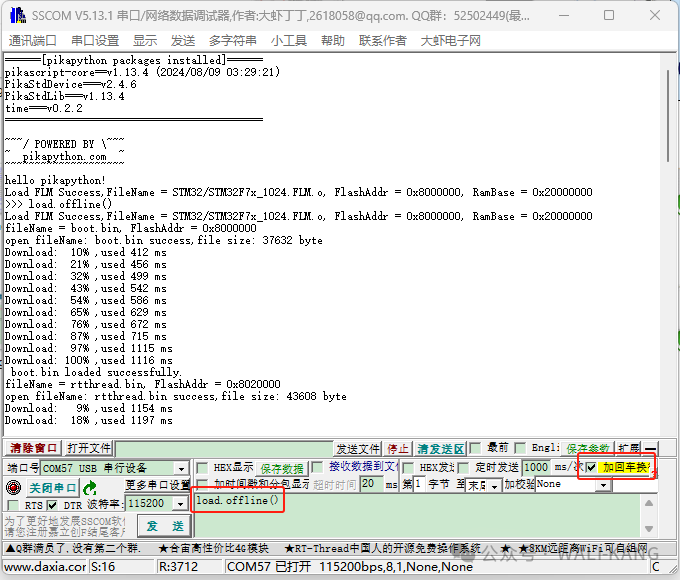
This command will immediately trigger the execution of the offline script, suitable for:
- Testing if the script is correct
- Integrating automatic programming processes in industrial control systems
- Triggering offline processes as controllable sub-modules remotely
📝 Tip: You can also print status, control GPIO, and feedback results to the serial port through the script for easier interaction with the host computer.
4. Giving Engineers Freedom: Turning the “Downloader” into a “Toolbox”
MicroLink is not a closed programming box but an open tool platform. It supports:
🚀 1. High-Speed Online Downloading and Debugging (CMSIS-DAP Interface)
MicroLink supports high-speed online programming and debugging using the CMSIS-DAP protocol, with a low-level optimized acceleration engine that significantly improves download speed and debugging response compared to traditional DAPLink. No more suffering from slow Flash programming, leading to a smoother development experience.
🔄 2. Seamless Switching Between Online and Offline
You can use online downloading for quick verification during the development phase and directly switch to offline script programming during mass production, without switching tools, achieving a one-stop solution.MicroLink = Development + Mass Production + After-Sales, all in one device.
⚡ 3. USB to Serial: Supports Baud Rates Up to 10Mbps
With a built-in USB to serial module, the baud rate supports up to 10Mbps, far exceeding conventional tools. This means:
- No loss of download logs;
- No stuttering in serial communication;
- Adapts to high-speed device debugging/communication needs.
🛰️ 4. Built-in RTT, Supports Any Serial Assistant to Replace RTTView Host
MicroLink supports directly forwarding RTT data (based on the SEGGER RTT protocol) to the host, allowing interaction with Xshell, Termite VOFA, and other serial assistants. This enables the following functionalities:
- MCU real-time output of debugging information;
- The host sends commands and receives quick responses;
- No need for external debuggers or complex configurations.
You can even combine RTT with shell and other command-line tools to embed device status reporting, log output, and other functionalities in scripts, creating smarter debugging tools.
📊 5. Real-Time Visual Debugging Support: SystemView Helps You Control Runtime State
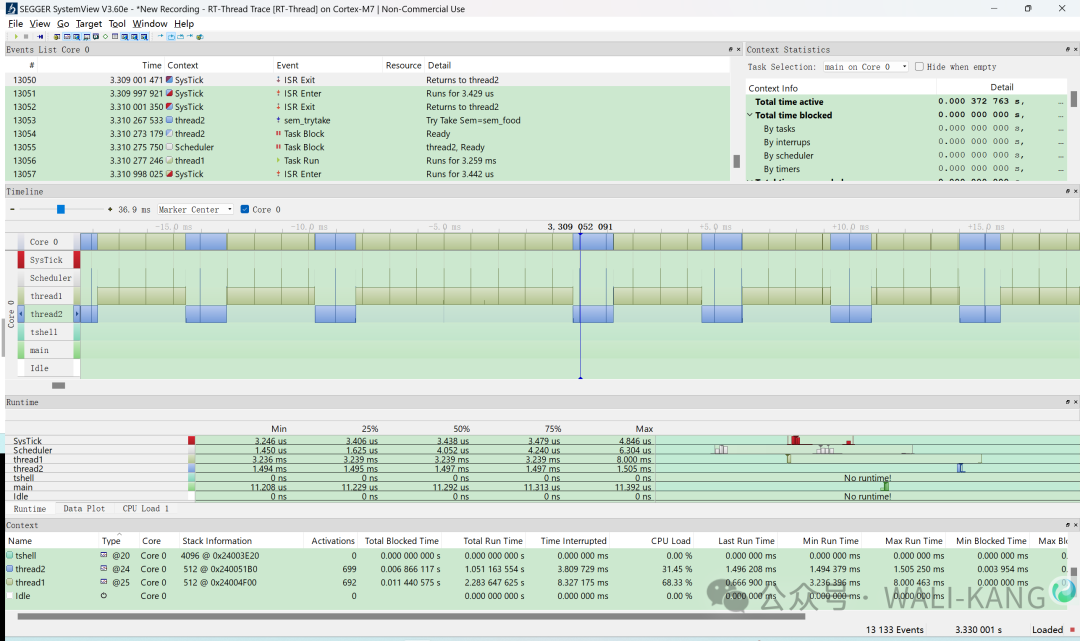
In addition to supporting online and offline programming, MicroLink now also includes SEGGER SystemView protocol support, allowing you to easily perform task-level runtime analysis and visual debugging without additional hardware.
MicroLink will collect SystemView log data generated by RTOS (such as RT-Thread, FreeRTOS) in the target device via the RTT protocol and forward it to the PC via USB CDC virtual serial port.
✅ Usage:
- Enable SEGGER RTT and SystemView support in the MCU (supports common RTOS like RT-Thread, FreeRTOS, etc.)
- Send the command to start SystemView, and MicroLink will automatically detect the RTT UpBuffer and pass the data through
- Open the SystemView tool on the PC, select the corresponding serial port, and you can view the runtime status in real-time
Start SystemView Function: Open any serial assistant and enter the following command:
SystemView.start(0x20000000,1024,1)
- 0x20000000: Starting address to search for the RTT control block;
- 1024: Size of the address range to search for the RTT control block
- 1: The channel used by SystemView for RTT
📌 Example Screen:
📂 6. Drag-and-Drop Programming: Making Programming as Simple as Copying Files
With MicroLink’s any chip drag-and-drop download function, you can directly drag <span>.bin</span> files into the USB drive letter, and the device will automatically recognize the chip, address, and complete the programming based on the currently configured FLM algorithm and script.
This means:
- Programming is as simple as “dragging in”;
- Supports any chip (as long as there is an FLM algorithm);
- Can be paired with automation scripts for intelligent judgment and verification.
🧰 One Device, Multiple Identities
In summary, MicroLink = Offline Downloader + Online Debugger + USB to Serial + RTT Communication + SystemView + Drag-and-Drop Programming + User-Programmable Automation Tool. MicroLink is not just a downloader; it is your powerful tool for creating intelligent embedded workflows.
| Function | Usage Scenario |
|---|---|
| ✅ Offline Download | Factory programming, after-sales maintenance |
| ✅ Online Download/Debug | Quick verification during the development phase |
| ✅ USB to Serial (10Mbps) | Log collection, high-speed communication |
| ✅ RTT to UART | Real-time debugging, remote diagnostics |
| ✅ SystemView | RTOS runtime analysis and visual debugging |
| ✅ Drag-and-Drop Programming | Simplified operation, suitable for mass production and non-engineering users |
| ✅ Python Script Automation Process | Highly customized programming strategies and interactive control |
From development to mass production, from debugging to communication, MicroLink integrates all tools into one, giving users unprecedented development freedom.
5. Future Outlook: Continuously Expanding Functions to Create Truly Useful Tools for Engineers
✅ 1. Richer Python API (Under Continuous Development)
Currently, the functions supported by the offline download script can cover basic needs, such as loading FLM algorithms, programming bin files, controlling GPIO, delays, etc.
However, in actual production and debugging scenarios, many engineers hope to do more. Therefore, we plan to gradually add the following commonly used API interfaces:
- 🔓 Flash Unlock/Lock
- 📥 Read/Write Data to Any Address in Flash/RAM
- 🔢 Flash Serial Number / Rolling Code Writing
💻 2. Open Source Project, Continuous Updates
You can view all code, hardware designs, usage instructions, and example scripts on GitHub:
🔗 GitHub Project Address: 👉 https://github.com/Aladdin-Wang/MicroLink
We welcome your suggestions, bug feedback, and even direct PR submissions. We do not seek to be comprehensive, but to refine each function to be solid, reliable, and user-friendly.
🛒 3. Taobao Purchase Link
If you want to support this product, feel free to purchase the MicroLink physical device:
🔗 Taobao Purchase Link:
https://item.taobao.com/item.htm?ft=t&id=895964393739
Includes the mainboard, expansion board, Type-C data cable, documentation, etc.
💬 Technical WeChat Group (Scan WeChat QR Code):

💬 Technical QQ Group (Scan QQ QR Code):

Bonus
There are more exciting ways to use FLM. In the next article, we will guide you step by step to write the download algorithm code for NOR FLASH from scratch, to gain a deeper understanding of the principles of the FLM download algorithm.
Stay tuned!!
Featured ArticlesReal-Time Visual Debugging: SystemView Helps You Control RTOS Runtime StateThe Ultimate Debugging Method with printf
If you find the article good, please click the upper right corner to send it to friends or share it to your Moments. Your support and encouragement are my greatest motivation. Long press to add me on WeChat, and note “Join Group” to be added to the WeChat technical group.

Long press the QR code
Join the technical group