Linux | Red Hat Certified | IT Technology | Operations Engineer
👇 Join 1000 people in the technical exchange QQ group, note [public account] for faster approval

1. Commands
1.1 Quick Overview of Commands
pwd         The path where you are by default upon first login
whoami   The name of the current user
ls             Displays the file names in the current path
mkdir       Creates a folder/directory in the current directory
cd            Enters a directory
touch       Creates a new file
rm            Deletes a file (yes/y to confirm, no/n to cancel)
1.2 Detailed Study of Commands
1.2.1 ls
Used to display all regular files and directories in the current directory (files can be divided into regular files and directories)
File = File Content + File Attributes, both need to be saved
ls -l Displays detailed file attribute information in the current directory
Note that in Linux, files or directories starting with a . are hidden files
-a : Displays hidden files
1.2.2 pwd
Displays the current path of the user
1.2.3 cd
A point of knowledge:
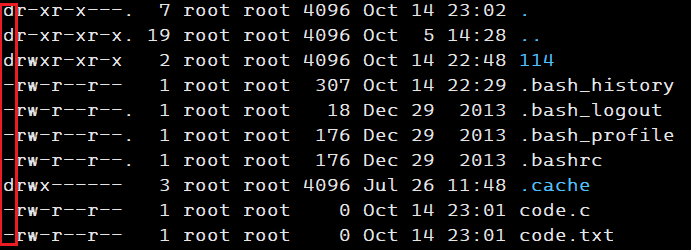
The red box shows that those starting with d are directories, and those starting with – are regular files
Where, . -> current path
.. -> parent path
cd : Changes the directory, altering the current working directory to the specified directory

At this point, the initial / represents the root directory.
The entire file system structure of Linux is a multi-branch tree structure.
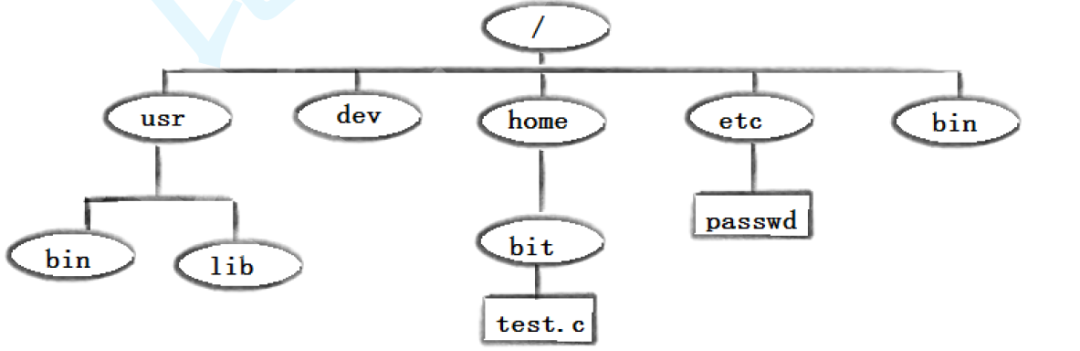
(Image from Bit Employment Course)
In Linux, finding a file is done through its path.
Absolute Path: A unique method for locating files.
Relative Path: A method for locating target file paths based on the current location.
Generally, relative paths are used during operations; absolute paths can be used for configuration files and system configuration files.
In any directory, . and .. exist.
Specific user home directory: If the account is root, the pwd command will show /root; if not, it will show /home/name.
cd ~ : Directly enters the specified user's home directory.
cd - : Returns to the most recently accessed directory
1.2.4 touch
Function: The touch command can change the date and time of a document or directory, including access time and modification time, or create a non-existent file.
In the Linux system, file types are independent of file extensions. It is recommended to include extensions.
file : Directly followed by the file name, can display the file type, for example:

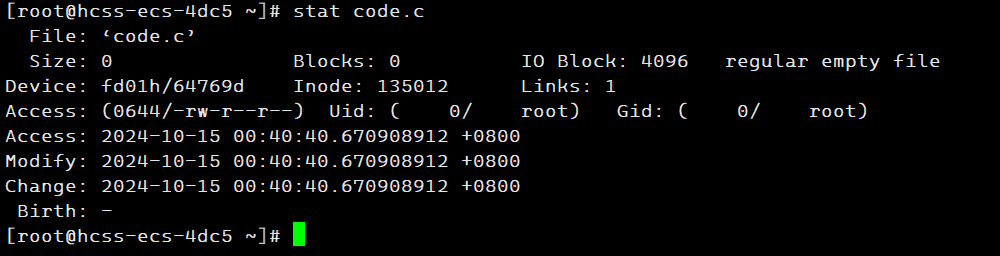
stat : Can display detailed information about a file. For example:
1.2.5 mkdir
Function: Creates a directory named "dirname" in the current directory
Can create a path, for example:

tree : tree + specified directory, displays the file and directory structure in tree format.
When the screen is flooded, ctrl + c can stop it
rmdir : Deletes directories that contain files

1.2.6 man
Linux commands have many parameters, and we cannot remember all of them. We can get help by viewing the online manual. The command to access the Linux manual page is
man Syntax: man [options] command
Everything in Linux is a file (monitors, keyboards are also files)
1.2.7 echo
echo : By default, writes to the display
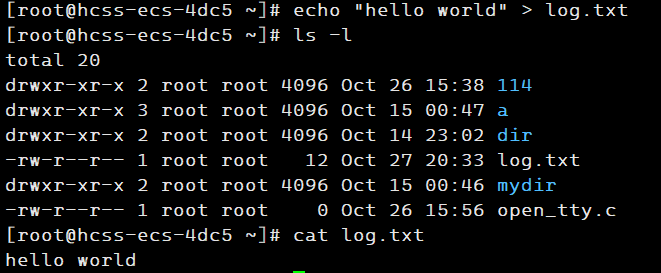
When followed by " > ", it writes to the specified file; when the file does not exist, it will automatically create it. When reusing the file, it will first clear it before adding the new value. When followed by " >> ", it will append the new content to the original file's content.
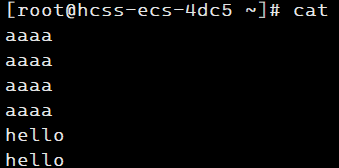
cat : Is input redirection, prints directly to the screen.
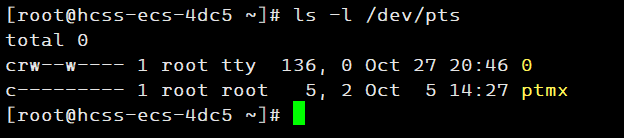
This indicates that in Linux, everything is a file
1.2.8 cp
Syntax: cp [options] source file or directory target file or directory Function: Copy file or directory
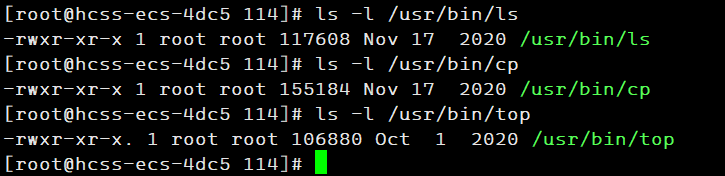
From the above, we can see that commands are programs.
cp src dst cp -rf src_dir dst_dir cp src dst_dir/ new name
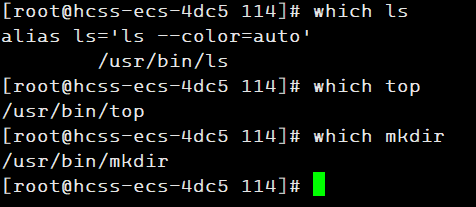
which : Quickly find the specified command file.
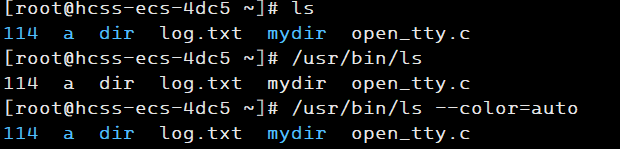
In the above image, we can see that executing ” ls ” and ” /usr/bin/ls –color=auto ” are the same, why is that?

Alias means a nickname; you can create aliases.
(However, it is not recommended to create too many aliases, as it can get confusing)
1.2.9 mv
The mv command is short for move, used to move files or rename files (move (rename) files), it is a commonly used command in the Linux system, often used for backing up files or directories.
Syntax: mv [options] source file or directory target file or directory Function: 1. Depending on the type of the second parameter in the mv command (whether it is a target file or target directory), the mv command will rename the file or move it to a new directory. 2. When the second parameter is a file, the mv command renames the file; at this point, the source file can only have one (it can also be the source directory name), renaming the specified source file or directory to the given target file name. 3. When the second parameter is an existing directory name, the source file or directory parameters can have multiple, and the mv command will move each specified source file to the target directory.
Common forms include:
1 mv src dst
2 mv src newname (non-existent name)
1.2.10 cat
Syntax: cat [options] [file] Function: View the content of the target file
Common options:
1 -b Number non-empty output lines
2 -n Number all output lines
3 -s Do not output multiple empty lines
(Supplement: tac prints the text content in reverse)
1.2.11 more
Syntax: more [options] [file] Function: The more command is similar to cat
Common options:
1 -n Number all output lines
2 q Exit more

You can move down using the enter key (however, this command is not commonly used)
1.2.12 less
The usage of less is more flexible than that of more. When using more, we cannot flip back, we can only look forward
However, when using less, we can use keys like [pageup][pagedown] to flip back and forth, making it easier to view the content of a file!
Additionally, in less, there are more search features; we can search both down and up.
Syntax: less [parameters] file Function: Similar to more, but less allows free browsing of files, while more can only move forward and not backward, and less does not load the entire file before viewing.
-n View the next matching item
1.2.13 head & tail
head and tail, as their names suggest, are used to display a certain number of text blocks from the beginning or end, head is used to display the beginning of the file, while tail displays the end of the file.
head -n Displays the first n lines
tail -n Displays the last n lines

This command can run the code from lines 2000 to 2020.
At this point, it is done using the pipeline method, which will not be detailed here.
1.2.14 Time-Related Commands
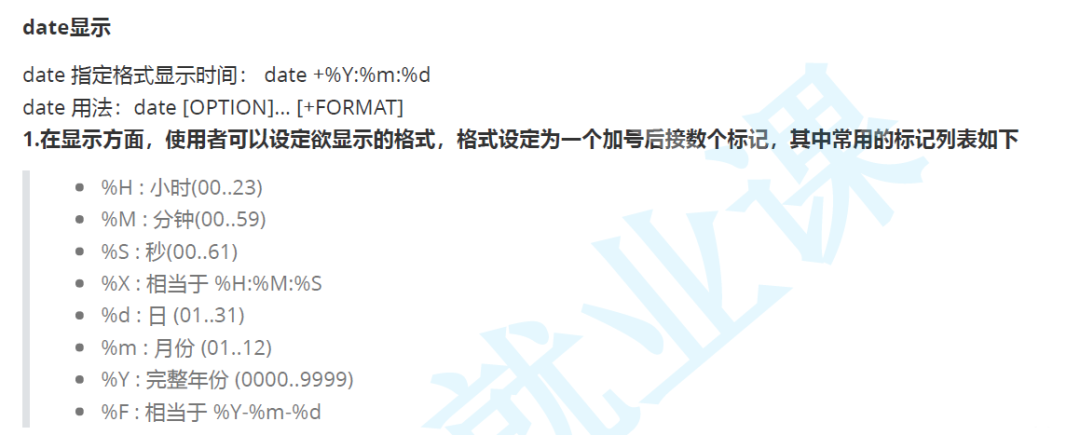
Here are a set of examples:

This way, we can intuitively understand the usage of date.
In practical applications, the timestamp is the most important——
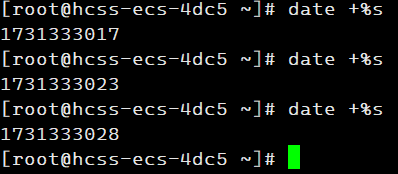
Timestamp: The cumulative number of seconds from 1970-01-01 12:00 to now.
1.3 Other Commands
1.3.1 cal
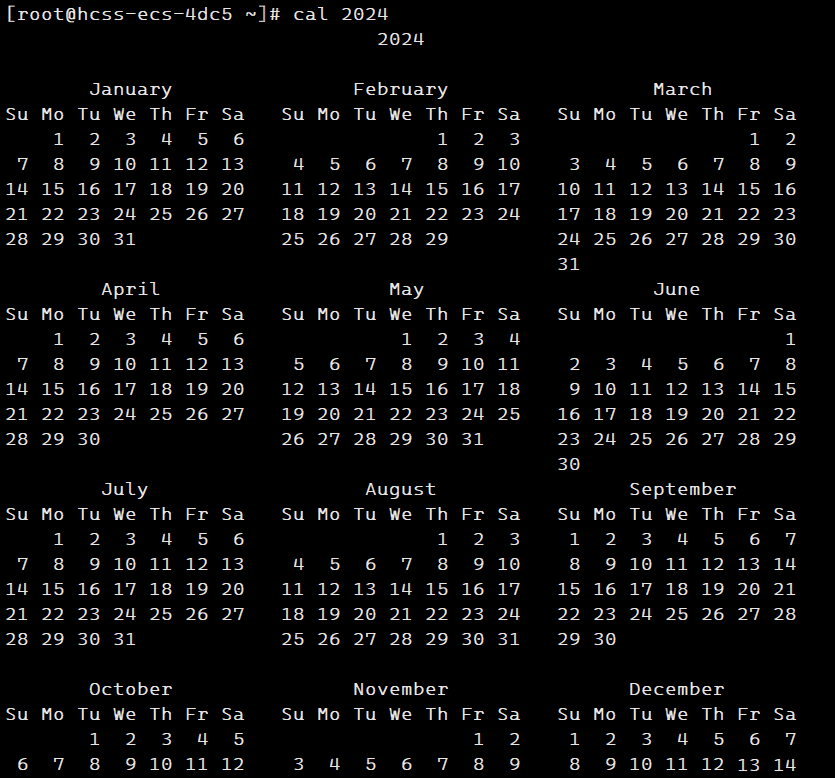
The cal command can be used to display the Gregorian (solar) calendar. The Gregorian calendar is the internationally used calendar, also known as the Gregorian calendar, commonly referred to as the solar calendar. The solar calendar is based on the Earth’s orbit around the sun for one year, and is used by Western countries, hence also known as the Western calendar.
Naming format: cal [ parameters ] [ month ] [ year ] Function: Used to view calendars and other time information.Common options:

For example:
1.3.2 find
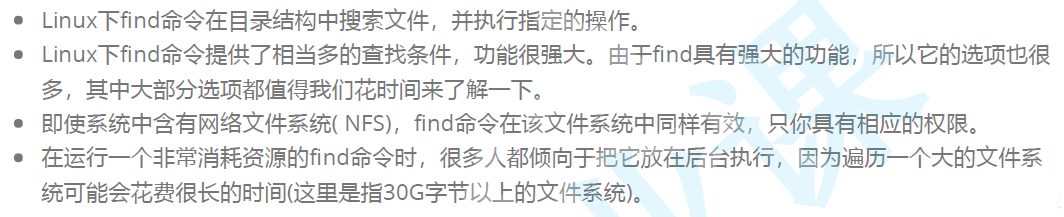
Syntax: find pathname -options Function: Used to search for files in the file tree and perform corresponding actions (may access the disk) Common options: -name Search for files by file name

From this example, we can clearly understand the usage of find.
We know that which can also find files, for example:
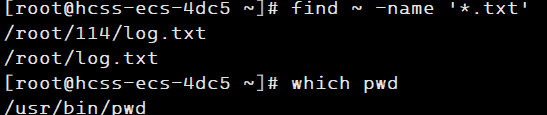
So, is there a difference between them? Here is a simple analysis——
find : Directly searches in the system directory tree and can find any file
which : Only used to find executable files included in the system
Besides these two commands, whereis can also be used to find:

1.3.3 grep
grep is a line text filtering tool
Syntax: grep [options] search string file Function: Searches for a string in a file and prints the found lines
Common options:
-i : Ignore case differences, so upper and lower case are considered the same
-n : Also output line numbers
-v : Reverse selection, i.e., display lines that do not contain the 'search string'

(In this command, n indicates to display line numbers, i indicates to ignore case, and v indicates reverse matching)
For course inquiries, add: HCIE666CCIE
↓ Or scan the QR code below ↓

What technical points and content would you like to see?
You can leave a message below to let us know!